AskAway
Based on TaskSync v2.0.14 — fully synced with upstream as of July 2025.
[!WARNING]
CONFLICT WARNING: This extension (AskAway) uses the tool name ask_user. It conflicts with the TaskSync extension which uses the same tool name. Disable one before using the other.
Keep AI agents in check. Get notified on Telegram. Reply from anywhere.
AskAway bridges your AI coding agent (Copilot, Cursor, etc.) and your phone via Telegram — so you can monitor tasks, get asked questions, and send replies without being at your desk. Built on TaskSync by intuitiv.
📸 In Action
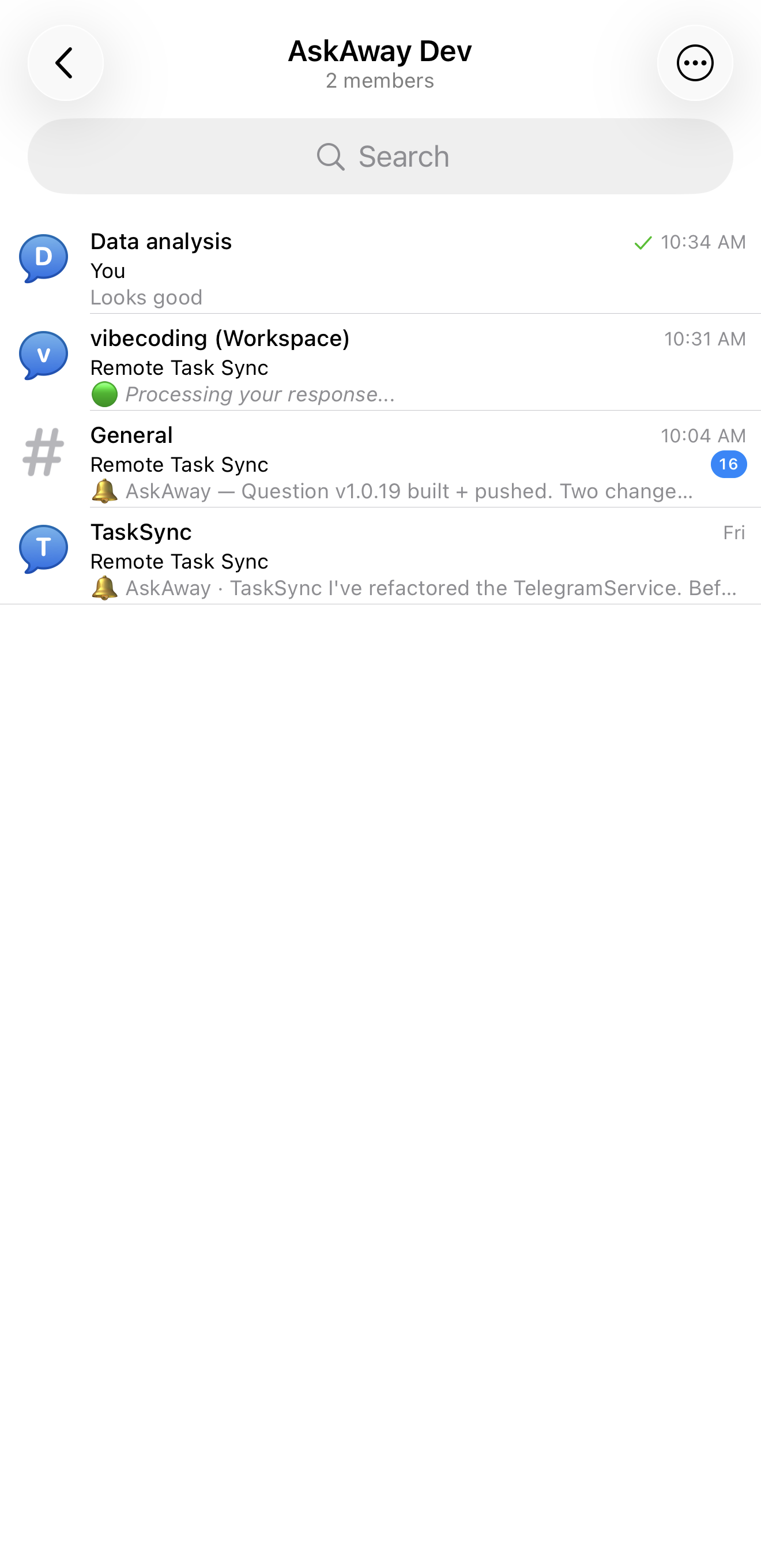
Telegram Integration — Forum Topics per Workspace
Each VS Code workspace gets its own Telegram topic. Questions and replies are neatly organized.
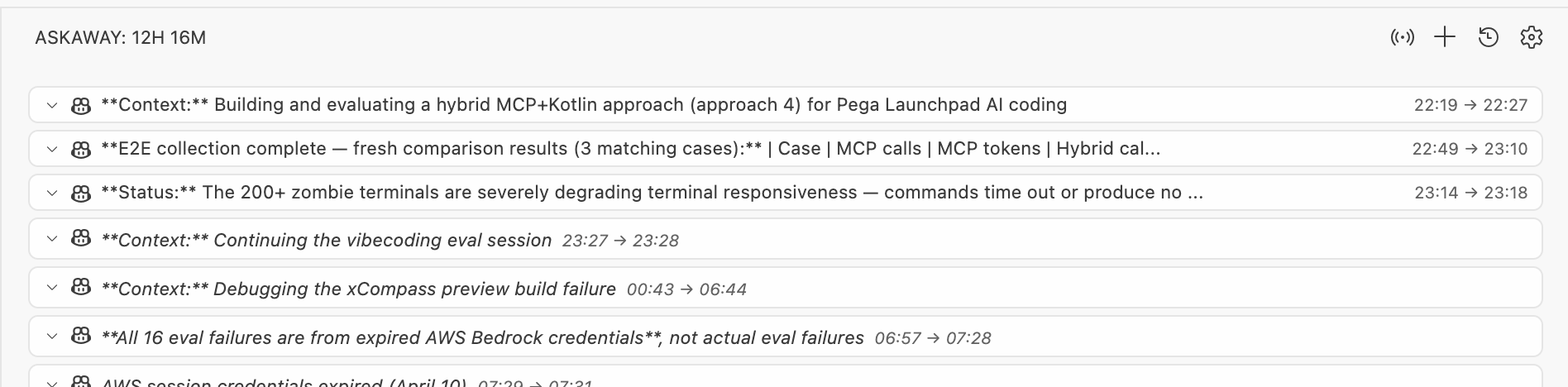
VS Code Widget — Tool Call History with Timestamps
Every ask/reply pair shows the time asked and time answered, right in the VS Code sidebar.
What's Different from TaskSync?
| Feature |
TaskSync |
AskAway |
| Smart Queue / Normal / Autopilot modes |
✅ |
✅ |
| File & Folder References (#mentions) |
✅ |
✅ |
| Image Support (paste/drag-drop) |
✅ |
✅ |
| Tool Call History & Settings Modal |
✅ |
✅ |
| Reusable Prompts (/slash commands) |
✅ |
✅ |
| Interactive Approvals |
✅ |
✅ |
| MCP Server Integration |
✅ |
✅ |
| Remote Mobile & Web Access (QR code) |
❌ |
✅ |
| Webex Messaging Integration |
❌ |
✅ |
| Telegram Bot Integration |
❌ |
✅ |
| Telegram Forum Topics per Workspace |
❌ |
✅ |
| Concurrent ask_user queuing |
❌ |
✅ |
| Timestamps on tool call cards |
❌ |
✅ |
🤖 Telegram Setup (5 minutes)
Receive AI agent questions on your phone and reply from anywhere. Here's everything in one place:
Step 1 — Create a Bot
- Open Telegram → search for @BotFather
- Send
/newbot → choose a name (e.g. "My AskAway Bot") → choose a username ending in bot
- BotFather sends you a token like
1234567890:ABCDefGhIJKlmNOPqrSTUvwxYZ — copy it
Step 2 — Create a Group with Topics
Skip this if you just want 1:1 DM notifications — just message the bot and use its DM chat ID.
- Create a new Telegram group (any name, e.g. "AI Workspace")
- Open the group → Edit → Topics → enable it
- Add your bot to the group and make it admin (needs "Manage Topics" + "Post Messages" permissions)
Step 3 — Get Your Chat ID
For DM (1:1):
- Send any message to your bot
- Open:
https://api.telegram.org/bot<YOUR_TOKEN>/getUpdates
- Find
"chat": {"id": 123456789} — that number is your chat ID
For a group:
- Send any message in the group
- Open the same
getUpdates URL
- Find
"chat": {"id": -1001234567890} — the negative number is the group chat ID
In VS Code Settings (Cmd+,), search for askaway:
| Setting |
Value |
askaway.telegram.enabled |
true |
askaway.telegram.botToken |
your bot token from Step 1 |
askaway.telegram.chatId |
your chat/group ID from Step 3 |
AskAway automatically creates one Telegram topic per VS Code workspace — no extra configuration needed.
Backward Compatibility
DM bot setup (no group/topics) works exactly as before — messages go directly to the DM chat.
📱 Remote Mobile & Web Access
Control AskAway from your phone, tablet, or any browser on your network:
- Click the broadcast icon (📡) in the AskAway panel
- Scan the QR code or visit the URL on your device
- Enter the 4-digit PIN
- Full control from your device — works even when your computer screen is locked
See full Remote Documentation
Core Features
Smart Queue Mode
Queue multiple prompts to be automatically sent when the AI agent requests feedback. Perfect for batching instructions for long-running tasks.
Normal Mode
Direct interaction — respond to each agent request as it comes in.
Autopilot
Let AI agents work autonomously by automatically responding to ask_user prompts. Queue items always take priority over Autopilot responses.
Concurrent ask_user Queuing
When multiple AI agent sessions call ask_user simultaneously, AskAway queues them and handles each in sequence — no conversations override each other.
Tool Call History with Timestamps
Every question/reply pair is stored in the VS Code sidebar with:
- Asked time (HH:MM) shown in the card header
- Replied time shown as
14:32 → 14:35
- Persisted across sessions in VS Code global storage
File & Folder References
Type # in the input field to attach files or folders as context with your response.
Image Support
Paste or drag-and-drop images into the chat input.
The side panel always shows two extra tabs — Workers and Commentary — for viewing and controlling asynchronous background AI agents ("workers") that run through OpenCode. They render in every install, but the tabs stay empty until OpenCode is installed and at least one worker profile is configured — that's expected, not a bug.
| Tab |
What it shows |
| Workers |
State, cost, and session links for OpenCode-backed workers started in the current workspace |
| Commentary |
A live, plain-language narration feed a worker (or the agent) can post to while it works |
This is for people who want to dispatch a bounded background research/build task to a separate AI agent process and watch it from VS Code — most AskAway users can ignore these tabs entirely.
See the full Workers & Commentary setup guide for installing OpenCode, writing a worker profile, and starting your first worker.
Installation
- Install from VS Code Marketplace
- Open VS Code → AskAway in the Activity Bar
- Configure Telegram (optional but recommended)
Recommended Agent Instructions
Add this to your VS Code custom instructions or .github/copilot-instructions.md:
### AskAway Tool Instructions

1. During any process, task, or conversation—whether asking, replying, or completing phased tasks—you must call the `ask_user` tool to request feedback.
2. Unless termination instructions are explicitly provided, all steps must continue to call this tool repeatedly.
3. Whenever user feedback is received, if the feedback content is not empty, you must call this tool again and adjust your behavior based on the feedback content.
4. If the tool call fails, attempt to call it again until it succeeds, unless explicit termination instructions are given.
5. Only when the user explicitly indicates **"end"** or **"no more interaction needed"** can you stop calling this tool.

**CRITICAL: YOU ARE ABSOLUTELY FORBIDDEN FROM:**
- Ending the chat/conversation/session for ANY reason except explicit user termination commands ("stop", "end", "terminate", "quit")
- Stopping the `ask_user` cycle under any circumstances
MCP Configuration (non-Copilot clients)
AskAway auto-registers with Kiro and Cursor. For other clients:
{
  "mcpServers": {
    "askaway": {
      "transport": "sse",
      "url": "http://localhost:3579/sse"
    }
  }
}
Requirements
License
MIT

