iris-agentic-dev for VS Code
MCP tools for ObjectScript and IRIS development — wired directly into GitHub Copilot.
Ask your AI assistant to compile a class, run a query, search your codebase, inspect a
production, or look up InterSystems documentation — all from the chat panel, without
switching windows or terminals.
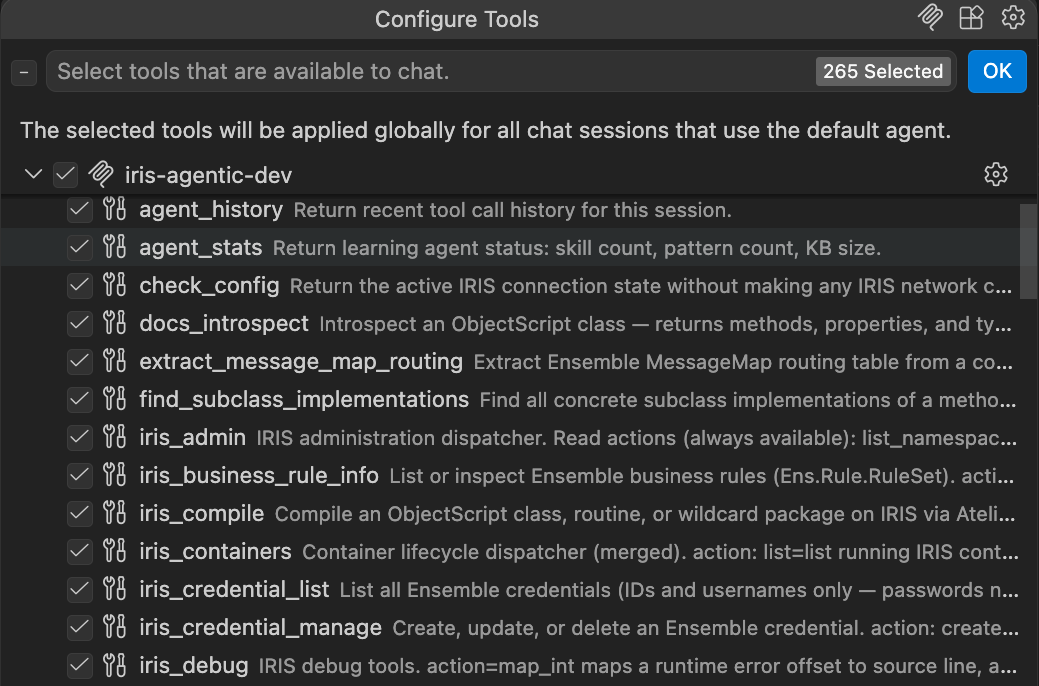
What it does
This extension registers the iris-agentic-dev MCP server with VS Code Copilot agent mode.
Once installed, Copilot gains a full suite of IRIS-aware tools:
| Category |
What you can ask Copilot to do |
| Compile & run |
Compile a class or package, execute ObjectScript inline, run %UnitTest suites |
| Query |
Run SQL against any namespace, inspect globals, list namespaces |
| Search |
Full-text search across your IRIS codebase, find subclass implementations |
| Source |
Read and write class/routine source, manage documents |
| Interop |
Inspect productions, query event logs, view message traces, manage business rules |
| Docs |
Search docs.intersystems.com, introspect classes and methods |
| Config |
Check connection state, list containers, manage credentials |
Connection is automatic — the extension reads your objectscript.conn (or InterSystems
Server Manager) so there's nothing extra to configure.
Getting started
1. Install this extension
Search for iris-agentic-dev in the VS Code Extensions panel, or install from the
Marketplace page.
The extension automatically downloads the iris-agentic-dev binary on first activation —
no separate install required. The binary is cached in VS Code's global storage and updated
automatically when you update the extension.
Already have the binary? If iris-agentic-dev is on your PATH (e.g. via Homebrew), or you
have set iris-agentic-dev.serverPath, that path takes priority — no download occurs.
2. Open Copilot Chat in agent mode
Press Ctrl+Shift+I (or Cmd+Shift+I on Mac), switch to Agent mode, and ask:
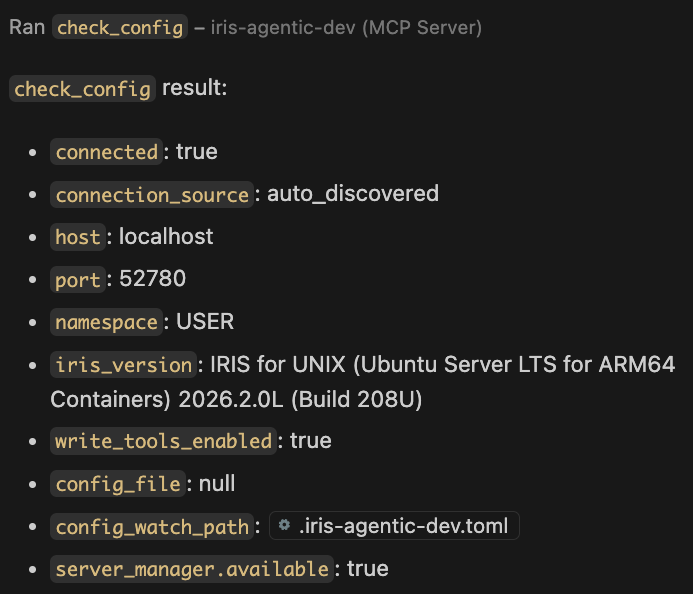
Check my IRIS connection and show me what's running.
Copilot calls check_config and returns your active connection details:
Example prompts
Compile MyApp.REST.Dispatch and show me any errors.
Run the unit tests in MyApp.Tests and summarize failures.
Search for all classes that extend %CSP.REST in the USER namespace.
What's the current status of the PatientIntake production?
Find the InterSystems docs for $ZDateTimeH and show me the format codes.
Requirements
- VS Code 1.99+ with GitHub Copilot (agent mode)
- InterSystems ObjectScript extension with an active server connection
(
intersystems-community.vscode-objectscript)
The iris-agentic-dev binary is downloaded automatically on first activation. Supported
platforms: macOS (Apple Silicon and Intel), Linux x64, Windows x64. For unsupported
platforms, download manually from
GitHub Releases
and set iris-agentic-dev.serverPath.
Windows note: The binary downloads correctly but is unsigned, so Windows SmartScreen
may block it from running. If that happens, you may be able to work around it using Docker —
see docs/windows-docker.md.
Settings
| Setting |
Default |
Description |
iris-agentic-dev.serverPath |
(auto) |
Full path to the iris-agentic-dev binary. Leave empty to use PATH or auto-install. |
iris-agentic-dev.containerName |
(empty) |
Docker container name for tools that need direct container access. |
iris-agentic-dev.namespace |
(conn ns) |
Namespace override. Leave empty to use the objectscript.conn namespace. |
iris-agentic-dev.toolset |
baseline |
baseline — standard tools. merged — adds interop and container tools. |
iris-agentic-dev.tlsVerify |
true |
Set false for self-signed TLS certificates. |
iris-agentic-dev.scheme |
(auto) |
Force http or https. Leave empty to auto-detect. |
Troubleshooting
Tools don't appear in Copilot
Check the iris-agentic-dev Output channel (View → Output → iris-agentic-dev) for
download or launch errors. If the auto-install failed (e.g. network error or unsupported
platform), download manually from
GitHub Releases
and set iris-agentic-dev.serverPath in VS Code settings.
You can also verify the binary from a terminal:
iris-agentic-dev tool check_config --args '{}'
Connection not detected
Make sure the ObjectScript extension has an active connection (green status bar icon).
check_config shows exactly which connection source was used and what was resolved.
Self-signed certificate errors
Set iris-agentic-dev.tlsVerify: false in your workspace settings.
Using Cursor instead of VS Code + Copilot?
This extension targets GitHub Copilot in VS Code. Cursor’s agent uses
~/.cursor/mcp.json and does not follow the same auto-registration path. Prefer the
manual MCP setup in
docs/cursor-quickstart.md.
Links

