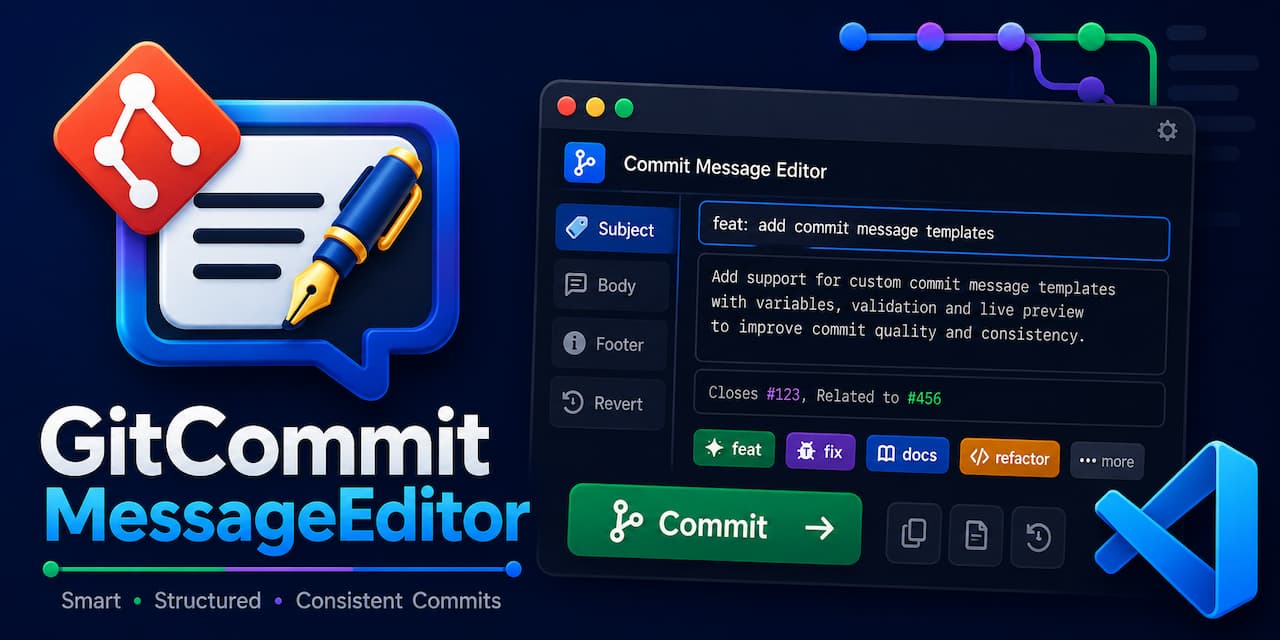
Git Commit Message Editor (Gitcme)
Modern VS Code extension for writing clear, consistent commit messages







📦 Quick Links
User Guide for Git Commit Message Editor (Gitcme)
Welcome to the Git Commit Message Editor, a modern VS Code extension that helps you write clear, consistent, and informative commit messages. It combines a configurable form, live preview, smart suggestions, AI drafting, and full support for Conventional Commits, Gitmoji, and custom templates – all in one place.
Documentation (wiki)
Table of Contents
- Introduction
- Installation
- Opening the Editor
- Interface Overview
- Filling the Form
- Advanced Features
- Template Management
- Extension Settings
- Troubleshooting & Tips
Introduction
The Git Commit Message Editor (package name gitcme) is a VS Code extension that replaces the tedious, error‑prone process of writing commit messages with a structured, visual form. It works with any Git repository and supports:
- Conventional Commits (type, scope, subject, body, breaking changes, issue references, trailers)
- Gitmoji (emojis for commit types)
- Custom templates – define your own fields and message structure
- Live preview – see the final commit message as you type
- Smart autofill – suggest scope from staged files, issue number from branch name, and Signed‑off‑by from Git config
- AI draft – generate a commit message from staged changes using GitHub Copilot Chat (if installed)
- Amend last commit, undo last insert, and register a Git template (
.gitmessage)
- Repo‑level shared configuration – commit
.commit-message-editor.json to share conventions with your team
Installation
- Open VS Code.
- Go to the Extensions view (
Ctrl+Shift+X).
- Search for Gitcme - Git Commit Message Editor (publisher:
idmdakhi).
- Click Install.
- (Optional) You can also install the
.vsix package manually:
code --install-extension GitCommitMessageEditor-vsce-*.vsix
Opening the Editor
You can open the editor in several ways:
- Source Control panel – click the edit icon (pencil) in the top‑right corner of the SCM view.
- Command Palette (
Ctrl+Shift+P) – run Git Commit Message Editor: Open Editor.
- Command Palette – run
Git Commit Message Editor: Open in New Tab to open the editor in a full‑width tab.
- Command Palette – run
Git Commit Message Editor: Open as Git Editor (COMMIT_EDITMSG) to open a full VS Code editor for direct message writing.
- Status Bar – click the
$(edit) Commit Msg item in the status bar.
The editor will open as a webview panel, usually beside the Source Control view. It automatically detects the currently active Git repository (or lets you switch if multiple repos are open).
Interface Overview
When the editor opens, you see a clean, two‑pane layout:
+--------------------------------------------------+
| Dashboard (sticky chips + progress + warnings)    |
+--------------------------------------------------+
| Header: "Commit Message Editor — <template name>" |
| Source badge (extension / repo file)              |
+--------------------------------------------------+
| Toolbar: Insert | Copy | Reset | Suggestions | … |
+--------------------------------------------------+
| AI status line                                    |
+--------------------------------------------------+
| Form (left pane)          | Preview (right pane)  |
|                           |                       |
|   Type grid (with emojis) | .git/COMMIT_EDITMSG  |
|   Scope                   | (line numbers + text) |
|   Subject                 |                       |
|   Body                    | Character / line      |
|   Additional details …    | count                |
|   Optional sections …     |                       |
|                           | Recent commits        |
+--------------------------------------------------+
Dashboard (Status Strip)
- Chips – one for each field (core and optional).
- 🟢 green = field is filled.
- 🔴 red = required field is empty.
- ⚪ grey = optional and not filled.
- Click any chip to focus that field. If it’s an optional field, clicking it will enable (expand) it.
- Progress counter – shows how many fields are filled out of the total visible sections.
- Warnings – if any validation issues exist (e.g. subject too long, trailing period, past‑tense verb), a warning line appears. Click it to jump to the first invalid field.
- The header shows the current template name.
- The source badge tells you where the active template comes from:
extension template – built‑in template.repo file (.commit-message-editor.json) – template defined in the repository.repo: .vscode/commit-templates – workspace‑saved custom template.
- Insert – writes the message into the Source Control input box (and opens the SCM view).
- Copy – copies the message to the clipboard.
- Reset – clears all form fields.
- ⚡ Suggestions – fills empty fields with smart guesses (scope from staged files, issue from branch, Signed‑off‑by from Git config).
- ⋮ More – opens a dropdown with:
- ✨ AI Draft – uses Copilot Chat to generate a draft from staged changes.
- ⚙ Template – opens the Config Editor (template management).
- 📌 Git Template – writes the current message to
.gitmessage and sets git config commit.template.
- 🔄 Amend Last – loads the last commit’s message into the form, then lets you amend it.
- ↩️ Undo Insert – restores the previous content of the Source Control input box after an Insert.
- 📁 Repo Config – creates a starter
.commit-message-editor.json file in your repository (for team sharing).
The form is composed of fields defined by the active template. There are three main groups:
- Core fields – always visible (required or boolean fields).
- Additional details – optional single‑line text fields (scope, closes, resolves, refs, see also, signed‑off‑by) displayed in a compact “pill” grid.
- Trailer fields – multiline trailer fields (BREAKING CHANGE, Co‑authored‑by, Reviewed‑by, etc.) appear in a two‑column grid.
- Body – the main body textarea, always full width.
Live Preview
The right pane shows the final commit message as it will be inserted. It includes:
- Line numbers.
- Syntax‑like highlighting for the subject line.
- Character and line counts.
- Empty‑state placeholder when nothing is filled.
Recent Commits
If enabled (default: on), a collapsible section shows up to 12 recent commits from the current repository. Click any commit to load its subject and body into the form, automatically parsing type, scope, Gitmoji, and trailers where possible – a great way to reuse or amend previous messages.
Core Fields
- Type – presented as a grid of labels (feat, fix, docs, etc.). If Auto Gitmoji is enabled, each type cell also shows its matching emoji (e.g. ✨ above
feat). Click a cell to select it; clicking again clears the selection.
- Scope – a text field; you can also save any new scope by clicking the ➕ Save button next to the field. Saved scopes appear as clickable chips below the input, making it easy to reuse them.
- Subject – the short summary. Live validation warns if it exceeds the configured maximum (default 72), ends with a period, starts with a capital letter, or uses a past‑tense verb (e.g. “added” instead of “add”).
- Body – a multiline textarea. Warnings appear if any line exceeds
maxLineLength (default 100).
Additional Details (Issue References & Trailers)
All optional single‑line fields are displayed in a compact row‑based grid:
- Closes, Resolves, Refs, See also – you can enter comma‑separated issue numbers; the editor automatically adds
# to each number.
- Signed‑off‑by – a wide pill with a ⇩ Git button that fetches
user.name and user.email from Git config and fills the field automatically.
Other optional fields (BREAKING CHANGE, Co‑authored‑by, etc.) are multiline and appear in a two‑column grid below the body.
Optional Sections
For templates that include conditional fields (e.g. BREAKING CHANGE), the field is hidden until you type something into it – it automatically expands and collapses based on content. No separate checkbox is needed.
Free‑form Text Mode
For users who prefer writing commit messages directly without the structured form, Gitcme now offers a Free‑form Text mode. You can toggle between Form and Free Text modes using the tabs at the top of the form.
- Form mode – the familiar structured form with all fields and validation.
- Free Text mode – a large textarea where you can write your commit message freely.
In Free Text mode, the editor automatically parses your message and updates the form fields in real‑time. Lines starting with # are treated as comments and will be ignored when the message is inserted. Validation rules (subject length, trailing period, capitalisation, imperative mood) are applied to the first line of the message.
Git Editor Mode (COMMIT_EDITMSG)
You can now edit your commit message directly in a full VS Code text editor, just like running git commit from the terminal. This mode provides:
- Full VS Code editing – syntax highlighting, autocomplete, extensions, and all editor features.
- Automatic 50/72 character rulers – configured for Git commit convention.
- Comment support – lines starting with
# are treated as comments and ignored.
- Auto‑apply – the message is automatically inserted into Source Control when you save (
Ctrl+S) (configurable via autoApplyGitEditor).
- Staged files preview – the template shows the list of staged files and current branch.
To open:
- Command Palette:
Git Commit Message Editor: Open as Git Editor (COMMIT_EDITMSG)
- SCM Title: Click the edit icon (pencil) next to your repository (you can configure which command appears via
scmTitleCommand).
Advanced Issue/PR References
Gitcme now fully supports GitHub's autolinked references format. You can use any of the following in Closes, Resolves, Refs, and See also fields:
| Format |
Example |
| Simple issue number |
#123 |
With GH- prefix |
GH-123 |
| Cross‑repository |
owner/repo#123 |
| Organization‑scoped |
github-linguist/linguist#4039 |
You can also mix multiple issues with different keywords in a single field:
Supported keywords: close, closes, closed, fix, fixes, fixed, resolve, resolves, resolved.
Internationalization (i18n)
Gitcme now supports multiple languages. Currently available:
- English (default)
- Persian (فارسی)
To change the language, update the setting:
"gitCommitMessageEditor.language": "fa"
Advanced Features
Auto Gitmoji
The Auto Gitmoji toggle (visible next to the Type field) lets you enable or disable automatic emoji selection. When enabled:
- Selecting a Type automatically sets the corresponding Gitmoji (based on the mapping defined in the template).
- If you manually change the Gitmoji, it stays as you set it, but the next Type selection will override it.
When disabled, Gitmoji is never added to the final message, even if a value exists.
Smart Suggestions
Click the ⚡ Suggestions button to automatically fill empty fields:
- Scope – guessed from the top‑level folder of the staged files (e.g., if you staged
src/main.ts and src/utils/helper.ts, it suggests src).
- Resolves – extracted from the current branch name (e.g.
feature/JIRA-123 → JIRA-123).
- Signed‑off‑by – filled from
git config user.name and git config user.email if the setting autoFillSignedOffBy is true (see Settings).
AI Draft (Copilot Chat)
If you have GitHub Copilot Chat installed and signed in, you can use the ✨ AI Draft button (under “More”). The extension:
- Reads the staged diff (
git diff --staged).
- Sends it to the Copilot model via the
vscode.lm API.
- Returns a JSON object with
type, scope, subject, and body.
- Fills the corresponding form fields.
If no changes are staged, or if Copilot Chat is not available, an error message is shown.
Git Operations (Amend, Undo, Git Template)
- Amend Last – loads the previous commit’s message into the form, then asks for confirmation before running
git commit --amend with the new message.
- Undo Insert – reverts the Source Control input box to the value it had before the last Insert (undoes the last “Insert” action).
- Git Template – writes the current message to a
.gitmessage file in the repository root and runs git config commit.template .gitmessage. This makes the message available as the default template for any git commit from the terminal.
Repo Config File
You can store project‑wide settings by placing a .commit-message-editor.json (or .yaml/.yml) file in the root of your repository. This file can override:
types – allowed type list.scopes – pre‑defined scopes.maxSubjectLength and maxLineLength.autoFillSignedOffBy and detectIssueFromBranch.emojiPrefix.- A full custom
template (with template and tokens keys) – if present, it completely replaces the current template.
The editor automatically detects this file and shows repo file in the source badge.
To create a starter file, use 📁 Repo Config from the “More” dropdown – it generates a sample .vscode/commit-message-template.json with comprehensive examples.
Template Management
The extension comes with several built‑in templates:
- Conventional Commits – the default, full‑featured template.
- Gitmoji – a minimalist template with only Gitmoji + subject + body.
- Angular – follows the Angular commit convention (requires scope).
- Text – just subject and body.
You can also create, edit, delete, import, and export your own templates – both globally (workspace‑specific) and per repository.
Built‑in Templates
- Read‑only, shipped with the extension.
- Cannot be deleted, but you can duplicate them to create editable copies.
Workspace Templates
Templates saved in the current repository’s .vscode/commit-templates/ folder are workspace templates. They:
- Take priority over built‑in templates with the same name.
- Can be edited, deleted, and shared via version control.
- Appear in the Config Editor with the label
repo: .vscode/commit-templates.
Config Editor (Graphical)
Click ⚙ Template (under “More”) to open the Commit Message Template Settings panel. Here you can:
- Switch active template – select any built‑in or workspace template from the dropdown.
- Activate – set the selected template as active immediately.
- Duplicate template – creates a copy of the current template, adds “(copy)” to its name, and lets you save it as a workspace template.
- Delete – removes the template (only possible for workspace templates; built‑in templates cannot be deleted).
- Edit JSON – directly edit the template structure (tokens and template lines) in a large textarea.
- Save changes – writes the edited template to
.vscode/commit-templates/.
- Export JSON – downloads the template as a standalone JSON file.
- Import from JSON – loads a template from a file and saves it as a workspace template.
The JSON structure follows the official schema (schemas/v1-template.schema.json) – you get autocompletion and validation when editing template files in VS Code.
Import / Export
You can share templates between projects or teams by exporting them as JSON files and importing them elsewhere. Use the Export and Import buttons in the Config Editor.
Extension Settings
The extension contributes many settings under gitCommitMessageEditor in VS Code’s settings. Open Settings (Ctrl+,), search for gitCommitMessageEditor, or use the Open Settings Page command.
| Setting |
Default |
Description |
types |
[] |
Allowed values for the Type field |
scopes |
[] |
Saved scopes |
autoFillSignedOffBy |
false |
Auto-fill Signed-off-by from git config |
autoGitmoji |
false |
Auto-select Gitmoji matching Type |
enableStatusBar |
false |
Show status in VS Code status bar |
detectIssueFromBranch |
true |
Detect issue numbers from branch names |
maxSubjectLength |
72 |
Recommended maximum subject length |
maxLineLength |
100 |
Maximum line length in body |
rememberFrequentValues |
true |
Show frequent values as chips (deprecated) |
rememberFrequentTypes |
true |
Show frequent Type values as chips |
rememberFrequentScopes |
true |
Show frequent Scope values as chips |
showRecentCommits |
true |
Show recent commits |
recentCommitsMaxItems |
12 |
Maximum recent commits to display |
emojiPrefix |
false |
Prefix the message with a Gitmoji by default |
keepAfterSave |
true |
Keep editor tab open after Insert |
autoApplyGitEditor |
true |
Auto-apply message to SCM on Git Editor save |
defaultEditorMode |
"form" |
Default editor mode ("form" or "freeform") |
scmTitleCommand |
"open" |
Command shown in SCM title ("open" or "openAsGitEditor") |
language |
"auto" |
UI language ("auto", "en", or "fa") |
Troubleshooting & Tips
| Issue |
Solution |
| Editor doesn’t open |
Ensure you have a Git repository open in VS Code. The extension requires the built‑in Git extension (vscode.git) to be active. |
| “No changes to analyse” for AI Draft |
Stage some changes (git add) before clicking AI Draft. The diff must be non‑empty. |
| Copilot Chat not available |
Install the GitHub Copilot Chat extension and sign in. The AI Draft button will show an error if no model is found. |
| Template not saving |
Make sure you have a workspace folder open. Workspace templates are saved into .vscode/commit-templates/ inside the root of the opened repository. |
| Scopes not showing up |
Scopes are stored in workspace settings. You can add them manually via the Settings UI or by clicking Save in the Scope field. |
| Auto Gitmoji not working |
Check that the autoGitmoji setting is true and that the template defines a gitmoji token with descriptions that match the type labels (e.g. feat for ✨). The built‑in Conventional Commits template already includes this mapping. |
| Amend fails |
Make sure you have at least one commit in the repository. Amending also requires no other Git operations in progress (e.g., a merge). |
| Git Template (.gitmessage) not working |
After clicking Git Template, the file is created and the commit.template config is set. To use it, run git commit from the terminal – the message will be pre‑filled. |
Final Notes
- The extension fully respects your VS Code theme and colour tokens – it adapts to light/dark modes.
- All state (draft, active template, recent repo index) is stored in
workspaceState – your drafts survive workspace reloads.
- The editor is optimised for both side‑by‑side use (beside SCM) and full‑tab editing.
- Contributions, bug reports, and feature requests are welcome on the GitHub repository.
Happy committing! 🚀

