Haka Insight
AI-Powered Code Architecture Analysis for Visual Studio Code
Transform your codebase into interactive visual diagrams with deep security and quality insights powered by Google's Gemini AI.
✨ Key Features
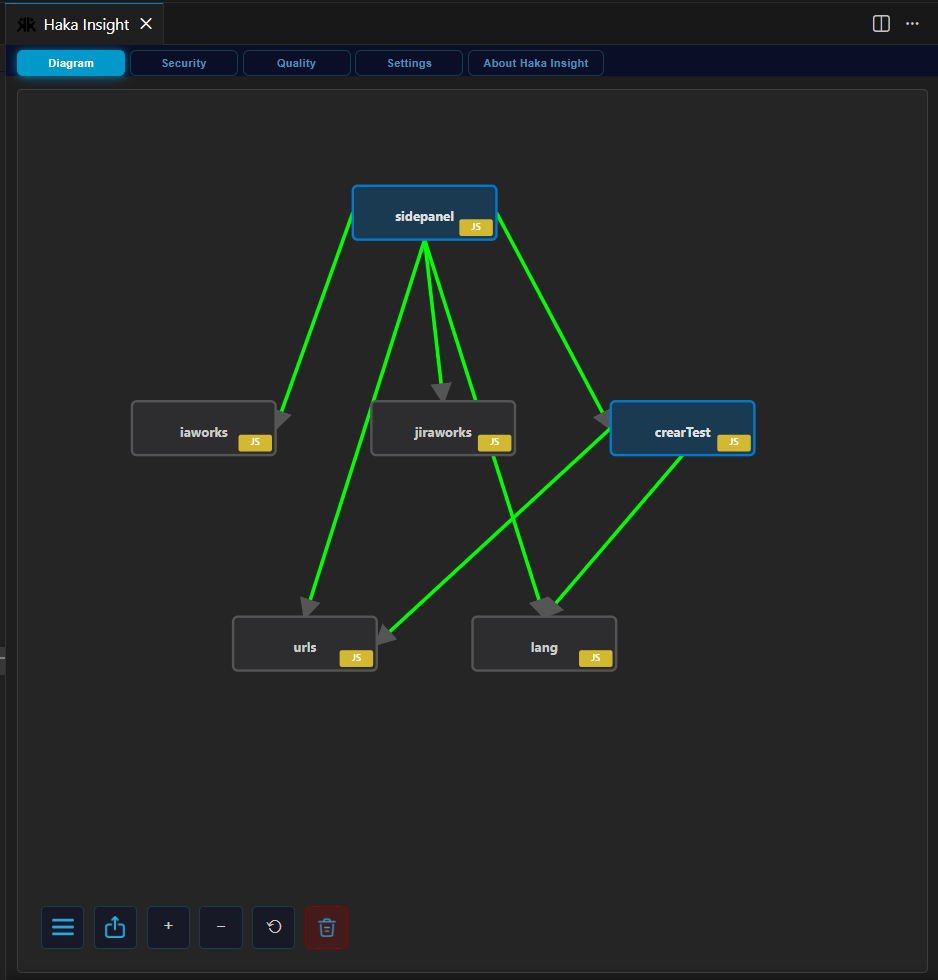
📊 Interactive Architecture Diagrams
Generate beautiful, interactive diagrams of your code architecture with automatic dependency detection and relationship mapping.
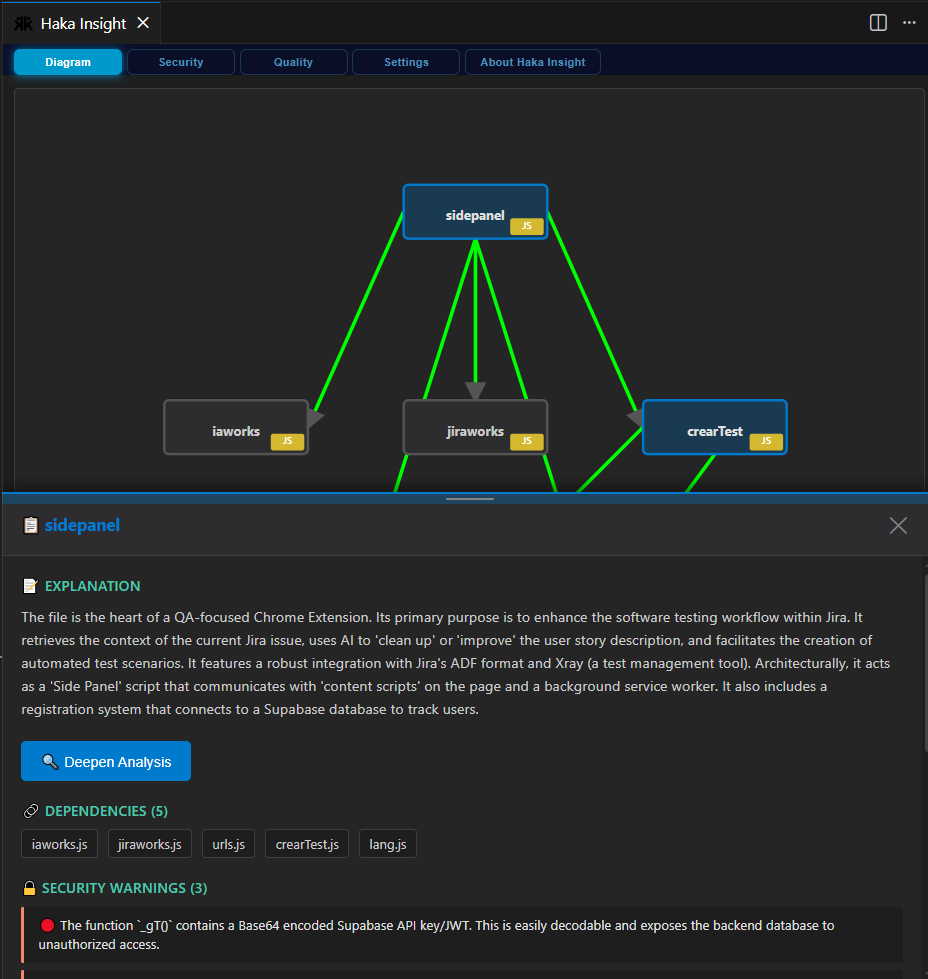
- Zoom & Pan: Navigate large codebases with smooth zoom and pan controls
- Persistent Layouts: Your custom node arrangements are automatically saved
- Click to Navigate: Jump directly to code by clicking on diagram nodes
- Smart Merging: Incrementally build comprehensive diagrams across multiple analyses
🔐 Security Analysis
Identify security vulnerabilities with AI-powered analysis and risk assessment.
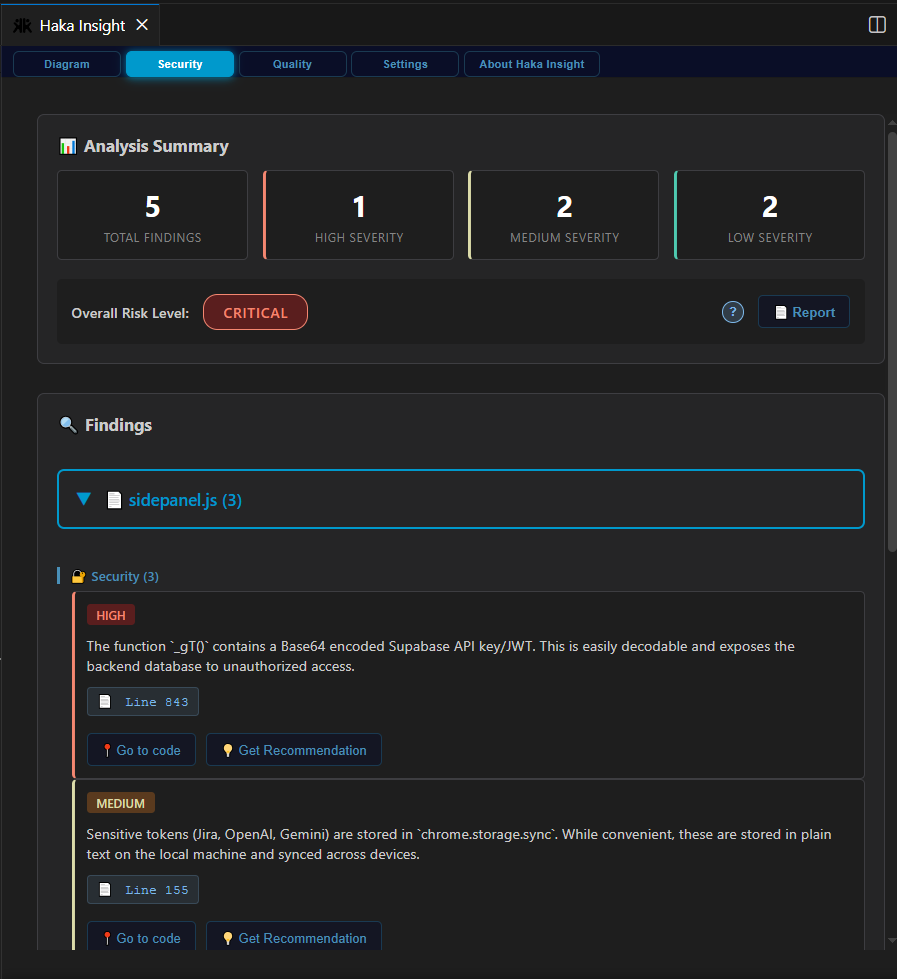
- Risk Level Calculation: Automatic risk scoring (Critical/High/Medium/Low)
- Severity Categorization: Findings organized by severity level
- AI Executive Summaries: Get high-level security overviews
- Code Navigation: Jump directly to vulnerable code locations
- Professional Reports: Generate shareable HTML security reports
📈 Quality Analysis
Comprehensive code quality metrics with actionable recommendations.
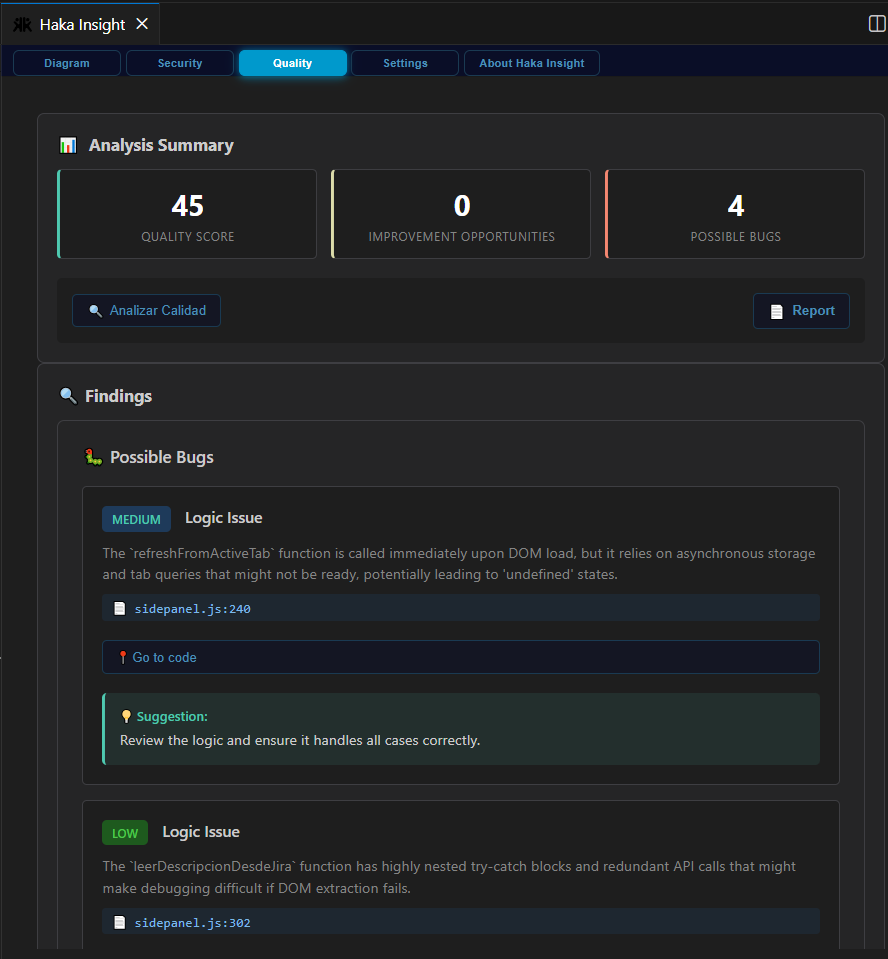
- Quality Scoring: 0-100 quality score based on multiple factors
- Categorized Issues: Bugs, improvements, performance, and best practices
- Detailed Recommendations: AI-generated suggestions for each issue
- Quality Reports: Export detailed quality analysis as HTML
- Direct Navigation: Click to view issues in your code
⚙️ Flexible Configuration
Easy setup with powerful customization options.
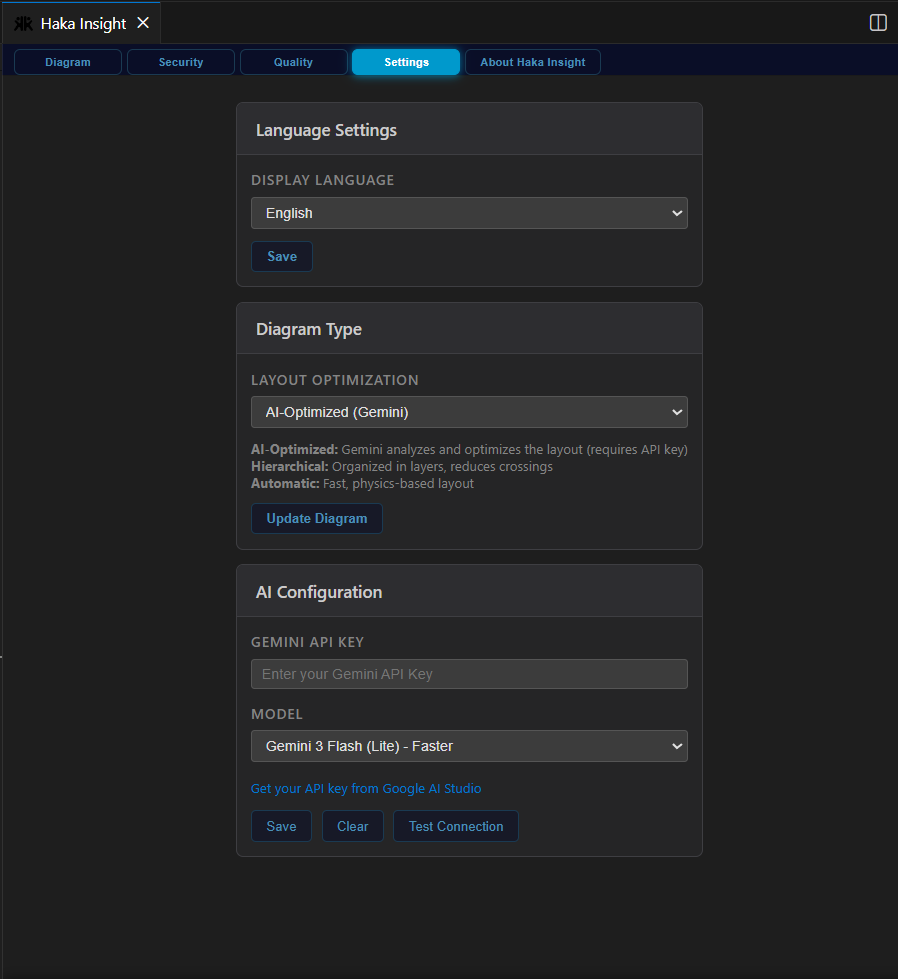
- Dual Model Support: Choose between Gemini Flash (fast) or Pro (detailed)
- Bilingual Interface: Full English and Spanish support
- Secure API Storage: Your API key is stored securely
- Connection Testing: Verify your API configuration instantly
💾 Smart Caching
Save API tokens and improve performance with intelligent caching.
- Automatic Caching: Every analysis is saved locally
- Instant Loading: Cached analyses load without API calls
- Token Savings: Reuse previous analyses to reduce costs
- Cache Indicators: See when data is from cache with timestamps
- Easy Updates: Refresh cached data with one click
🚀 Getting Started
Installation
- Install from the VS Code Marketplace
- Click the Haka Insight icon in the Activity Bar
- Configure your Gemini API key in the Settings tab
Get Your API Key
- Visit Google AI Studio
- Sign in with your Google account
- Create a new API key
- Copy and paste it into Haka Insight settings
Analyze Your Code
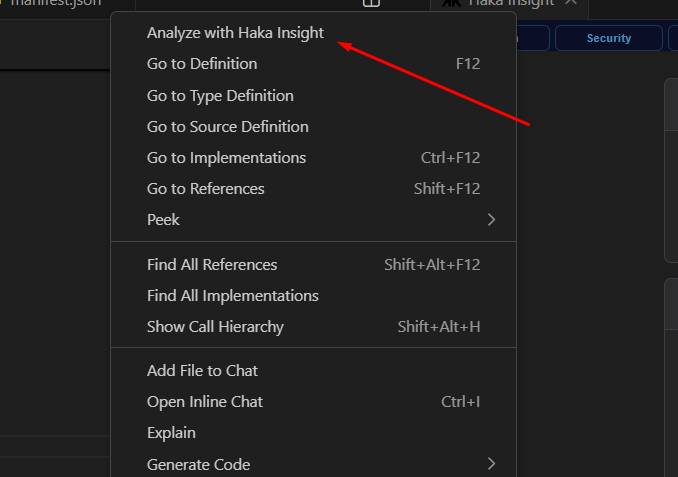
Method 1: Context Menu
- Right-click any file in the explorer
- Select "Analyze with Haka Insight"
Method 2: Editor Menu
- Open a file
- Click the Haka Insight icon in the editor toolbar
Method 3: Command Palette
- Press
Ctrl+Shift+P (Windows/Linux) or Cmd+Shift+P (Mac)
- Type "Analyze with Haka Insight"
📖 How to Use
Understanding the Diagram
The diagram shows your code architecture with:
- Nodes: Files, classes, functions, and components
- Edges: Dependencies and relationships
- Colors: Different node types (files, classes, functions)
- Badges: File names and metadata
Interactions:
- Mouse Wheel: Zoom in/out
- Click & Drag: Pan around the diagram
- Click Node: View details and navigate to code
- Drag Node: Rearrange layout (auto-saved)
Security Tab
View security findings organized by severity:
- Critical: Immediate attention required
- High: Important security issues
- Medium: Moderate security concerns
- Low: Minor security suggestions
Each finding includes:
- Description of the vulnerability
- Location in your code
- AI-generated recommendations
- "Go to code" button for quick navigation
Risk Level: Overall security assessment based on all findings
Quality Tab
Code quality analysis with scoring:
- Quality Score: 0-100 rating based on multiple factors
- Bugs: Potential errors and defects
- Improvements: Code optimization opportunities
- Performance: Speed and efficiency issues
- Best Practices: Coding standards and conventions
Generate Reports
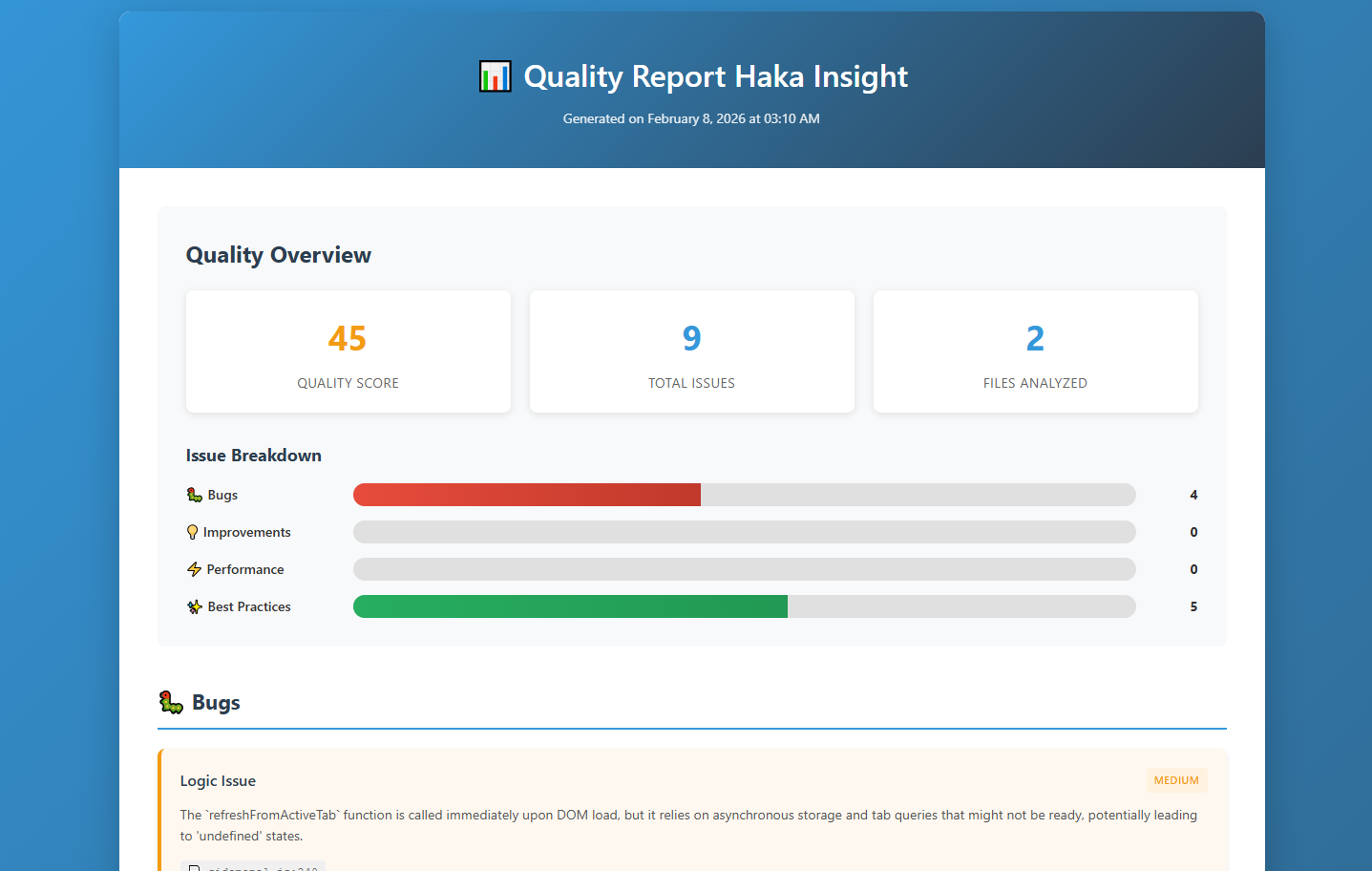
Create professional HTML reports:
- Analyze your code
- Go to Security or Quality tab
- Click "Generate Report"
- Report opens in your browser
- Share with your team
Reports include:
- Executive summary
- Detailed findings
- Statistics and charts
- Recommendations
- Timestamp and metadata
🌐 Language Support
Switch between English and Spanish instantly:
- Go to Settings tab
- Select your preferred language
- Interface updates immediately
Note: Existing analyses remain in their original language. Re-analyze files to see them in the new language.
How Caching Works
- First Analysis: Code is sent to Gemini API
- Automatic Save: Results are cached locally
- Subsequent Views: Data loads instantly from cache
- Manual Refresh: Click "Update Analysis" to refresh
Benefits
- Faster Loading: Instant access to previous analyses
- Cost Savings: Reduce API usage and costs
- Offline Access: View cached data without internet
- Token Efficiency: Reuse analyses instead of re-analyzing
Cache Management
- View Cache Status: See "FROM CACHE" badge with timestamp
- Clear Cache: Use "Clear Cache" command to free storage
- Update Analysis: Refresh specific cached analyses
🎯 Model Selection
Gemini Flash (Lite)
- Speed: Fast responses (2-5 seconds)
- Cost: Lower API token usage
- Best For: Quick analyses, frequent use, large codebases
Gemini Pro
- Detail: More comprehensive analysis
- Accuracy: Better detection of complex issues
- Best For: Critical code, security audits, detailed reviews
📋 Commands
Access via Command Palette (Ctrl+Shift+P / Cmd+Shift+P):
Open Haka Insight - Open the analysis panelAnalyze with Haka Insight - Analyze current fileClear Haka Insight Diagram - Clear all diagrams and cacheClear Cache - Clear cached analyses only
🔧 Requirements
- VS Code: Version 1.80 or higher
- API Key: Google Gemini API key (Get one free)
- Internet: Required for API calls (cached data works offline)
🛡️ Privacy & Security
- API Key Storage: Stored securely using VS Code's secret storage
- Local Caching: Analyses stored locally on your machine
- No Data Collection: We don't collect or store your code
- Direct API Calls: Your code goes directly to Google's Gemini API
🐛 Troubleshooting
Extension doesn't appear
- Reload VS Code:
Ctrl+Shift+P → "Reload Window"
- Check extension is enabled in Extensions panel
Analysis fails
- Verify API key is correct in Settings
- Test connection using "Test Connection" button
- Check internet connection
- View error details in VS Code Output panel
Diagram doesn't render
- Try zooming with mouse wheel
- Check browser console (F12) for errors
- Verify analysis returned valid data
- Clear cache and re-analyze
API errors
- 401 Unauthorized: Invalid API key
- 429 Too Many Requests: Rate limit exceeded, wait and retry
- 500 Server Error: Gemini API issue, try again later
📊 What Gets Analyzed
Haka Insight analyzes:
- Architecture: File structure, dependencies, relationships
- Security: Vulnerabilities, injection risks, authentication issues
- Quality: Code smells, complexity, maintainability
- Performance: Inefficiencies, bottlenecks, optimization opportunities
- Best Practices: Coding standards, design patterns, conventions
🤝 Contributing
We welcome contributions! Please see CONTRIBUTING.md for guidelines.
📄 License
MIT License - see LICENSE for details
🔗 Links
📝 Changelog
See CHANGELOG.md for version history and updates.
⭐ Support
If you find Haka Insight useful, please:
- ⭐ Star the repository
- 📝 Leave a review on the marketplace
- 🐛 Report bugs and suggest features
- 📢 Share with your team
Made with ❤️ by Felipe Farias | Haka Lab
Transform your code understanding with AI-powered insights

