Squashed Git Graph
|
|
Compact, collapsible Git history visualization for VS Code. See your repository’s commit graph in a clean, space-efficient, and interactive format. Perfect for large or busy projects.
|
Features
- Collapsible commit graph with multiple collapsing algorithms
- Dashes and composite visual modes for collapsed sections
- Dashes hides all extraneous nodes behind "..." line segments
- Composite groups 2 or more nodes into a single replacement node in the graph
- Expand/collapse UX with gutter controls
- Branch filtering and per-repo display overrides
- Select specific brances, local branches only, or all branches to be present in the graph
- Preset-driven including/excluding filtering
- Incremental loading for large repositories
- Search integration with algorithm-aware highlighting
- Customizable settings for bucket size, view mode, and more
Installation
- Open the Extensions view in VS Code (
Ctrl+Shift+X).
- Search for
Squashed Git Graph and click Install.
- Or, download the latest
.vsix from the Marketplace page and install manually:
- Run:
code --install-extension squashed-git-graph-<version>.vsix
Usage
- Open a folder containing a Git repository.
- Invoke the UX:
- Click the "Git Graph" icon in the "Source Control" > "Changes" header
- Open the Command Palette (
Ctrl+Shift+P) and run:
- Interact with the graph:
- Click gutter arrows to expand/collapse sections
- Use the toolbar to change algorithms, view modes, and filters
- Hover for commit details
Configuration
All settings are under squashedGitGraph.* in your VS Code settings:
collapsingAlgorithm: Select the collapsing algorithm (none, flatten, linear, branches, self, excluding, including)viewMode: Choose between dashes and composite visual styles (default: dashes)bucketSize: Maximum number of commits per collapsed group (default: 50)filterPresets: Define custom include/exclude filtersincludeRemoteRefs: Toggle remote branch anchors
false: force only local branches nodes to show in the graphtrue: also highlight remote anchors
Collapsing Algorithms
None
Shows the graph without any collapsing or filtering.
Flatten
|
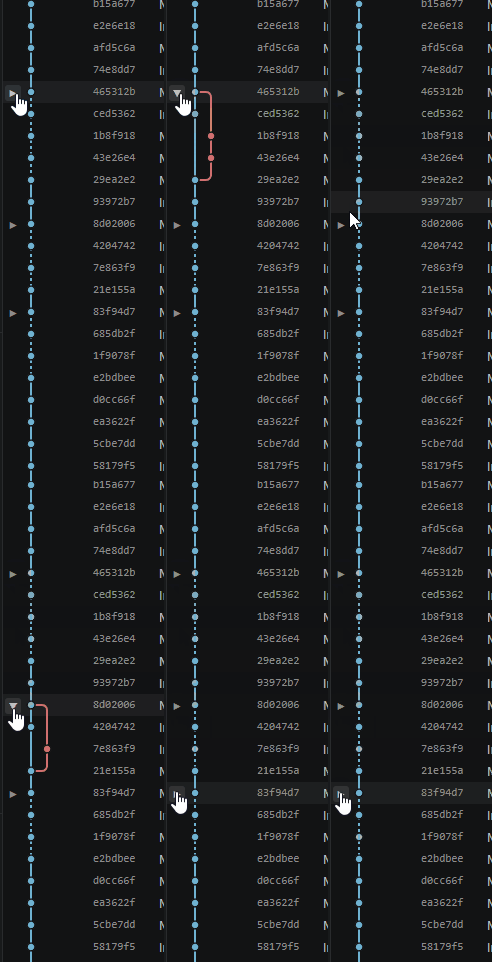
Eliminates bubbles in history. When there are chunks that bump out from the main line, this mode flattens them so the history appears linear. A gutter icon lets you expand the bubble to see its full structure.
|
Linear
|
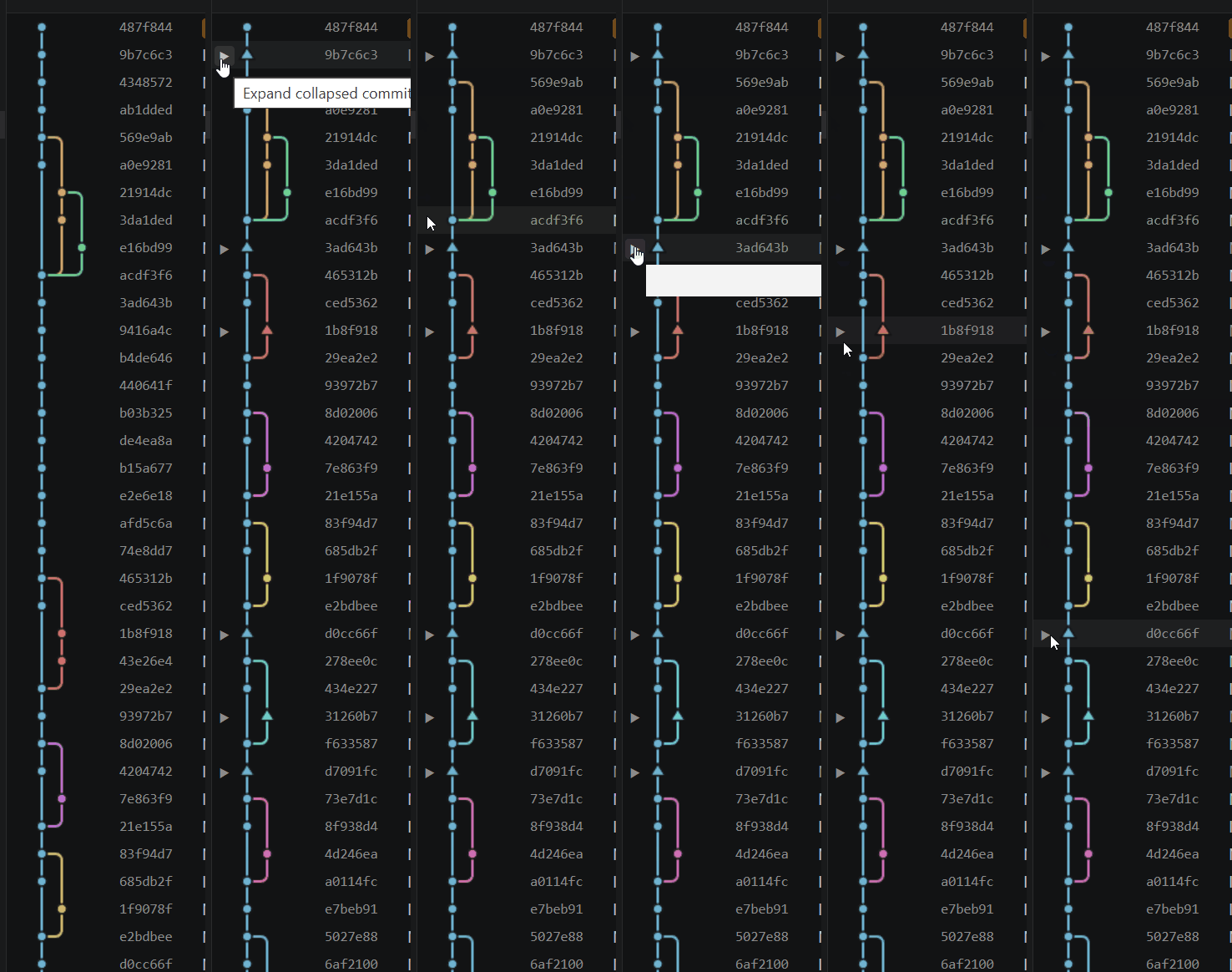
When there is a linear run of commits, this mode collapses them into a single span. This helps you see branches and merges more clearly in history.
In this example, the graph is in "Composite" view, so nodes representing multiple commits are shown as triangles instead of circles.
|
Branches
|
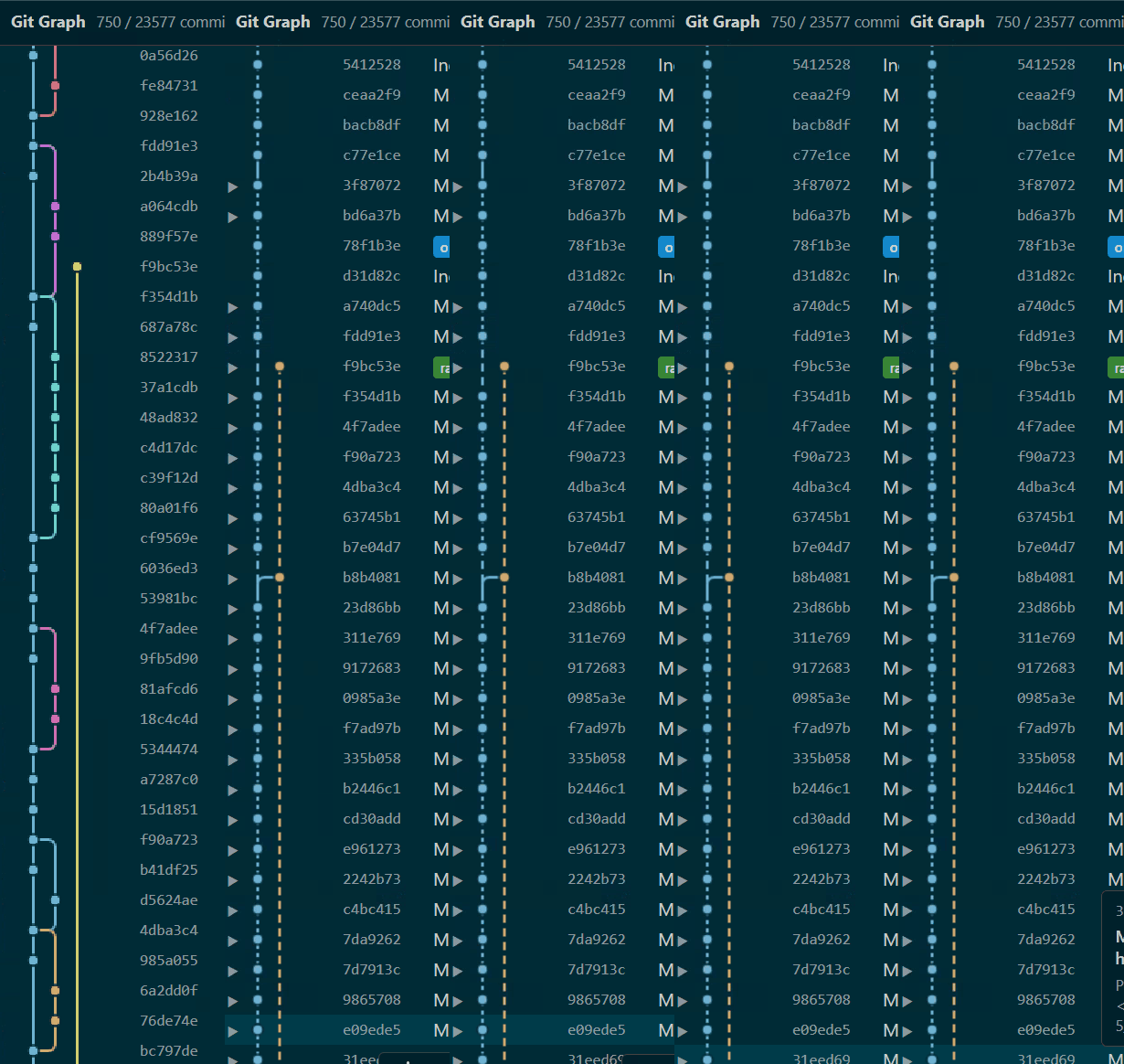
Highlights local and remote branches and their relationships. You can see where they diverge and where merge points are located while intervening nodes remain hidden behind gutter controls.
In this example, the graph is in "Dashes" view, and sequences of 50 commits are collapsed into "..." segments to show change cadence at a glance.
|
Self
Similar to "Branches" but also ensures commits authored by you stay visible. Other intervening nodes are hidden and accessible via a gutter control. This helps you track your own changes and how they relate to branch history.
Excluding
If your codebase has some automatic processes which do things like increment version numbers, those commits are unlikely to be useful when browsing a history. "Excluding" mode allows you to specify what kinds of commits to hide within the UX. You must create a definition within your settings.json file, but once set you can select that option in the UX.
{
  "squashedGitGraph.filterPresets": [
    {
      "name": "Hide Auto-Builds",
      "type": "excluding",
      "emails": [
        "build-run@example.com",
        "update-ver@example.com",
        "depend-a-bot@example.com"
      ],
      "subjectKeywords": ["bump version", "autogen", "update lockfile"]
    }
  ],
  "squashedGitGraph.activePreset": "Hide Auto-Builds"
}
This algoritm works best with the "Dashes" view where single nodes can be collapsed within a "..." segment in the graph.
Including
This is the inverse of "Excluding" and similar to "Self": specify which commits you want to see in the history and all others will be hidden and accessible via a gutter control.
{
  "squashedGitGraph.filterPresets": [
    {
      "name": "Only My Team",
      "type": "including",
      "authors": ["Alice Example", "Bob Example"],
      "emails": ["alice@example.com", "bob@example.com"],
      "subjectKeywords": ["feature", "fix", "refactor"]
    }
  ],
  "squashedGitGraph.activePreset": "Only My Team"
}
This algorithm also wors best with the "Dashes" view.
Details
See the extension settings UI for full details.
Support
For help, questions, or bug reports, contact git-visualizations@outlook.com.
License
MIT

