Skip to content
| Marketplace
Sign in
Visual Studio Code>Machine Learning>gguf codeNew to Visual Studio Code? Get it now.
gguf code

gguf code

gguf

|
5 installs
| (2) | Free
Monster coding agent lives in your IDE
Installation
Launch VS Code Quick Open (Ctrl+P), paste the following command, and press enter.
Copied to clipboard
More Info

gguf-code: IDE AI Coding Assistant

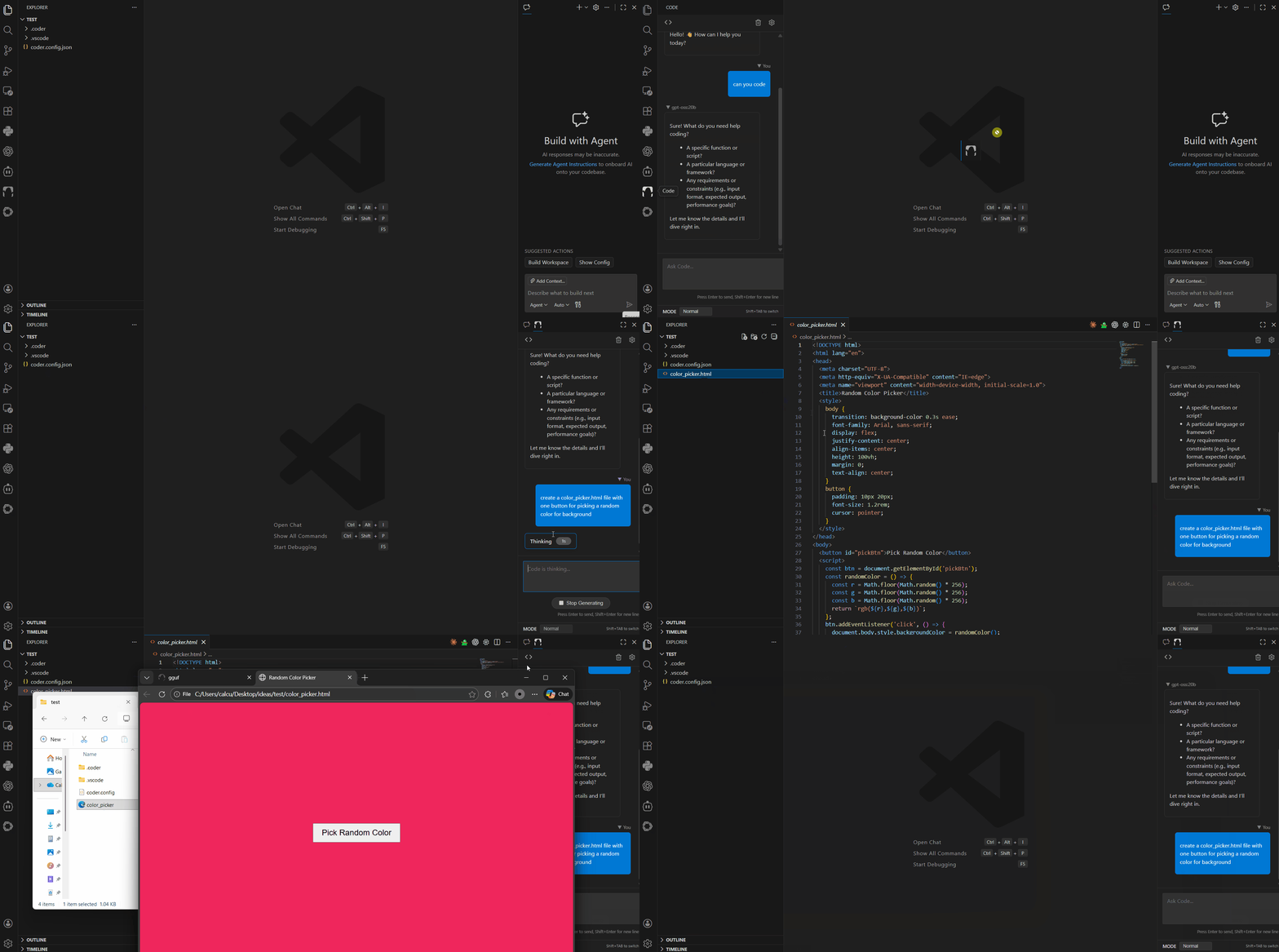
Monster coding agent lives in your IDE - moving beyond a CLI bridge to a fully native IDE AI assistant.

screenshot

Just shipped to vscode marketplace and it's compatible IDEs, i.e., cursor, windsurf, antigravity, etc., marketplaces

Features

  • Native Chat Interface: Deeply integrated webview clean ui for smooth chat interactions inside VS Code (and/or its clone/fork IDEs).
  • Embedded AI Engine: Run Coder's powerful AI logic directly within the extension process - no external CLI tool required.
  • Project-Aware Context: Automatically understands your workspace structure and active files.
  • Smart Tools:
    • read_file: Intelligently reads file contents with progressive loading for large files.
    • write_file, find_files, and more (Coming Soon).
  • Live Diff Preview: Preview AI-suggested code changes with standard VS Code diff views.
  • Diagnostics Integration: Uses LSP diagnostics to help fix errors in your code.

Requirements

  • Visual Studio Code version 1.104.0 or higher
  • coder.config.json in your workspace root (for configuring AI providers).

Getting Started

  1. Installation: Install the extension from the VS Code Marketplace or via .vsix.
  2. Configuration: Ensure you have a coder.config.json in your project root (see example below, can be any OpenAI compatible API or local/self-hosted API).
    {
      "providers": [
        {
          "name": "openrouter",
          "baseUrl": "https://openrouter.ai/api/v1",
          "apiKey": "your-api-key",
          "models": ["anthropic/claude-4.5-sonnet"]
        }
      ]
    }
    
  3. Launch: Click the "Code" monster icon in the Activity Bar (left sidebar) to open the chat.

Usage

  • Chat: Type naturally in the chat window. "Explain this file", "Fix this bug", etc.
  • Context: The assistant automatically knows about your open files.

Architecture

This extension has migrated from a thin client (CLI bridge) to a thick client architecture:

  • Frontend: React + Vite (Webview).
  • Backend: Node.js Extension Host (running ai-sdk-client).
  • Communication: VS Code Message Passing API.

Development

npm install

# Build both Webview and Extension
npm run build

# Watch mode (rebuilds on change)
# Terminal 1:
npm run watch:webview

# Terminal 2:
npm run watch

Contributing

Contributions are welcome!

License

MIT

  • Contact us
  • Jobs
  • Privacy
  • Manage cookies
  • Terms of use
  • Trademarks
© 2026 Microsoft