MDX Preview for Visual Studio Code
A modern, actively maintained successor to the original MDX Preview by Xiaoyi Chen. Built on MDX 3 with React 19, framework support, Tailwind CSS, and a two-mode security model.
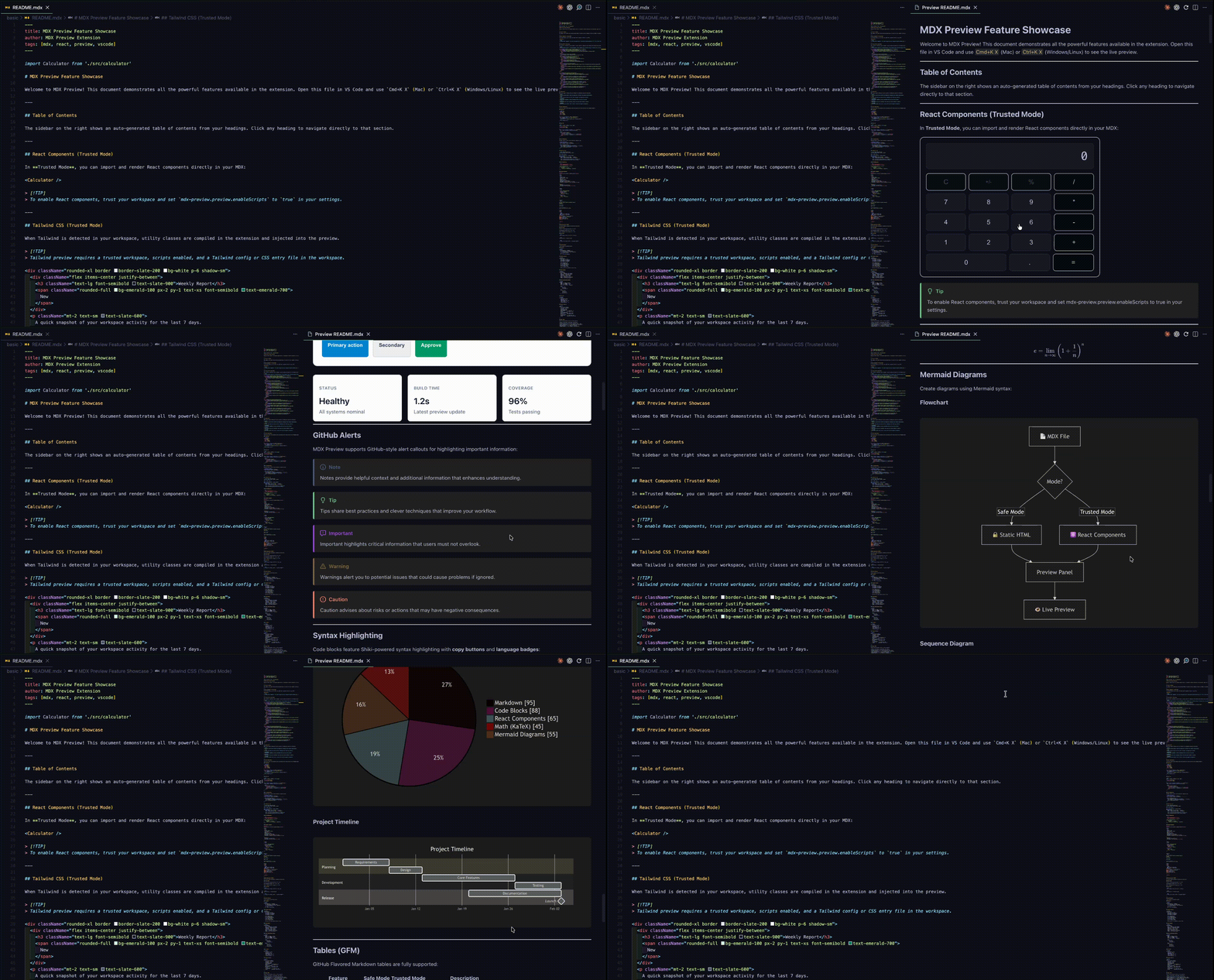
Features
- Live Preview - Instant preview as you type without a dev server
- React Components - Full import and rendering support in Trusted Mode
- Framework Shims - Auto-detection and built-in shims for Docusaurus, Starlight, Nextra, and Next.js
- Tailwind CSS - Built-in Tailwind v4 compilation with auto-detection
- Syntax Highlighting - Shiki-powered code blocks with 100+ languages and 24 themes
- Preview Themes - 16 themes (GitHub, Atom, Solarized, etc.) with auto light/dark switching
- Mermaid Diagrams - Flowcharts, sequence, state, and
architecture-beta diagrams, with configurable Iconify icon packs (built-in logos pack)
- PlantUML Diagrams - Server-side rendering via configurable PlantUML server
- Graphviz Diagrams - Client-side DOT graph rendering via WASM engine
- Math Expressions - KaTeX for inline (
$...$) and block ($$...$$) math
- GitHub Alerts - NOTE, TIP, WARNING, CAUTION, IMPORTANT callouts
- Image Lightbox - Fullscreen image viewer with gallery navigation, zoom, and pan
- Preview Zoom - Preview-scoped zoom commands without changing VS Code's global zoom
- Export to HTML - Save the rendered preview as a standalone
.html file from the toolbar or command palette
- Authoring Feedback - Source-line highlighting, MDX outline, symbols, and frontmatter-aware completions
- Editor ↔ Preview Sync - Opt-in scroll sync between editor and preview, plus
Cmd/Ctrl+Click jump from preview to source
- Custom Plugins - Load remark/rehype plugins from your project
- TypeScript Preview - Preview
.tsx/.ts files that render to #root
- Safe/Trusted Modes - Safe Mode for untrusted content, Trusted Mode for full rendering
Installation
From the Marketplace: search for "Modern MDX Preview" in the Extensions view and install.
From a .vsix file (pre-release builds ahead of the Marketplace):
- Download the
.vsix from the GitHub releases page
- In VS Code: Extensions view ->
... menu -> Install from VSIX..., or run code --install-extension vsc-mdx-preview-<version>.vsix
The MDX extension is installed automatically for syntax highlighting (skipped if offline — install it manually if .mdx files show no coloring).
Quick Start
- Open a workspace folder and install its npm dependencies (
npm install)
- Open an
.mdx or .md file
- Open Command Palette (
Cmd+Shift+P / Ctrl+Shift+P) and run "MDX: Open MDX Preview", or press Cmd+K X / Ctrl+K X
Preview automatically updates as you type. Previews start in Safe Mode (static HTML, no JavaScript); to render React components, trust the workspace and enable scripts when prompted (see Security).
Framework Support
MDX Preview detects your framework from package.json and provides compatible component shims:
| Framework |
Detection |
Example Shims |
| Docusaurus |
@docusaurus/core |
@theme/Tabs, @theme/CodeBlock, Admonitions |
| Starlight |
@astrojs/starlight |
Card, CardGrid, Steps, Aside, Tabs |
| Nextra |
nextra |
Callout, Tabs, Cards, FileTree, Steps |
| Next.js |
next + MDX |
next/image, next/link |
| Generic |
(fallback) |
Callout, Tabs, Collapsible, CodeGroup |
See Frameworks for details and examples.
Custom Layout
Apply a custom layout by exporting a default value:
import Layout from './components/Layout';

export default Layout;

## Hello

Content wrapped in Layout.
Or set a global layout path via mdx-preview.preview.mdx.customLayoutFilePath. When nothing is specified, VS Code Markdown styles are applied by default (toggle with mdx-preview.preview.useVscodeMarkdownStyles).
MDX Transclusion
Import other .mdx or .md files as components:
import Introduction from './Introduction.mdx';

<Introduction />
Editor ↔ Preview Sync
Two opt-in features keep the editor and preview aligned while you author:
Scroll sync — set mdx-preview.preview.scrollSync to one of:
| Mode |
Behavior |
off (default) |
No scroll coupling |
editorToPreview |
Preview follows the editor's visible source line |
previewToEditor |
Editor reveals the matching source line as you scroll the preview |
bidirectional |
Both directions, with debouncing to prevent feedback loops |
Sync is anchored around the top-third reading band (~35% from the top) so the line you're focused on stays in roughly the same vertical position on both sides instead of snapping to center.
Cmd/Ctrl+Click to source — hold Cmd (macOS) or Ctrl (Windows/Linux) and click any rendered block in the preview to open the editor at that source line. Clicks on interactive elements (links, buttons, form fields, <details>) still behave normally.
Both features work in Safe Mode and Trusted Mode. They rely on MDX's data-source-line annotations, so they're available for any block the compiler can map (paragraphs, headings, lists, tables, code blocks, callouts, etc.).
JavaScript/TypeScript Preview
Preview React apps that render to #root:
import ReactDOM from 'react-dom/client';
import App from './App';

const root = ReactDOM.createRoot(document.getElementById('root')!);
root.render(<App />);
Configuration
Per-project customization via .mdx-previewrc.json (Trusted Mode only):
{
  "remarkPlugins": ["remark-toc", ["remark-emoji", { "emoticon": true }]],
  "rehypePlugins": ["rehype-external-links"],
  "components": {
    "Button": "./src/components/Button.tsx"
  }
}
Plugins must be installed in your project's node_modules. See Configuration for the full reference.
Security
Safe Mode (default) - Renders MDX as static HTML. No JavaScript execution, no imports, strict CSP. Used automatically in untrusted workspaces.
Trusted Mode - Full MDX rendering with React components and imports. Requires a trusted workspace and mdx-preview.preview.enableScripts enabled. Only available for local workspaces.
Code is only evaluated inside VS Code's isolated webview iframe. MDX files can only require dependencies within your active workspace. By default, only HTTPS content is allowed. You can change security settings through mdx-preview.preview.security or "MDX: Change Security Settings".
See Security for the full security model.
Extension Settings
| Setting |
Default |
Description |
mdx-preview.preview.enableScripts |
false |
Enable JS execution (requires trusted workspace) |
mdx-preview.preview.updateMode |
"onType" |
When to update: onType, onSave, manual |
mdx-preview.preview.previewTheme |
"none" |
Preview theme (github-light, atom-dark, etc.) |
mdx-preview.preview.codeBlockTheme |
"auto" |
Code syntax theme (auto matches preview) |
mdx-preview.preview.autoTheme |
true |
Auto light/dark switching with VS Code |
mdx-preview.preview.security |
"strict" |
CSP policy: strict or disabled |
mdx-preview.preview.useVscodeMarkdownStyles |
true |
Use VS Code Markdown styles |
mdx-preview.preview.useWhiteBackground |
false |
Force white background |
mdx-preview.preview.customCss |
"" |
Path to custom CSS file |
mdx-preview.preview.mdx.customLayoutFilePath |
"" |
Path to custom layout file |
mdx-preview.framework |
"auto" |
Framework detection mode |
mdx-preview.tailwind.enabled |
"auto" |
Tailwind CSS: auto, enabled, disabled |
mdx-preview.preview.mermaidTheme |
"default" |
Mermaid diagram theme |
mdx-preview.preview.sourceLineHighlight |
true |
Highlight rendered blocks by source line on hover |
mdx-preview.preview.sourceLineHighlightColor |
"dependent" |
Highlight color mode: dependent, white, black, auto |
mdx-preview.preview.scrollSync |
"off" |
Scroll sync: off, editorToPreview, previewToEditor, bidirectional |
mdx-preview.preview.shimSideRail |
true |
Show side accent rails on callout/admonition shims |
mdx-preview.preview.openMdxLinksInPreview |
true |
Open .mdx links in preview |
mdx-preview.framework.componentShims |
true |
Enable framework component shims |
mdx-preview.components.builtins |
true |
Enable built-in component shims |
mdx-preview.components.unknownBehavior |
"placeholder" |
Unknown component handling: strip, placeholder, raw |
mdx-preview.diagrams.plantUmlServer |
"https://kroki.io" |
PlantUML render server (receives diagram source; trusted workspaces only) |
mdx-preview.diagrams.mermaidIconPacks |
[] |
Iconify icon packs for Mermaid architecture-beta diagrams |
mdx-preview.build.useSucraseTranspiler |
false |
Use Sucrase instead of Babel |
This table covers the most common settings. See Configuration for the full reference, including Tailwind tuning (mdx-preview.tailwind.*) and advanced options (mdx-preview.advanced.*).
Known Limitations
Trusted Mode module loading:
- A workspace folder with installed
node_modules is required for imports. Previewing a lone .mdx file (no folder open) renders content, but imports resolve to empty placeholders.
- Components render with the bundled React 19. Libraries relying on removed React 17/18 APIs (
ReactDOM.render, defaultProps on function components, legacy context) may behave differently in the preview than in your app.
- Yarn PnP (Berry) workspaces are not supported — dependencies must exist on disk in
node_modules (npm, pnpm, and Yarn node-modules linker all work).
- Circular imports are reported as errors rather than partially resolved, and very large barrel modules (200+ re-exports, e.g.
lodash-es) may fail to load — import submodules directly instead.
- Editing transitively imported files (a file imported by a file your MDX imports) may not refresh the preview — save the entry file or use "MDX: Refresh Preview".
VS Code webviews have some inherent limitations:
- No Service Workers or Local Storage
- Use
MemoryRouter instead of BrowserRouter for React Router
- Some third-party components may not work
Troubleshooting
Component doesn't render? Open "Developer: Open Webview Developer Tools" from the Command Palette and check the console. Make sure you're in Trusted Mode. Try toggling mdx-preview.build.useSucraseTranspiler.
Preview shows "Safe Mode"? Trust the workspace via "Workspaces: Manage Workspace Trust", then set mdx-preview.preview.enableScripts to true.
Framework not detected? Verify the framework package is in your package.json, or manually set mdx-preview.framework.
See Troubleshooting for more.
Documentation
- Configuration - Full configuration reference
- Frameworks - Framework support and component shims
- Security - Security model deep dive
- Troubleshooting - Common issues and solutions
- Contributing - Development setup and guidelines
- Architecture - Extension and webview architecture
- Examples - Working examples for Docusaurus, Starlight, Nextra, Next.js, PlantUML, Graphviz, AWS architecture diagrams, lightbox/zoom, and more
Credits
Based on the original vscode-mdx-preview by Xiaoyi Chen, who created the original codebase, architecture, and UI.
License
GPL-3.0-or-later (in accordance with the original project)

