Skip to content
| Marketplace
Sign in
Visual Studio Code>Other>nUIget - A NuGet Package ManagerNew to Visual Studio Code? Get it now.
nUIget - A NuGet Package Manager

nUIget - A NuGet Package Manager

Gasrulle

|
2 installs
| (0) | Free
A NuGet package manager with Visual Studio-style UI. Search, install, update, and remove packages across multiple sources.
Installation
Launch VS Code Quick Open (Ctrl+P), paste the following command, and press enter.
Copied to clipboard
More Info

nUIget for VS Code

Visual Studio Marketplace Version License: MIT

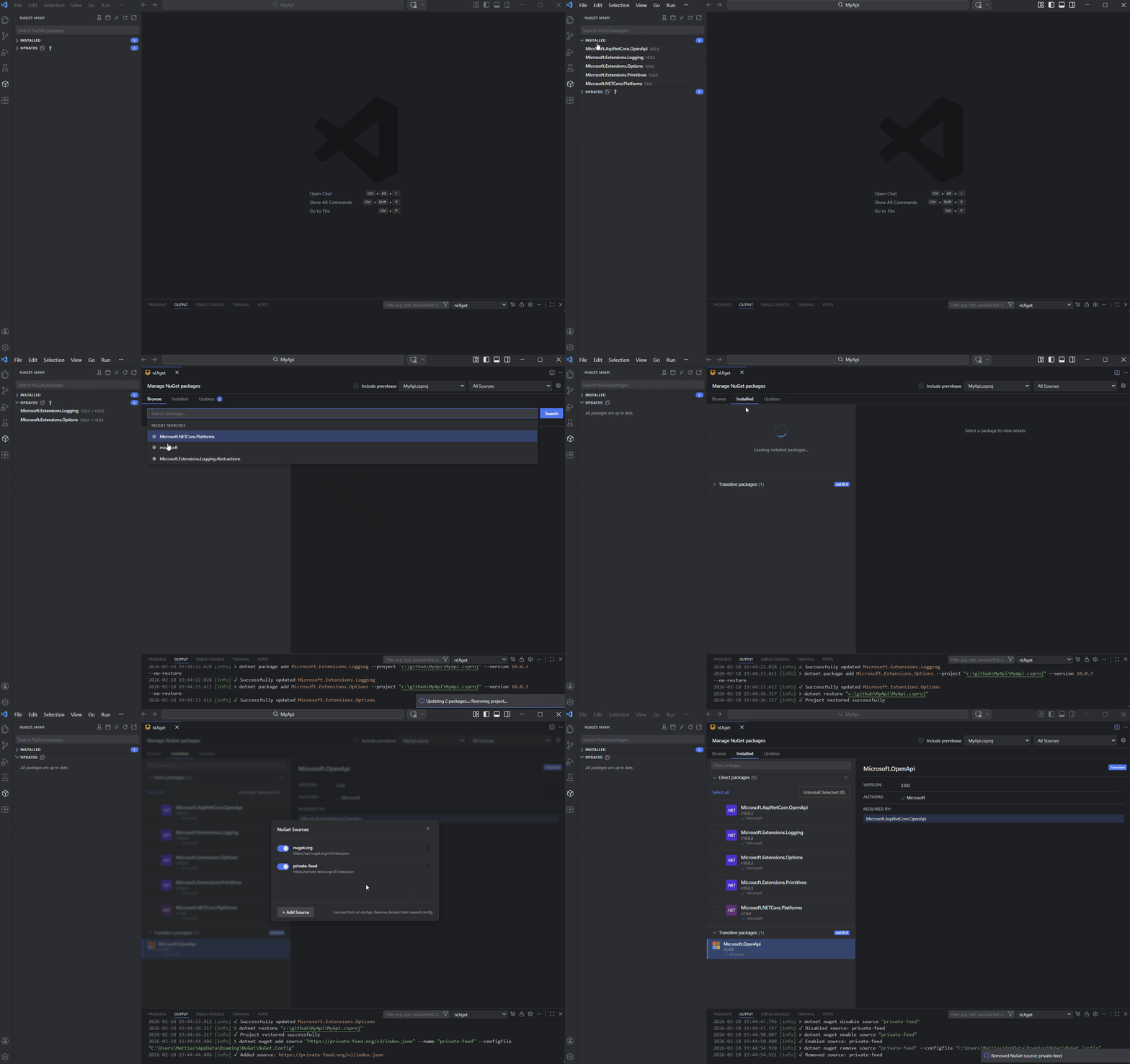
A Visual Studio-style NuGet package manager for VS Code with a modern split-panel UI and Activity Bar sidebar.

nUIget demo

✨ Features

  • 🎨 Visual Studio-Style GUI - Familiar split-panel layout with Browse, Installed, and Updates tabs
  • 📦 Full Package Management - Install, update, and remove NuGet packages via dotnet CLI
  • 🔍 Quick Search - Real-time suggestions as you type
  • ⌨️ Keyboard Navigation - Arrow keys to navigate, Ctrl+Enter to quick install
  • 🚀 Multi-Project Support - Manage packages across .csproj, .fsproj, and .vbproj files
  • 🔗 Transitive Dependencies - View the full dependency graph with "Required by" chains
  • 📊 Bulk Operations - Update All, Bulk Update selected, Bulk Uninstall, or Multi Install to multiple projects at once
  • 🔄 Cross-Project Updates - Load updates from all projects at once with grouped results and one-click Update All
  • 🔎 Installed Tab Filter - Client-side filter to quickly find packages by name with live count display
  • ⚙️ Source Management - Enable, disable, add, or remove NuGet sources via settings cog (⚙️)
  • ✅ Verified Badges - Shows ✓ for packages with reserved prefix on nuget.org
  • 🔐 Authenticated Private Feeds - Browse and search packages from private feeds
  • 📖 README Display - View package docs with syntax-highlighted code blocks and copy button
  • ⚠️ Source Status Warnings - Visual notification when NuGet sources are unreachable
  • 📌 Sidebar Panel - Compact Activity Bar panel with search-driven browse, Installed and Updates sections with update count badges
  • 🔁 Cross-Panel Sync - Source, project, and prerelease selections shared between main panel and sidebar in real time
  • ♿ Accessible - High-contrast themes, reduced motion, and ARIA roles for screen readers
  • 🧩 .NET 10 Support - Automatic detection of .NET 10 noun-first CLI syntax
  • 🔧 Output Channel - "nUIget" channel shows all CLI commands for troubleshooting

🚀 Quick Start

  1. Open a folder containing .NET project files
  2. Press Ctrl+Shift+P → type "nUIget: Manage NuGet Packages"
  3. Search for a package, select a version, click Install!

💡 Tip: Right-click any .csproj file in Explorer → "nUIget: Manage Packages"

💡 Tip: Right-click any project in Solution Explorer → "nUIget: Manage Packages"

💡 Tip: Click the nUIget icon in the editor title bar when a .csproj file is open

💡 Tip: Use the nUIget icon in the Activity Bar for quick browse, installed, and updates at a glance

⚙️ Settings

Setting Default Description
nuiget.noRestore false Skip restore after adding packages. Faster but skips compatibility check until next build.
nuiget.searchDebounceMode quicksearch quicksearch: Show suggestions. full: Full search as you type. off: Manual only.
nuiget.quickSearchResultsPerSource 5 Suggestions per source in quick search (1-10)
nuiget.recentSearchesLimit 5 Recent searches to remember (0-10, 0 to disable)
nuiget.searchResultLimit 20 Maximum number of packages to return from full search (1-100)

📋 Commands

Command Description
nUIget: Manage NuGet Packages Open the package manager panel
⌨️ Keyboard Shortcuts

Quick Search Navigation

Key Action
↑ / ↓ Navigate through suggestions
→ Open version picker for highlighted package
Enter Select package (show details)
Ctrl+Enter Quick Install latest version
Escape Close dropdown

Version Picker (after pressing →)

Key Action
↑ / ↓ Navigate versions
← Back to package list
Enter Install selected version

Package List Navigation

Key Action
↑ / ↓ Navigate packages
Home / End Jump to first/last
Enter Install (Browse) / Update (Updates)
Delete Uninstall (Installed tab)
Space Toggle checkbox selection
📁 Configuration

NuGet Sources

The extension reads sources from:

  • User-level: %USERPROFILE%\.nuget\NuGet\NuGet.Config (Windows) or ~/.nuget/NuGet/NuGet.Config (Mac/Linux)
  • Workspace-level: nuget.config in workspace root

Example nuget.config:

<?xml version="1.0" encoding="utf-8"?>
<configuration>
  <packageSources>
    <add key="nuget.org" value="https://api.nuget.org/v3/index.json" />
    <add key="MyPrivateFeed" value="https://pkgs.dev.azure.com/myorg/_packaging/myfeed/nuget/v3/index.json" />
  </packageSources>
</configuration>
🔐 Private Feeds & Credentials

Supported Private Feeds

nUIget provides browse and search capabilities for authenticated NuGet feeds:

  • Azure DevOps Artifacts - Uses Azure Artifacts Credential Provider or nuget.config credentials
  • GitHub Packages - Personal access token in nuget.config
  • JFrog Artifactory - Username/password or API key
  • MyGet, ProGet - Any NuGet v3-compatible feed

How Credentials Are Resolved

Credentials are resolved in priority order:

  1. nuget.config - <packageSourceCredentials> section (recommended)
  2. Azure Artifacts Credential Provider - For Azure DevOps feeds (if installed)
  3. Environment variable tokens - VSS_NUGET_ACCESSTOKEN or ARTIFACTS_CREDENTIALPROVIDER_ACCESSTOKEN

Credential Security

When adding a source with credentials:

Method Security Notes
Encrypted (DPAPI) ✅ Best Windows only. Encrypted per-user, per-machine.
Environment Variable ✅ Good Use %MY_PASSWORD% syntax. Resolved at runtime.
Clear Text ⚠️ Avoid Stored unencrypted in nuget.config.

Example with credentials:

<packageSourceCredentials>
  <MyPrivateFeed>
    <add key="Username" value="myuser" />
    <add key="ClearTextPassword" value="%NUGET_FEED_PASSWORD%" />
  </MyPrivateFeed>
</packageSourceCredentials>

See Microsoft's security best practices for more details.

🔧 Troubleshooting

Issue Solution
Private feed shows empty results Run dotnet restore --interactive once to cache credentials, then refresh.
"401 Unauthorized" in output Add credentials to nuget.config <packageSourceCredentials> section.
Private feed not loading Check VPN connection. Click ⚙️ to verify source status.
"dotnet not found" error Ensure .NET SDK is installed and dotnet is on your PATH.
Source shows ⚠️ warning Source is unreachable. Check network or disable in settings.
Transitive packages empty Click the refresh button in the header. Project needs to be restored first.
Packages not updating Check Output panel (View → Output → "nUIget") for CLI errors.
Sidebar not showing Only appears when workspace contains .csproj, .fsproj, or .vbproj files.

Requirements

  • Visual Studio Code 1.85.0+
  • .NET SDK installed and on PATH
  • .NET projects (.csproj, .fsproj, or .vbproj)

License

MIT

  • Contact us
  • Jobs
  • Privacy
  • Manage cookies
  • Terms of use
  • Trademarks
© 2026 Microsoft