

|



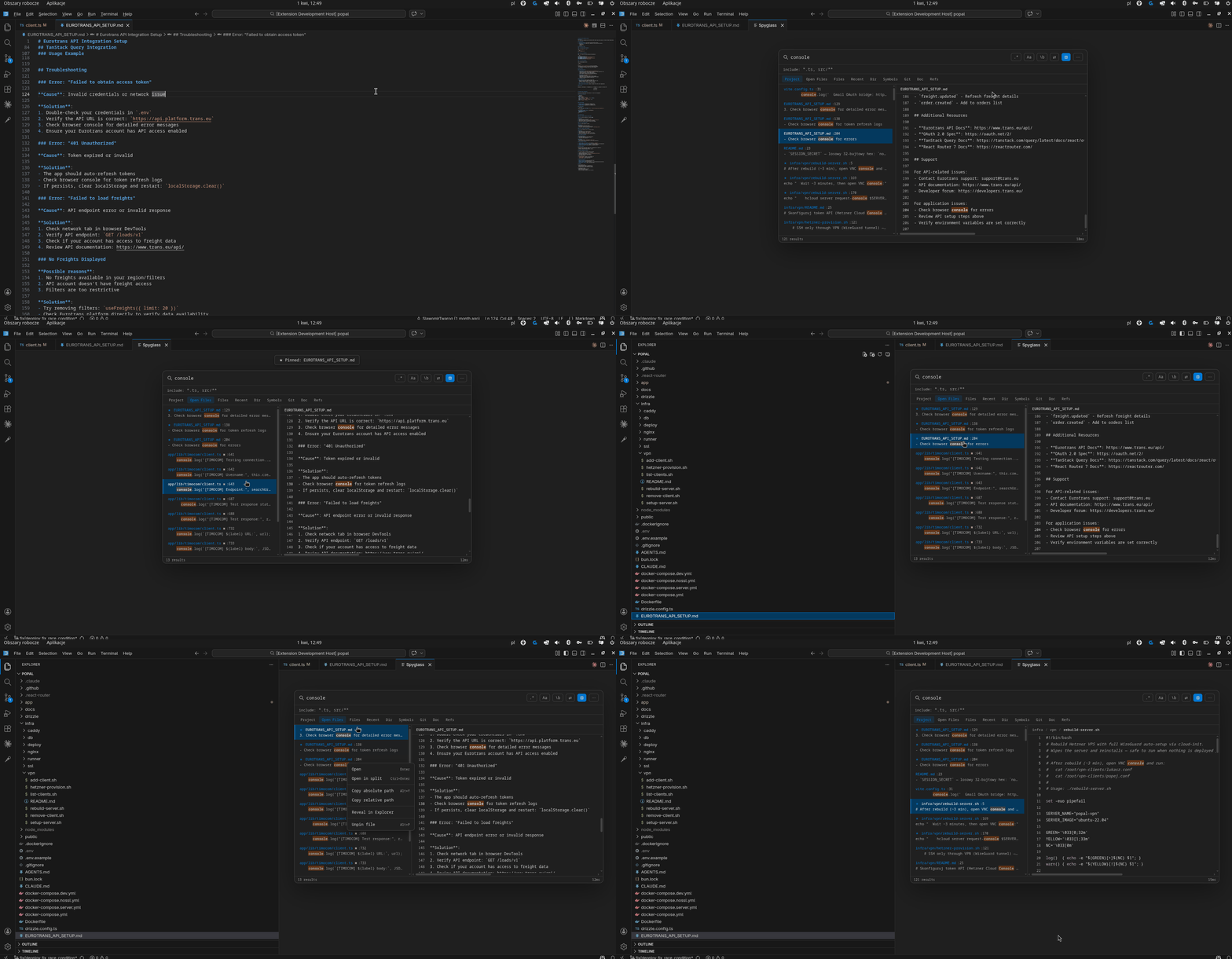
| Mode | Shortcut | Description |
|---|---|---|
| Popup | Ctrl+Alt+F |
Floating modal — opens over the editor, closes with Esc |
| Sidebar | Ctrl+Alt+E |
Persistent panel in the Activity Bar — stays open as you work |
The sidebar adapts to its width automatically:
- Narrow (< 420 px) — results only, no preview
- Medium (420–599 px) — preview panel stacked below results
- Wide (≥ 600 px) — preview panel beside results (classic split)
Both modes share the same features, keyboard shortcuts, and state.
⚡ Actions
- Find & Replace with preview —
Alt+Rto enable replace mode; "Replace all" shows a diff overlay (before/after per line per file) before applying; Apply or Cancel; uses VS Code WorkspaceEdit (supports undo) - Copy path — copy the absolute path of the selected result
- Reveal in Explorer — click the preview header to locate the file
- Open in split — open any result beside the current editor
- Pre-fill from selection — select text, open Spyglass → query is pre-filled
- Zero dependencies — ripgrep is bundled, nothing to install
🚀 Usage
Opening Spyglass
| Action | Shortcut |
|---|---|
| Open popup (floating modal) | Ctrl+Alt+F |
| Focus sidebar panel | Ctrl+Alt+E |
VSCode Vim users — bind
<Space>fas your leader shortcut. See Vim setup below.
⌨️ Keyboard shortcuts
| Action | Shortcut |
|---|---|
| Navigate results | ↑ / ↓ |
| Open selected file | Enter |
| Open in split editor | Ctrl+Enter |
| Switch scope | Tab |
| Close | Escape |
| Toggle regex | Shift+Alt+R |
| Toggle case sensitive | Alt+C |
| Toggle whole word | Alt+W |
| Group results by file | Alt+L |
| Sort results (cycle) | Alt+S |
| Include filter row | Alt+I |
| Toggle preview panel | Shift+Alt+P |
| Toggle replace mode | Alt+R |
| Focus replace input (in replace mode) | Tab |
| History — previous query | Ctrl+↑ |
| History — next query | Ctrl+↓ |
| Save search (bookmark) | Alt+B |
| Copy path | Alt+Y |
| Pin / Unpin file | Alt+P |
| Multi-select toggle | Ctrl+Space / Ctrl+Click |
| Select all results | Ctrl+A |
| Open all selected | Shift+Enter |
| Reveal in Explorer | click the preview header |
| Refresh git changed files | F5 (in Git scope) |
🗺️ Search Scopes
| Scope | Description |
|---|---|
| Project | Full-text search across all files in the workspace |
| Open Files | Full-text search only within currently open editor tabs |
| Files | Fuzzy search by filename across the whole project |
| Recent | Recently opened files, ordered by most recent |
| Dir | Full-text search within the directory of the active file |
| Symbols | Workspace symbol search via LSP (requires a language extension) |
| Git | All files with uncommitted changes — modified, added, untracked, deleted, renamed |
| Doc | Document symbols for the currently active file via LSP |
| Refs | All references to the symbol under the cursor at the time Spyglass was opened |
Switch between scopes with Tab while Spyglass is open.
🔄 Find & Replace
- Open Spyglass and type your search query
- Press
Alt+R(or click⇄) to enable replace mode - Type the replacement text in the second field (
Tabmoves focus from query to replace input) - Optionally tune case-sensitive / whole-word / glob filter
- Click Replace all — a diff preview overlay appears showing every changed line (before in red, after in green) grouped by file
- Click Apply to apply all changes, or Cancel to abort
Changes are applied via VS Code's WorkspaceEdit API and are fully undoable (Ctrl+Z).
👁️ Preview Panel
The right-side preview shows the file around the matched line with syntax highlighting. Lines modified since the last git commit are marked with a blue indicator in the gutter.
- Toggle with
Shift+Alt+Por the⊡button - Click the preview header to Reveal in Explorer
⚙️ Settings
| Setting | Default | Description |
|---|---|---|
spyglass.defaultScope |
project |
Scope on open: project openFiles files recent here symbols git doc refs |
spyglass.maxResults |
200 |
Maximum number of results to display |
spyglass.exclude |
[".git","node_modules","out","dist","*.lock"] |
Glob patterns excluded from search and file listing |
spyglass.openOnSide |
false |
Open the popup in a side column instead of the active editor column |
spyglass.keybindings.navigateDown |
ArrowDown |
Navigate down in results |
spyglass.keybindings.navigateUp |
ArrowUp |
Navigate up in results |
spyglass.keybindings.open |
Enter |
Open selected result |
spyglass.keybindings.close |
Escape |
Close Spyglass |
spyglass.keybindings.toggleRegex |
shift+alt+r |
Toggle regex mode |
spyglass.keybindings.togglePreview |
shift+alt+p |
Toggle preview panel |
🎹 Customizing Keybindings
Change the open shortcut
Open Keyboard Shortcuts (Ctrl+K Ctrl+S), search for Spyglass: Open Search Popup or Spyglass: Focus Sidebar Panel and assign your preferred keys.
Or edit keybindings.json directly (Ctrl+Shift+P → Open Keyboard Shortcuts (JSON)):
[
  {
    "key": "ctrl+alt+f",
    "command": "spyglass.open",
    "when": "!inputFocus || editorTextFocus"
  },
  {
    "key": "ctrl+alt+e",
    "command": "spyglass.focusSidebar"
  }
]
Change shortcuts inside the panel
Add to your settings.json:
{
  "spyglass.keybindings.navigateDown": "j",
  "spyglass.keybindings.navigateUp": "k",
  "spyglass.keybindings.toggleRegex": "ctrl+r",
  "spyglass.keybindings.togglePreview": "ctrl+p"
}
🟢 Vim Setup
vscodevim (VSCode Vim extension)
VSCode Vim intercepts Space before VS Code sees it, so the built-in Space f shortcut won't work. Configure it through VSCode Vim instead — add to your settings.json:
{
  "vim.normalModeKeyBindingsNonRecursive": [
    {
      "before": ["<Space>", "f"],
      "commands": ["spyglass.open"]
    }
  ]
}
vscode-neovim
The built-in Space f binding works out of the box in normal mode — no extra configuration needed.
To disable the default Ctrl+Alt+F binding for either setup:
[
  {
    "key": "ctrl+alt+f",
    "command": "-spyglass.open"
  }
]
🌐 Multi-root Workspaces
Spyglass works across all workspace folders simultaneously. Results from multiple folders are prefixed with the folder name so you always know where a match comes from:
backend/src/server.ts
frontend/src/App.tsx
All scopes — text search, file listing, replace, and git status badges — cover every folder in the workspace.
🔍 Inline Glob Filter
Append a glob pattern to any query to narrow the search without leaving the input field:
| Query | Effect |
|---|---|
useState *.tsx |
Search for useState only in .tsx files |
TODO !*.test.ts |
Search for TODO, excluding test files |
error *.ts !*.d.ts |
Multiple globs combined |
Patterns starting with * are treated as include globs, patterns starting with ! as excludes. Everything else is the search query.
📋 Requirements
- VS Code
^1.85.0 - No additional dependencies — ripgrep is bundled automatically
- Git (optional) — required for change indicators in the preview panel
- A language server extension (optional) — required for the Symbols scope
Privacy
Spyglass collects no data. All processing happens locally on your machine:
- No network requests are made (webview CSP is
default-src 'none') - No telemetry, analytics, or crash reporting
- Search history is stored locally in VS Code's
workspaceStateand never leaves your machine - Dependencies (
@vscode/ripgrep,highlight.js) are fully local with no network activity
🛠️ Development
git clone https://github.com/garroter/spyglass
cd spyglass
npm install

npm run compile   # compile TypeScript
npm run watch     # watch mode
npm test          # run unit tests (vitest)
Press F5 in VS Code to launch an Extension Development Host.
Project structure
src/
  extension.ts       — activation, command registration
  FinderPanel.ts     — webview panel lifecycle, message handler
  ripgrep.ts         — ripgrep search backend
  gitUtils.ts        — git status and diff parsing
  symbolSearch.ts    — LSP workspace symbol search
  workspaceUtils.ts  — path helpers (cwdForFile, makeRelative)
  webviewUtils.ts    — pure functions shared with tests (fuzzyScore, parseQueryInput)
  webview/           — webview UI (TypeScript, bundled with esbuild)
    main.ts          — entry point
    state.ts         — UI state management
    search.ts        — search logic
    render.ts        — results rendering
    preview.ts       — preview panel
    events.ts        — keyboard/mouse event handlers
    contextMenu.ts   — right-click context menu
    highlight.ts     — syntax highlighting helpers
  test/              — unit tests (vitest)
🤝 Contributing
PRs and issues welcome at github.com/garroter/spyglass.
📄 License
MIT