
Nouto JSON Explorer



Repository ·
Issues ·
Marketplace
A JSON exploration tool for Visual Studio Code. Open any JSON, JSONL, or NDJSON file, or paste JSON from your clipboard, and navigate it as a collapsible tree or a table. Includes search, JSONPath filtering, a query filter language, compare/diff, JSON Schema validation, type generation, statistics, a minimap, bookmarks, pinned nodes, timestamp detection, embedded JSON detection, multi-select, recent files, and copy support in eight formats.
Features
Tree View
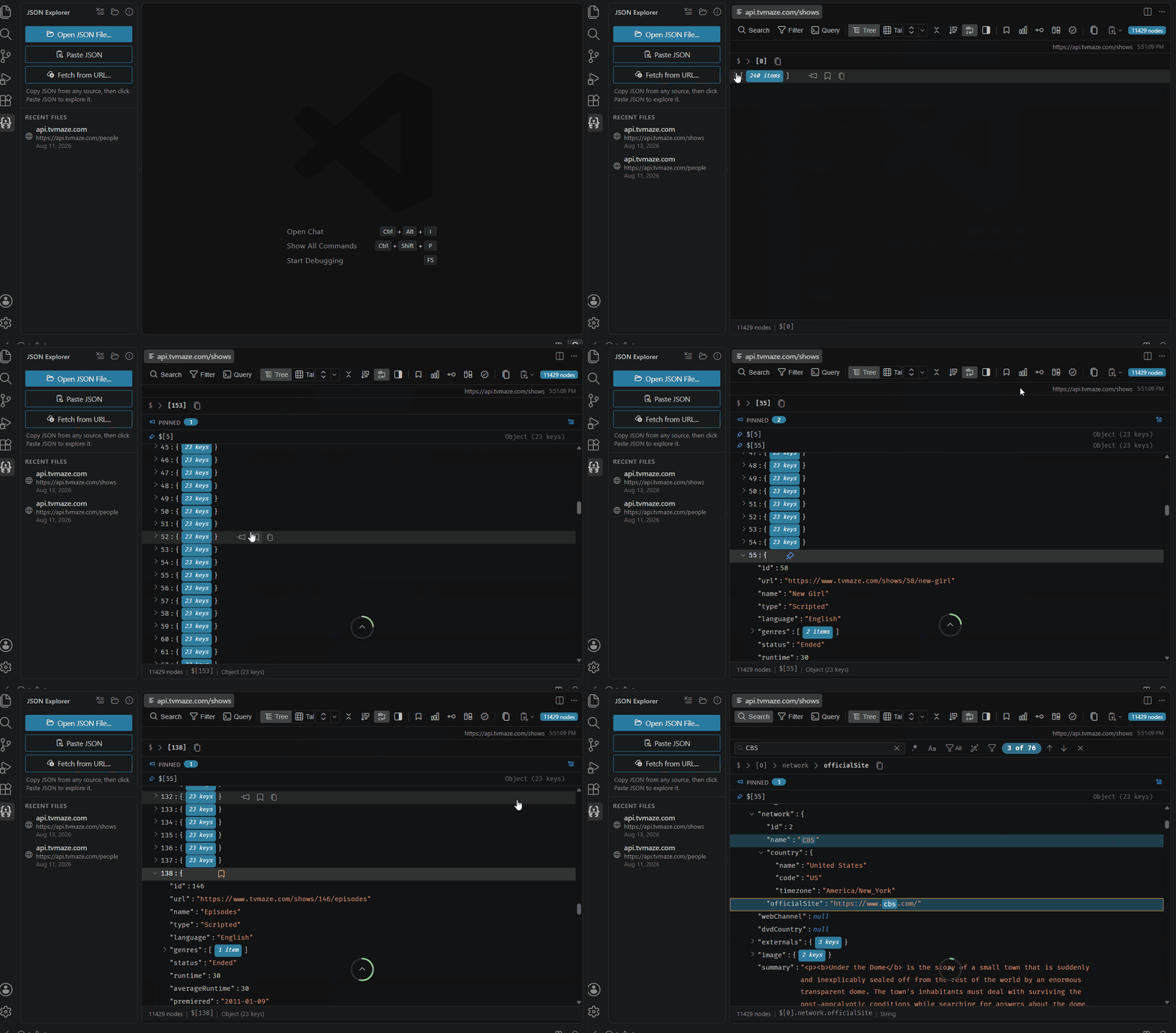
- Browse JSON as a collapsible node tree with key, type, and value displayed for each node
- A breadcrumb bar tracks your position as you navigate into nested objects
- Pin nodes for quick access from the bookmark panel
- Sort object keys alphabetically with a toolbar toggle; the original key order in the document is untouched
- Right-click any object or array and choose Open Subtree in New Tab to explore it in its own panel
Table View
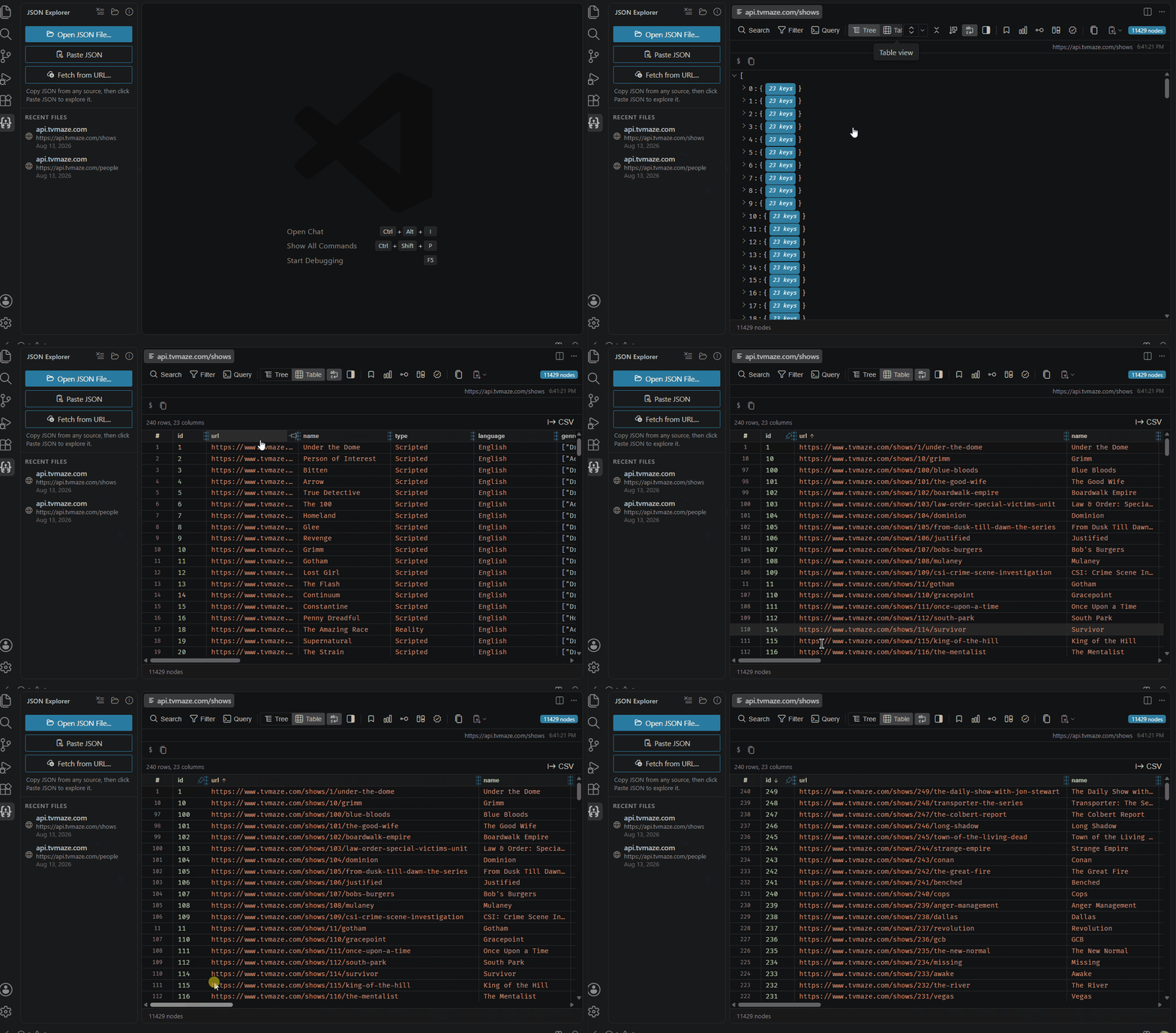
- View arrays of objects as a table, with each key as a column
- Column sorting (click a header), column resizing (drag the resize handle or double-click to auto-fit), and user-toggleable per-column pinning
- Timestamp hints in cells for recognized Unix and ISO 8601 date values
- CSV export button in the table toolbar
- Large arrays load in pages of 50 rows, with a button to load more
Advanced Features
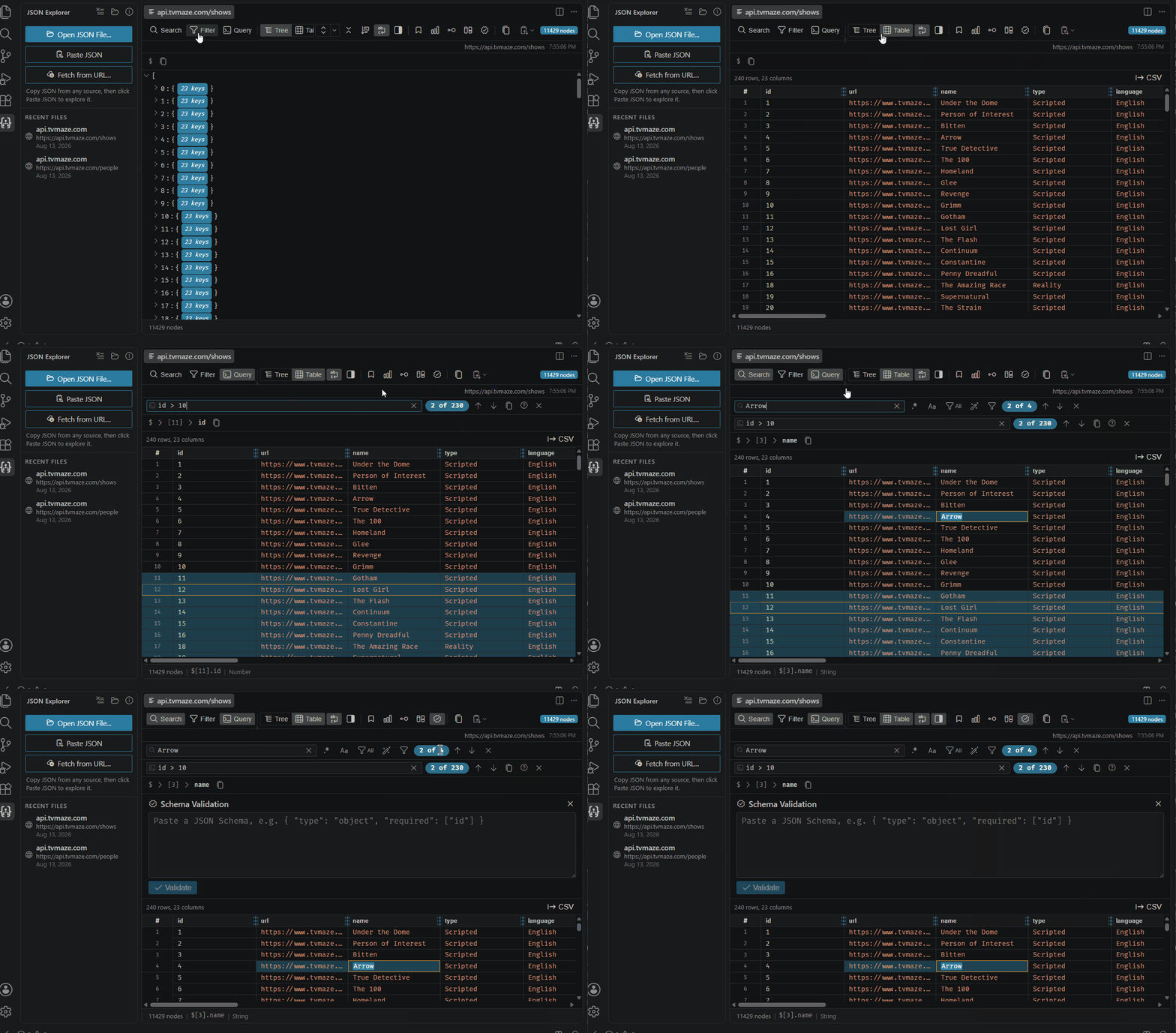
Search and filtering
- Fuzzy search: filter the tree by key or value as you type, with a history of past searches
- JSONPath filtering: enter a JSONPath expression to show only matching nodes, with a built-in reference panel
- Query filter: filter array items with a field comparison language (
age > 30 AND name contains "john") supporting =, !=, >, <, >=, <=, regex (~), contains, startsWith, endsWith, with AND/OR/NOT combinators and a built-in reference panel
Compare
- Diff the loaded document against a second JSON document pasted into the compare dialog or picked from disk with the Choose file... button
- Summary bar showing added, removed, changed, and unchanged counts with per-node change indicators
JSON Schema validation
- Paste a JSON Schema into the schema panel to validate the loaded document
- Failing nodes are marked in the tree; the panel lists each violation with its path and message, and clicking one jumps to the node
- Clearing the schema removes all marks
JSONL / NDJSON
- Open
.jsonl and .ndjson files; each line becomes one array element and blank lines are skipped
- A malformed line reports an error with its line number
Embedded JSON detection
- String values that contain a JSON object or array show an inline JSON badge
- Right-click a badged row and choose Open Embedded JSON in New Tab to explore the parsed value
Generate types
- Produce type definitions from the whole document or a selected node in TypeScript, Zod, Rust, Go, Python, or JSON Schema
Statistics
- Key, object, array, depth, and value counts with a type distribution breakdown, array and string length stats, and a unique key list
Minimap
- Canvas overview of the document with a viewport indicator and click-to-scroll, shown for documents with more than 20 visible nodes
Pinned nodes
- Pin nodes from the row hover button or context menu into an always-visible strip with live value previews, separate from the bookmarks panel and persisted across sessions
Timestamp detection
- Unix seconds, Unix milliseconds, and ISO 8601 values show an inline formatted date hint and hover tooltip in tree rows and table cells
Multi-select
Ctrl/Cmd+click to toggle, Shift+click for a range, Ctrl+A to select all visible, Escape to clear- Bulk copy and bookmark actions in the context menu when multiple nodes are selected
Bookmarks and copy
- Bookmark any node and jump back to it from the bookmarks panel
- Copy the current document, selected node, or multi-selection as formatted JSON, minified JSON, YAML, CSV, TypeScript, Python, PHP array, or Markdown table (CSV and Markdown table appear for arrays only)
- Save to file as JSON, YAML, or CSV via the native VS Code save dialog
Opening JSON Files
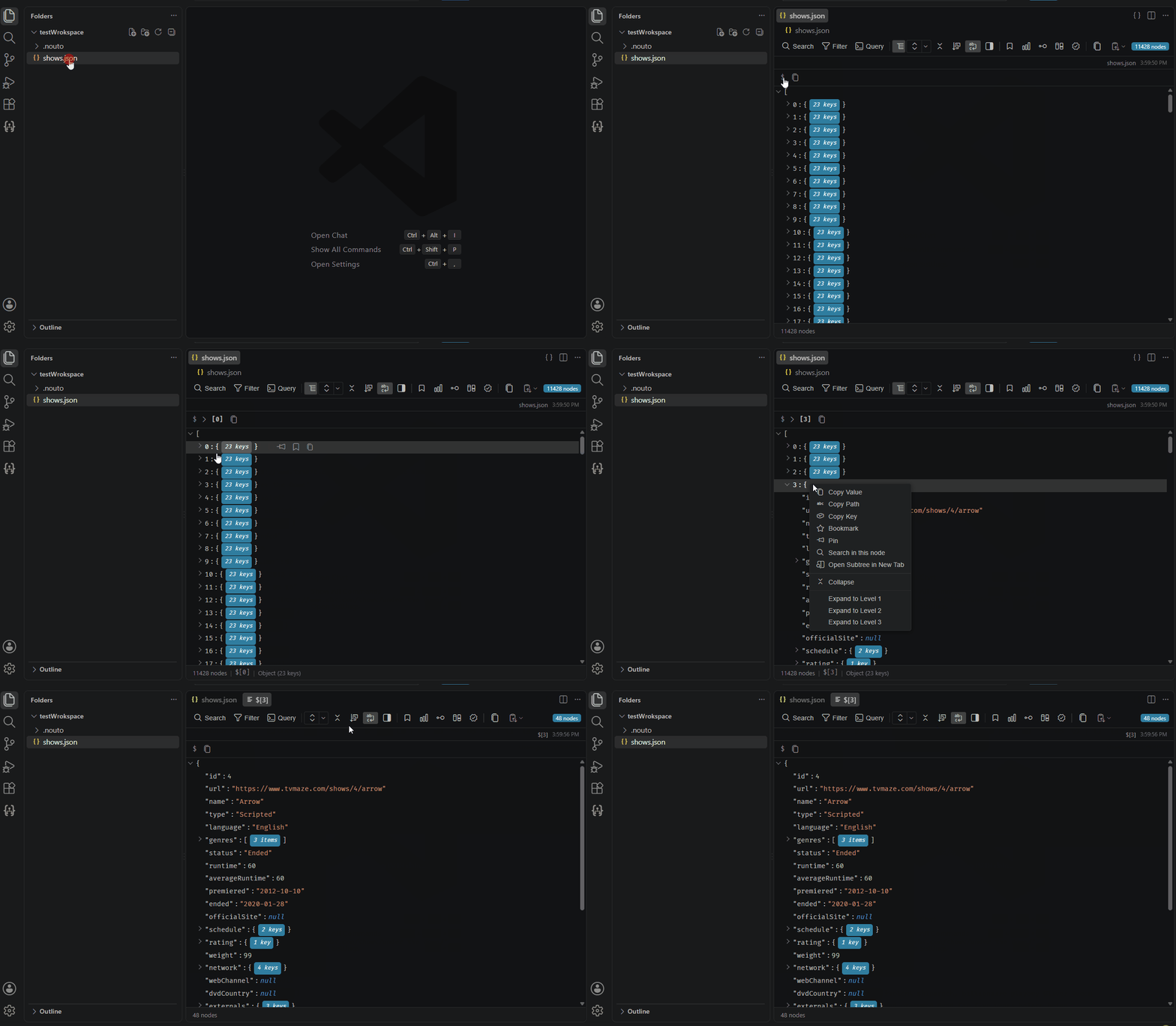
From the file explorer: Right-click any .json, .jsonl, or .ndjson file and select Open with JSON Explorer.
From the editor: Right-click inside an open JSON file and select Open with JSON Explorer, or click the JSON Explorer icon in the editor title bar.
From anywhere on disk: Click the folder icon in the JSON Explorer sidebar or run Nouto JSON Explorer: Open JSON File from Disk from the Command Palette. This works for files outside the current workspace.
From the clipboard: Copy any JSON text from a browser, terminal, API response, or any other source. Open the JSON Explorer sidebar and click Paste JSON.
From a URL: Click Fetch from URL... in the JSON Explorer sidebar (or run Nouto JSON Explorer: Fetch JSON from URL from the Command Palette), enter an endpoint that returns JSON, and click Fetch. Optional custom request headers (e.g. API keys) can be added in the form; header values are stored securely in the operating system keychain, never in plaintext. Fetched URLs appear in the recent files list and re-fetch fresh data when clicked. Requests are GET-only - for full REST client features, use Nouto.
The JSON Explorer sidebar keeps a list of recently opened files. Click any entry to reopen it. Hover over an entry to reveal a remove button.
The sidebar title bar has three icon buttons:
| Icon |
Action |
| Folder |
Open a JSON file from disk |
| Clear all |
Clear the recent files list |
| Info |
Open the About panel |
Settings
| Setting |
Type |
Default |
Description |
noutoJsonExplorer.arrayPageSize |
number |
2000 |
Number of array items to display before showing a "Show more" button. Range: 100-50000. |
noutoJsonExplorer.showScrollToTop |
boolean |
true |
Show the scroll-to-top button in the tree view when scrolled down. |
Limitations
- Files larger than 20 MB are not supported and will open in the default text editor instead.
- The extension does not modify files. All edits must be made in a text editor.
Requirements
Visual Studio Code 1.74.0 or later.
License
Copyright (c) 2026 FrostyBee.
Nouto JSON Explorer is licensed under the MIT License.
| |

