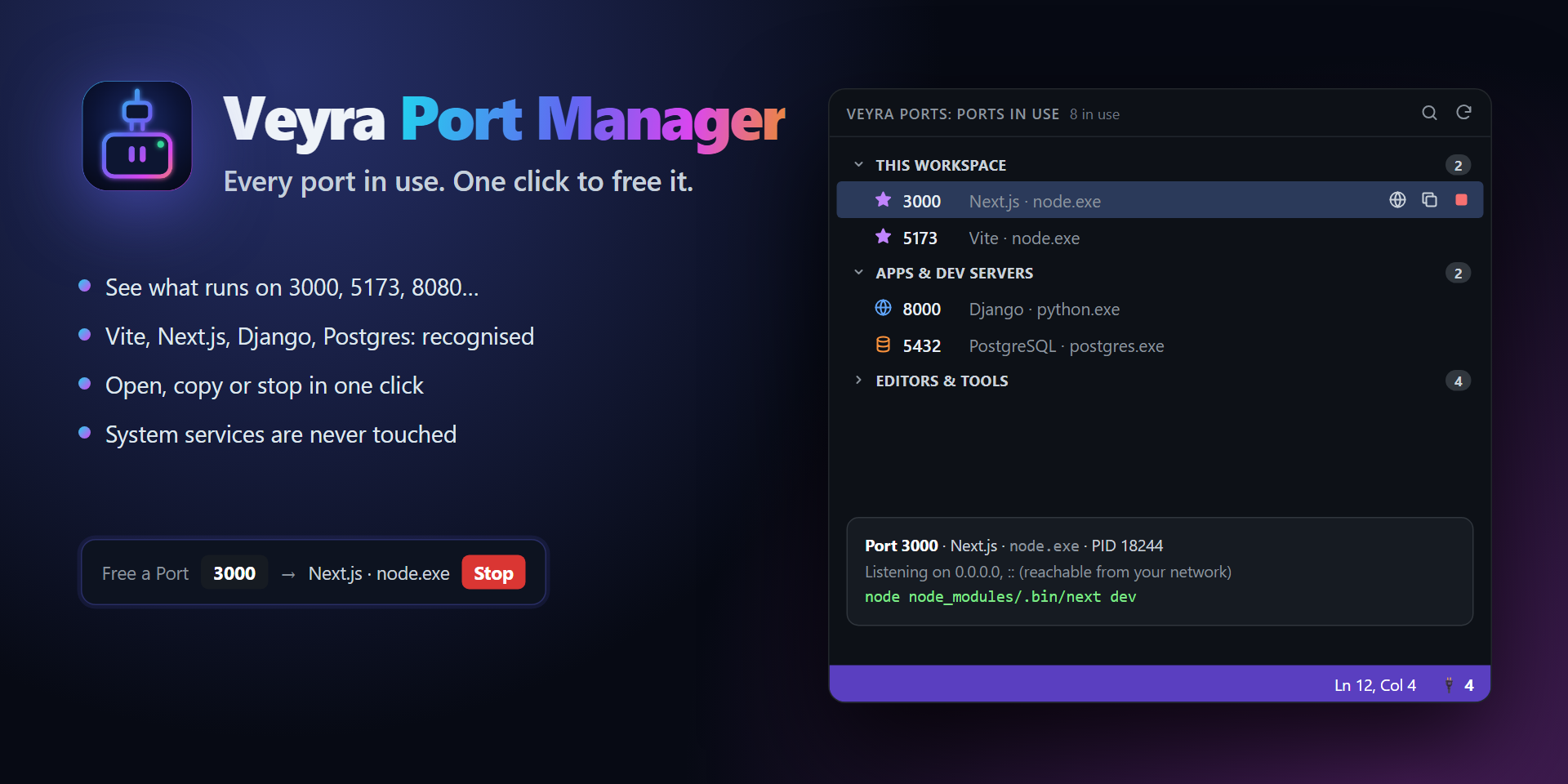
Veyra Port Manager
Every port in use. One click to free it.
Error: listen EADDRINUSE: address already in use :::3000. Sound familiar? Veyra Port Manager shows every port your programs are using, which app is behind it, and lets you open, copy or stop it in one click. No terminal, no netstat, no searching for the right kill command.
- 🔌 See every port in use. Ports 3000, 5173, 8080 and the rest, each with the program behind it, its command line and the folder it runs from.
- ✨ Knows your stack. Vite, Next.js, Nuxt, Astro, SvelteKit, Angular, Create React App, Django, Flask, FastAPI, Rails, Laravel, Spring Boot, .NET, PostgreSQL, MySQL, MongoDB, Redis, Docker and more are recognised by name.
- ⭐ Your workspace first. Servers started from the open folder are grouped at the top, ahead of other apps.
- 🧹 Free a port in seconds. Run Free a Port…, type
3000, see what's using it, and stop it.
- 🛑 Stop safely. Stopping always asks first, re-checks that the program still holds the port, and offers Force Stop if it doesn't close.
- 🛡️ Never touches the system. System services, other users' programs and your code editor itself are never offered for stopping.
- 🔔 Know when a dev server is ready. When a web server starts in your workspace, Port Manager offers to open it in your browser.
- 🌍 Works remotely. Remote SSH, WSL, Dev Containers and GitHub Codespaces: ports open in your local browser through VS Code's port forwarding.
- ⚡ Light. Instant refreshes while the view is open, a check every 20 seconds otherwise, and nothing at all while VS Code is in the background. No telemetry, no dependencies.
Get started
- Click the Veyra Ports icon in the Activity Bar. Ports in Use lists everything listening right now.
- Hover a port for the Open in Browser, Copy Address and Stop buttons, or right-click it for more.
- Port already in use? Run Veyra Ports: Free a Port… from the Command Palette (Alt+P Alt+F, or ⌘+⌥+P on macOS).
The status bar shows how many ports your programs use (🔌 4). Click it to open the list.
Commands
| Command |
What it does |
| Veyra Ports: Free a Port… |
Find what's using a port and stop it. |
| Veyra Ports: Show Ports in Use |
Open the Ports in Use view. |
| Veyra Ports: Refresh |
Scan again right away. |
| Veyra Ports: Show or Hide System Ports |
Also list system services (read-only). |
| Open in Browser · Copy Address · Stop · Reveal Working Folder |
On each port, in the view. |
Settings
| Setting |
Default |
What it does |
veyraPorts.refreshInterval |
3 |
Seconds between refreshes while the view is visible. |
veyraPorts.statusBar |
true |
Show the number of ports in use in the status bar. |
veyraPorts.notifyNewServers |
true |
Offer to open a web dev server when it starts in your workspace. |
veyraPorts.showSystemPorts |
false |
Also list system services and other users' programs (they can never be stopped). |
veyraPorts.hiddenPorts |
[] |
Ports never listed, for example [5037]. |
Safety and privacy
- Read-only until you click Stop. Listing ports only reads what your operating system already reports.
- Protected programs. System services, other users' programs and code editors (VS Code, Cursor, Windsurf, Veyra Studio) can't be stopped from here.
- No surprises. Before stopping, Port Manager confirms the program still holds that port, so a reused process ID can never stop the wrong program.
- No admin rights. It only sees and stops your own programs.
- No telemetry, no network calls, no runtime dependencies.
Works on Windows 10/11 (PowerShell and netstat), macOS (lsof) and Linux (lsof or ss).
Part of Veyra
Veyra Port Manager is made by the team behind Veyra Studio, a fast, free code editor, and Veyra Live Server.
Feedback
Found a bug or have an idea? Open an issue on GitHub.
License
MIT
| |

