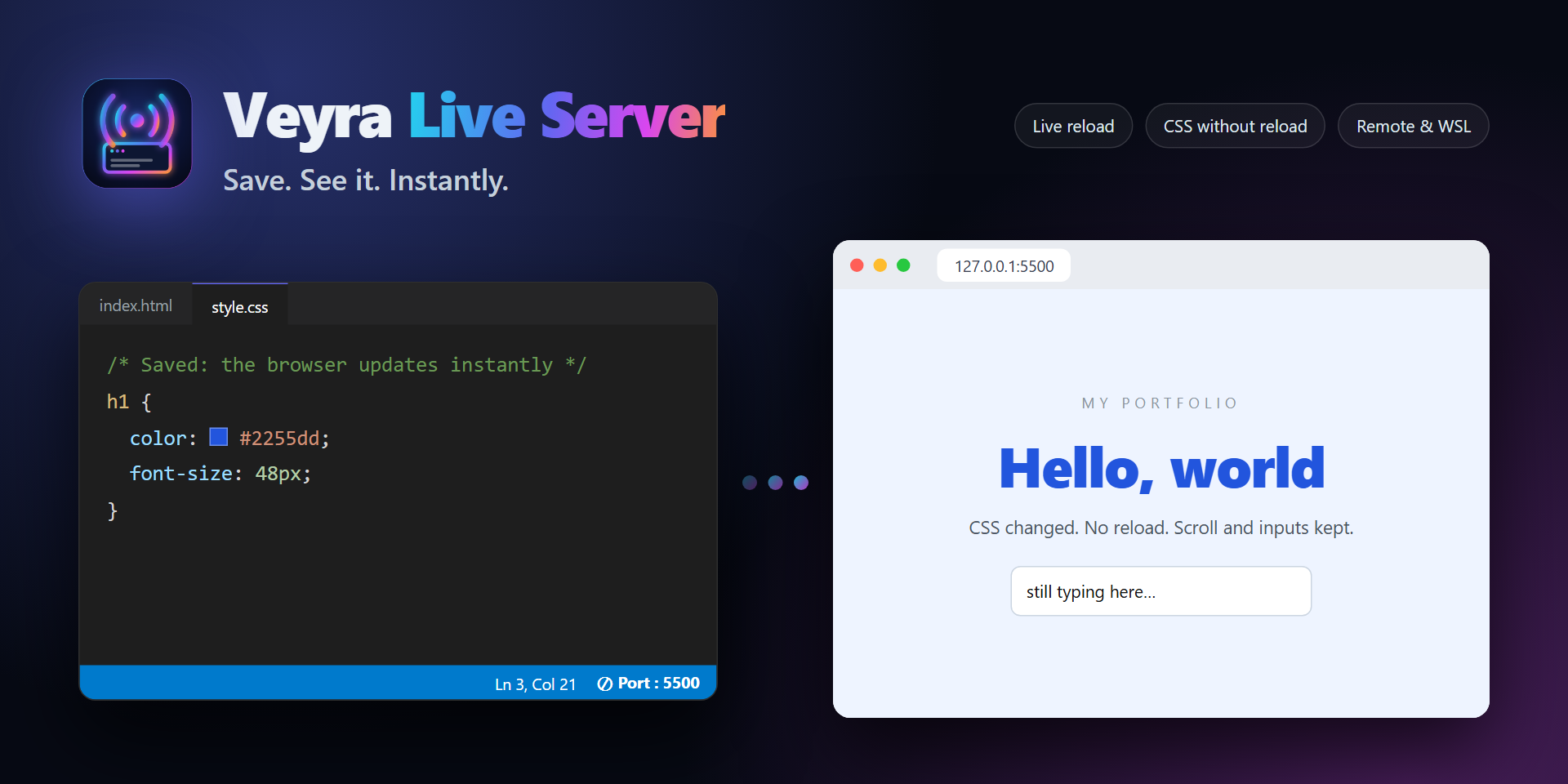
Save. See it. Instantly. A local development server with live reload for HTML, CSS and JavaScript: CSS updates without a page reload, works over Remote SSH, WSL and Codespaces, no dependencies.
Installation
Launch VS Code Quick Open (Ctrl+P), paste the following command, and press enter.
Save. See it. Instantly. A local development server with live reload for HTML, CSS and JavaScript.
🔁 Live reload. Save an HTML or JavaScript file and every open tab reloads on its own.
🎨 CSS without a reload. Save a stylesheet and the new styles are swapped in place. Scroll position, open menus and text you typed into forms stay exactly where they were.
🚀 Go Live in one click. From the status bar, the button on HTML editor tabs, or right-click any HTML file → Open with Live Server.
🎬 Media friendly. Videos and audio stream and seek smoothly.
🌍 Works remotely. Remote SSH, WSL, Dev Containers and GitHub Codespaces: the page opens in your local browser through VS Code's port forwarding.
🔒 Private by design. Listens on 127.0.0.1 only and never serves files outside your folder.
🪶 Tiny. No runtime dependencies and no telemetry.
How it works
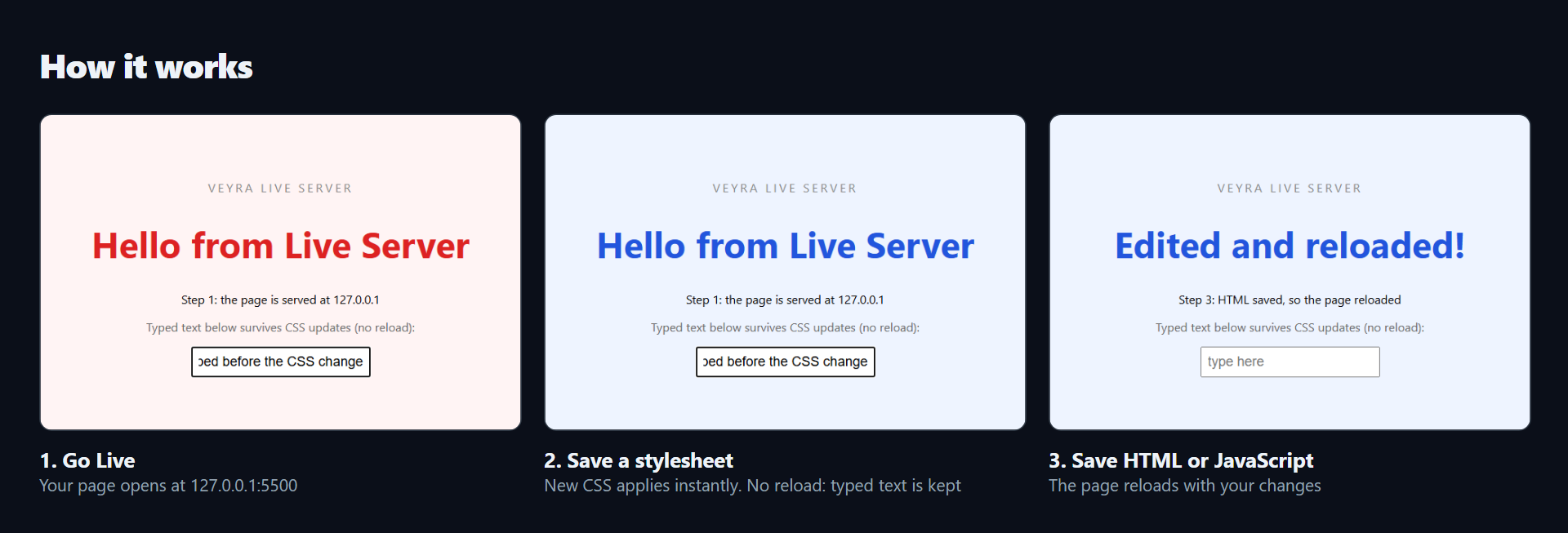
Open a folder with an index.html (or any HTML file).
Click Go Live in the status bar. Your page opens at http://127.0.0.1:5500, and the status bar shows the port.
Edit and save. CSS updates in place; HTML and JavaScript reload the page.
Click the port in the status bar for Open in Browser, Copy Address, Restart or Stop.
Folders without an index.html show a clean list of their files.
Commands and shortcuts
Command
Windows / Linux
macOS
Veyra Live Server: Open with Live Server
Alt+L Alt+O
⌘+L ⌘+O
Veyra Live Server: Stop Live Server
Alt+L Alt+C
⌘+L ⌘+C
Veyra Live Server: Open in Browser · Copy Address · Restart Live Server
Command Palette, while running
Command Palette, while running
The same shortcuts as the classic Live Server extension, so your fingers already know them.
Settings
Setting
Default
What it does
veyraLiveServer.port
5500
Port to serve on. If it's busy, the next free port is used. 0 picks any free port.
veyraLiveServer.root
""
Subfolder to serve, such as /public or /dist. Changing it (or the port) restarts Live Server.
veyraLiveServer.openBrowser
true
Open the page in your default browser when Live Server starts.
Privacy and security
The server accepts connections from your computer only (127.0.0.1), never from your Wi-Fi or office network.
Only files inside the served folder are sent. Requests that try to leave it (../, encoded slashes, symbolic links pointing outside) get a 404.
It works in Restricted Mode: it only reads and serves files and never runs code from your workspace.
No telemetry, no accounts, no runtime dependencies.
Also built into Veyra Studio
The same Live Server is built into Veyra Studio, a fast, free code editor. Both share the same live-reload script, so a project behaves the same in either editor.