Cursor Themes - Dark & Light Collection


A stunning collection of 19 hand-crafted themes for Visual Studio Code — 17 dark and 2 light. Every theme features carefully selected colors, comprehensive syntax highlighting for 50+ languages, and a polished UI designed for long coding sessions.
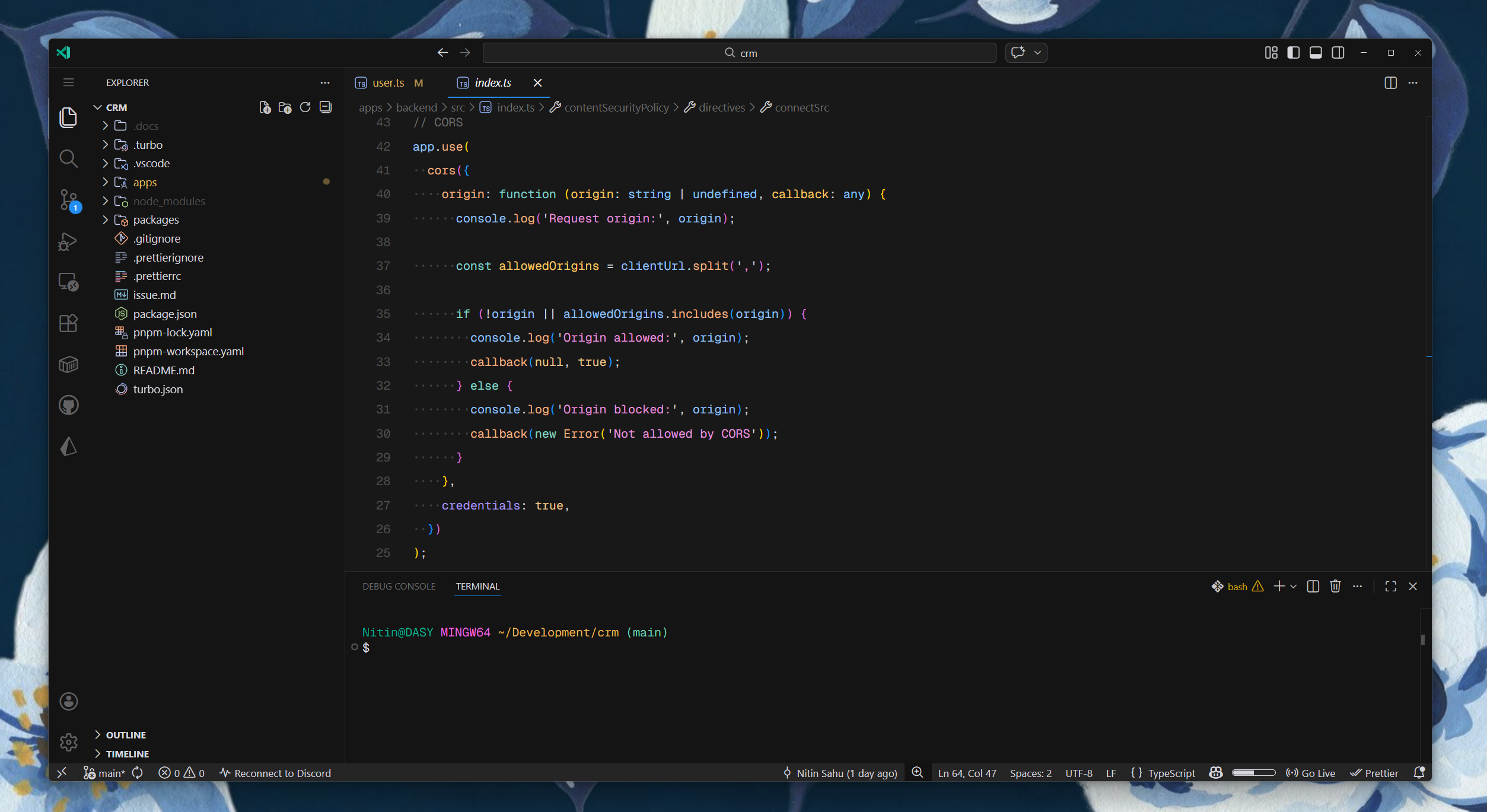
🎨 Included Themes
Dark Themes
| Theme |
Description |
Accent |
| Cursor Dark Theme |
The original — elegant purple accents on a deep dark background |
Purple |
| Midnight Ocean |
Deep navy backgrounds with cyan/teal accents, inspired by the deep sea |
Cyan |
| Ember Glow |
Warm charcoal backgrounds with orange/amber accents, cozy late-night coding |
Orange |
| Neon Synthwave |
Cyberpunk purple-black with hot pink and electric cyan neon highlights |
Hot Pink |
| Forest Night |
Dark green-gray backgrounds with earthy sage and natural tones |
Green |
| Moonlight Purple |
Deep indigo backgrounds with soft lavender and violet accents |
Violet |
| Aurora Dusk |
Cool blue-gray dark base with aurora cyan, lilac, and mint highlights |
Aurora Cyan |
| Carbon Bloom |
Charcoal dark canvas with teal, violet, and warm amber syntax contrast |
Teal |
| Rose Nebula |
Plum-black night palette with rose-magenta and icy cyan accents |
Rose Magenta |
| Soot Ember Minimal |
Near-black with a tiny warm ash tint and a restrained minimal palette |
Ember Gold |
| Arcade Carbon |
Near-black base with colorful retro-arcade pops for lively syntax contrast |
Neon Pink |
| Classic Terminal Ink |
Traditional editor feel with muted classic tones and balanced readability |
Vintage Gold |
| Mono Slate Pop |
Mostly monochrome slate syntax with a few carefully placed accent pops |
Slate |
| Retro Amber Console |
Old-school amber-forward coding vibe on an almost-black background |
Amber |
| Carbon Onyx |
IBM Carbon Design-inspired deep charcoal UI with a warm, muted syntax palette |
Blue |
Light Themes
| Theme |
Description |
Accent |
| Morning Mist |
Soft warm whites with blue/indigo accents, gentle on the eyes |
Blue |
| Arctic Frost |
Cool white/slate backgrounds with teal/violet accents, crisp and clean |
Teal |
✨ Why Choose This Collection?
- 18 Unique Themes — Find the perfect mood for any time of day
- Eye-Friendly Colors — Carefully tuned contrast levels reduce eye strain
- 50+ Languages — Comprehensive syntax highlighting support
- Web3 Ready — First-class support for Solidity and blockchain development
- Framework Support — Optimized for React, Vue, Angular, Svelte, and more
- Actively Maintained — Regular updates and improvements
Supported Languages
| Web Development |
Backend |
Systems |
Web3 |
Data & Config |
| JavaScript |
Python |
Rust |
Solidity |
JSON |
| TypeScript |
Go |
C/C++ |
Vyper |
YAML |
| React/JSX |
Java |
Assembly |
Hardhat |
TOML |
| Vue |
PHP |
WebAssembly |
Foundry |
XML |
| Angular |
Ruby |
|
|
Markdown |
| Svelte |
|
|
|
SQL |
| HTML/CSS |
|
|
|
GraphQL |
| SCSS/SASS |
|
|
|
Prisma |
Installation
From VS Code Marketplace (Recommended)
- Open VS Code
- Go to Extensions (
Ctrl+Shift+X / Cmd+Shift+X)
- Search for "Cursor Themes" or "Cursor Color Theme"
- Click Install
- Press
Ctrl+K Ctrl+T and select your preferred theme
Quick Install via Command Palette
- Press
Ctrl+P / Cmd+P
- Paste:
ext install flawlessnitin.cursor-color-theme
- Press Enter
From VSIX File
- Download the
.vsix file from Releases
- Open Command Palette (
Ctrl+Shift+P / Cmd+Shift+P)
- Run Extensions: Install from VSIX...
- Select the downloaded file
Activating a Theme
- Open Command Palette (
Ctrl+Shift+P / Cmd+Shift+P)
- Type "Color Theme" and select Preferences: Color Theme
- Choose from: Cursor Dark Theme, Cursor Dark Pro, Cursor Dark VSCode, Midnight Ocean, Ember Glow, Neon Synthwave, Forest Night, Moonlight Purple, Aurora Dusk, Carbon Bloom, Rose Nebula, Soot Ember Minimal, Arcade Carbon, Classic Terminal Ink, Mono Slate Pop, Retro Amber Console, Carbon Onyx, Morning Mist, or Arctic Frost
Or use the keyboard shortcut: Ctrl+K Ctrl+T
Recommended Settings
Font: Geist Mono
For the best experience, we recommend Geist Mono by Vercel.
Add to your settings.json:
{
  "editor.fontFamily": "'Geist Mono', Consolas, 'Courier New', monospace",
  "editor.fontSize": 14,
  "editor.fontLigatures": true,
  "editor.lineHeight": 1.6
}
Optional Enhancements
{
  "editor.bracketPairColorization.enabled": true,
  "editor.guides.bracketPairs": true,
  "editor.smoothScrolling": true,
  "workbench.colorTheme": "Cursor Dark Theme"
}
Changelog
See CHANGELOG.md for version history and updates.
Contributing
Contributions are welcome! Please feel free to submit a Pull Request.
Issues & Feedback
Found a bug or have a suggestion? Open an issue on GitHub.
Credits
Carbon Onyx UI colors are ported from EdenEast's carbonfox palette (IBM Carbon Design System-inspired), via keifererikson/vscode-nightfox (MIT licensed), with syntax highlighting from this collection's own Cursor Dark Theme.
License
MIT License - Copyright (c) 2024-2026 Nitin
Enjoy coding with Cursor Themes! If you find these themes useful, please consider:

