Branch Diff



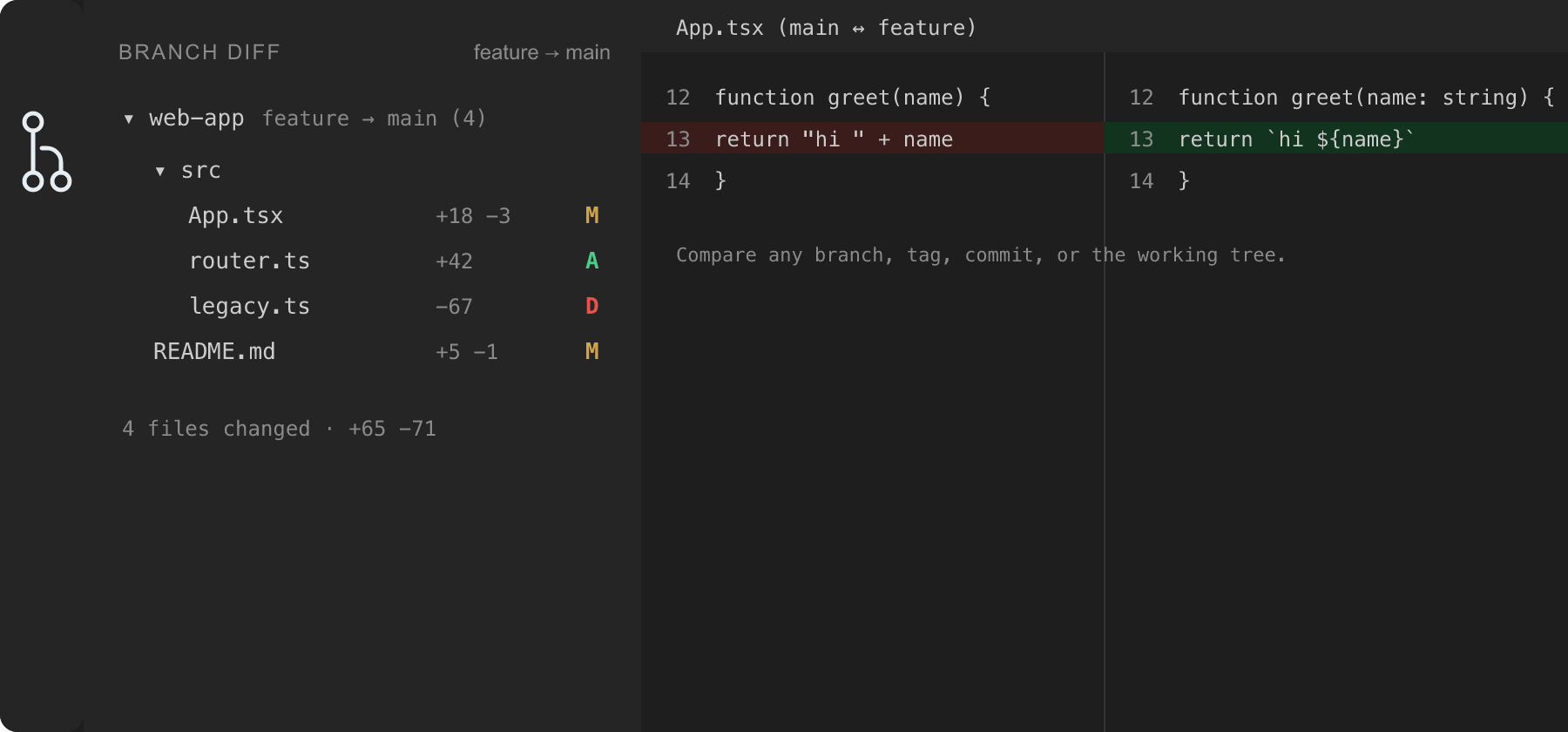
A VS Code extension that compares all files between two git branches and shows the changes for each file — like a local pull-request view.
Install
Search Git Branch Diff in the Extensions view, or run:
ext install firdaushatta.git-branch-diff
See Installation below to build from source or a .vsix.
Requirements
- VS Code
1.85.0 or newer
git available on your PATH
Features
- Changed Files sidebar — an Activity Bar view listing every file that differs between a source and target, with colored A / M / D / R status badges (matching VS Code's Source Control view), per-file
+/− line counts, a compact folder tree, and a changed-file count badge.
- Pick both sides — compare any source against any target. Each side can be a branch, a remote branch, a tag, an arbitrary commit / ref (e.g.
HEAD~3), or the Working Tree (uncommitted changes) as the source.
- Swap source ↔ target with one click.
- Native diff editor — click any file to open VS Code's side-by-side diff. When the source is the Working Tree, the diff opens against the live, editable file.
- Merge-base (3-dot) comparison by default, so you see only the changes introduced on the source (the same set GitHub shows in a PR). Toggle
branchDiff.useMergeBase off for a direct 2-dot comparison against the target tip.
- Source and target are remembered per workspace.
Usage
- Open a git repository folder in VS Code.
- Click the Branch Diff icon in the Activity Bar.
- Run Select Target Branch (the
git-compare icon in the view title) and pick a branch, tag, remote, or enter any ref.
- Optionally run Select Source Branch (the
git-branch icon) to compare from another branch, a ref, or the Working Tree.
- Use Swap (the
arrow-swap icon) to flip the two sides.
- Browse the changed files; click one to open its diff. Use Refresh after committing.
- To edit a file, hover its row and click Open File (the
go-to-file icon), or right-click → Open File — this opens the real, editable file on disk. (When comparing two committed branches the diff itself is read-only; the Working Tree source opens against the live file.)
- While reading a diff, right-click a line for line actions: Open File at This Line (jump into the editable file at that line), Copy Line Reference (
path:line, or path:start-end for a selection), and Copy Line (the line's text).
- Right-click any file (or folder) row for more actions: Open to the Side, Copy Path, Copy Relative Path, and Reveal in Explorer.
Multiple repositories
If your workspace has more than one git repository (multi-root folders or nested repos — the same set VS Code's Source Control shows), each appears as its own header in the tree. Every repo keeps an independent source/target and is compared separately. Right-click a repo header to Select Source / Select Target / Swap / Refresh for just that repo; the toolbar buttons ask which repo when several are present. A single-repo workspace shows the file list flat, with no header.
Settings
| Setting |
Default |
Description |
branchDiff.useMergeBase |
true |
Compare against the merge-base (3-dot). Disable to compare against the target branch tip (2-dot). |
branchDiff.groupByFolder |
true |
Show changed files in a collapsible folder tree (single-child folders compacted). Disable for a flat list. |
branchDiff.includeUntracked |
true |
When the source is the Working Tree, include untracked files as added. |
Installation
Install from the Marketplace, or build a .vsix locally:
npm install
npm run package
npx @vscode/vsce package                # produces git-branch-diff-<version>.vsix
code --install-extension git-branch-diff-*.vsix
Development
npm install
npm run compile     # or: npm run watch
npm run check-types # type-check without emitting
npm test            # run unit tests
Press F5 to launch the Extension Development Host.
Maintainers: see PUBLISHING.md for Marketplace release steps.
Support
If this extension is useful to you, you can support its development:
☕ Buy Me a Coffee
License
MIT © Firdaus Hatta

