ZCode Chat
中文 · English · 更新日志 / Changelog · 许可证 / License · 第三方声明 / Third-party notices · 源码 / Source · 问题反馈 / Issues
中文
在 VS Code 右侧边栏里和 ZCode 智能体对话。本扩展不单独登录,只复用本机 ZCode 桌面应用 的账号、模型和会话。
特色功能
- 不用在插件里重复登录:复用 ZCode 桌面端的账号、模型和工作区会话,桌面窗口可以保持关闭。
- 使用在 ZCode 中配置的第三方 API 模型,包含快捷方式供应商和完整自定义供应商。
- 用
@ 搜索并引用工作区文件或已有会话;图片可添加、预览并随问题发送。
- 支持立即发送、排队、停止和编辑最近的问题,切换会话后保留各自草稿与运行状态。
- 通过可折叠时间线查看思考和工具过程;公式支持离线渲染。
- 在输入区查看上下文和套餐额度;DeepSeek、Kimi 已有预置适配,也可通过
zcode.quotaAdapters 把兼容的额度 API 映射到额度面板。
输入区示意
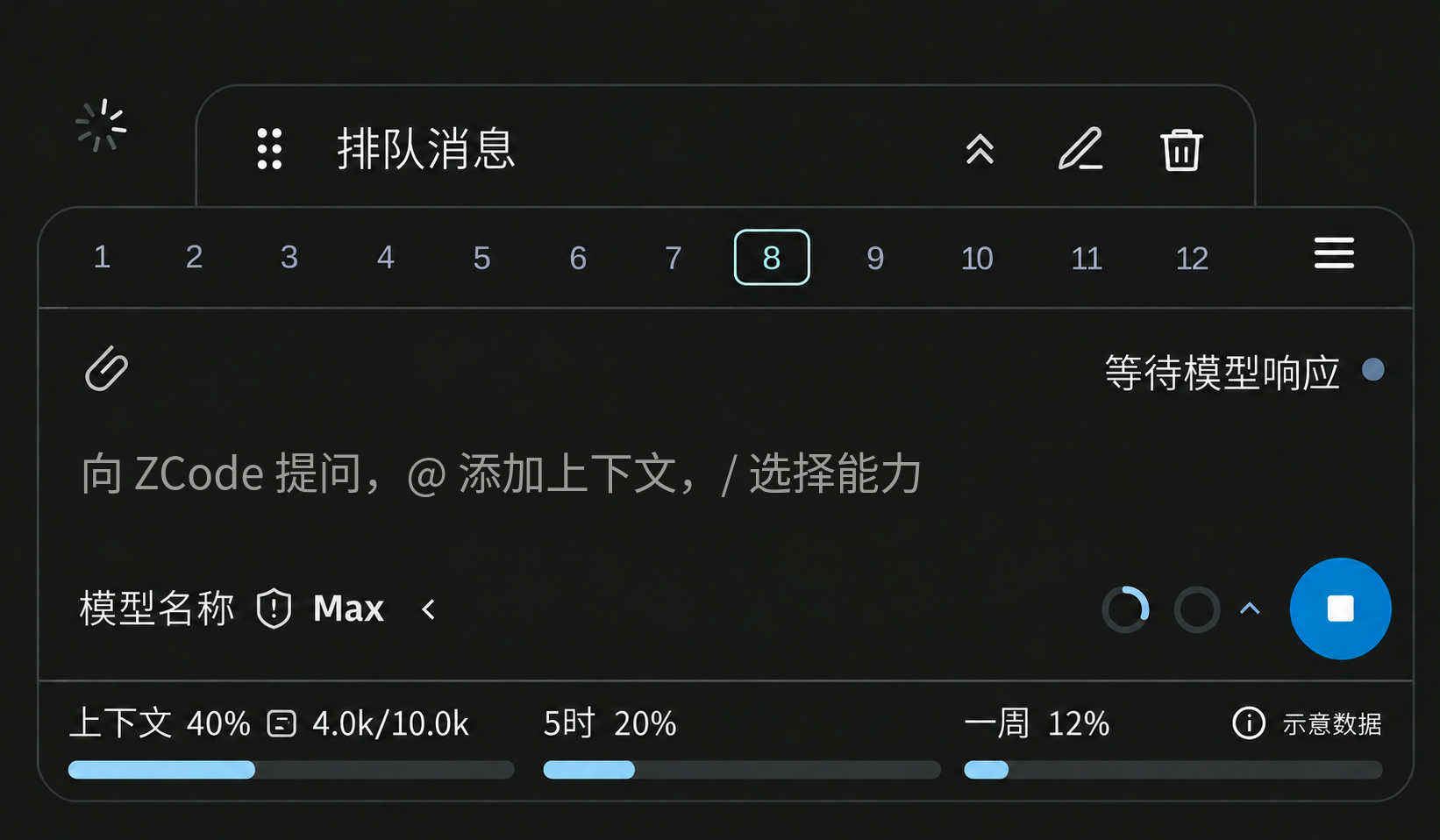
如果图片没有出现,通常是访问 GitHub 的网络连接异常。可以稍后刷新页面,或查看下面的分区说明。
| 位置 |
用途 |
| 输入框上方 |
排队消息和目标;排队项可调整顺序、编辑、删除或立即发送。 |
| 顶部数字轨道 |
跳转历史问题;右侧三横线可折叠或恢复对话。 |
| 输入框上沿 |
添加图片或文件、查看引用和连接状态。 |
| 输入区 |
编写问题;@ 引用工作区文件或会话,/ 搜索命令、技能和子智能体。 |
| 左下角 |
切换模型、权限和推理强度;紧凑模式用盾牌图标表示权限,并可收起控件。 |
| 右下角 |
双环显示上下文和额度概况;发送、立即插入与停止按钮随运行状态切换。 |
| 下方额度栏 |
展开后查看上下文、5 小时与每周额度的比例和详情;第三方 API 可通过 zcode.quotaAdapters 映射显示。 |
新版 Coding Plan 使用的短期项目 Token 只保留在内存中,并在请求时检查刷新。为兼容桌面 CLI,扩展会把手动配置或旧版套餐的供应商 API Key 同步到 ~/.zcode/cli/config.json。Linux/macOS 上该目录限制为 0700、文件为 0600;Windows 使用用户目录的访问控制。不要分享此配置文件。
对话时不必开着桌面窗口。切换项目、重新登录或登录状态过期后,请先在桌面端完成相应操作,再在扩展里选择「重新读取登录」。
这是个人维护的扩展。使用中遇到问题,可以到插件市场 Q&A提问,也可以在 GitHub Issues 反馈。
开发与贡献请参阅 CONTRIBUTING.md。本项目为独立扩展,与 ZCode、Z.ai 和 Microsoft 无隶属或官方背书关系。
适配范围
Linux 已测试,目前使用基本正常;Windows 已由作者实际测试,但仍发现过会话互不可见的适配问题;macOS ARM64 和 Intel 已通过 GitHub CI 的类型检查、完整单元测试、构建和打包检查,以及 VS Code 最低支持版 1.106.0 与当前稳定版中的 SQLite 扩展宿主回归。macOS 的真实账号登录、端到端聊天和界面体验仍待验证。完整验证记录 · SQLite 宿主验证记录
常规兼容范围为 ZCode 桌面端 3.12.3–3.17.2。已验证 3.12.3、3.14.4 和 3.16.3;3.14.4 已完成真实会话切换与停止回归,3.16.2 起适配了会话列表协议变化。另已在 Windows 上验证 3.17.1 的 BigModel 免费 Start Plan 登录、模型选择和发送消息;3.17.2 的 Coding Plan 登录协议已与官方开源源码对照,尚未用真实账号验证。
2.0.2 进一步适配桌面端 3.16.2 的 Coding Plan 鉴权和自定义 API 配置。3.16.2 已通过隔离配置下的真实运行时会话切换、停止和附件回归;Z.AI 个人套餐仍需真实账号验证;macOS 的 CI 验证不包含桌面端真实账号聊天。
桌面端更新后协议可能变化,建议确认扩展兼容性后再更新。
遇到适配问题,建议先把这份 README 交给本机的智能体,结合操作系统、扩展与桌面端版本、实际现象及日志,按下方「排查」说明检查安装路径、运行时和会话工作区。macOS 用户也可以按此方式先排查。仍无法解决时,可到插件市场 Q&A提问,或在 GitHub Issues 反馈。
开始使用
开始对话前,请确认:
| # |
条件 |
如何确认 |
| 1 |
VS Code 1.106 或更高,已安装本扩展并 Reload Window |
帮助 → 关于 |
| 2 |
已安装 ZCode 桌面端 3.12.3–3.17.2,且能找到 zcode.cjs |
见下方探测路径 |
| 3 |
桌面端 已经登录过 |
存在 ~/.zcode/v2/setting.json 和 ~/.zcode/v2/credentials.json |
| 4 |
当前桌面选择里有 还能用的模型凭据(个人或团队项目,且有额度) |
桌面端能正常开一个新对话 |
安装
在 VS Code 扩展市场搜索 ZCode Chat(发布者 fanghua)并安装,再执行 Developer: Reload Window。
市场有两条更新通道:
- 稳定版使用偶数次版本号,当前是 2.2.3。直接安装会留在稳定版,不会自动升到预览版。
- 预览版使用奇数次版本号。只有在扩展页面选择 Install Pre-Release Version,或执行
code --install-extension fanghua.zcode-desktop-chat --pre-release 的用户才会安装预览版,并继续接收更高的预览版。之后若发布更高版本号的稳定版,预览版会被该稳定版替换。
也可以手动安装 VSIX。文件名是 zcode-desktop-chat-<版本>.vsix,请选择与要安装的稳定版或预览版一致的文件:
命令面板:Extensions: Install from VSIX… → 选择下载的 VSIX → Developer: Reload Window。
code --install-extension zcode-desktop-chat-<版本>.vsix --force
使用
界面语言默认跟随 VS Code,支持简体中文、繁体中文和 English,其他语言回退到 English。右上角 设置(齿轮) → 界面语言 可手动选择;修改即时生效,不重启会话,也不会翻译聊天内容。设置项为 zcode.language,选择“跟随 VS Code”可恢复自动模式。
输入框右上沿的导航控件用于展开或收起问题导航;右下角上下文小环旁的小箭头控制下方额度面板。额度面板以一行三个等宽区域显示上下文、5 小时和每周额度的已用比例与进度条,悬停各项可查看精确数值、剩余额度和重置时间。展开状态会保存;未收到数据时显示等待提示。
- 打开右侧边栏的 ZCode 图标,或在命令面板执行 ZCode: Open Chat。如需快捷键,可在 VS Code 的键盘快捷方式中自行绑定。
- 输入框右上角显示「已连接」后即可发送。
Enter 发送,Shift+Enter 换行。
- 生成期间始终保留停止按钮。输入文字后可排队发送,或立即发送并打断当前回复;
Ctrl+Enter(macOS:Cmd+Enter)立即发送。排队中的消息在历史重绘和切换回来后会恢复,服务器确认后可以修改、删除或立即发送。
- 输入框下方切换模型、权限模式(变更前确认 / 自动编辑 / 计划 / 完全访问)、推理强度。右上角设置可预设新会话使用的模型、权限和推理强度;推理强度会按所选模型校验,更换默认模型时会重置为新模型的默认值。
- 点击左上角的会话名可改名,按回车保存。点击时钟图标打开历史记录,可切换或归档会话;已归档的会话可删除。
- 本扩展里的会话会出现在桌面端同一工作区的列表中。请先打开一个文件夹再聊,否则工作区会落到用户主目录,和桌面端对不齐。
- 输入框右上沿的小箭头可以展开或收起问题导航编号。收起时箭头朝上,展开后朝下。
思考、查阅和终端调用采用紧凑摘要,点击可展开详情;连续同类工具调用会合并展示。生成中的长思考会跟随最新输出,向上翻看后保留阅读位置,回到底部后恢复跟随。问题下方可复制、折叠;最近一条可编辑的问题还会显示编辑图标。
草稿和手动加入的文件引用按会话保存,切换回来或 Reload Window 后会恢复。发送后会清除已提交的草稿文字;发送失败时会恢复原内容。若期间已输入新内容,两部分都会保留,且不会自动重发。切换会话期间输入的文字会保留在目标会话中;若目标已有草稿,两者会合并保留。不再自动附带当前编辑器文件,只有手动加入的引用会发送。
点击输入框左上方的附件图标可选择图片或文件;图片也支持粘贴和拖放。支持 PNG、JPEG、WebP、GIF,每张最多 20 MB,每次最多 8 张;支持图片的模型可直接理解图片;非多模态模型能否通过 analyze_image 分析取决于桌面端后端与模型配置,插件会展示其工具过程。图片附件接口已在桌面端 3.14.4 验证。图片上传到本机 ZCode 附件存储,草稿只保留引用和小缩略图。可只发送图片,输入栏和历史中的图片标签均可点击预览;窗口重载后,未发送草稿使用保留的缩略图预览。上传中的图片需等待完成;失败图片可移除后重新添加。
输入框上方显示手动加入的文件引用标签;选区引用带行号,可点击 × 移除。引用格式与桌面端相同,例如 [main.ts](./src/main.ts#L12-L34)。
输入 / 可搜索当前会话的命令、技能和子智能体;用上下键移动,Tab 或 Enter 选择。已关闭的文档和浏览器技能仍会列出,选中后可以允许对应插件;选择会记住,并重启当前会话,仍遵循桌面端原有开关。技能和子智能体可多次选择,在输入区下方显示并点击移除。悬浮引用标签可查看完整路径、整个文件或选中片段,以及未保存修改提示。整文件引用在发送时读取最新编辑器内容;选区引用保留添加时的快照。图片分析卡片默认收起,展开后可分别查看参数和完整结果。
问询卡片在回答、拒绝或停止后会缩成工作区内的摘要行,点击可查看原问题和选择;完成后的选项不能重复提交。
编辑器右键:
- 把选区加入对话 — 钉住选区
- 把当前文件加入对话 — 钉住文件
在输入框输入 @ 可搜索当前会话工作区的文件和会话,文件排在前面、会话排在后面;继续输入文件名、路径或会话标题筛选。用上下键选择、Enter/Tab 添加引用,Escape 关闭。文件引用显示在输入框上方;会话引用显示为独立标签,并随草稿和发送失败恢复保留。文件搜索包括 .vscode 等隐藏配置文件,跳过 .git、依赖和构建目录;支持模糊匹配并优先显示最近打开的文件;输入查询后直接在整个工作区进行定向搜索,不再依赖最初列出的文件。最多展示 40 条文件结果,同一查询缓存约 15 秒;每种搜索模式最多取 5,000 个候选,空查询列出最多 1,000 个文件。失败时可点击重试或按 Enter。含空格的文件名可用 @"文件 名" 搜索。技能和子智能体不在此 @ 菜单中;请用 / 搜索。
在 VS Code 文件树选中一个或多个文件,右键选择 ZCode: 把文件加入对话。跨工作区文件使用相对实际会话根目录的路径;未保存的文件会携带当前内容,过大的未保存文件请选中所需片段。
智能体修改文件后,可在对应工具卡片中打开文件或查看 diff。
回复支持行内公式 $…$、\(...\) 和独立公式 $$…$$、\[...\]。公式离线显示;回复旁的「美化公式」会下载约 260 KB 字体,之后可离线使用。宽公式可横向滚动;不支持的语法保留原文,代码块不做公式转换。
登录与模型
| 操作 |
模型 |
鉴权 |
| 打开已有会话 |
沿用该会话当时的供应商和模型 |
用桌面端当前登录里、同一供应商的凭据 |
| 新建会话 |
默认沿用桌面端当前模型;也可在扩展设置中指定新会话默认模型 |
同样用当前桌面登录 |
| 桌面端切换个人 / 团队项目 |
已有会话的模型不变 |
扩展重新读取桌面选择 |
模型选择器会合并后端当前会话可用模型与桌面端配置的快捷方式模型,并按供应商分组显示。
个人额度用尽会出现余额不足。在桌面端切到仍有额度的项目,再在扩展里「重新读取登录」。
设置
聊天右上角设置菜单提供「扩展中的插件服务」:分别允许 Word、PDF、演示文稿、表格、浏览器、电脑控制和 Sites。默认全部屏蔽,允许后仍遵循桌面端原有开关。修改会重启当前会话,请先结束正在进行的回复。
| 设置 |
默认 |
说明 |
zcode.binaryPath |
空(自动探测) |
zcode.cjs 的绝对路径 |
zcode.nodePath |
空(VS Code 运行时) |
可选 Node.js 路径,仅在默认运行时无法启动时配置 |
zcode.language |
auto |
跟随 VS Code,也可选择简体中文、繁体中文或英文 |
zcode.workspacePath |
空(当前窗口第一个文件夹) |
发给智能体的工作区根目录 |
zcode.model |
空(跟桌面默认) |
覆盖项,格式 providerId/modelId |
zcode.allowedDesktopPlugins |
[] |
用户级允许列表,工作区不能覆盖。支持 documents、pdf、presentations、spreadsheets、browser-use、computer-use、zcode-site;允许不强制启用桌面端已关闭的插件。浏览器和电脑控制共用 REPL。修改后重启会话 |
zcode.showSuppressedPluginSkills |
true |
上述插件关闭时,仍在 / 菜单列出文档、PDF、演示文稿、表格和浏览器技能。选中后不发送该技能,可以允许对应插件;选择会记住并重启当前会话 |
zcode.quotaAdapters |
空 |
自定义供应商额度接口;用 providerId 精确匹配,并映射或组合 JSON 返回字段。配置后运行 ZCode: Set quota API key 保存密钥。详见额度适配器说明 |
相关命令:ZCode: Show Log、ZCode: Open Chat、ZCode: Set quota API key。
自定义额度配置
扩展已预置 DeepSeek 和 Kimi API 额度适配器。使用 ZCode 中配置的对应快捷方式时,会自动读取账户余额;Kimi 显示人民币可用余额和代金券余额,不必另写适配配置。Kimi 预设对应国内开放平台的 moonshot-kimi 快捷方式,国际站 Key 与国内站 Key 不通用;其他供应商可以通过 zcode.quotaAdapters 接入。预置适配器和用户配置走同一套请求、字段映射和安全校验,区别只是预置项由扩展提供。
配置时,在 VS Code 命令面板运行 Preferences: Open User Settings (JSON),将适配器添加到 zcode.quotaAdapters 数组。providerId 必须与 ZCode 模型使用的供应商 ID 完全一致。适配器可读取余额、剩余/已用比例、额度数量、重置时间和货币明细;也能映射“今日消费”这类没有百分比上限的自定义数值。返回字段用 JSON Pointer 选择,例如 /data/remaining;适配器可推导金额或数量额度的剩余值及百分比,缩放最小单位,并将多个数值字段组合成指标。若总额与已用金额来自不同接口,也可组合最多 5 个同源请求计算剩余预算。支持 Bearer、自定义认证请求头以及可选认证前缀。所有预置项都只是可参考的配置范例,用户也可以只配置自己需要的接口和字段。
供应商快捷方式可能只保存 API Key,而完整自定义供应商会同时配置 API 地址和 Key。适配器默认把单独填写的 Key 存在 VS Code SecretStorage,通过 ZCode: Set quota API key 设置;如果 ZCode 已为同一个 providerId 保存了 Key,可以设置 apiKeySource: "zcode" 复用。快捷方式没有保存 API 地址时,需要在配置中提供接口的 providerBaseURL;必要时再用 providerTemplateId 限定快捷方式模板。密钥不会写进 settings.json,额度请求也不会发送聊天内容。接口必须使用 HTTPS(无认证的本机 localhost 接口除外);组合请求必须指向同一来源(协议、主机和端口都相同)。适配器读取 JSON 响应;POST 可发送固定 JSON(包括固定 GraphQL 查询),但不执行代码或动态模板。
你可以把本 README、额度适配器详细说明以及供应商公开的额度/余额 API 文档或链接交给本机智能体,让它按接口真实返回结构生成配置。建议同时提供模型对应的准确 providerId、接口返回样例(删除令牌和个人数据),并说明 ZCode 里使用的是快捷方式还是完整自定义供应商。**不要把 API Key、令牌或 credentials.json 发给智能体。**可直接使用下面的提示:
请依据这份 README 的“自定义额度配置”、docs/quota-adapters.md 和我提供的供应商官方额度 API 文档,为 VS Code ZCode Chat 生成可直接粘贴到 zcode.quotaAdapters 的配置。先确认准确的 providerId、请求地址与方法、认证方式、响应字段和金额单位;文档没有说明的内容不要猜,先向我提问。兼容 ZCode 快捷方式(仅 API Key)和完整自定义供应商(API 地址与 Key),在确实能复用同一供应商凭据时才使用 apiKeySource: "zcode",否则使用 VS Code SecretStorage 并告诉我运行 ZCode: Set quota API key。只输出安全的配置和设置步骤,不要索要或写入 API Key、令牌或个人凭据。所有额度端点必须满足扩展的 HTTPS 与同源安全限制。
配置保存后会自动触发额度刷新。若适配器未匹配、请求失败或返回字段无法映射,扩展会继续显示原有 ZCode 额度。字段、双接口预算计算和安全限制见详细说明。
本机文件
路径在 Windows 下把 ~ 换成 %USERPROFILE%。
| 路径 |
作用 |
~/.zcode/v2/setting.json |
桌面当前是个人还是团队、默认模型 |
~/.zcode/v2/credentials.json |
登录凭据(加密)。扩展只读,不把密钥打进 vsix |
~/.zcode/v2/tasks-index.sqlite |
桌面侧栏会话索引(含归档) |
~/.zcode/cli/db/db.sqlite |
会话正文 |
zcode.cjs |
与桌面同源的 app-server 入口 |
zcode.cjs 探测顺序
- 设置
zcode.binaryPath。填了但不存在会直接报错,不会再去猜。
- 上一次成功启动过的路径。文件还在就直接用,不再扫描。
- 各系统的默认安装位置。
- 默认位置没有时,再查安装登记:Windows 读卸载注册表里的
InstallLocation,没有则从 DisplayIcon 取安装目录;macOS 用 Spotlight 找 ZCode.app;Linux 读名称里带 ZCode 的 .desktop 启动项。查到并成功连接后会记下来,下次走第 2 步。
- 仍找不到时,报错里会列出查过的位置,并提示填写
zcode.binaryPath。
排查
遇到问题,可先在右上角 设置 → 复制诊断信息,将诊断结果和本 README 交给本机智能体。诊断包含版本、工作区路径、运行时、待处理请求数量与近期错误类别;家目录会隐藏,不包含聊天内容、登录凭据或原始错误文本。桌面端版本显示 unknown 时,请手动补充。
再打开 ZCode: Show Log(输出面板频道名 ZCode),对照下面的提示。聊天错误卡片上的「重试 / 打开日志 / 重新读取登录 / 选择模型」与这些情况对应。
扩展用 VS Code 自带的运行时启动 app-server。默认会先加载本扩展的 preload,只让这个进程把文档、浏览器和电脑控制插件看成关闭:
<VS Code 运行时> --require <扩展目录>/dist/desktopPluginOverlayPreload.cjs <zcode.cjs> app-server
将全部七项加入 zcode.allowedDesktopPlugins 后无需加载 preload。原生可执行文件无法加载 preload,关闭设置不能生效时会提示。建议使用桌面端的 resources/glm/zcode.cjs 入口。
本机自检
在系统终端执行:
code --version
Linux / macOS:
test -f /opt/ZCode/resources/glm/zcode.cjs && echo "cjs: /opt/ZCode/resources/glm/zcode.cjs"
ls -l ~/.zcode/v2/setting.json ~/.zcode/v2/credentials.json
macOS 可再查 /Applications/ZCode.app/Contents/Resources/glm/zcode.cjs。Windows 可再查 %LOCALAPPDATA%\Programs\ZCode\resources\glm\zcode.cjs。
能找到 zcode.cjs 后,扩展用 VS Code 自带运行时把它作为 app-server 拉起。
Cannot find module / 文件不存在 → 桌面未安装或 zcode.binaryPath 填错。看日志里 Starting app-server 的 cmd 和 args。
报错卡片会先显示处理建议,可直接切换模型、重新连接或打开对应设置。自定义安装请设置 zcode.binaryPath 为 resources/glm/zcode.cjs 的完整路径;自定义 Node.js 请设置 zcode.nodePath 为 Node 执行文件的完整路径。原始报错保留在「错误详情」中;仍无法解决时,可「复制诊断信息」后到「社区提问」。
界面提示对照
| 看到的内容 |
常见原因 |
处理 |
| 一直「连接中」或「读取登录…」然后失败 |
找不到 zcode.cjs,或 app-server 起不来 |
看日志里 Starting app-server 的 cmd / args;确认 zcode.cjs 存在,cmd 是 VS Code 的运行时 |
| 连接最终成功,但首次等待很长 |
登录、会话恢复或共享扩展宿主阻塞 |
对照 session timing;若 hostEventLoopDelayMaxMs 达到数千毫秒,可尝试下面的独立宿主设置 |
| Windows 上长时间未启动后,首次恢复会话要等几十秒;短时间内重开很快 |
Microsoft Defender 实时扫描 ZCode 服务端同步读取的插件文件 |
恢复超过 20 秒时扩展会提示一次,可复制排除命令。如自行权衡后需要处理,在管理员 PowerShell 中排除 <ZCode 安装目录>\resources\glm\packages 和 %USERPROFILE%\.zcode\cli\plugins,不要排除 Code.exe;用 Remove-MpPreference -ExclusionPath 撤销 |
ZCode credentials not found |
没有 ~/.zcode/v2/credentials.json |
打开桌面端登录后再 Reload |
ZCode desktop data not found |
没有 ~/.zcode/v2 |
先安装并登录桌面端 |
Could not reuse the BigModel team plan / coding-plan login |
桌面 OAuth 过期,或当前选的项目换了 |
桌面端保持登录并选对项目,扩展里「重新读取登录」 |
Provider … has no usable API key |
选中的供应商在当前登录里没有密钥 |
桌面端切回有密钥的项目,或换模型 |
ZCode startup failed / ZCode process exited |
子进程立刻退出 |
日志 stderr;确认 binaryPath 指向 .cjs,cmd 是 VS Code 的运行时 |
无法定位 CLI ZCode Built-in Provider Config |
桌面更新后 app-server 找不到内置模型配置 |
确认桌面已打开过一次;扩展会带上 ZCODE_BUILTIN_PROVIDER_* 环境变量。若仍失败,检查 /opt/ZCode/resources/config/provider/zcode-builtin.json(macOS 在 ZCode.app/Contents/Resources/config/provider/) |
Unrecognized key / Method not found / -32602 |
桌面端升级后 app-server 协议发生变化 |
确认桌面端在 3.12.3–3.17.2 内,并安装匹配的扩展版本后重新连接 |
余额不足 / 类似额度错误 |
当前桌面选择的套餐没额度 |
桌面端换有额度的项目,再「重新读取登录」 |
当前 VS Code 运行环境不支持原生 SQLite |
扩展宿主缺少所需的 node:sqlite 模块 |
更新 VS Code 后重试;数据库读取和写入都需要原生 SQLite |
| 历史里归档会话跑到「活动」 |
读不了桌面的 tasks-index.sqlite(少见) |
看日志里 sqlite / archive;VS Code 过旧时能力会降级,一般仍能聊 |
会话同步失败 / 会话快照同步超时 |
对话快照同步失败或超时;扩展会逐步延长间隔自动重试 |
稍等后重新切换会话;仍未恢复可重新加载窗口,并提供日志中的 conversation resync failed。任务完成时的正常重同步不代表故障 |
| 已连接但插件与桌面端互相看不到会话 |
工作区路径不同,或 Windows 上同一目录被记录成不同大小写(如 e:\Projects\项目 与 E:\Projects\项目) |
先确认两端打开同一文件夹,并检查 zcode.workspacePath 是否覆盖了路径;Windows 路径大小写兼容问题已在 1.3.5 修复,并由作者初步实测确认会话可对齐;安装 1.3.5 或更高版本后 Reload Window;看不到会话不一定表示数据丢失 |
如果日志显示共享扩展宿主明显阻塞,可以在 VS Code 的用户 settings.json 中尝试以下实验设置,然后执行 Reload Window:
"extensions.experimental.affinity": {
  "fanghua.zcode-desktop-chat": 1
}
它让 ZCode 使用单独的扩展宿主,会增加一个进程。已有同名设置时合并这条映射并选择未使用的正整数,不覆盖其他扩展的配置;删除这条映射并重载即可撤销。这个设置只针对宿主阻塞,不能消除登录网络或后端自身的等待。
日志里成功启动时会出现类似:
Starting app-server { cmd: '…/code', args: [ '--require', '…/desktopPluginOverlayPreload.cjs', '…/zcode.cjs', 'app-server' ], cwd: '…' }
cmd 是 VS Code 的运行时。--require 后面是扩展自带的 preload;它之后的参数是存在的 zcode.cjs。允许全部七项插件后,args 只剩 zcode.cjs 和 app-server。
需要请人协助时
可以先把本 README 交给本机智能体,让它按上述步骤排查。Windows 会话互不可见时,重点比较桌面 setting.json 中的 recentProjects、会话索引的 workspace_key 和 VS Code 的实际工作区路径;macOS 已有上述 CI 与 SQLite 宿主验证,真实账号聊天和界面体验仍待验证,遇到异常时先核对安装路径、运行时及工作区是否一致。
把下面几项一并给出(不要发送 credentials.json 原文或任何 API Key):
- 操作系统、VS Code 版本(
code --version)、扩展版本及 ZCode 桌面端版本
- 是否已安装桌面端、能否在桌面里正常聊天
- 侧栏完整提示原文(可截图)
- ZCode: Show Log 里从启动到报错的一段(可打码家目录用户名)
English
Chat with the ZCode agent from the VS Code secondary side bar (the right-hand chat bar). This extension does not sign in on its own. It reuses the account, models, and sessions of the ZCode desktop app already on this machine.
Highlights
- Reuse the ZCode desktop account, models, and workspace conversations without signing in again; the desktop window can stay closed.
- Use third-party API models configured in ZCode, including shortcut providers and fully custom providers.
- Search and reference workspace files or existing conversations with
@; add, preview, and send images with a prompt.
- Send immediately, queue, stop, or edit the latest question, with drafts and running state kept per conversation.
- Follow reasoning and tool activity in collapsible timeline sections and render formulas offline.
- View context and plan quota in the composer. DeepSeek and Kimi adapters are included, and compatible quota APIs can be mapped into the panel through
zcode.quotaAdapters.
Composer layout
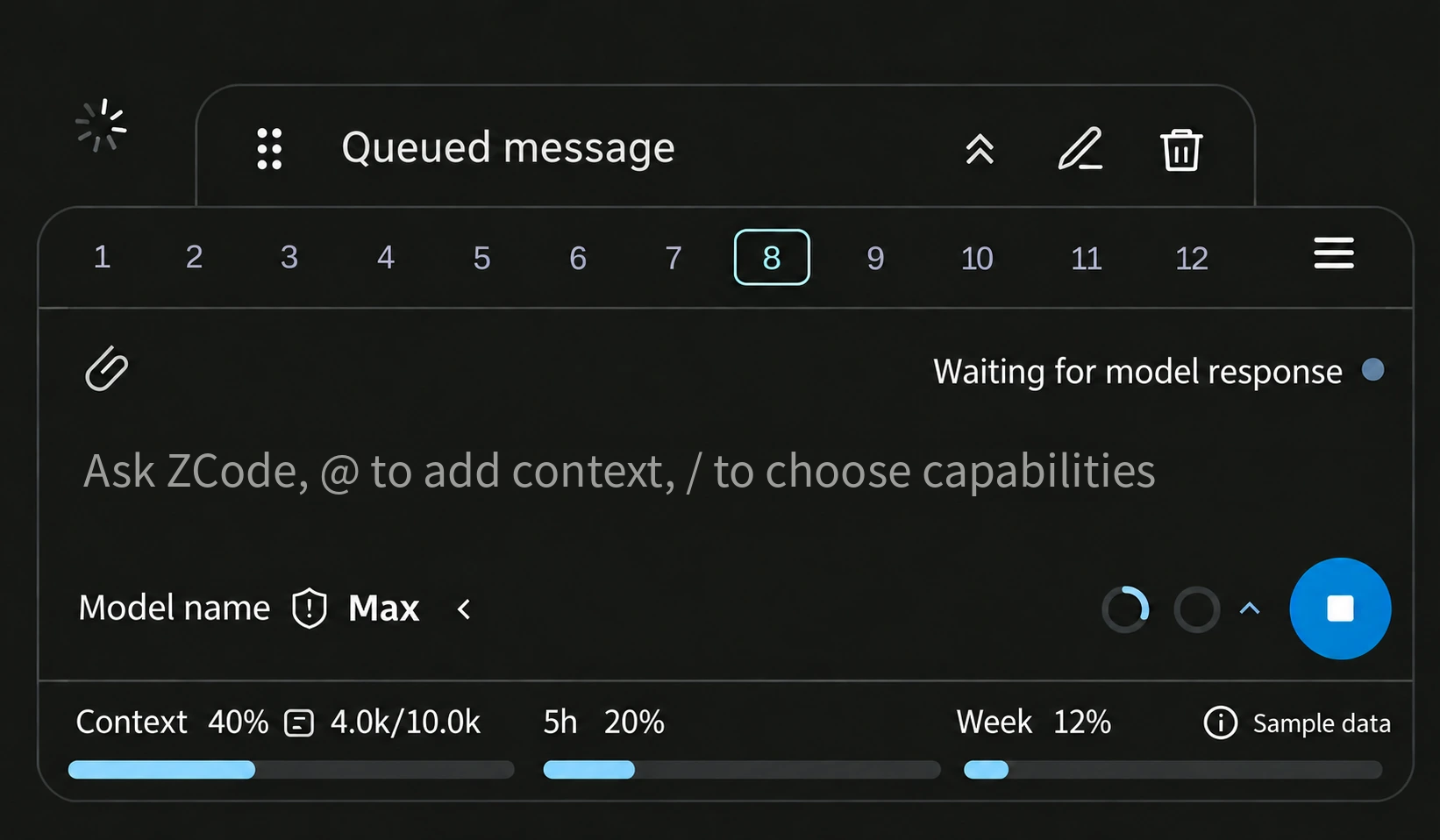
If the image does not appear, the connection to GitHub is usually unavailable. Refresh the page later, or use the section guide below.
| Location |
Purpose |
| Above the composer |
Queued messages and goals. Reorder, edit, delete, or send a queued message immediately. |
| Number rail |
Jump to an earlier question; the three-line control collapses or restores conversations. |
| Top of the composer |
Add images or files, review references, and check the connection state. |
| Prompt area |
Write a question; @ references workspace files or conversations, and / searches commands, skills, and subagents. |
| Bottom left |
Switch model, permission mode, and reasoning effort. Compact mode shows permission as a shield icon and can collapse the controls. |
| Bottom right |
Two rings summarize context and quota; send, insert-now, and stop controls vary with the running state. |
| Quota strip |
Expand for context, five-hour, and weekly quota details; map third-party API readings with zcode.quotaAdapters. |
Short-lived project tokens used by newer Coding Plans stay in memory and are checked for refresh at request time. For desktop CLI compatibility, manually configured or legacy plan API keys are synchronized to ~/.zcode/cli/config.json. On Linux and macOS, the directory is restricted to 0700 and the file to 0600; Windows uses the user directory’s access controls. Do not share this configuration file.
You can keep the desktop window closed while chatting. If you switch projects, sign in again, or your sign-in expires, complete the required action in the desktop app, then choose “重新读取登录” (Reload sign-in) in the extension.
This extension is maintained as a personal project. If you run into a problem, ask in the Marketplace Q&A or report it in GitHub Issues.
For development and contributions, see CONTRIBUTING.md. This independent extension is not affiliated with or endorsed by ZCode, Z.ai, or Microsoft.
Compatibility
Linux has been tested and is currently working well. Windows has been tested by the author, but session visibility issues have still been found. macOS ARM64 and Intel have passed type checks, the full unit suite, builds and package checks in GitHub CI, plus SQLite regression tests inside real VS Code extension hosts on the minimum supported version 1.106.0 and the current stable version. Real-account sign-in, end-to-end chat and the UI experience on macOS still need verification. Full verification · SQLite host verification
The general compatibility range is ZCode desktop 3.12.3–3.17.2. Versions 3.12.3, 3.14.4, and 3.16.3 have been verified. Session switching and stopping were tested on 3.14.4, and the extension handles the session-list protocol change introduced in 3.16.2. Sign-in, model selection, and messaging with a free BigModel Start Plan were also verified on 3.17.1 on Windows. Coding Plan sign-in for 3.17.2 has been checked against the official open-source code but not yet with a real account.
Version 2.0.2 also adapts Coding Plan authentication and custom API configuration for desktop 3.16.2. Its actual runtime has passed session-switching, stop, and attachment regressions with isolated fixtures. Z.AI personal plans still need real-account validation; macOS CI does not cover real-account desktop chat.
Desktop updates may change the protocol. Check extension compatibility before updating.
If you encounter compatibility issues, first give this README to an AI agent on your machine, along with your operating system, extension and desktop versions, symptoms, and logs. Ask it to follow the troubleshooting steps below and check installation paths, the runtime, and the session workspace. This also applies to macOS. If the issue remains unresolved, ask in the Marketplace Q&A or open a GitHub issue.
Getting started
Before starting a chat, check the following:
| # |
Requirement |
How to check |
| 1 |
VS Code 1.106 or newer, with this extension installed and the window reloaded |
Help → About |
| 2 |
ZCode desktop 3.12.3-3.17.2, with zcode.cjs found |
See discovery order below |
| 3 |
You have signed in to the desktop app at least once |
~/.zcode/v2/setting.json and ~/.zcode/v2/credentials.json exist |
| 4 |
The current desktop selection has usable model credentials (an individual or team project that still has quota) |
The desktop app can start a new chat |
Install
Search for ZCode Chat by fanghua in the VS Code Extensions Marketplace, install it, then run Developer: Reload Window.
The Marketplace has two update channels:
- Stable releases use an even minor version. The current stable release is 2.2.3. A normal install stays on stable and is not upgraded to a preview.
- Preview releases use an odd minor version. Only users who choose Install Pre-Release Version on the extension page, or run
code --install-extension fanghua.zcode-desktop-chat --pre-release, receive a preview and later higher previews. A later stable release with a higher version replaces the preview.
You can also install a VSIX manually. Its name is zcode-desktop-chat-<version>.vsix; choose the file for the stable or preview release you want:
Command Palette: Extensions: Install from VSIX… → choose the downloaded VSIX → Developer: Reload Window.
code --install-extension zcode-desktop-chat-<version>.vsix --force
Usage
- Open the ZCode icon in the secondary side bar, or run ZCode: Open Chat from the Command Palette. You can assign a shortcut in VS Code Keyboard Shortcuts.
- Send once the input shows “已连接” (Connected) at the top right.
Enter sends, Shift+Enter inserts a newline.
- A stop button remains available throughout generation. With text entered, choose queue or send now; send now interrupts the current reply.
Ctrl+Enter (macOS: Cmd+Enter) sends immediately while generating. Pending messages are restored across history redraws and session switches. Once confirmed by the server, they can be edited, deleted, or sent immediately.
- Under the input, switch the model, permission mode (confirm before changes / auto-edit / plan / full access), and reasoning effort. In Settings at the top right, set the model, permission mode, and reasoning effort for new chats. Reasoning effort is checked against the selected model and resets to that model's default when you change the default model.
- Click the session name at the top left to rename it, then press Enter to save. Click the clock icon to open history, where you can switch sessions or archive them; archived sessions can be deleted.
- Sessions from this extension show up in the desktop list for the same workspace. Open a folder before chatting, or the workspace falls back to your home directory and will not match the desktop app.
- The small navigation control on the top-right edge of the input expands or collapses the numbered question rail. Collapsed, the arrow points up; expanded, it points down.
Reasoning, exploration and terminal calls use compact expandable summaries. Consecutive tools in the same category are grouped. Live reasoning follows new output; scrolling up preserves your reading position, and returning to the bottom resumes following. Question actions below the bubble include Copy and Collapse, with Edit available for the latest editable question.
Drafts and manually attached file references are saved per session and restored after switching back or reloading the window. Sending clears the submitted draft text. If sending fails, the original content is restored; any newer text is kept too, and nothing is resent automatically. Text entered during a session switch is retained for the destination and merged with any existing draft. The active editor file is not attached automatically; only explicitly added references are sent.
Use the attachment icon at the top-left of the input to choose images or files. Images can also be pasted or dropped: PNG, JPEG, WebP and GIF, up to 20 MB each and 8 images per message. Vision models can interpret images directly. Image analysis by a text-only model through analyze_image depends on the desktop backend and model configuration; the extension displays that tool activity. The attachment protocol has been verified with desktop 3.14.4. Image bytes stay in the local ZCode attachment store; drafts retain references and small thumbnails. Image-only messages are supported; click an image label in the composer or history to preview it. Unsent drafts use their saved thumbnails for previews after a window reload. Wait for uploads to finish, or remove failed images and add them again.
Above the input are explicitly added file references, with line numbers for selected passages. Use × to remove a reference. The citation format matches the desktop app, for example [main.ts](./src/main.ts#L12-L34).
Editor context menu:
- 把选区加入对话 — pin the selection
- 把当前文件加入对话 — pin the file
Select one or more files in VS Code Explorer, then choose ZCode: Add to Chat from the context menu. Paths are relative to the actual session workspace, including other workspace roots. Unsaved files include the current editor content; select the needed passage if an unsaved file is too large.
After the agent changes a file, the tool card can open the file or show a diff.
Replies support inline math with $…$ or \(...\) and display math with $$…$$ or \[...\]. Formulas render offline with system fonts. Choose Improve formulas beside a reply to download the 260 KB font pack once; later formulas keep those fonts offline. Wide formulas scroll horizontally; unsupported syntax remains readable, and code blocks are unchanged.
Sign-in and models
| Action |
Model |
Auth |
| Open an existing session |
Keep the provider and model that session used |
Credentials for that same provider from the desktop app's current sign-in |
| New session |
Uses the desktop app's current model by default; you can set a default for new chats in the extension settings |
The same current desktop sign-in |
| Switch individual / team project in the desktop app |
Existing sessions keep their models |
The extension reads the desktop selection again |
The model picker merges models available to the active backend session with shortcut models configured in the desktop app, grouped by provider. When individual quota runs out, you see an insufficient-balance message. Switch to a project that still has quota in the desktop app, then choose “重新读取登录” (Reload sign-in) in the extension.
Settings
The interface follows the VS Code display language by default (Simplified Chinese, Traditional Chinese, or English; other languages fall back to English). Use Settings (gear) → Interface language to override it. Changes apply immediately without restarting a chat or translating its content. Set zcode.language to auto to follow VS Code again.
The small top-right control above the composer toggles question navigation. Click the context ring and the chevron beside it at the bottom right to toggle the quota panel. The panel uses one compact row of three equal-width progress indicators for context, five-hour quota, and weekly quota. All three display the percentage used; hover over an indicator for exact counts, remaining quota, and reset times. Its expansion state is saved; a waiting message appears until data arrives.
Chat settings provide individual controls for Word, PDF, presentations, spreadsheets, browser, computer use, and Sites. All are suppressed by default. Allowing one still follows desktop preferences. Changes restart the current chat; finish any running reply first.
| Setting |
Default |
Meaning |
zcode.binaryPath |
Empty (auto-detect) |
Absolute path to zcode.cjs |
zcode.nodePath |
Empty (VS Code runtime) |
Optional Node.js path if the default runtime cannot start the server |
zcode.language |
auto |
Follow VS Code, or choose Simplified Chinese, Traditional Chinese, or English |
zcode.workspacePath |
Empty (first folder in the window) |
Workspace root sent to the agent |
zcode.model |
Empty (desktop default) |
Override as providerId/modelId |
zcode.allowedDesktopPlugins |
[] |
User-only allowlist: documents, pdf, presentations, spreadsheets, browser-use, computer-use, zcode-site. Allowing does not force-enable plugins disabled by the desktop. Browser and computer use share the REPL. Changes restart the chat |
zcode.showSuppressedPluginSkills |
true |
While those plugins are off, still list the document, PDF, presentation, spreadsheet, and browser skills in /. Choosing one does not send it. Allowing its plugin is remembered, restarts the chat, and still follows desktop preferences |
zcode.quotaAdapters |
Empty |
Custom provider quota endpoints, matched by exact providerId, with JSON response fields mapped or combined. Run ZCode: Set quota API key to store the secret. See quota adapter guide. |
Related commands: ZCode: Show Log, ZCode: Open Chat, ZCode: Set quota API key.
Custom quota setup
The extension includes DeepSeek and Kimi API quota adapters. When you use the corresponding ZCode shortcut, the extension reads the account balance automatically; the Kimi preset shows the available balance and voucher balance in CNY. It matches the domestic Open Platform moonshot-kimi shortcut; keys from Kimi's international and domestic platforms are not interchangeable. Other providers can be connected through zcode.quotaAdapters. Packaged presets and user entries use the same request, field-mapping, and security code; presets are simply supplied by the extension.
In the Command Palette, run Preferences: Open User Settings (JSON) and add adapters to the zcode.quotaAdapters array. providerId must exactly match the provider ID used by the ZCode model. Adapters can map balances, remaining/used percentages, quota counts, reset times, currency details, and standalone custom readings such as today's spend that have no percentage ceiling. Select response fields with JSON Pointer paths such as /data/remaining; the adapter can derive remaining amounts or counts and percentages, normalize minor units, and combine numeric fields into custom metrics. If a limit and usage amount come from separate endpoints, combine up to five requests on the same origin to calculate the remaining budget. Bearer authentication, custom auth headers, and optional header prefixes are supported. Packaged presets are examples; users can configure only the providers and fields they need.
ZCode shortcuts may store only an API key, while a fully custom provider stores both its API URL and key. By default, adapter keys are stored in VS Code SecretStorage using ZCode: Set quota API key. If ZCode already has a key for the exact same providerId, set apiKeySource: "zcode" to reuse it. When a shortcut has no saved API URL, set providerBaseURL to the API host; use providerTemplateId when needed to identify the shortcut template. Keys are never written to settings.json, and quota requests never include chat content. Endpoints must use HTTPS, except unauthenticated localhost requests; combined requests must use the same origin (scheme, host, and port). The adapter reads JSON responses; POST may send a fixed JSON body, including a static GraphQL query, but cannot execute code or dynamic templates.
You can give this README, the detailed quota adapter guide, and the provider’s public quota/balance API documentation or link to a local AI agent. Ask it to generate a configuration from the documented response shape. Include the exact model providerId, a sanitized response example, and whether ZCode uses a shortcut or a fully custom provider. Do not give the agent API keys, tokens, or credentials.json. You can use this prompt:
Using this README’s “Custom quota setup” section, docs/quota-adapters.md, and the official quota API documentation I provide, generate a configuration I can paste into zcode.quotaAdapters for VS Code ZCode Chat. First confirm the exact providerId, endpoint and method, authentication, response fields, and amount units. Do not guess anything the documentation does not specify; ask me first. Support both ZCode shortcuts (API key only) and fully custom providers (API URL and key). Use apiKeySource: "zcode" only when reusing credentials for the exact same provider; otherwise use VS Code SecretStorage and tell me to run ZCode: Set quota API key. Output only the safe configuration and setup steps; never ask for or write API keys, tokens, or personal credentials. All quota endpoints must follow the extension’s HTTPS and same-origin security restrictions.
Saving the setting triggers a quota refresh. If no adapter matches, a request fails, or a response cannot be mapped, the extension continues to show the existing ZCode quota. See the detailed guide for field mappings, multi-endpoint budget calculations, and security limits.
Local files
On Windows, replace ~ with %USERPROFILE%.
| Path |
Role |
~/.zcode/v2/setting.json |
Whether the desktop is on an individual or team plan, and the default model |
~/.zcode/v2/credentials.json |
Sign-in credentials (encrypted). The extension only reads them and does not pack keys into the vsix |
~/.zcode/v2/tasks-index.sqlite |
Desktop sidebar session index, including archived sessions |
~/.zcode/cli/db/db.sqlite |
Session contents |
zcode.cjs |
The app-server entry shipped with the desktop app |
zcode.cjs discovery order
- The
zcode.binaryPath setting. If it is set and the file is missing, the extension reports that error and does not guess another path.
- The path that last started successfully. If the file is still there, it is used directly and no scan runs.
- The default install location on each system.
- If the default location is missing, installation records: on Windows,
InstallLocation in the uninstall registry, or the install directory taken from DisplayIcon; on macOS, Spotlight for ZCode.app; on Linux, .desktop launchers whose name contains ZCode. A path that connects successfully is remembered, and the next start uses step 2.
- If it is still not found, the error lists the locations that were checked and asks you to set
zcode.binaryPath.
Troubleshooting
Choose Settings → Copy diagnostics in the top-right corner and give the report and this README to a local AI agent. The report includes versions, workspace paths, runtime, pending-request counts and recent issue categories. Home directories are redacted; chat content, credentials and raw errors are omitted. If the desktop version is unknown, add it manually.
Open ZCode: Show Log first (Output channel name ZCode), then match the message below. The chat error card actions “重试 / 打开日志 / 重新读取登录 / 选择模型” (Retry / Open log / Reload sign-in / Select model) correspond to these cases.
The extension starts app-server with the runtime that ships with VS Code. By default it loads this extension's preload first, so only that process treats the document, browser, and computer-use plugins as disabled:
<VS Code runtime> --require <extension>/dist/desktopPluginOverlayPreload.cjs <zcode.cjs> app-server
Allowing all seven plugins skips the preload. Native executables cannot load it; an unsupported suppression request shows a warning. Use the desktop resources/glm/zcode.cjs entry point.
Local checks
In a system terminal:
code --version
Linux / macOS:
test -f /opt/ZCode/resources/glm/zcode.cjs && echo "cjs: /opt/ZCode/resources/glm/zcode.cjs"
ls -l ~/.zcode/v2/setting.json ~/.zcode/v2/credentials.json
On macOS also check /Applications/ZCode.app/Contents/Resources/glm/zcode.cjs. On Windows also check %LOCALAPPDATA%\Programs\ZCode\resources\glm\zcode.cjs.
Once zcode.cjs is found, the extension starts it as app-server with the runtime that ships with VS Code.
Cannot find module / file not found → the desktop app is not installed, or zcode.binaryPath is wrong. Check cmd and args on the log line Starting app-server.
Error cards provide recovery steps and direct actions for models, connections and settings. For custom installations, set zcode.binaryPath to the full path of resources/glm/zcode.cjs; for a custom Node.js runtime, set zcode.nodePath to the full path of the Node executable. Original diagnostics remain under “Error details”. If the issue persists, copy diagnostics and use “Ask the community”.
Messages
| What you see |
Usual cause |
What to do |
| Stays on “连接中” or “读取登录…” and then fails |
zcode.cjs was not found, or app-server did not start |
Check cmd / args on Starting app-server in the log; confirm zcode.cjs exists and cmd is the VS Code runtime |
| On Windows, the first chat restore after a long break takes tens of seconds, while reopening soon afterwards is fast |
Microsoft Defender scans the plugin files that the ZCode server reads synchronously |
The extension shows a one-time notice when a restore takes over 20 seconds and can copy an exclusion command. If you accept the trade-off, exclude <ZCode install folder>\resources\glm\packages and %USERPROFILE%\.zcode\cli\plugins in an administrator PowerShell, never Code.exe; undo with Remove-MpPreference -ExclusionPath |
ZCode credentials not found |
~/.zcode/v2/credentials.json is missing |
Sign in with the desktop app, then Reload |
ZCode desktop data not found |
~/.zcode/v2 is missing |
Install the desktop app and sign in |
Could not reuse the BigModel team plan / coding-plan login |
Desktop OAuth expired, or the selected project changed |
Stay signed in on the desktop and select the right project, then “重新读取登录” in the extension |
Provider … has no usable API key |
The selected provider has no key in the current sign-in |
Switch back to a project that has a key, or change the model |
ZCode startup failed / ZCode process exited |
The child process exited immediately |
Read stderr in the log; confirm binaryPath points at the .cjs file and cmd is the VS Code runtime |
无法定位 CLI ZCode Built-in Provider Config |
After a desktop update, app-server cannot find the built-in model config |
Open the desktop app once; the extension sets ZCODE_BUILTIN_PROVIDER_*. If it still fails, check /opt/ZCode/resources/config/provider/zcode-builtin.json (on macOS, ZCode.app/Contents/Resources/config/provider/) |
Unrecognized key / Method not found / -32602 |
A desktop update changed the app-server protocol |
Use desktop 3.12.3-3.17.2, install the matching extension, and reconnect |
余额不足 or a similar quota error |
The plan selected in the desktop app has no quota |
Switch to a project that has quota, then “重新读取登录” |
当前 VS Code 运行环境不支持原生 SQLite |
This VS Code runtime does not support native SQLite |
Update VS Code and retry |
| An archived session shows under “活动” (Active) in history |
The desktop tasks-index.sqlite could not be read (uncommon) |
Check sqlite / archive in the log; a very old VS Code degrades this, and chat usually still works |
Conversation synchronization failed / Conversation snapshot synchronization timed out |
Snapshot synchronization failed or timed out; the extension retries with increasing delays |
Wait, then switch away and back. Reload the window if it does not recover, and include conversation resync failed logs. Normal resynchronization at turn completion is not a fault |
| Connected, but sessions are not visible across the extension and desktop |
Different workspace paths, or Windows spelling differences for the same directory, such as e:\Projects\项目 and E:\Projects\项目 |
Confirm both apps use the same folder and check zcode.workspacePath. The Windows path spelling issue was fixed in 1.3.5, and the author confirmed in an initial test that sessions became visible. Install 1.3.5 or later, then reload the window. Missing list entries do not necessarily mean lost data |
A successful start looks like this in the log:
Starting app-server { cmd: '…/code', args: [ '--require', '…/desktopPluginOverlayPreload.cjs', '…/zcode.cjs', 'app-server' ], cwd: '…' }
cmd is the VS Code runtime. The entry after --require is this extension's preload, followed by an existing zcode.cjs. With all seven plugins allowed, args contains only zcode.cjs and app-server.
When asking for help
First give this README to a local AI agent and ask it to follow the checks above. For Windows session visibility issues, compare recentProjects in the desktop setting.json, workspace_key in the task index, and the actual VS Code workspace path. macOS has the CI and SQLite host coverage described above; real-account chat and visual behavior still need validation. Check the installation path, runtime, and workspace if issues occur.
Include the following (do not send the contents of credentials.json or any API key):
- OS, VS Code version (
code --version), extension version, and ZCode desktop version
- Whether the desktop app is installed, and whether chat works there
- The full sidebar message (a screenshot is fine)
- The ZCode: Show Log section from startup through the error (home-directory user names can be redacted)
Type @ to search workspace files and conversations, with files first and conversations after them. Continue with a filename, path, or conversation title; use Up/Down and Enter/Tab to add a reference, or Escape to dismiss the menu. File references appear above the composer. Conversation references appear as separate chips and are retained with drafts and rejected-send recovery. File search includes hidden configuration files and skips Git, dependency and build directories. Fuzzy matching prefers recent files. Typed queries search the whole workspace directly rather than relying on the initial listing. Up to 40 file results are shown, with a 15-second query cache, up to 5,000 candidates per pattern and 1,000 files for an empty query. Retry failed searches by clicking Retry or pressing Enter. Use @"file name" for names containing spaces. Skills and subagents are not in this @ menu; use / to search for them.
Type / to search the current session’s commands, skills, and subagents, then use Up/Down and Tab or Enter to choose. Document and browser skills that are turned off still appear; choosing one can allow its plugin. The choice is remembered, restarts the chat, and still follows desktop preferences. Select multiple skills and subagents, and click their labels below the input to remove them. Hover over a file reference to see its full path, scope and unsaved-change status. Whole-file references use the current editor buffer when sent; selected passages retain their captured snapshot. Image-analysis cards start collapsed and show parameters and full results when expanded.

