ThirdNote for VS Code
Capture code you want to remember, and actually remember it.
The full ThirdNote experience inside VS Code: the same library, reader, rich editor, board and flashcard review as the ThirdNote browser extension, plus code highlights that stay on their code while you edit.
Features
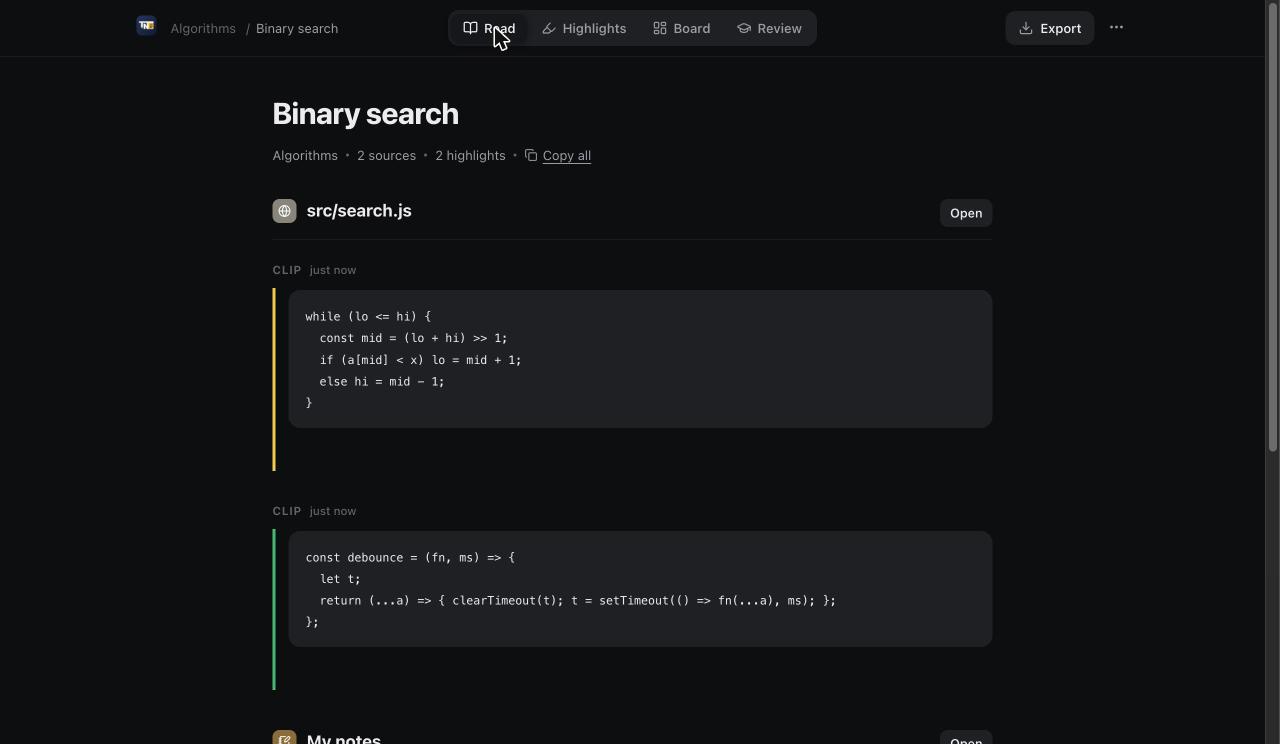
- Highlight code in four colours. Select code, right-click and choose ThirdNote, then a colour. Or press
Alt+Shift+H, or Alt+Shift+J to add a note. Highlights show in the editor and on the scroll bar, and stay attached to their code while you add lines, type inside them or rename the file.
- A real reader. Every highlight, snippet and note opens in the ThirdNote reader. Edit anything like a document: headings, lists, bold, links, code blocks, and images (paste them or use the image button). Changes save as you type.
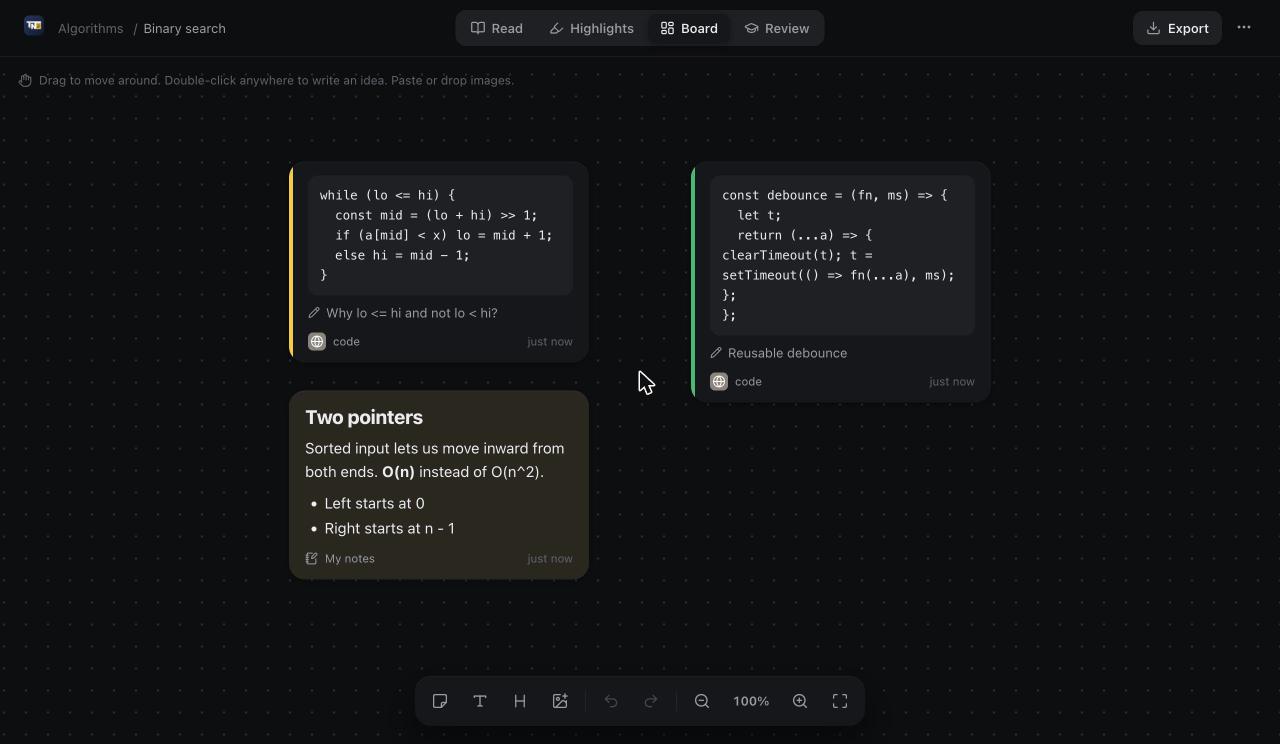
- Board. Lay out your code clips, notes, sticky notes and images on a free canvas for each collection, then zoom and arrange.
- Review. Your notes become the questions and your code becomes the answer, as flashcards.
- Library. All your collections in one place, with search, recent items and every highlight by colour.
- Export. One click to a real PDF file, or to Markdown. Back up and restore everything in Settings.
- Collections. Group by subject, project or idea. Turn on Collecting from the status bar and every new save goes straight into one collection.
- Snippets, files and clipboard. Save a selection as a snippet, keep a whole file, or press
Alt+Shift+V to save whatever you copied from a chat, a doc or a terminal.
- Hover for your note. Hover a highlight to read its note, change its colour, open it in the reader or remove it.
- Light and dark, English and Bangla.
- Private. Everything is stored on your computer. No account, no servers, no tracking.
Getting started
- Select some code, right-click and choose ThirdNote > Highlight Yellow (or any colour).
- Click the ThirdNote icon in the Activity Bar to see your collections, or press
Alt+Shift+K to open the library.
- Open a collection to read, write, arrange it on the board, review it or export it.
Keyboard shortcuts
| Action |
Shortcut |
| Highlight selection (pick a colour) |
Alt+Shift+H |
| Highlight with a note |
Alt+Shift+J |
| Write a note |
Alt+Shift+N |
| Save clipboard |
Alt+Shift+V |
| Open library |
Alt+Shift+K |
Every command is also in the Command Palette under ThirdNote.
Good to know
- PDF: ThirdNote makes the PDF with Chrome, Edge or Brave if one is installed. Without one, it opens the page in your browser, where you choose "Save as PDF".
- Images: paste them or use the image button. To drop an image file from your computer, hold Shift while dropping (a VS Code rule).
- Your browser extension: VS Code keeps its own notes. To bring notes across, use Settings > Export in one and Import in the other.
Settings
| Setting |
Default |
What it does |
thirdnote.askForColor |
true |
Ask for a colour when you press Alt+Shift+H |
thirdnote.defaultColor |
yellow |
Colour used when you don't pick one |
thirdnote.showInEditor |
true |
Show highlights in the editor and scroll bar |
thirdnote.showNoteAtLineEnd |
true |
Show the start of a note at the end of its line |
Feedback
Questions, ideas or bugs: open an issue or write to fahadmahmud2004@gmail.com.
About the developer
Made by Fahad Mahmud (BUET CSE, ex-NDC), founder of Freaking Waves.
Other extensions by Fahad: ThirdNote (code highlights, notes and flashcard review) and Focus Waves (focus timer and live nature sounds).
| |

