
Agent Frame
See which of your coding agents are working, waiting, or idle at a glance — Agent Frame colors the VS Code window to match.




Agent Frame colors VS Code while one or more coding agents are active. It writes only the frame-related entries in workbench.colorCustomizations and preserves all other color customizations.
Getting started
Install the extension and open a window. Agent Frame watches the integrated terminal on its own, but Claude Code and GitHub Copilot Chat report their state through hooks, and those live in files you own, so the extension asks before writing them:
Agent Frame can colour the window while Claude Code and GitHub Copilot Chat are working. This adds hooks to ~/.claude/settings.json and ~/.copilot/hooks/agent-frame.json.
- Install hooks merges the entries into those files, leaving every other hook and setting untouched.
- Not now skips it; the question comes back the next time a window opens.
- Never ask again stops the prompt for good, on every window.
Only the agents you have enabled are named: turn agentFrame.claude.enabled or agentFrame.copilotChat.enabled off and that half is left alone. If both are still missing you get one prompt covering both, so decline it and use Agent Frame: Install Claude Code Hooks or Agent Frame: Install Copilot Chat Hooks from the command palette to take just one. Those commands are also the way back in after Never ask again, and Agent Frame: Remove Claude Code Hooks and Agent Frame: Remove Copilot Chat Hooks take the entries out again.
Hooks only apply to sessions started after installation, so restart the Claude Code or Copilot Chat session you already have open. From there the frame follows it: start a prompt and the window turns busy, get asked something and it turns to waiting. A later extension update refreshes its own hooks in place without asking again.
How it looks
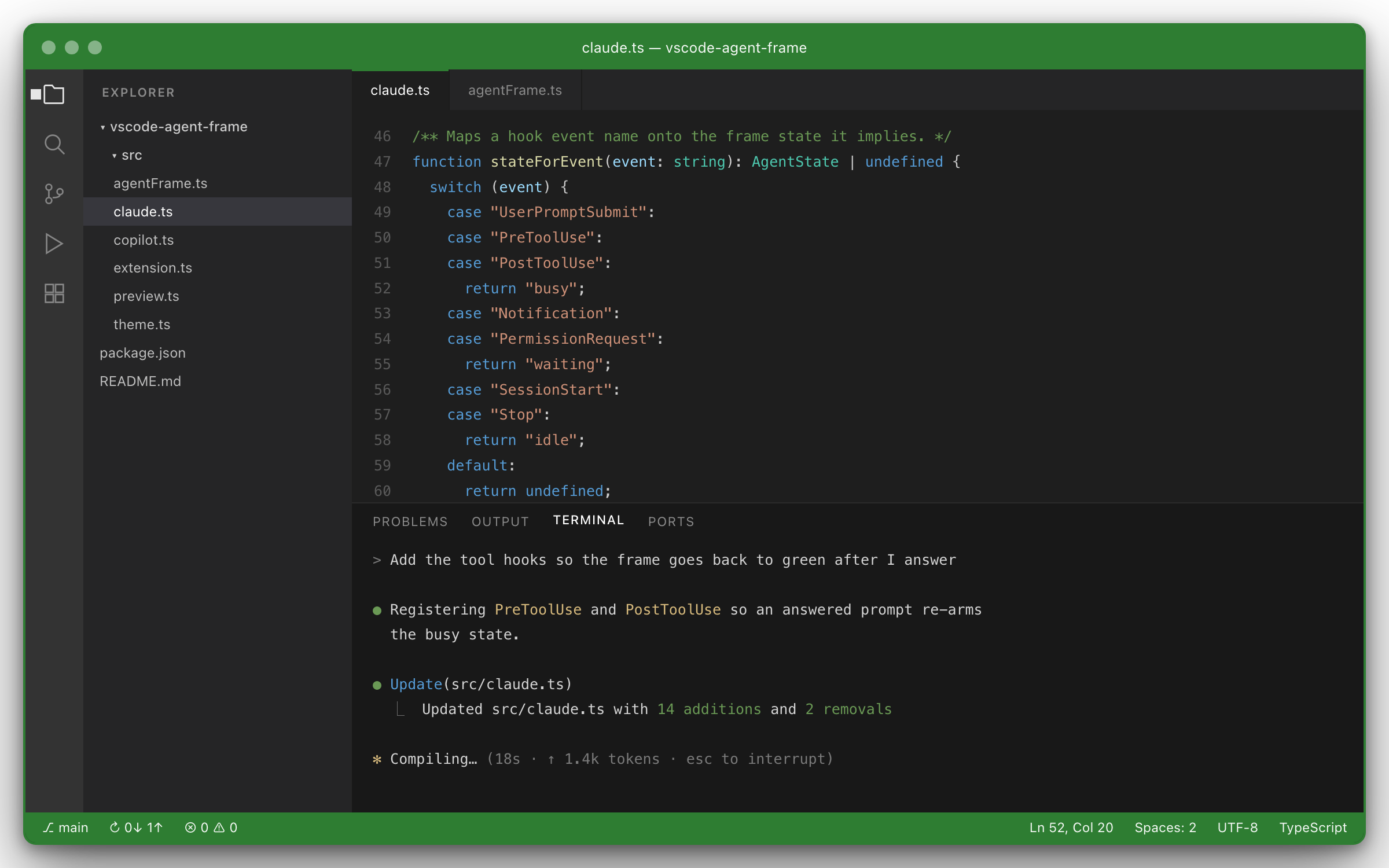
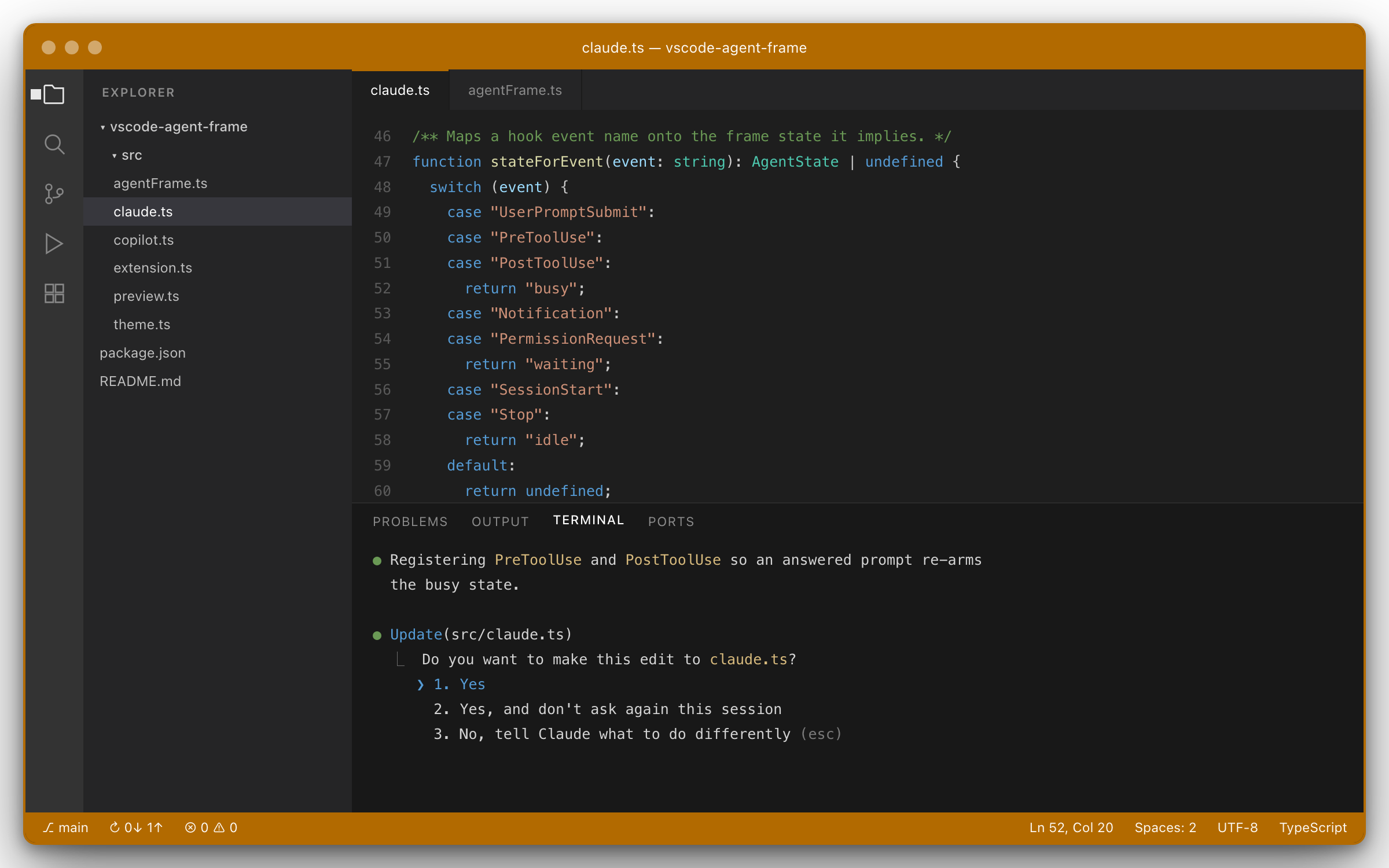
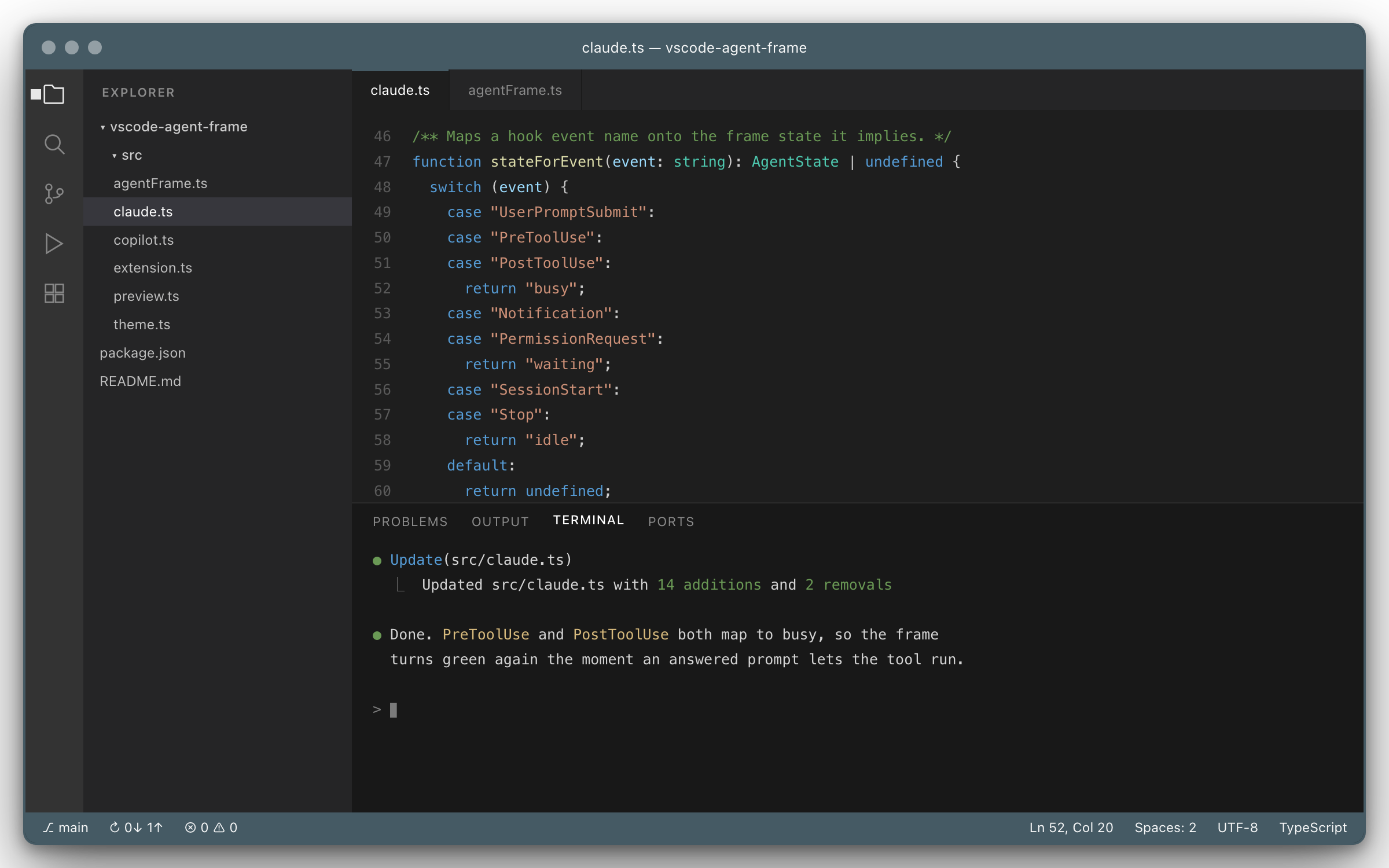
The frame follows the most urgent agent in the window. Colors below are the defaults; every state is configurable.
Busy — at least one agent is working.
Waiting — an agent needs your input or approval, even when another one is still working.
Idle — agents are tracked but all of them are idle.
Configuration
agentFrame.colors.source: custom (default) uses the colors below; theme derives them from the active color theme.agentFrame.colors.busy: used when at least one tracked agent is working and none are waiting.agentFrame.colors.waiting: used when at least one agent is waiting for input or approval.agentFrame.colors.idle: used when every tracked agent is idle.agentFrame.colors.autoForeground: set a black or white title bar and status bar foreground so text stays readable against the state color.agentFrame.claude.enabled: track Claude Code sessions through hooks.agentFrame.copilotChat.enabled: track GitHub Copilot Chat sessions through hooks.agentFrame.terminal.enabled: track agent CLIs launched in the integrated terminal.agentFrame.terminal.commands: executable names that count as an agent in the terminal (default ["copilot"]).
Waiting takes precedence over busy, which takes precedence over idle: a session that needs an answer is what you have to act on, and the frame only goes idle once every tracked session is idle. Clearing the final agent restores the frame colors that Agent Frame changed.
Keeping the colors out of the project
VS Code has no per-machine workspace settings, and no API to color the title bar or window border at runtime, so the state has to live in a settings file. By default that is the project's .vscode/settings.json, which is what makes the color per window: each project shows the state of its own agents. That file is usually committed, though, so whatever color the frame happened to be on is committed with it, and everyone on the project sees it until they change it.
Run Agent Frame: Store Window Colors in a Workspace File to avoid that. It writes a <project>.code-workspace file next to the folder, offers to add it to .git/info/exclude (this clone only) or .gitignore (the whole project), clears the colors out of .vscode/settings.json, and offers to reopen the window through it. VS Code writes workspace settings into the .code-workspace file once a window is opened that way, so the colors stay per window and Git never sees them. Anyone who opens the folder directly is unaffected.
The project's own settings come along. Opening a folder through a workspace file turns its .vscode/settings.json into folder settings, where VS Code only honours resource-scoped entries, so anything else in it would quietly stop applying. The command copies the whole file into the workspace file's settings to prevent that, minus the frame colors themselves.
Copying everything is safe rather than merely convenient, because folder settings outrank the workspace file. An entry that still counts at folder scope keeps winning from .vscode/settings.json, so it carries on following the project and the copy sits there inert; an entry that no longer counts there is only alive because of the copy. Either way nothing silently diverges from what the project asks for. Prune the workspace file by hand if you would rather lose a setting than pin it, and Agent Frame: Copy Dropped Folder Settings into the Workspace File puts back anything that turns out not to be reaching the window.
The frame colors are the exception, cleared out of .vscode/settings.json on the way past: ignored or not, they would stay committed and would still reach anyone who opens the folder directly.
Theme matching
With agentFrame.colors.source set to theme, each state resolves against the active theme instead of a fixed hex value. agentFrame.theme.busy, agentFrame.theme.waiting, and agentFrame.theme.idle each hold a list of theme color ids; the first one the theme actually defines wins, and agentFrame.colors.<state> is the fallback when none of them are. Run Agent Frame: Preview State Colors to see and change what each state resolves to.
The colors are read from the theme extension's JSON, following its include chain, with your own workbench.colorCustomizations layered on top — so pinning terminal.ansiGreen in your settings also changes the busy color. Themes only ship the colors they override; everything else comes from VS Code's internal defaults, which are not readable by an extension. The default candidate lists resolve for roughly 70% of installed themes for busy and waiting and effectively all of them for idle, and the configured hex covers the rest.
Because a theme color is picked for its meaning rather than its hue, an unusual theme can produce an unusual result. Override that state's list if so.
Picking colors
Agent Frame: Preview State Colors lists the three states and paints the window with whichever one is highlighted, so the arrow keys walk through the colors on the real frame. Press Enter on a state to change it:
- Enter a hex color writes
agentFrame.colors.<state>, previewing as you type.
- Choose a color from the theme lists every color the active theme defines, again previewing as you move through them, and puts the chosen id at the front of
agentFrame.theme.<state>.
- Open in Settings filters the Settings editor to Agent Frame.
Dismissing at any point restores the color the tracked agents actually call for. Changes are saved globally unless that setting already has a workspace value, in which case the workspace value is updated instead.
Claude Code
Claude Code exposes no cross-extension API for chat state: its extension spawns the CLI itself and receives status over a private channel. Agent Frame therefore uses Claude Code's own hook system.
Run Agent Frame: Install Claude Code Hooks (the extension also offers this on first activation). This merges eight hooks into ~/.claude/settings.json, leaving every other hook and setting untouched. Agent Frame: Remove Claude Code Hooks removes only the entries it added.
Each hook writes its payload to ~/.agent-frame/sessions/<session id>.json, which the extension watches:
| Hook |
State |
SessionStart |
idle |
UserPromptSubmit, PreToolUse, PostToolUse |
busy |
Notification, PermissionRequest |
waiting |
Stop |
idle |
SessionEnd |
session removed |
The tool hooks are what bring the frame back to busy after you answer a
permission prompt or a question. Every hook writes only the session id, cwd,
its event name, and the process id of the Claude session, rather than the full
payload, which for a tool response can be megabytes.
Closing a Claude Code panel or window kills its process without running
SessionEnd, so the file it wrote would otherwise keep the frame coloured. The
extension therefore also drops a session whose process id is no longer running,
checking on every file change and once every 30 seconds.
Because the hooks live in the CLI, this covers Claude Code in the sidebar, in a terminal, and in worktrees alike. Every VS Code window watches the same directory and applies only the sessions whose cwd falls inside its own workspace folders, so several projects can run at once without interfering. Hooks only apply to sessions started after installation.
GitHub Copilot Chat
Copilot Chat has no cross-extension API for its session state either, but VS Code runs agent hooks at the same lifecycle points Claude Code does, so the frame follows the chat panel the same way.
Run Agent Frame: Install Copilot Chat Hooks (the extension also offers this on first activation). This writes ~/.copilot/hooks/agent-frame.json, one of the personal hook locations VS Code reads, so a single install covers every workspace and nothing lands in a repository. Agent Frame: Remove Copilot Chat Hooks deletes the file again. Hooks have to be enabled in VS Code through chat.useHooks, which is on by default.
Each hook writes to ~/.agent-frame/copilot/<session id>.json:
| Hook |
State |
sessionStart |
idle |
userPromptSubmitted, preToolUse, postToolUse |
busy |
preToolUse for the question tool |
waiting |
agentStop, errorOccurred |
idle |
sessionEnd |
session removed |
Copilot has no event for a prompt awaiting an answer, but the tool it uses to ask you a question is announced through preToolUse and does not return until you answer, so that hook brackets the wait the way Claude's Notification does. A tool waiting on your approval cannot be told apart this way and stays busy.
VS Code spawns the hooks from the extension host of the window that owns the chat, and that process id is what places a session: each window claims the sessions its own extension host wrote, which is also how a session left behind by a closed window is recognised. Hooks only apply to sessions started after installation.
Terminal agents
agentFrame.terminal.commands matches the executable of commands run in the integrated terminal, using VS Code's shell-integration events. This gives busy while the command runs and idle when it exits, and requires shell integration to be active.
This is a coarser signal than the Claude hooks: a long-running interactive REPL reads as busy for its whole lifetime, because VS Code only reports that the process is still running. It suits one-shot invocations such as copilot -p "...".
Provider Integration
Providers can also report lifecycle changes directly:
await vscode.commands.executeCommand('vscode-agent-frame.setAgentState', {
	provider: 'github-copilot',
	id: 'chat-session-id',
	state: 'busy'
});

await vscode.commands.executeCommand(
	'vscode-agent-frame.clearAgentState',
	'github-copilot',
	'chat-session-id'
);
The provider and id pair identifies one agent, allowing simultaneous Claude and GitHub Copilot sessions in the same workspace. Agent Frame: Reset Agent States clears every tracked agent.
The input accepts busy, running, working, waiting, idle, and completed. running and working map to the busy color; completed maps to idle.

