TechDocs Editor for VS Code
Edit TechDocs and MkDocs pages like a document,
without breaking the Markdown your pipeline expects.
Português (Brasil)
Docs-as-code works well for developers and badly for everyone else: product managers, support, designers and
new hires avoid the docs because of Markdown, admonitions and a lint that fails in the pipeline. TechDocs
Editor gives them a visual editor inside VS Code, and gives the repository back exactly the Markdown it had,
plus their changes.
It is the same editor as the TechDocs editor plugin for Backstage,
so pages edited in the portal and in VS Code come out the same.
Features
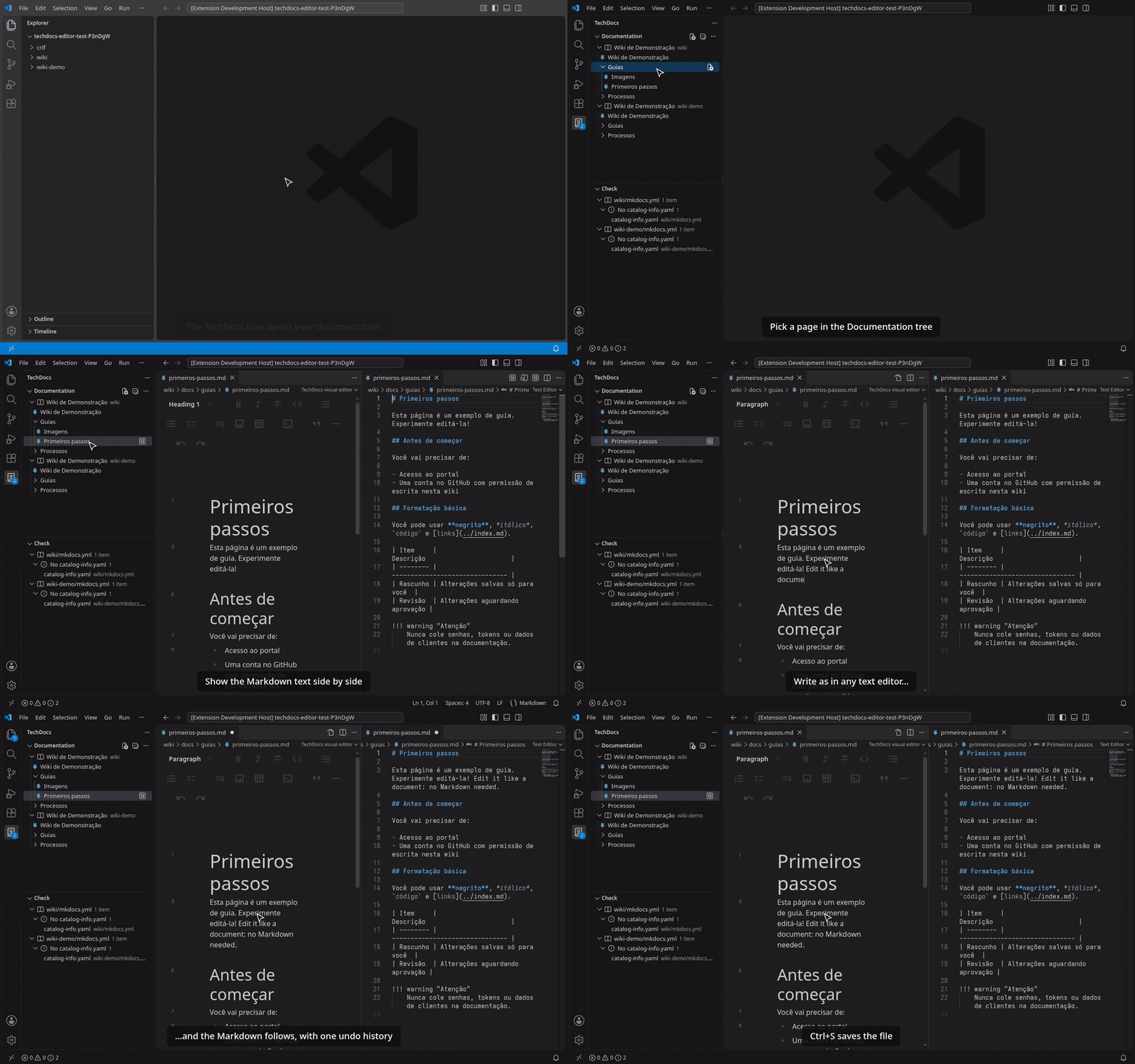
A visual editor that keeps your Markdown
- Opening a page never changes it. Saving only touches what you edited: the rest of the file stays byte
for byte, so diffs and reviews stay small.
- MkDocs syntax is kept. Admonitions (
!!! note), collapsible blocks (???) and content tabs (===)
stay as editable blocks instead of being turned into HTML.
- Familiar editing: a toolbar like a word processor,
/ to insert blocks, tables, task lists, code
blocks with syntax highlighting, links and images. Images keep their alt text.
- It is still a text file. Open the Markdown side by side and edit either one: both follow each other,
with a single undo history (Ctrl+Z works the same in both).
- Your theme: light, dark and high contrast, with VS Code's colors and fonts.
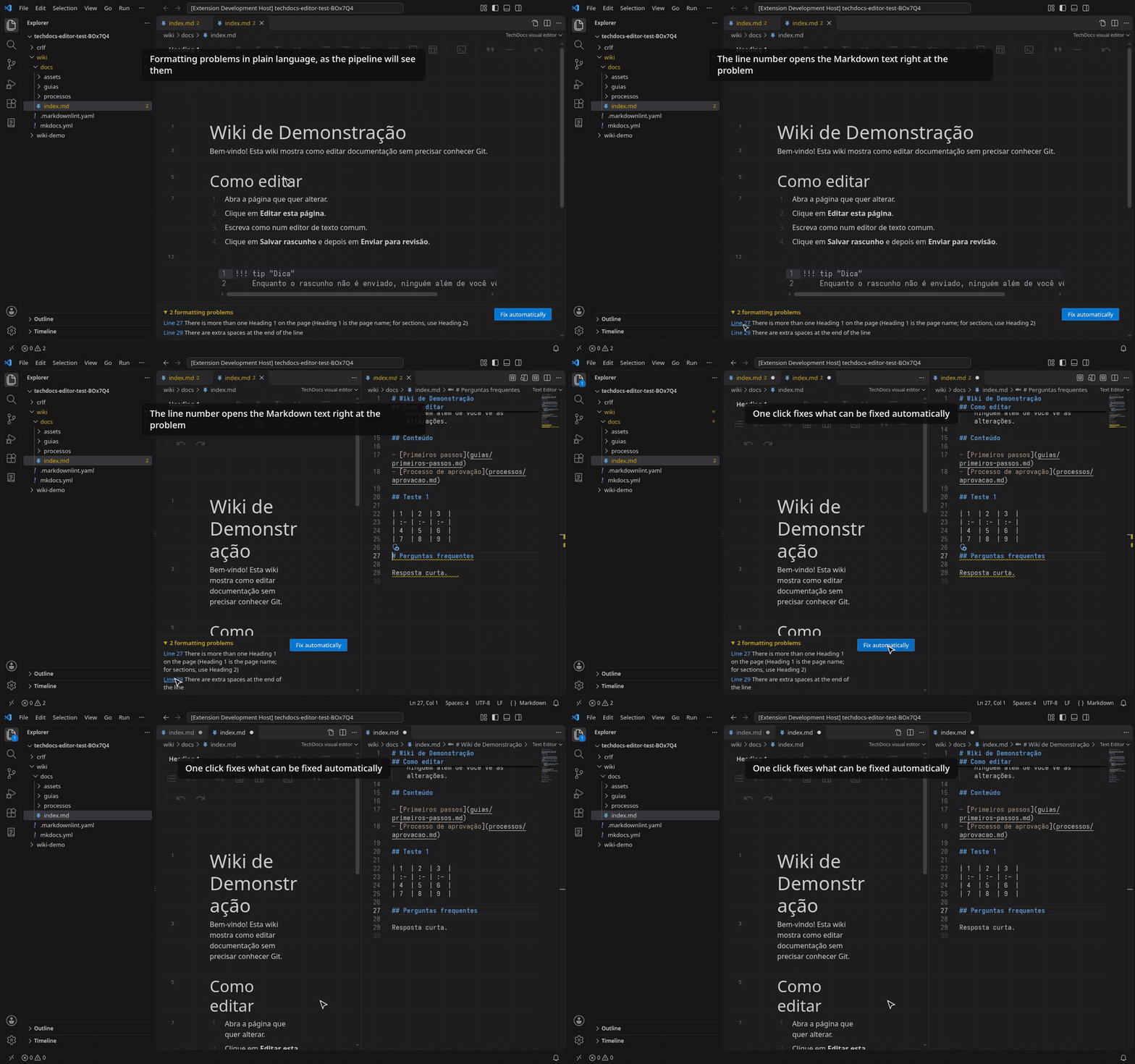
- The same markdownlint rules your pipeline runs, with your
repository's
.markdownlint.{jsonc,json,yaml,yml}, checked while you type.
- Problems in the Problems panel and in the visual editor, explained in plain language ("There is more
than one Heading 1 on the page") instead of rule codes.
- Fix automatically: a button in the visual editor, a quick fix (light bulb) in the text, and
source.fixAll.techdocs for fix-on-save.
- Show line: the line number next to each block opens the Markdown text right there.
Images go where MkDocs expects them
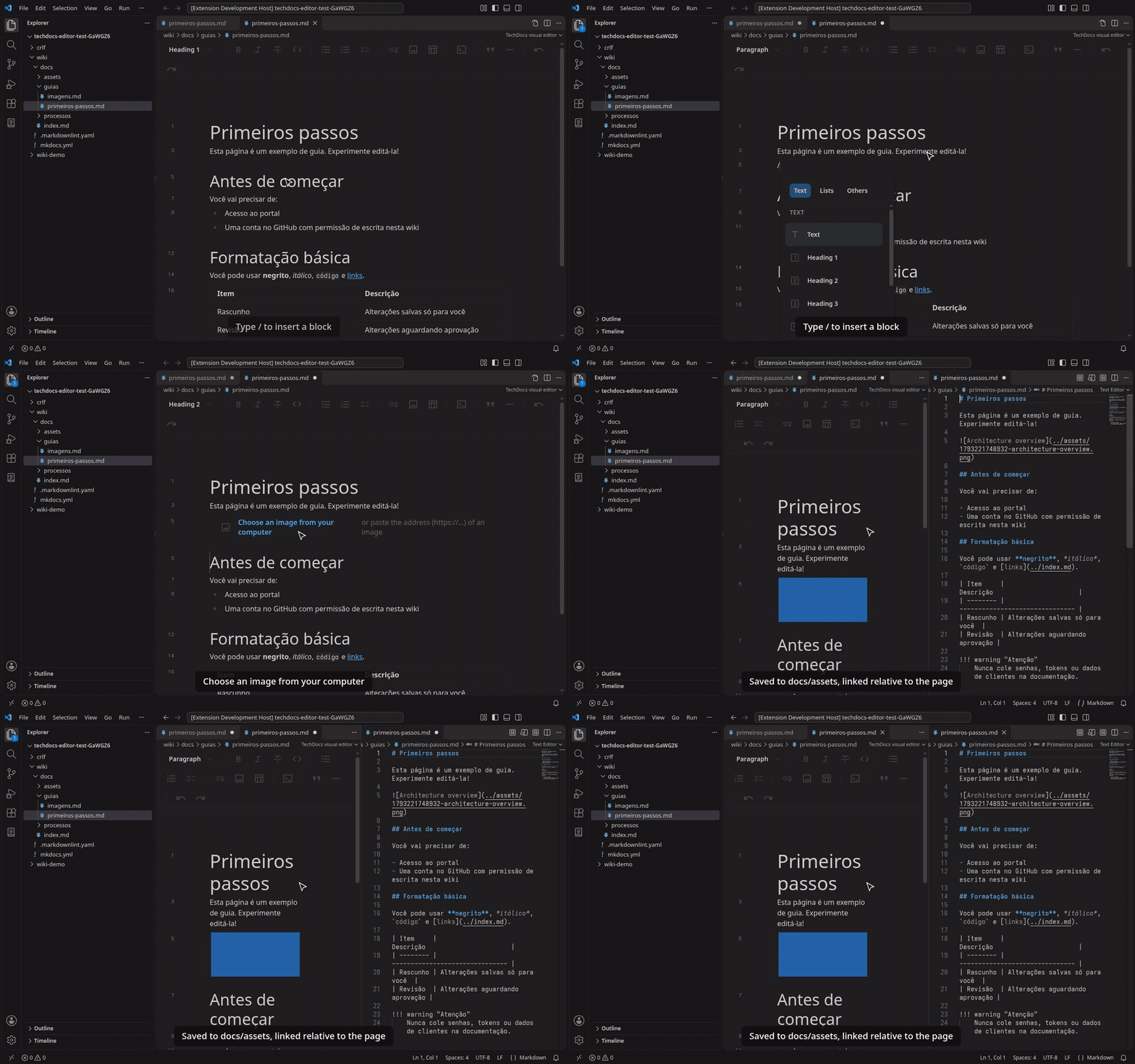
Choose an image from your computer and it is saved to docs/assets/<timestamp>-<name>, linked relative to
the page. Never a temporary blob: address, and never larger than you allow
(techdocsEditor.images.maxSizeMB).
Find your way around
- TechDocs in the activity bar: an icon of its own, shown only in workspaces with a
mkdocs.yml, so the
rest of your Markdown stays out of the way. It has three sections: Documentation, Check and the
optional Publishing panel. In a repository with no mkdocs.yml yet but with a README.md, a docs/
folder with pages or a catalog-info.yaml, the icon opens a welcome screen that says what was found, with
Prepare the documentation.
- Documentation tree: the pages of each MkDocs site in the workspace, in the order of the
nav in
mkdocs.yml (or of the folders, without a nav), with the page titles. Pages missing from the nav, and
nav entries pointing to missing pages, are flagged.
- Only on docs pages: the Open in visual editor button and command show up for pages inside a
docs_dir, not for every Markdown file (READMEs, changelogs).
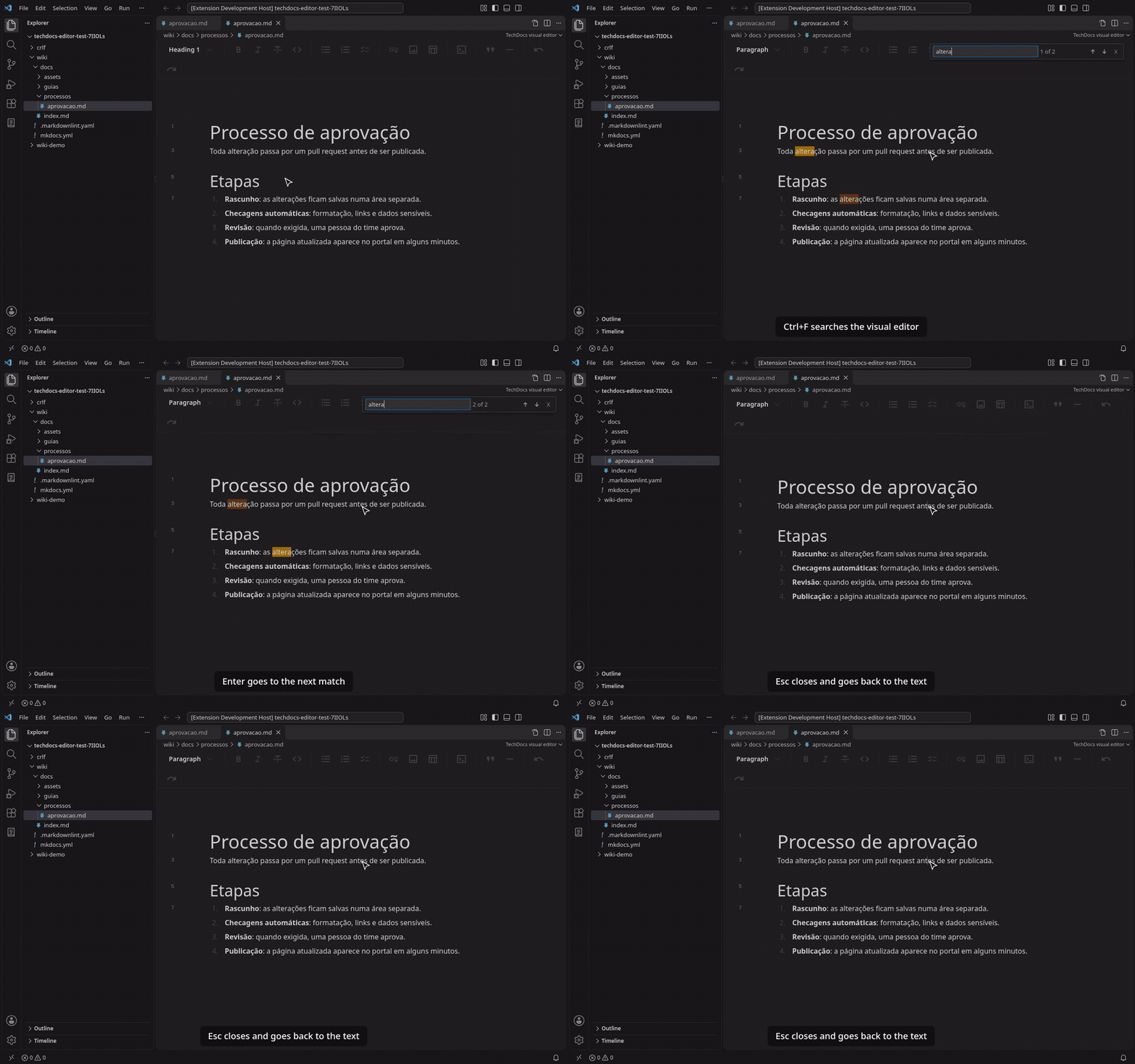
- Search with Ctrl+F in the visual editor, with "1 of 3" and Enter / Shift+Enter between matches.
Start from a template
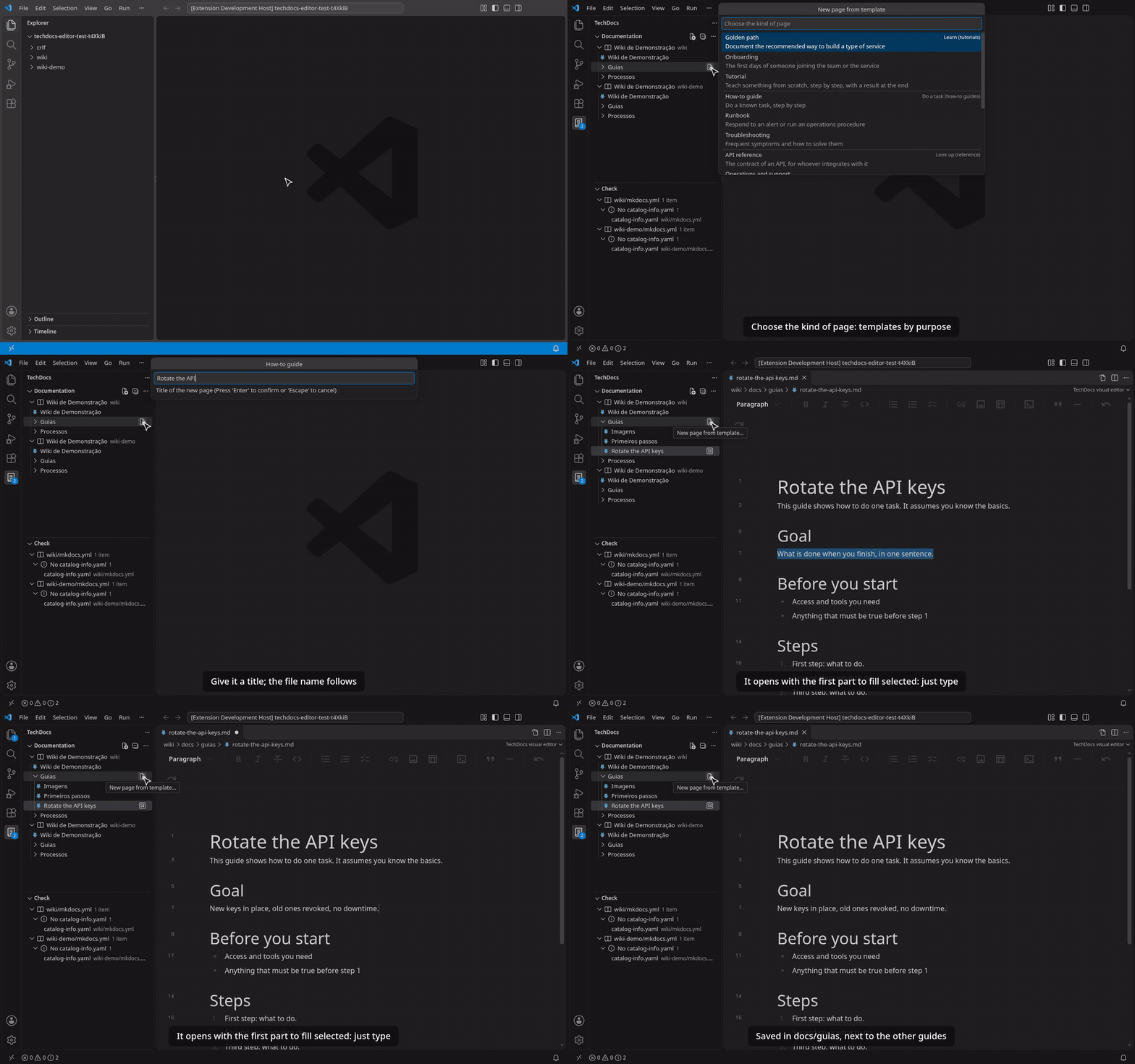
TechDocs: New page from template… (command palette, the + on a site or section of the
Documentation tree, or right-click on a docs folder) creates a page with the sections that kind of page needs, already filled with the title, the date and
the owner from catalog-info.yaml, and opens it in the visual editor.
| To… |
Templates |
| Learn |
Tutorial, Onboarding, Golden path |
| Do a task |
How-to guide, Runbook, Troubleshooting |
| Look up |
Service home page, Operations and support, API reference, Wiki page |
| Understand |
Architecture, Architecture decision record (numbered: adr/0001-…), Postmortem |
The file name comes from the title, never overwrites an existing page and never leaves the docs folder.
Templates follow the language of VS Code (English or Portuguese), pass the formatting check and open in the
visual editor without a single change. On a site with a nav, the page can go straight into it, in the section
you clicked in the tree; only that line is added to mkdocs.yml.
How templates evolve
| Layer |
Where |
How it changes |
| Built-in |
This extension |
A new version of the extension, updated automatically by the Marketplace |
| Your company or team |
.techdocs/templates/ in the docs repository (or in the site folder, which wins) |
A pull request in that repository: nothing to publish |
| Company-wide |
One GitHub repository of templates for every docs repository (techdocsEditor.templates.repository) |
A pull request in that repository: everyone gets it within an hour |
A template is a Markdown page with a template: block in the front matter. Repository templates come first
in the list and replace a built-in one with the same file name (runbook.md). More folders go in
techdocsEditor.templates.paths, and techdocsEditor.templates.builtIn: false offers only yours. Pages
already created never change when a template changes.
Company templates live in a folder of a GitHub repository, in the same format, and come between the
repository's and the built-in ones. Set techdocsEditor.templates.repository to owner/repo, optionally with
the folder and a branch or tag (acme/docs-templates/templates@v3; pin a tag to choose when to update), and the
host for GitHub Enterprise (ghe.acme.com/acme/docs-templates). The extension tries without signing in first
(public repository) and asks for the GitHub sign-in only if needed. It checks at most once an hour, keeps a copy
for offline use, and TechDocs: Refresh company templates checks right away.
---
template:
  version: 1
  name: Runbook
  description: Respond to an alert
  category: guide        # tutorial | guide | reference | explanation
  folder: runbooks
  fields:
    alert:
      prompt: Alert name
---

# {{title}}

Alert: {{alert}}. Owner: {{owner}}. Reviewed on {{date}}.
A whole documentation site
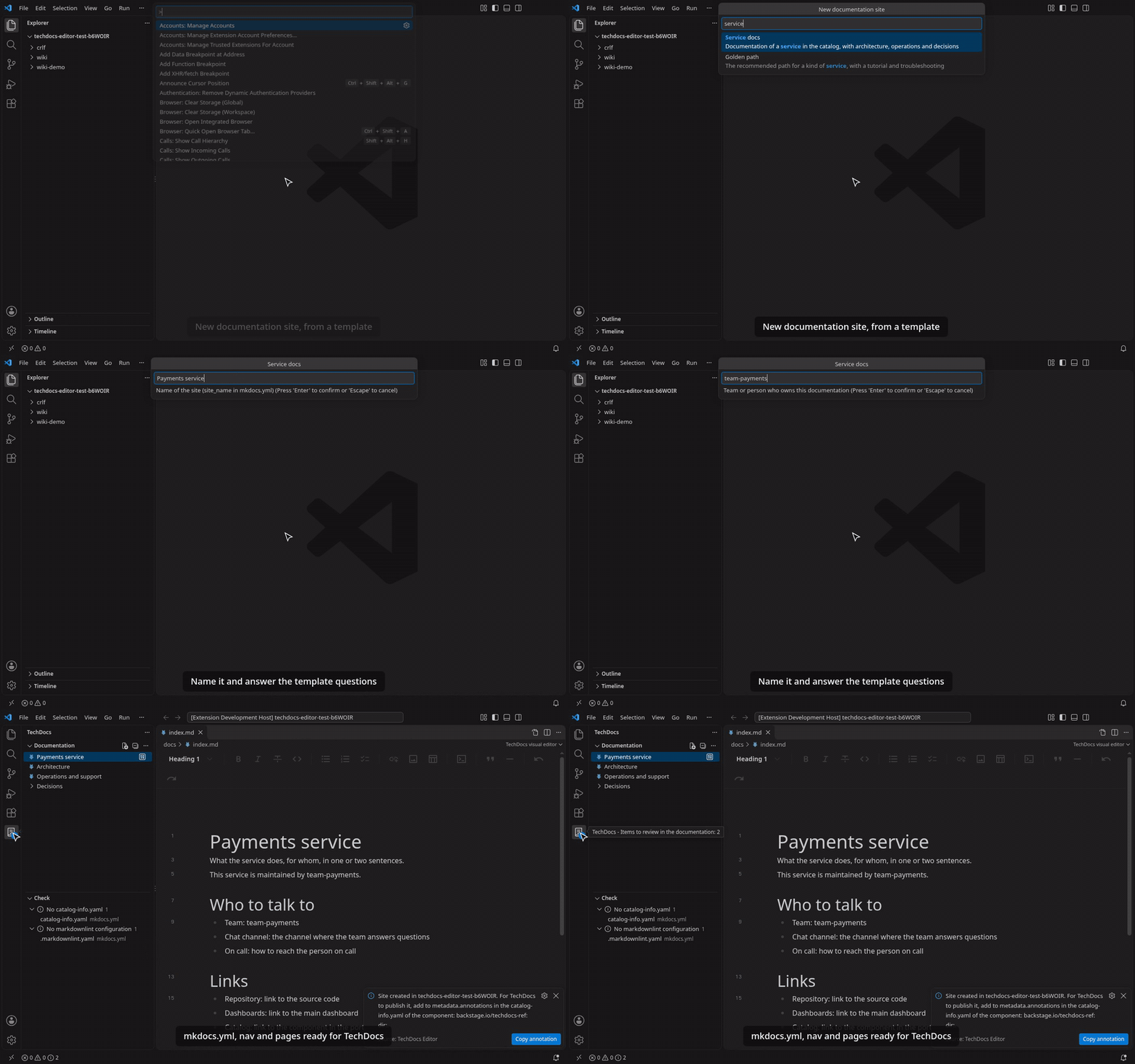
TechDocs: New documentation site… (command palette, the Documentation view menu, or right-click on a folder) creates mkdocs.yml
(with the nav and the techdocs-core plugin) and the pages in docs/, in the workspace root or in the folder
you chose. It never overwrites a file, and it tells you the annotation to add to catalog-info.yaml
(backstage.io/techdocs-ref: dir:.) without changing it.
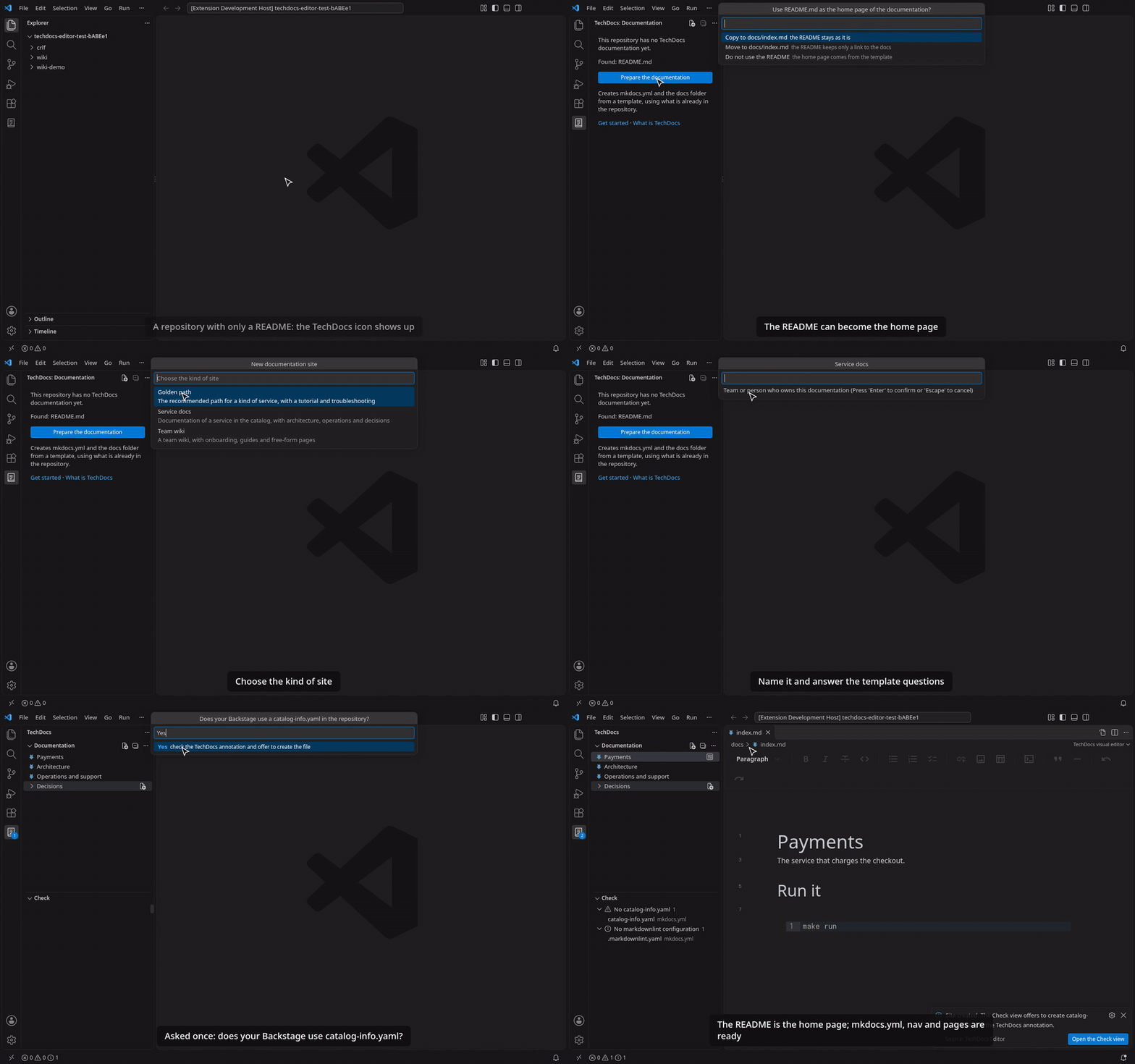
- The README as the home page: next to a
README.md, choose Copy to docs/index.md, Move to
docs/index.md (the README keeps a link to the docs) or leave it out. Links to docs/… are made relative to
the docs folder.
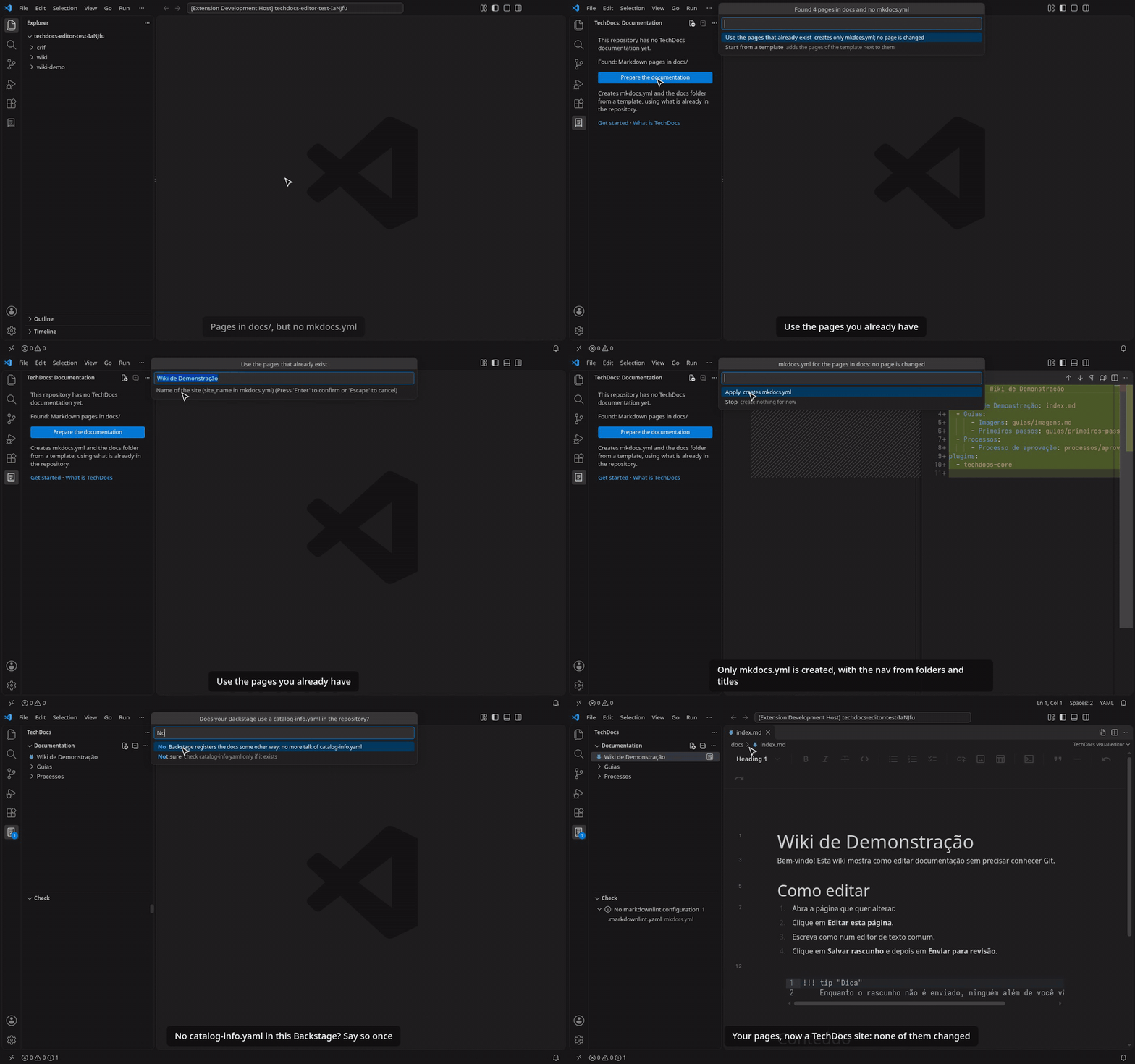
- Pages you already have: with pages in
docs/ and no mkdocs.yml, Use the pages that already exist
creates only mkdocs.yml, with the nav built from the folders and page titles and the techdocs-core
plugin, shown in a diff first. No page changes.
- Asked once: without a
catalog-info.yaml, it asks whether your Backstage uses one in the repository.
No stops all talk of it; Yes leads to the Check view, which offers to create it. The answer goes to
.techdocs-editor.yaml, for the whole team.
| Site |
Pages |
| Service docs |
Service home page, Architecture, Operations and support, and the first ADR |
| Team wiki |
Home (how to use the wiki), Onboarding, Guides, an example wiki page |
| Golden path |
Overview, Getting started tutorial, Troubleshooting |
Your own site templates are folders in .techdocs/templates/ with a template.yml: each file comes from a
page template (page, yours or a built-in one) or from a file in the folder (source).
version: 1
name: Platform service
description: Docs of a service on our platform
fields:
  squad:
    prompt: Squad
files:
  - path: index.md
    title: "{{site_name}}"
    source: home.md          # .techdocs/templates/platform-service/home.md
  - path: runbooks/deploy-failed.md
    title: Deploy failed
    section: Runbooks        # a group in the nav
    page: runbook            # a page template
Check and prepare the repository
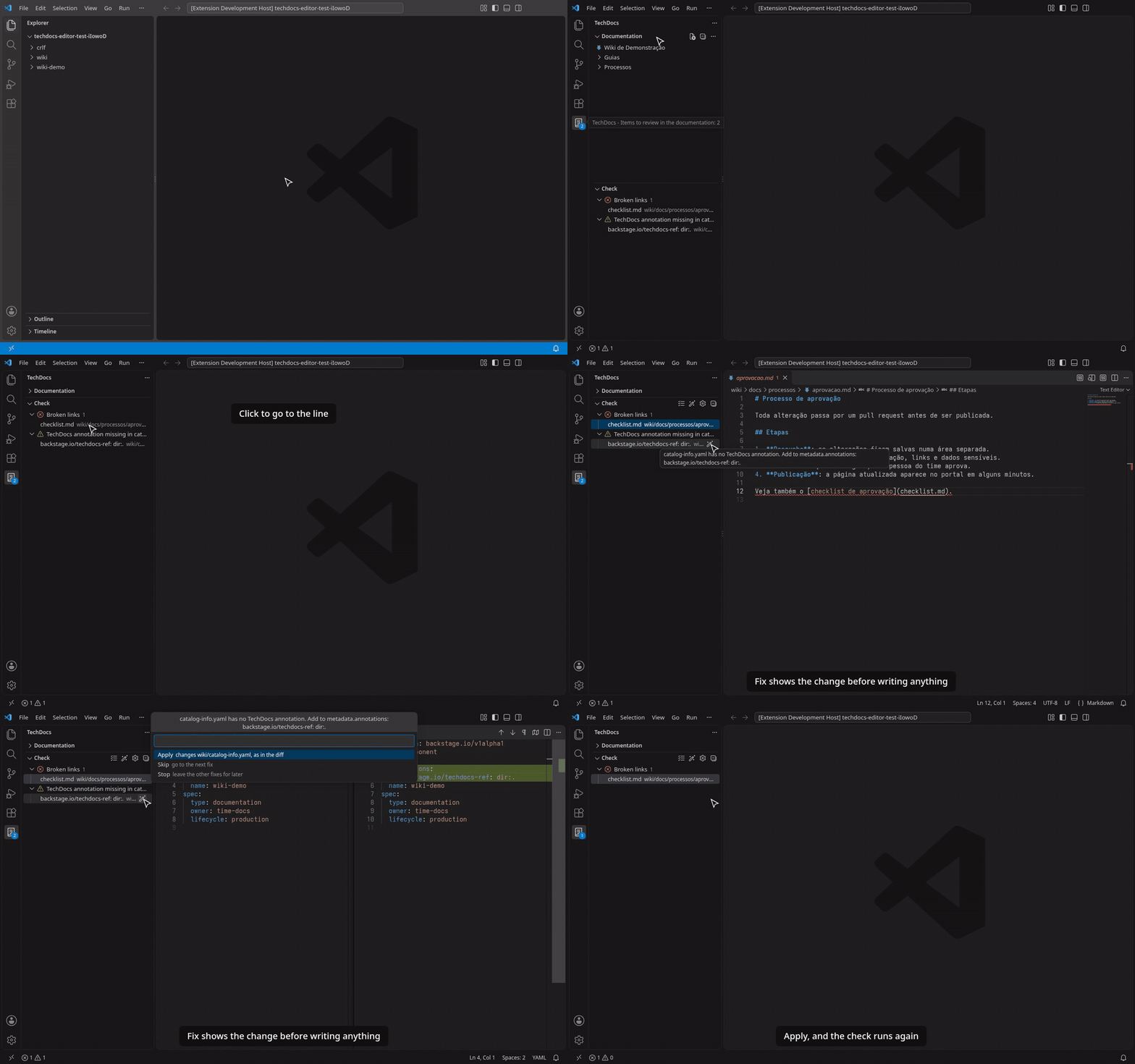
The Check section of the TechDocs sidebar lists, grouped by kind, what is missing or wrong for TechDocs to
build each site: site_name and the techdocs-core plugin in mkdocs.yml, the docs folder
and its index.md, nav entries pointing to missing pages and pages left out of the nav, the
backstage.io/techdocs-ref annotation in catalog-info.yaml, the markdownlint configuration, formatting
problems, links to missing files and missing images. It checks on its own when it first shows up and again
after you save; the icon shows how many items are left. A click opens the file at the line, and Fix shows the
diff of that one fix before writing anything. The same items are in the Problems panel.
TechDocs: Prepare the documentation in this repository creates a site from a template when there is no
mkdocs.yml. Otherwise it goes through the fixes one by one, showing the diff first, so you apply, skip or
stop. Broken links and missing images have no fix: only a person knows the right target.
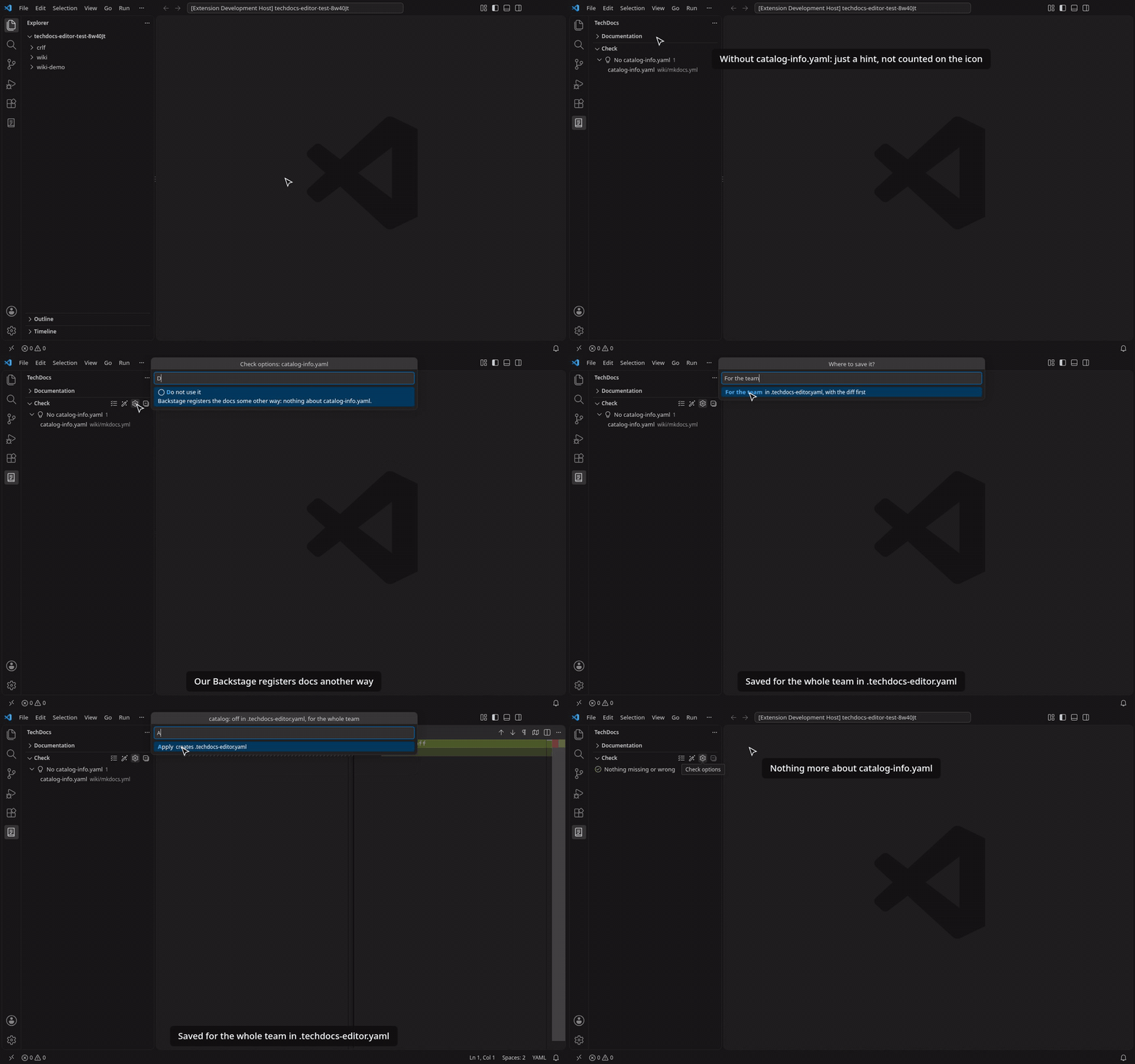
Not every Backstage reads catalog-info.yaml from the repository. The gear of the Check section (Check
options) sets how the check treats it: Check only if it exists (the default; a missing file is just a hint,
not counted on the icon), Require it (a missing file is a problem, with a fix that creates a minimal one) or
Do not use it. Save it For the team in .techdocs-editor.yaml (catalog:) or Just for me in the
techdocsEditor.catalog setting; the repository file wins.
Publish without leaving VS Code (optional)
For people who would rather not deal with branches and pull requests: turn on
techdocsEditor.local.publishPanel and a Publishing panel shows up in the TechDocs sidebar, with the same flow as
the Backstage plugin.
| Button |
What happens on GitHub |
| Save draft |
Commit and push to the draft branch, with [skip ci]: no checks, no pull request |
| Save and check |
Fixes what the formatting check can fix, commits, pushes and opens a draft pull request the first time, which starts the checks |
| Send for publication / Send for review |
Marks the pull request as ready. The page is published by whoever merges it on GitHub: the panel never merges |
| Discard |
Closes the pull request and, on a branch the panel created, deletes it here and on GitHub |
- On the default branch, saving creates
docs/<your-login>/<page> and switches to it. On a branch of your
own, the panel uses that branch.
- Commits only take the page and the new images in
assets/ it uses, never other changes in your workspace.
- The checks of any CI (GitHub Actions check runs and commit statuses), with failures in plain language and a
link to the line. Without a pipeline, the formatting check of the editor is the verification.
- Repository admins get Set up checks: a workflow with the standard checks, the formatting rules and branch
protection, the files in a pull request for the team to review.
- Signs in with the GitHub account of VS Code (GitHub Enterprise Server too). The token stays with VS Code.
Getting started
- Install TechDocs Editor from the VS Code Marketplace.
- Open a folder that has a
mkdocs.yml (the extension starts on its own there). No mkdocs.yml yet? The
TechDocs icon also shows up next to a README.md, a docs/ folder or a catalog-info.yaml, with
Prepare the documentation.
- Open a page:
- from the Documentation section of the TechDocs icon in the activity bar, or
- with the Open in visual editor button in the editor title bar of a
.md file, or
- with Reopen Editor With… → TechDocs visual editor.
New to it? Help → Welcome → Get started with TechDocs Editor walks through creating a site, the sidebar, a
new page, the visual editor, the check, publishing and company templates.
To always open documentation pages in the visual editor, turn on techdocsEditor.openVisualByDefault. Use
Reopen Editor With… or TechDocs: Open as Markdown text to see the text.
Settings
| Setting |
Default |
What it does |
techdocsEditor.openVisualByDefault |
false |
Open pages inside a MkDocs docs_dir in the visual editor instead of the text |
techdocsEditor.images.maxSizeMB |
5 |
Largest image the visual editor saves to assets. Images go into the repository: large files weigh on every clone |
techdocsEditor.templates.paths |
[] |
More folders with page and site templates, relative to the workspace folder (.techdocs/templates/ is always read) |
techdocsEditor.templates.repository |
"" |
Company templates in a GitHub repository: owner/repo[/folder][@ref] |
techdocsEditor.templates.builtIn |
true |
Offer the templates that come with the extension |
techdocsEditor.catalog |
auto |
How the check treats catalog-info.yaml: auto (check it only if it exists), required or off. Also the gear in the Check view; catalog: in .techdocs-editor.yaml wins |
techdocsEditor.local.publishPanel |
false |
Show the Publishing panel |
techdocsEditor.branchPattern |
docs/{login}/{path} |
Branch created for a draft when you are on the default branch |
techdocsEditor.drafts.skipCi |
true |
Save draft adds [skip ci], so the pipeline only runs on Save and check |
techdocsEditor.verification.mode |
auto |
auto (the pipeline when there is one), pipeline or editor |
techdocsEditor.verification.startTimeoutSeconds |
120 |
Wait for the first check before warning that nothing started |
techdocsEditor.verification.checkHelp |
{} |
Plain-language message per check name, shown when it fails |
techdocsEditor.polling.intervalSeconds / idleIntervalSeconds |
8 / 60 |
Check queries while something runs / when idle. Nothing is queried while the window is in the background |
techdocsEditor.github.scopes |
["repo"] |
Scopes asked when signing in to GitHub (public_repo for public repositories) |
A .techdocs-editor.yaml at the repository root (verification.mode, startTimeoutSeconds, checkHelp)
wins over the settings, so the whole team gets the same checks.
Fix formatting on save:
"[markdown]": {
  "editor.codeActionsOnSave": { "source.fixAll.techdocs": "explicit" }
}
Commands
| Command |
What it does |
| TechDocs: Open in visual editor |
Opens the current .md file in the visual editor |
| TechDocs: Open as Markdown text |
Opens the text of the page side by side with the visual editor |
| TechDocs: New page from template… |
Creates a documentation page from a template and opens it in the visual editor |
| TechDocs: New documentation site… |
Creates mkdocs.yml and the pages of a documentation site from a template |
| TechDocs: Check the documentation of the repository |
Lists what is missing or wrong for TechDocs in the Check view and the Problems panel |
| TechDocs: Prepare the documentation in this repository |
Creates a site, or applies the fixes of the check one by one with the diff first |
| TechDocs: Refresh company templates |
Checks the company templates repository right away instead of waiting for the hourly check |
How the lint finds its configuration
For each page, the extension looks for .markdownlint.jsonc, .json, .yaml or .yml from the folder of
the page's mkdocs.yml up to the workspace folder, and uses the first one it finds (markdownlint's defaults
otherwise). Only pages inside a docs_dir are checked.
- Restricted mode: in an untrusted workspace, the repository's configuration is not read and pages are
not checked until you trust the folder.
- With the markdownlint extension
installed, its diagnostics win in the Problems panel, so you don't see each problem twice. The visual
editor still shows the list.
Privacy and security
- No telemetry. The extension collects nothing.
- No network in local mode unless you turn on the publishing panel. Pages are read and written through
VS Code; the only requests are for images your pages already link with
https://. The panel talks only to
the GitHub of your repository's remote, from the extension host: the token never reaches the webview. With
techdocsEditor.templates.repository set, the extension also reads that repository, at most once an hour;
in an untrusted workspace only your user setting counts, never the folder's.
- The visual editor runs in a webview with a strict content security policy: only the extension's own
scripts run.
Requirements and limitations
- VS Code 1.100 or later.
- Works on local folders and clones (local mode). Git stays with VS Code's source control.
- The publishing panel needs a clone with a GitHub remote and VS Code's Git extension.
- Not yet: the remote mode (edit a repository on GitHub without cloning it) and VS Code for the Web. See the
roadmap.
- Math (LaTeX) is off, as in TechDocs' default MkDocs setup.
- Some advanced Material for MkDocs constructs, such as grid cards and HTML blocks with
markdown, are still
being hardened. Review the diff before committing pages that use them.
Contributing
Bug reports and pull requests are welcome. See CONTRIBUTING.md for the development setup
and the tests.
License
Apache-2.0.

