SVG Gallery
Browse SVG/PNG/JPEG/WebP images in a visual gallery with search, theme switching, size adjustment, and SVGO compression.
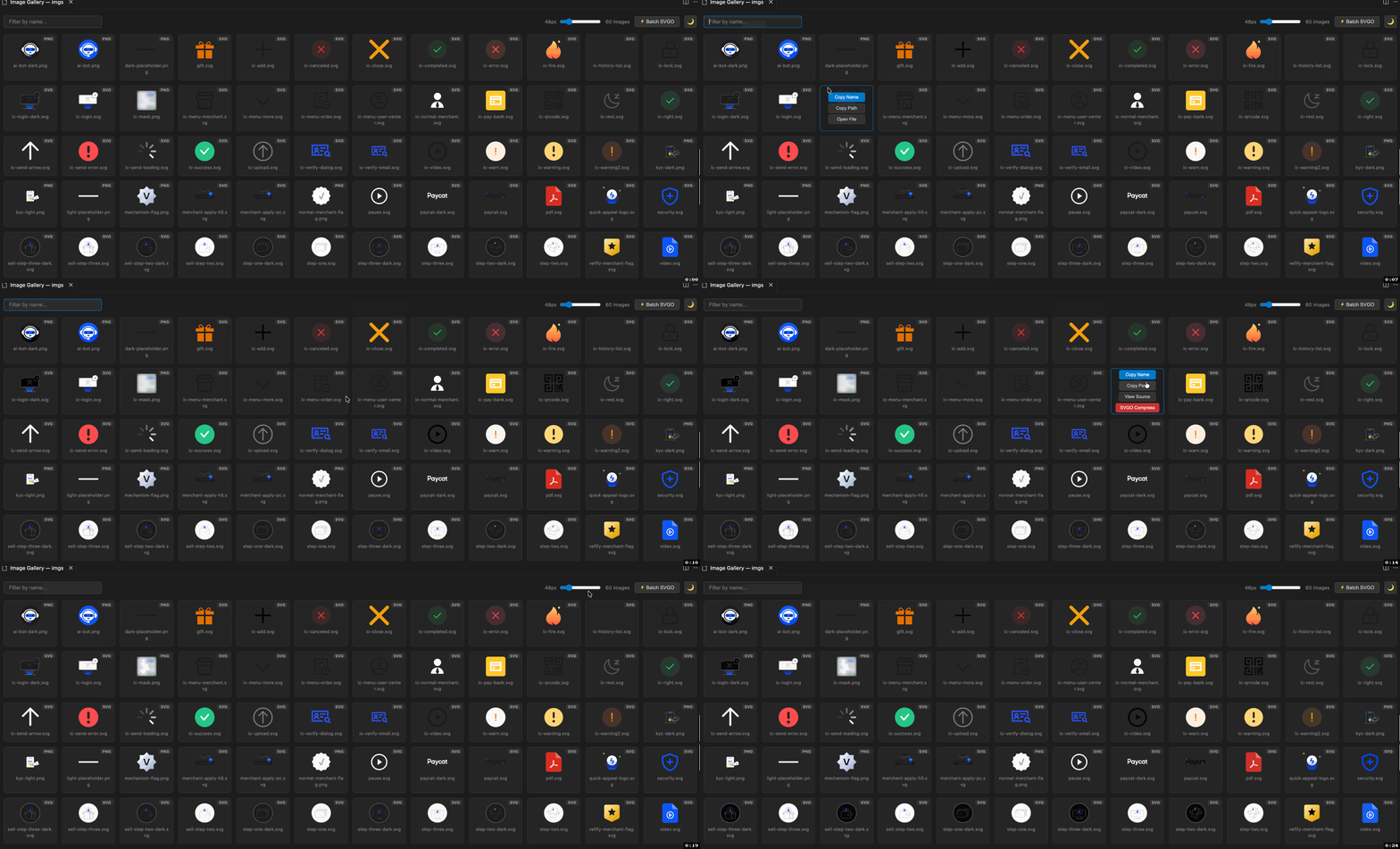
Features
- Multi-format preview — SVG, PNG, JPEG, WebP
- Search filter — real-time filtering by file name
- Size adjustment — slider to resize previews (24px–160px)
- Light / Dark theme — toggle via toolbar button, defaults to dark
- SVGO compression — compress single or batch SVG files with one click
- Quick actions — copy name, copy path, view source / open file
Installation
Cursor
Search SVG Gallery in the Extensions Marketplace and click Install, or install from the command line:
cursor --install-extension dwqs.svg-gallery
You can also install it from Open VSX:
- Click the Download button on the right side to download the .vsix file
- Open Cursor, press
Cmd+Shift+P and run Extensions: Install from VSIX...
- Select the downloaded .vsix file to install
VS Code
Search SVG Gallery Viewer in the Extensions Marketplace and click Install, or install from the command line:
code --install-extension dwqs.svg-gallery-viewer
You can also install it from VS Marketplace.
Usage
Command Palette
Cmd+Shift+P → SVG Gallery: Open → select a folder containing images.
Right-click any folder in the Explorer sidebar → SVG Gallery: Open.
License
MIT


