
UX Developer Companion
Point at the bug. Press one key. Let Copilot see what you see.
An embedded browser inside VS Code that turns "this button looks wrong" into a screenshot,
an annotation, and a precise prompt — without ever leaving the editor.




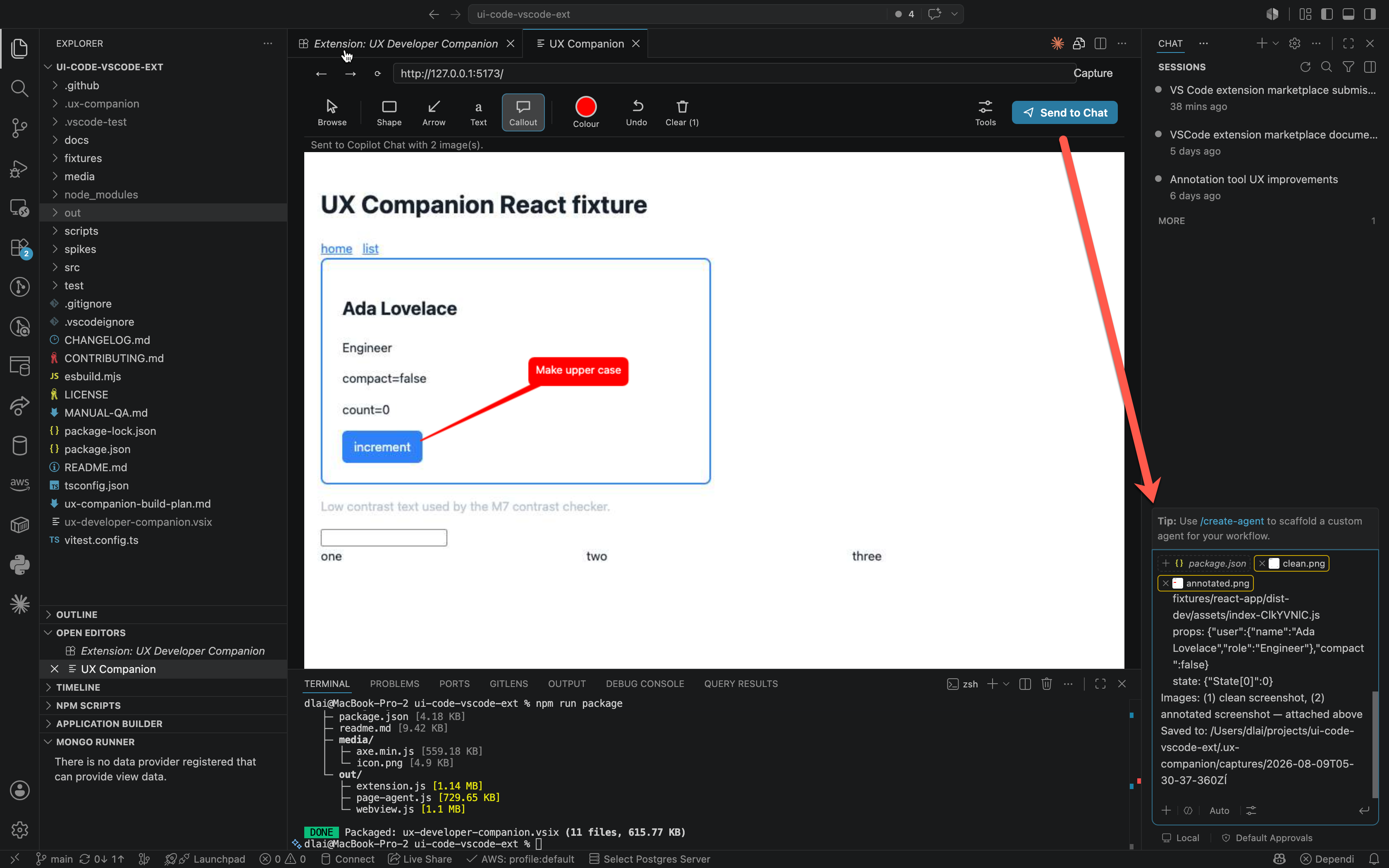
Circle it, name it, send it — the annotation and both screenshots land in Copilot Chat as real attachments.
Works with GitHub Copilot Chat. Not affiliated with, endorsed by, or sponsored by GitHub or
Microsoft.
The problem it solves
Describing a UI defect to an AI assistant is the slowest part of front-end work. You screenshot,
crop, find the file, guess the component name, type a paragraph of context — and the model still
asks which element you meant.
UX Developer Companion collapses that loop. Your app runs in a panel next to your code. You circle
the broken thing, type a note on it, and press cmd/ctrl+alt+p. Copilot Chat receives a clean
screenshot, the annotated screenshot, and a context block describing the URL, route, viewport, and
emulation state — as real attachments, not pasted text.
What it does
|
|
| Embedded browser |
Headless Edge/Chrome streamed into a VS Code panel over CDP, with full mouse, keyboard, and wheel forwarding, plus a navigation bar. |
| Annotations |
Box, circle, arrow, text, and Sketch-style callouts. Geometry is stored in page CSS pixels, so marks stay anchored through scroll, resize, and device changes. |
| Send to Chat |
cmd/ctrl+alt+p attaches both screenshots and a short context block to Copilot Chat in agent mode. One keystroke, no pasting. |
| Inspector |
Component tree, click-to-pick, and live prop/state editing for React and Angular. |
| Responsive |
Device presets with DPR, touch, and UA overrides; a breakpoint slider built from your app's own media queries; a responsive matrix. |
| Colour & a11y |
Eyedropper that names the CSS custom property and where it is defined, WCAG 2.1 contrast checks, vision-deficiency and media emulation, and a bundled axe-core scan. |
| State lab |
Force :hover/:focus/:active, intercept requests (fail, delay, mock), throttle the network, and snapshot/restore storage profiles. |
Install
From the Marketplace:
code --install-extension dlaisoft.ux-developer-companion
Or search UX Developer Companion in the Extensions view (cmd/ctrl+shift+X).
Requirements
- VS Code 1.128 or newer.
- Microsoft Edge or Google Chrome installed locally. The extension never downloads a browser.
If auto-discovery fails, set
uxCompanion.browserPath.
- A running dev server to point it at.
- GitHub Copilot Chat — only for the Send to Chat feature. Everything else works without it.
Quick start
- Start your dev server.
- Run UX Companion: Open Browser Panel from the Command Palette (
cmd/ctrl+shift+P).
- Type your dev server URL in the address bar.
- Click Browse to drive the app and navigate to the screen you care about.
- Pick a markup tool, draw on the problem, and type a note on it.
- Press
cmd/ctrl+alt+p — Send to Chat.
Each finished mark drops the tool and switches Browse off, leaving the panel in a neutral state
where a stray click can neither draw again nor navigate the app you are annotating. Click
Browse when you want to move around again.
Commands
| Command |
Default keybinding |
| UX Companion: Open Browser Panel |
— |
| UX Companion: Send to Chat |
cmd+alt+p / ctrl+alt+p |
| UX Companion: Copy Annotated Screenshot to Clipboard |
— |
Single-key tool shortcuts while the panel is focused: B box · C circle · A arrow · T text ·
O callout · ⌘Z undo · Esc disarm.
Settings
| Setting |
Default |
Description |
uxCompanion.browserPath |
(empty) |
Absolute path to Edge/Chrome/Chromium. Empty = auto-discover (Edge → Chrome → Chromium). |
uxCompanion.screencastQuality |
60 |
JPEG quality for the stream, 10–100. Frame rate is never reduced to save bandwidth. |
uxCompanion.captureDir |
.ux-companion/captures |
Workspace-relative directory for saved screenshots and context text. |
How screenshots reach Copilot
Screenshots are attached directly to the chat input — no pasting, no manual steps. The
extension writes both PNGs to captureDir and hands them to VS Code's chat command as image
attachments.
Copying to the clipboard is a separate, optional command. It is deliberately not how images
reach chat: VS Code's chat paste handler ignores images unless some installed extension enables the
chatReferenceBinaryData API proposal, so pasting a screenshot into Copilot Chat silently does
nothing on a stock install. Use Send to Chat instead.
Privacy and offline use
- No telemetry. The extension collects and transmits nothing.
- No backend. There is no service to sign into and no account.
- No runtime downloads. axe-core is bundled in the
.vsix.
- Screenshots and context are written to your workspace under
captureDir and go only where you
send them.
This makes it viable behind a corporate proxy. See
docs/troubleshooting.md
for sideloading and proxy notes.
Known limitations
Stated plainly, because a tool that oversells itself wastes your afternoon.
- IME and international composition are imperfect over CDP. Complex input methods may not
compose correctly in the embedded browser.
- Angular requires a dev build.
window.ng only exists in development mode; against a
production build the Angular adapter reports that it cannot resolve components.
- React production builds are read-only. Props and state remain readable, but component names
are minified, so the inspector reports the build as degraded, source-file resolution is skipped,
and overrides are refused rather than silently ignored.
- Source-file resolution is ranked, not certain. Measured on real repositories, ranked top-1
accuracy is roughly 87% (React) and 95% (Angular); the payload therefore includes runner-up
candidates. Treat the path as a strong hint.
- Typing latency. Keeping the headless screencast alive requires focus emulation, which can
make an individual key dispatch take a few hundred milliseconds under load.
- Cross-origin stylesheets cannot be read, so breakpoint detection and token provenance only
cover stylesheets the page can access.
Documentation
- User guide — every panel, tool, and workflow in depth.
- Troubleshooting — browser discovery, black canvas, corporate networks, Copilot attachment.
- Changelog — what changed and why.
- Contributing — build from source, run the test suites, open a PR.
Support this project
UX Developer Companion is free, MIT-licensed, and built in the open with no telemetry and no paid
tier. If it saves you time, sponsorship keeps it maintained.
Free ways to help, all of them genuinely useful:
About the author
Built by David Lai — Principal Software Developer
working at the intersection of AI tooling and front-end engineering.
This extension is a working sample of that: a Chrome DevTools Protocol client, a React inspector, a
ranked source-file locator, and an LLM context pipeline, shipped as one VS Code extension with unit,
integration, and extension-host test suites.
→ See more of my work at dlai0001.github.io/portfolio
Available for consulting and senior/principal roles in AI-assisted developer tooling.
License
MIT © David Lai

