Why Unified Kanban?
Every markdown kanban extension on VS Code invents its own unique syntax. Switching between Obsidian and Visual Studio Code means rewriting your boards from scratch. It's impossible to learn one standard markdown syntax to use when creating kanban boards. The Obsidian Kanban plugin has emerged as the de facto standard — battle-tested and widely adopted. Unified Kanban bridges the gap, finally bringing that proven format to VS Code so your boards work identically in both editors.
One simple kanban format, now unified.
Contents
Installation
Install from the VS Code Marketplace:
- Open the Extensions sidebar (
Ctrl+Shift+X / Cmd+Shift+X)
- Search for Unified Kanban
- Click Install
Or use Quick Open (Ctrl+P / Cmd+P):
ext install divisionseven.unified-kanban
Getting Started
Opening a Board
Recommended use: This extension is designed to work with markdown kanban boards — either boards you created with this extension or with the obsidian-kanban plugin. These files contain YAML frontmatter with kanban-plugin: basic.
- Right-click any
.md kanban file in the Explorer
- Select Open With... → Kanban Board
Or use the Command Palette:
- Kanban: New Board — creates a new kanban board with all required frontmatter
What about regular .md files?
If you open a non-kanban .md file, the extension will attempt to render any ## headings as lists and - [ ] items as cards. However, anything else in the file will be ignored. If you change any board settings, the extension will automatically add the required settings footer to your document.
Compatibility note: While Unified Kanban is flexible about the YAML frontmatter section being included, the Obsidian kanban plugin requires proper YAML frontmatter to recognise the document as a kanban board. Any new boards created using this extension will include all required fields to work perfectly in both Obsidian and here.
See It In Action
Basic Usage
See how Unified Kanban turns markdown files into interactive kanban boards.
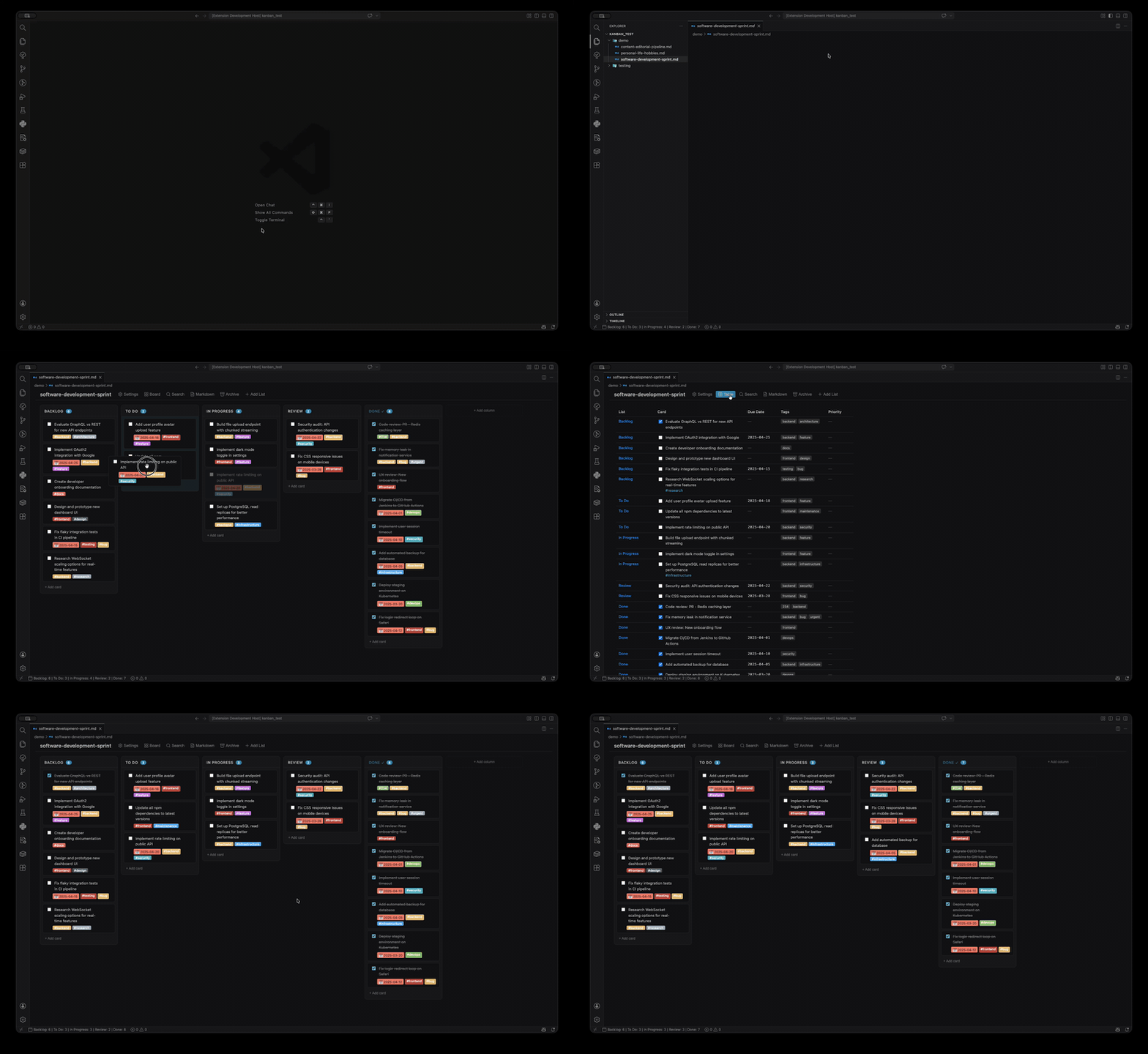
Create boards → Add cards with markdown → Drag to reorder → Archive when done
Theme Support
Unified Kanban automatically adapts to your editor's color theme.
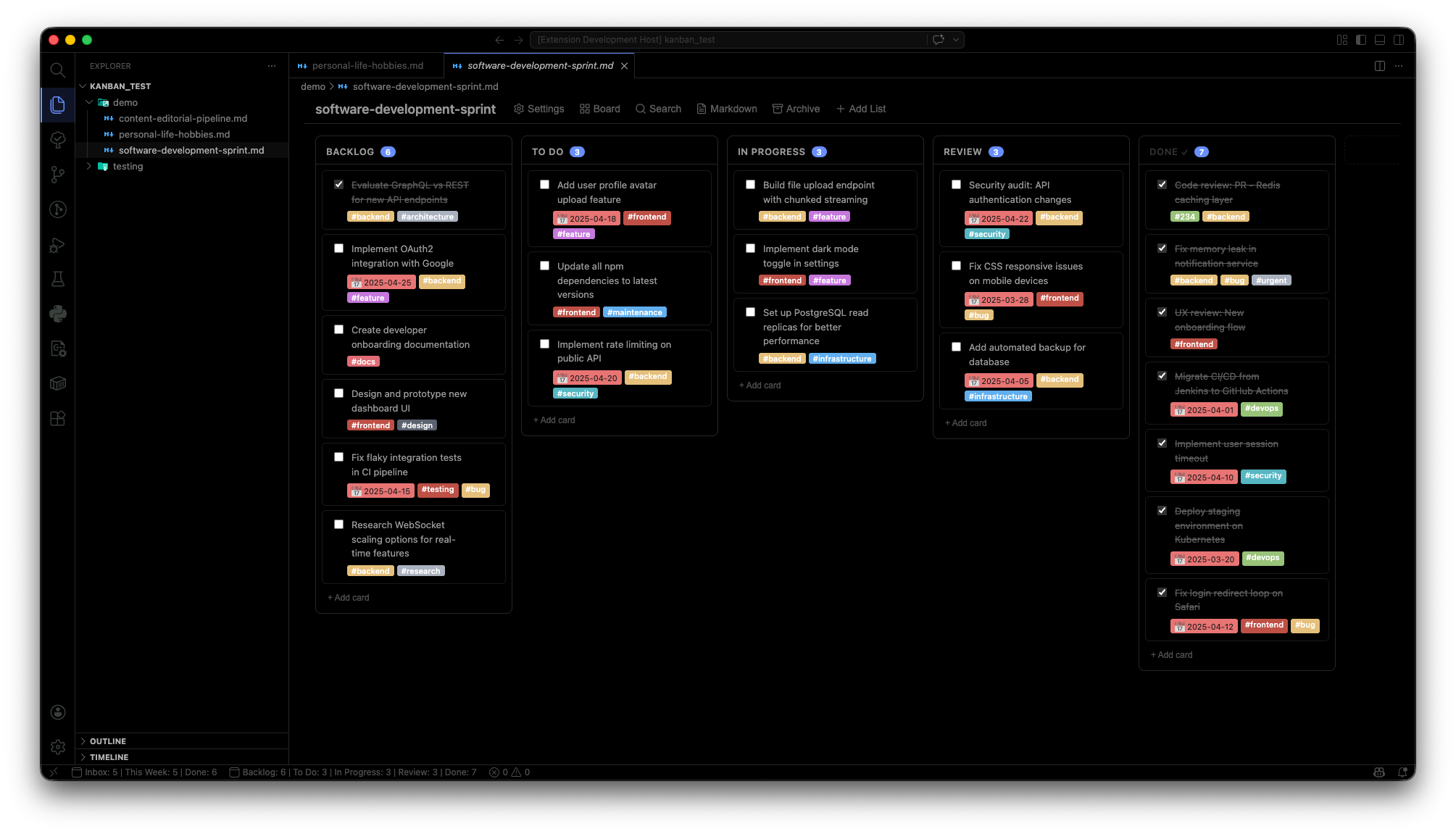
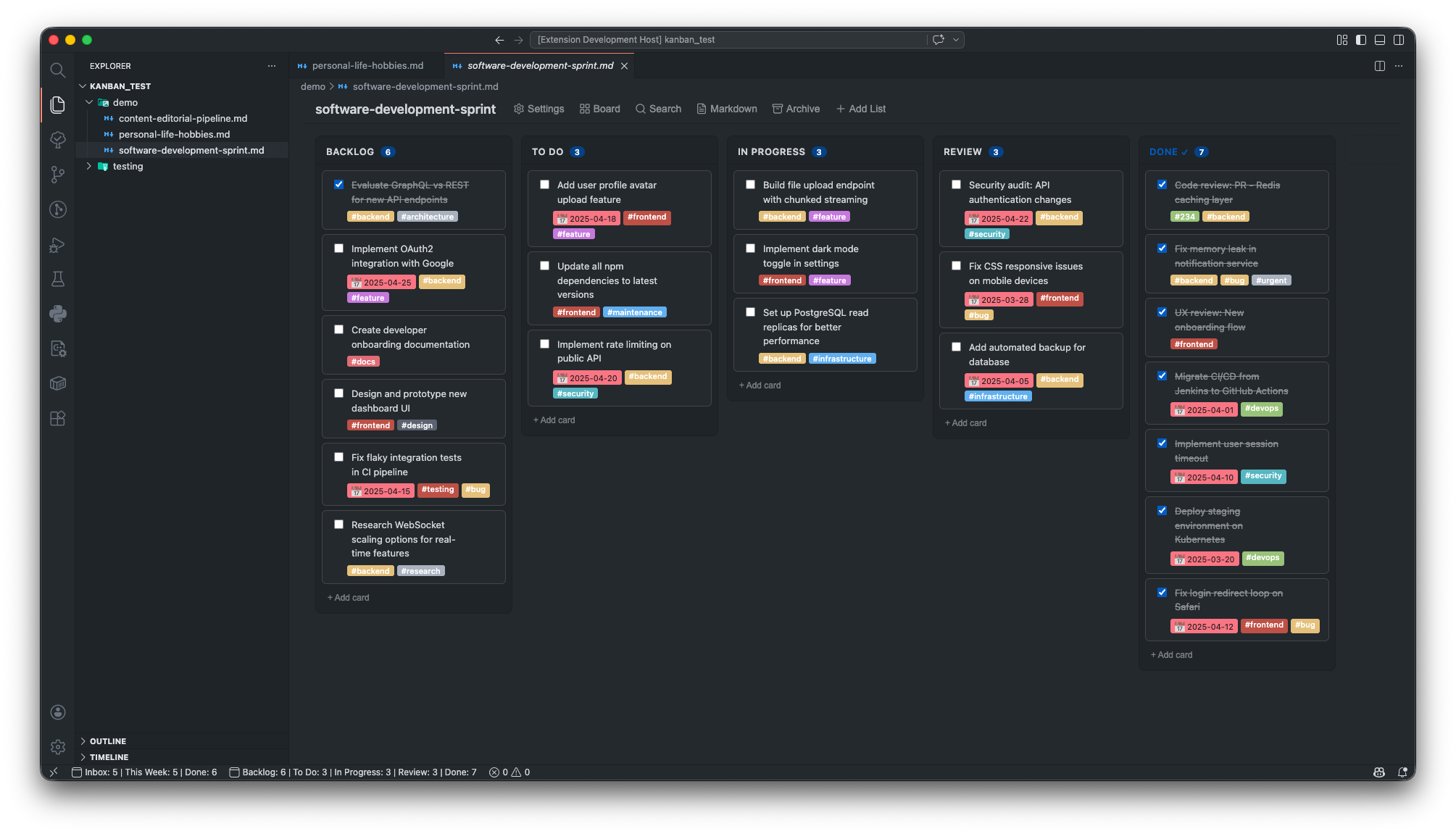
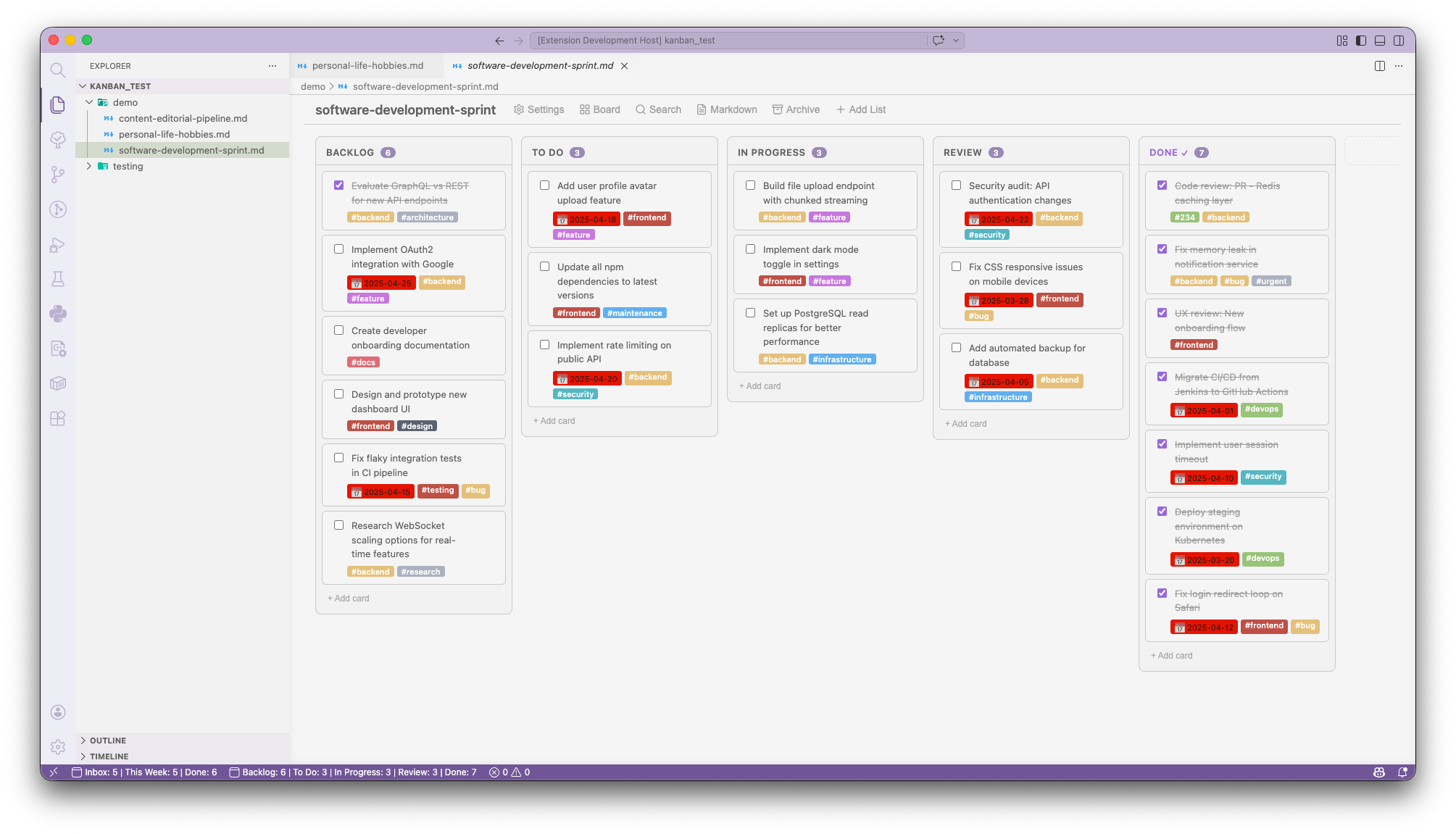
Watch Unified Kanban seamlessly match your editor's color scheme — light, dark, or ultra dark
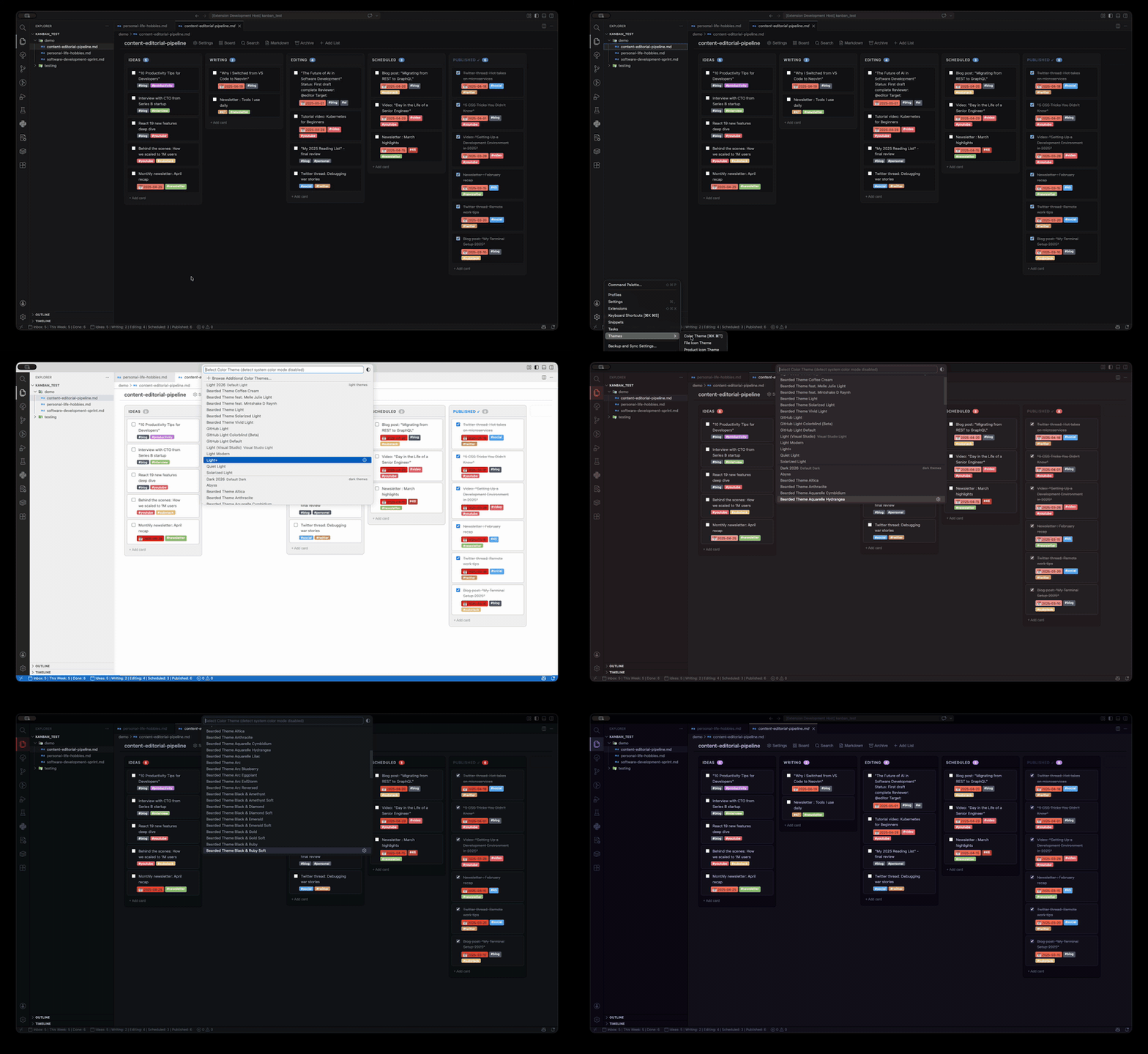
The extension detects your active theme and instantly updates colors in real-time
View Modes
Three views to match your workflow — Board for visual planning, List for quick scanning, Table for detailed overviews.
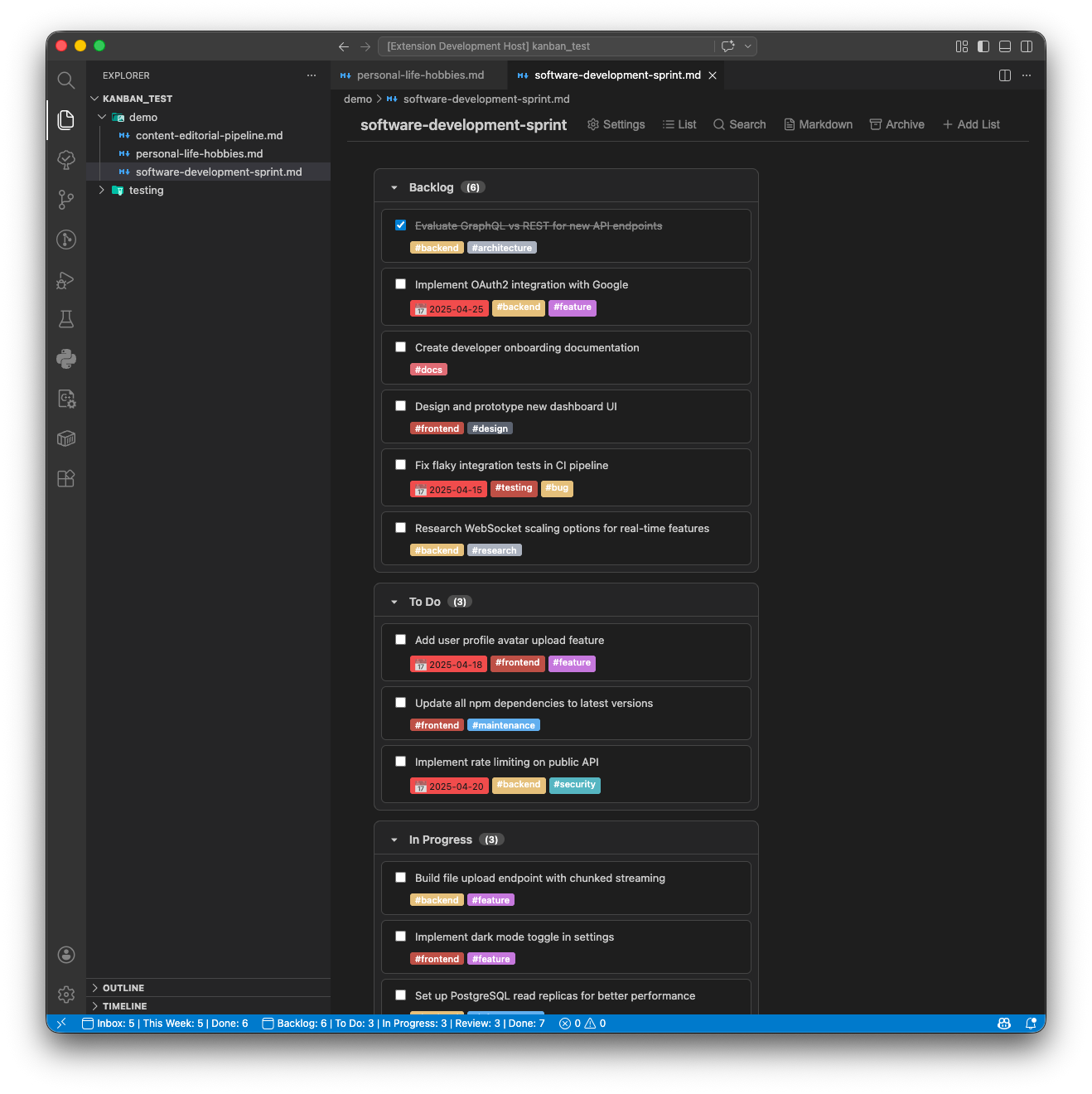
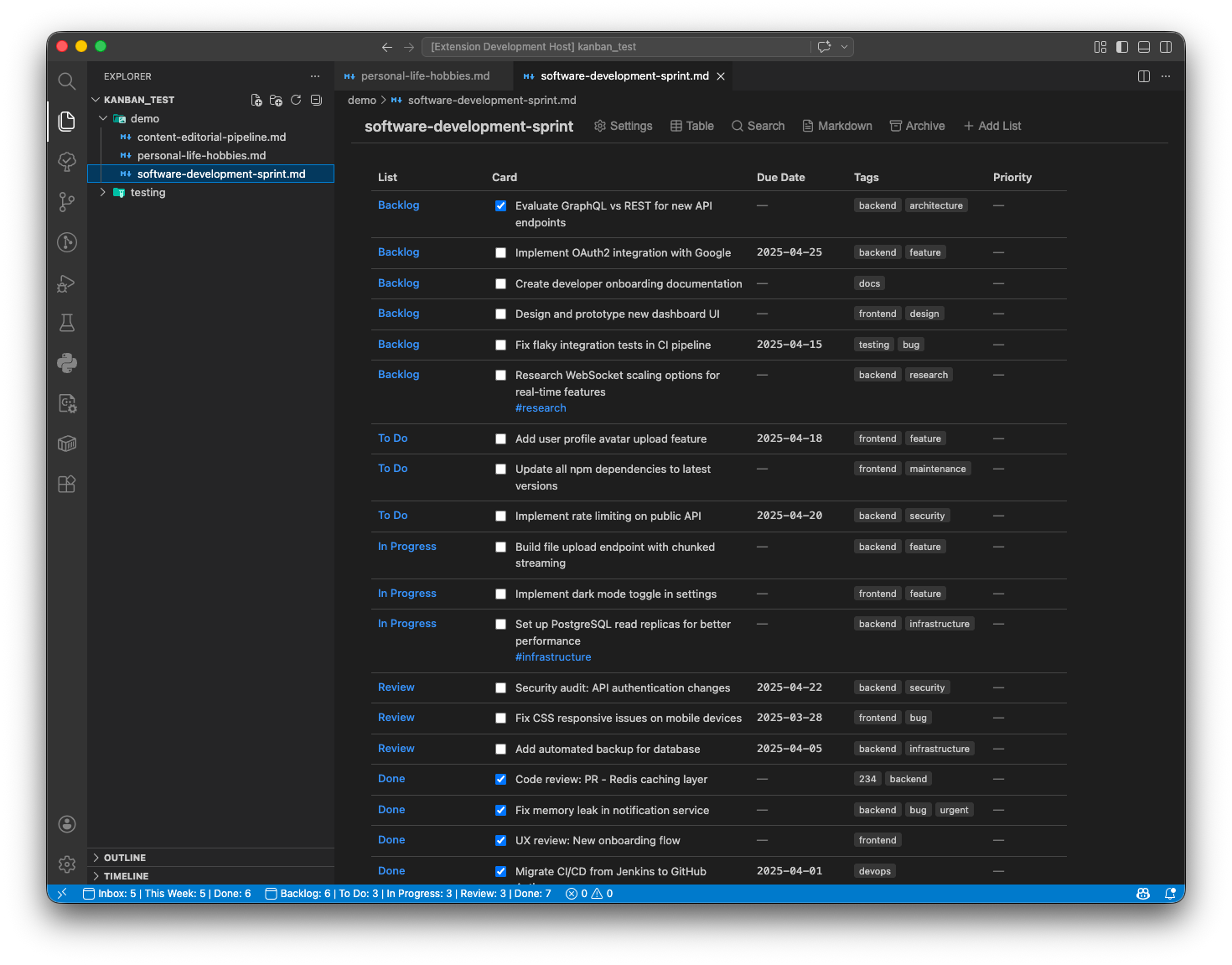
Switch between Board, List, and Table views at any time
Rich Markdown Editing
Open the original markdown document with one click. Edit in the kanban editor, or with full markdown support.
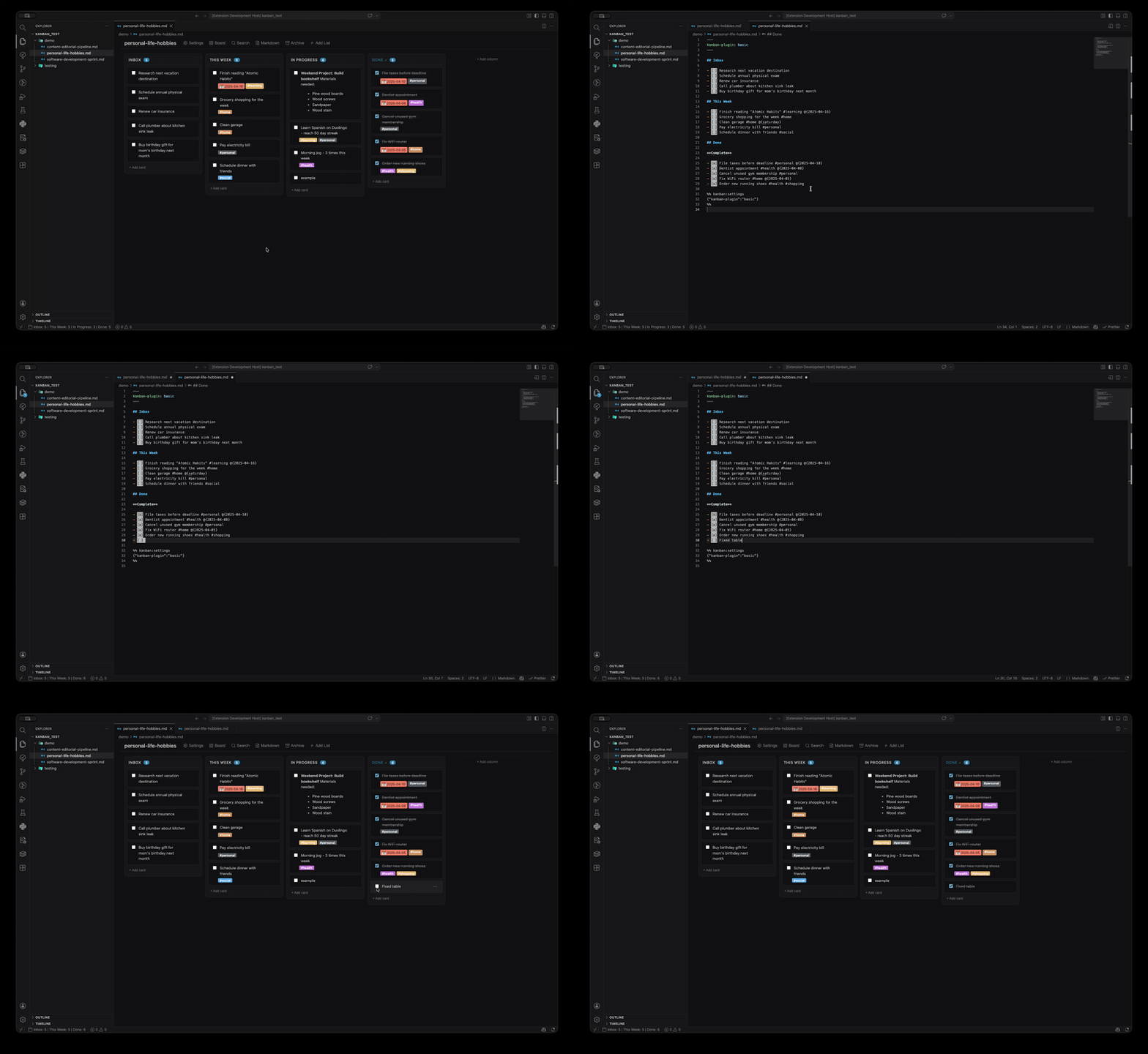
Rich text, tags, dates, checklists, and custom fields — all inline
Unified Kanban uses the same markdown format as the popular obsidian-kanban plugin. Using this extension, your boards are now seamlessly portable between Obsidian and VS Code.
---
kanban-plugin: basic
---

## Todo

- [ ] Task one #tag @{2025-04-15}
- [ ] Task two [[linked-note]]

## In Progress

- [ ] Task three

## Done

**Complete**

- [x] Done task

%% kanban:settings
{"kanban-plugin":"basic","lane-width":270,"date-format":"YYYY-MM-DD","time-format":"HH:mm"}
%%
Format rules:
- YAML frontmatter must include
kanban-plugin: basic
- Each
## heading becomes a list
- [ ] for open cards, - [x] for completed cards#tag-name — rendered as colored badges@{YYYY-MM-DD} — rendered as urgency-colored chips[[note-name]] — clickable to open linked notes%% kanban:settings %% — per-board settings (JSON)**Complete** — marks the archive section for done cards
Features
Unified Kanban includes 20+ features for your project boards:
- Drag-and-drop — Reorder cards and columns with intuitive drag interactions
- Three view modes — Board, Table, and List views to match your workflow
- Rich content — Tags, dates, wikilinks, and custom metadata with inline editing
- Per-board settings — 30+ customization options including themes, dates, and behavior
- Theme-aware design — Automatically adapts to your active VS Code color theme
- Archive system — Organize completed cards with date-stamped archives
View all 20+ features →
Settings
Per-board settings are configured via the gear icon in the board toolbar and stored in the markdown file's %% kanban:settings %% block:
| Setting |
Default |
Description |
lane-width |
270 |
Column width in pixels (150–600) |
date-format |
YYYY-MM-DD |
Display format for dates |
time-format |
HH:mm |
Display format for times |
prepend-new-cards |
false |
Add new cards to the top of a column instead of the bottom |
show-checkboxes |
true |
Show checkboxes on cards |
new-card-insertion |
append |
How new cards are inserted (prepend, prepend-compact, append) |
hide-card-count |
false |
Hide the card count badge on column headers |
move-tags |
true |
Extract tags from card text and display as metadata |
tag-action |
obsidian |
Tag click behavior: kanban (filter) or obsidian (search) |
move-dates |
true |
Extract dates from card text and display as metadata |
date-trigger |
@ |
Character that triggers date autocomplete |
time-trigger |
@ |
Character that triggers time autocomplete |
date-display-format |
YYYY-MM-DD |
Format for displaying dates on cards |
show-relative-date |
false |
Show dates as relative (e.g., "in 3 days") |
link-date-to-daily-note |
false |
Make date metadata link to daily notes |
date-picker-week-start |
1 |
Day the date picker starts on (0=Sunday, 1=Monday) |
archive-with-date |
false |
Add a date stamp when archiving cards |
append-archive-date |
false |
Append date to end of archived card text |
archive-date-separator |
|
Separator between card text and archive date |
archive-date-format |
YYYY-MM-DD |
Date format for archive date stamps |
max-archive-size |
-1 |
Maximum cards in archive (-1 for unlimited) |
metadata-position |
body |
Where to display inline metadata (body, footer, metadata-table) |
move-task-metadata |
true |
Extract Obsidian Tasks metadata from card text |
new-note-template |
"" |
Template content for new notes created from cards |
new-note-folder |
"" |
Folder path for new notes created from cards |
show-add-list |
true |
Show the "Add List" button in the board header |
show-archive-all |
true |
Show the "Archive All" button in the board header |
show-view-as-markdown |
true |
Show the "View as Markdown" button in the board header |
show-board-settings |
true |
Show the board settings button in the board header |
show-search |
true |
Show the search button in the board header |
show-set-view |
true |
Show the set view button in the board header |
show-title |
true |
Show the board title (filename or custom) |
custom-title |
"" |
Custom title to display (overrides filename when set) |
Commands
| Command |
Title |
Description |
kanban.newBoard |
Kanban: New Board |
Create a new kanban board from template |
kanban.openAsText |
Kanban: Open as Text |
Reopen the current board as plain markdown |
kanban.archiveDoneCards |
Kanban: Archive Done Cards |
Move all completed cards to the archive section |
kanban.toggleKanbanView |
Kanban: Toggle Kanban View |
Toggle between kanban board and text view |
kanban.convertToKanban |
Kanban: Convert to Kanban |
Convert the current file to kanban format |
kanban.addKanbanLane |
Kanban: Add Kanban Lane |
Add a new lane to the current board |
kanban.viewBoard |
Kanban: View as Board |
Switch to board view |
kanban.viewTable |
Kanban: View as Table |
Switch to table view |
kanban.viewList |
Kanban: View as List |
Switch to list view |
kanban.openBoardSettings |
Kanban: Open Board Settings |
Open the board settings panel |
FAQ
For additional questions and solutions, see the FAQ documentation.
How do I exclude kanban files from markdown linters?
Since kanban files use non-standard markdown syntax, linters may flag them with errors. For full instructions on configuring your specific linter, see the FAQ documentation.
Quick patterns that work:
- Use filename patterns (e.g.,
*board*.md, *-kanban.md)
- Exclude the kanban directory (e.g.,
kanban/, boards/)
Troubleshooting
Having issues? Check the FAQ for common questions and solutions.
Releases
This project uses automated releases:
- commitlint validates commit messages follow conventional commits format
- standard-version automatically bumps versions and generates changelogs
- Dependabot scans dependencies for security vulnerabilities
For contributors, the release process is documented in CONTRIBUTING.md.
Changelog
See CHANGELOG.md for the full release history and version notes.


Contributing
See CONTRIBUTING.md for development setup, code style, and how to submit changes.
License
Unified Kanban is distributed under the MIT License
Acknowledgments
Disclaimer
Unified Kanban is not affiliated with Obsidian or with the obsidian-kanban plugin.