Dusk Office
Professional dark and light themes for VS Code, Cursor and Windsurf — 27 WCAG-verified variants, theme gallery, and local day/night automation. Built for finance, audit, cybersecurity and long sessions.



Dusk Office is a polished theme suite for VS Code, Cursor, and Windsurf (plus Neovim, Emacs, Zed, Helix, JetBrains via exported themes) with 27 dark, light, and high-contrast themes, semantic highlighting, full UI coverage, verified terminal contrast, and an optional product icon theme.
Built for developers who want readable code, coherent chrome across the editor and workbench, OLED-friendly night variants, clean daytime options, and theme automation that stays local to the extension.
Why Dusk Office:
- One family, 27 variants — dark, light, warm, and high-contrast options that still feel related instead of random skins
- Readable by design — semantic highlighting, workbench polish, and terminal contrast checks tuned for long sessions
- Workspace Fingerprint — on first open, Dusk Office detects your project type (fintech, audit, cybersecurity, ML/data, modern web, frontend, CLI) from
package.json/Cargo.toml/pyproject.toml/etc. and suggests the variant tuned for that context (Vault, Audit, Sentinel, Steward, Voltage, Nocturne, Terminal). Local-only, opt-out via duskOffice.workspaceFingerprint.enabled.
- Useful automation — favorite theme restore, workspace memory, auto switch, adaptive focus, and a Control Center for quick actions
- Trust-first behavior — no surprise companion installs, local-only runtime logic, and clean reset options
This README is the primary documentation (GitHub and Marketplace). Public documentation mirror: github.com/SIDIKICONDE/dusk-office-docs. Extended guide — full theme list, terminal palettes, contrast notes — QUICKSTART-LONG.md · same file on the docs repo.
Marketplace: dekidev.dusk-office
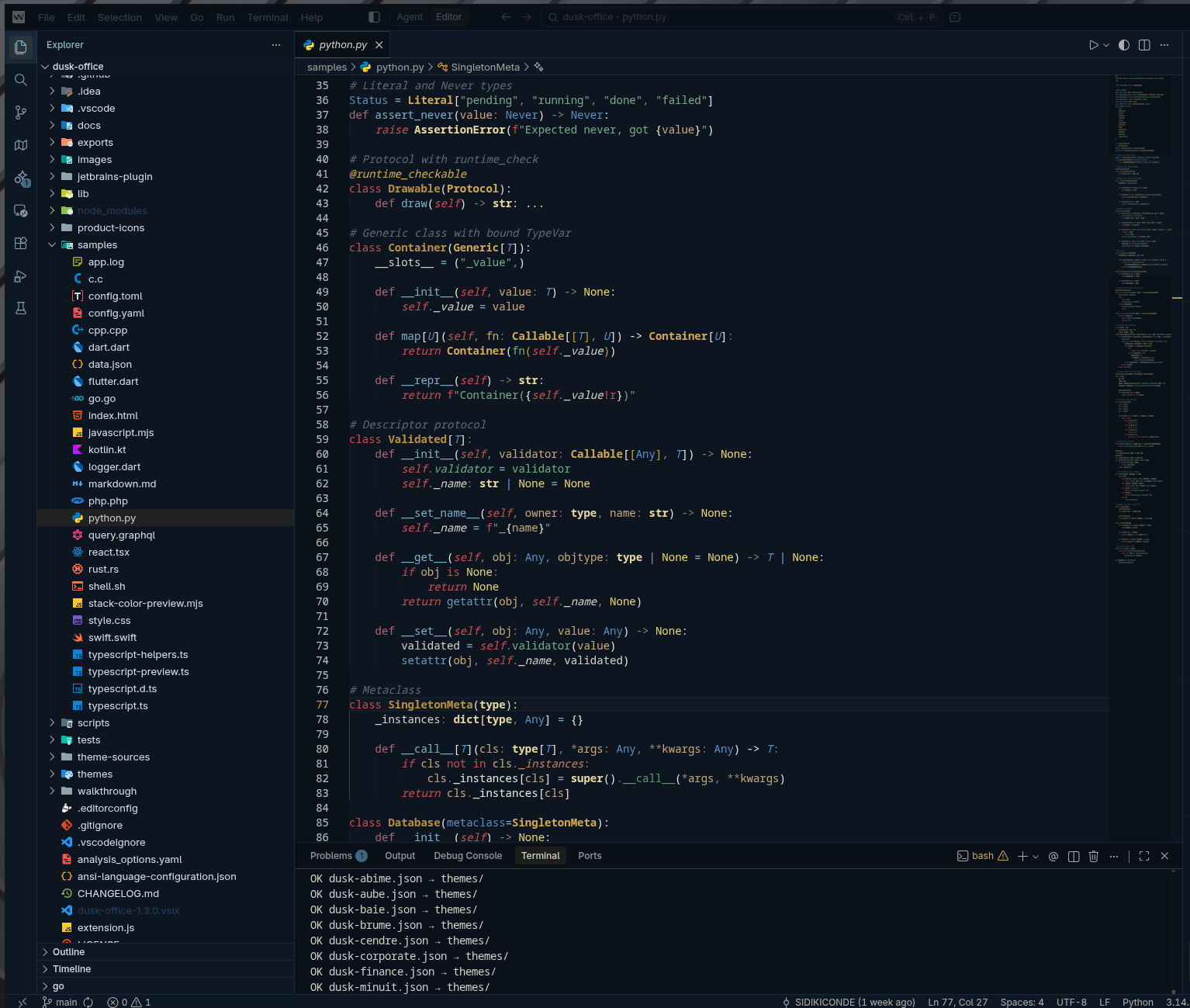
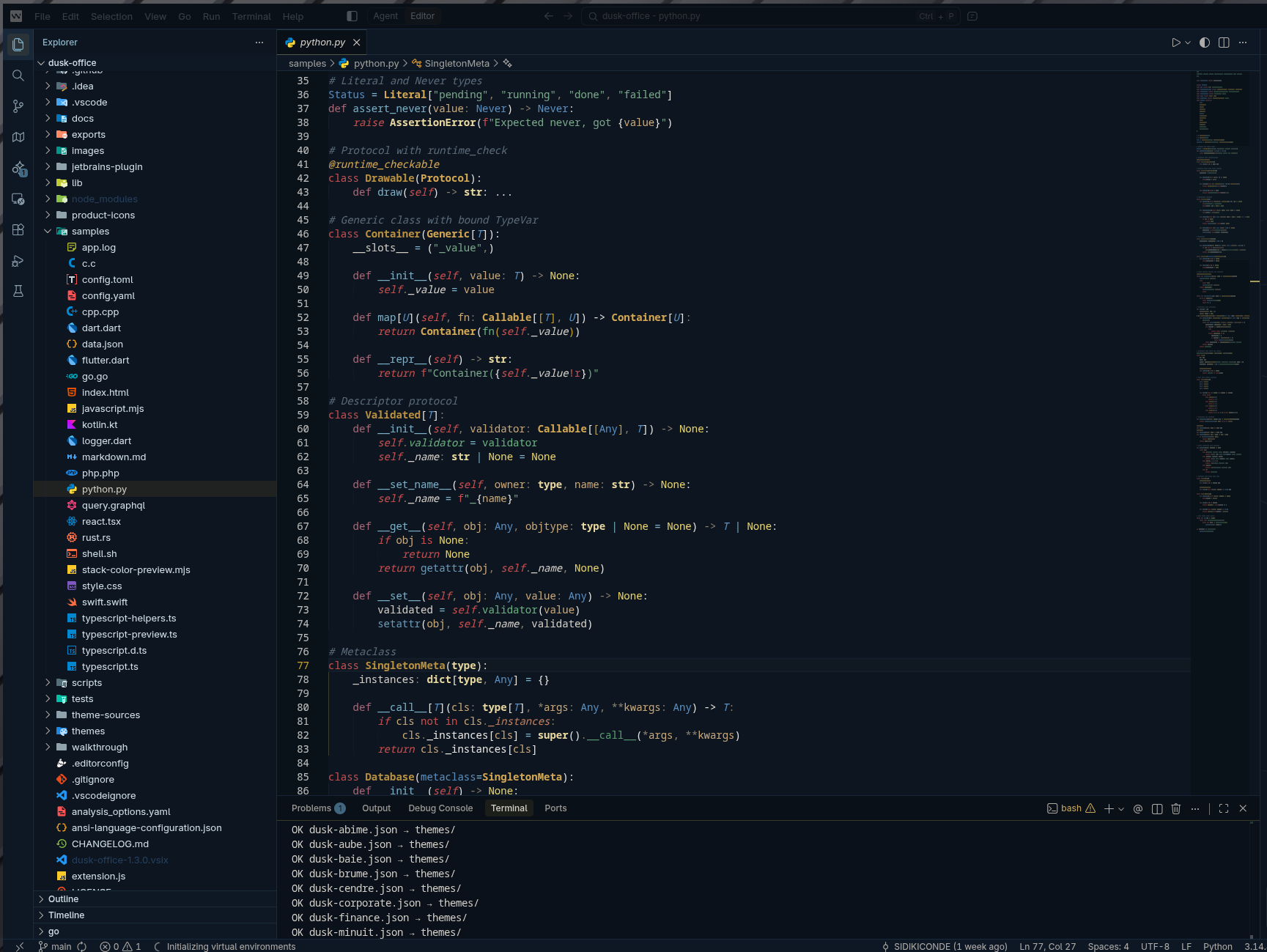
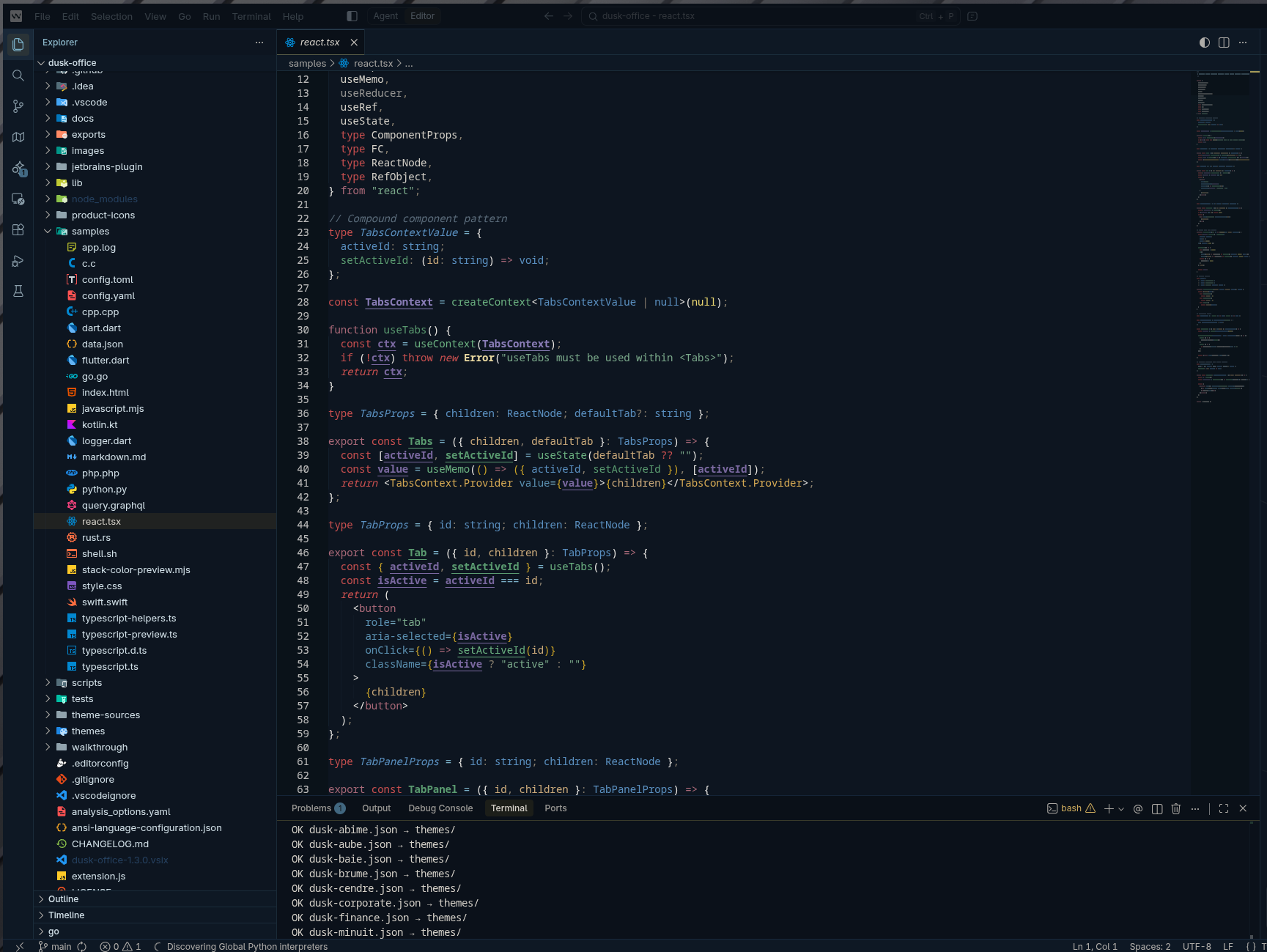
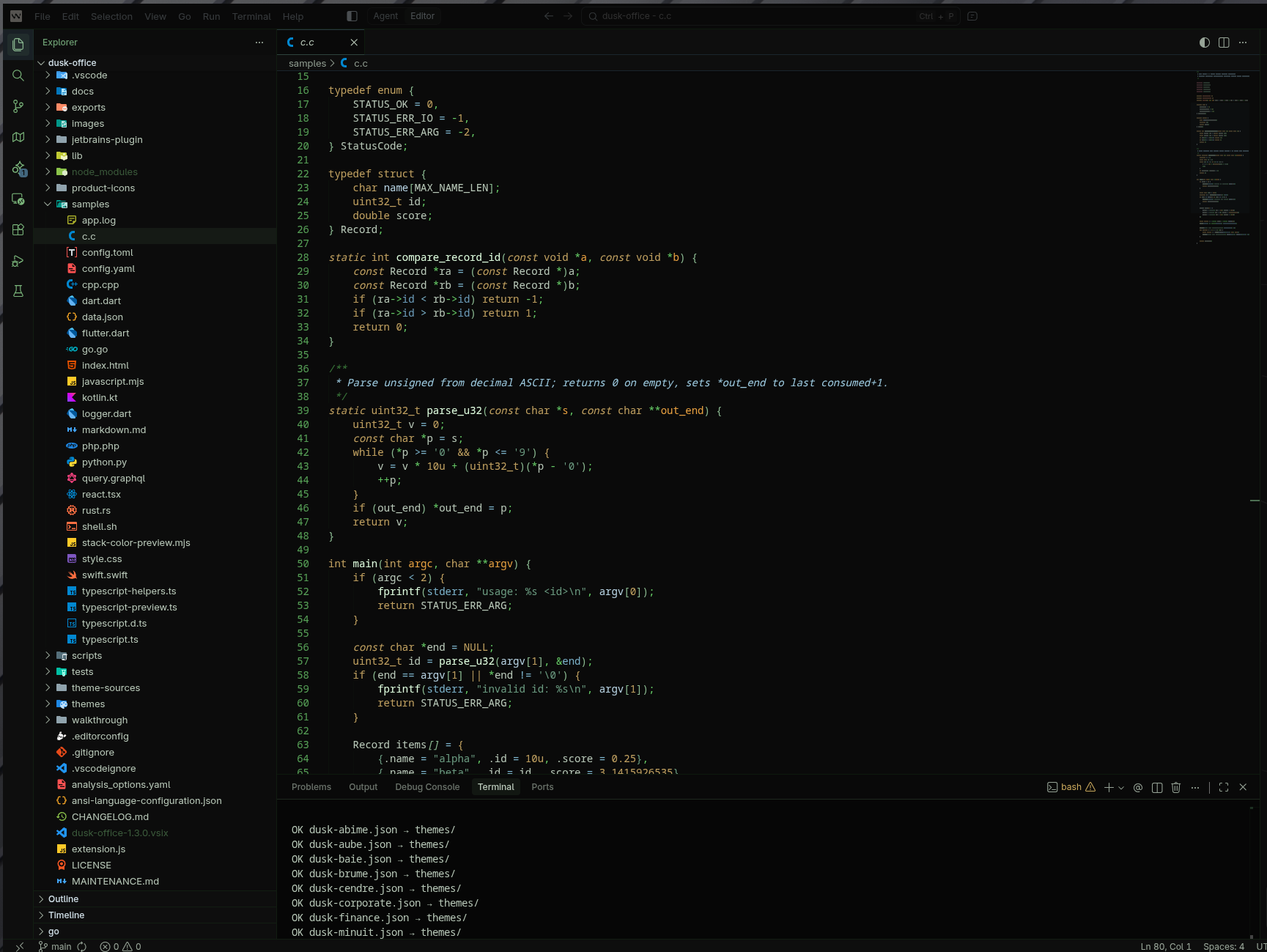
Screenshots
| Dusk Office Finance |
Dusk Office Voltage |
Dusk Office Nocturne |
 |
 |
 |
| Dusk Office Finance |
Dusk Office Light |
 |
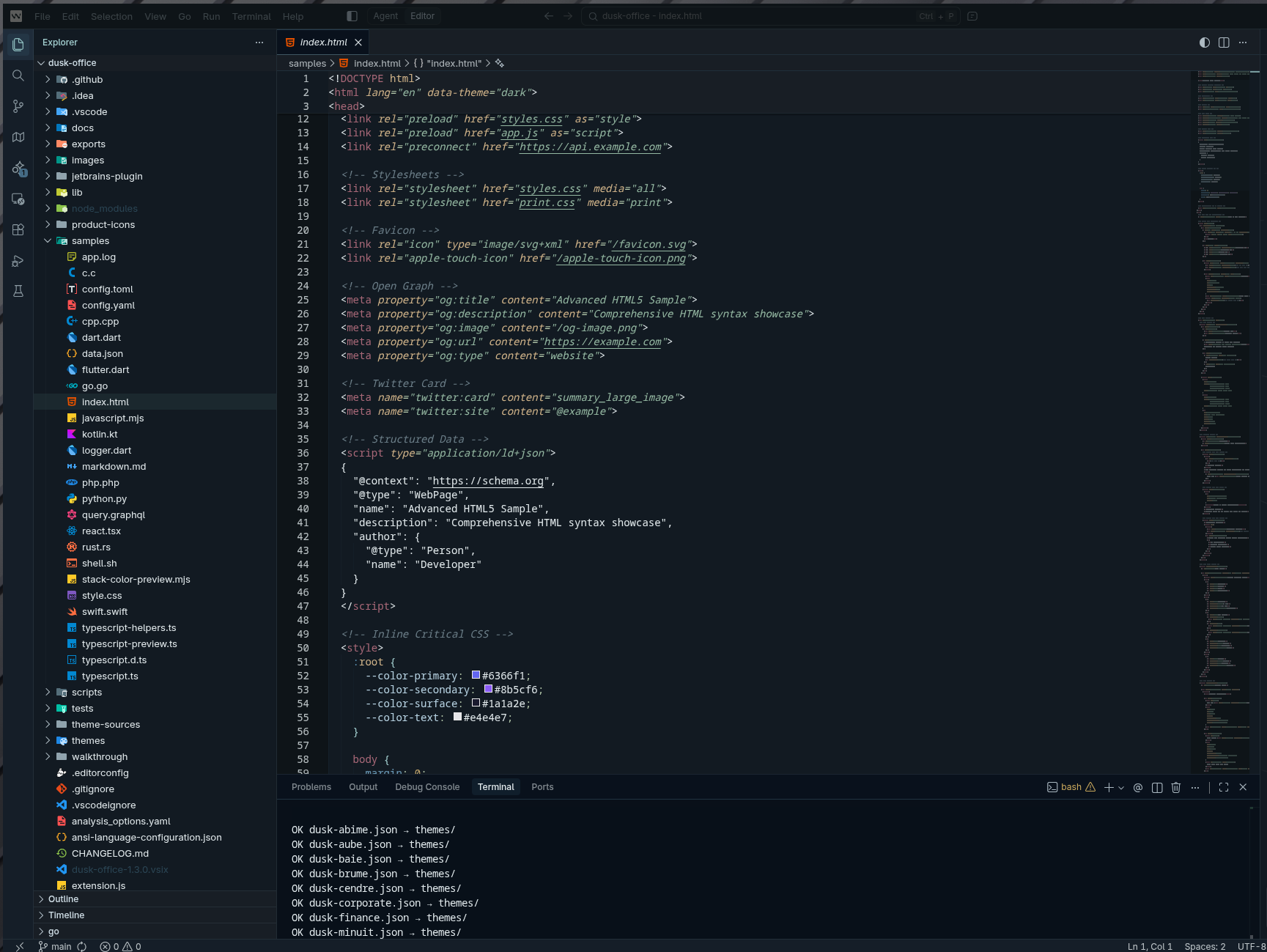 |
Install
From Marketplace:
- Extensions panel → Search
Dusk Office → Install
- Optional companions only: add Material Icon Theme for file/folder icons or Markdown All in One for Markdown editing if you want them
- Pick any
Dusk Office variant from Preferences: Color Theme
From VSIX:
# Download from GitHub releases, then:
code --install-extension dusk-office-*.vsix
Switch Theme
Command Palette:
Cmd/Ctrl + Shift + P → Preferences: Color Theme- Pick any
Dusk Office variant
Control Center (recommended):
Cmd/Ctrl + Shift + P → Dusk Office: Control Center- Or click the status bar entry (enable with
duskOffice.statusBar.enabled)
- Quick actions: switch theme, theme gallery, previous, favorite, auto switch, adaptive focus toggle, apply adaptive theme now, adaptive focus settings, product icons, activity bar position, title bar align, status bar button, workspace theme memory, verify terminal contrast, verify editor & UI contrast, settings
Theme Gallery:
Cmd/Ctrl + Shift + P → Dusk Office: Theme Gallery- A visual grid of all 27 variants, each rendered from its real palette (mini editor + syntax tokens, chrome, and terminal ANSI swatches). Click Apply on any card to switch instantly.
Pick a Variant
| If you want... |
Use |
| Very dark, OLED-friendly |
Dusk Office Midnight |
| Vivid blue-cyan contrast |
Dusk Office Abyss |
| Warm vintage terminal |
Dusk Office Nocturne |
| Premium banking aesthetic |
Dusk Office Finance |
| Electric graphite + neon lime focus |
Dusk Office Voltage |
| Cyberpunk magenta + electric blue |
Dusk Office Neon |
| Luxury obsidian + champagne gold |
Dusk Office Luxe |
| Hacker phosphor green on black |
Dusk Office Terminal |
| Professional dark for long sessions |
Dusk Office Steward |
| Soft finance light with reduced glare |
Dusk Office Ledger |
| Calm security / SOC dark theme |
Dusk Office Secure |
| Banking / treasury / executive operations |
Dusk Office Vault |
| Audit / controls / long spreadsheet review |
Dusk Office Audit |
| Cybersecurity / SOC / monitoring |
Dusk Office Sentinel |
| Light / daytime |
Dusk Office Ivory |
| High contrast / accessibility |
Dusk Office High Contrast |
These are the plain names (no ◑/◒). Apply via Dusk Office: Choose Theme or the Theme Gallery — the workbench changes only when you confirm.
Full list of 27 variants: Included Themes · on GitHub.
Quick Settings
Open settings (Cmd/Ctrl + ,) and search Dusk Office:
duskOffice.applyFavoriteOnStartup — auto-load favorite themeduskOffice.rememberWorkspaceTheme — per-workspace memoryduskOffice.autoSwitch.enabled — auto day/night switchduskOffice.adaptiveFocus.enabled — auto-adapt by active editor language + time
Reset Everything
To completely reset all Dusk Office settings and return to VS Code defaults:
Command Palette:
Cmd/Ctrl + Shift + P -> Dusk Office: Reset All Settings
This will:
- Return to VS Code default theme
- Reset product icons to default
- Reset activity bar position to default
- Clear all Dusk Office preferences and stored values (auto switch + adaptive focus included)
- Remove workspace-specific settings
Use this when:
- You want to start fresh with Dusk Office
- Settings are corrupted or not working
- You're uninstalling and want clean removal
Next Steps
- Deep customization: Settings · mirror
- Changelog: CHANGELOG.md · mirror
- Color harmony & eye comfort - how variants stay coherent and easy on the eyes (chrome vs editor, terminal blend, contrast checks): MAINTENANCE.md (section Color harmony & eye comfort)
- Terminal contrast verification: run
Dusk Office: Verify Terminal Contrast (public command). It now performs real contrast calculations on packaged themes (includes merged), checks terminal.foreground and ANSI thresholds, and can open a detailed report. See Terminal Contrast for details
- Editor & UI contrast verification: run
Dusk Office: Verify Editor & UI Contrast to check editor text, syntax tokens, and workbench chrome (status bar, tabs, buttons, badges, lists, diagnostics) against WCAG AA — 4.5:1 for body text, 3:1 for UI components and syntax tokens. The build pipeline enforces it on every variant (npm run verify:ui)
- Theme Gallery: run
Dusk Office: Theme Gallery for a visual grid of all 27 variants, each rendered from its real palette, with one-click Apply. Hovering a card does not change the workbench.
- Adaptive focus (local): use
Dusk Office: Toggle Adaptive Focus and Dusk Office: Apply Adaptive Theme Now to adapt themes from active editor language + time, with optional late-night eye comfort and theme lock (duskOffice.adaptiveFocus.*)
- Auto Switch timezone: set
duskOffice.autoSwitch.timezone to an IANA id (Europe/Paris, America/Toronto, …) or configure it from Control Center → Configure Auto Switch — empty = local machine time; shared with Adaptive Focus hour windows
Updates & follow
Stay on top of new variants, automation, and contrast fixes:
Tracking hashtags (posts, stars, reviews — pick what fits):
#DuskOffice · #VSCodeTheme · #CursorTheme · #WindsurfIDE · #OpenVSX · #JetBrainsTheme · #ThemeGallery · #AutoDarkMode · #WCAG · #DevTools · #DarkTheme · #LightTheme · #FinanceDev · #CyberSec · #DevOps
FAQ
Is Dusk Office a dark theme or a light theme?
Both. The pack ships 27 variants — dark (Midnight, Abyss, Nocturne, Vault, Sentinel, Steward, Terminal, Voltage, Neon, Luxe, Finance, Corporate, Secure, Mist, Ash, Bay, Reef, Nebula, Dawn, Or, Ivoire Sombre), light (Light, Ivory, Ledger, Audit) and high contrast (Dusk Office High Contrast) — all sharing the same Dusk Office identity.
Does Dusk Office work in Cursor, Windsurf and Open VSX?
Yes. The exact same extension installs in VS Code, Cursor, Windsurf and is published on Open VSX for VS Codium and other open builds.
Does it work on the web (vscode.dev / github.dev)?
Yes. Dusk Office ships a web extension build, so the full runtime — themes, Theme Gallery, Control Center, auto switch, adaptive focus, contrast verification, and workspace fingerprint — activates in browser-based editors too. Theme data is embedded at build time and workspace reads go through the VS Code filesystem API, so no Node runtime is required.
Does it work in JetBrains IDEs (IntelliJ, PyCharm, WebStorm, Rider, GoLand, PhpStorm, CLion, RubyMine, DataGrip, RustRover, Android Studio)?
Yes — a dedicated JetBrains plugin ships the same 27 variants as full IDE themes + editor color schemes. See jetbrains-plugin/README.md and npm run jetbrains:build.
Is the terminal contrast WCAG-compliant?
Yes. The build pipeline runs audit-contrast.mjs and verify-terminal-contrast.mjs on every variant, checking terminal.foreground and the 16 ANSI colors against WCAG AA/AAA. Run Dusk Office: Verify Terminal Contrast to see the report.
Is Dusk Office colorblind-friendly?
Critical UI signals (errors, warnings, modified, diff, git status) use hue separation, not just red/green, so they remain readable under deuteranopia / protanopia. See MAINTENANCE.md → Color harmony & eye comfort.
Does it auto-switch between light and dark by hour?
Yes — enable duskOffice.autoSwitch.enabled and configure your light/dark hour windows. Optional IANA timezone via duskOffice.autoSwitch.timezone (e.g. Europe/Paris) when your machine clock and work location differ. Combine with Adaptive Focus (duskOffice.adaptiveFocus.enabled) to also adapt by language and late-night eye comfort.
Does it track me?
No telemetry, no network calls, no companion installs. Workspace fingerprint runs 100% locally and is opt-out via duskOffice.workspaceFingerprint.enabled. Reset everything with Dusk Office: Reset All Settings.
Why use Dusk Office over Dracula, One Dark Pro, Monokai, Solarized, Tokyo Night or Material Theme?
Dusk Office is a domain-tuned theme suite rather than a single skin: variants designed specifically for finance / fintech / banking / audit (Vault, Ledger, Audit, Finance), cybersecurity / SOC (Sentinel, Secure), DevOps (Voltage, Terminal), long sessions (Steward, Midnight), with verified WCAG terminal + editor/UI contrast, a visual theme gallery, semantic highlighting, ANSI coloring in the editor, workspace fingerprint, adaptive day/night focus, web support (vscode.dev / github.dev), and the same identity across VS Code, Cursor, Windsurf, Open VSX and JetBrains.

