Code Tamagotchi
A VS Code extension that places a digital pet in your status bar. Feed it with git commits, earn XP by deleting unnecessary lines of code, and keep it healthy by fixing linter errors. Watch your pet evolve through seven stages as you write better code.
Features
Status bar pet -- your pet lives in the VS Code status bar with a mood indicator

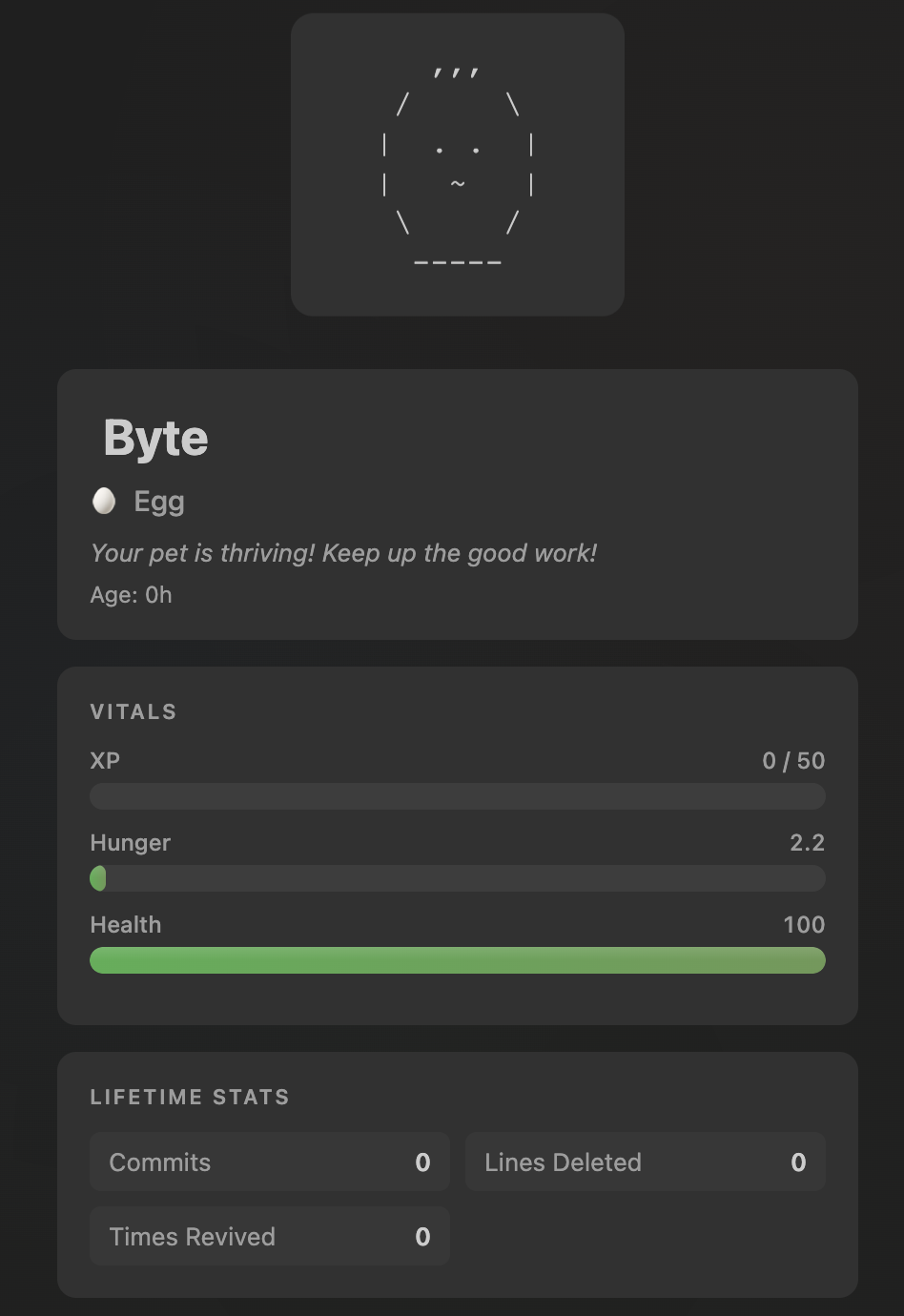
Webview panel -- click the status bar to open a detailed view with stats, progress bars, and actions
Evolution system -- seven stages from Egg to Legendary, driven by XP
Mood system -- pet mood reflects hunger, health, and overall care
Rename -- give your pet a custom name from the panel
Revive -- bring a dead pet back to life (with a revive counter to track how many times)
Reset -- start over from scratch via the command palette
Persistent state -- pet state is saved across VS Code sessions using globalState
How to Play
Feeding Your Pet (Hunger)
Your pet gets hungrier over time (~12.5 hunger/hour). To feed it, make a git commit. Each commit reduces hunger by 30 points. If you don't feed your pet for ~4 hours it will be starving, and if hunger stays above 80 it starts losing health.
- Hunger builds up even while VS Code is closed -- your pet will be hungry when you come back!
- Commit often to keep your pet well-fed
Earning XP (Evolution)
Your pet earns +2 XP for every line you delete. This rewards refactoring and cleaning up code. Delete unused imports, dead code, or redundant logic to level up your pet. When your pet hits an XP threshold, it evolves to the next stage with a notification and celebration animation.
Keeping It Healthy (Diagnostics)
Your pet's health is tied to your code quality. If your workspace has more than 20 linter errors (Error severity), your pet loses 5 health per check. When you have 20 or fewer errors, it recovers 3 health per check. Fix your TypeScript errors, ESLint issues, and compiler warnings to keep your pet healthy.
Mood Indicators
The status bar shows your pet's emoji plus a mood indicator:
| Indicator |
Mood |
Meaning |
| ♥ |
Happy |
Health >= 70, hunger <= 30 -- your pet is thriving |
| (none) |
Content |
Doing fine, not great not terrible |
| ... |
Hungry |
Hunger >= 70 -- time to commit! |
| ✚ |
Sick |
Health < 30 -- fix those errors! |
| 💀 |
Dead |
Health reached 0 -- click to revive |
Death and Revival
If health drops to 0, your pet dies. You'll get a notification with a "Show Pet" button. Open the panel and click Revive to bring it back with 50 health and 0 hunger. Your XP and evolution stage are preserved, but the revive counter goes up.
Tips
- Commit early, commit often -- small frequent commits keep hunger low
- Clean up your code -- deleting unnecessary lines earns XP fast
- Fix errors promptly -- a clean workspace keeps your pet healthy
- Don't leave VS Code closed too long -- hunger accumulates while you're away
Game Mechanics Reference
| Mechanic |
Trigger |
Effect |
| Hunger decay |
Every minute |
+0.21 hunger (~12.5/hour) |
| Feed |
Git commit |
-30 hunger |
| XP gain |
Net line deletions |
+2 XP per line |
| Evolution |
XP threshold reached |
Stage upgrade + notification |
| Health damage |
>20 diagnostic errors |
-5 health per check |
| Health recovery |
<=20 errors |
+3 health per check |
| Starvation |
Hunger >= 80 |
-2 health per tick |
| Death |
Health reaches 0 |
Pet dies, revive from panel |
| Revival |
Click revive button |
Health=50, hunger=0, keeps XP |
Evolution Stages
| Stage |
Emoji |
XP Threshold |
| Egg |
🥚 |
0 |
| Baby |
🐣 |
50 |
| Child |
🐥 |
200 |
| Teen |
🐉 |
500 |
| Adult |
🐲 |
1,200 |
| Elder |
🦅 |
3,000 |
| Legendary |
🌟 |
7,000 |
Getting Started
- Install from the VS Code Marketplace
- Your pet appears in the status bar as an 🥚
- Click the status bar item or run
Code Tamagotchi: Show Pet from the command palette
Commands
| Command |
Description |
Code Tamagotchi: Show Pet |
Open the pet panel |
Code Tamagotchi: Reset Pet |
Reset pet to default state (with confirmation) |
Configuration
These settings are available in VS Code Settings under "Code Tamagotchi":
| Setting |
Default |
Description |
codeTamagotchi.petName |
Byte |
Default name for your pet |
codeTamagotchi.hungerRate |
12.5 |
Hunger increase per hour |
codeTamagotchi.commitFeedAmount |
30 |
Hunger reduction per commit |
codeTamagotchi.xpPerLine |
2 |
XP gained per deleted line |
codeTamagotchi.errorThreshold |
20 |
Error count before health decreases |
Contributing
See the GitHub repository for development setup and contribution guidelines.

