




Skip to content
| Marketplace
Sign in
Visual Studio Code>Other>Workspace TasksNew to Visual Studio Code? Get it now.
Workspace Tasks

Workspace Tasks

DarthMinos

|
135 installs
| (1) | Free
| Sponsor
A Task Explorer for Visual Studio Code
Installation
Launch VS Code Quick Open (Ctrl+P), paste the following command, and press enter.
Copied to clipboard
More Info

Workspace Tasks

package_json version VS Marketplace Ratings Open VSX Rating Codecov

VSCode Installs VS Marketplace Downloads Open VSX Downloads

A powerful Visual Studio Code extension that automatically discovers, organizes, and runs tasks from your workspace. Manage build scripts, run tests, execute workflows, and organize your development tasks with favorites and queues—all from a single, intuitive interface.

📑 Table of Contents

  • 📷 Screenshots
  • ✨ Key Features
  • 📖 Documentation
  • 📥 Installation
  • 🛠️ Supported Task Types
  • 🌱 Recent Tasks
  • ⭐ Favorites
  • 📋 Task Queues
  • 🙈 Hide Tasks & Groups
  • 🕰️ Task History
  • ⚙️ Configuration
    • Custom Workspace Tasks
    • GitHub Actions Integration
    • Task Ignore Patterns
  • 🔧 Advanced Features
  • ✔️ Requirements
  • 🤝 Contributing
  • 📄 License

📷 Screenshots

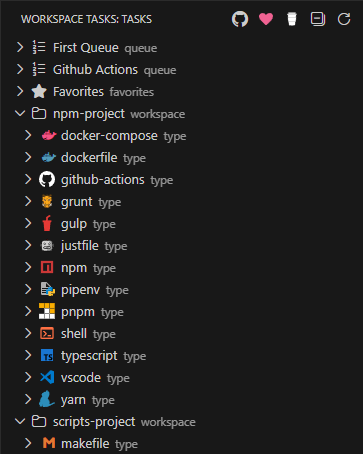
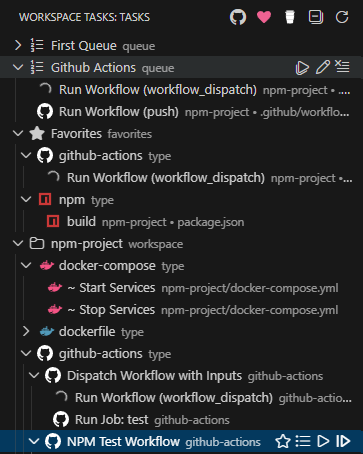
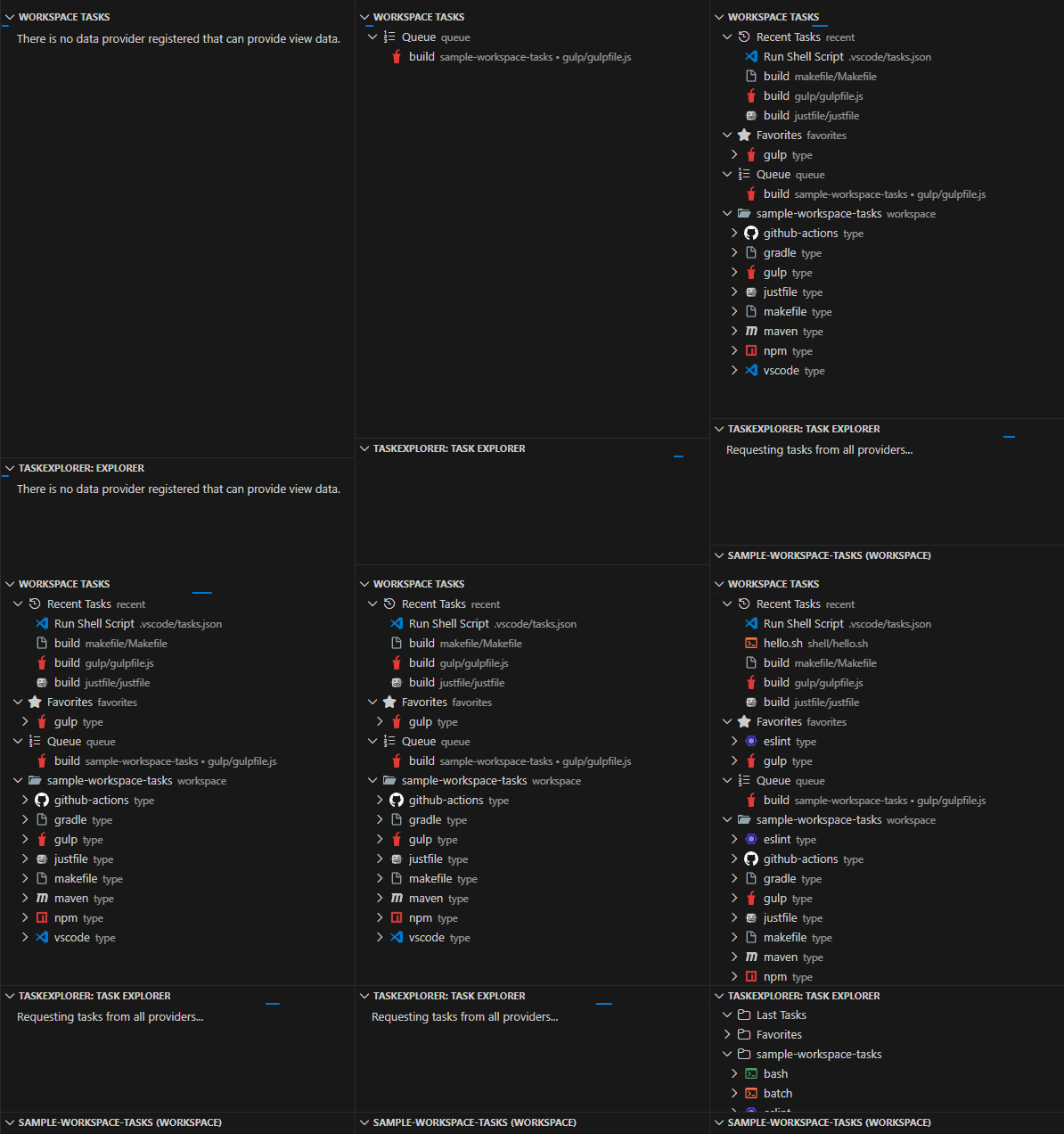
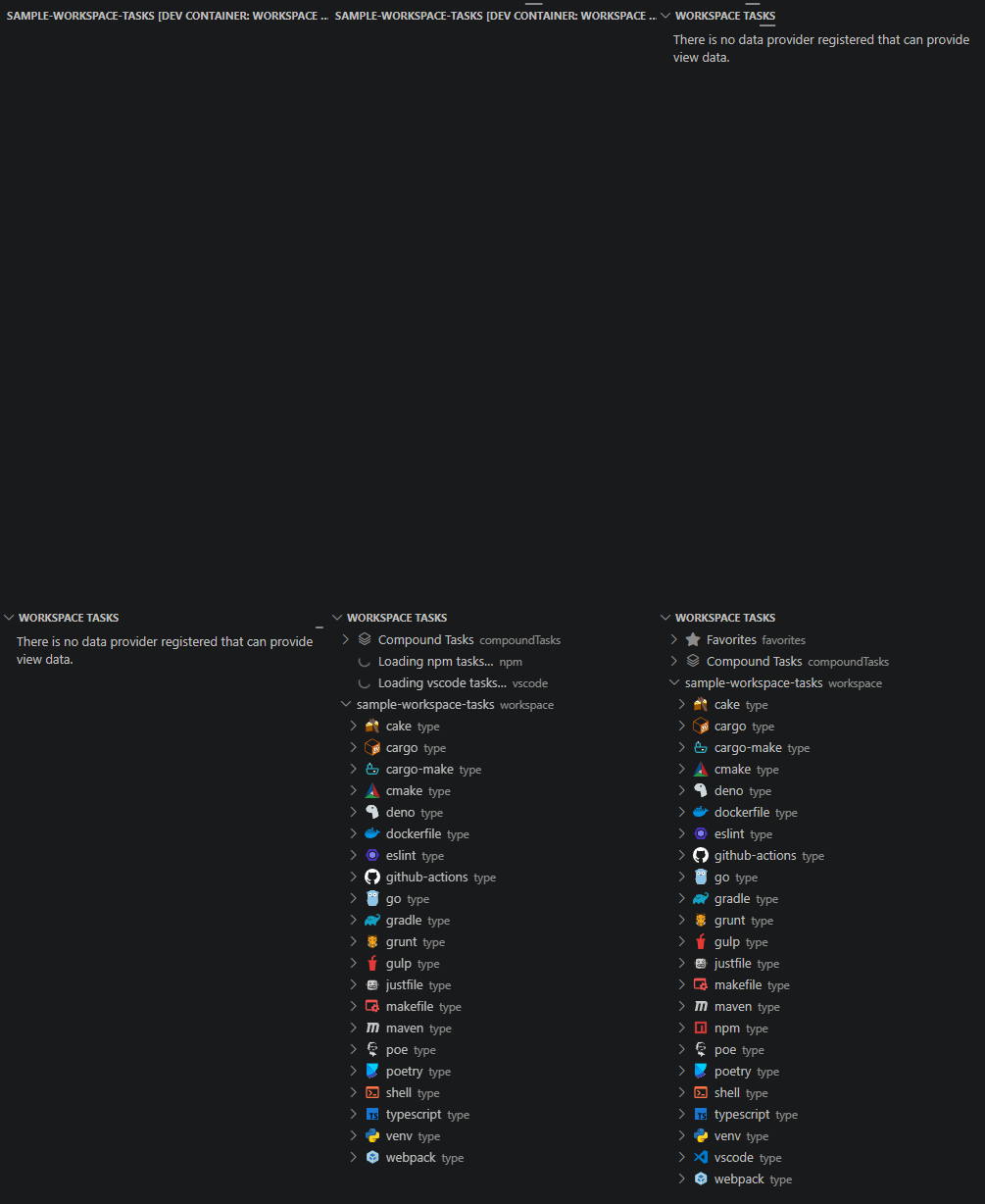
Workspace-Tasks Sidebar Collapsed Workspace-Tasks Sidebar Queues & Favorites Workspace-Tasks / TaskExplorer Side By Side

✨ Key Features

  • 🔍 Automatic Task Discovery - Scans your workspace for tasks from 20+ file types and build systems
  • 📍 Flexible Placement - View tasks in the dedicated sidebar or as a dockable panel in the Explorer
  • ⭐ Favorites - Pin frequently used tasks for instant access
  • 🌱 Recent Tasks - Tracks the most recently executed tasks
  • 📋 Multiple Task Queues - Create and manage named sequences of tasks
  • ▶️ Quick Execution - Double-click tasks to run instantly, or use the play icon (▶️)
  • 🎯 Smart Organization - Hierarchical tree view organized by workspace, task type, and file
  • 🔀 Drag & Drop - Reorder tasks in queues with drag and drop
  • 🎭 GitHub Actions Support - Run GitHub Actions workflows locally with act
  • 📝 Custom Tasks - Define reusable task templates with dynamic inputs
  • 🚫 Task Filtering - Use .tasksignore files to exclude unwanted tasks
  • 🙈 Hide Tasks & Groups - Hide individual tasks or entire task groups from view
  • 💾 Persistent State - Favorites and queues are saved across Visual Studio Code sessions
  • ☁️ Settings Sync - Sync your favorites and queues across multiple machines via VS Code's Settings Sync

📖 Documentation

  • Configuration Guide
  • Task Filtering
  • Workspace Tasks

📥 Installation

From Visual Studio Code Marketplace

  1. Open Visual Studio Code
  2. Go to Extensions view (Ctrl+Shift+X / Cmd+Shift+X)
  3. Search for "Workspace Tasks"
  4. Click Install

Visual Studio Marketplace

From Open VSX

  1. Open Editor (example: Cursor)
  2. Go to Extensions view (Ctrl+Shift+X / Cmd+Shift+X)
  3. Search for "Workspace Tasks"
  4. Click Install

Open VSX Registry

From Command Line

code --install-extension darthminos.workspace-tasks

✔️ Requirements

  • Visual Studio Code 1.105.1 or later
  • External tools must be installed for task execution (see Requirements section)

🛠️ Supported Task Types

Workspace Tasks automatically discovers and organizes tasks from a wide variety of tools and frameworks:


Package Managers & Build Tools

npm Yarn pnpm Bun Composer Pipenv Poe the Poet Poetry Ant Maven MSBuild

  • npm - Scripts from package.json
  • Yarn - Scripts from package.json
  • pnpm - Scripts from package.json
  • Bun - Scripts from package.json via bun run <script>, plus built-in bun:install, bun:build, and bun:test
  • Composer - PHP scripts from composer.json
  • Pipenv - Python scripts from Pipfile
  • Poe the Poet - Python task runner from pyproject.toml
  • Poetry - Python scripts from pyproject.toml
  • Apache Ant - Targets from *.xml build files
  • Apache Maven - Lifecycle goals from pom.xml
  • Gradle - Tasks from *.gradle files
  • MSBuild - .NET project targets

Task Runners

Gulp Grunt Just mise cargo cargo-make

  • Gulp - Tasks from gulpfile.js or gulpfile.mjs
  • Grunt - Tasks from Gruntfile.js
  • Cargo - Tasks for Cargo.toml
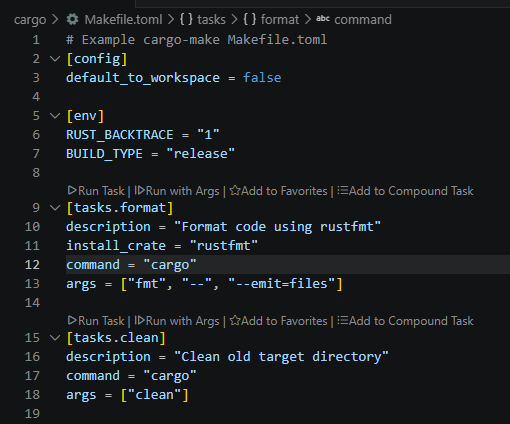
  • cargo-make - Rust task runner from Makefile.toml or *.toml files (requires Cargo)
  • Just - Recipes from justfile or *.just files
  • Make - Targets from Makefile
  • mise - Tasks from mise.toml or mise-tasks/ directory

DevOps & Containers

GitHub Actions Docker

  • Docker - Build tasks from Dockerfile
  • Docker Compose - Services from docker-compose.yml
  • GitHub Actions - Workflows from .github/workflows/*.yml (via act)

Scripts & Other

Shell Scripts Python Jupyter Notebook Visual Studio Code

  • Shell Scripts - .sh, .bash, .zsh, .fish, .ps1, .bat, .cmd
  • Python Virtual Environments - Activation scripts in .venv/Scripts/
  • Jupyter Notebook - Execute notebook cells from *.ipynb files
    • Requirements: Jupyter Extension must be installed
    • Setup: Configure a Jupyter Server through the Jupyter extension
    • Features:
      • Notebooks appear as parent tasks with code cells as children
      • Click to open notebook in Visual Studio Code's notebook editor
      • Execute individual cells or entire notebooks
      • Real-time cell execution status via the Jupyter Extension UI
  • Visual Studio Code Tasks - Tasks from .vscode/tasks.json
  • Workspace Tasks - Custom tasks from .workspace-tasks.json

The extension discovers tasks regardless of whether tools are installed. Execution requires the respective tool to be available in your PATH. See Requirements for details.

🌱 Recent Tasks

As you run tasks they are tracked in a dedicated section at the top of the task tree to easily be able to access again. State of recent tasks will persist between VSCode sessions.

Recent Tasks Configuration

Recent Tasks Item Grouping

When enabled, task items are grouped by the task type. Default is false.

Recent Tasks - Grouping

Maximum Recent Tasks

The maximum number of task items to track in the recent tasks. Default is 20. To disable tracking of recent tasks set to 0.

Recent Tasks - Max Items

⭐ Favorites

Pin your most frequently used tasks for instant access. Favorites appear in a dedicated section at the top of the task tree, making your common operations just one click away.

How to Use:

  1. Click the star icon (☆) next to any task to add it to favorites
  2. Access all favorited tasks from the "Favorites" group at the top
  3. Click the filled star (⭐) to remove from favorites

Features:

  • Quick Access - All favorites in one place, organized by task type
  • Persistent - Saved automatically across Visual Studio Code sessions
  • Workspace-Specific - Each workspace maintains its own favorites list
  • Visual Indicators - Star icons show in both favorites section and original location
  • Context Display - Tasks show their workspace folder name in multi-root workspaces
  • Settings Sync - Favorites automatically sync across all your machines when VS Code Settings Sync is enabled

Perfect For:

  • Build, test, and deploy tasks you use daily
  • Development scripts you run frequently
  • Tasks from different workspace folders you need regularly

📋 Task Queues

Create and manage multiple named queues to run sequences of tasks in order. Perfect for complex workflows like CI/CD pipelines, multi-step builds, or deployment sequences.

How to Use:

  1. Click the list icon next to any task
  2. Choose an existing queue or create a new one
  3. Drag and drop tasks to reorder them
  4. Run the entire queue or start from a specific task

Features:

  • Multiple Queues - Create separate queues for different workflows (e.g., "Build", "Deploy", "CI Pipeline")
  • Drag & Drop Reordering - Easily reorder tasks within and across queues
  • Visual Context - Each queue item shows the task icon, label, workspace name, and file path
  • Queue Controls - Run entire queue, start from specific task, or stop execution
  • Queue Management - Rename queues, clear all tasks, or delete empty queues
  • Persistent Storage - Queues are saved and restored between sessions
  • Status Indicators - Real-time visual feedback with running/success/failure icons
  • Settings Sync - Queues automatically sync across all your machines when VS Code Settings Sync is enabled

Example Workflow:

CI Pipeline Queue:
1. Install Dependencies (npm install)
2. Lint Code (npm run lint)
3. Run Tests (npm test)
4. Build Production (npm run build)
5. Deploy to Staging (deploy.sh)

Click on the navigation items for the queue to run all tasks in sequence, rename the queue, or clear it.

🙈 Hide Tasks & Groups

Declutter your task view by temporarily hiding individual tasks or entire task groups you don't need to see. Hidden items are dimmed when shown and can be easily restored.

How to Use:

  1. Right-click on any task or task group
  2. Select "Hide Task" or "Hide Group" from the context menu
  3. Hidden items are removed from the default view
  4. Click "Show Hidden Tasks" button in the title bar to view all tasks including hidden ones
  5. When in "Show Hidden" mode, hidden items appear dimmed with a badge (●)
  6. Right-click a hidden item and select "Unhide" to restore it
  7. Click "Clear Hidden Tasks" to unhide everything and return to normal view

Features:

  • Selective Hiding - Hide individual tasks or entire task groups (npm, maven, etc.)
  • Hierarchical - Hiding a group automatically hides all tasks within it
  • Visual Feedback - Hidden items appear dimmed with a badge when viewing all tasks
  • Toggle Mode - Quickly switch between filtered view and showing all tasks
  • Persistent - Hidden state is saved across Visual Studio Code sessions
  • Easy Restore - Unhide individual items or clear all hidden tasks at once

Perfect For:

  • Hiding rarely-used task types in large monorepos
  • Temporarily removing test or build tasks from view
  • Focusing on specific task categories during development
  • Cleaning up the task tree without permanently removing tasks

🕰️ Task History

Track and review all task executions with comprehensive history views. Task History provides both a tree view and table panel for monitoring task execution status, timing, and results.

Tree View

The Task History tree view provides a hierarchical, filterable view of all executed tasks.

Task History Tree View

Features:

  • Status Filtering - Filter by task status (Running, Success, Failed, Terminated)
  • Hierarchical Organization - Tasks grouped for easy navigation
  • Task Details - View task name, source, and execution time
  • Real-time Updates - Automatically updates as tasks complete

How to Use:

  1. Open the Task History in the Panel View
  2. Use the filter buttons in the title bar to show/hide specific statuses
  3. Click on any task item to view more details
  4. Right-click for additional options (clear history, etc.)

Table View

The Task History Table View provides a tabular, sortable view of all task executions with detailed information.

Task History Table

Features:

  • Status Filtering - Filter by task status (Running, Success, Failed, Terminated)
  • Sortable Columns - Click any column header to sort tasks by that field
  • Comprehensive Details - View status, type, task name, source path, timestamp, exit code, and execution time
  • Status Indicators - Color-coded status labels/icons for quick identification
    • 🟢 Success - Task completed successfully
    • 🔴 Failed - Task exited with an error
    • 🔵 Running - Task is currently executing
    • 🟠 Terminated - Task was stopped manually
  • Single-column Sorting - Sort by any column in ascending or descending order, one column at a time
  • Real-time Updates - Automatically updates as tasks complete

How to Use:

  1. Open the Task History in the Panel View and choose 'View as Table'
  2. Click column headers to sort by that field (click again to reverse order)
  3. Review detailed execution information including exact timestamps and durations
  4. Use the scrollable view to review extensive task history

Perfect For:

  • Debugging task failures by reviewing exit codes and execution times
  • Monitoring build and deployment pipeline status
  • Tracking task performance over time
  • Auditing task executions in CI/CD workflows
  • Identifying patterns in task failures or long-running tasks

🚀 Quick Start

  1. Open a workspace with supported task files (e.g., package.json, Makefile, shell scripts)
  2. Open the Workspace Tasks view from the Activity Bar (sidebar) or Explorer panel
    • Sidebar: Click the Workspace Tasks icon in the Activity Bar
    • Explorer: Find "Workspace Tasks" in the Explorer panel, or drag it to your preferred location
  3. Browse tasks organized by workspace folder and task type
  4. Run a task by double-clicking it or clicking the play icon (▶️)
  5. Add to favorites by clicking the star icon (☆)
  6. Create a queue by clicking the list icon to organize task sequences

Tips:

  • Double-click a task to execute it immediately
  • Single-click a task to open its definition file (when applicable)
  • Use the collapse button (⊟) to toggle view states
  • Create .tasksignore files to exclude unwanted tasks
  • Drag the Explorer view to any panel location (sidebar, panel, or as a floating window)

⚙️ Configuration

GitHub Actions Integration

Run GitHub Actions workflows locally using act to test workflows without pushing to GitHub. Workspace Tasks provides a rich interface for executing workflows with full input support.

Features

  • Automatic Discovery - Scans .github/workflows/*.yml files
  • Event Support - Run workflows for push, pull_request, workflow_dispatch, and custom events
  • Job Execution - Run individual jobs from multi-job workflows
  • Input Prompts - Interactive prompts for workflow_dispatch inputs with validation
  • Status Indicators - Real-time visual feedback during execution

Act Configuration

Configure act in your Visual Studio Code settings (settings.json):

{
  // Path to act executable
  "workspaceTasks.applicationPath.act": "act",

  // Environment files
  "workspaceTasks.act.envFile": ".env",
  "workspaceTasks.act.secretsFile": ".act.secrets",
  "workspaceTasks.act.variablesFile": ".act.vars",

  // Inline variables
  "workspaceTasks.act.variables": {
    "ENVIRONMENT": "development",
    "VERSION": "1.0.0",
  },
}

Usage Example

Given a workflow .github/workflows/build.yml:

name: Build & Test
on:
  push:
  workflow_dispatch:
    inputs:
      environment:
        description: 'Deployment environment'
        required: true
        default: 'staging'
        type: choice
        options: [development, staging, production]

jobs:
  build:
    runs-on: ubuntu-latest
    steps:
      - uses: actions/checkout@v3
      - run: npm run build

The task tree shows:

GitHub Actions
└── Build & Test
    ├── Run Workflow (push)
    ├── Run Workflow (workflow_dispatch)  ← Shows input prompts
    └── Run Job: build

Requirements:

  • act installed on your system
  • Docker running (act uses containers)
  • Configure workspaceTasks.applicationPath.act if act is not in PATH

Tips:

  • Store secrets in a .secrets file and add to .gitignore
  • Test workflow_dispatch inputs locally before pushing
  • Run individual jobs to debug specific workflow steps

Task Discovery Depth Control

Control how deep the extension searches for tasks in your workspace directory structure. This helps improve performance in large monorepos or complex folder hierarchies.

Configuration

Set the maximum folder depth for task discovery in settings.json:

{
  "workspaceTasks.taskDiscovery.fetchDepth": 3
}
  • null (default) - Full recursive search through all subdirectories
  • Positive integer (e.g., 1, 2, 4) - Limits search to specified depth below workspace root

Depth Calculation

Depth is measured from the workspace folder root:

workspace-folder/          (depth 0)
├── package.json          ✅ Discovered at depth 0
└── src/                  (depth 1)
    ├── Makefile          ✅ Discovered at depth 1
    └── components/       (depth 2)
        └── package.json  ✅ Discovered at depth 2 (if fetchDepth >= 2)

Example: fetchDepth: 1

workspace-folder/
├── package.json          ✅ Discovered (depth 0)
└── services/
    ├── api/
    │   └── package.json  ❌ Not discovered (depth 2)
    └── package.json      ✅ Discovered (depth 1)

When to Use

  • Large Monorepos - Set to 2 or 3 to discover main project tasks while skipping deep vendor/dependency folders
  • Performance Issues - Reduce depth if task discovery is slow
  • Focused Workflows - Limit to top-level tasks when working on specific projects
  • Deep Structures - Use null for full discovery in complex nested project layouts

🔧 Advanced Features

View Placement and Layout

Multiple View Options:

  • Dedicated Sidebar - Access Workspace Tasks from the Activity Bar for a dedicated panel

  • Explorer Integration - View tasks alongside your files in the Explorer panel

    Explorer View

  • Dockable Window - Drag the Explorer view to any location (left, right, bottom panel, or floating)

  • Synchronized State - Both views share the same state—actions in one view reflect in the other

View Management:

  • Right-click on the Explorer view header to move it to different panels
  • Drag the view to create a split layout with other views
  • Use both views simultaneously for different workflows (e.g., sidebar for quick access, panel for detailed task management)

Execution and Navigation

Running Tasks:

  • Single Click - Click the play button (▶️) to run immediately
  • Terminal Output - Task output appears in the integrated terminal with status indicators
  • Multiple Tasks - Run multiple tasks simultaneously in separate terminals
  • Command Palette - Use Ctrl+Shift+P / Cmd+Shift+P to search and run tasks by name

Stopping & Restarting Tasks:

  • Stop Button - Click the stop button (⏹) next to running tasks to terminate a running or unresponsive task.
  • Restart Button - Click the restart button (🔄️) next to running tasks to stop the currently executing task and run it again.
  • Status Tracking - Visual indicators show running/success/failure states

Navigation:

  • Quick File Access - Double-click tasks to jump to their definition in the source file
  • Line Precision - Opens files at the exact line where tasks are defined
  • File Path Display - Hover over tasks to see full paths and commands
  • Hierarchical Browsing - Tree structure shows workspace → task type → individual tasks

Additional Actions:

  • Refresh Tasks - Manually refresh to pick up changes without reloading Visual Studio Code
  • Collapse/Expand - Use the collapse all button (⊟) to toggle view states:
    • First click: Collapse task type groups
    • Second click: Collapse workspace folders
    • Third click: Expand everything

Supported File Patterns

Each task type watches specific file patterns:

Task Type Patterns Notes
npm/yarn/pnpm **/package.json Reads scripts section
Ant **/*.xml Parses build file targets
cargo-make **/{Makefile.toml,*.toml} Rust task runner from TOML files (requires Cargo)
Composer **/composer.json PHP dependency scripts
Gradle **/*.gradle Java/Android build tasks
Grunt **/Gruntfile.js Registered tasks
Gulp **/gulpfile.{js,mjs} Exported tasks
Just **/{justfile,.justfile,*.just} Command recipes
Jupyter **/*.ipynb Notebook cells (requires Jupyter Extension)
Make **/Makefile Build targets
Maven **/pom.xml Lifecycle goals
mise **/mise.toml, **/mise.*.toml, **/mise.*.local.toml TOML tasks and file tasks
MSBuild **/*.{csproj,vbproj,sln} .NET project targets
Pipenv **/Pipfile Python scripts
Poe the Poet **/pyproject.toml Python task runner
Poetry **/pyproject.toml Python scripts
Shell **/*.{sh,bash,ps1,bat,cmd} Executable scripts
Docker **/Dockerfile* Container builds
Docker Compose **/docker-compose.yml Service orchestration
GitHub Actions **/.github/workflows/*.yml CI/CD workflows
Visual Studio Code **/.vscode/tasks.json Native Visual Studio Code tasks
Workspace .workspace-tasks.json Custom tasks

All patterns respect .gitignore and .tasksignore exclusions.

📋 Requirements

Visual Studio Code Version

  • Minimum: Visual Studio Code 1.108.1 or later

External Tools

The extension discovers tasks regardless of whether tools are installed, but execution requires the corresponding tool in your system PATH:

Package Managers:

  • Node.js and npm for npm tasks
  • pnpm for pnpm tasks
  • Yarn for Yarn tasks
  • Composer for PHP Composer tasks
  • Pipenv for Python Pipenv tasks
  • Poe the Poet for Python Poe tasks
  • Poetry for Python Poetry tasks

Build Systems:

  • Apache Ant for Ant tasks
  • Gradle for Gradle tasks
  • MSBuild for .NET tasks
  • Make for Makefile tasks

Task Runners:

  • Cargo and cargo-make for cargo-make tasks
  • Grunt for Grunt tasks
  • Gulp for Gulp tasks
  • Just for Just tasks
  • mise for mise tasks

DevOps:

  • Docker for Docker and Docker Compose tasks
  • act and Docker for GitHub Actions workflows

Data Science & Notebooks:

  • Jupyter Extension for Jupyter Notebook tasks
    • The extension must be installed and a Jupyter Server must be configured
    • See the Jupyter Extension documentation for setup instructions
    • Jupyter Notebooks (.ipynb files) appear as parent tasks with individual code cells as child tasks
    • Clicking on a task opens the notebook; running executes the selected cell

Scripts:

  • Bash, Zsh, or other shell interpreters for shell scripts
  • PowerShell for .ps1 scripts
  • Command Prompt for .bat and .cmd scripts

Installation Instructions: Visit each tool's official website (linked above) for installation guides specific to your operating system.

🤝 Contributing

Contributions are welcome! If you'd like to improve Workspace Tasks, here's how:

How to Contribute

  1. Report Issues - Found a bug or have a feature request? Open an issue on GitHub
  2. Submit Pull Requests - Fork the repository, make your changes, and submit a PR
  3. Improve Documentation - Help make the docs clearer or add examples
  4. Share Feedback - Let us know how you use the extension and what could be better

Development Setup

# Clone the repository
git clone https://github.com/camalot/vscode-workspace-tasks.git
cd vscode-workspace-tasks

# Install dependencies
npm install

# Open in Visual Studio Code
code .

# Start the watch task to compile TypeScript
npm run watch

# Press F5 to launch the Extension Development Host

Guidelines

  • Follow the existing code style and conventions
  • Write clear commit messages
  • Add tests for new features when applicable
  • Update documentation for user-facing changes
  • Ensure all tests pass before submitting

Project Structure

  • src/ - TypeScript source code
    • providers/ - Task providers for each task type
    • services/ - Shared services (caching, configuration, etc.)
    • libs/ - Utility libraries
  • res/ - Resources (icons, schemas, syntaxes)
  • sample/ - Sample workspaces for testing

📦 Contributors

Contributors: Made with contrib.rocks

Made with contrib.rocks.

📄 License

This project is licensed under the Apache 2.0 License.


Made with ❤️ for the Visual Studio Code community

  • Contact us
  • Jobs
  • Privacy
  • Manage cookies
  • Terms of use
  • Trademarks
© 2026 Microsoft