Fossil SCM for VSCode and derivatives (Cursor, etc.)




A Visual Studio Code extension for Fossil SCM checkouts. Install from the Visual Studio Marketplace (also works in Cursor and other VS Code–compatible editors).
Status icons are from the Microsoft VS Code Git extension.
Screenshots
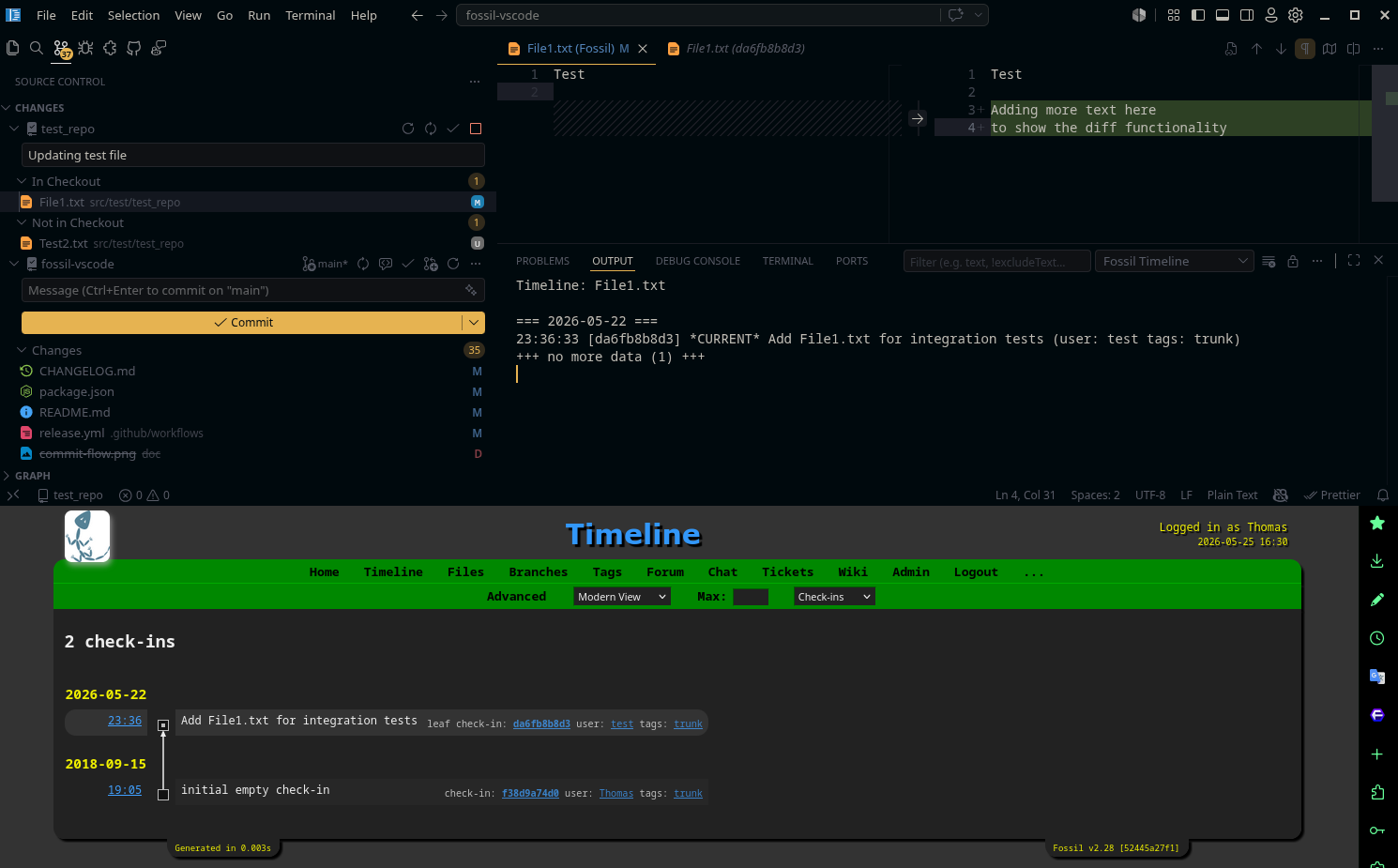
Source Control with diff viewer, timeline logging, checkout/non-checkout files, Fossil UI, multi-SCM support
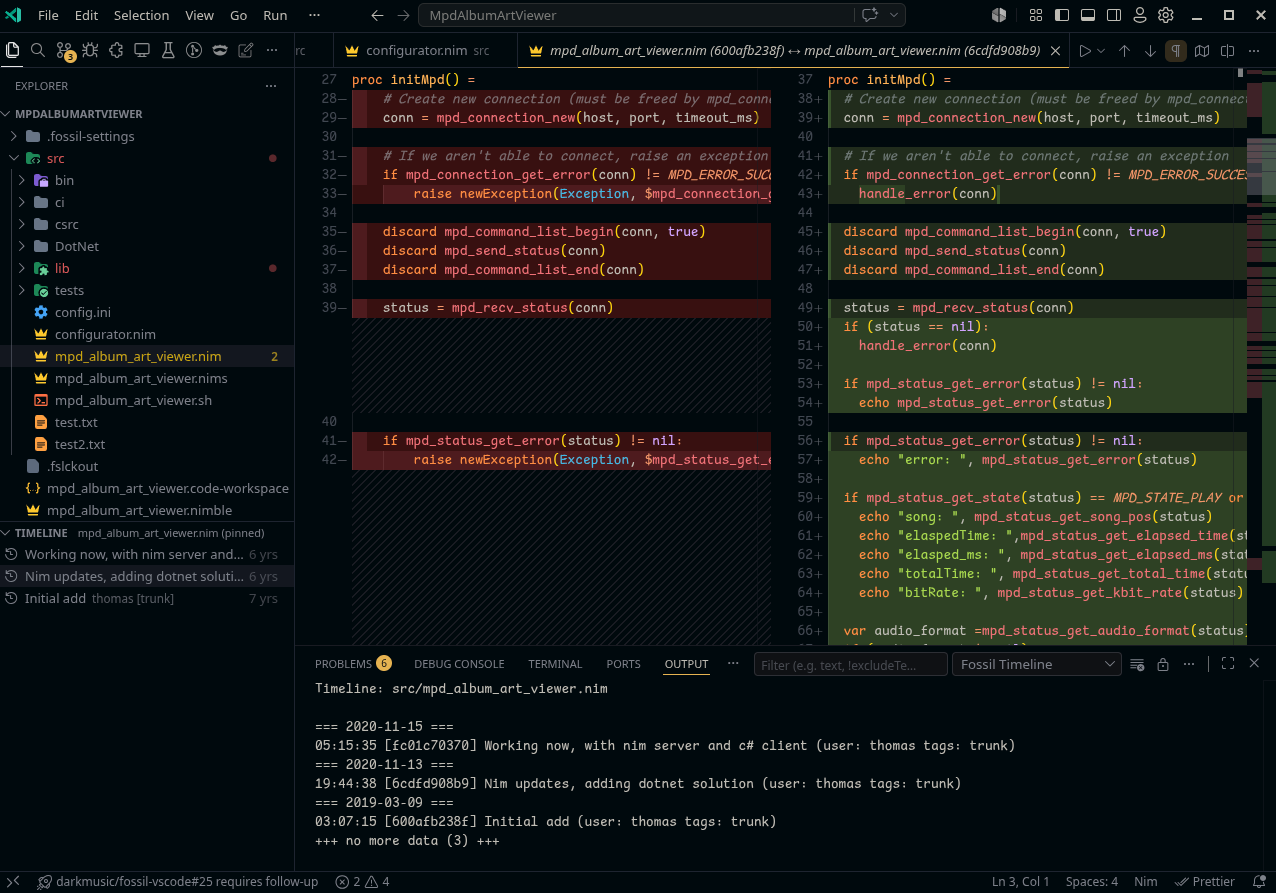
Timeline with diff viewer (split)
Features
When you open a Fossil checkout (a workspace folder containing .fslckout or _FOSSIL_), the extension activates automatically and shows pending changes in the Source Control view under Fossil → In Checkout, Fossil → Not in Checkout, Fossil → Missing, and Fossil → Merge Conflicts, based on fossil status --differ and fossil status --missing.
Supported change types:
| Fossil status |
Shown as |
| EDITED |
Modified |
| DELETED |
Deleted |
| ADDED |
Added |
| UNMANAGE |
Unmanaged |
| EXTRA |
Unmanaged |
| RENAMED |
Renamed |
| MISSING |
Missing |
| CONFLICT |
Conflict |
The list refreshes when files in the workspace change (debounced to avoid excessive fossil status calls). In a multi-root workspace, or when a Fossil checkout lives inside a Git repository, the extension locates nested .fslckout / _FOSSIL_ directories and binds to the checkout that contains the active editor file when possible.
SCM actions:
- Refresh — toolbar refresh button or Fossil: Refresh / Fossil SCM (Command Palette) refreshes the Source Control lists immediately.
- Sync — toolbar sync button or Fossil: Sync runs
fossil sync with the default remote (the URL from the most recent clone, pull, push, remote, or sync). Refreshes Source Control when sync finishes. If merge conflicts remain, a warning is shown instead of the success message.
- Start Fossil UI / Stop Fossil UI — SCM toolbar buttons to run
fossil ui in a background process (opens the local web UI in your browser) and stop the process started by the extension. The globe button shows a spinner while the UI is starting; Stop appears when it is running.
- Commit — enter a message in the SCM input box, then click the checkmark or press Ctrl+Enter (Cmd+Enter on macOS) to run
fossil commit -m. While a commit is in progress, the checkmark shows a spinner and the message box is disabled.
- Add to checkout (+) — right-click an unmanaged file to run
fossil add.
- Reset add (−) — right-click an added file to run
fossil add --reset.
- Revert — right-click a changed tracked file to run
fossil revert (not shown for unmanaged EXTRA / UNMANAGE files). Also available on Missing files to restore the file from the repository.
- Mark as Deleted — right-click a Missing file to run
fossil rm and stage the removal for the next commit.
Missing files: If you delete a tracked file locally without fossil rm, Fossil reports it as MISSING. These files are not listed by fossil status --differ alone, but the extension shows them under Missing because they block fossil commit until you Mark as Deleted or Revert to restore them. Commit is blocked with a clear message while any missing files remain.
Fossil Log: Operational messages (commands, refresh, commit, sync, Fossil UI, and errors) are written to View → Output → Fossil Log. Per-file timeline text from Fossil: View Timeline (Output) still goes to Fossil Timeline.
Opening changes: Click a file under In Checkout or Not in Checkout to open a diff against the checkout baseline (via fossil cat). Modified files compare repository vs working tree; added files compare an empty baseline vs the new file; deleted files open the repository version; renames compare the old path (baseline) vs the new path; unmanaged files open the working file only.
Merge conflicts: Files with unresolved Fossil merge markers appear under Fossil → Merge Conflicts with a conflict icon. Click a conflicted file to open the working copy in the editor so VS Code’s inline merge conflict actions (Accept Current / Incoming / Both) can be used. For the 3-way merge editor when Fossil has left *-baseline, *-original, and *-merge sidecar files (for example after fossil merge -K), right-click the file under Merge Conflicts or run Fossil: Open in Merge Editor from the Command Palette with that file open in the editor. Remove all conflict markers before committing.
Editor gutter diff: While editing a changed tracked file, VS Code shows inline Fossil quick diff markers comparing your edits to the checkout baseline.
File history:
- View Timeline (output): Right-click a file under In Checkout or Not in Checkout, or run Fossil: View Timeline (Output) from the Command Palette with a file open in the editor. Output appears in the Fossil Timeline panel (
fossil timeline -p for that path).
- View Timeline (explorer): Right-click a file in the Explorer and choose Fossil: View Timeline to refresh the Fossil Timeline output and open the Timeline view. VS Code’s built-in Open Timeline only opens the Timeline view (no Fossil output channel).
- Timeline view: With a workspace file open, open the Explorer Timeline panel and select the Fossil source to see check-ins that changed that file. Click an entry to open a diff of the changes introduced in that check-in: parent revision vs that check-in (or an empty file vs the new version when the file was added in that check-in). Right-click an entry for Open Diff or Copy Check-in ID.
Requirements
- Fossil SCM installed and available on your
PATH (or configured explicitly; see below)
- Visual Studio Code 1.95.0 or newer (or a compatible editor such as Cursor)
Usage
- Open a workspace folder that contains a Fossil checkout (the checkout directory itself, or a parent such as a Git repo root with a nested
.fslckout). The extension discovers nested checkouts automatically.
- Open the Source Control view. Git and Fossil appear as separate SCM providers when both apply. Fossil lists changes under In Checkout, Not in Checkout, Missing, and Merge Conflicts.
Installation
Visual Studio Marketplace (recommended)
- Open Extensions (
Ctrl+Shift+X / Cmd+Shift+X).
- Search for Fossil SCM (publisher darkmusic) and click Install.
Or from a terminal (VS Code):
code --install-extension darkmusic.fossil-scm
In Cursor, use Extensions the same way, or:
cursor --install-extension darkmusic.fossil-scm
Open VSX / VSCodium
VSCodium uses Open VSX by default. Once the extension is published there, install it from the Extensions view or:
codium --install-extension darkmusic.fossil-scm
After installing or updating, reload the window so activation and settings apply.
From source (development)
git clone https://github.com/darkmusic/fossil-vscode.git
cd fossil-vscode
npm install
npm run compile
Then either:
- Extension Development Host — press F5 in VS Code (testing extensions), or
- Copy into extensions folder — copy or symlink the project into your extensions directory (for example
~/.vscode/extensions on Linux), then run Developer: Reload Window.
VSIX package (manual install)
Download a .vsix from GitHub Releases, or build one locally:
npm install
npm run vsix      # type-check, production bundle, and package to .vsix
code --install-extension fossil-scm-*.vsix
Configuration
| Setting |
Default |
Description |
fossilScm.fossilExePath |
fossil |
Path to the Fossil executable. Set this if fossil is not on the PATH used by VS Code (for example C:\\Tools\\fossil.exe on Windows). |
fossilScm.openDiffOnClick |
true |
When true, clicking a file under In Checkout or Not in Checkout opens the diff editor. When false, opens the working tree file (deleted files open the repository version). |
Example in settings.json:
{
  "fossilScm.fossilExePath": "fossil"
}
Known issues
See GitHub Issues.
Contributing
Contributions are welcome.
Development
npm install
npm run compile      # Tests → out/, extension → dist/
npm run watch        # Parallel type-check watch and esbuild watch
npm run package      # Production bundle (dist/) for packaging
npm test             # Integration tests (see below)
Running tests
Integration tests require Fossil on your PATH and an opened copy of the test repository:
cd src/test/test_repo && fossil open TestRepo.fossil
npm test
After tests finish, the suite resets the test checkout (including File1.txt) so your git working tree is not left dirty.
CI and releases
GitHub Actions run on every push and pull request to main (type-check, compile, Fossil integration tests). To build a VSIX without tagging, run the VSIX Package workflow from the Actions tab.
To publish a new version:
- Bump
version in package.json and update CHANGELOG.md.
- Commit on
main, then tag and push: git tag v1.0.1 && git push origin v1.0.1 (tag must be v<package.json version>, e.g. v1.0.1).
- The Create Release workflow builds the VSIX, creates a draft GitHub Release with the VSIX attached, publishes to the Visual Studio Marketplace (requires
VSCE_PAT in repository secrets), publishes to Open VSX (requires OPEN_VSX_PAT in repository secrets), then publishes the GitHub Release. If either registry publish times out, use Re-run failed jobs on the workflow run: registry publishing is retried (up to four attempts, 45-minute job timeout). Both publish commands use --skip-duplicate, so a version already on the target registry is treated as success.
License
See LICENSE.

