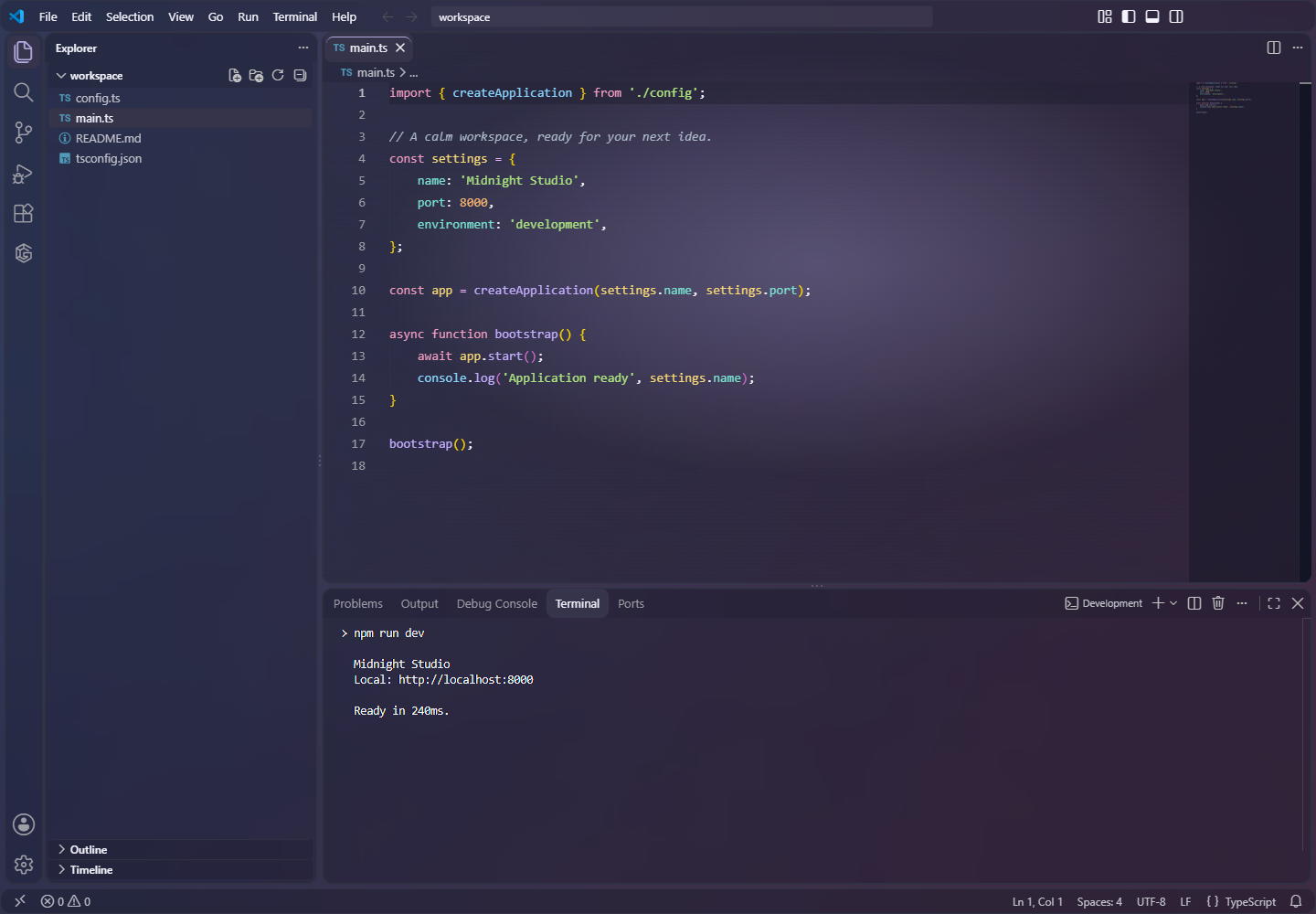
Gradient Nitro Glass ThemeA clean gradient glass theme for VS Code and Antigravity: dark and light palettes, frosted panels, soft editor glow, and live customization. Installation Launch VS Code Quick Open ( Ctrl+P), paste the following command, and press enter.Copied to clipboard |

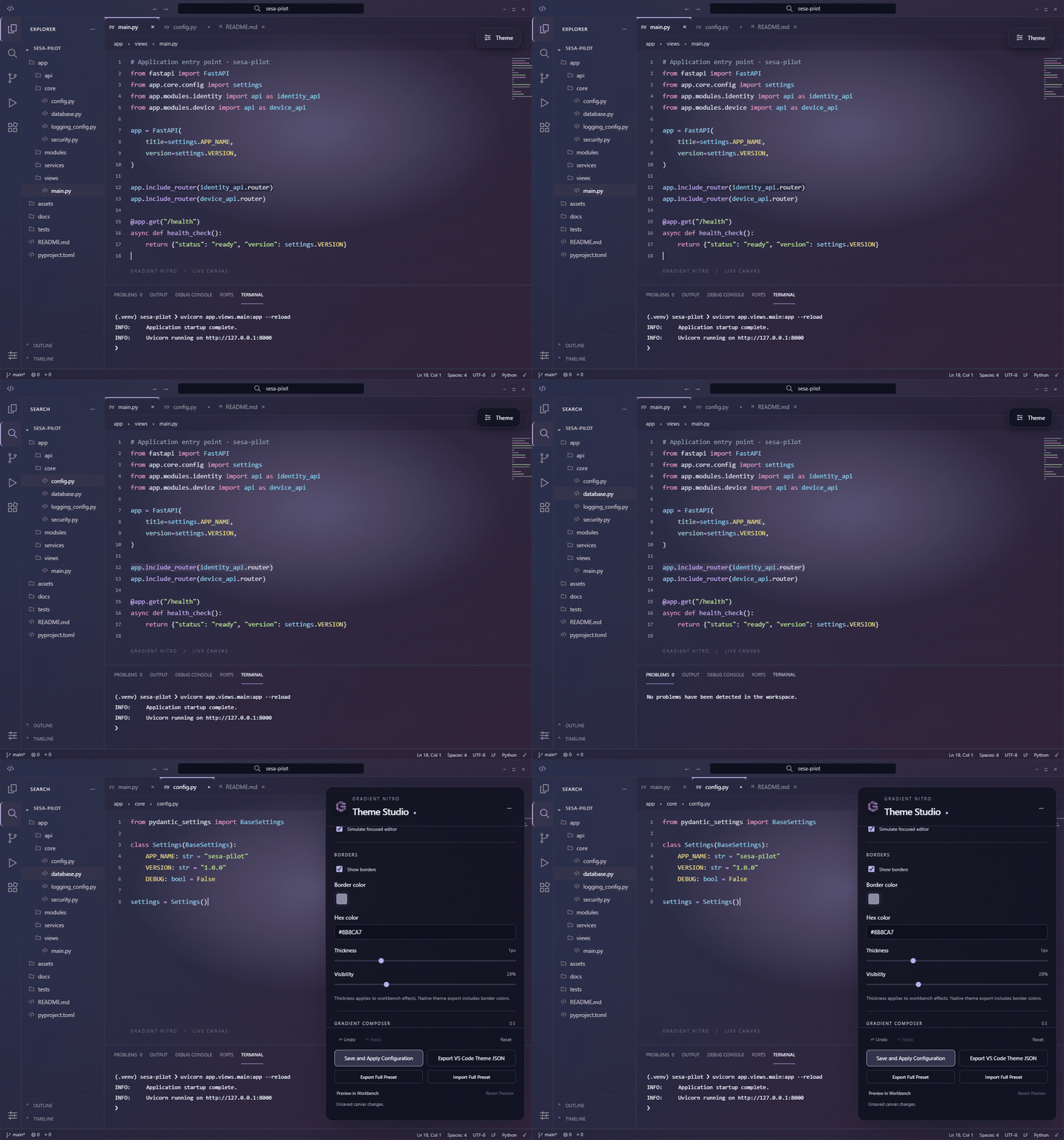
Gradient Nitro GlassA clean gradient glass theme for VS Code and Google Antigravity. Bring a continuous, elegant gradient to your editor, Explorer, terminal, and panels. Frosted glass, subtle editor softlight, and readable dark and light palettes make the workspace feel calm without losing contrast. Choose a theme and start coding immediately. Open the live Theme Studio when you want to shape the colors and effects yourself. For a ready-made setup, select the new Dark Purple full template in Theme Studio. It brings a two-stop violet gradient, gentle white softlight, subtle pink borders, and a complete typography and interaction setup. Download the full preset JSON to import or share it. Install from VS Code Marketplace · Download a VSIX · Changelog · Report an issue
Watch the theme in actionThe Midnight Studio preview uses just two muted gradient stops—indigo
Open the GIF directly if it does not play in your extension store. The still preview shows the same look without animation. Motion respects your reduced-motion preference. What you can make
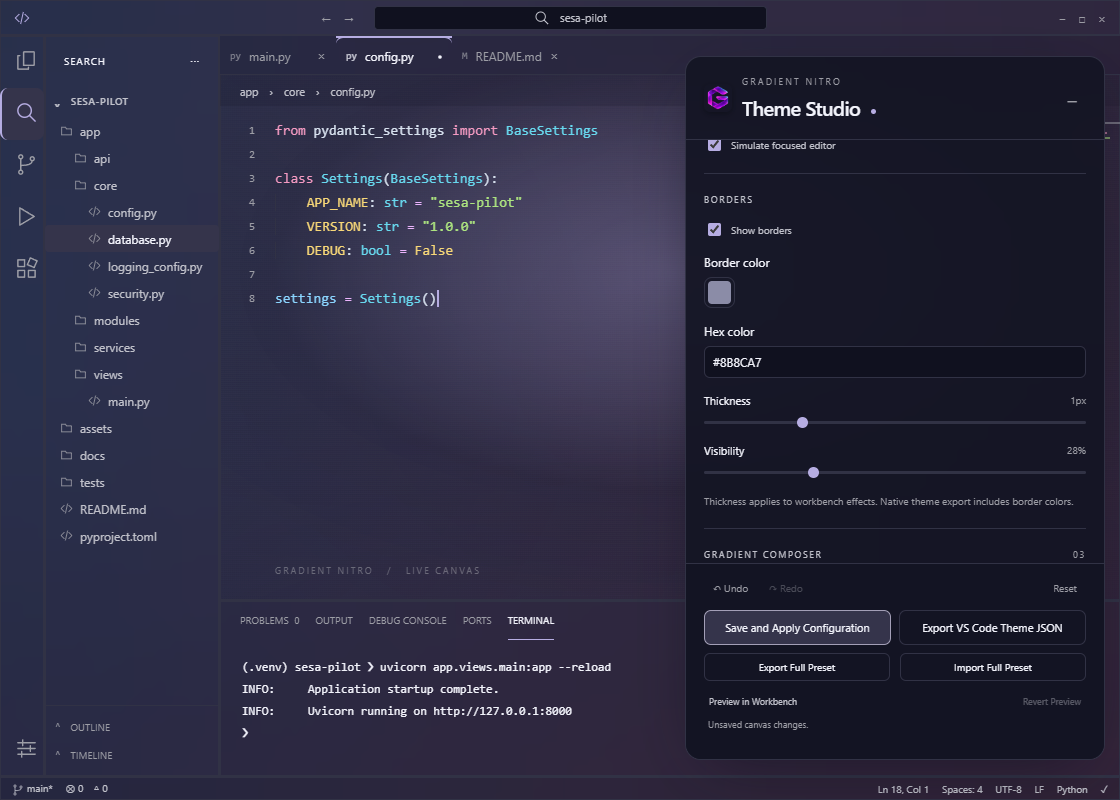
The native color theme works as soon as you select it. Continuous workbench gradients, glass, and motion are optional runtime effects; enable them in Theme Studio and save to apply them. Install and open Theme Studio
If the icon is hidden, right-click the Activity Bar and enable Gradient Nitro. You can also run Gradient Nitro: Open Theme Customizer from the Command Palette. The side menu offers quick access to save, apply, preview, and revert actions. Preview in Workbench temporarily applies the draft; Save and Apply Configuration persists the whole setup. Export a Full Preset to share all visual settings. Exporting VS Code Theme JSON includes native colors and syntax, while runtime effects stay in the extension configuration.
Runtime effects and compatibilityRuntime effects install a helper into the local VS Code or Antigravity workbench, with backups and recovery. An IDE update can require reapplying the helper and reloading, and the IDE may show an integrity notification. The native color themes remain available without runtime effects. Third-party webviews or terminal apps that paint their own backgrounds can cover the gradient in their surfaces. The extension supports VS Code API License and contributingGradient Nitro Glass v1.6.0 and later is licensed under the PolyForm Noncommercial License 1.0.0. Releases through v1.5.3 remain under their original MIT license; the license change notice explains the version boundary. The Contributor License Grant governs contributions separately from the license for users. For version history and verified VSIX downloads, see the release versions. Maintainers can use the release guide for build and publication checks. |