d2lang
The official D2 extension for Visual Studio Code.
Note: Requires D2 to be installed on your machine. See
https://github.com/d2lang/d2/tree/master#install
for instructions.
Currently Supports
- Syntax highlighting
.d2 files
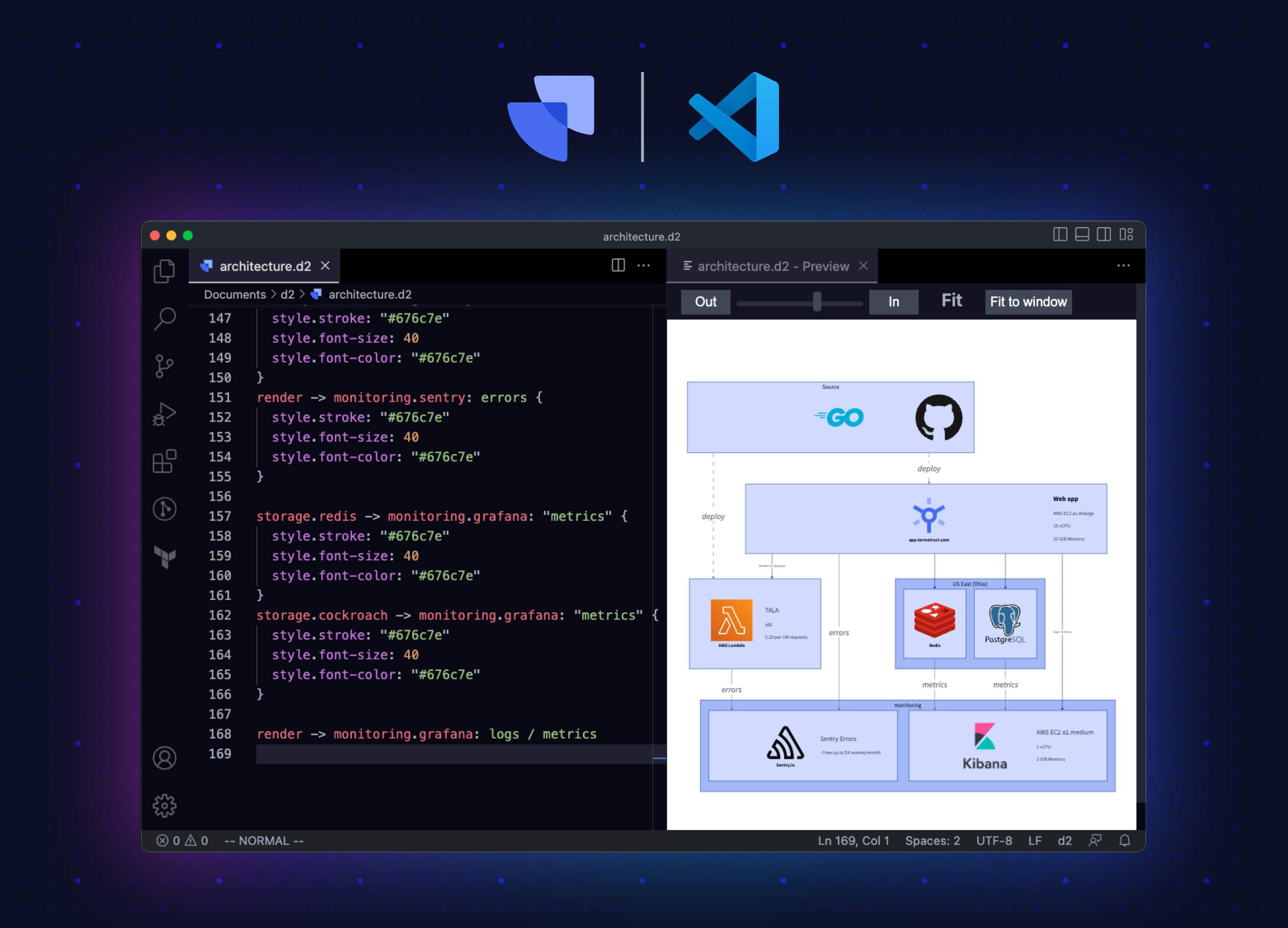
- Open preview window on the side (right-click or (ctrl+shift+d) (mac -> shift+cmd+d))
- Format Document for
.d2 files
- Autocomplete, hover, live diagnostics, outline, folding, color pickers, and links with the D2 language server
- Go to Definition, Find All References, and Rename Symbol across D2 imports
- Format a fenced
d2 block in Markdown. Place the cursor inside the block or select it, then run d2: Format D2 Block from the Command Palette or Format D2 Block from the editor context menu.
- View rendered D2 code snippets in markdown document preview
- Theme and Layout are configurable from settings and the Command Palette
x -> y

# d2-vscode can syntax highlight nested markdown correctly.
y: |`md
  # d2-vscode
  VSCode extension for [D2](https://d2lang.com) files.
`|
Language server
Open a D2 file to start the language server. The extension runs d2 lsp using
the D2 executable on your PATH. To use a different build, set D2.execPath
to its executable path. Changing that setting restarts the server.
For cross-file rename, open the diagrams that import the shape before running
Rename Symbol. The server reads unsaved edits in those diagrams and follows
their imports.
Language features require a D2 build with the lsp command. With older
versions, including v0.9.0, Format Document continues to use d2 fmt.
The extension also uses d2 fmt for documents above the server's 2 MiB limit.
Preview and Markdown block formatting work with older versions.
Example
Install
Install d2lang from the Extensions sidebar or the Visual Studio Marketplace.
If you use the earlier terrastruct.d2 extension, disable or uninstall it before
installing this one. The two extensions register the same D2 commands.
If your user or workspace settings specify terrastruct.d2 as the default
formatter under [d2], change editor.defaultFormatter to
d2lang.d2lang.
Contributing
To package and install the extension locally, run:
npm install -g @vscode/vsce
npm run dev
You can run rerun npm run dev after any change to install the updated extension.
Sometimes VS Code will not pick up the new extension without being restarted so you
can also run the following on macOS:
# Where d2-testing is some folder in which you want to test the extension.
osascript -e 'quit app "Visual Studio Code"'; yarn dev && code ~/d2-testing
CI
CI relies on D2's shared CI submodule.
To run the VS Code integration tests, set D2_LSP_BIN to a D2 executable with
the lsp command and D2_LEGACY_BIN to an older D2 executable, then run
yarn test:integration. Set VSCODE_EXECUTABLE_PATH to test an existing VS Code
installation.
To run all CI: ./make.sh.
To run individual jobs:
- Format:
./make.sh fmt
- Lint:
./make.sh lint
- Build:
./make.sh build
Jobs only run on changed files. To force it to run on all files, add CI_FORCE=1. This is
what daily job does.
CI_FORCE=1 ./make.sh fmt
Packaging
vsce package
Upload the output .vsix onto
the D2lang publisher dashboard.
launch.json
We have a .vscode/launch.json that enables starting a separate debug VS Code with the
extension installed without affecting your existing VS Code instance. To use, open
d2-vscode with VS Code and hit F5. Press CMD+R after making changes to restart the
debug VS Code with the updated extension.
Generating tmLanguage.json
To regenerate d2.tmLanguage.json after updating d2.tmLanguage.yaml, use yq:
brew install yq
npm run gen
note: npm run dev will regenerate for you.
Debugging Keybind
Highly recommend the following keybind for inspecting the textmate scopes under the cursor.
{
  "key": "cmd+i",
  "command": "editor.action.inspectTMScopes"
}
Offline Distribution
See https://code.visualstudio.com/docs/editor/extension-marketplace#_install-from-a-vsix
npm install -g @vscode/vsce
npm run pkg
# To install:
# code --install-extension d2.vsix
# To uninstall:
# code --uninstall-extension d2lang.d2lang
markdown.tmLanguage.json
Syntax file used for markdown embedded within d2 block strings.
- Copied from VS Code's markdown-basics extension.
- Renamed to
markdown.d2 and scope to text.html.markdown.d2
- Then with vim:
%s/\(?:\)\?\^|\\\\G/\1(?!.*`\\\\|)(?:\^|\\\\G)/g
- This replacement ensures the markdown syntax never matches on block string
terminators.
- Then with sed:
gsed -i -E 's/\[ \]\{[^}]*?\}/\\\\s*/' markdown.tmLanguage.json
- This replacement ensures that the markdown syntax doesn't consider leading spaces to be
the beginning of an indented code block as in d2, block strings are indented for
readability without the indentation being part of the string contents.
Now delete the list from #block. Lists for some reason eat the block string
terminator. e.g. with them enabled the following syntax after the terminating |
will remain markdown:
my shape: |md
  1. first
|

should be d2 but VS Code highlights as markdown.
Add fenced_code_block_d2 based on fenced_code_block_css to allow embedding markdown
with d2 within d2.