🚀 AG Usage
Real-time usage tracking for Antigravity AI models








✨ Features
Webview panel: Includes a dashboard showing your current model quotas, Extra Credits, most used models, StatusGator public health information, an interactive usage history log with trend sparklines, and a usage activity heatmap with monthly navigation.
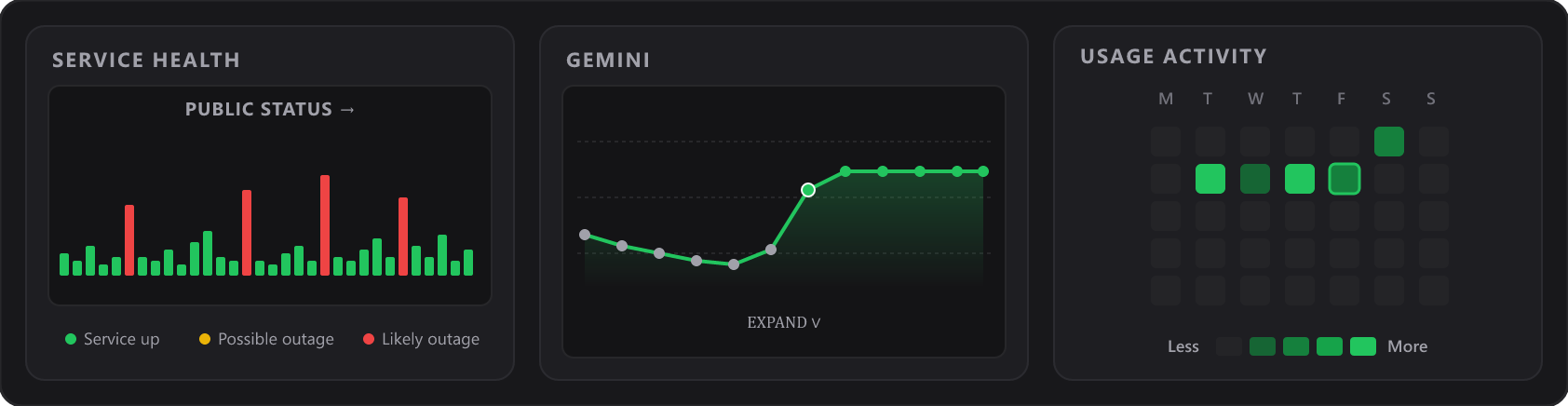
Status bar integration: Displays a configurable status bar item showing your model quota usage.

Auto-refresh: Usage data is automatically updated every 60 seconds by default, but can be configured. By default, it also pauses background refreshes when the IDE window is unfocused.
Detailed tooltip: Hover over the status bar item to see a detailed breakdown and visual progress bars for model categories (as they are calculated by Antigravity):
- Gemini - Gemini Pro and Gemini Flash models
- Other - Claude and GPT models
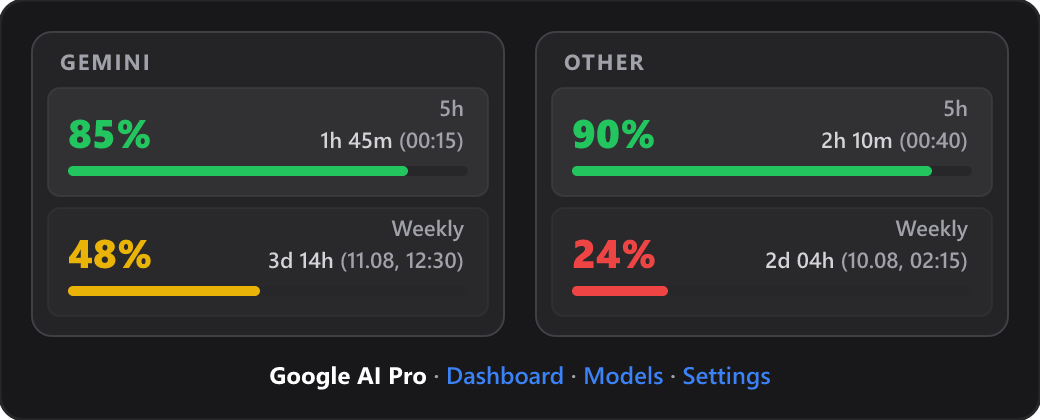
Quota reset timer: Each model category displays the time remaining until quota resets. Time is displayed only when the Antigravity quota reset timer is triggered (first use of the AI model after a 100% usage).
Cross-platform: Fully compatible with Windows, macOS, and Linux.
Works in VS Code too: Detects both the Antigravity IDE's language_server process and the agy hub started by the Google Antigravity extension for VS Code.
📖 Usage
- Install the extension.
- Make sure the Antigravity IDE or the Antigravity extension for VS Code (
google.google-antigravity) is running and logged in.
- Look for the 🚀 icon in the right part of the bottom status bar.
- Hover over the icon to view detailed usage per model category.
- Click the icon to refresh data manually.
📝 Configuration
ag-usage.refreshInterval: Set the interval (in seconds) between automatic refreshes. Set to 0 to disable auto-refresh. Default is 60 seconds.
ag-usage.pauseWhenUnfocused: Pause automatic background refresh when the VS Code window is not focused. Default is true.
ag-usage.statusBarDisplay: Control what information is shown in the status bar. Options:
average - Shows the average usage across all groupsall (default) - Shows both groups side by side (e.g., Gemini: 80% | Other: 50%)gemini - Shows only Gemini usageother - Shows only Other usage
ag-usage.statusBarLimitDisplay: Control how to display the quota limits in the status bar. Options:
only5h - Shows only the 5-hour quota (e.g., Gemini 77%)both (default) - Shows both 5-hour and weekly quotas (e.g., Gemini 21% (99%))
ag-usage.statusBarAlignment: Control the alignment of the status bar item. Options: Left, Right (default).
ag-usage.statusBarPriority: Control the priority of the status bar item. Higher values move the item further to the left (for Right alignment). Default is 100.
ag-usage.statusBarCountdown: Show time remaining until next reset in the status bar when quota reaches 0%. Default is true.
ag-usage.notifyOnFullQuota: Show a notification when a model category reaches 100% usage. Default is false.
ag-usage.lowQuotaNotificationThreshold: Percentage threshold to show a warning when quota drops below this value. Default is 0 (disabled). Set to a value like 10 to enable.
ag-usage.resetTimeDisplay: How to display the quota reset time. Options: relative, absolute, both (default).
ag-usage.absoluteTimeFormat: Time format for absolute reset time display. Options: 24h (default), 12h.
ag-usage.dateFormatLocale: Locale for date formatting (e.g., 'en-US', 'ro-RO', 'default'). Default is 'default'.
ag-usage.enableHistoryTracking: Enable tracking of quota usage history over time. Default is true.
ag-usage.enablePublicStatus: Fetch public Google Antigravity service health from StatusGator. When disabled, the dashboard only checks the local usage API. Default is true.
ag-usage.maxHistoryItems: Maximum number of history items to persist per group. Default is 50.
⚙️ Commands
ag-usage.refresh: Manually triggers a scan for the Antigravity process and updates usage statistics.
ag-usage.openSettings: Opens the AG Usage configuration page.
ag-usage.openPanel: Opens the AG Usage detailed webview panel that shows current quotas and history of quota changes.
ag-usage.exportHistory: Export the metadata history log to a JSON file (available in the dashboard title bar).
🔒 Security & Privacy
- Local quota communication: The extension reads quota data from your local Antigravity process over localhost.
- Public status check: The dashboard fetches public Google Antigravity service health from StatusGator. Disable it with the
ag-usage.enablePublicStatus setting.
- Limited local persistence: It stores quota history metadata locally in VS Code global state (category, quota delta, timestamps, reset time) to power the history panel.
📝 Notes
Data from server may have a 3-5 minute margin of error. This can result in a "Soon" status or temporary delays in quota synchronization.
At the moment, it is not possible to retrieve the actual token quota.
Starting with Antigravity 1.18.3, native quota tracking is available under the Antigravity User Settings > Models page.
💡 Inspiration
- This extension was inspired by the AntigravityQuota extension, which provides similar functionality.
- Also, inspired by the progressbar idea for creating progress bars in markdown tooltips because VS Code extension API does not support popup menus like the GitHub Copilot one.
💖 Support the Development
If you find this extension useful, consider buying me a coffee!

🙏 Thank you for using AG Usage!
| |

