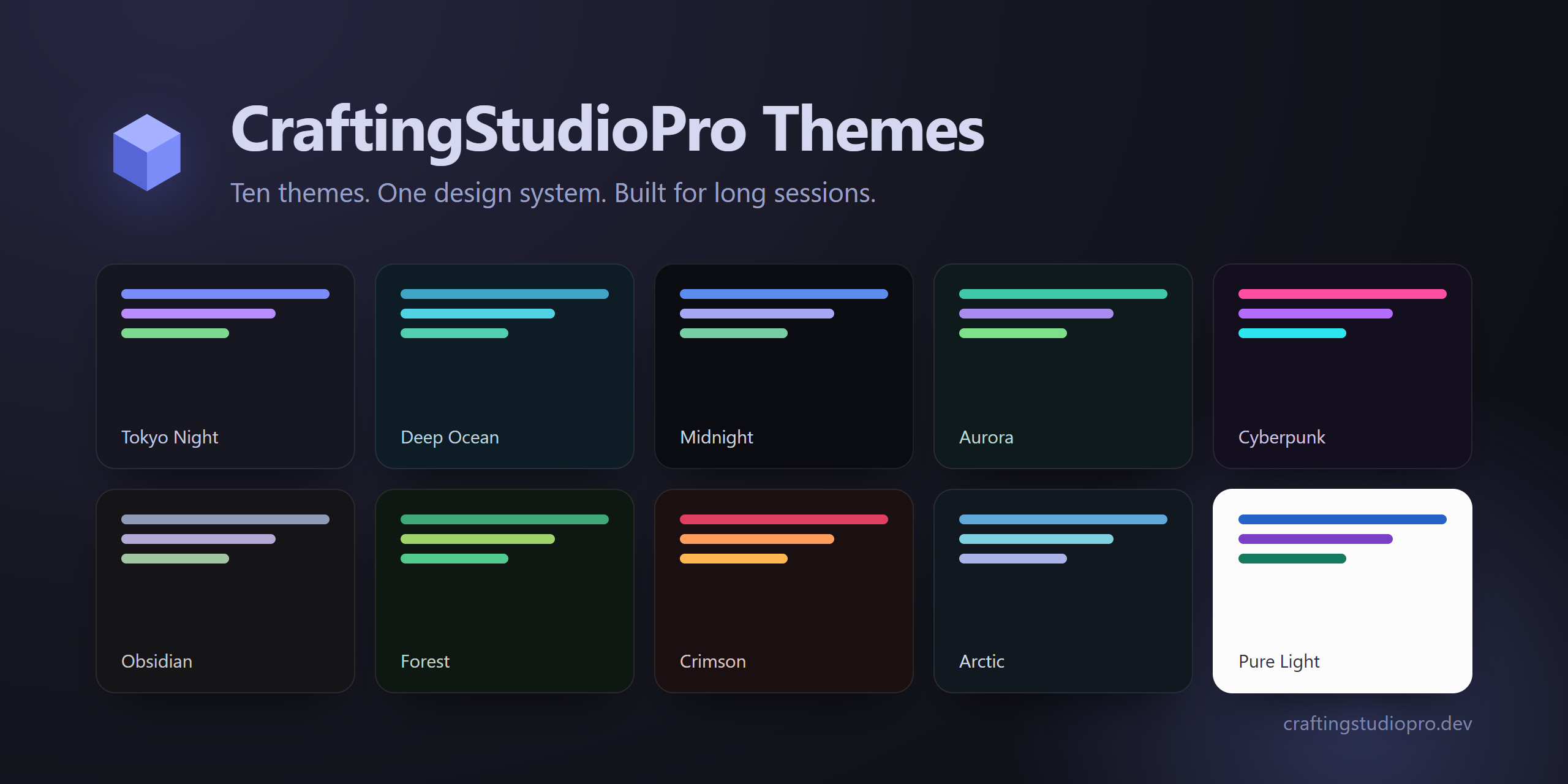
CraftingStudioPro ThemesFourteen modern developer themes built on one design system — Tokyo Night, Deep Ocean, Night Owl, Midnight, Aurora, Cyberpunk, Obsidian, Forest, Crimson, Arctic, Espresso, Sunset, Pure Light and Parchment. Installation Launch VS Code Quick Open ( Ctrl+P), paste the following command, and press enter.Copied to clipboard |

CraftingStudioPro ThemesFourteen themes for Visual Studio Code, built from a single design system rather than assembled one at a time. They share a semantic colour contract, so switching between them changes the mood of your editor without changing what anything means: keywords stay keywords, types stay types, and comments stay legible.
Themes
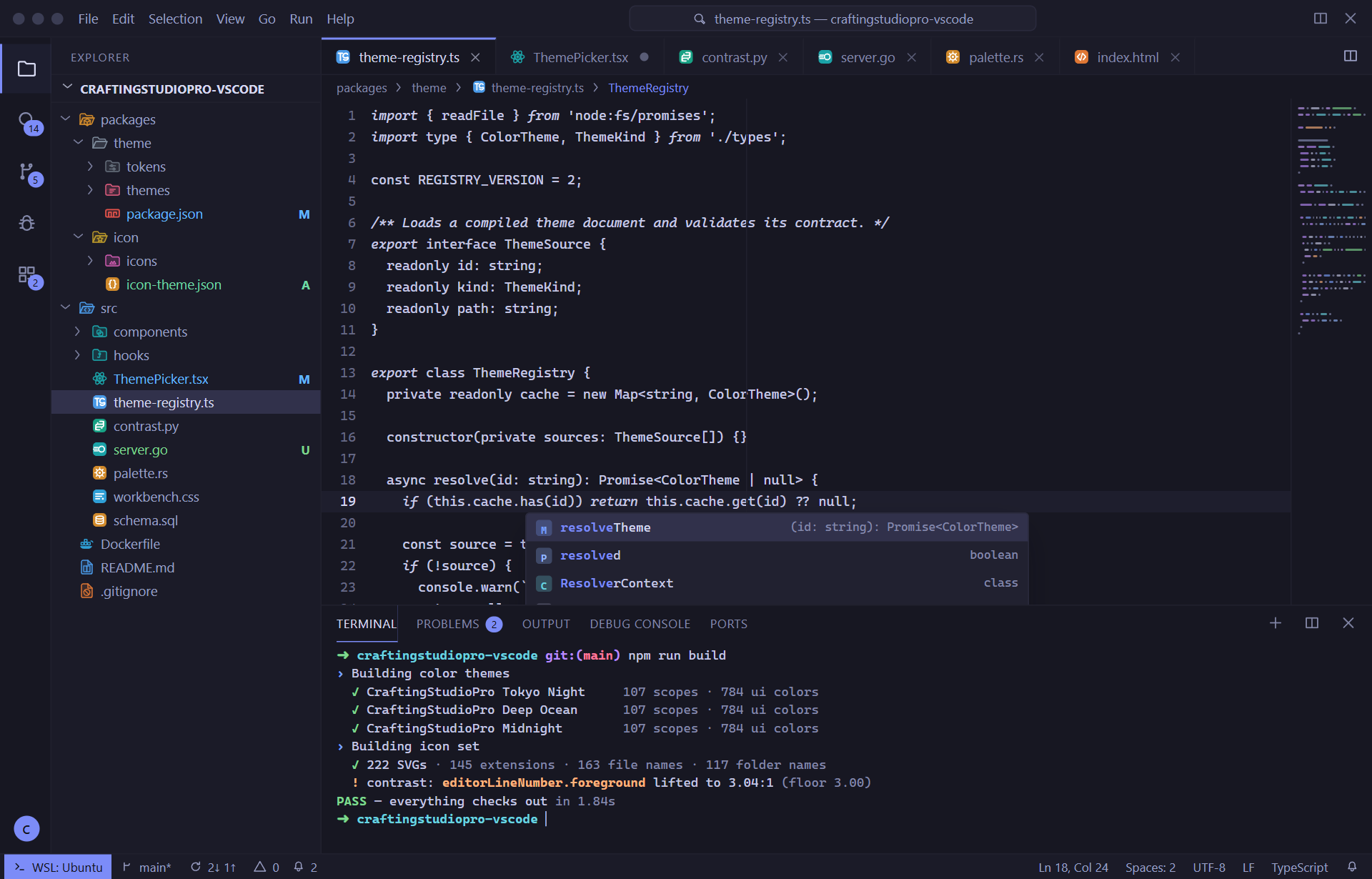
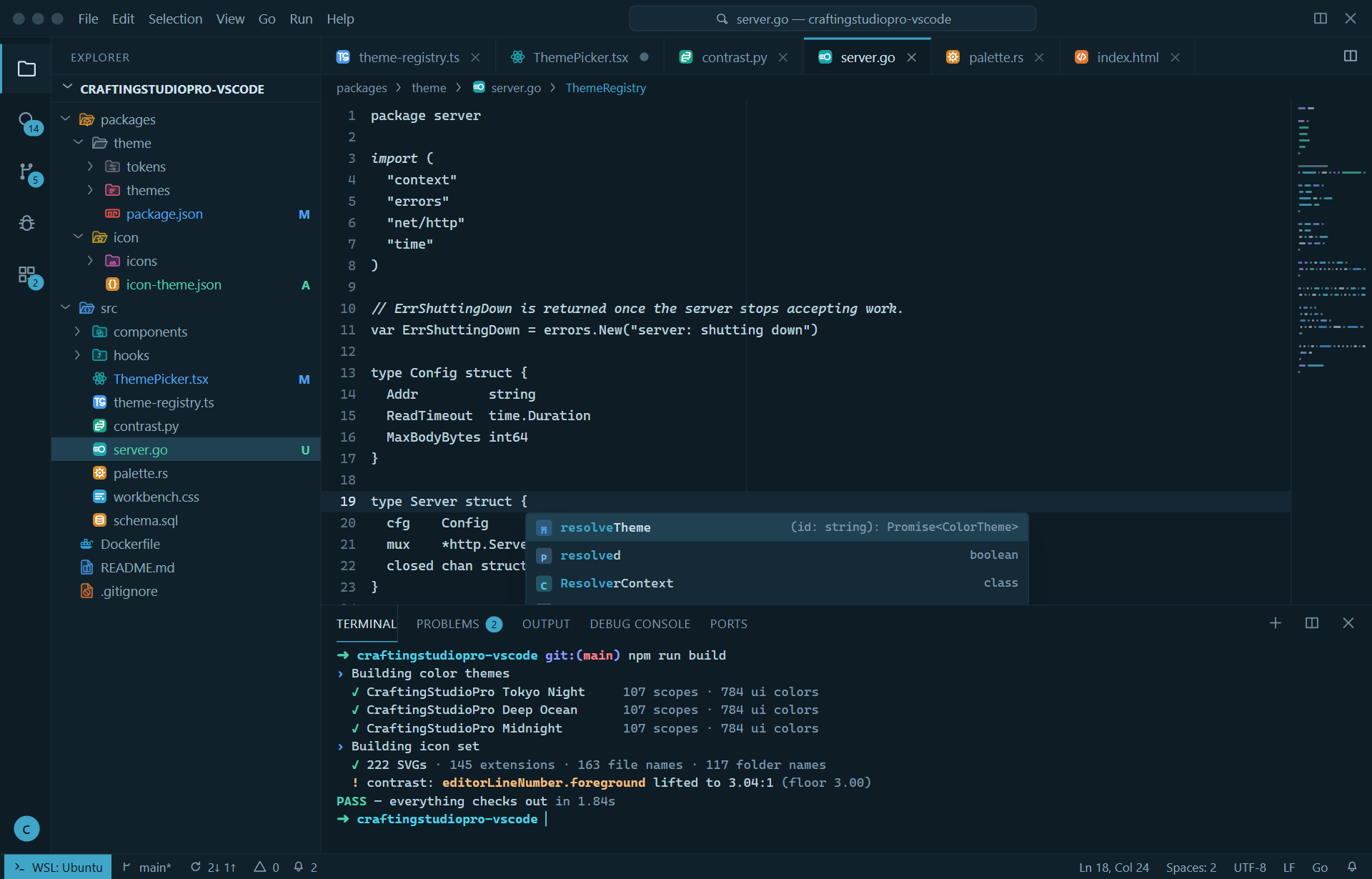
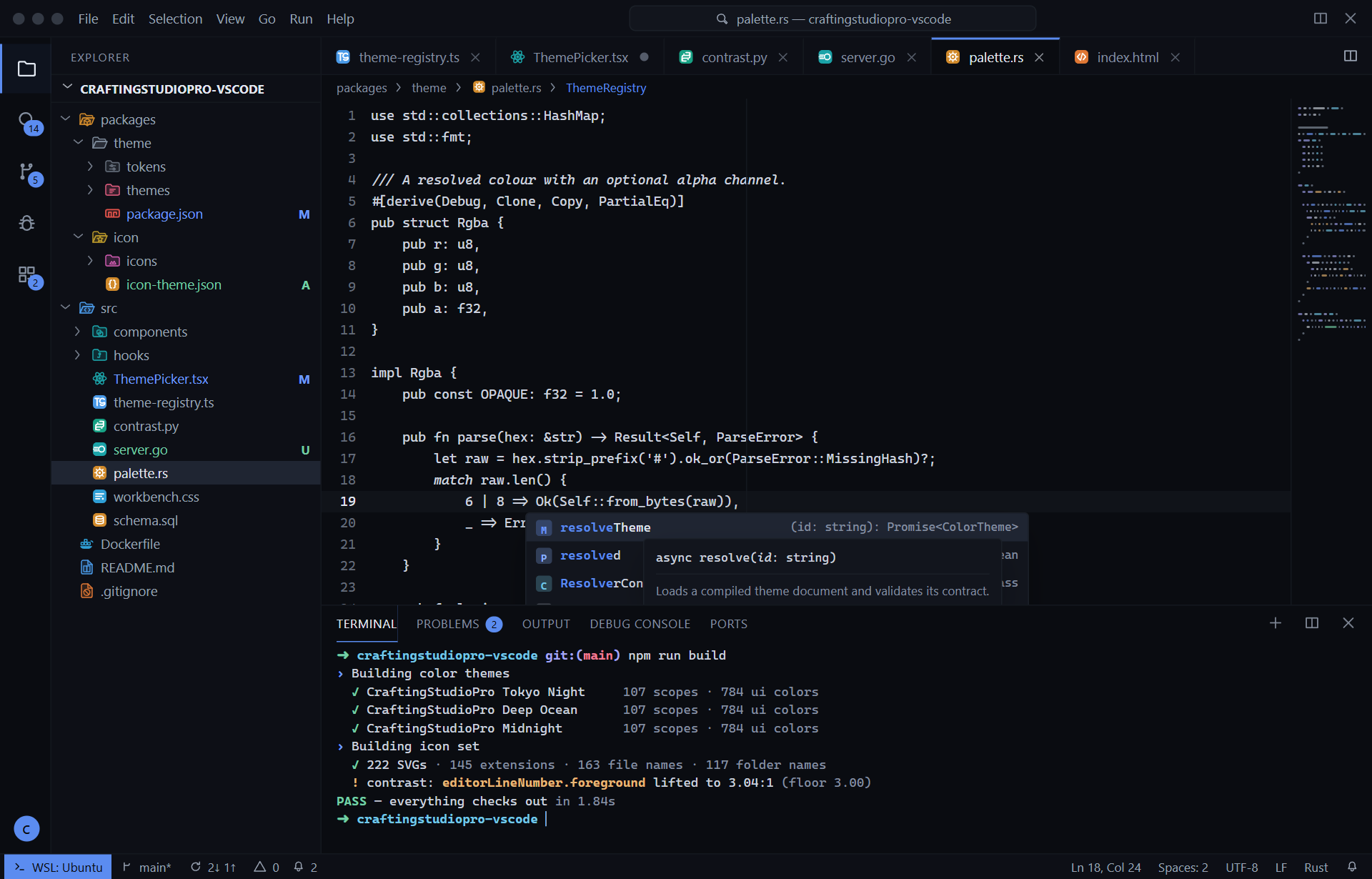
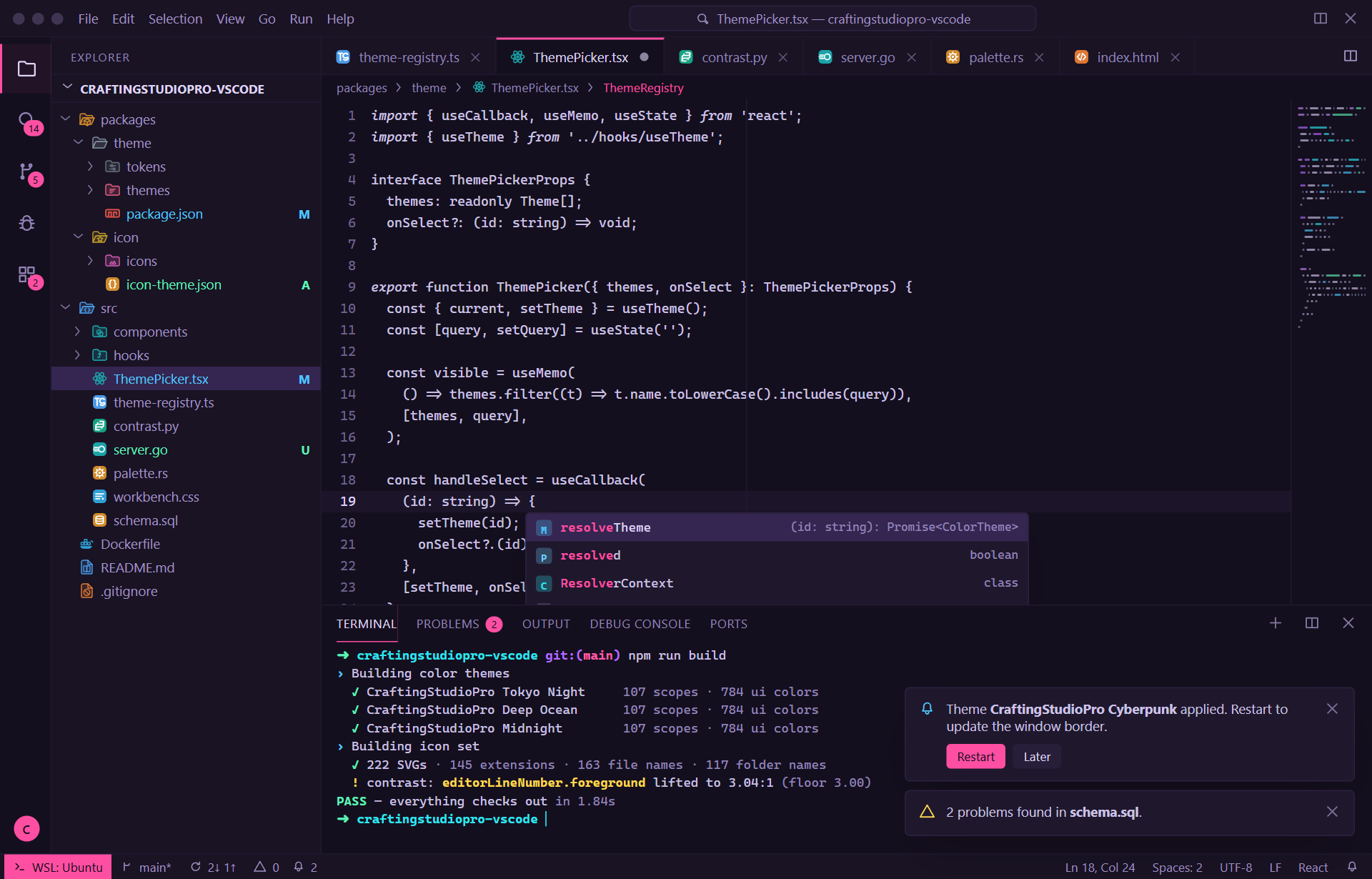
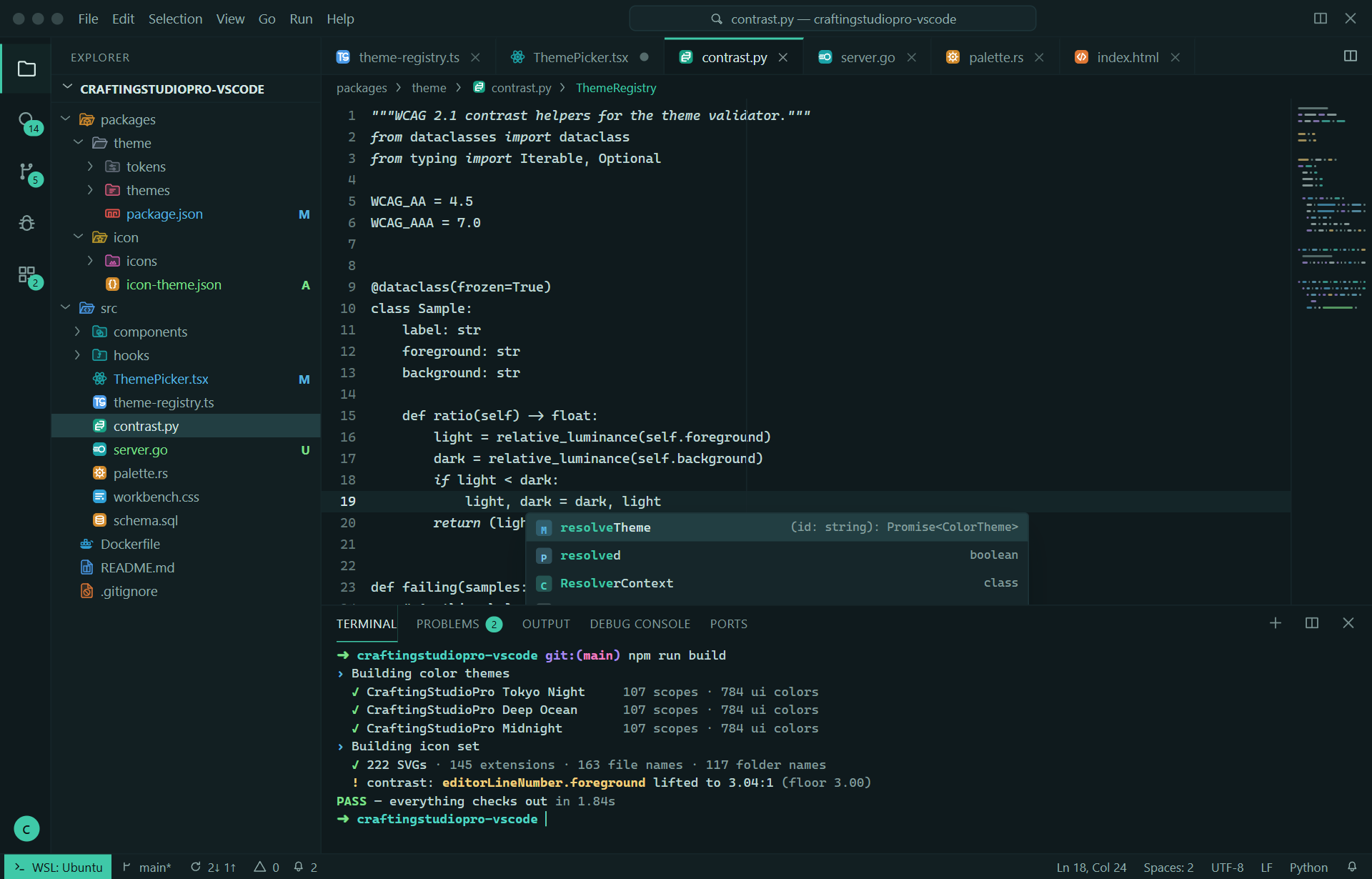
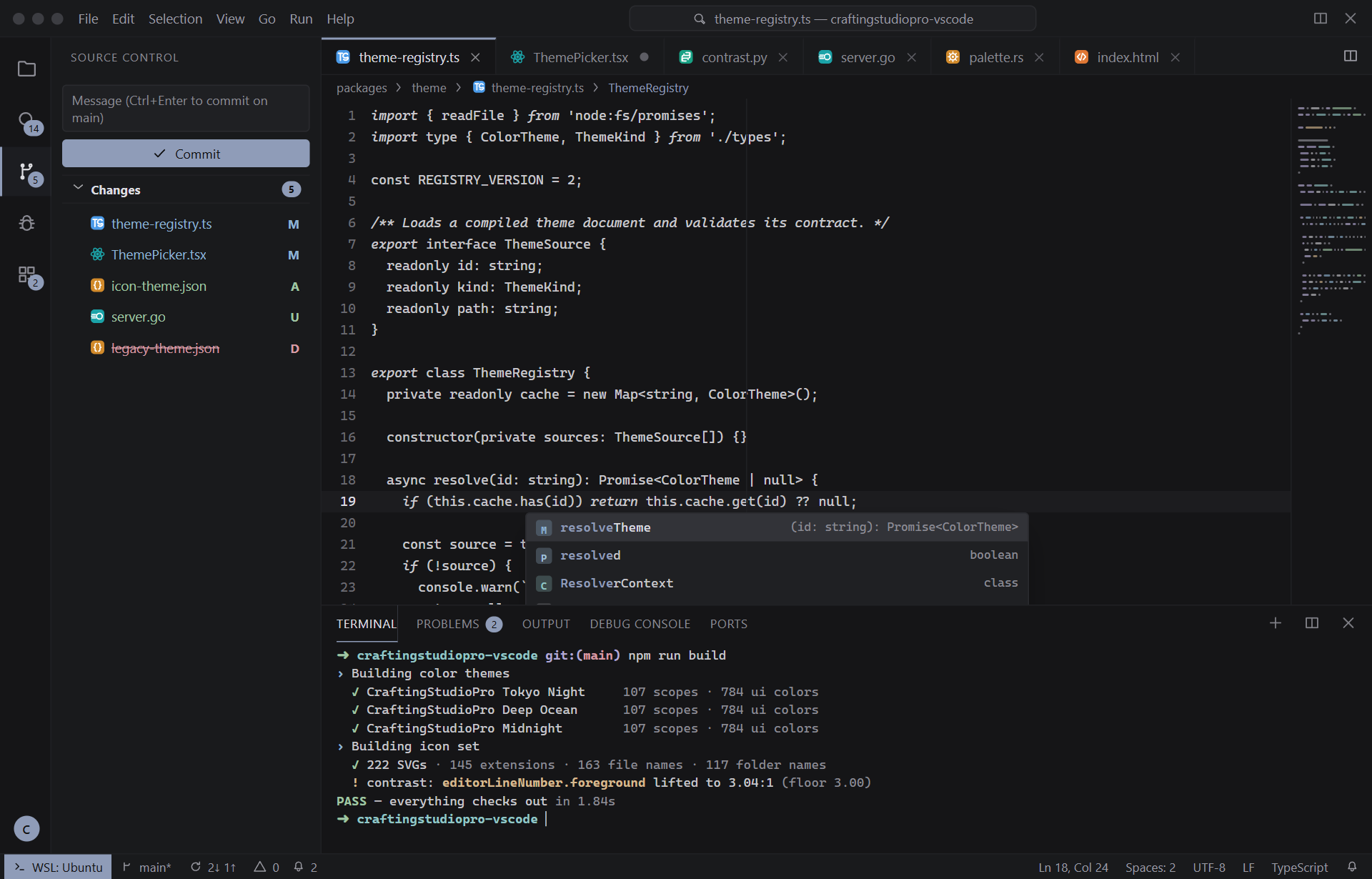
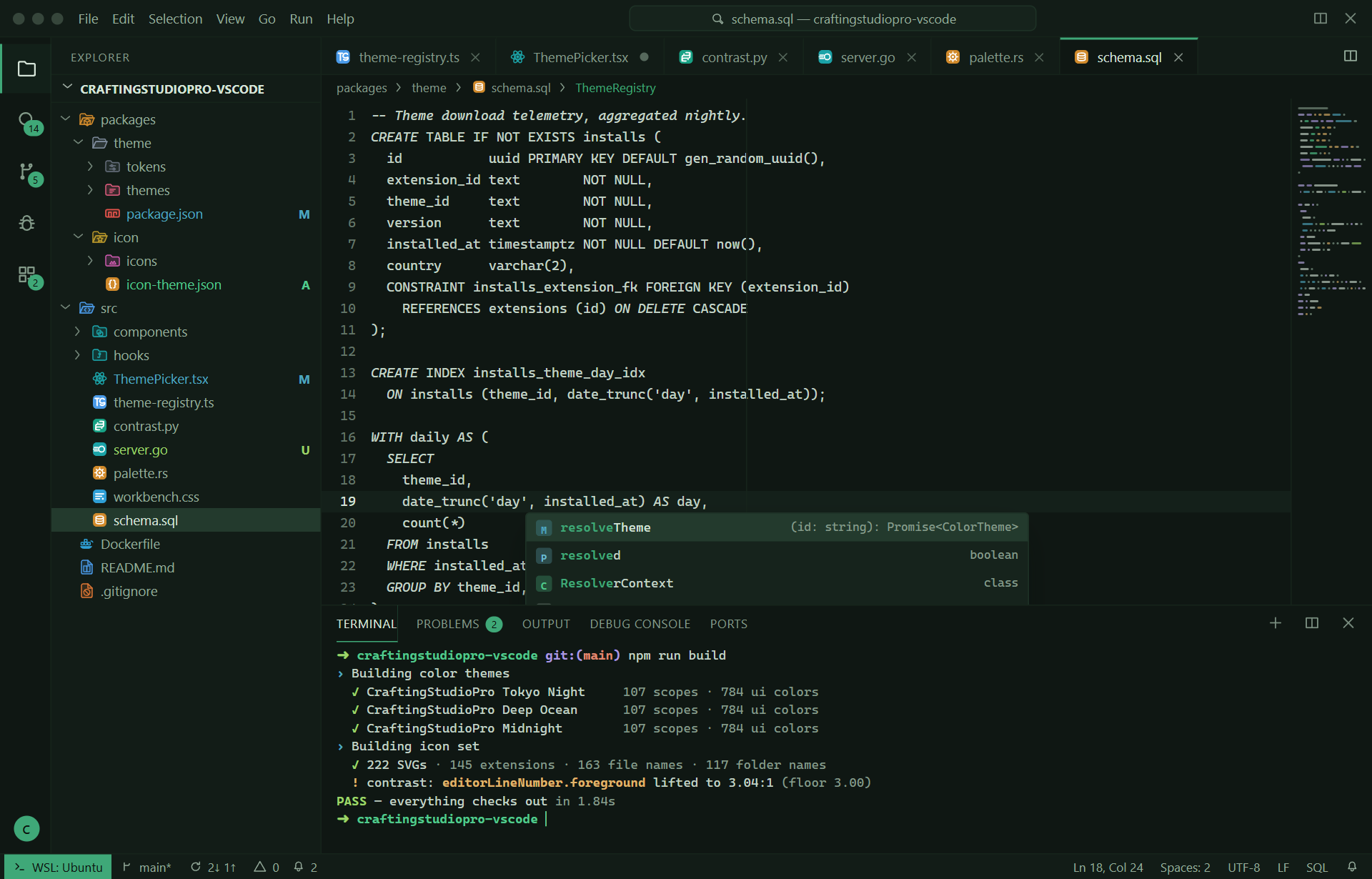
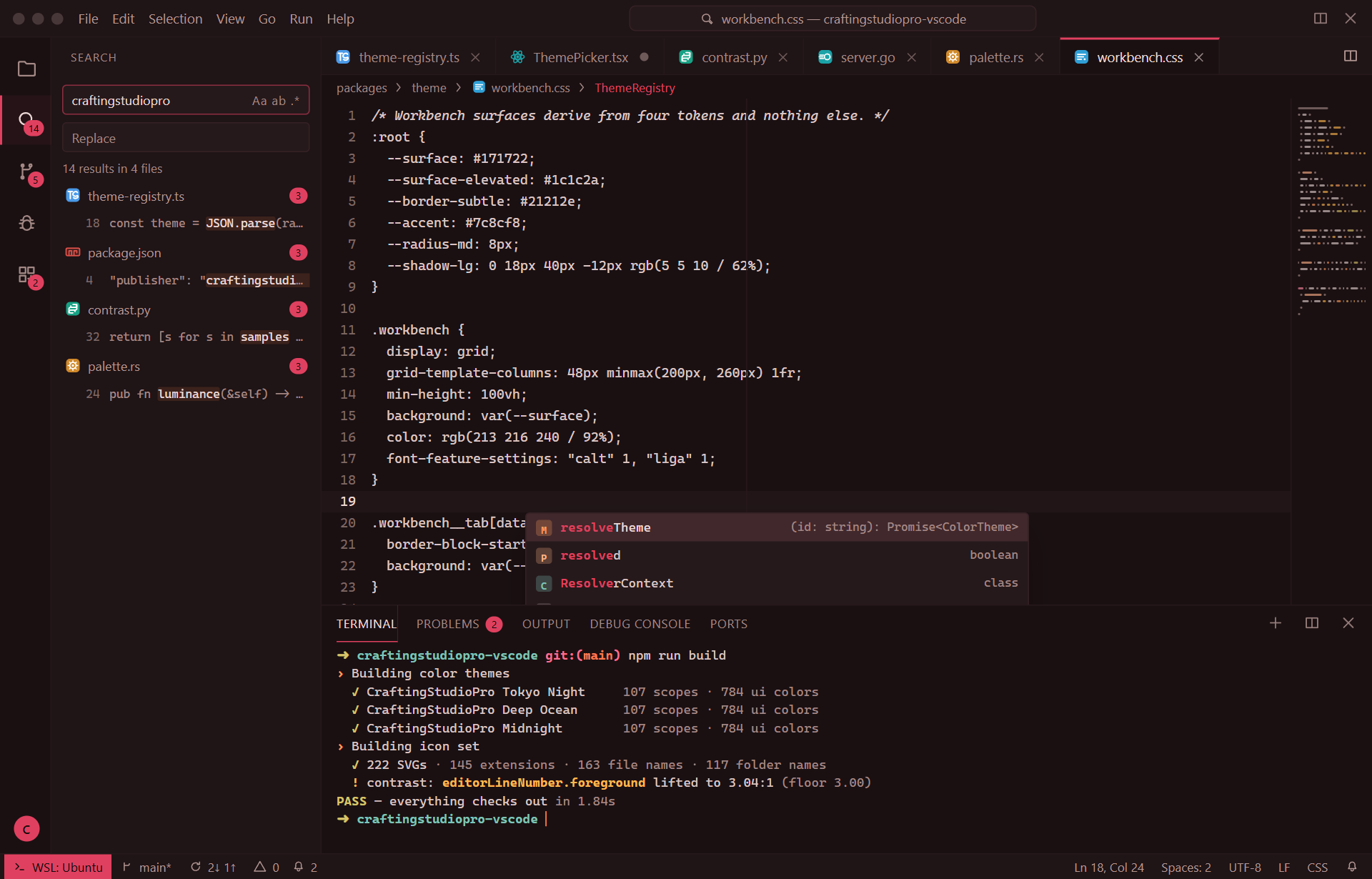
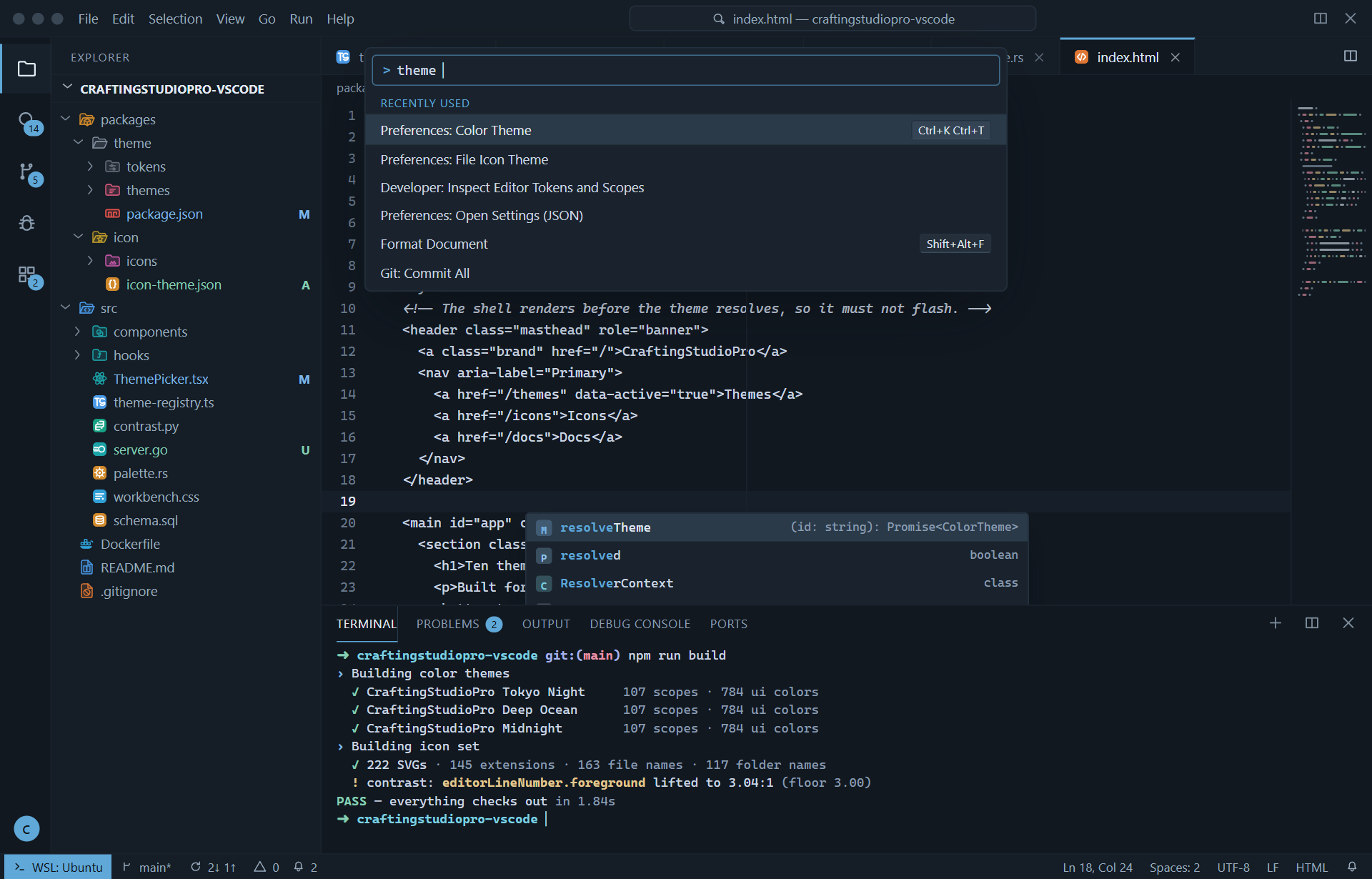
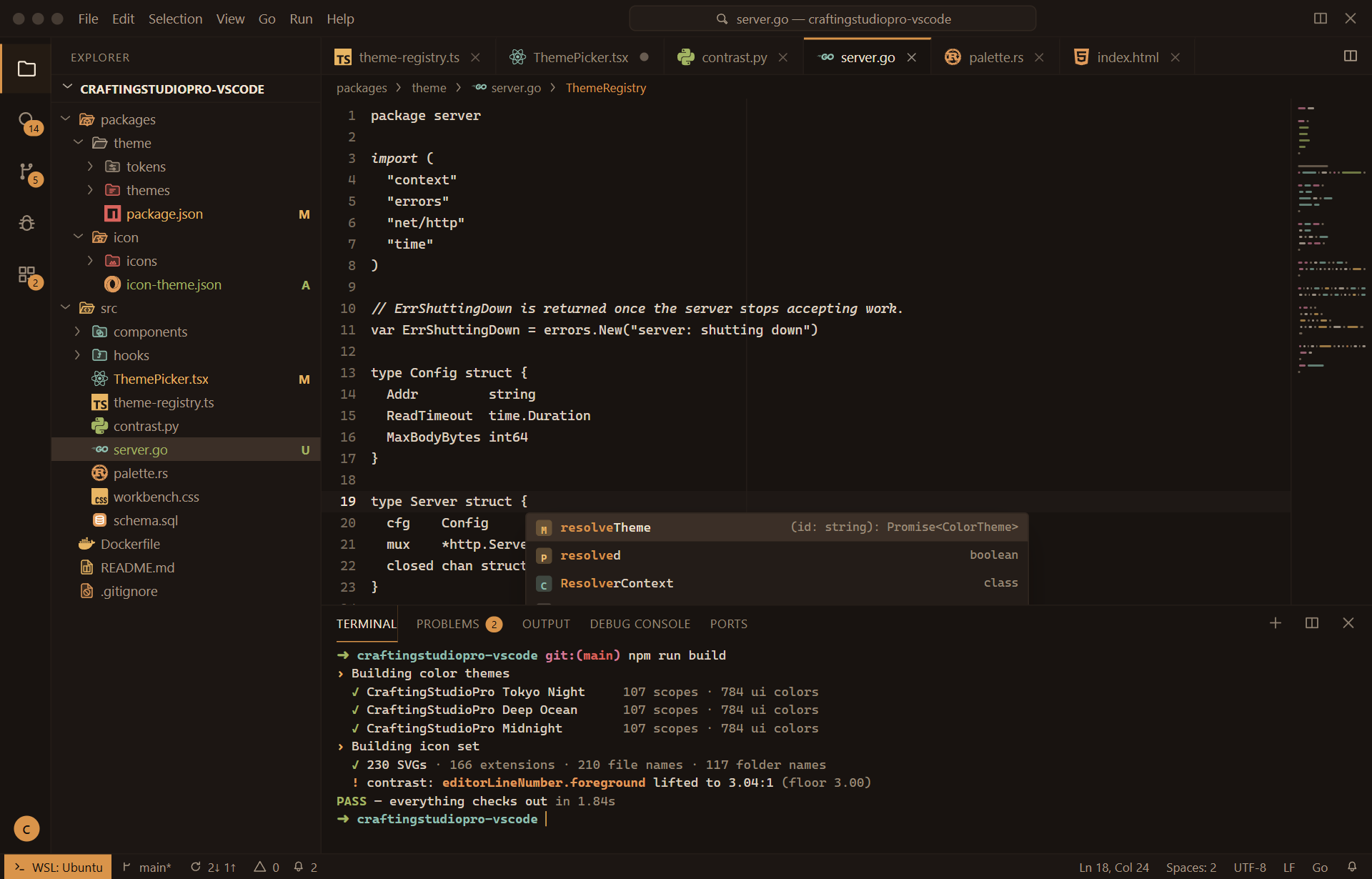
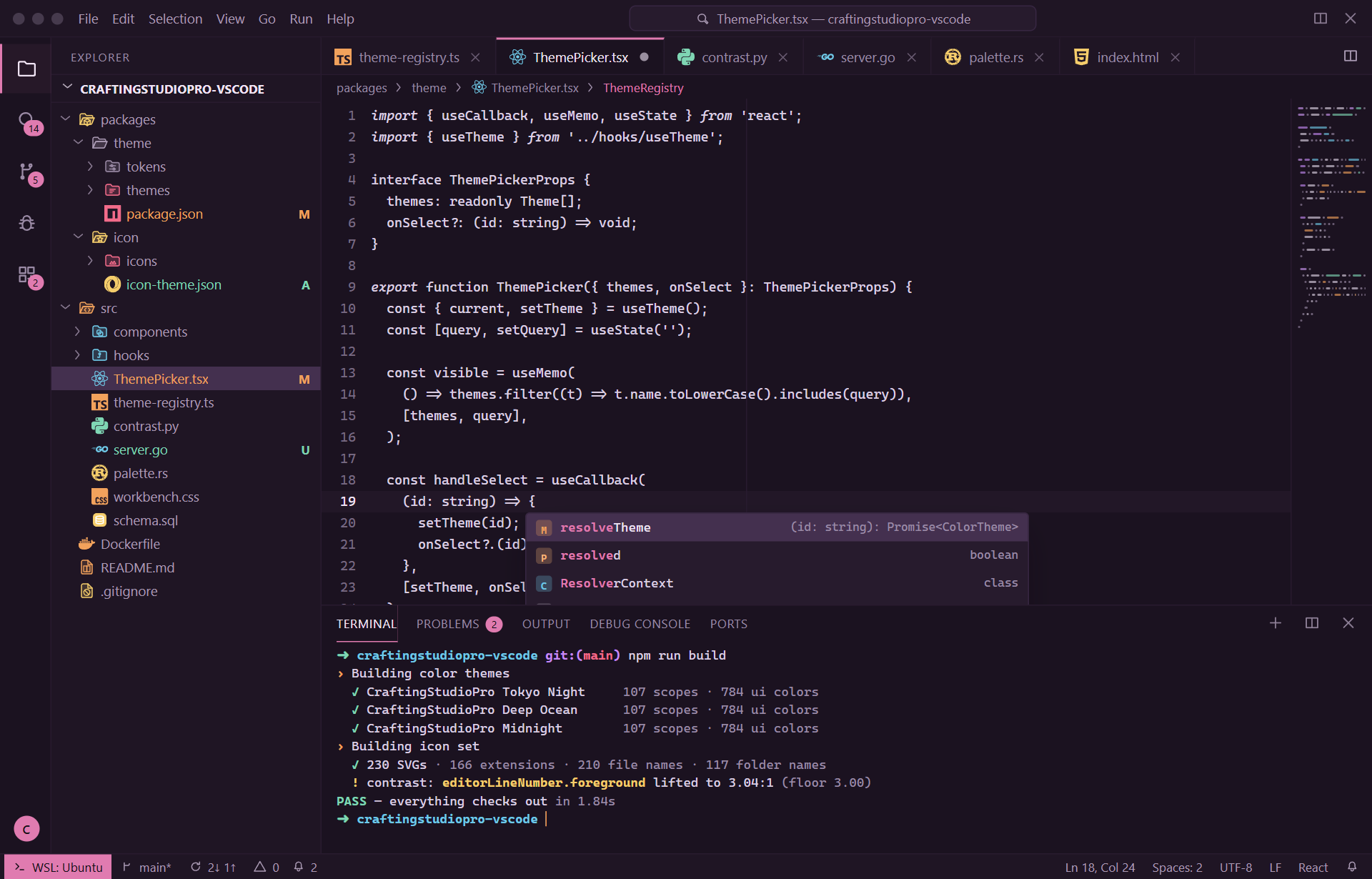
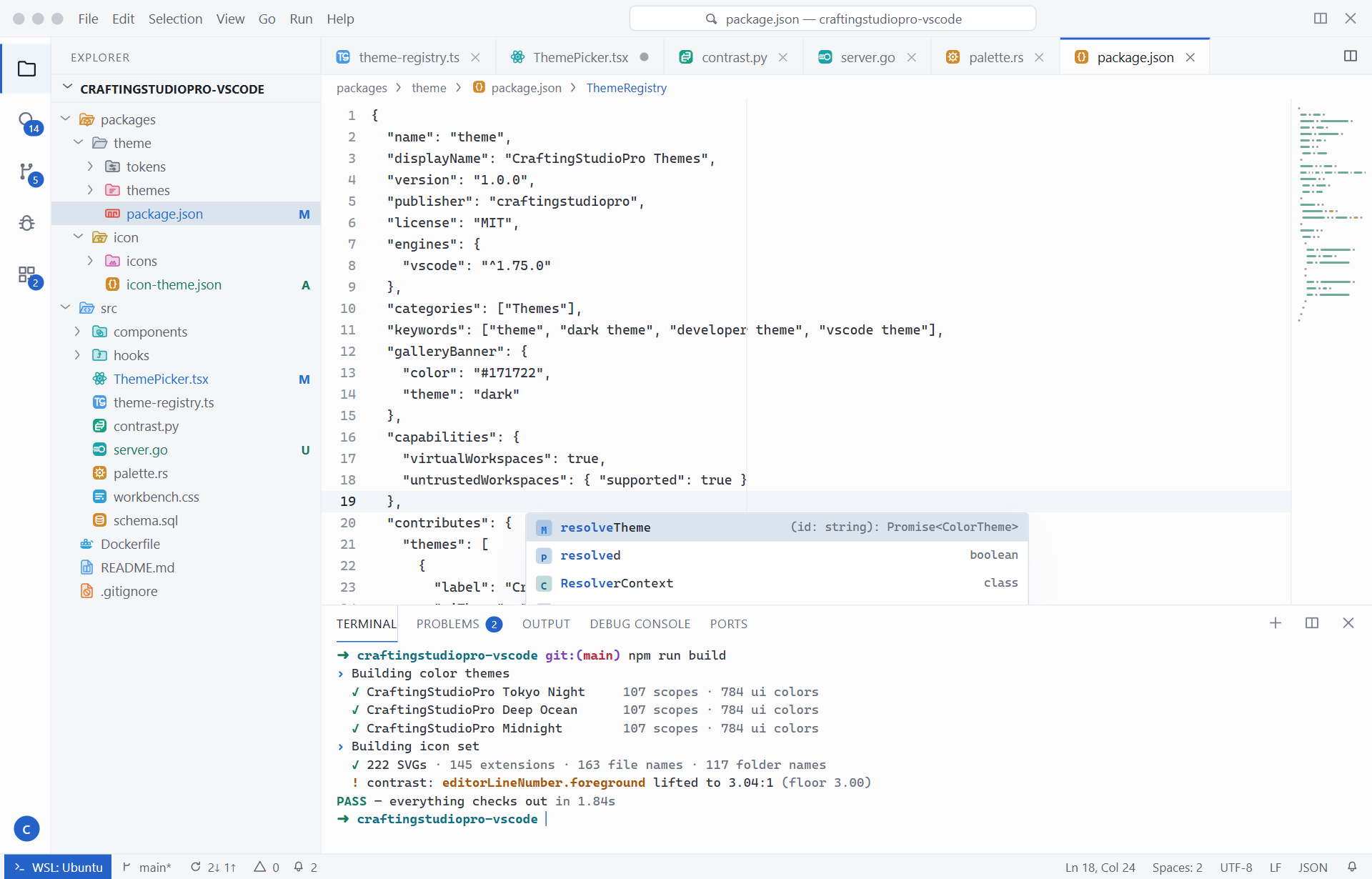
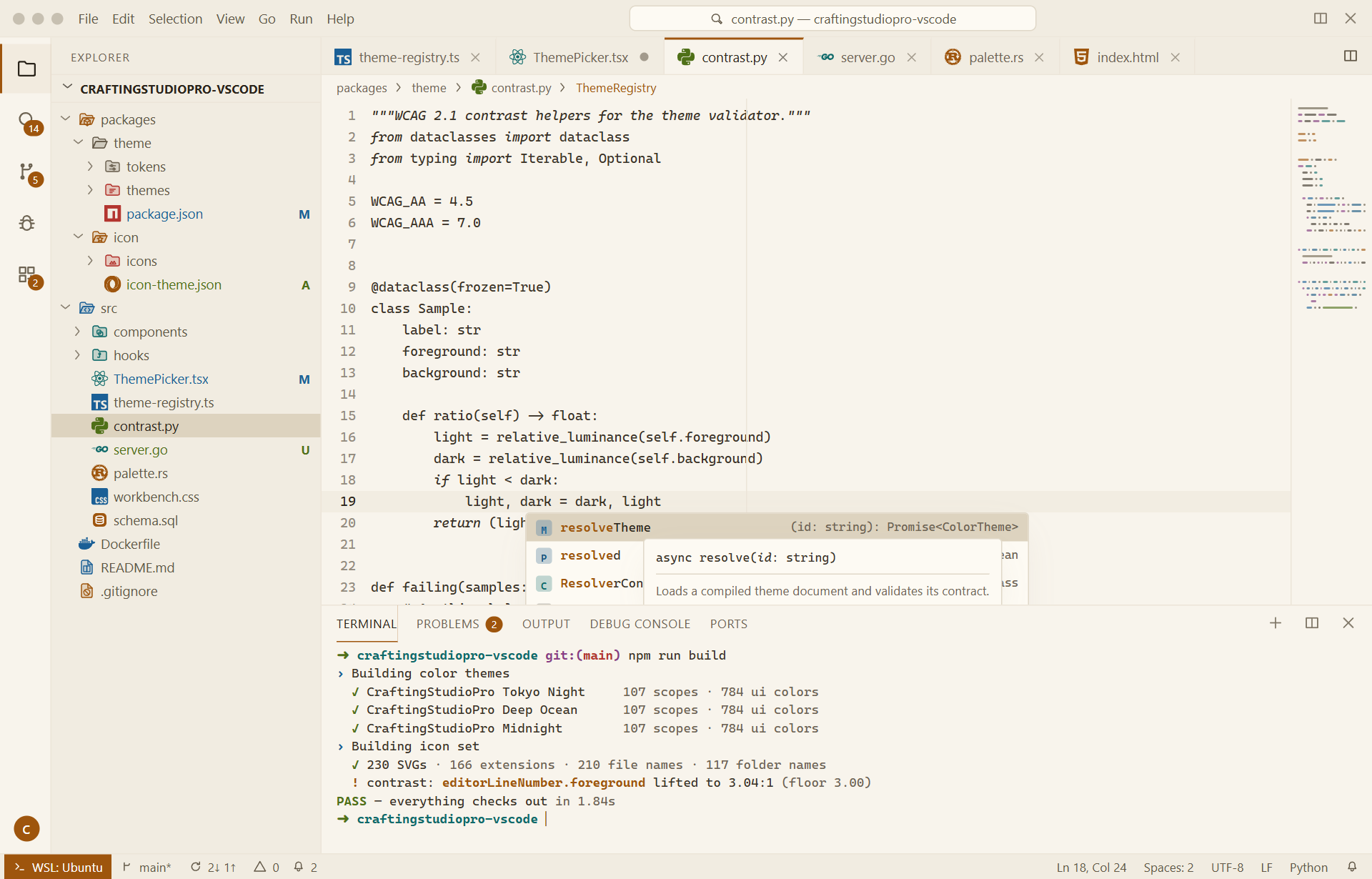
Twelve dark, two light. All fourteen register as separate entries in the theme picker. ScreenshotsTokyo Night
Deep Ocean
Night Owl
Midnight
Cyberpunk
Aurora
Obsidian
Forest
Crimson
Arctic
Espresso
Sunset
Pure Light
Parchment
FeaturesOne semantic contract across fourteen palettes. Each theme defines six accent hues, and each hue always carries the same meaning — structure, intent, literal data, scalar values, shape, markup identity. Learn the system once in Tokyo Night and Crimson reads the same way on your first day with it. Contrast is enforced, not eyeballed. Every palette is compiled through a contrast gate before it ships. Body text clears 6.5:1, primary text 7:1, comments and every syntax colour 4.5:1, and all sixteen ANSI terminal colours 4.5:1 against the terminal background. A colour that misses its floor is lifted along the lightness axis — hue and saturation intact — rather than shipped. The build fails if the shipped value is still short. 784 UI colours per theme. Not just the editor: peek views, merge conflict headers, the settings editor, notebooks, testing coverage gutters, SCM graph lanes, inline chat, the command centre, sticky scroll, and the six-level bracket pair and indent guide ramps. Nothing falls back to the VS Code default and clashes. Semantic highlighting on by default, with over sixty semantic token mappings alongside 107 TextMate rules — so a Italics used sparingly and on purpose: control flow, parameters, comments, decorators and InstallationFrom the Extensions view ( Or from the command line: Or from the Quick Open bar ( Theme SelectionPress To pin one in your settings: To follow your operating system's light/dark preference: Recommended SettingsThese are not required — the themes are designed to look right with stock settings — but they are what the screenshots above use. Pair with CraftingStudioPro Developer Icons for a matching file icon theme: Supported LanguagesSyntax rules are tuned and visually checked for: JavaScript · TypeScript · JSX · TSX · Python · Go · Rust · Java · Kotlin · Swift · PHP · C · C++ · C# · Ruby · Dart · Lua · R · Shell · Bash · PowerShell · HTML · CSS · SCSS · Sass · Less · JSON · JSONC · YAML · XML · TOML · SQL · GraphQL · Prisma · Markdown · MDX · Dockerfile · Makefile · Terraform · Nix · INI · diff Every language falls back cleanly: the rules are layered from generic scopes to language-specific ones, so an unlisted grammar still gets sensible keyword, string, comment and number colours. Feedback & IssuesFound a scope that reads wrong, or a surface that falls back to a default colour? That is a bug, and it is fixable in one place.
When reporting a colour problem, LicenseMIT © CraftingStudioPro. See LICENSE. |