Git: Ignore & Stop Tracking



Adds an Ignore & Untrack action to the Source Control context menu that, in one step:
- Removes the selected file(s) from the git index (
git rm --cached), keeping them on disk, and
- Adds an anchored entry to your
.gitignore.
This is the fix for the common "I committed a file I shouldn't have" situation — .env,
node_modules/, build output, local config — where adding it to .gitignore alone isn't enough
because git is already tracking it.
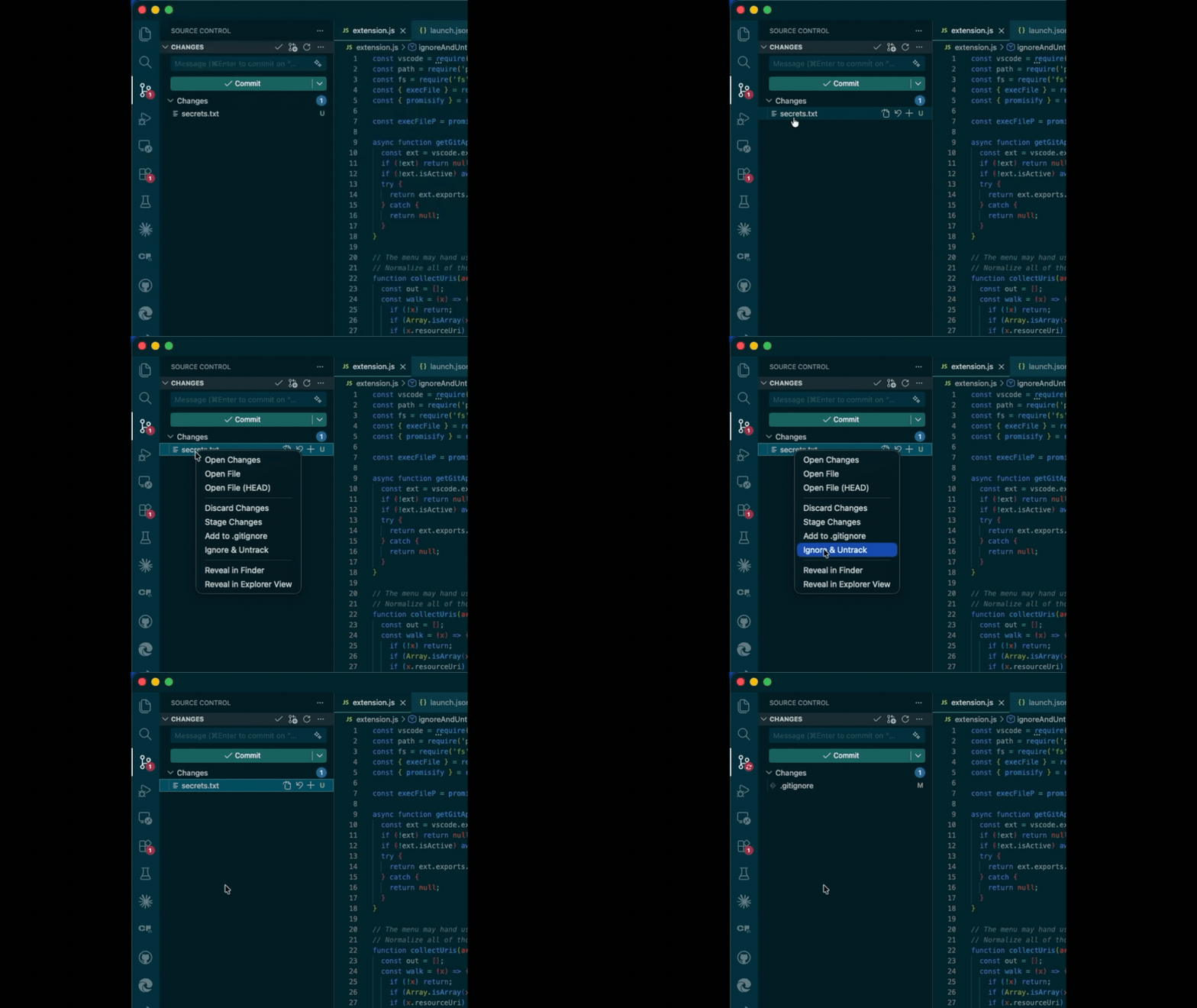
Usage
- Open the Source Control view.
- Right-click one or more files under Changes (or any tracked file shown there).
- Choose Ignore & Untrack.
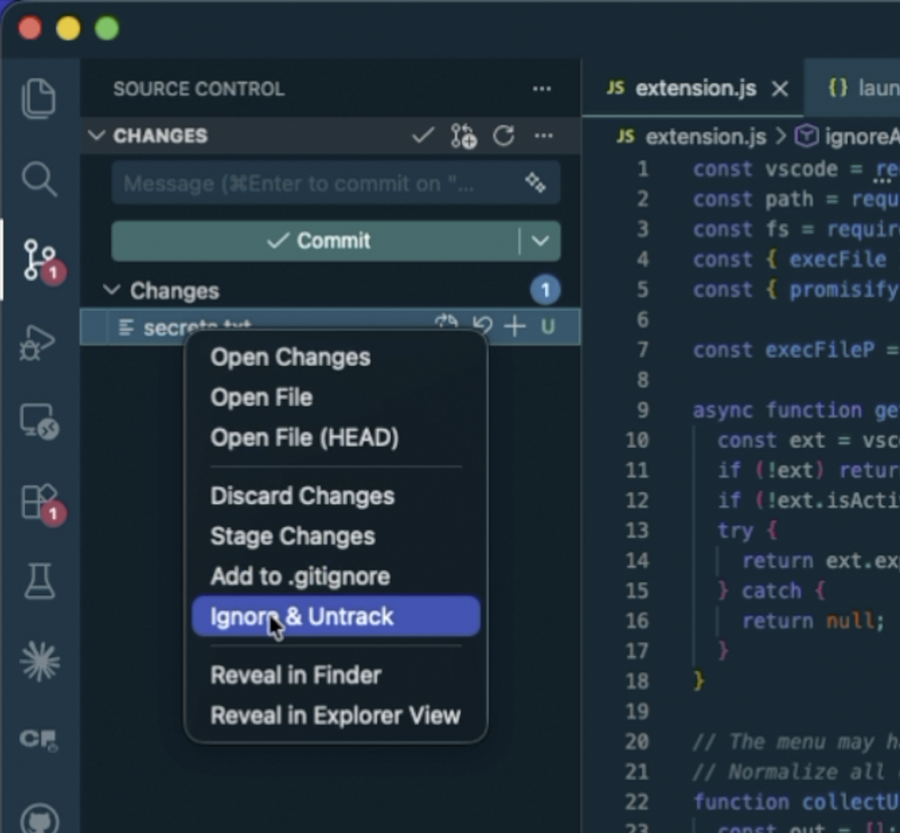
The file stops being tracked and an anchored entry is appended to .gitignore. Commit to finalize.
Examples
Example 1 — a single committed secret
You accidentally committed secrets.txt. Right-click it under Changes → Ignore & Untrack.
.gitignore gains an anchored entry:
/secrets.txt
git status now shows the file as a staged deletion — it's removed from the index but still on
disk, and it won't come back as an untracked file because it's ignored:
Changes to be committed:
  deleted:    secrets.txt
A notification confirms:
Stopped tracking 1 file(s), added 1 to .gitignore. Commit to finalize.
Commit, and the secret is gone from version control while your local copy stays put.
Example 2 — a whole build folder
Select a directory such as dist/ and run the action. A single anchored entry is written:
/dist
…and everything currently tracked under dist/ is removed from the index recursively
(git rm --cached -r). One entry covers the whole folder.
Example 3 — multiple files, even across repos
Select several files at once (Ctrl/Cmd-click). They're grouped by repository, and each repo's
.gitignore is updated independently — so a multi-root workspace spanning two repositories is
handled correctly in a single action:
# repo A/.gitignore
/.env
/config.local.json

# repo B/.gitignore
/build
Features
- One step, no terminal — no need to remember
git rm --cached followed by editing .gitignore.
- Multi-select aware — select several files at once.
- Multi-repo aware — selections spanning more than one repository are grouped and handled per repo.
- Anchored entries — writes
/relative/path so it ignores exactly that path from the repo root, not every file with the same name.
- Idempotent — won't add duplicate
.gitignore lines, and stays quiet for files that weren't tracked yet.
Requirements
- The built-in Git extension (
vscode.git) must be enabled.
git available on your PATH.
How it works
For each selected file the extension runs git rm --cached -r --ignore-unmatch to drop it from
the index without deleting it, then appends an anchored entry (e.g. /src/secret.txt) to the
repository's .gitignore, creating the file if needed. Changes are staged but not committed —
review and commit when you're ready.
FAQ & Troubleshooting
It still shows up in git status after I run it.
That's expected — the file is staged as a deletion (removed from the index). Commit to finalize.
Does this delete my file?
No. git rm --cached removes the file from git's index only; your copy on disk is untouched.
The file is already in .gitignore but git keeps tracking it.
That's exactly what this extension fixes. Run Ignore & Untrack on it — the file is untracked,
and the duplicate .gitignore line is skipped automatically.
The "Ignore & Untrack" item isn't in my menu.
Make sure the built-in Git extension is enabled and the file appears under Source Control.
The action is contributed to the Source Control context menu and only shows for git repositories.
License
0BSD


