changAIs
Finally know exactly what your AI just did to your code.
changais.com · Docs · Install · Roadmap · VS Code Marketplace · Open VSX
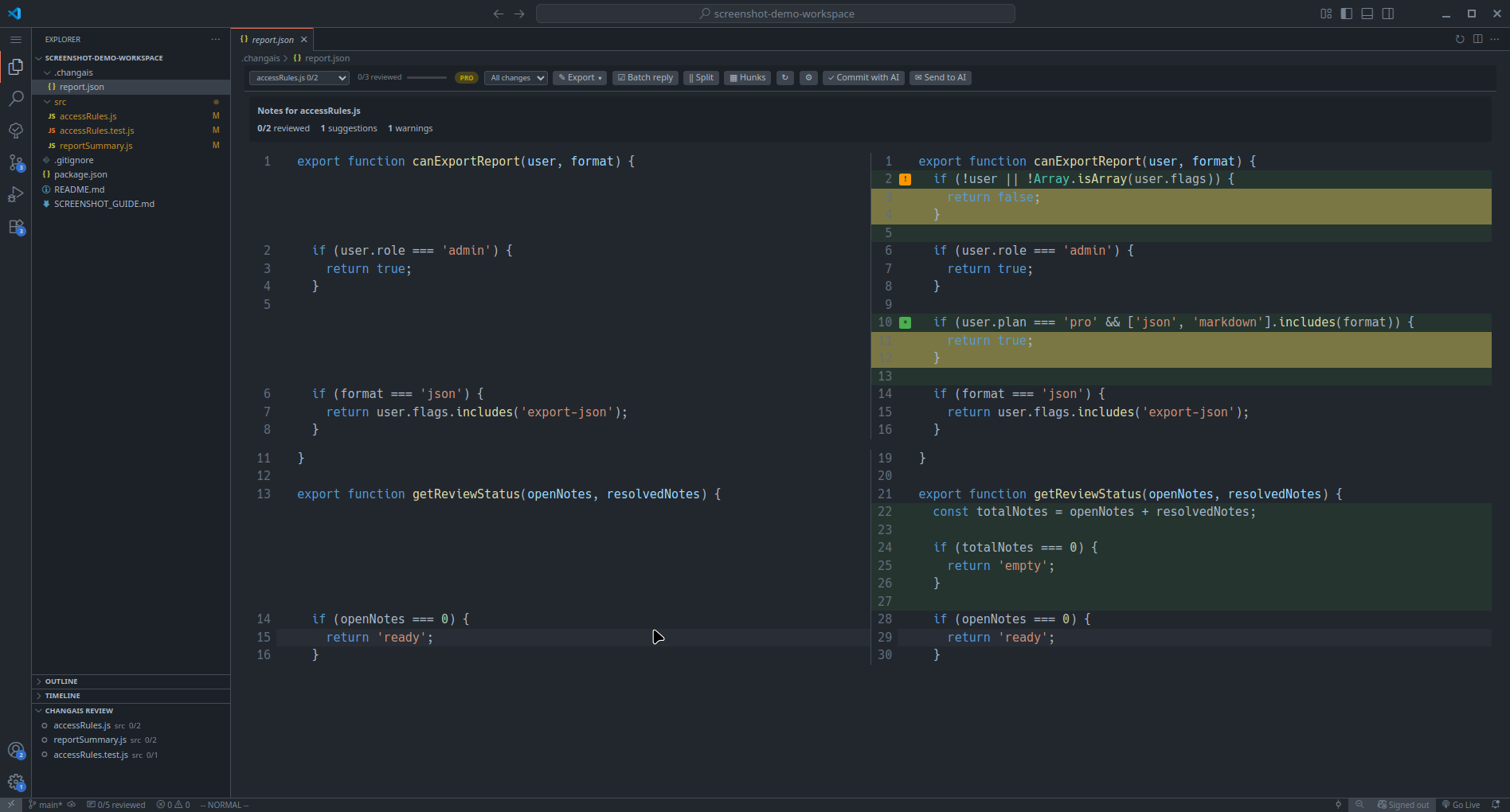
changAIs is a VS Code extension for reviewing changes made by AI coding tools. It shows changed files in a diff-focused review flow and attaches AI-generated notes to the lines they describe, so you can inspect what changed before committing.
changAIs helps you see and organize what an AI tool produced, but it cannot make that output correct. Treat every AI note, explanation, and suggested change as something to verify before you accept or commit it.
What changAIs Does
- Shows files changed by an AI coding session.
- Opens changed files in a diff view.
- Displays AI notes near the relevant changed lines.
- Lets you reply to notes while reviewing.
- Lets you mark notes as checked or resolved as you work through them.
- Lets you mark all remaining reviewable notes as reviewed after confirmation, or select notes with checkboxes for a batch reply.
- Offers Pro users an in-review Ask AI flow through an installed AI CLI; Free users can still prepare a prompt to use elsewhere.
- Helps you understand report files generated by changAIs-compatible workflows.
Supported Editors
changAIs supports Visual Studio Code and compatible VS Code-based editors that can install extensions from a marketplace or from a .vsix file.
Use the Visual Studio Marketplace for VS Code, the Open VSX Registry for VSCodium and compatible editors, or the .vsix install flow documented in Install.
Getting Started
Follow the full guide in Getting Started.
1. Install the Extension
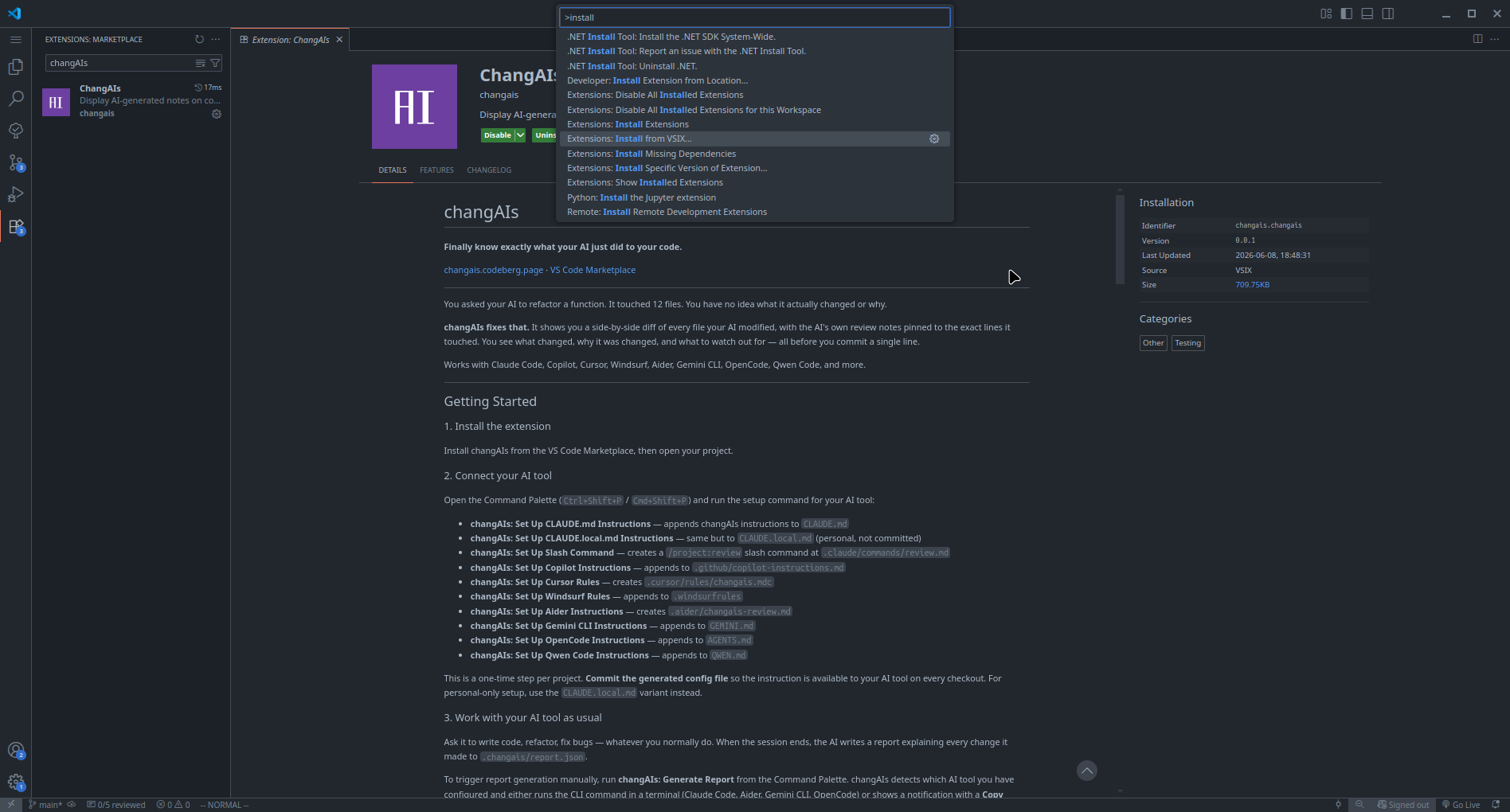
Install changAIs from the extension marketplace for your editor:
If you are installing from a downloaded package, open the Command Palette and run Extensions: Install from VSIX....
2. Open a Project
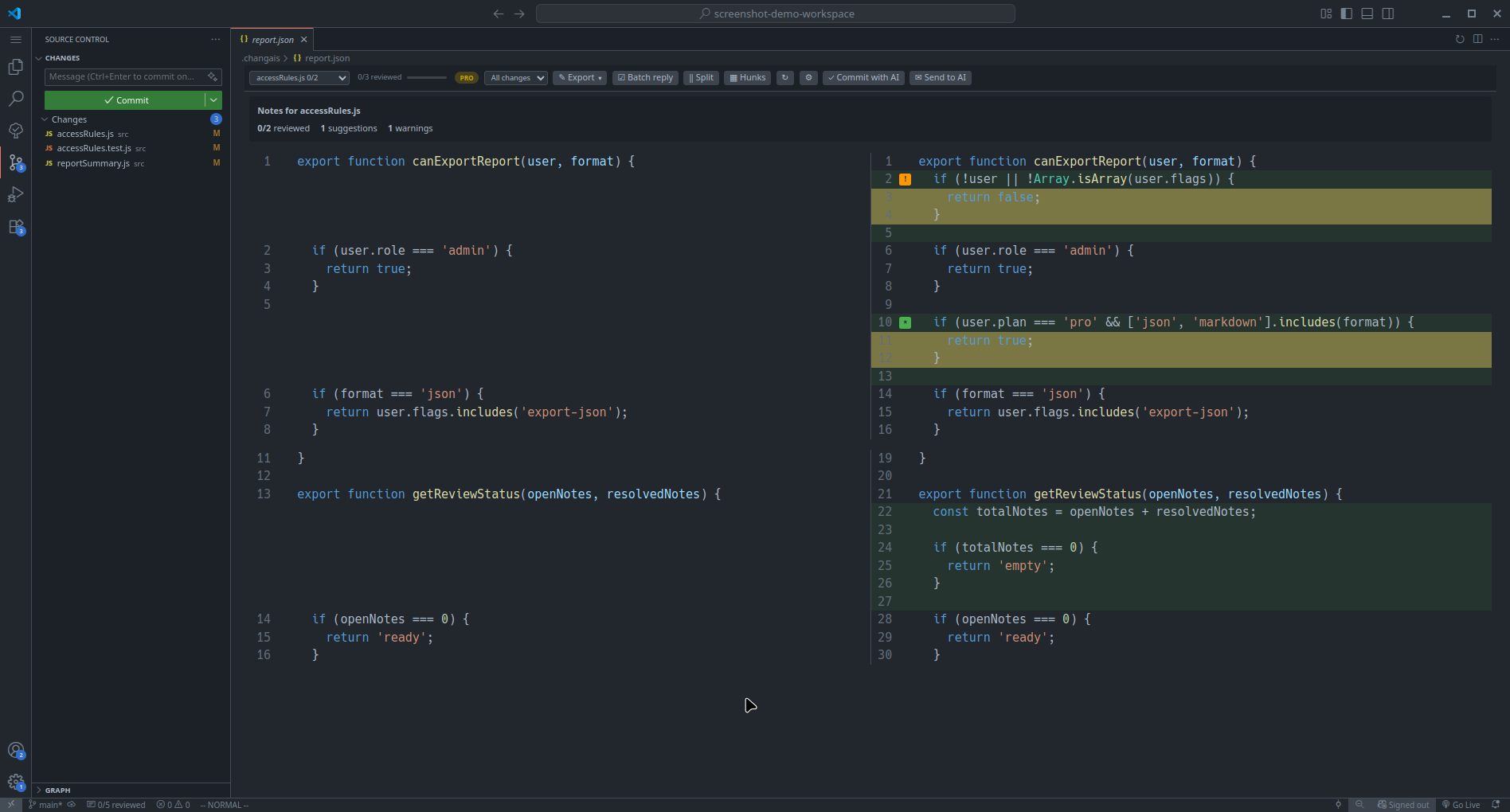
Open the folder that contains the code you want to review. changAIs works best when the project already has changed files from an AI coding session.
3. Confirm changAIs Is Available
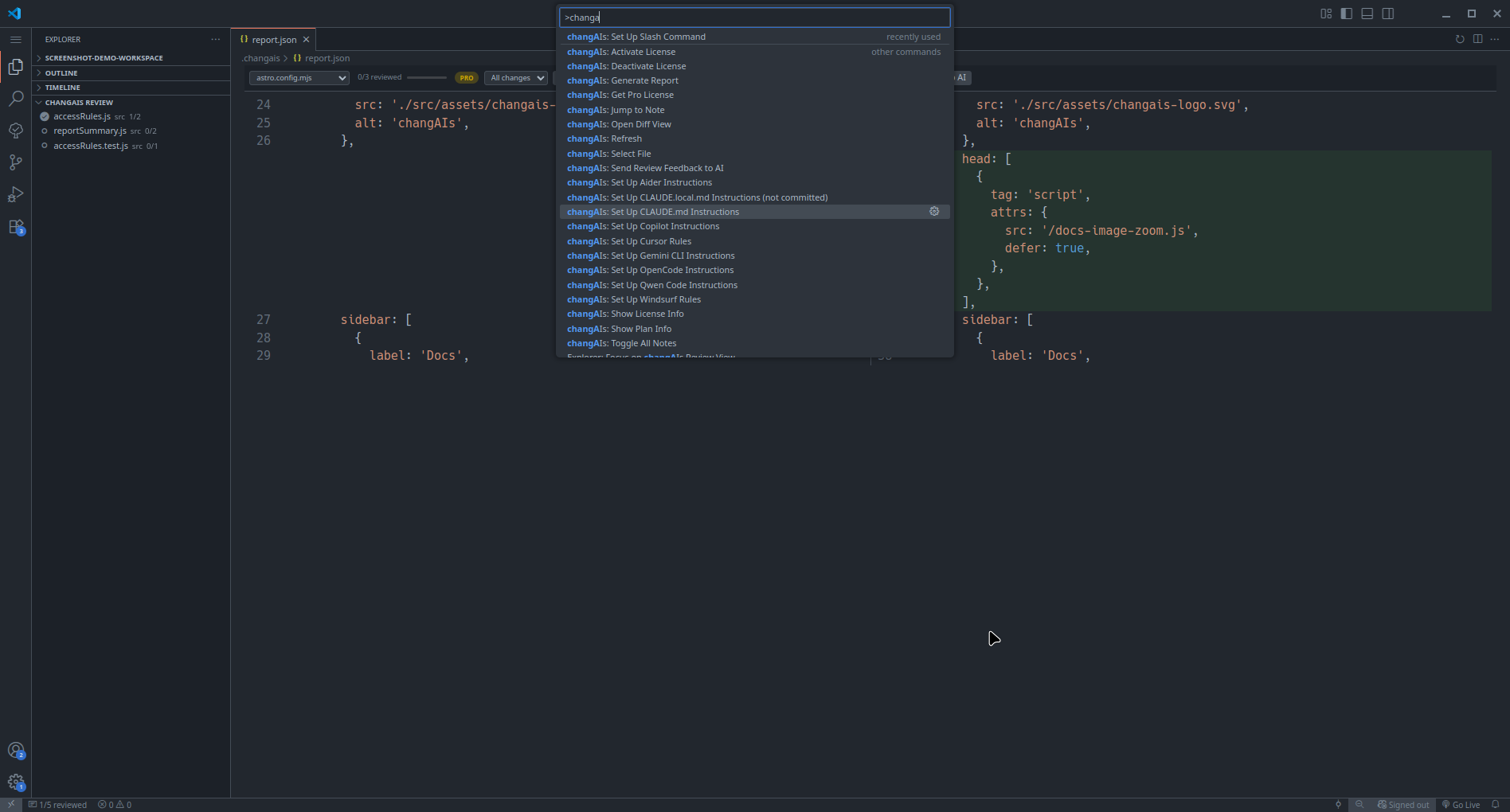
Open the Extensions view and confirm that changAIs is installed and enabled for the current workspace. You can also open the Command Palette and type changAIs to see available actions.
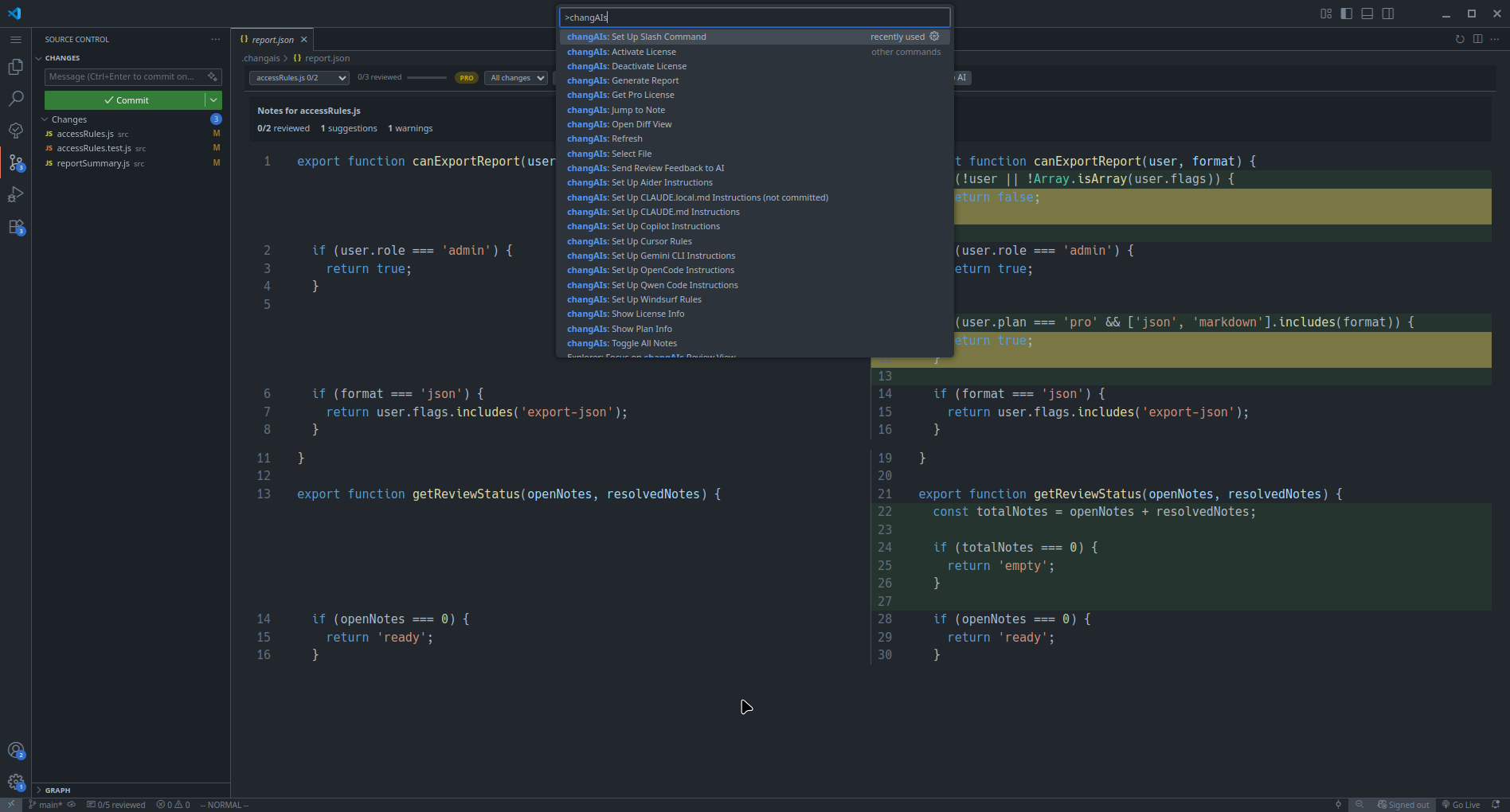
Before an AI assistant can generate changAIs reports automatically, add changAIs report instructions to the project. The extension includes setup commands for Claude Code, GitHub Copilot, Cursor, Windsurf, Aider, Gemini CLI, OpenCode/Codex, and Qwen Code.
| AI tool |
Command Palette command |
Instruction file |
| Claude Code |
changAIs: Set Up CLAUDE.md Instructions |
CLAUDE.md |
| Claude Code local |
changAIs: Set Up CLAUDE.local.md Instructions (not committed) |
CLAUDE.local.md |
| Claude Code slash command |
changAIs: Set Up Slash Command |
.claude/commands/review.md |
| GitHub Copilot |
changAIs: Set Up Copilot Instructions |
.github/copilot-instructions.md |
| Cursor |
changAIs: Set Up Cursor Rules |
.cursor/rules/changais.mdc |
| Windsurf |
changAIs: Set Up Windsurf Rules |
.windsurfrules |
| Aider |
changAIs: Set Up Aider Instructions |
.aider/changais-review.md |
| Gemini CLI |
changAIs: Set Up Gemini CLI Instructions |
GEMINI.md |
| OpenCode / Codex |
changAIs: Set Up OpenCode/Codex Instructions |
AGENTS.md |
| Qwen Code |
changAIs: Set Up Qwen Code Instructions |
QWEN.md |
Run the setup command that matches your AI tool, then ask the AI to make changes as usual. OpenCode and Codex share the AGENTS.md setup; when generating a report, choose the installed CLI from the tool picker. The report-generation workflow writes the configured report file (normally .changais/report.json), leaves that file out of review notes, and keeps line numbers accurate so changAIs can pin notes to the diff.
5. Load or Generate a Report
Reports connect your changed files with AI-generated notes. A report may come from:
- A changAIs-compatible AI workflow.
- A manually selected report file.
- A generated report from a supported changAIs workflow.
To trigger report generation manually, run changAIs: Generate Report. CLI-based tools run in a terminal; tools that need manual prompt handoff show a copyable prompt.
6. Review Before You Commit
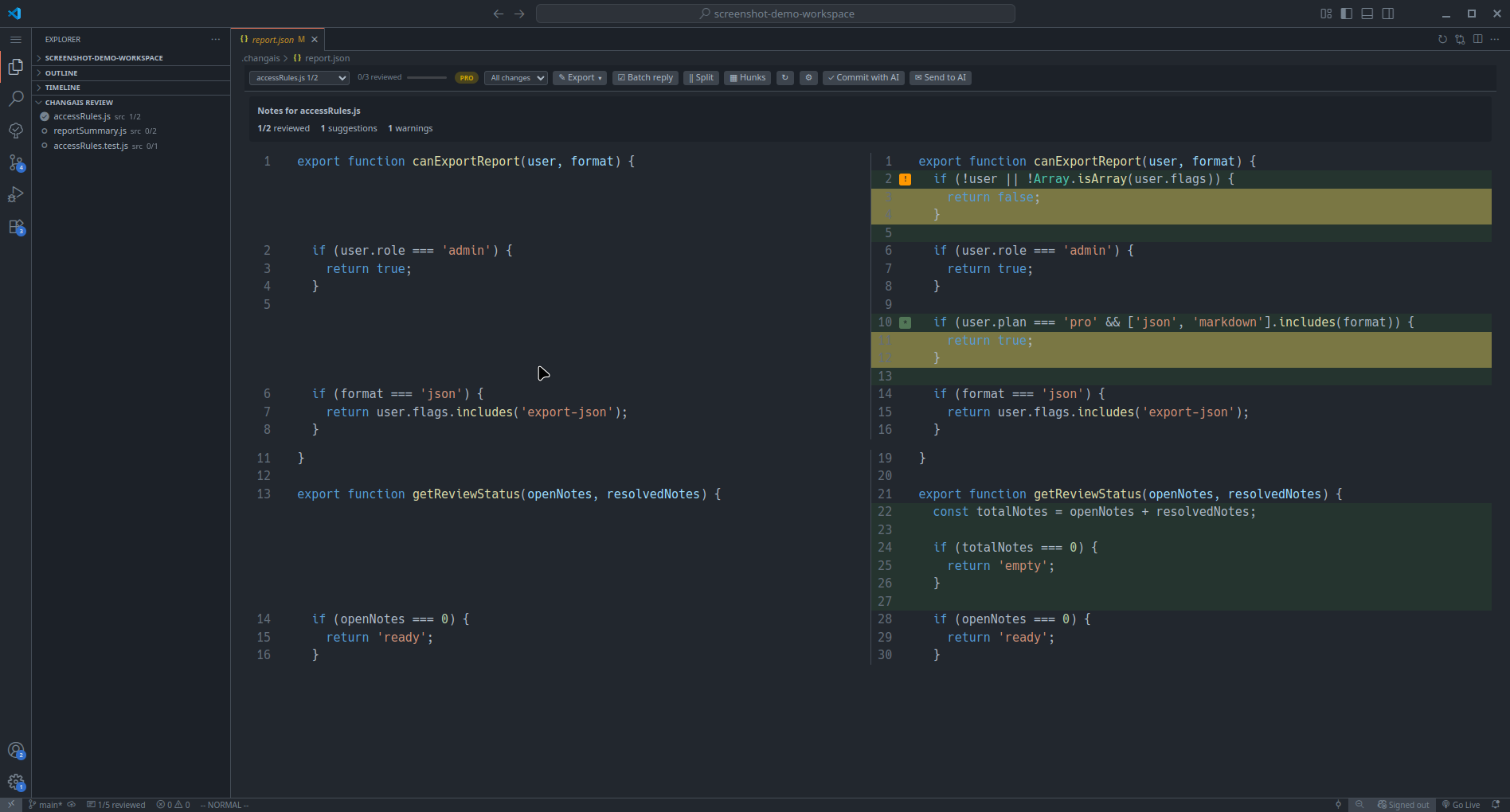
Work through each changed file, compare the diff, and inspect notes pinned to the relevant lines. Use checked or resolved state to track what you have already reviewed.
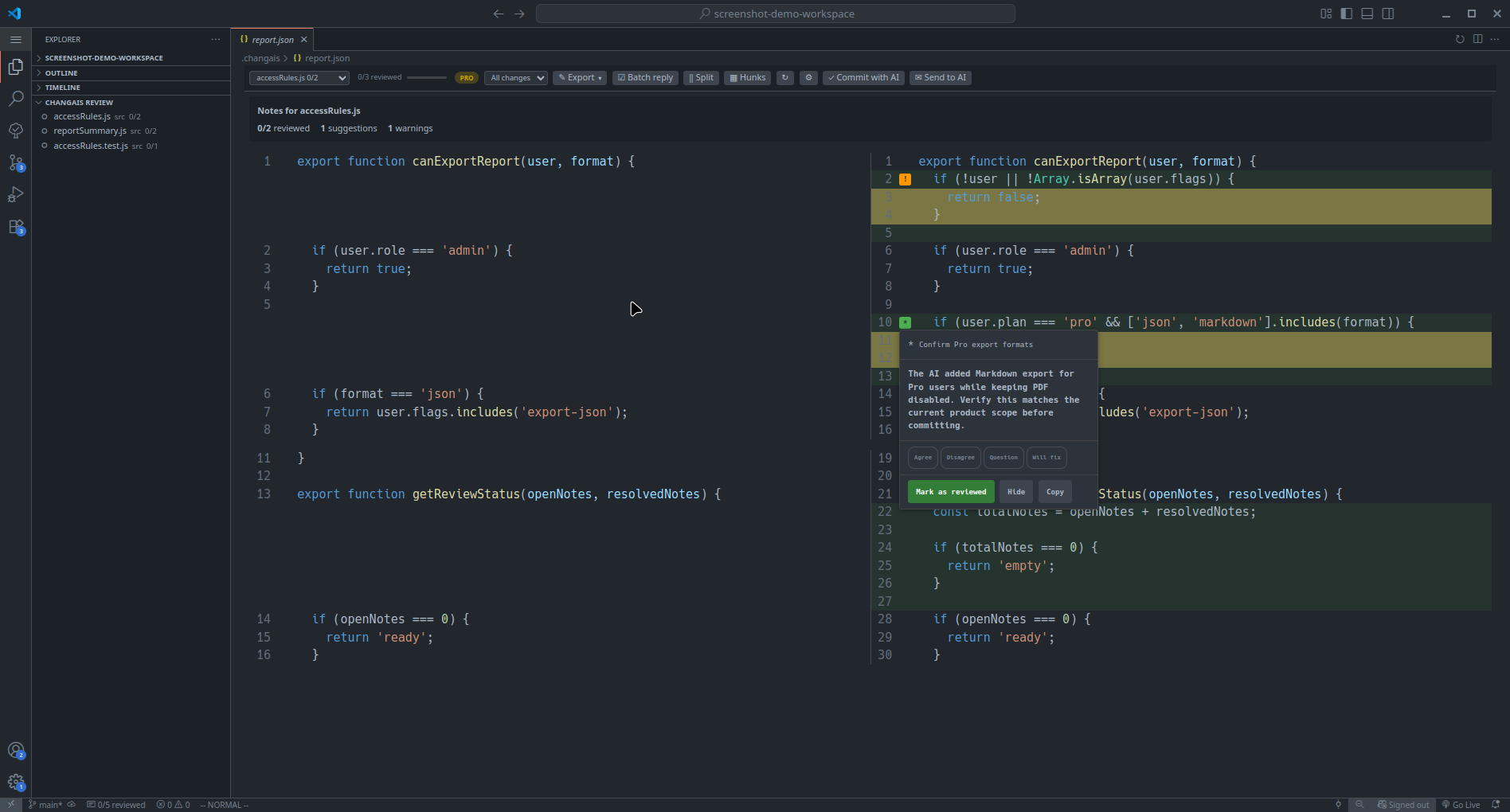
When you finish, commit only the changes you understand and accept.
Reports
Read the full guide in Reports.
Reports must match the project and file state you are reviewing. If files were moved, deleted, or changed after the report was created, notes may not line up with the current diff.
The normal report workflow is:
AI makes changes
      |
      v
AI writes .changais/report.json
      |
      v
Open the changAIs review surface
      |
      v
Review changed files, notes, replies, and checked state
      |
      v
Prepare AI follow-up prompt if needed
      |
      v
Review again, or commit when satisfied
Sending Questions Back to AI
Replies create a feedback loop for the current report:
- Review a note in changAIs.
- Add a reply such as
question, agree, disagree, or will-fix.
- Run
changAIs: Prepare AI Follow-up Prompt, or click Prepare AI Prompt in the changAIs review toolbar.
- Review
.changais/prompt.md, then give it to your AI tool or pass it through your own workflow.
- The AI should read
.changais/prompt.md, .changais/report.json, and .changais/replies.json, act on the feedback, and update .changais/report.json with fresh notes.
Preparing a prompt does not send it anywhere: changAIs writes a local .changais/prompt.md file, and you decide how to use it. Pro users can instead choose Ask AI in the review toolbar. changAIs detects supported installed CLIs (Codex, Claude Code, Gemini CLI, OpenCode, Aider, and Qwen Code), sends the question with selected-file notes, replies, and diff context to the chosen CLI, and shows the answer in the review view. OpenCode and Aider offer optional model selection. The response can be cancelled or closed. The answer-only flow does not intentionally edit code or reports, but the CLI and its provider may receive project content and may have their own charges or authentication requirements; review its configuration before using it.
Read the full guide in Report Format.
AI tools generate a JSON report at .changais/report.json. The format is intentionally simple so you can create changAIs reports from scripts, CI jobs, or custom AI coding workflows.
{
  "version": "1.0",
  "generatedAt": "2026-06-08T12:00:00Z",
  "notes": [
    {
      "id": "note-auth-guard",
      "file": "src/auth/session.ts",
      "line": 42,
      "endLine": 48,
      "type": "warning",
      "title": "Check unauthenticated behavior",
      "content": "The new guard changes how expired sessions are handled. Confirm redirects and API responses still match the product flow.",
      "checked": false
    }
  ]
}
Required fields are version, notes, and each note's id, file, line, and content. Use 1-based line numbers from the current file content and paths relative to the workspace root opened in VS Code.
Review Notes
Read the full guide in Review Notes.
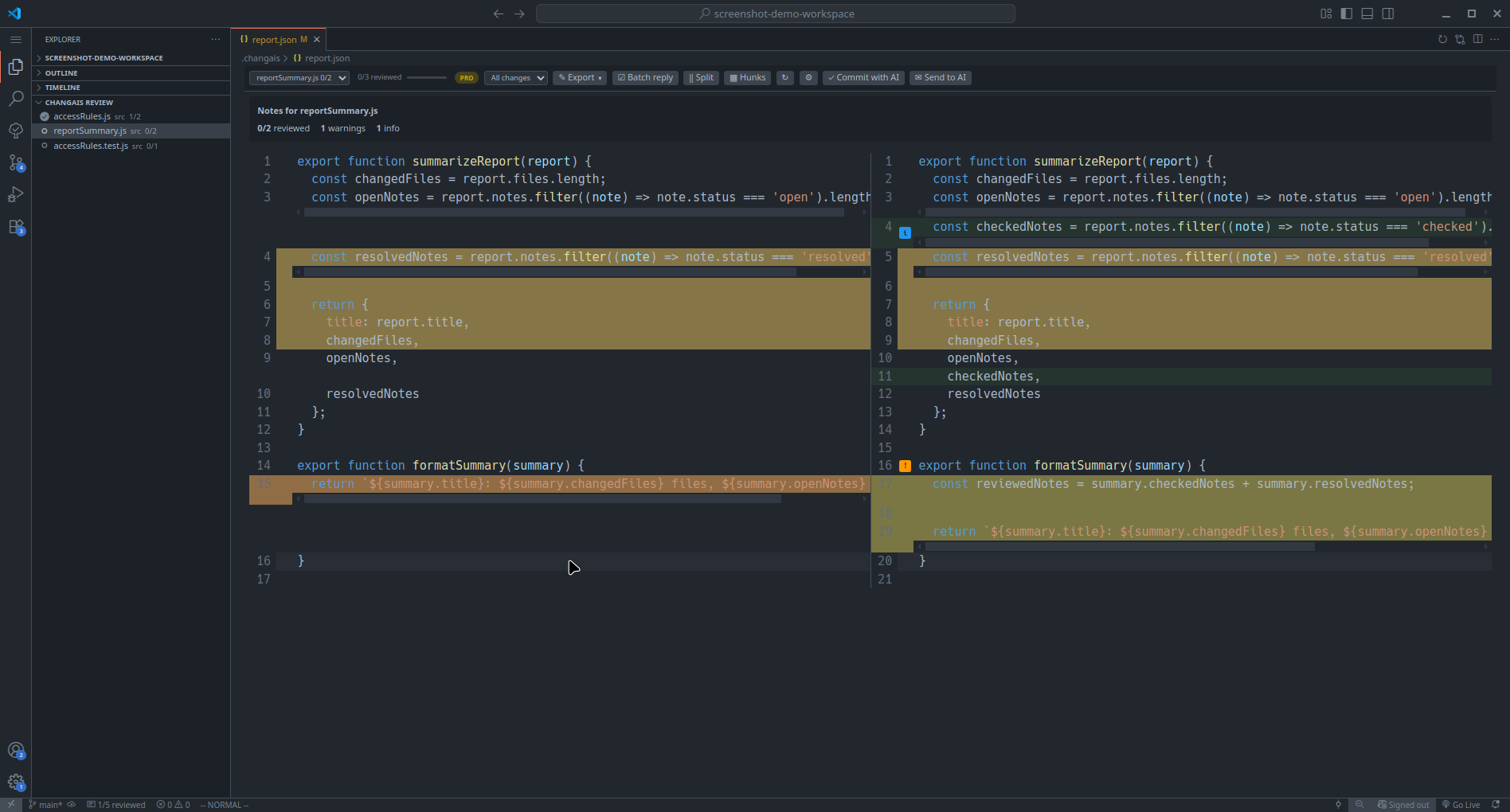
Start with the changed-files list, then open each file and compare the before and after state in the diff view.
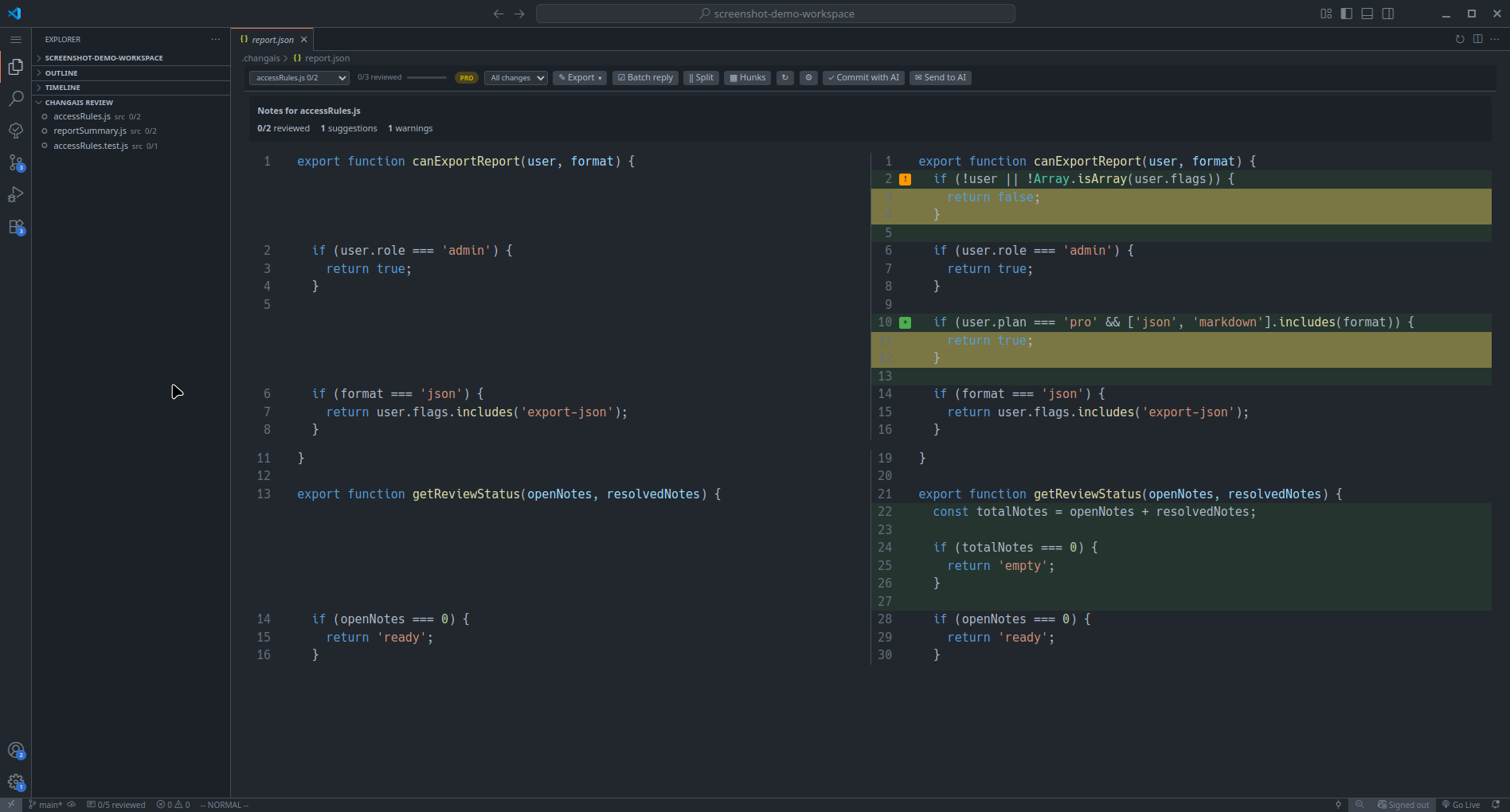
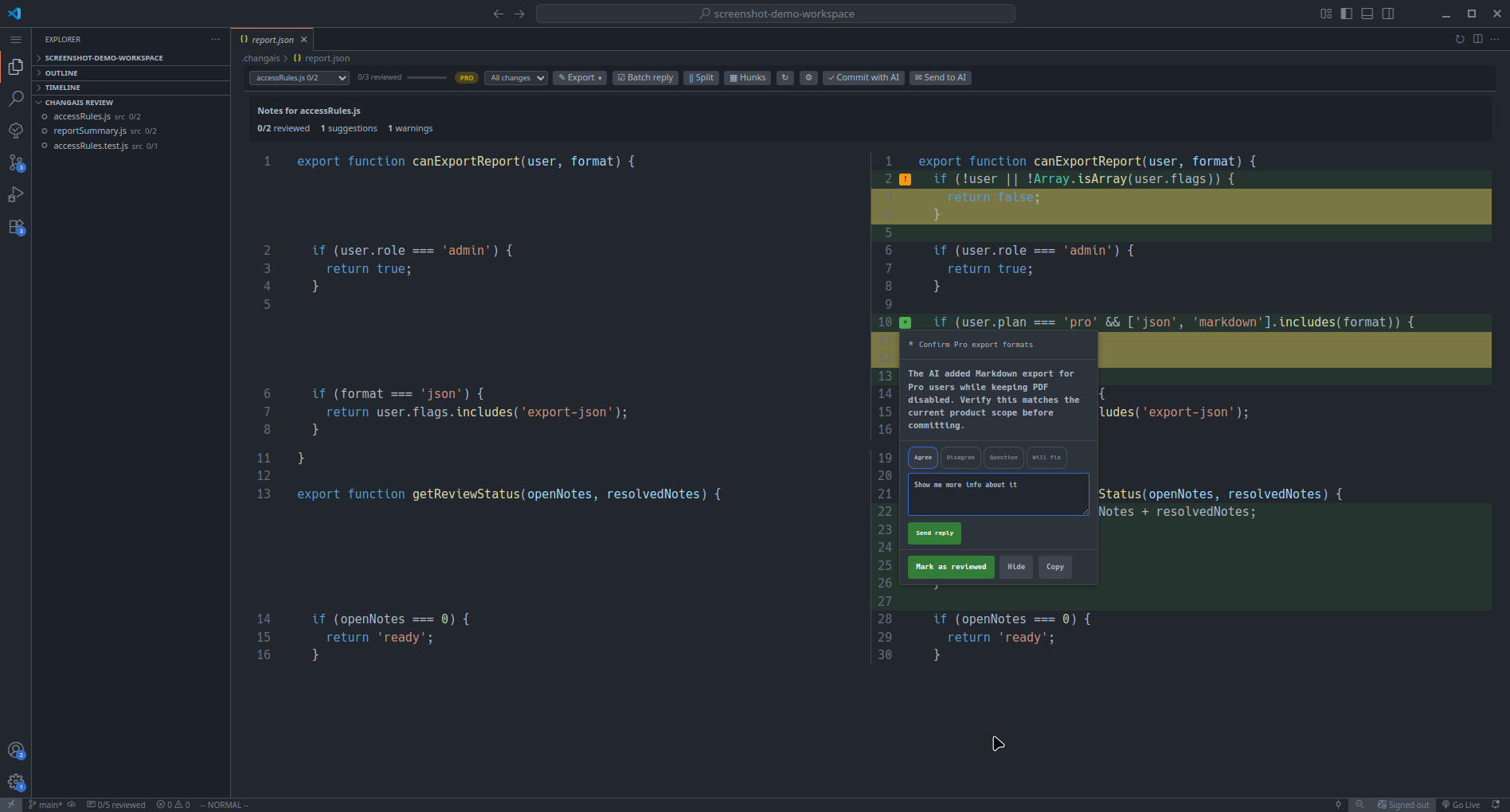
AI notes may explain intent, flag risk, suggest a follow-up, or document a decision made during generation. Treat notes as prompts for review, not guarantees.
Use replies to capture your own review decisions or follow-up questions.
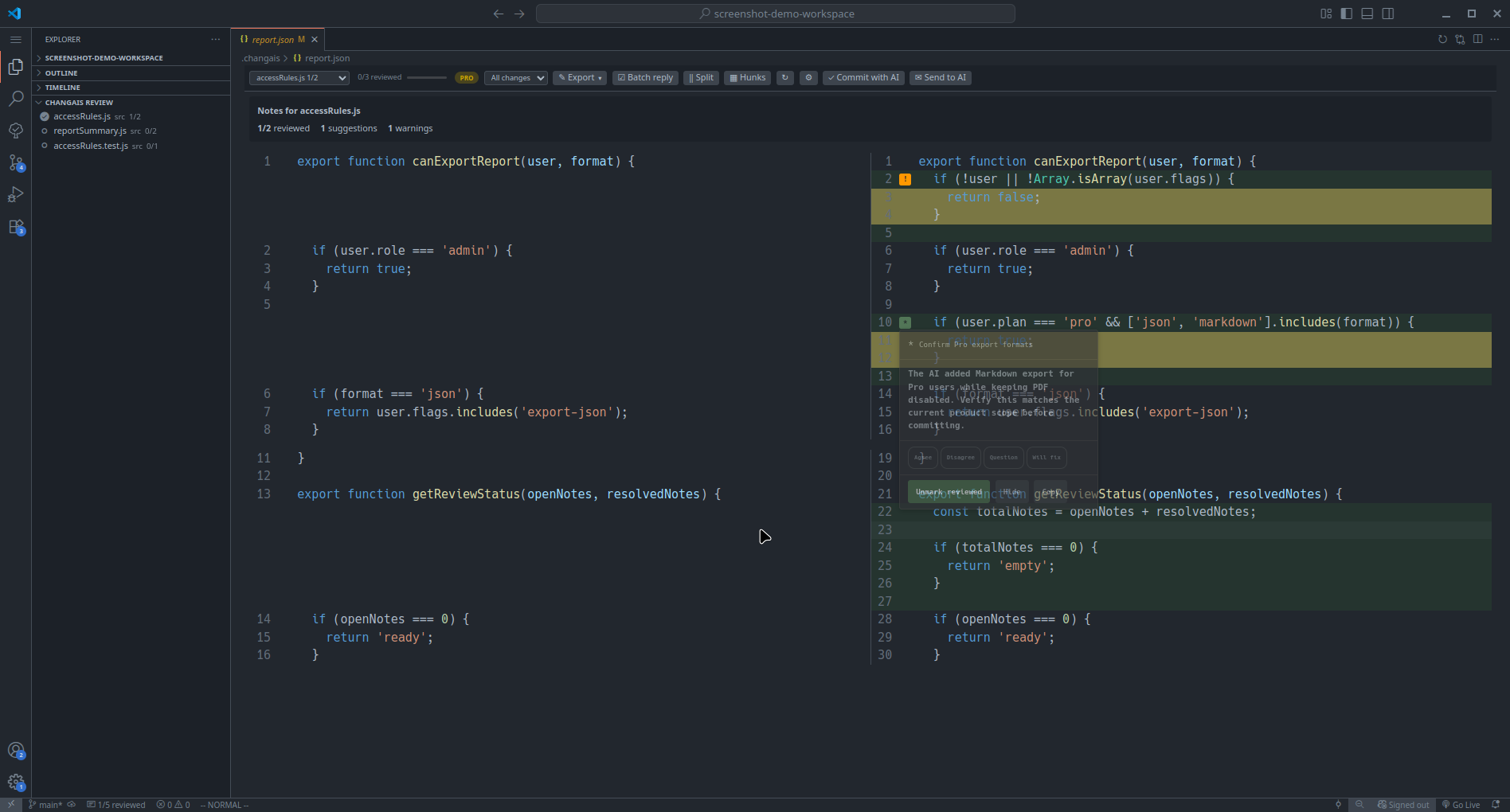
Use checked or resolved state to track progress through the review:
Checked means you looked at the note.Resolved means the note no longer needs action.
Mark all as reviewed checks the remaining valid notes in the active report after a warning confirmation; it does not apply to history or merged views. Batch reply enters selection mode, where checkboxes appear beside notes. The action bar counts selected notes, while clicking a note still opens it normally.
Features
- Diff-focused review for AI-generated code changes.
- Notes pinned to changed files and changed lines.
- Note types:
suggestion, warning, and info.
- Replies:
agree, disagree, question, and will-fix.
- Checked or resolved state for review progress.
- Confirmed bulk review and checkbox-based batch replies.
- File navigation, notes-first ordering, and non-blocking diff loading.
- Report generation and AI follow-up prompt handoff.
- Multi-line notes with
endLine support.
- Filter, search, and jump-to-note workflows.
- Auto-refresh when reports change.
- Reports stay available after commits; AI-assisted commits or the next report generation remove notes for changes that are already committed.
- Markdown export.
Pro Features
- Configurable report path.
- Report history and report comparison.
- Merge multiple reports into one view.
- HTML, CSV, and PDF export.
- Analytics tracking.
- Commit with AI.
- Ask AI from the review view using a supported installed CLI, with optional OpenCode or Aider model selection.
Commands
| Command |
Description |
changAIs: Open Diff View |
Open the review panel. |
changAIs: Refresh |
Reload report and diff data. |
changAIs: Toggle All Notes |
Show or hide all notes. |
changAIs: Jump to Note |
Navigate directly to a specific note. |
changAIs: Generate Report |
Ask your configured AI tool to generate a fresh report. |
changAIs: Prepare AI Follow-up Prompt |
Write .changais/prompt.md with replies and optional user message; Ask AI is also available from the review toolbar for Pro users. |
changAIs: Activate License |
Enter a Pro or Team license key. |
changAIs: Deactivate License |
Remove the stored license key. |
changAIs: Show Plan Info |
Display the current plan. |
changAIs: Get Pro License |
Open the changAIs account page. |
Configuration
| Setting |
Default |
Description |
changais.reportPath |
.changais/report.json |
Report file path relative to workspace root. Pro feature. |
changais.historyLimit |
50 |
Maximum number of archived reports to keep. Pro feature. |
changais.telemetry.enabled |
false |
Share anonymous feature-usage events. Also follows VS Code's global telemetry setting. |
changais.replyTemplates |
[] |
Custom quick-reply buttons shown in note hover cards. |
Custom Reply Templates
The changais.replyTemplates setting lets you add project-specific quick-reply buttons to note hover cards. Each template requires a label and type, with optional text for the reply body:
"changais.replyTemplates": [
  { "label": "Out of scope", "type": "disagree", "text": "This is out of scope for this PR." },
  { "label": "Ticket created", "type": "will-fix", "text": "Created a follow-up ticket for this." }
]
Valid type values are agree, disagree, question, and will-fix.
Anonymous product analytics
changAIs can send a small set of anonymous feature-usage events to a
changAIs-operated Umami instance. Collection is off by default. The extension
asks once, after the first review is opened, and sends nothing unless the user
explicitly allows it. It also always respects VS Code's global telemetry
choice.
Events describe actions such as opening a review, checking a note, adding a
reply, changing the diff layout, exporting a report, or completing a review.
They never contain source code, file names, workspace paths, Git remotes,
report or diff content, note or reply text, license keys, or user and machine
identifiers. The complete public event schema is in telemetry.json.
Turn collection off at any time with changais.telemetry.enabled or VS Code's
global telemetry setting. See Product analytics
for consent, collected data, and privacy details.
Pro licensing
Production builds start on Free and unlock Pro only after the entered license
key is validated by https://api.changais.com. The key is stored in VS Code
SecretStorage and is sent only to the public license validation and
deactivation endpoints with the current VS Code machine ID and extension
version. Account cookies and admin tokens are not used by the extension.
Use changAIs: Get Pro License to open
https://changais.com/account/, then changAIs: Activate License to enter
the key in a masked input. changAIs: Show License Info shows the effective
Free/Pro plan, masked key, remote/cache source, validation time, offline
deadline, license type, and expiry.
The extension revalidates saved licenses at least every 24 hours. A temporary
network outage can use the last valid response for at most seven days and
never beyond validUntil. Revoked, expired, unknown, mismatched, or malformed
licenses fail closed to Free.
FAQ
Read the full FAQ.
Does changAIs send my code anywhere?
Normal review stays in your editor. If you explicitly use Ask AI (Pro), changAIs passes your question and selected-file review context, which can contain code, to the chosen installed CLI and its configured AI provider. Preparing a prompt alone does not send data.
Is changAIs a code review replacement?
No. changAIs helps you inspect AI-generated changes, but you still decide what is correct, safe, and ready to commit.
What should I check before committing AI-generated changes?
Review the diff, read the AI notes, verify risky behavior with tests or manual checks, and commit only the changes you understand and accept.
Roadmap
Read the full Roadmap.
Planned areas include more AI tool integrations, team workflows, test and lint actions, review time tracking, AI usage and cost tracking, richer review checklists, and local review history.
License
changAIs Proprietary License. See the packaged LICENSE.md file.

