logics-manager





Turn your logics/* Markdown corpus into a real delivery cockpit inside VS Code, backed by the canonical logics-manager runtime.
logics-manager gives you a visual orchestration layer for the Logics workflow
(requests -> backlog -> tasks -> specs) without moving the source of truth out of the repository.
Version 2.0.0 marks the point where the extension, npm bin, Python package, generated assistant instructions, and runtime-facing docs all converge on the same product surface: logics-manager.
This is more than a workflow panel. It turns project context into a durable, inspectable memory that AI assistants can reuse across sessions, so teams spend less time re-explaining history, waste fewer tokens, and keep delivery conversations grounded in the same artifacts.
Logics Runtime and CLI
logics-manager is the canonical CLI surface for the Logics runtime. The VS Code extension uses the bundled Python runtime for local workflow operations and packaging checks.
Install it locally with pip:
python3.11 -m pip install .
logics-manager --help
The repository also exposes a logics-manager npm bin when installed through npm, which delegates to the same Python CLI.
Install the npm package with:
npm install -g @grifhinz/logics-manager
To update that CLI later, run logics-manager self-update.
The command uses pip when the Python package is installed and falls back to npm for the global npm package.
For the editor client, build and install the VSIX:
npm run package
npm run install:vsix
The bundled runtime is the normal path. Transitional repair flows remain available for older repositories when needed, but they are not part of normal setup.
Features
- Turn
logics/* Markdown into a delivery cockpit inside VS Code.
- Keep requests, backlog items, tasks, and specs connected in one workspace.
- Preview Logics docs with clickable references, Mermaid rendering, and cleaner read views.
- Move from triage to execution with board, list, search, and recent-activity views that stay aligned.
- See richer card metadata and hover previews, including Theme, while the compact-list toggle stays hidden when forced.
- Explore Logics Insights with day/week timelines plus WIP, Blocked, Stale, Status, Theme, Understanding, Confidence, and backlog-coverage sections.
- Keep the extension on a tighter quality bar with ESLint, stronger coverage checks, and CI validation.
- Create, promote, bootstrap, and review workflow items without leaving the editor.
- Reuse shared project context for faster AI handoffs and lower-token sessions.
- Prepare releases and keep workflow docs synchronized from the same toolchain.
For more detailed workflow behavior, see the sections below on requirements, runtime compatibility, commands, and tools.
Why This Matters For AI Projects
- AI sessions become cheaper because the project memory already exists in the repo instead of living only in previous chats.
- Requests, backlog items, tasks, specs, and links become reusable context blocks that survive model changes, thread resets, and handoffs between assistants.
- The plugin makes that memory operational: you can inspect it, navigate it, and inject a smaller assistant handoff directly from the active item.
- That usually means lower token consumption, less context-window waste, and fewer regressions caused by missing earlier decisions.
- Because the memory is plain Markdown in git, it stays reviewable by humans, diffable in pull requests, and portable across tools.
Onboarding Prompts
Use these as quick starting points when you want the plugin or the shared Logics flow to help frame work before execution.
(1) Need
Start a new request for this problem: <describe the need or pain point>
Ask me any clarifying questions that would make the request stronger. Suggest helpful options if I need guidance.
(2) Framing
Generate backlog items for the new requests and split them into separate delivery slices.
Ask me any questions that would increase your confidence or improve your understanding before you finalize the backlog.
(3) Orchestration Tasks
Create the orchestration tasks needed to execute the backlog slices, one bounded task per coherent delivery wave.
If the slice is still broad, propose a split before you draft the tasks and ask any questions that would reduce ambiguity.
(4) Execution
Execute task <task id or title>. Commit after each wave, keep going until the work is done, and do not stop early.
If you need to make assumptions, state them briefly and keep the task moving.
What the docs are for
- If you think "here is the problem and context..." -> request
- If you think "this needs a scoped delivery slice..." -> item
- If you think "we want..." -> product brief
- If you think "we decided..." -> ADR
- If you think "the system should..." -> spec
- If you think "let's do..." -> task
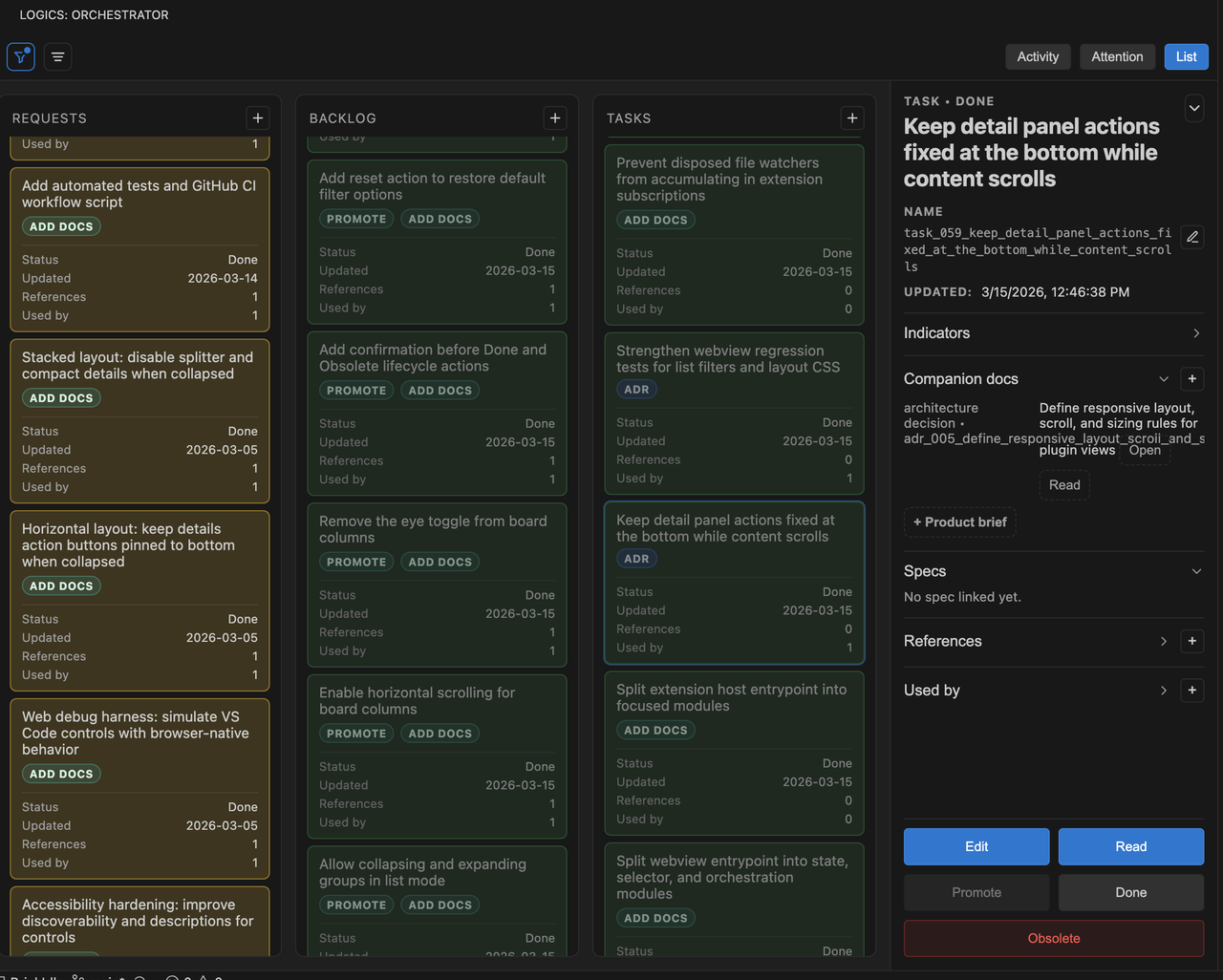
Board panel
|
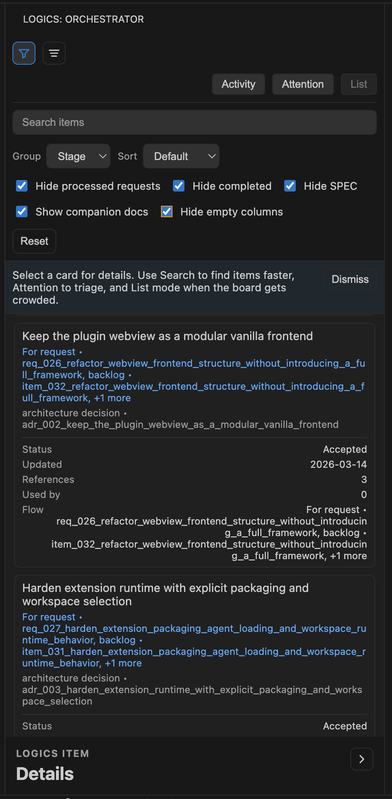
Filter panel
|
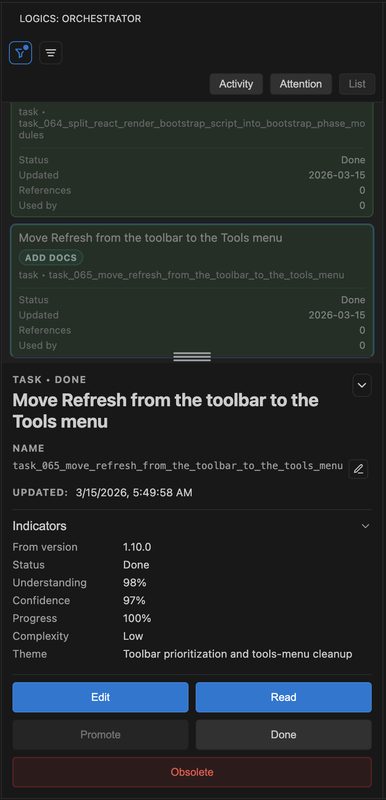
List panel
|
Requirements
- To use the extension:
- A workspace folder open in VS Code.
- Git on PATH for workspace and repository repair flows.
logics/ is bootstrapped automatically when needed.- The normal path uses the bundled runtime and
logics-manager.
- Python 3 on PATH for script-backed workflow actions. The extension accepts
python3, python, py -3, or py.
- To build, package, or test the extension locally:
- Optional CLI tooling:
- VS Code CLI
code on PATH for terminal-based VSIX install or npm run dev.
Windows notes:
- You do not need the
code CLI for normal extension usage inside VS Code.
- If Python is installed through the Windows launcher,
py -3 is supported by the extension.
- Repository-managed text files are normalized through
.gitattributes; let Git handle CRLF/LF conversion instead of rewriting line endings manually.
Runtime Compatibility
- Canonical CLI and runtime contract:
logics-manager
- The bundled runtime is the supported steady-state path for the extension.
- If the bundled runtime is missing or incompatible, create/promote actions fail with explicit error messaging in the extension.
Runtime smoke checklist
- Create a request from UI (
New Request) and confirm markdown is generated.
- Create a fixture request with
logics-manager flow new request --title "Smoke test" and confirm the compact synthetic request shape is generated.
- Create a backlog item and a task from the UI and confirm markdown is generated.
- Open
Read on a Mermaid-bearing doc and confirm the graph is rendered.
- Promote request -> backlog and confirm links are updated.
- Confirm request/backlog/task generation fails fast if a Mermaid signature or traceability block is stale instead of waiting for audit to find it later.
- Promote backlog -> task and confirm task document is generated.
- Refresh board/details and confirm data remains consistent.
Installation
Install from Marketplace
https://marketplace.visualstudio.com/items?itemName=cdx-logics.cdx-logics-vscode
Install from VSIX (recommended for users)
code --install-extension logics-manager-<version>.vsix --force
If you don't have the code CLI on PATH:
- Windows: either use the VS Code installer option that adds
code to PATH, or install the .vsix from the VS Code UI via Extensions -> ... -> Install from VSIX....
- macOS/Linux: you can enable it from Command Palette -> Shell Command: Install 'code' command in PATH.
Install from source (dev)
npm install
npm run compile
npm run test
Run the extension:
- In VS Code: Run -> Start Debugging (F5)
- The Extension Development Host opens.
- Open the Logics panel at the bottom -> Orchestrator.
If you prefer the terminal helper:
npm run dev
npm run dev requires the code CLI on PATH, so the F5 path above remains the safest cross-platform dev entrypoint.
Deploy / Release (VSIX)
- Bump the version in
package.json, pyproject.toml, and root VERSION when preparing a release manually.
- Curate the matching changelog entry in
changelogs/CHANGELOGS_X_Y_Z.md.
- Validate that the changelog matches the current package version:
npm run release:changelog:validate
- Build and package:
npm run package
This creates logics-manager-<version>.vsix in the repo root.
- Smoke-test the package locally:
npm run install:vsix
- Distribute the
.vsix and use the curated file in changelogs/ for the GitHub release body when publishing.
For 2.0.0 and later, the curated changelog should summarize both user-visible changes and contract-level migrations such as runtime-surface consolidation, release workflow updates, or assistant-facing API removals.
If the current plugin version is already published, logics-manager assist next-step can now propose the next release step instead of stalling on an already-live tag.
Curated Changelogs
Versioned release notes for the main extension live in changelogs/.
Contract:
- filename pattern:
CHANGELOGS_X_Y_Z.md
- version source of truth: root
package.json
- helper:
npm run release:changelog:resolve
- validation:
npm run release:changelog:validate fails when the curated changelog for the current package version is missing
Commands
Logics: RefreshLogics: Refresh AgentsLogics: Select AgentLogics: Open ItemLogics: Promote ItemLogics: New RequestLogics: Create Companion DocLogics: Check EnvironmentLogics: Open Hybrid InsightsLogics: Open Logics InsightsLogics: Triage ItemLogics: Assess Diff RiskLogics: Build Validation ChecklistLogics: Review Doc Consistency
- The Tools menu is split into
Workflow and System views, with a Recommended section surfaced first for common day-to-day actions.
Select Agent picks the active Logics agent and prepares assistant chat context.Getting Started opens the onboarding guide inside the extension.Companion Doc creates a linked product brief or ADR from the current workflow context when the runtime supports it.New Request opens a guided request-drafting flow using the request-authoring agent.Bootstrap Logics installs the Logics runtime into a project that is not initialized yet.Update Logics Runtime runs the bundled-runtime repair/update flow when Git state is safe for automation.Publish Global Codex Runtime publishes or repairs the shared global Logics runtime in ~/.codex from the current bundled source when needed.Environment opens the same diagnostics as Logics: Check Environment: repository state, Python availability, Git availability, global Codex runtime health, and whether read-only, workflow, bootstrap, or terminal-Codex handoff actions are currently available.Environment can also surface direct remediation actions when the plugin detects a stale runtime, an incomplete bootstrap, a missing global publication, or missing environment placeholders.Environment now uses a clearer hierarchy with summary, recommended actions, current status, and technical details, plus hybrid assist runtime state, backend availability, degraded reasons, Claude-bridge presence, and the shared Windows-safe runtime entrypoint.Check Environment can be promoted into Recommended when the current repo state actually warrants operator attention.- repo-local refresh now watches
logics/**/*, logics.yaml, and .git/HEAD; external global runtime state still requires an explicit refresh because it lives outside the workspace.
Launch Codex starts Codex using the globally published Logics runtime when the shared runtime is healthy.AI Runtime Status probes the shared logics.py flow assist runtime-status surface and reports ready providers, flagged providers, cooldown or credential issues, and bounded backend provenance.AI Provider Insights opens a dedicated plugin panel backed by logics.py flow assist roi-report, with provider mix, execution-path breakdowns, derived rates, estimated ROI proxies, and recent audit drill-down over the shared runtime output.Logics Insights opens a repository-level corpus stats panel with stage counts, progress buckets, relationship hot spots, large docs, and recent updates.Commit All Changes asks the shared hybrid runtime for a bounded commit plan and can execute it after explicit confirmation.Suggest Next Step asks the shared hybrid runtime for the next bounded workflow action on a selected request, backlog item, or task.Triage Item classifies a selected request, backlog item, or task through the shared hybrid runtime and keeps backend provenance visible in the completion notification.Assess Diff Risk runs the shared diff-risk flow directly from the plugin so the current change surface can stay local-first when policy allows it.Validation Summary runs the shared hybrid runtime summary flow and returns a compact validation state without reimplementing runtime logic in the extension.Validation Checklist asks the shared runtime for a bounded validation checklist derived from the current diff surface.Doc Consistency runs the shared runtime review flow for workflow-doc consistency without moving validation semantics into the extension.Prepare Release checks release readiness and can run the bounded prep step that generates a missing changelog, refreshes the README version badge, syncs local version artifacts, and commits the release-prep changes.- When the current version is already published,
Prepare Release can now propose the next patch version instead of leaving the operator with a no-op.
Publish Release checks readiness, can publish through the shared runtime flow, stays disabled with an explicit reason outside GitHub-compatible repositories, and warns when a local release branch exists but is behind the current branch.- On load, the extension can proactively publish or upgrade the global Codex runtime from a compatible repository without requiring an explicit migration action in the normal path.
- Codex launch shown by the plugin now uses the standard
codex command because the runtime no longer depends on a per-repo overlay launcher.
- After successful bootstrap, the extension can propose a git commit with a generated message.
- Bootstrap completion messaging now distinguishes repo-local runtime readiness from global Codex runtime readiness.
Change Project Root / Reset Project Root control which repository root the extension operates on.Refresh is available from the Tools menu to keep the main toolbar focused on view/navigation controls.Fix Logics runs Logics doc-fix flows when available.About opens the project repository information.
The plugin remains a thin client over the shared runtime:
- shared hybrid actions call
python -m logics_manager flow assist ...;
- hybrid ROI aggregation and semantics also stay in the runtime through
python -m logics_manager flow assist roi-report --format json;
- the shared runtime now distinguishes deterministic helpers such as
changed-surface-summary, release-changelog-status, test-impact-summary, and hybrid-insights-explainer from Ollama-first proposal flows such as windows-compat-risk, review-checklist, and doc-link-suggestion;
- backend routing, fallback semantics, payload validation, audit, and degraded-mode policy remain owned by the Logics runtime;
- global Codex runtime actions stay distinct from shared hybrid assist actions so the UI can support Codex, Claude-oriented bridges, and Windows-safe runtime paths without duplicating business logic in TypeScript.
Assistant Handoffs
The plugin now builds a lighter assistant handoff directly from the selected Logics item.
- The details panel shows a
Context pack for AI assistants summary with docs, lines, characters, approximate token cost, and a coarse budget label.
summary-only trims the handoff to the current item, compact summary points, acceptance criteria, and response contract.diff-first puts relevant changed files first when the repository has recent Git changes tied to the current item.- Agent-aware filtering can exclude docs that do not belong to the active agent profile.
- Session-hygiene hints warn when switching item, task type, workspace root, or handoff mode makes a fresh assistant session safer.
These flows are designed to reduce token waste without hiding the underlying Logics docs. The Markdown corpus in logics/* remains the source of truth; the plugin only shapes a smaller handoff from it.
Global Codex Runtime Publication
The primary Codex runtime model is now a globally published Logics runtime under ~/.codex.
The plugin auto-publishes or upgrades the runtime into the shared Codex home when it detects a compatible bundled source.
Examples:
codex
cat ~/.codex/logics-global-kit.json
Runtime contract:
- Bundled runtime paths are the default.
- the active shared runtime is published into the main Codex home under
~/.codex/skills.
- the publication manifest
~/.codex/logics-global-kit.json records installed version, source repo, source revision, publish time, and published runtime state.
- the plugin can auto-upgrade the shared runtime when a newer compatible repo-local source is detected.
- repo-owned workflow documents under
logics/request, logics/backlog, logics/tasks, product briefs, and ADRs stay inside the repository and are never globalized.
Plugin remediation path:
- if the global runtime is missing or stale, opening a compatible repository can auto-publish it without a separate migration action in the normal path.
- if publication is unavailable or broken, the plugin exposes direct diagnostics and repair actions through
Check Environment.
- when the global runtime is healthy, the plugin can launch Codex directly and still keeps a clipboard fallback for prompt handoff flows.
- stale legacy overlay artifacts are no longer part of the normal operator path and should be treated as deprecated compatibility state.
Legacy compatibility:
logics_codex_workspace.py remains available as a legacy overlay manager for transitional troubleshooting or older flows.- overlays are no longer the primary runtime contract for the plugin or the recommended default operator path.
Validation
- Compile:
npm run compile
- Lint TS:
npm run lint
- Unit tests:
npm run test
- Plugin coverage:
npm run test:coverage
- VSIX package validation:
npm run package:ci
- Logics docs lint:
npm run lint:logics
- Logics workflow audit + docs lint:
npm run audit:logics
- Fast extension-focused local check:
npm run ci:fast
- Full CI-equivalent local check:
npm run ci:check
- Security audit policy gate:
npm run audit:ci
npm run ci:check mirrors the blocking repository CI contract, including Logics strict-status lint, request auto-close sync verification, workflow audit, Python tests, CLI smoke checks, TypeScript validation, extension tests, and VSIX packaging.
npm run audit:ci enforces the repository audit policy locally. It blocks new actionable vulnerabilities and only allows the explicitly documented temporary exceptions tracked in the backlog.
CI runs compile, lint, tests, Logics docs lint, and VSIX packaging validation on every push and pull_request via .github/workflows/ci.yml.
Windows Validation From macOS
Use a two-layer strategy:
- CI is the fast default. The repository now validates supported Windows flows in GitHub Actions on
windows-latest.
- A real Windows VM is still required for targeted debugging and release confidence on shell, PATH, launcher, filesystem, and VS Code host behavior.
Recommended local VM path from macOS:
- Apple Silicon: UTM with Windows 11 ARM is the pragmatic low-cost option.
- Intel Mac: UTM or another Windows-capable VM is fine.
Suggested VM checklist:
- Install VS Code, Git, Python 3, and Node.js inside the VM.
- Confirm launchers from the Windows shell you actually care about (
git --version, py -3 --version or python --version, node --version, npm --version).
- Clone the repo and run
npm ci.
- Run the automated baseline first:
npm run ci:check and python -m logics_manager lint.
- Smoke the real Windows-only paths:
- install the
.vsix from VS Code or with code --install-extension ...
- trigger
Bootstrap Logics
- run
Logics: Check Environment
- run
logics-manager assist runtime-status --format json and confirm windows_safe_entrypoint still points to python -m logics_manager flow assist ...
- run
logics-manager assist diff-risk --backend auto --format json and logics-manager assist validation-checklist --format json
- confirm those shared-runtime commands still work without relying on any repo-local Codex overlay path
- create a request, backlog item, and task
- promote request -> backlog and backlog -> task
- confirm
py -3 or python launcher resolution works as expected
- Use the VM for release preparation and any bug that smells like shell quoting, PATH resolution, case-insensitive paths, symlink restrictions, or extension-host behavior. Do not treat macOS-only local simulation as a full Windows substitute.
Closing Logics Work
Do not mark a Logics task as Done by editing markdown indicators manually.
Use the canonical logics-manager guarded finish command so closure propagates correctly from task -> backlog -> request and the linked chain is verified.
npm run logics:finish:task -- logics/tasks/task_020_orchestration_delivery_for_req_019_req_020_and_req_021.md
This uses the runtime-native command:
logics-manager flow finish task ...
If you want a full repository-wide check afterward, run:
If you edit statuses by hand, the docs can look valid while the request/backlog chain is left out of sync.
For multi-wave delivery work, prefer coherent checkpoints:
- update the linked Logics docs during the wave that changes the behavior;
- leave the repo in a commit-ready state at the end of the wave;
- then create the reviewed commit checkpoint instead of batching several undocumented partial states.
Webview Browser Debug
Run the harness server:
npm run debug:webview
Then open http://localhost:4173/ and switch scenarios from the in-page debug control.
In harness mode:
Change Project Root uses browser-native directory selection fallbacks.Edit and Read open selected files in new browser tabs (preferring File System Access API content when available).Read renders markdown with Mermaid support in the browser preview tab.- Host-only actions (for example
Promote, Fix Logics) show explicit guidance instead of silent no-op.
- Add
?debug-ui=1 to the harness URL to enable verbose UI state transition logs in browser console.
Accessibility Baseline
For new UI controls in this project:
- Every interactive control must expose an accessible name (
aria-label or visible text).
- Icon-only controls must include a
title tooltip for discoverability.
- Dynamic toggles must keep ARIA state in sync (
aria-expanded, aria-disabled, aria-pressed).
- Custom interactive elements must be keyboard reachable (
tabindex) and activatable (Enter/Space).
- Keep hover/focus descriptions consistent across toolbar, board, menus, and details panel.
Notes
- Promotion is only allowed for request/backlog items that are not already used.
- Items with
Progress: 100% are treated as completed.
- The UI reads and writes the existing Markdown files; it does not manage a separate database.
- For stable references in the board/details panel, use canonical markdown links:
Derived from \logics//.md`` or Promoted from \...``# Backlog section in requests# References and # Used by sections with backticked relative paths
- For companion docs (
prod_*, adr_*), Related request/backlog/task/architecture indicators are also indexed as managed-doc links.
- Companion docs should still mirror those links under
# References with canonical relative paths so the runtime and plugin stay aligned.
- Legacy nested list blocks (
- References: / - Used by:) are also parsed for backward compatibility.
| |

