



SQL Crack
Transform SQL queries into interactive visual flow diagrams
Features •
Dialects •
Installation •
Usage •
Configuration •
Contributing
SQL Crack is a VS Code extension that visualizes SQL queries as interactive execution flow diagrams. Understand complex queries at a glance, track data lineage across your entire workspace, and identify optimization opportunities with professional-grade visual analysis.
Inspired by JSON Crack and Snowflake Query Profile
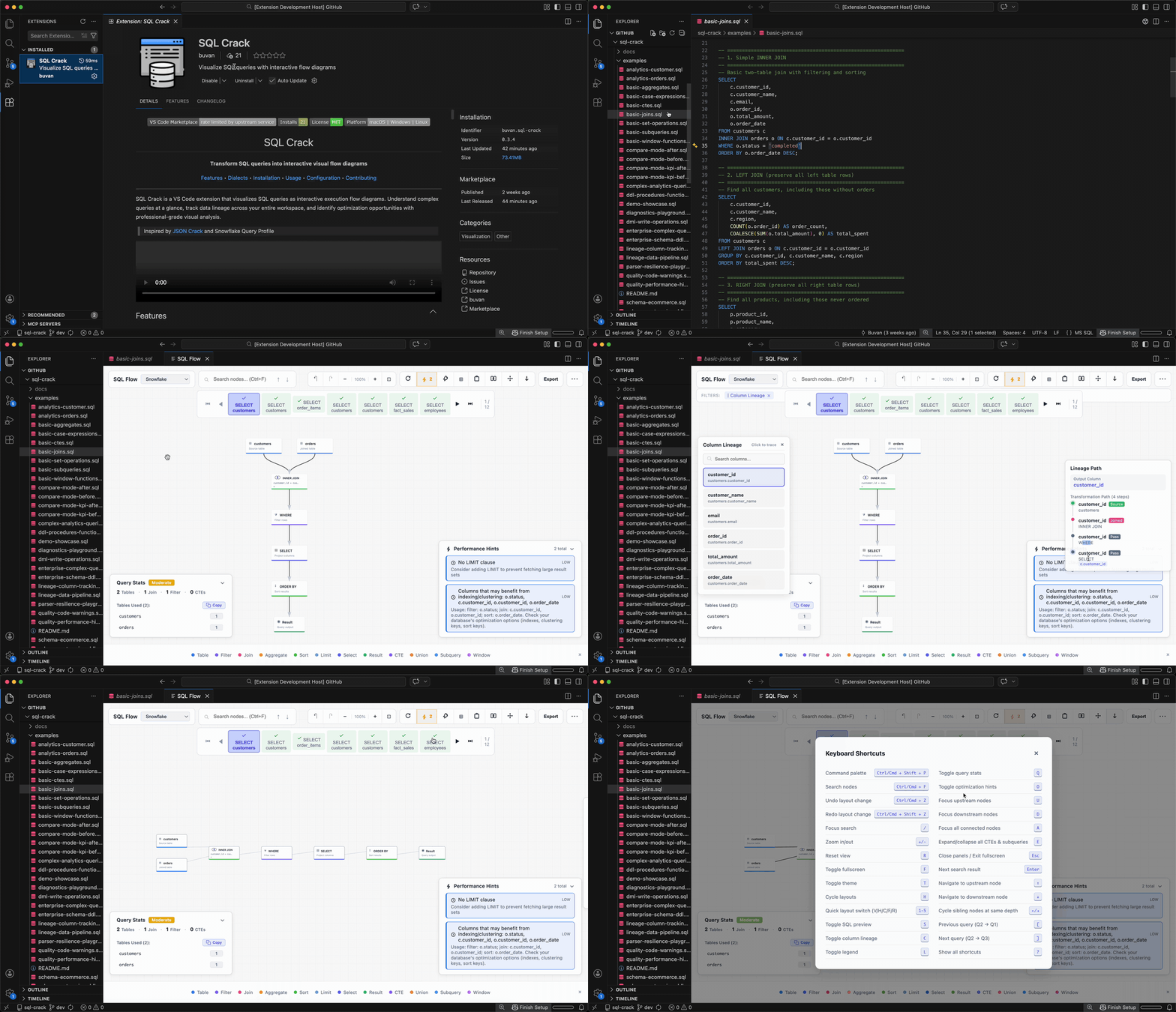
Features
Query Visualization
| Feature |
Description |
| Execution Flow |
See how your SQL executes step-by-step with color-coded operation nodes |
| Multi-Query Support |
Visualize multiple statements with tab navigation (Q1, Q2, Q3...) |
| Column Lineage |
Click any output column to trace its transformation path through JOINs, aggregations, and calculations |
| Legend Bar (Default On) |
Bottom legend is visible on first open, dismissable, and remembers your preference |
| Command Palette |
Press Cmd/Ctrl + Shift + P inside the webview for quick action search |
| CTE & Subquery Expansion |
Double-click to expand CTEs/subqueries in floating cloud panels with independent pan/zoom |
| Undo / Redo Layout History |
Revert or re-apply drag, zoom, layout, and focus-mode changes with toolbar controls or keyboard shortcuts |
| Query Compare Mode |
Compare baseline vs current query side-by-side with added/removed/changed node highlights and stats deltas |
| Query Statistics |
Complexity score, CTE depth, fan-out analysis, and performance score (0-100) |
Large graph behavior: For SQL Flow graphs with 100+ nodes, SQL Crack automatically enables clustering to keep rendering responsive. Search and keyboard navigation follow the currently rendered graph, so collapsed clusters behave differently from a fully expanded graph.
Node Types: Table (Blue) • Filter (Purple) • Join (Pink) • Aggregate (Amber) • Window (Fuchsia) • Sort (Green) • Limit (Cyan) • Select (Indigo) • Union/Set Op (Slate) • CTE (Purple) • Subquery (Violet) • Case (Orange) • Result (Green)
Operation Badges: READ (Blue) • WRITE (Red) • DERIVED (Teal) • CTE (Purple) • SQ (Violet) • INSERT (Green) • UPDATE (Amber) • DELETE (Dark Red) • MERGE (Violet) • CTAS (Cyan)
Workspace Analysis
Analyze cross-file dependencies across your entire SQL project with three main views:
Graph View
Dependency graph showing file and table relationships with color-coded edges for SELECT, JOIN, INSERT, UPDATE, and DELETE operations. Includes a selection panel with upstream/downstream context, focus mode, and an index freshness badge, plus guided empty-state prompts when the graph is empty or search yields no matches.
Lineage View
Explore data lineage across tables, views, and CTEs with:
- Interactive Graph — Animated flow edges showing data direction
- Legend Panel — Collapsible reference for node types and column colors
- Mini-Map — Overview panel for navigating large graphs
- Column Type Colors — Primary (Gold), Numeric (Blue), Text (Green), DateTime (Purple), JSON (Teal)
- Focus Modes — View upstream only (
U), downstream only (D), or all connections (A)
- Trace Controls — Trace Up/Down buttons to highlight full upstream/downstream lineage
- Table Browser — Search and browse all tables, views, and CTEs with schema details and cross-references
Impact Analysis
Analyze change impact (MODIFY/RENAME/DROP) with severity indicators, grouped transitive impacts, and source → target column paths.
Common Features (all views):
- Click nodes to open files, double-click to visualize SQL
- Pan/zoom navigation with search (regex and case-sensitivity options)
- Statistics panel showing files, tables, views, and references
- Orphaned/missing definition badges with click-to-navigate
- Incremental parsing with SHA-256 hashing and auto-update on save
Smart Analysis
| Analysis |
Description |
| Quality Warnings |
Unused CTEs, dead columns, duplicate subqueries, repeated table scans |
| Performance Hints |
Filter pushdown, join order, index suggestions, non-sargable expressions |
| Performance Score |
0-100 score based on detected anti-patterns |
| Inline Diagnostics |
SQL Crack hints surface as VS Code diagnostics with a quick fix to open SQL Flow |
Parser Reliability
| Capability |
Description |
| Partial Parse Fallback |
If AST parsing fails, SQL Crack falls back to regex extraction to still render best-effort tables/joins |
| Auto-Retry Dialect |
Detects dialect-specific syntax patterns and retries parsing with the correct dialect when the selected one fails |
| Nested CTE Hoisting |
Automatically rewrites Snowflake/Tableau-style FROM (WITH ... SELECT ...) subqueries to top-level CTEs for full visualization |
| PostgreSQL Syntax Preprocessing |
Automatically rewrites AT TIME ZONE, timestamptz '...', and other type-prefixed literals for full AST parsing, including during dialect auto-retry |
| Safer Dialect Detection |
Reduces false positives in dialect pattern matching (for example time literals like 00:00:00) so valid queries are less likely to fall back unnecessarily |
| Large File Handling |
Parses within configurable file/statement limits and clearly reports truncation instead of failing hard |
| Web Worker Parsing |
SQL parsing runs off the main thread via a dedicated Web Worker, keeping the UI responsive during large queries. Falls back to synchronous parsing when workers are unavailable. |
| Timeout Protection |
Configurable parse timeout prevents UI hangs on pathological queries |
| MERGE / UPSERT Coverage |
Supports MERGE-style visualization and dialect-native upsert patterns (ON CONFLICT, ON DUPLICATE KEY) |
| TVF Awareness |
Recognizes common table-valued functions across PostgreSQL, Snowflake, BigQuery, and SQL Server |
| DBT/Jinja Preprocessing |
Automatically rewrites {{ ref() }}, {{ source() }}, {% if/else %}, and other Jinja templates to valid SQL so DBT projects visualize correctly |
| Actionable Parse Errors |
Parse diagnostics include source line context in the badge and canvas overlay, not just line/column numbers |
Performance Icons: Filter Pushdown (⬆) • Non-Sargable (🚫) • Join Order (⇄) • Index Suggestion (📇) • Repeated Scan (🔄) • Complex (🧮)
Note: This is heuristic-based static analysis. For production optimization, validate with actual query plans (EXPLAIN ANALYZE).
Interactive Navigation
- Click to Navigate — Click nodes to jump to SQL source, click edges to view JOIN/WHERE clauses
- Breadcrumb Trail — Navigate through nested CTEs with clickable breadcrumbs
- Search — Find nodes by name with
Cmd/Ctrl + F
- Editor Sync — Bidirectional highlighting between editor and flow diagram
- Hover Tooltips — Detailed information on hover for nodes and edges
Layout & Export
- Layout Picker — Toolbar picker with SVG icons for vertical, horizontal, compact, force, and radial layouts
- Layout Shortcuts — Cycle layouts with
H or jump directly with keys 1-5
- Auto-Refresh — Updates automatically as you edit (configurable debounce)
- Export Options — PNG, SVG, Mermaid.js, or clipboard copy
- View Modes — Display beside editor or in a new tab
- Pin Visualizations — Save snapshots as persistent tabs
- Fullscreen — Press
F for distraction-free viewing
Supported Dialects
MySQL • PostgreSQL • SQL Server • MariaDB • SQLite • Snowflake • BigQuery • Redshift • Hive • Athena • Trino • Oracle • Teradata
Installation
From VS Code Marketplace (Recommended)
- Open VS Code
- Go to Extensions (
Cmd+Shift+X / Ctrl+Shift+X)
- Search for "SQL Crack"
- Click Install
Or install directly: SQL Crack on Marketplace
Cursor
- Open Cursor
- Go to Extensions (
Cmd+Shift+X / Ctrl+Shift+X)
- Search for "buvan.sql-crack" (use the publisher-qualified name for reliable results)
- Click Install
Or install from Open VSX Registry.
From Source
git clone https://github.com/buva7687/sql-crack.git
cd sql-crack
npm install
npm run package
Install the generated .vsix file via Extensions → ••• → Install from VSIX.
Usage
Quick Start
- Open any
.sql file
- Visualize using one of:
- Click the graph icon in the editor title bar
- Press
Cmd+Shift+L (Mac) / Ctrl+Shift+L (Windows/Linux)
- Right-click → "SQL Crack: Visualize SQL Query"
Cursor note: Some Cursor builds do not render custom editor-title icons consistently. If the title icon is not visible, run SQL Crack: Visualize SQL Query from the Command Palette (Cmd/Ctrl+Shift+P) or use the context menu.
Workspace Analysis
Analyze cross-file dependencies:
- Right-click folder → "SQL Crack: Analyze Workspace Dependencies"
- Command Palette → "SQL Crack: Analyze Workspace Dependencies"
Tip: Re-open the panel anytime by running the same command from the Command Palette.
Keyboard Shortcuts
Query Visualization
| Shortcut |
Action |
Cmd/Ctrl + Shift + L |
Open visualization |
Cmd/Ctrl + Shift + P |
Open command palette |
Cmd/Ctrl + F or / |
Search nodes |
Enter / ↓ |
Next search result |
↑ |
Previous search result |
Escape |
Clear selection |
C |
Toggle column lineage |
L |
Toggle legend |
S |
Toggle SQL preview |
Q |
Toggle query stats |
O |
Toggle hints/optimization panel |
H |
Cycle layout (vertical → horizontal → compact → force → radial) |
1-5 |
Jump directly to a specific layout option |
E |
Expand/collapse all CTEs |
U / D / A |
Focus mode: upstream / downstream / all |
T |
Toggle theme |
F |
Toggle fullscreen |
R |
Reset view (fit to screen) |
+ / - |
Zoom in / out |
Cmd/Ctrl + Z |
Undo latest layout change |
Cmd/Ctrl + Shift + Z |
Redo layout change |
[ / ] |
Previous/next query |
? |
Show all shortcuts |
Workspace Graph
| Shortcut |
Action |
Cmd/Ctrl + F |
Focus graph search |
Escape |
Clear search or selection |
F |
Toggle focus mode (neighbors only) |
R |
Reset view (fit to screen) |
Lineage View
| Shortcut |
Action |
U |
Focus upstream only |
D |
Focus downstream only |
A |
Show all connections |
C |
Toggle column lineage |
Scroll |
Zoom in/out |
Drag |
Pan the view |
Accessibility
All toolbar buttons have ARIA labels for screen readers. Graph nodes are keyboard-navigable:
| Key |
Action |
Tab |
Focus next node |
Enter / Space |
Select focused node |
Arrow keys |
Navigate between nodes |
Escape |
Deselect and return to canvas |
UI transitions and entrance animations also respect prefers-reduced-motion.
Configuration
Core Settings
| Setting |
Default |
Description |
sqlCrack.defaultDialect |
MySQL |
SQL dialect for parsing |
sqlCrack.autoDetectDialect |
true |
Auto-detect dialect from query content. Disable for single-dialect repos where auto-detection produces false positives. |
sqlCrack.viewLocation |
tab |
Panel location: beside, tab |
sqlCrack.defaultLayout |
vertical |
Initial SQL Flow graph layout: vertical, horizontal, compact, force, radial. Layout only; it does not change SQL execution semantics or lineage direction. |
sqlCrack.autoRefresh |
true |
Auto-refresh on SQL changes |
sqlCrack.autoRefreshDelay |
500 |
Debounce delay in ms (100-5000) |
sqlCrack.gridStyle |
lines |
Visual canvas background style: dots, lines, none |
sqlCrack.nodeAccentPosition |
left |
Visual-only node accent strip position: left, bottom |
sqlCrack.showMinimap |
auto |
Minimap visibility: auto, always, never. auto shows it only for multi-node graphs. |
sqlCrack.colorblindMode |
off |
Color accessibility mode: off, deuteranopia, protanopia, tritanopia |
Workspace Settings
| Setting |
Default |
Description |
sqlCrack.workspaceAutoIndexThreshold |
50 |
Max files to auto-index (10-500) |
sqlCrack.workspaceLineageDepth |
5 |
Default lineage traversal depth (1-20) |
sqlCrack.workspaceGraphDefaultMode |
tables |
Default Graph tab mode: files, tables |
Custom File Extensions
| Setting |
Default |
Description |
sqlCrack.additionalFileExtensions |
[] |
Additional file extensions to treat as SQL (e.g. .hql, .bteq, .tpt, .dbsql, .sql.j2). With or without the leading dot is accepted and normalized. Compound extensions like sql.j2 are preserved. |
Files with these extensions will show the SQL Crack icon in the editor title bar and can be visualized like .sql files. They are also included in workspace analysis (find files, index), trigger incremental index updates on save/create/delete, and watcher patterns are refreshed when the extension setting changes. Workspace indexing intentionally skips dependency/build folders (node_modules, .git, dist, build).
Custom Functions
| Setting |
Default |
Description |
sqlCrack.customAggregateFunctions |
[] |
Custom aggregate function names (e.g., ["MY_SUM"]) |
sqlCrack.customWindowFunctions |
[] |
Custom window function names (e.g., ["MY_RANK"]) |
Advanced Settings
| Setting |
Default |
Description |
sqlCrack.advanced.defaultTheme |
light |
Theme: auto, dark, light |
sqlCrack.advanced.showDiagnosticsInProblems |
false |
Show SQL Crack hints/errors in VS Code Problems panel |
sqlCrack.advanced.showDeadColumnHints |
true |
Show warnings for unused columns |
sqlCrack.advanced.combineDdlStatements |
false |
Merge consecutive DDL into single tab |
sqlCrack.advanced.maxFileSizeKB |
100 |
Max SQL file size before truncation handling (10-10000) |
sqlCrack.advanced.maxStatements |
50 |
Max statements parsed per file (1-500) |
sqlCrack.advanced.deferredQueryThreshold |
50 |
Query count threshold before SQL Flow compacts non-active query graphs and hydrates them on demand (1-500) |
sqlCrack.advanced.parseTimeoutSeconds |
5 |
Parser timeout in seconds (1-60) |
sqlCrack.advanced.debugLogging |
false |
Enable verbose SQL Crack output-channel logs |
sqlCrack.advanced.workspaceUxInstrumentation |
false |
Enable local-only Workspace Graph UX metrics in the SQL Crack output channel; no external telemetry is sent |
sqlCrack.advanced.cacheTTLHours |
24 |
Workspace index cache duration in hours. 0 skips cached restore and forces a rebuild when opening Workspace Dependencies (max 168) |
Troubleshooting
Common Issues
| Problem |
Solution |
| Icon not showing for custom extensions |
In Settings → SQL Crack → Additional File Extensions, add one item per extension (e.g. .hql, .tpt). With or without a leading dot is fine; the extension normalizes automatically. Reload the window if the icon still doesn’t appear. |
| Parse error on valid SQL |
Try a different dialect from the dropdown. SQL Crack auto-retries when it detects a stronger dialect match, but some vendor-specific syntax may still require manually switching (PostgreSQL is usually the most permissive fallback). |
| Graph is slow with large files |
SQL files over 100KB or 50+ statements may be slow. Try visualizing smaller sections by selecting text first. |
| CTE/Subquery not expanding |
Double-click the node. If it has no children, it may be a simple reference. |
| Workspace indexing stuck |
Click Cancel in the notification, then try again. For very large workspaces, increase workspaceAutoIndexThreshold. |
| Columns not highlighting |
Press C to enable column lineage mode first, then click output columns in the SELECT node. |
Debug Mode
To see detailed logs:
- Enable
sqlCrack.advanced.debugLogging in VS Code settings
- Open View → Output and select SQL Crack from the dropdown
- Extension logs appear in the Output Channel as you interact
For lower-level diagnostics you can also open Help → Toggle Developer Tools → Console and filter by "SQL Crack".
Resetting State
If the extension behaves unexpectedly:
- Run "Developer: Reload Window" from Command Palette
- If issues persist, disable/re-enable the extension
- For workspace index issues, re-run "SQL Crack: Analyze Workspace Dependencies" to rebuild the index, or set Cache TTL to
0 (Advanced) and reload the window
Privacy
- 100% Local — All processing happens in VS Code
- No Network Calls — Your SQL never leaves your machine
- No Telemetry — Zero data collection
- Open Source — Fully auditable code
Development
npm install          # Install dependencies
npm run compile      # Build extension
npm run watch        # Watch mode
npm run typecheck    # Type check
npm run lint         # Lint code
Press F5 to launch the Extension Development Host.
Architecture Overview
src/
├── extension.ts                 # Extension entrypoint, commands, lifecycle
├── visualizationPanel.ts        # SQL Flow webview panel orchestration
├── dialects/                    # Dialect registry/config
├── shared/                      # Cross-layer tokens/utils/messages
│   └── messages/                # Typed host/webview message contracts
├── webview/                     # Browser-side SQL Flow runtime
│   ├── index.ts                 # Webview bootstrap + wiring
│   ├── sqlParser.ts             # Parse orchestrator
│   ├── renderer.ts              # Render orchestrator
│   ├── parser/                  # Extracted parser modules (validation, dialects, hints, statements, extractors)
│   ├── rendering/               # Node/edge/cloud/viewport rendering modules
│   ├── features/                # Export, lineage, theme, minimap, focus, search, metadata
│   ├── interaction/             # Event listeners, drag/zoom/keyboard, pulse/selection
│   ├── navigation/              # Node/table/keyboard navigation helpers
│   ├── panels/                  # Info/stats/sql panel renderers
│   ├── state/                   # Renderer state factories
│   ├── constants/               # Color/theme constants
│   ├── types/                   # Webview runtime types
│   ├── ui/                      # Toolbar/context menu/tooltip/layout/command UI
│   │   └── toolbar/             # Extracted toolbar component modules
│   └── parser.worker.ts         # Off-main-thread SQL parse worker
└── workspace/                   # Extension-host workspace analysis runtime
    ├── workspacePanel.ts        # Workspace panel orchestrator
    ├── scanner.ts               # SQL file discovery/scanning
    ├── indexManager.ts          # Incremental index/cache/watcher
    ├── handlers/                # Message routing + command handlers
    ├── panel/                   # Workspace panel/page/export/stats modules
    ├── lineage/                 # Cross-file lineage graph + analyzers
    ├── extraction/              # Definition/reference extraction pipeline
    ├── graph/                   # Workspace graph build/filter/layout modules
    └── ui/                      # Workspace webview scripts/styles/views
Data Flow:
- User opens
.sql file → extension.ts creates VisualizationPanel
- SQL text →
sqlParser.ts (node-sql-parser) → AST → FlowNode[] + FlowEdge[]
- Nodes/edges →
renderer.ts → SVG with dagre layout
- User interactions → message passing between webview and extension host
Roadmap
- ✅ Phase 1 — Core visualization (execution flow, CTE expansion, fullscreen)
- ✅ Phase 2 — Developer productivity (quality warnings, column lineage, cloud panels)
- ✅ Phase 3 — Performance analysis (filter pushdown, join order, anti-pattern detection)
- ✅ Phase 4 — Workspace analysis (cross-file lineage, dependency graph, 3 view modes)
- ✅ Phase 5 — Polish & accessibility (keyboard navigation, ARIA labels, cancellable indexing)
- ✅ Phase 6 — Large-file modular refactor (parser/renderer/workspace UI split into focused modules)
- ✅ Phase 7 — Export preview with PDF support
0.9.0: Security & reliability hardening — production dependency upgrades (npm audit --omit=dev reports 0 advisories), cryptographically strong CSP nonces and collision-free pin/tab IDs, stricter HTML-attribute / DOT / Mermaid export escaping, source-scoped auto-refresh and cursor-follow, a workspace index cache keyed by scope/dialect/config, and a non-blocking parser-worker timeout.
0.7.0 shipped on 2026-03-23: Web Worker parsing (off-main-thread for large files) and architecture debt remediation (pure computation extraction, fake DOM testing, integration test coverage) are now part of the released baseline.
Contributing
Contributions are welcome!
- Fork the repository
- Create a feature branch (
git checkout -b feature/amazing-feature)
- Commit your changes (
git commit -m 'Add amazing feature')
- Push to the branch (
git push origin feature/amazing-feature)
- Open a Pull Request
Reporting Issues
Found a bug or have a feature request? Open an issue with:
- Clear description of the problem/feature
- Steps to reproduce (for bugs)
- SQL query example (if applicable)
- VS Code and extension version
License
MIT License — see LICENSE for details.
Acknowledgments
Made with SQL for the SQL community

