Markdown Threads
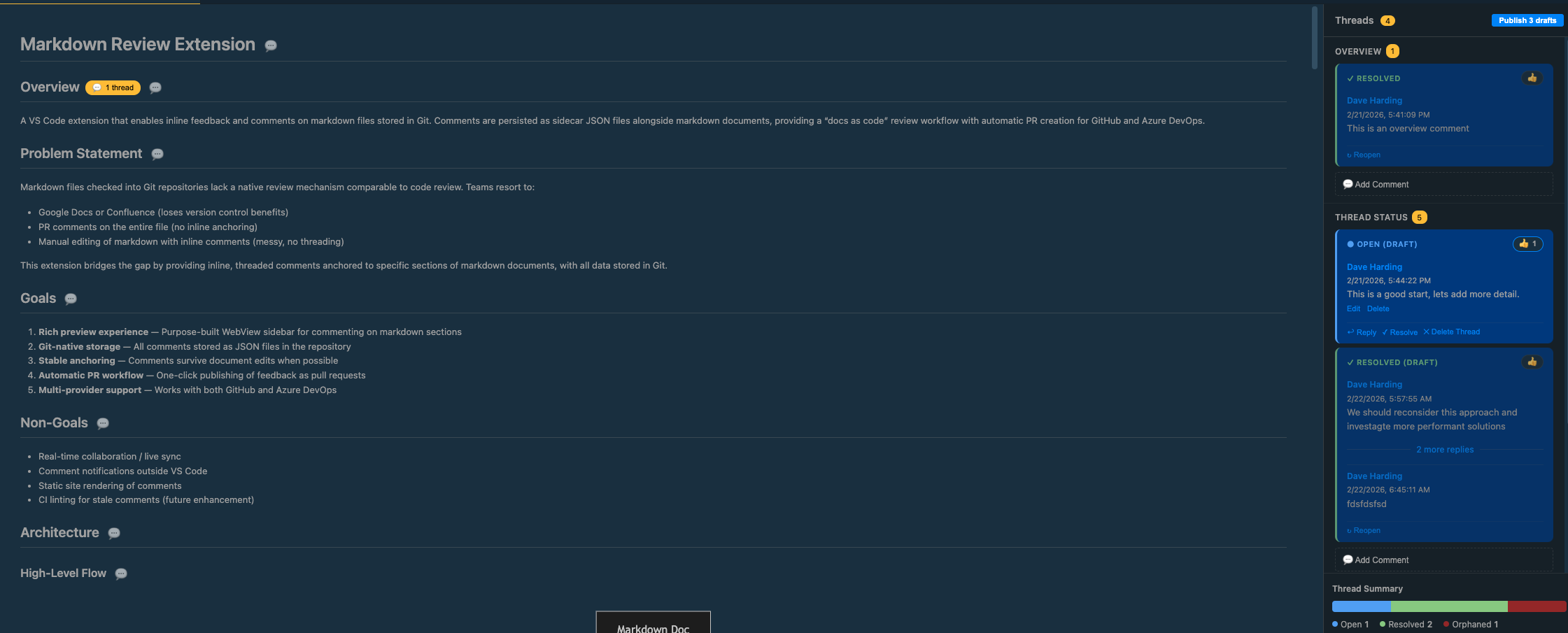
Review and comment on markdown files directly in VS Code — no more switching to Google Docs or losing context in PR comments. Threads are stored alongside your docs in Git and can be published as pull requests with one click.
✨ Features
- Inline threaded comments — Add comments anchored to specific sections of your markdown docs
- Reply, edit, delete — Full conversation threading with author controls
- 👍 Reactions — React to comments with thumbs-up
- Resolve & reopen — Mark discussions complete; resolved threads are locked from edits
Smart Anchoring
- Survives edits — Comments stay attached even when you reorganize your document
- Stale detection — Get a visual warning when the underlying content has changed
- Orphan handling — When you delete a section, comments appear in a dedicated "Orphaned" area with options to reparent them to another section
Workflow
- Draft mode — Comments save locally until you're ready to share
- One-click PR creation — Publish all drafts as a pull request to GitHub or Azure DevOps
- Activity Bar sidebar — Browse all markdown files in your workspace with comment counts
- Statistics chart — See open, resolved, and orphaned thread counts at a glance
Preview Experience
- Side-by-side preview — Rendered markdown with comment sidebar
- Mermaid diagrams — Code blocks render as diagrams with theme support
- Thread counts — Badges on headings show how many threads are attached
🚀 Quick Start
- Right-click any
.md file in the Explorer → "Markdown: Review and Comment"
- The preview opens with a comment sidebar on the right
- Click 💬 on any heading to start a thread
- When ready, click Publish in the sidebar header to create a PR
Tip: The Publish button shows automatically when you have drafts (e.g., "Publish 3 drafts")
Comments live in a .comments.json sidecar file next to each document — fully version-controlled:
docs/
  feature-x.md
  feature-x.comments.json    ← created automatically
This "docs as code" approach means:
- Comments travel with your docs through branches and merges
- Full Git history of all feedback
- No external service dependencies
⚙️ Configuration
| Setting |
Default |
Description |
markdownThreads.autoOpenPR |
true |
Open browser after PR creation |
markdownThreads.branchPrefix |
"doc-comment" |
Prefix for comment branches |
markdownThreads.defaultProvider |
"auto" |
Git provider (auto, github, azuredevops) |
🔗 Anchoring & Reparenting
Comments anchor to sections using a smart hybrid approach:
- Heading slug — Primary identifier from the heading text
- Content hash — Detects when section content changes
- Line hint — Helps recover when headings are renamed
When a heading is renamed, the extension detects the change and offers a "Reparent to..." button to reattach orphaned comments to the correct section.
📋 Requirements
- VS Code 1.85.0 or later
- Git repository with a GitHub or Azure DevOps remote
- Sign in to GitHub or Microsoft account in VS Code (for PR creation)
📦 Installation
From Marketplace:
Install from the Visual Studio Marketplace
From VSIX:
- Download the
.vsix from Releases
- In VS Code: Extensions → ··· → Install from VSIX…
🛠️ Development
npm install
npm run compile
npm run test       # 94 tests via Mocha + @vscode/test-electron
Press F5 to launch the Extension Development Host.
📄 License
MIT — see LICENSE for details.
Found a bug or have a feature request? Open an issue

