Squad PodPreviewPixel art office where your Squad agents come to life as animated characters Installation Launch VS Code Quick Open ( Ctrl+P), paste the following command, and press enter.Copied to clipboard |

Squad PodYour Squad AI team, but make it pixel art. Bring your Squad agent team into an animated pixel-art office in VS Code. Follow team activity, explore each agent's details, and build an office with its own layout, furniture, colors, and pets. Available as a pre-release from Brian Swiger. Features
See Squad Pod in action
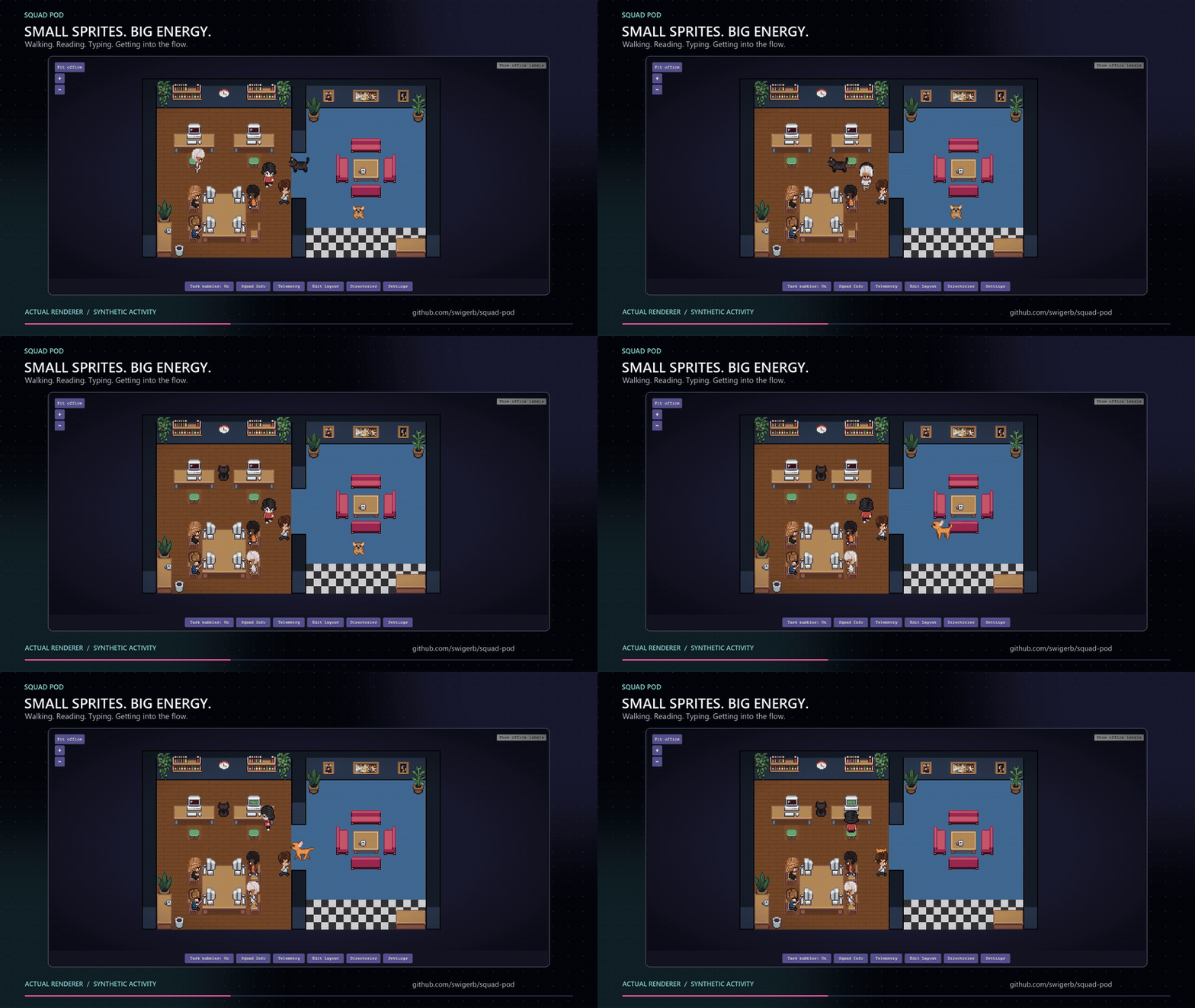
Watch the full 1:53 showcase (MP4) | Captions (SRT) Big ideas. Tiny office. Meet the pixel squad, watch characters walk and work at their computers, explore the office controls, and meet Claudio and Gitcat. The showcase uses staged activity in the production office renderer. It contains no private session logs or customer data. AI narration: Ava (US English). Music: Brian Swiger's supplied DaVinci AI-generated soundtrack. Download the source MP3. Requirements
Install the pre-releaseOpen Squad Pod in Visual Studio Marketplace, confirm the publisher is Brian Swiger, and choose the Pre-Release version in VS Code. You can also install it from a terminal: Open a reviewed Squad project, then run Squad Pod: Show Panel. Installing or opening the office does not launch Squad or an AI task. Build tools and Node.js are only required for source builds, not for installing the Marketplace extension. Install from sourceOpen the project in VS Code and press F5 to launch the Extension Development Host. Development commands
Use Squad PodOpen the officeOpen the Squad Pod panel, or run Squad Pod: Show Panel from the Command Palette. Team members are discovered from Fit office explicitly fits and centers the current map in the panel using CSS-pixel dimensions, independent of display DPI. Very large layouts center at minimum zoom; pan or use Locate character beside an explicitly Off-screen name to find a member. Locate centers once, without enabling follow; names retain details-card navigation. Names, tools, context gauges and transient subtask notes use the rendered character bounds and measured annotation size to stay just above the head. A small pointer marks a modestly displaced label; when labels would overlap a character, crowd one another, or cannot fit near the top edge, an explicitly labeled scrollable list replaces floating labels instead of placing labels over people. Locate controls remain available for each member. Locating from that list collapses it so the character is visible and clickable; keyboard focus returns to Show office labels to reopen the list. Hide office labels also clears the crowded view manually. Fit/Locate stop an explicit mobile follow choice, but never move seats or save/change the office layout. Resizing does not automatically fit or chase idle members, so deliberate pan and zoom remain yours. Squad Info keeps declared charter/JSON model metadata separate from opt-in runtime model observations. The latter use Copilot CLI's timestamped Edit the officeChoose Layout in the toolbar to edit the office:
SettingsThe VS Code setting Roster and file observation does not require Copilot CLI authentication or an AI task. Live CLI log observation is a separate opt-in; recent-directory suggestions are a separate metadata read that you can disable with In the office's Settings, sound notifications play a short chime when an active agent becomes inactive; Debug View opens agent and layout diagnostics; and Show Named Areas toggles the Area overlay. You can also add or unload local asset directories and import or export layouts. Enable Live Activity in Settings and accept the VS Code confirmation to turn on Task bubbles add fixed, source-labeled phrases such as CLI tool: Reading a file for active, live-attributed roster tasks. They copy no task text, arguments, filenames or outputs and clear with completed/unavailable/stale sources. The Task bubbles: On/Off button suppresses summaries in this view only, including read-only standalone viewers, without changing project settings or granting control/consent. Permission, wait, tool/history and context signals remain visible. Explicit inter-agent dialogue/handoffs are unsupported, never inferred from parent links or proximity. See the privacy and pinned-producer contract. Telemetry → Observed transient tasks lists task calls from that same consented session, separately from recorded usage. Names, types, modes and bounded descriptions are display metadata, not durable membership. Only explicit same-session parent calls are linked; missing or cyclic parents are unknown. Unknown/non-general-purpose calls stay unattributed unless a matching custom-agent selection supplies an exact roster identity. Running child calls appear near their visible roster ancestor with Subtask / Parent labels; a small pointer is used only if modest crowding displaces a label. Producer instance IDs deduplicate them, not display names. An authoritative selected roster identity uses the existing member character without changing its seat or appearance. Temporary characters never become roster members or saved preferences, and disappear on completion, failure, cancellation, ended parents or source clearing. The in-memory list retains at most 64 tasks (16 recent completions), flags omitted data/shortened fields, and restores only in-flight calls on startup. Switching sessions, stale/lost sources and disabling Live Activity clear the list. Identity contract and source evidence explain why durable hierarchy and automatic roster promotion remain unsupported. Launch Squad in a directoryIn VS Code, open Directories to browse for a folder or enter its path manually. Workspace folders and saved directories each have an explicit Launch action. Squad Pod submits Recent launch requests are recorded when the command is submitted and do not prove the CLI started. Recent Squad directories can fill the manual-entry form from local Copilot CLI working-directory metadata, but never save or launch automatically; disable this read with Activity and recorded usageOpen Telemetry in the toolbar to browse observed status changes, session activity, logs, orchestration events, and decisions. The drawer also displays historical usage from the local Squad usage ledger when available, including reported token and estimated-cost totals and recent model reports. These reports are historical source data, not live context utilization or billing records. Activity events counts only observed events; Clear activity leaves recorded usage and observed tasks unchanged. Existing files are not replayed. Missing usage is not zero consumption, and enabling live CLI observation does not create a usage ledger. Source diagnostics distinguish file watching from opt-in live CLI observation; Observation settings and consent opens the existing Settings flow without enabling anything. The standalone observer can display the same live tools/context/tasks after explicit local CLI Telemetry → Copilot CLI usage export is a separate, opt-in historical source for
Activity detectionSquad Pod watches the selected project's Descriptions inferred from those files are labeled File activity hint, not live tasks. HTML comments, structural headings, and empty scaffolding are excluded; a change without meaningful content uses a neutral Known limitations
Testing and acceptanceStart with the testing guide for the observer quick start, automated checks, synthetic acceptance helpers, VSIX verification, and committed evidence packages. Native VS Code and real Squad testing is a separate, approval-gated process in the native acceptance plan. Showcase recordings use a synthetic host and staged activity to demonstrate the office. They are not native-host or real-producer acceptance evidence. Custom assetsAdd a local asset directory in Settings for furniture, pets, and character sheets. Folder layouts, supported images, reload behavior, and import limits are described in Custom asset manifests. Local browser observerYou can also run the office in a browser with the separate, source-only local observer. It uses the same production renderer, observes an explicitly selected project, and is authenticated and loopback-only. Observation is read-only by default. Separate authenticated options enable selected-project office controls and owned terminals. Office controls include layout editing, seat persistence, sound/debug/Areas settings, browser JSON import/export, and revision-protected draft recovery. Owned terminals explicitly run See the build/run and security instructions for startup options and authentication requirements. The observer is separate from the Marketplace extension. Architecture
Compared with Pixel AgentsSupported: Squad roster discovery, file-observed activity, opt-in live tool labels and context gauges, the animated office, layout editing, directional furniture groups, pets, local furniture assets, and explicit Squad CLI launches. The standalone local observer is authenticated and read-only by default; separately authenticated options provide selected-project office controls and owned terminals. Responsive mobile office and owned-terminal interactions include page navigation, touch pan/zoom, keyboard controls and deliberate clipboard actions. Still limited or unverified: there is no supported Squad event API or remote-access mode, and persistent credentials are not supported. Browser touch emulation does not establish physical-device behavior; iOS/Android touch and software-keyboard behavior remain unverified. How we built thisSquad Pod began with the question, What if Pixel Agents worked with Squad? A Simpsons-themed Squad team helped build the extension:
The original Pixel Agents by Pablo De Lucca watches Claude Code transcripts. Squad Pod adapts its virtual-office idea to Squad's team roster and files. Roadmap
Author and supportSquad Pod is a personal open-source project by Brian Swiger, a software developer and cloud architect with more than 30 years of experience in software engineering, application modernization, and cloud delivery. His work spans C#, .NET, Python, and AI-powered systems. Website | Brian on LinkedIn | MightyBS on LinkedIn For Squad Pod questions, bugs, or feature requests, open a GitHub issue. Squad Pod is not an official Microsoft or GitHub product. CreditsSquad Pod is adapted from Pixel Agents by Pablo De Lucca. Character art is based on the work of JIK-A-4. Built for Squad by Brady Gaster. See THIRD_PARTY_NOTICES.md for licenses and attribution. LicenseThis project is licensed under the MIT License. |