Skip to content
| Marketplace
Sign in
Visual Studio Code>Other>Code with JiraNew to Visual Studio Code? Get it now.
Code with Jira

Code with Jira

Brainicorn

|
21 installs
| (0) | Free
The new standard for Jira IDE integrations: Manage issues, track time, create branches, run JQL queries, and sync code comments with work items - all without leaving your IDE
Installation
Launch VS Code Quick Open (Ctrl+P), paste the following command, and press enter.
Copied to clipboard
More Info
Code with Jira

Code with Jira

Brainicorn by Brainicorn

The new standard in Jira/IDE integration

Seamlessly integrate Jira Cloud into VS Code. Manage work items, auto-time tracking, track comment tags, and leverage AI-powered planning—all without leaving your editor.


hero-banner


✨ Key Features

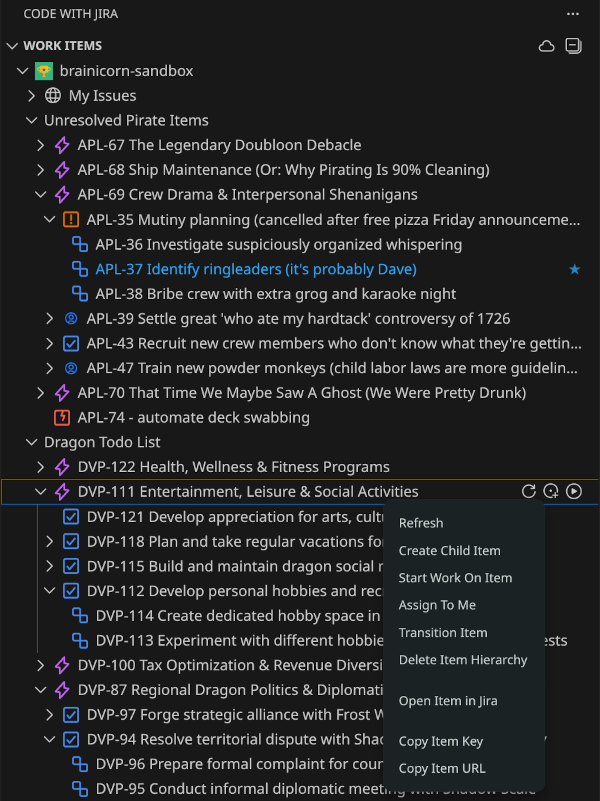
🌳 Work Items & Spaces Tree Views

Browse your Jira work items and spaces in familiar tree structures.

work items

  • Create custom JQL queries to organize your work exactly how you like it.
  • Drag and Drop to change hierarchy
  • Prominent action buttons
  • Useful context menu

spaces

  • Pin favorite spaces for quick access
  • Quickly launch common queries in the JQL/List viewer
  • See recently viewed spaces

work-items-tree

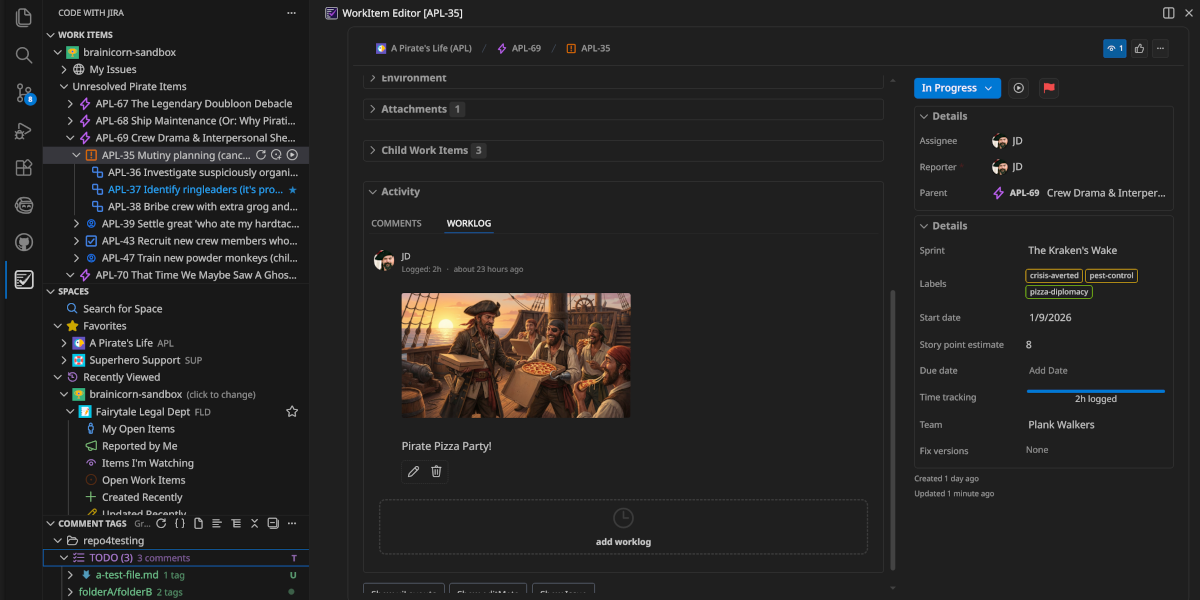
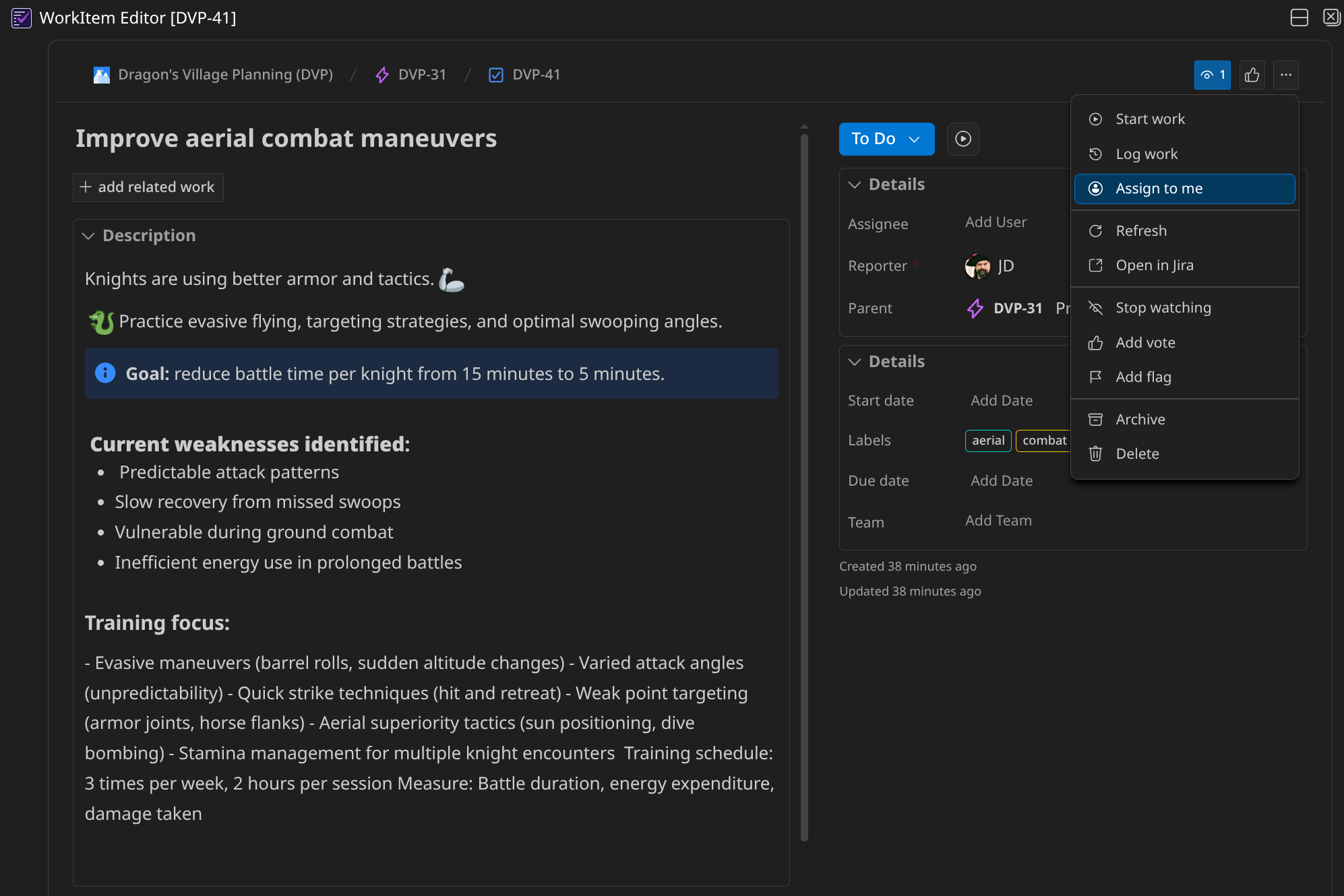
📝 Rich Work Item Editor

Full-featured webview for viewing and editing Jira work items. Responsive split-pane layout with support for:

  • Rich text editing (Atlassian Document Format)
  • Attachments, work item links, and remote links
  • Sub-tasks and activity streams
  • Status transitions with transition screens
  • All standard and custom fields

work-item-editor

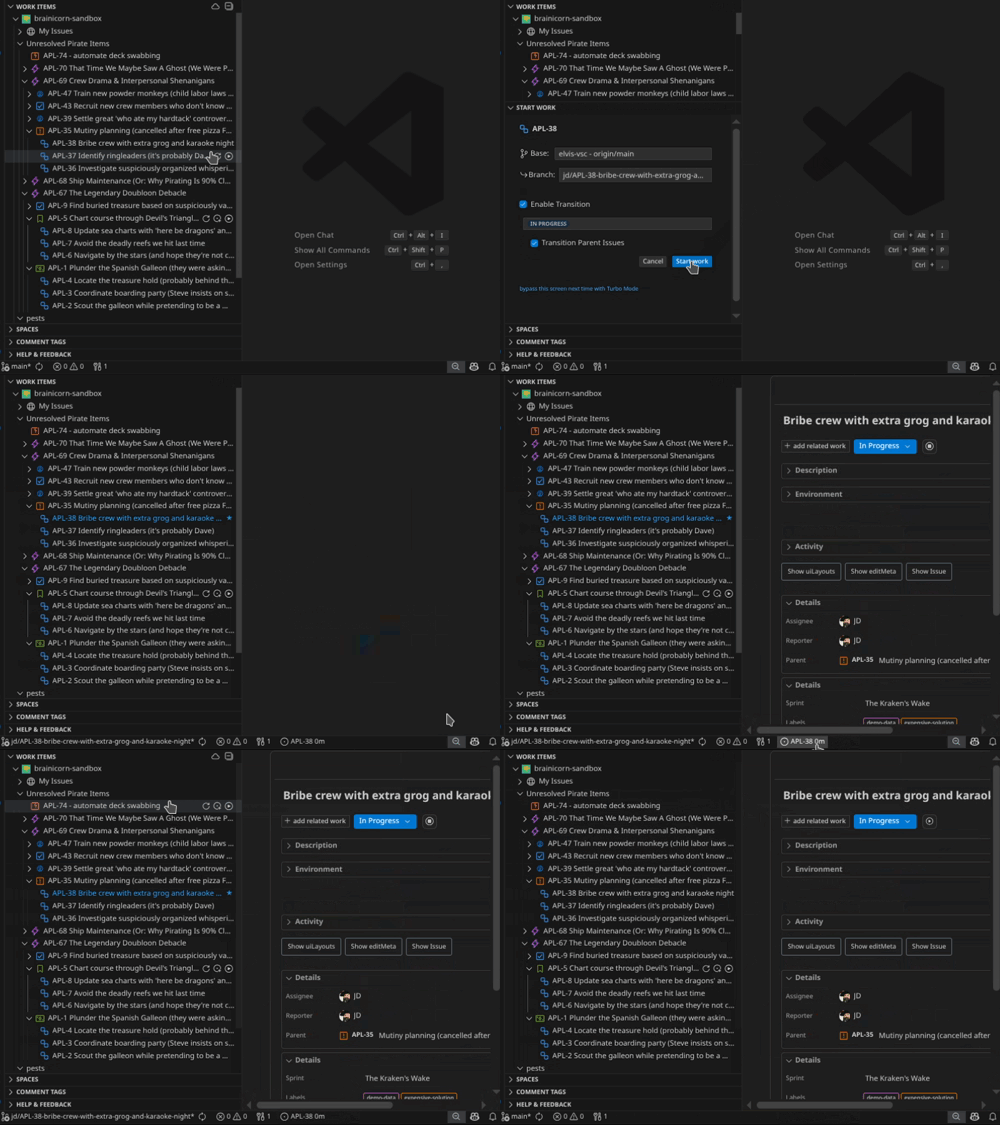
🚀 Start/Stop Work Flow

One-click workflow to start working on a work item:

  • ✅ Automatic branch creation with configurable naming templates
  • ✅ Work item status transition (e.g., "To Do" → "In Progress")
  • ✅ Automatic assignment to yourself
  • ✅ Optional automatic time tracking and work logging
  • ✅ Smart branch detection—automatically detects when your branch is merged

start-work

🏷️ Comment Tag Management

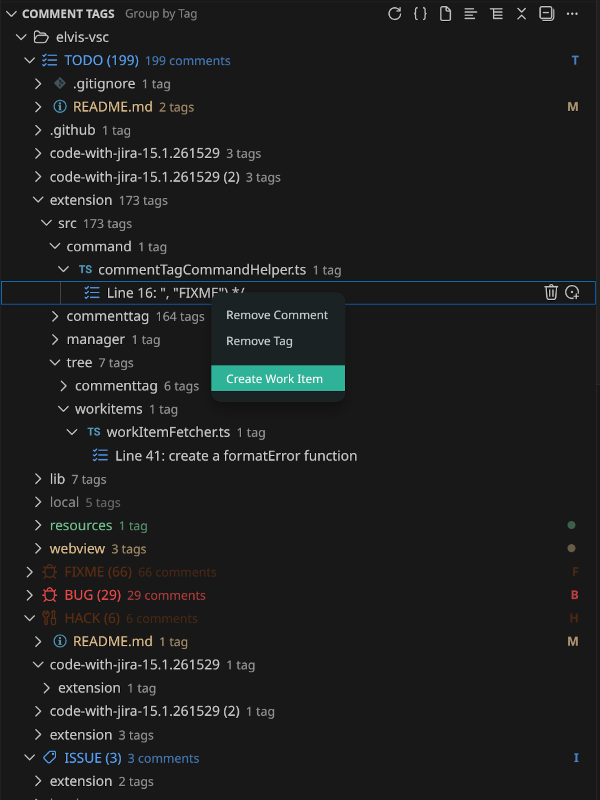
Track TODO, FIXME, HACK, and custom tags across your workspace. Create Jira work items directly from tagged comments. View tags grouped by type or by file.

comment-tags-tree

🔍 Advanced JQL Editor

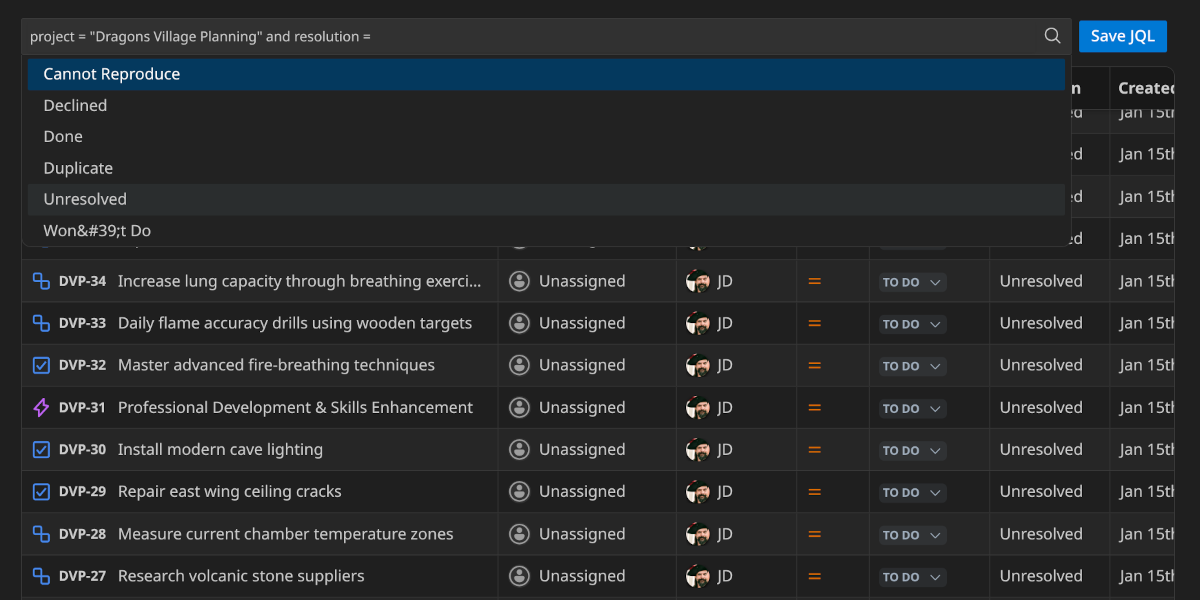
Full-featured JQL editor with syntax highlighting, auto-completion, and intelligent field suggestions. View results in a configurable data grid.

jql-editor

✨ AI-Powered Features (Requires GitHub Copilot)

  • Natural language planning: "Create work items for implementing user authentication" → generates Epic → Tasks → Sub-tasks
  • Chat participant (@codewithjira): Start/stop work, navigate hierarchies, get AI task recommendations
  • Full LM tools suite: Automate workflows without manual interaction

ai-planning


🚀 Quick Start

Installation

  1. Install from the VS Code Marketplace
  2. Open the Command Palette (Ctrl+Shift+P / Cmd+Shift+P)
  3. Run: Code with Jira: Add Jira Site
  4. Authenticate with your Jira Cloud instance

Your First Work Item

  1. Open the Jira Work Items tree view in the Explorer sidebar
  2. Expand the default My Items query (or any other JQL query) to see work items
  3. Click a work item to open it in the editor
  4. Use the inline buttons on work items to:
    • Start work (creates branch and transitions status)
    • Add child items
    • Access additional actions
  5. Right-click any node for context menu with more options

📚 Feature Guide

Work Items Tree View

Browse and manage your Jira work items:

  • Custom JQL queries: Create, edit, rename, and delete saved queries
  • Hierarchical view: See parent-child relationships (Epics → Tasks → Sub-tasks)
  • Quick filters: View work items by status, assignee, or custom JQL
  • Context actions: Open, edit, start work, create child work items

Pro tip: Use the inline button or Right-click on a site to create a new custom query.

Spaces Tree View

Navigate your Jira spaces:

  • Pin favorites: Keep important spaces at the top
  • Board & backlog links: Automatically detect and open boards in your browser
  • Space actions: Create work items, refresh, view in Jira

Start/Stop Work

Starting work:

  1. Right-click a work item → Start Work On Item
  2. Extension will:
    • Create/checkout a branch (e.g., feature/PROJ-123-my-feature)
    • Transition work item status (if configured)
    • Assign work item to you (if configured)
    • Start time tracking (if enabled)

Stopping work:

  • Right-click work item → Stop Work
  • Or: When you delete your branch (after merging a PR), the extension detects it and optionally transitions the work item to "Done"

Configuration:

{
    "codeWithJira.startWork.branchNameTemplate": "feature/${issueKey}-${issueSummary}",
    "codeWithJira.startWork.transitionToInProgress": true,
    "codeWithJira.startWork.assignToSelf": true
}

Creating Work Items

Quick create:

  • Right-click a site or work item → Create Work Item
  • Simple QuickPick for basic fields
  • Auto-escalates to full editor if work item type requires complex fields

Create from comment tags:

  • Highlight a TODO/FIXME tag
  • Click the code insight lightbulb 💡
  • Click create work item
  • Summary pre-filled from tag content
  • Issue key automatically added back to the comment after creation

Comment Tags

View modes:

  • Group by Tag: See all TODOs together, all FIXMEs together, etc.
  • Group by File: See all tags per file in folder hierarchy
  • Compact Folders: Reduce tree depth by combining single-child folders

Jira integration:

// TODO: Implement feature EV-123
// The extension recognizes the issue key and shows it as linked

Configuration:

{
    "codeWithJira.commentTags.viewMode": "groupByTag",
    "codeWithJira.commentTags.scanMode": "workspace",
    "codeWithJira.commentTags.createWorkItemTriggers": {
        "TODO": "#FFCC00",
        "FIXME": "#FF0000",
        "NOTE": "#00AAFF"
    },
    "codeWithJira.commentTags.includeGlobs": ["src/**", "lib/**"],
    "codeWithJira.commentTags.excludeGlobs": ["**/node_modules/**", "**/dist/**"]
}

JQL Editor

Features:

  • Auto-completion for fields, operators, values, functions
  • Context-aware suggestions based on cursor position
  • Field value lookup from your Jira data
  • Error highlighting
  • Search button to preview results

Usage:

  1. Command Palette → Code with Jira: Open JQL Editor
  2. Write your query with auto-complete assistance
  3. Clcik the search icon
  4. Results appear in data grid below
  5. Click any result to open full work item editor

jql-autocomplete


✨ AI Features (GitHub Copilot)

Setup

The extension provides a custom Copilot agent and LM tools for AI-powered workflows.

Enable/Disable AI Features: AI features can be toggled on or off in VS Code settings:

{
    "codeWithJira.ai.enabled": true // Set to false to completely disable AI features
}

When disabled, the chat participant and all AI tools are completely removed from the extension.

Chat Participant: @codewithjira

Ask questions and manage your Jira workflow in natural language:

Search & Discovery:

@codewithjira what are my open APL issues?
@codewithjira what about APL-35?

chat-smart-management

Create & Organize:

@codewithjira Create 3 tasks under epic APL-88 for frontend, backend, and testing

Workflow & Time Tracking:

@codewithjira can you add a task in the DVP project called "dragon grooming", start work on it and log 1h15m of time on it with the comment "me time!"

chat-natural-workflow

Relationships & Dependencies:

@codewithjira Mark DVP-90 as blocking DVP-91 and add a comment explaining why

Plan Agent (Custom Agent)

Create complex Jira hierarchies from natural language:

Setup:

  1. Command Palette → Code with Jira: Show Plan Agent Config
  2. Copy the configuration shown
  3. Command Palette → Chat: Configure Custom Agents... → Create New Agent
  4. Paste configuration and save

Usage:

@plan create Jira work items for implementing user authentication with OAuth

The agent will:

  1. Analyze your request
  2. Generate an Epic → Tasks → Sub-tasks hierarchy
  3. Show you a draft for review
  4. Create all work items in Jira upon confirmation

What the agent can do:

  • Get plan context (sites, spaces, work item types)
  • Create work item hierarchies
  • Validate against your Jira configuration
  • Handle complex nested structures

Permissions:

  • Uses your existing Jira authentication
  • No credentials exposed to Copilot
  • All commands are non-interactive when called as tools

⚙️ Configuration

Accessing Settings

  1. Open VS Code Settings: Ctrl+, (Windows/Linux) or Cmd+, (Mac)
  2. Search for "Code with Jira" or click Extensions → Code with Jira

Configuration Sections

🌳 Work Item Tree

  • JQL Queries: Manage your saved queries that appear in the tree
  • Fetch All Results: Toggle pagination for large query results
  • Results Per Page: Control how many items load at once

🏷️ Comment Tags

  • Enable/Disable: Turn comment tag scanning on or off
  • Tag Colors: Customize colors for TODO, FIXME, HACK, NOTE, etc.
  • View Mode: Choose between grouping by tag type or by file
  • Include/Exclude Patterns: Control which files are scanned using glob patterns
  • Scan Mode: Workspace-wide, open files only, or both

📝 Create Work Item

  • Input Method: Choose Quick Pick (fast) or Editor (full-featured) as default
  • Configure separately for command palette, space tree, and child items

🚀 Start Work

  • Branch Name Template: Customize how branch names are generated
    • Use variables like ${issueKey}, ${issueSummary}, ${issueType}
  • Branch Prefixes: Define prefixes based on work item types
  • Turbo Mode: Skip confirmation screens for faster workflow
  • Branch From: Choose to branch from default or current branch
  • Auto-Transition: Automatically move items to "In Progress" status
  • Transition Parents: Also transition parent items in hierarchy
  • Time Tracking: Enable automatic time tracking

⏹️ Stop Work

  • Auto-Stop on Branch Delete: Configure behavior when branch is deleted
  • Transition on Stop: Move items to "Done" when stopping work
  • Bypass Temporary Switch: Skip prompts when temporarily switching branches

✨ AI Features

  • Enable/Disable: Turn AI features on or off completely
  • Controls both the chat participant (@codewithjira) and planning agent

Tip: Most settings include detailed descriptions in the settings UI. Hover over any setting for more information!


🌐 Multi-Site Support

Connect to multiple Jira Cloud instances:

  1. Command Palette → Code with Jira: Add Jira Site
  2. Authenticate with each site
  3. Sites are workspace-specific
  4. Switch sites using tree view toolbar buttons

🎯 Use Cases

For Individual Developers

  • ✅ Stay in your editor while managing Jira work items
  • ✅ Consistent branch naming with templates
  • ✅ Track technical debt via comment tags
  • ✅ Use AI to break down features into tasks

For Teams

  • ✅ Enforce consistent branch naming across the team
  • ✅ Standard workflow transitions
  • ✅ Comment tags visible to all team members
  • ✅ Shared AI planning for sprint planning

For Development Leads

  • ✅ Quick work item creation from code review findings
  • ✅ Bulk-create tasks from planning sessions
  • ✅ Monitor progress without leaving VS Code
  • ✅ Track team's technical debt through tags

🤝 Contributing & Support

Get Help

  • 💬 Slack Community - Real-time chat and quick help
  • 📖 GitHub Discussions - Ask questions and share tips
  • 🐛 GitHub Issues - Report bugs and request features
  • 📧 Support Page - All support channels in one place

Reporting Issues

Found a bug? Have a feature request?

  1. Open the Help & Feedback tree view
  2. Click Report a Bug or Request a Feature
  3. Or visit: GitHub Issues

Documentation

  • Configuration Guide (coming soon)
  • Troubleshooting (coming soon)
  • Video Tutorials (coming soon)

📜 License

See LICENSE.txt for details.


🙏 Acknowledgments

Built with:

  • Atlassian REST API v3
  • VS Code Extension API
  • GitHub Copilot

Code with Jira - The new standard in Jira/IDE integration.

Install Now | Slack Community | Support | Report Issue

  • Contact us
  • Jobs
  • Privacy
  • Manage cookies
  • Terms of use
  • Trademarks
© 2026 Microsoft