Getting started
Install via the VS Code Marketplace
Open your (local copy of the) Home Assistant Configuration with VS Code
Configure the connection to Home Assistant via the HA Section in the VS Code Settings UI
More details in the How-To in the Wiki
Continue reading in the Wiki:
Features
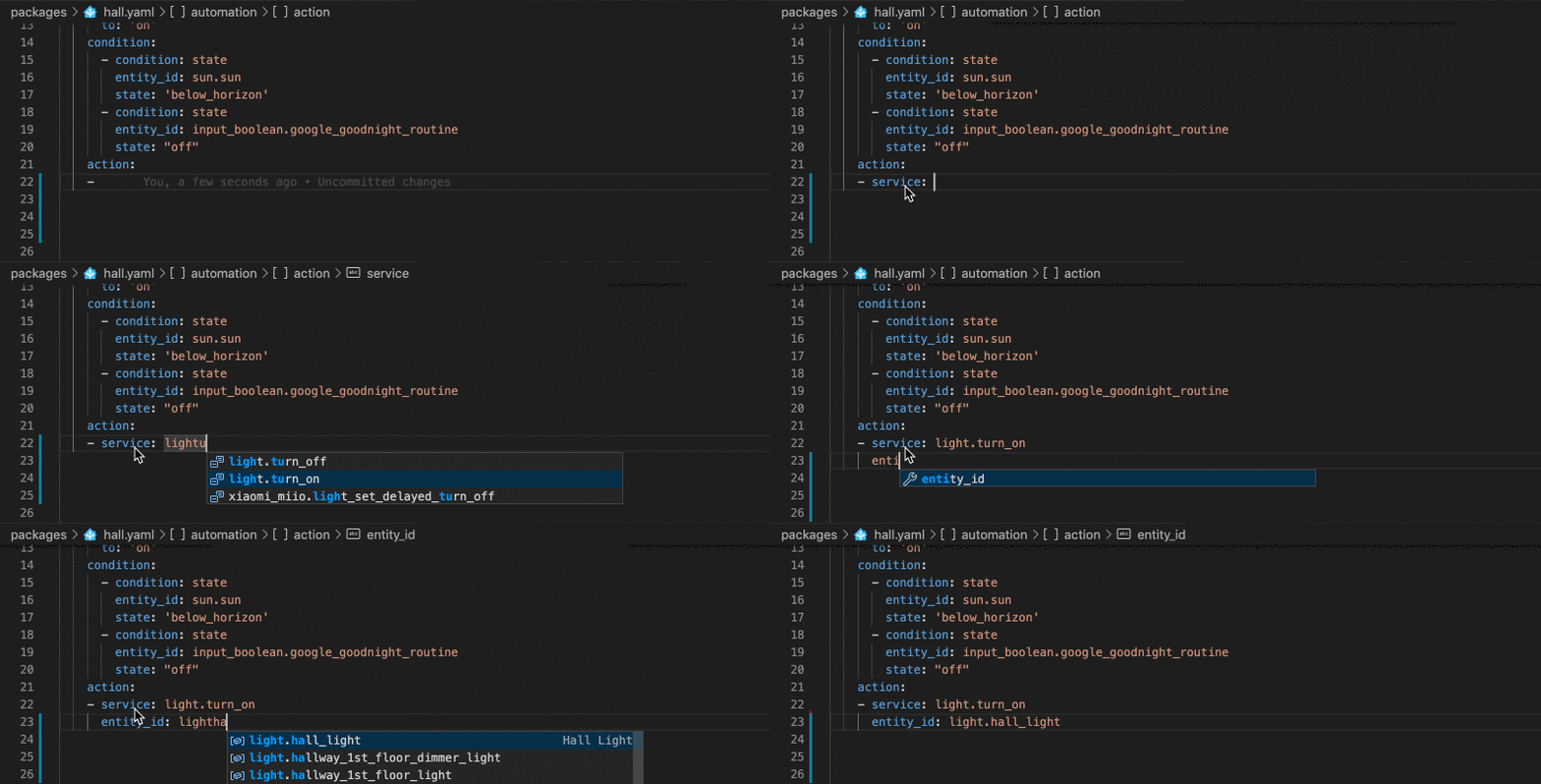
Completion for Entity IDs, Actions, Scenes and Triggers
When connected with your Home Assistant server, entity IDs and actions will be auto-completed.
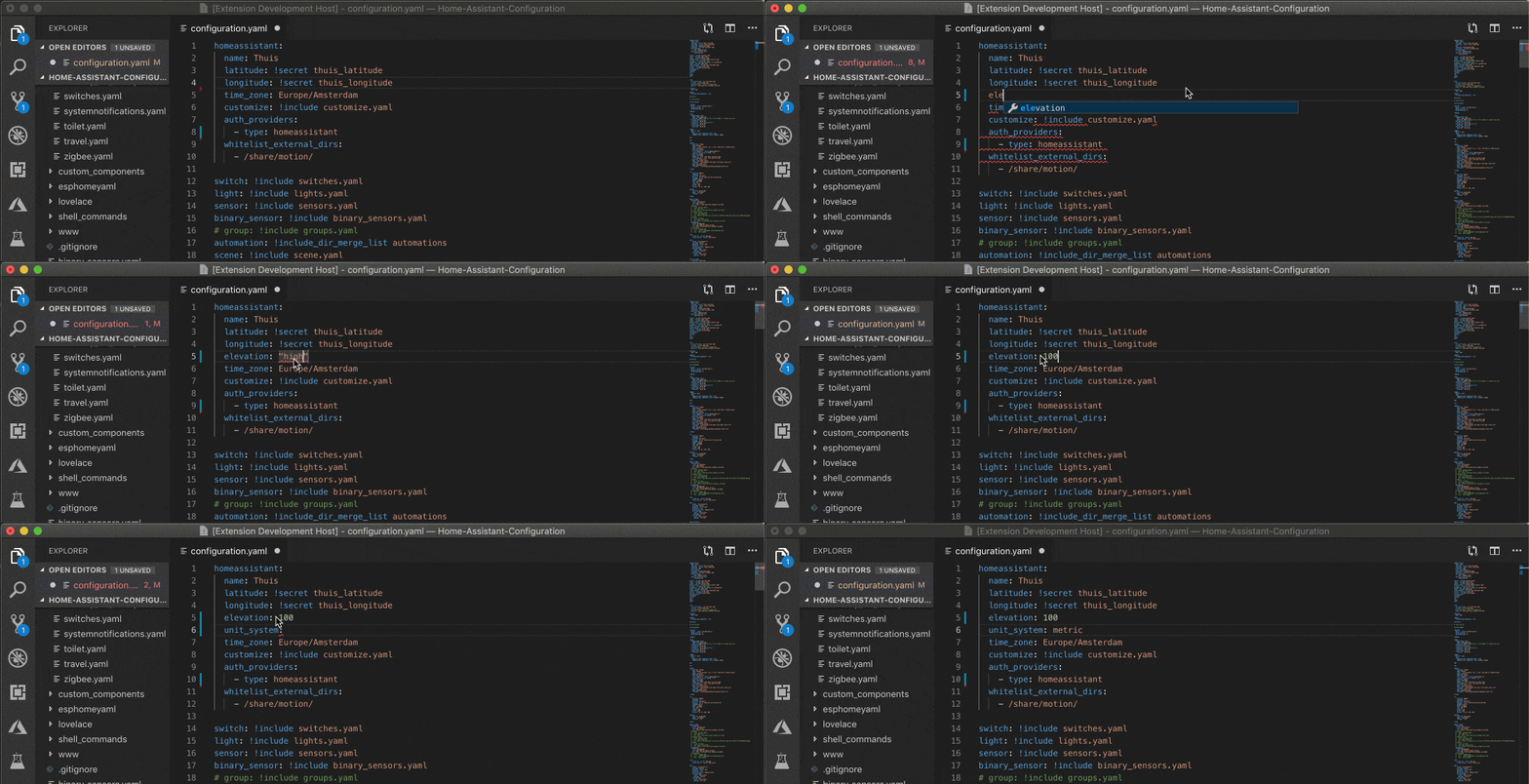
Completion & Validation for Configuration & Lovelace Schema
Most of the scheme's of Home Assistant will be validated and things like properties, values and enums will be auto-completed. This extension understands the behaviour of Home Assistant '!include...' behaviour and use this to provide scoped validation for all your files.
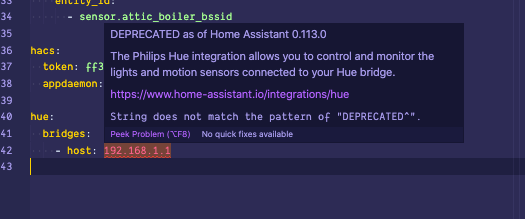
Deprecation Warnings:
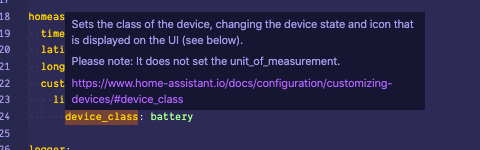
Schema Documentation
Go to Definition for Includes
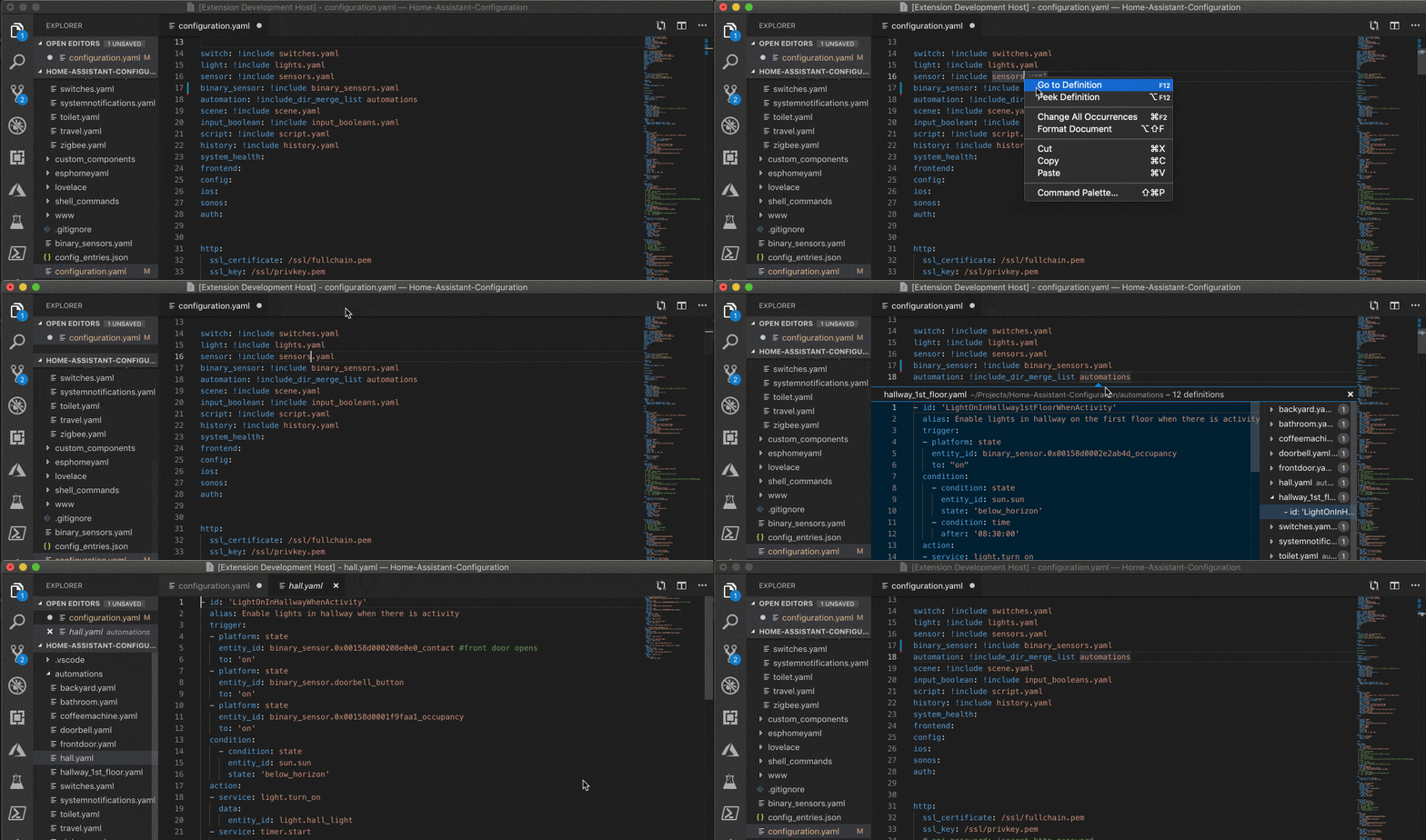
Easy navigate between your files references via the different !include... tags using 'f12' / 'Go to Definition'.
Snippets
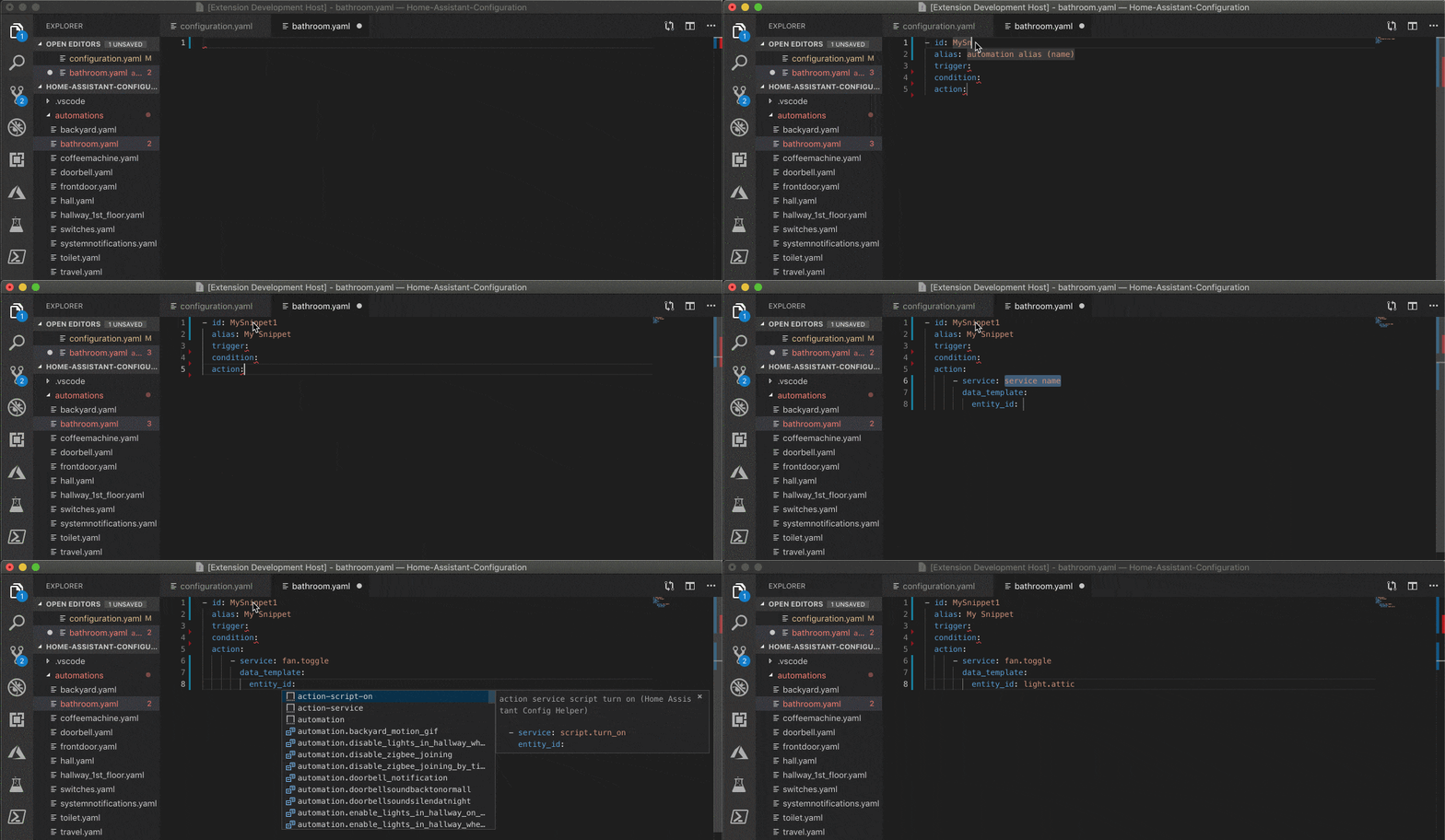
Snippets allow you to create commonly used data structures very quickly.
Commands
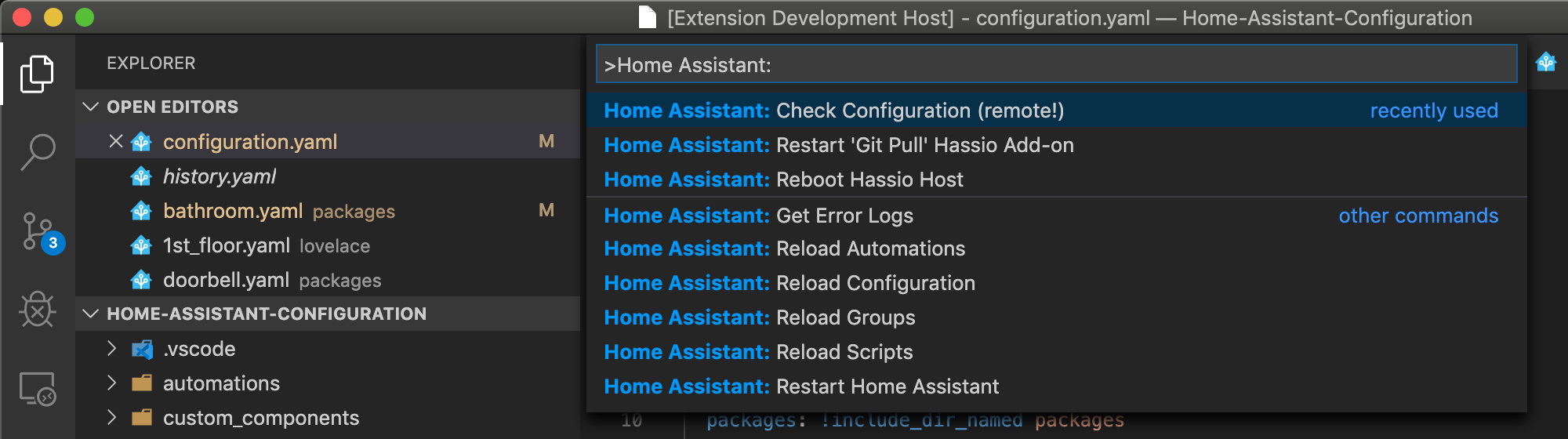
Commands allow you to quickly interact with Home Assistant! Find them using Cmd+shift+P and type 'Home Assistant'
Render templates
Evaluate jinja templates via Home Assistant's API and see how they would render.
Contribution
Release Notes
Read all the recent changes in the GitHub releases section
Feedback / Ideas
Create an issue.
Telemetry
The extension sends telemetry to an Azure Application Insights resource owned by
this extension's publisher, using
@vscode/extension-telemetry.
It sends:
- Activation: one
extension.activate event each time the extension starts.
- Errors: VS Code reports errors that the extension doesn't handle, with the
error message and stack trace.
The library adds its
common properties
to every event:
- Extension name and version
- VS Code version, product, UI kind and commit
- VS Code's machine ID and session ID, and whether it's a new install
- Operating system, platform version and architecture
- Remote connection type, such as SSH or WSL
The extension doesn't send your configuration or entity names, or anything about
your Home Assistant instance. An error message could include details of what
failed, such as a file name.
Telemetry follows VS Code's telemetry.telemetryLevel setting: set it to off
and the extension sends nothing, or to error to send only error reports. See VS Code's
telemetry documentation
for details.

