Session Panel for Claude Code
A VS Code panel for the Claude Code sessions you run in
the terminal: see what's running and what's waiting for you, open several sessions at once in named, coloured
terminals, and reopen them after a restart.
Not affiliated with or endorsed by Anthropic. Claude is a trademark of Anthropic.
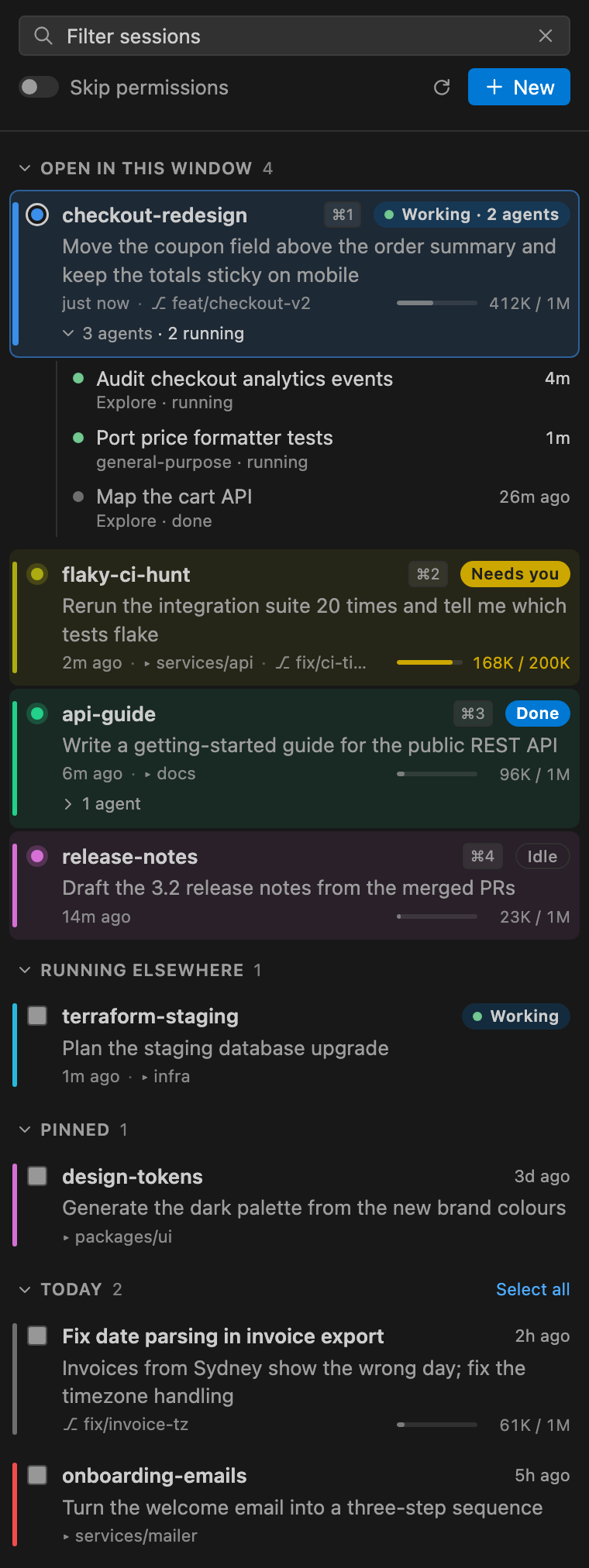
What it does
- Every session for this workspace, grouped into Open in this window, Running elsewhere, Pinned, then
Today / Yesterday / This week / Older. Each shows its name, colour, last prompt, folder and branch. Clicking one
running elsewhere opens it read-only, so the other window's session is never resumed twice by accident.
- What it's doing now: a live session's card has one line for its current step: Editing extension.js,
Running npm test, Searching for 'foo', Running 2 agents, Thinking…, or Waiting: permission prompt.
Running subagents show theirs too.
- Live status: Working, Needs you (a permission prompt, say), Idle, or Done when it finished while you
were looking at something else. That also gives a notification, a badge on the panel icon and a bell in the
status bar. Sessions you started by hand in a terminal are picked up too.
- Open several at once: tick them and press Open N. Each opens in its own terminal, named and coloured like
the session. Clicking a session that's already open jumps to its terminal.
- Remembers what was open: after a restart it offers to reopen them. A session is forgotten only when you close
its terminal or exit Claude in it.
- Subagents: a session that spawned agents shows › N agents · M running; expand it to list them with their
state and elapsed time, and click one to open it in a read-only view.
- Read-only view of a session's transcript in an editor tab, following it live: your prompts, Claude's replies,
tool calls with their input and results, subagents (open each in its own view), compactions and turn times.
From the
⋯ menu or Session Panel: Open Read-only View….
- Context usage: a bar with tokens in use against the context window.
- Current session: the one whose terminal is active is framed in its colour.
- Your order: drag open and pinned sessions within their section, or Alt+Up / Alt+Down. Cmd+1–9 follow it.
- Skip permissions switch adds
--dangerously-skip-permissions to every launch.
⋯ menu: rename, colour, pin, hide, move up / down, fork, open the read-only view or the raw transcript, copy the
id or the resume command.
The panel lives in the Secondary Side Bar (the right-hand one). Cmd+Alt+C (Ctrl+Alt+C) shows it.
Install
From the VS Code Marketplace:
search for Session Panel for Claude Code in the Extensions view, or run
code --install-extension bkaluza.claude-session-panel
Each release also has the .vsix, for
Extensions: Install from VSIX… (it isn't on Open VSX yet).
Keys
| Key (macOS / Windows, Linux) |
|
| Cmd+1 … Cmd+9 / Ctrl+1 … Ctrl+9 |
Switch to open session 1–9 (in the panel's order; shown as ⌘N there). Active while a terminal or the panel has focus, so in a file they still switch editor groups. |
| Alt+Up / Alt+Down |
On a session in the panel: move it up or down within Open in this window or Pinned |
| Cmd+Alt+C / Ctrl+Alt+C |
Show the panel |
| Cmd+Alt+R / Ctrl+Alt+R |
Quick multi-select picker, without the panel |
VS Code sends keys to the shell while a terminal has focus unless the command is listed in
terminal.integrated.commandsToSkipShell. The first time, the extension asks before adding its nine switch
commands there. If you said Not now, run Session Panel: Enable Cmd+1–9 in Terminals later. To turn the
keys off entirely, set claudeSessions.sessionShortcuts to false.
Settings
| Setting |
Default |
|
claudeSessions.terminalLocation |
panel |
panel (the terminal panel), editor (tabs in the current editor group) or split (tabs in a right-hand editor group, files on the left) |
claudeSessions.sessionShortcuts |
true |
Cmd+1–9 to switch sessions, and the ⌘N hints |
claudeSessions.restoreOnStartup |
ask |
reopen last window's sessions: ask, always or never |
claudeSessions.notifyWhenDone |
true |
notify when a session finishes or needs you while you're elsewhere |
claudeSessions.skipPermissions |
false |
start sessions with --dangerously-skip-permissions (also the switch in the panel) |
claudeSessions.includeSubfolders |
true |
also list sessions started in subfolders of the workspace |
claudeSessions.maxRecent |
100 |
how many past sessions to list |
claudeSessions.contextWindow |
0 |
context window for the usage bar; 0 = auto (1M, or 200K for Claude 3/4 models) |
claudeSessions.command |
claude |
the command that starts Claude Code |
claudeSessions.extraArgs |
[] |
extra arguments for every launch |
In Restricted Mode (an untrusted workspace) command, extraArgs and skipPermissions are read from your user
settings only, so a repository can't change what gets launched.
How it works
The extension reads the files Claude Code keeps in its config directory, ~/.claude (or $CLAUDE_CONFIG_DIR if
you set it):
sessions/<pid>.json: one per running Claude Code process, with its session id, name and busy/idle status. The
extension matches those processes to this window's terminals.projects/<workspace path>*/<session id>.jsonl: the transcripts, for past sessions, titles, last prompts,
context usage, and subagents (<session id>/subagents/). Only newly appended lines are read.
Order. Open in this window starts in terminal tab order: tabs left to right across the editor groups, then
terminals in the terminal panel in the order they opened. Once you drag a session (or press Alt+Up/Down, or use
Move up / down), that order is kept for this workspace, new sessions go to the end, and the session terminals'
editor tabs are moved to match. Drag a terminal tab yourself and the panel follows. Terminals in the terminal
panel can't be reordered by an extension, so only the panel's list changes for them. Pinned keeps the order you
give it across workspaces; newly pinned sessions go to the end.
Activity line and read-only view. Both come from the transcript, which Claude Code writes one content block at a
time, when the block is complete. So they're a step behind: a reply or a tool call shows up once it's finished,
never while it's being written. While a session is busy the view ends with Working… (and the card says what the
last finished step implies: a tool call without its result is running, otherwise Thinking…). Most thinking blocks
are written without their text, so they show as Thinking… only. Commands are shortened on the card and stop
before anything that looks like a credential; only file names are shown, not paths.
The view opens on the last 4 MB of a transcript (Load earlier entries reads further back) and keeps up to 1,500
entries as it grows; long tool input and output is cut at about 4,000 characters (Raw file opens the JSONL). It
watches the file for changes, with the panel's 2-second poll as a fallback. It is read-only: nothing in it can send
anything to the session, transcript text is shown as text (no links, HTML or images), and closing the tab stops
the watching. Views don't come back after a window reload.
It launches claude --resume <id> in terminals and writes nothing to Claude Code's files. Nothing leaves your
machine: no network requests, no telemetry.
These files are Claude Code internals, not a documented format. If an update changes them beyond recognition, the
panel shows a short notice instead of quietly showing less.
Requirements
- VS Code 1.106 or later.
- The Claude Code CLI.
- macOS, Linux or Windows, including Remote SSH, WSL and containers (the extension runs where Claude Code runs).
Development
Plain JavaScript, no build step, no runtime dependencies.
npm test                          # unit tests (node:test, synthetic fixtures in test/fixtures)
npx @vscode/vsce package          # build claude-session-panel-<version>.vsix
npx @vscode/vsce ls               # what goes into it
License
MIT

