BigQuery Data Explorer
💛 Enjoying this extension? ❤️ Sponsor its development — sponsorships keep it free, maintained, and improving.
Analyze your BigQuery results without leaving VS Code. Run a query, then highlight,
conditionally format, pin, filter, sort, and copy the results in a fast, spreadsheet-style
grid — instead of exporting to CSV and opening Excel.



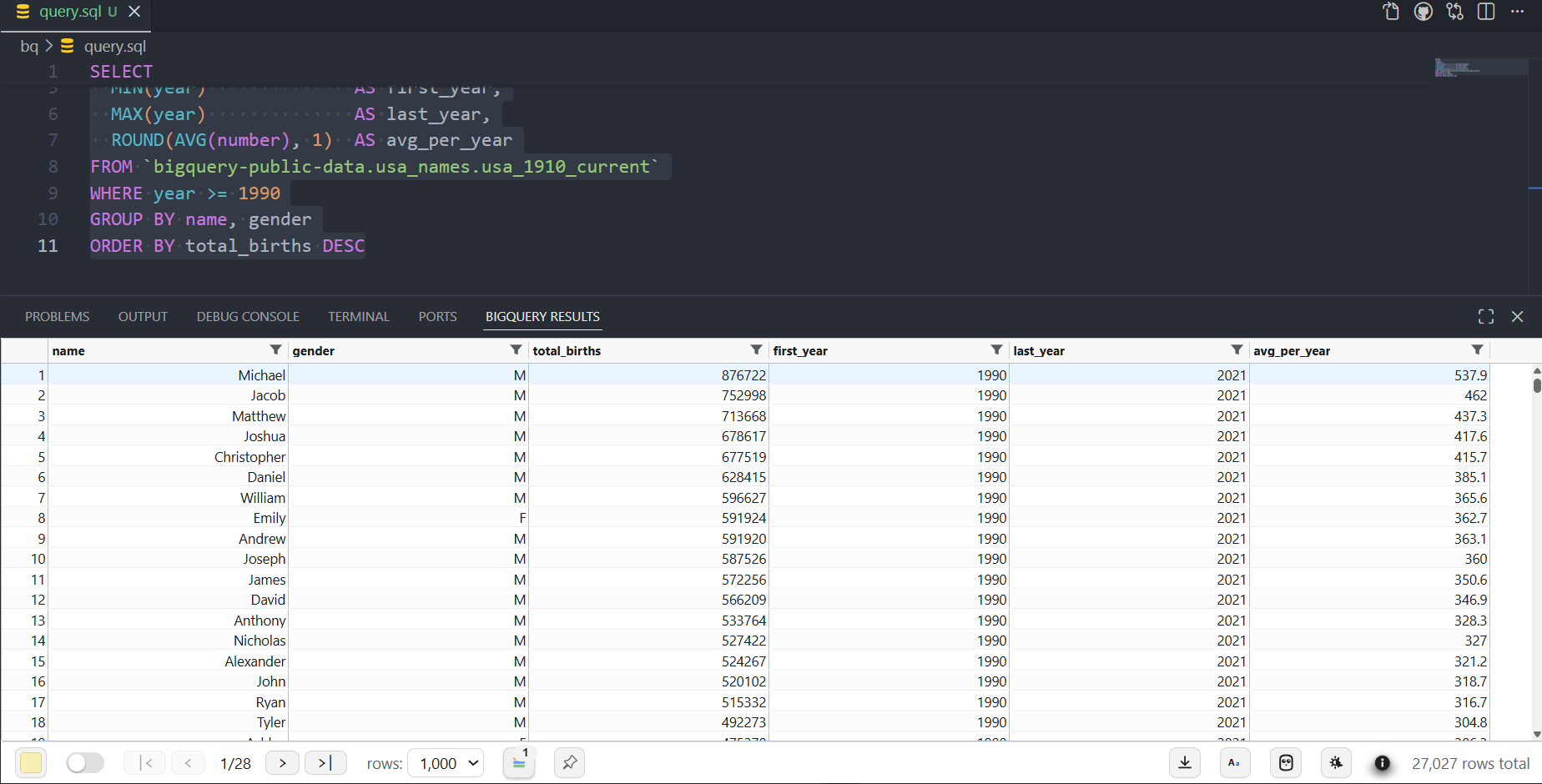
Open a .sql file, select a query, press Shift+Enter — the result appears in an
Excel-like grid in the bottom panel. The panel always shows the result for whichever .sql
file is active, so each file keeps its own result. Read-only by design: it's for analyzing
query output, not editing your warehouse.
Built for iterating on data. Exploring means running a query, realizing it isn't quite
what you needed, tweaking it, and running it again — over and over. With the export-to-Excel
loop (run → export CSV → open Excel → format), you repeat that entire round-trip on every
single re-run. Here your highlights, conditional formatting, filters, and pins live on the
result itself, so each iteration is ready to read the moment it returns — no re-exporting.
Features at a glance
- 🎨 Conditional formatting — color rows from a spreadsheet-style formula
(
revenue > 100000, ISNULL(email), COUNTIF(name, name) > 30) with a Monaco-powered
editor. → Full manual
- 🖱️ Click & drag to color rows — paint rows and columns by hand; coexists with rules.
- 🔍 Google Sheets-style filtering — per-column value checklists and condition builders.
- 📌 Pinning — pin columns to the left, or pin a whole result so it stays on screen while
you edit another file.
- ✨ SQL formatter — reformat BigQuery SQL (
Shift+Alt+F, or Ctrl+K Ctrl+B / Cmd+K Cmd+B, or format-on-save).
- 🧱 Multi-statement scripts — a console-style "All results" overview with per-statement
timing and drill-in.
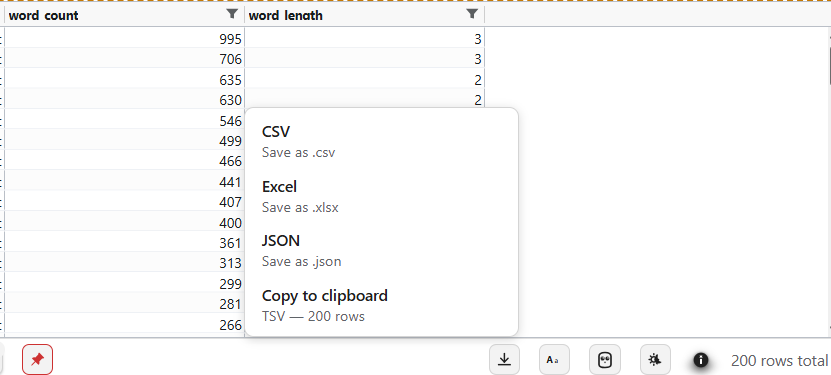
- 📤 Export — CSV, Excel (
.xlsx), JSON, or copy TSV to the clipboard.
- 🔬 Built for analysis — nested STRUCT/ARRAY/JSON/BYTES rendering, pagination, panel zoom,
light/dark themes, cell-range selection + copy, and full-fidelity temporal values.
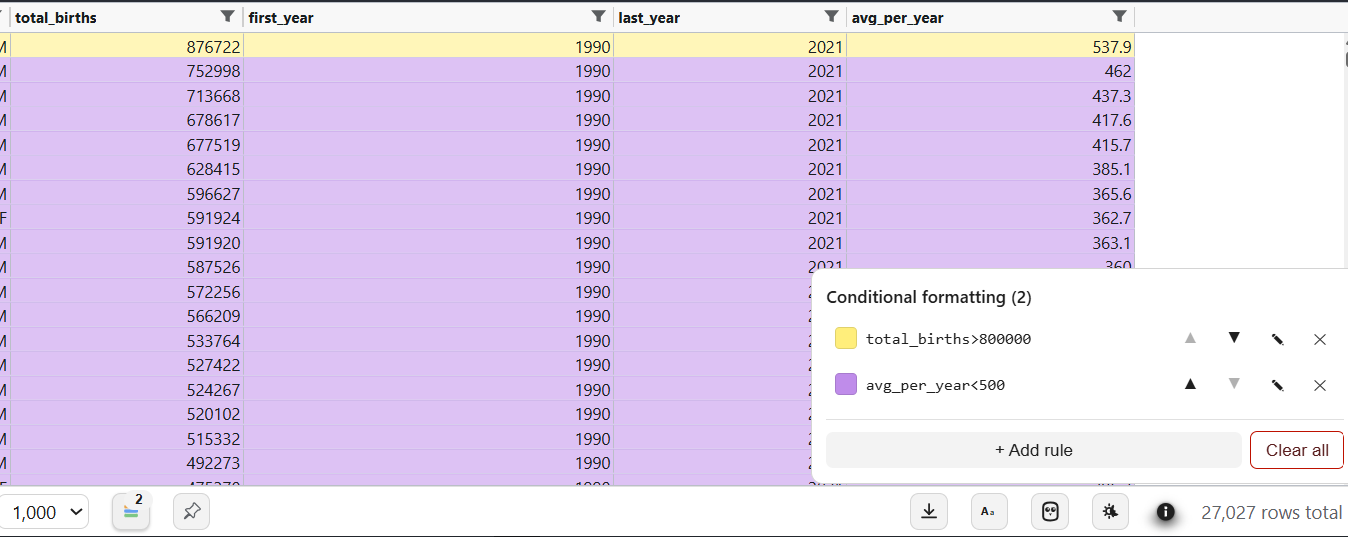
Write a rule like total_births > 2000000, pick a color, and every matching row lights up.
The rule editor is a real Monaco editor with autocomplete on your result's column names,
hover docs, signature help, and a live "matches N of M rows" preview.
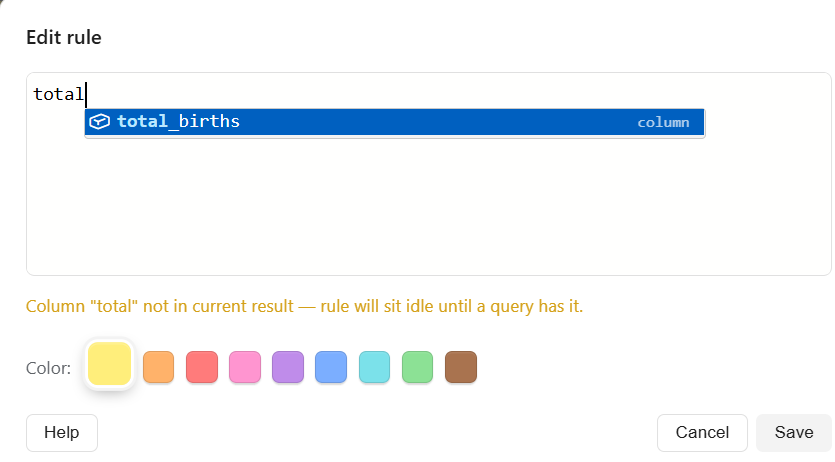
See the conditional-formatting manual for a walkthrough
and the formula language reference for every function.
Filtering and pinning
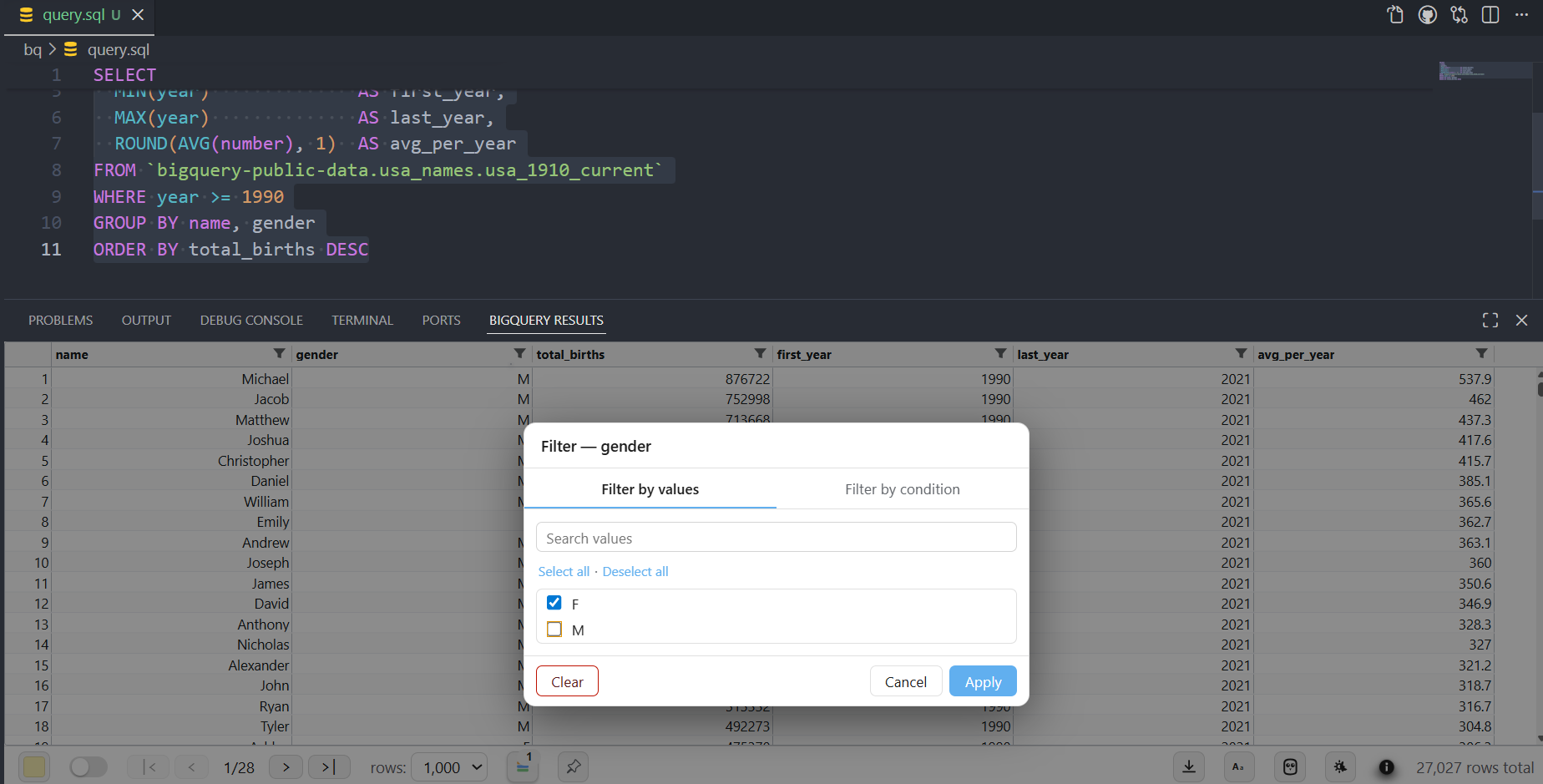
Filter any column with a Sheets-style value checklist or a typed condition, and pin the
columns you want to keep in view as you scroll.
Export
Install
From the Marketplace: search "BigQuery Data Explorer" in the Extensions view
(Ctrl+Shift+X), or install from the
Marketplace page.
From a .vsix: download the latest release, then run
Extensions: Install from VSIX… from the Command Palette (or
code --install-extension bq-vs-extension-<version>.vsix).
Prerequisites
The extension drives the official Google Cloud CLI (bq / gcloud), so you need it
installed and authenticated:
- Install the Google Cloud SDK and confirm
bq version works in your shell.
- Authenticate the CLI:
gcloud auth login.
- Set your default project (used for billing/compute):
gcloud config set project <your-project>.
- Set up Application Default Credentials (ADC):
gcloud auth application-default login.
- This is a separate credential store from step 2. The extension uses ADC to talk to
BigQuery directly for the fast query pre-check (dry run), which is quicker than
launching the
bq CLI for it.
- Recommended, not required. If ADC isn't present, the extension falls back to running
the pre-check through the
bq CLI — everything still works, just a few seconds slower
per query.
- Python on PATH. If
bq complains about Python, set CLOUDSDK_PYTHON in your
environment to the absolute path of your Python interpreter.
- VS Code 1.85 or newer.
Note on credentials: gcloud auth login (step 2) authenticates the bq/gcloud
commands; gcloud auth application-default login (step 4) sets up ADC for the extension's
direct BigQuery calls. Both reuse the same Google account and auto-refresh — you won't be
prompted to log in again during normal use.
Quick start
- Open a
.sql file on disk (untitled buffers and non-.sql files do nothing — the
keybinding is gated by file scheme and extension).
- Select the text of a BigQuery Standard SQL query.
- Press Shift+Enter. The BigQuery Results view opens in the bottom panel with your
result — sortable, filterable, colorable.
Two icon buttons also appear in the editor title bar on .sql files: ▶ Run Selection
(same as Shift+Enter) and ⏵⏵ Run File (sends the whole file).
Want to try it against public data? Any query works, e.g.:
SELECT name, gender, SUM(number) AS total_births
FROM `bigquery-public-data.usa_names.usa_1910_current`
WHERE year >= 1990
GROUP BY name, gender
ORDER BY total_births DESC
LIMIT 300;
Full feature reference
Running & cancelling queries
Each run kicks off two bq calls in parallel: a free bq --dry_run to fetch the result
schema (preserving your SELECT column order and accurate types like BYTES / JSON / NUMERIC /
REPEATED) and the real query for the rows. User-visible latency is max(dry-run, real query)
instead of the sum. If either phase fails, the other is cancelled and its error is surfaced in
a red banner (e.g. Syntax error: ... or Not found: Table ...).
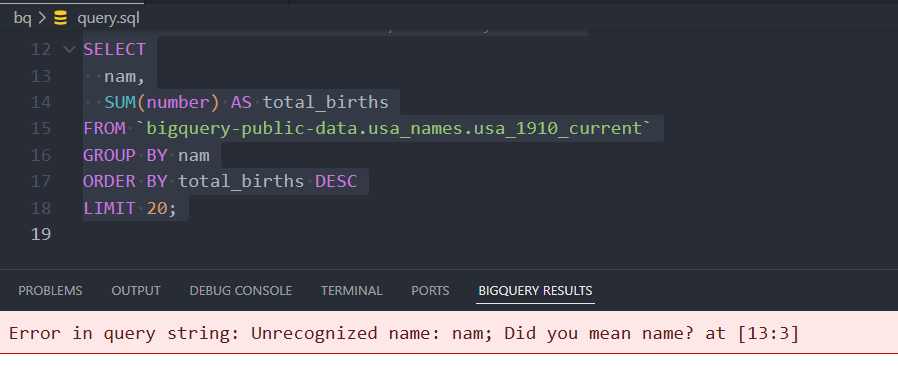
Errors come through verbatim, so BigQuery's precise diagnostics — including its
"Did you mean …?" suggestions — land right in the panel. No generic "query failed"; you fix
the SQL without leaving the editor.
While a query is in flight you can stop it three ways: (1) click Cancel query in the
loading state; (2) press Shift+Enter again on the same file to start a new query — the
previous run's bq process is killed; (3) close the .sql file — the in-flight process is
killed alongside slot cleanup. Queries from different files run concurrently and cancellation
only affects the file you triggered it from. On Windows the underlying bq.exe is killed via
a process-tree walk, so no zombie processes are left behind.
Row highlighting
The footer hosts a small color picker swatch — click it to open a popover with 9 colors
(yellow / orange / red / pink / purple / blue / cyan / green / brown), a None indicator,
and a full-width Clear all button. Clicking a swatch sets the active highlight color;
Clear all wipes every highlight for the current file (the two-click gate — open popover,
then Clear all — is the guard against accidental wipes).
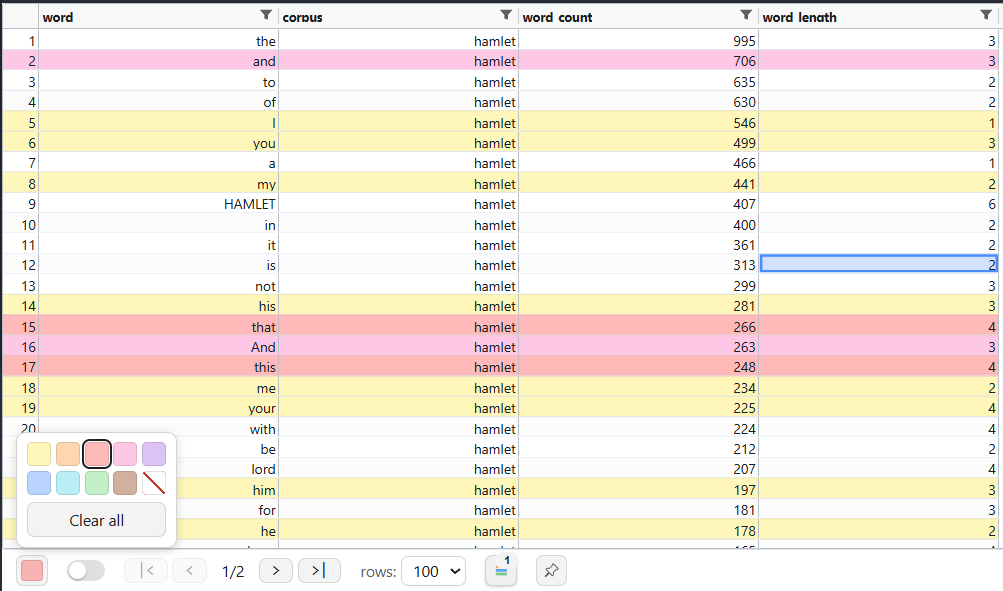
Highlights apply when the Highlighting mode toggle (the switch to the right of the picker)
is ON. With it ON, clicking a row colors it in the active color, and click-drag paints a
contiguous range of rows; re-clicking with a different color replaces it, and None clears
a row. Highlights survive sorting, filtering, paging, and page-size changes. Re-running a query
replaces the result and clears highlights for that file.
Highlighting mode defaults to OFF and persists per workspace. When OFF, row clicks do
nothing and you can drag across cell text to select it and Ctrl+C to copy; the picker
swatches are greyed out but Clear all stays active. Turning highlighting off does not clear
existing highlights.
Press the paint-drop button in the footer to open the conditional-formatting popover. Add
rules that color rows based on a spreadsheet-style formula (e.g. num_col > 100,
AND(NOT(ISNULL(str_col)), YEAR(date_col) = 2026)). Each rule has a color and the list is
evaluated top-down per row — first match wins.
- Formula language: Sheets/Excel-like syntax with functions like
IF, AND, OR, NOT,
MOD, ABS, ROUND, CONTAINS, LEN, LOWER, UPPER, YEAR, MONTH, DAY, TODAY,
DATE, ISNULL, ISBLANK, and cross-row COUNTIF / COUNTIFS. Operators = <> <
<= > >= + - * /. Columns are referenced by name (backtick-quote names with
spaces). Full reference: docs/formula-language.md.
- Monaco editor: the rule modal uses the same editor as VS Code — autocomplete on column
names and functions, hover tooltips, inline error squigglies, and a live "matches N of M
rows" preview as you type.
- Click + rules: when a rule matches a row, the rule paints the data cells and a row click
paints only the row-number gutter as a small marker. Rows no rule matches get the whole row
painted on click.
- Persistence: rules live in
workspaceState, keyed per .sql file URI. They survive
restarts, follow file renames, and are deep-copied to any file you duplicate (content-hash
match). Closing a tab keeps the rules; deleting the file removes them.
- Non-blocking errors: a rule referencing a column not in the current result sits idle with
a ⚠ in the rules list, and resumes matching when you run a query that has the column.
👉 Read the full conditional-formatting manual for a
step-by-step walkthrough with screenshots.
Column filters
Every non-nested column header has a funnel icon. Click it for a modal with two tabs:
- Filter by values: Sheets-style checkbox list of every distinct value (all-checked =
inactive).
(Blanks) groups NULL / empty-string values. A search box narrows the list
(case-insensitive substring across all values); large sets page in blocks of 200.
- Filter by condition: operator + value input tailored to the column type — strings get
equals / contains / starts with / …; numbers get = / < / between / …; dates get a
date picker. Every type gets is blank / is not blank. Combine two conditions with
AND / OR.
Both tabs can be active at once (a row must satisfy the condition and not be in the excluded
set). Filters survive paging, sort, render-mode swap, and highlight toggles; they reset on a new
query, file close, or when a column no longer exists. Each statement in a multi-statement script
keeps its own filter state. Filtered-out rows are hidden while rule and click colors are
preserved on the visible rows.
Pinning a result
Normally the panel mirrors whichever .sql file is active. The pin button in the footer
locks the panel to one file's result so it stays on screen while you switch to and edit another
file — handy for comparing a finished result against a query you're still writing.
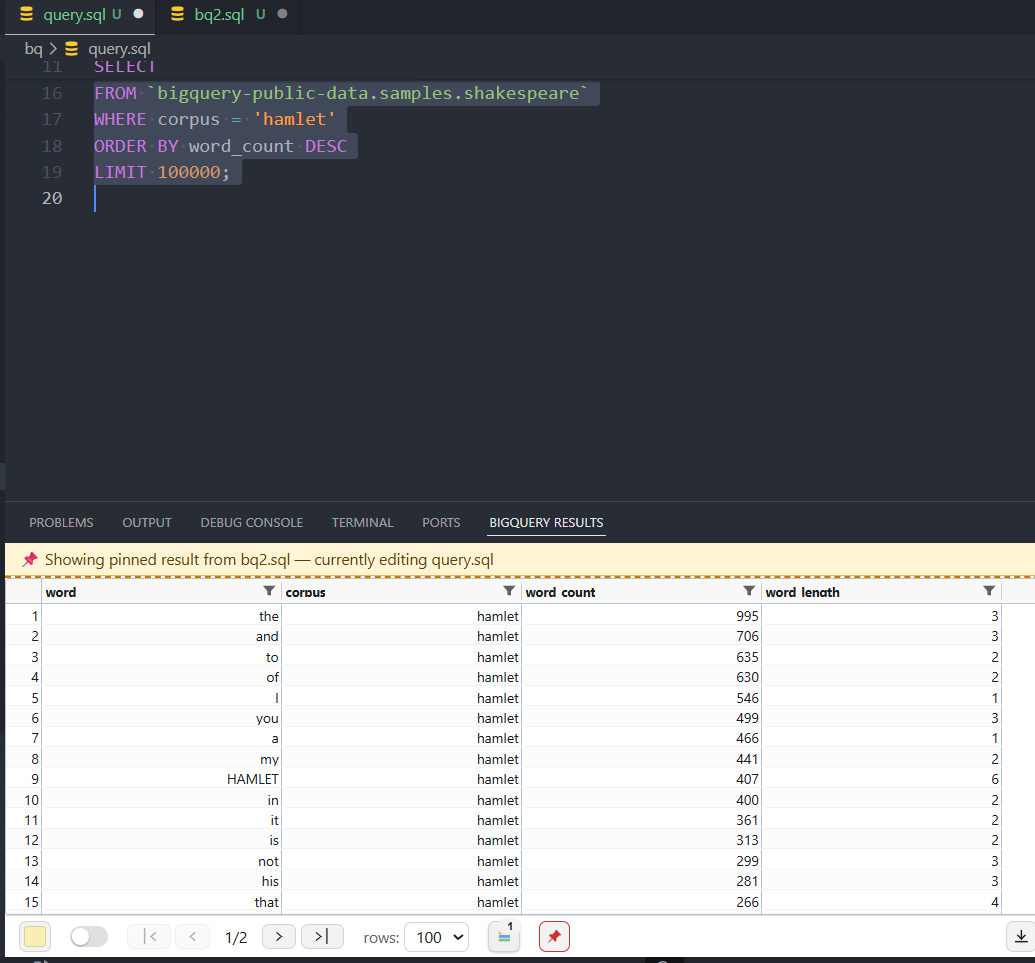
- Click the pin to lock the current result (icon turns filled amber).
- While pinned and a different file is focused, a sticky amber banner appears above the grid
and the grid gets a dashed amber top border, so you never mistake the pinned result for your
current file's.
- Click the filled pin again to unpin. The pin also clears on any new run, and on
close/rename of the pinned file. Only one result can be pinned at a time; it doesn't survive a
restart. The pinned result stays fully interactive (highlights, formatting, filters, export).
Column pinning & header highlights
Right-click a column header to pin it left (or unpin). Ctrl+click (Cmd+click) a
header toggles a high-contrast highlight on that header only — the column's data cells stay
untouched, so row colors and rules render normally beneath it. Header highlights are ephemeral
(reset on new query, file close, render-mode swap, restart).
Multi-statement scripts
If your selection contains multiple statements (semicolon-separated SELECTs, DML, DDL, or a
scripting block with DECLARE / BEGIN…END / IF / WHILE), the entire selection is sent to
bq as one call — no client-side splitting, so BEGIN…END blocks and string literals with ;
are handled by BigQuery itself.
When a run produces more than one result, the panel shows a BigQuery-console-style "All
results" overview table — one row per statement with a status icon, statement index, a SQL
preview, a result summary (N rows, 1 row affected, Created …, Succeeded (no output),
Error, Cancelled), and a View results link. Click any row to drill into that statement's
grid; ← All results returns to the overview. Each statement keeps its own page size,
highlights, filters, and render mode.
Nested types (STRUCT / ARRAY / JSON / BYTES)
Nested values render as a one-line collapsed preview ({key: …}, [item, …], truncated BYTES).
Click any nested cell to open a popover with the value pretty-printed (JSON for STRUCT/
ARRAY/JSON; base64 + hex for BYTES). null renders as italic muted null (distinct from an
empty string or the literal "null"); empty arrays render as [].
A footer toggle switches nested rendering between Inline (one row per source row; ARRAY
as an inline mini-table) and Explode (BigQuery-console style: STRUCT/JSON flatten to dotted
columns, the first ARRAY expands into multiple rows — sortable/filterable dotted columns). The
toggle is client-side and re-renders without re-running bq.
The extension registers a BigQuery-dialect SQL formatter (via
sql-formatter) available three ways:
- Shift+Alt+F — VS Code's standard "Format Document" (also right-click → Format Document).
- Ctrl+K Ctrl+B (Cmd+K Cmd+B) — dedicated "BigQuery: Format SQL" that always uses this
formatter even if another SQL formatter is your default. Also in the Command Palette.
- Format on save — opt in with
"editor.formatOnSave": true.
Lock this formatter in for Format Document with
"[sql]": { "editor.defaultFormatter": "benaventi.bq-vs-extension" }. Four settings
under bqVsExtension.format.* control the output: keywordCase (default upper), indentSize
(default 2), expressionWidth (default 100), and linesBetweenQueries (default 2). It
handles BigQuery-specific syntax (STRUCT<> / ARRAY<> literals, UNNEST, CTEs, table-suffix
wildcards, OPTIONS(), qualified project.dataset.table). Malformed SQL is left untouched with
a Format failed: … notice.
Exporting results
The footer's download icon opens a menu with four options:
- CSV — RFC 4180-compliant, header row, CRLF line endings.
- Excel —
.xlsx with a Result sheet; numbers/booleans/dates land as typed cells (temporal
columns forced to text to preserve microseconds), header row bold.
- JSON — pretty-printed array of row objects; nested STRUCT/ARRAY/JSON preserved as native
objects.
- Copy to clipboard — TSV with a header row (hard cap 10,000 rows).
Exports reflect the current visible result: filtered + sorted rows, all pages (not just
the current page), current column order, hidden columns excluded. Temporal cells are preserved
verbatim (microseconds and trailing UTC intact). Colors are not exported — CSV/TSV/Excel/
JSON carry only raw values. Filenames prefill as <sql-basename>-result.<ext> (with -stmtN for
multi-statement drill-ins).
Temporal values, empty results, and size limits
Temporal values (DATE / DATETIME / TIMESTAMP / TIME) are shown exactly as BigQuery
returned them — full microseconds and UTC suffix, no reformatting. A 0-row query shows a
centered Query returned 0 rows notice rather than an empty grid.
Built for visual analysis, not million-row dumps, results are bounded: bq query runs with
--max_rows=1000000, and a result streaming past 256 MB is stopped with Result too large to display…. BigQuery-side failures (e.g. Resources exceeded…) pass through verbatim — narrow the
query and re-run.
Per-file result lifecycle
The panel holds at most one result per .sql file and always displays the result for the active
file (mirroring the BigQuery web console):
- A result is created only when you press Shift+Enter on that file. Re-running replaces it.
- Switching editors auto-switches the panel to that file's stored result (or the empty state). It
never auto-runs.
- Closing a
.sql file drops its result; renaming is treated as close+reopen. Nothing is
persisted to disk — restart clears all stored results.
- The one exception is an explicit pin (above).
Grids paginate at 100 / 200 / 1000 (the selector hides when everything fits on one page), with
first/prev/next/last controls; page changes are client-side and preserve sort, filters, and
highlights.
Troubleshooting
| Symptom |
Likely cause |
Fix |
| Shift+Enter does nothing |
File isn't on disk, isn't .sql, or nothing is selected. |
The when clause requires editorTextFocus && editorHasSelection && resourceScheme == file && resourceExtname == .sql. |
Red banner: bq CLI not found on PATH |
bq not installed or not on the PATH VS Code inherited. |
Verify bq version works in a fresh terminal, then restart VS Code. |
| Red banner with auth error |
Stale gcloud credentials. |
gcloud auth login and gcloud auth application-default login. |
| Numbers sort alphabetically (10 before 2) |
Column inferred as text (mixed types, or an INT64 above Number.MAX_SAFE_INTEGER kept as text to preserve precision). |
Cast or clean the column in SQL if you need numeric sort. |
Accented characters render as � |
bq CLI emitting non-UTF-8 stdout. |
The extension passes PYTHONIOENCODING=utf-8; if it persists, gcloud components update. |
Building from source
npm install
npm run compile      # or: npm run watch  (incremental rebuilds)
Open the folder in VS Code and press F5 to launch the Extension Development Host with the
extension loaded, then open a .sql file and press Shift+Enter. Package a .vsix with
npm run package.
Roadmap
BigQuery Data Explorer focuses on the analysis layer for query results. Not included today:
query history, a dataset/project browser, dry-run cost preview, and streaming results. Support
for additional warehouses is on the longer-term roadmap.
Support
If BigQuery Data Explorer saves you time, please consider sponsoring its development 💛 — it keeps the extension free and actively maintained.

License
MIT © Benaventi Fuentes

