Interactive plan review and code review for AI coding agents — inside VS Code.
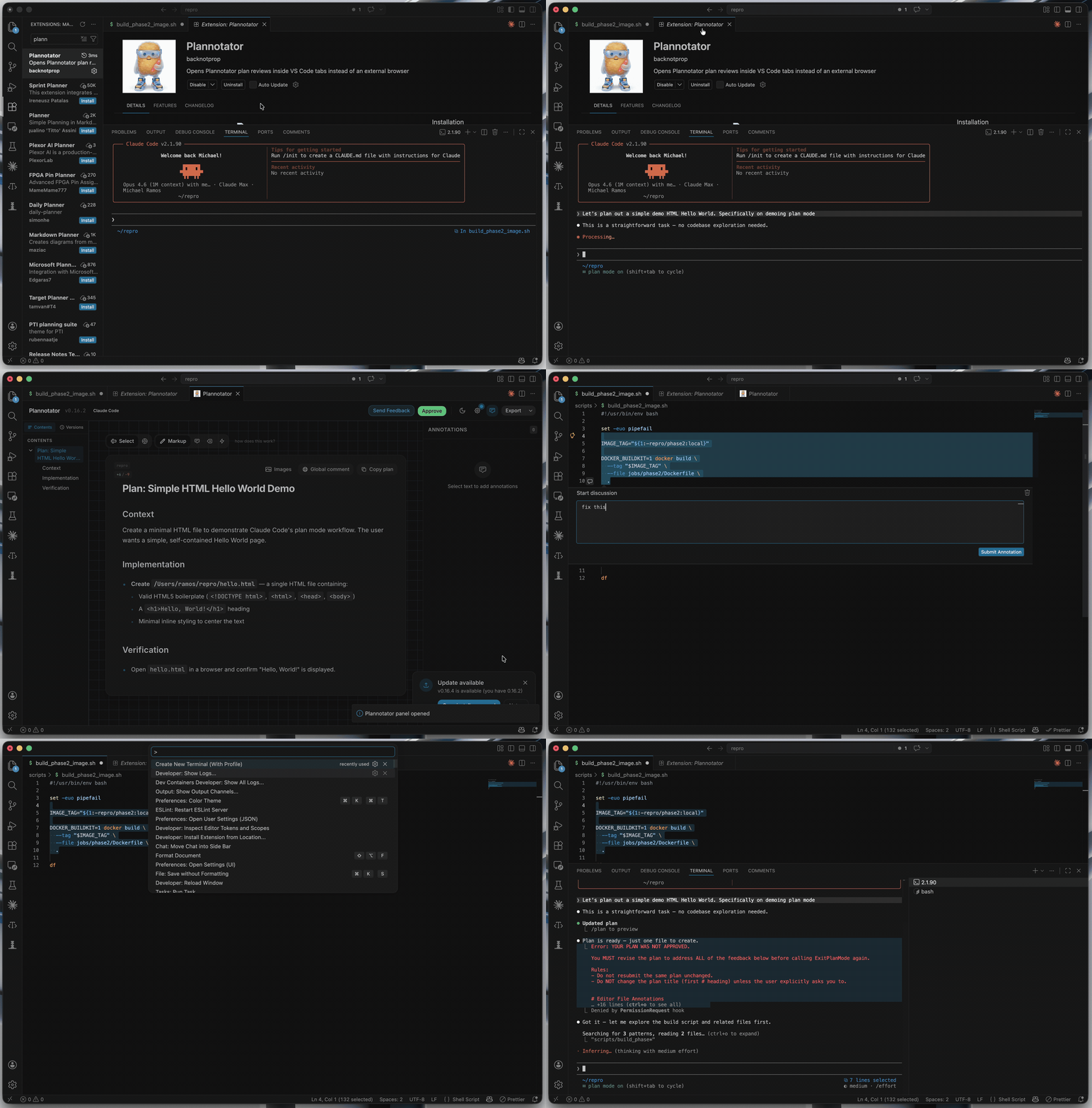
Opens Plannotator plan reviews and code reviews inside VS Code tabs instead of an external browser. Works with Claude Code, OpenCode, and other AI agents running in the integrated terminal.
Plan Review
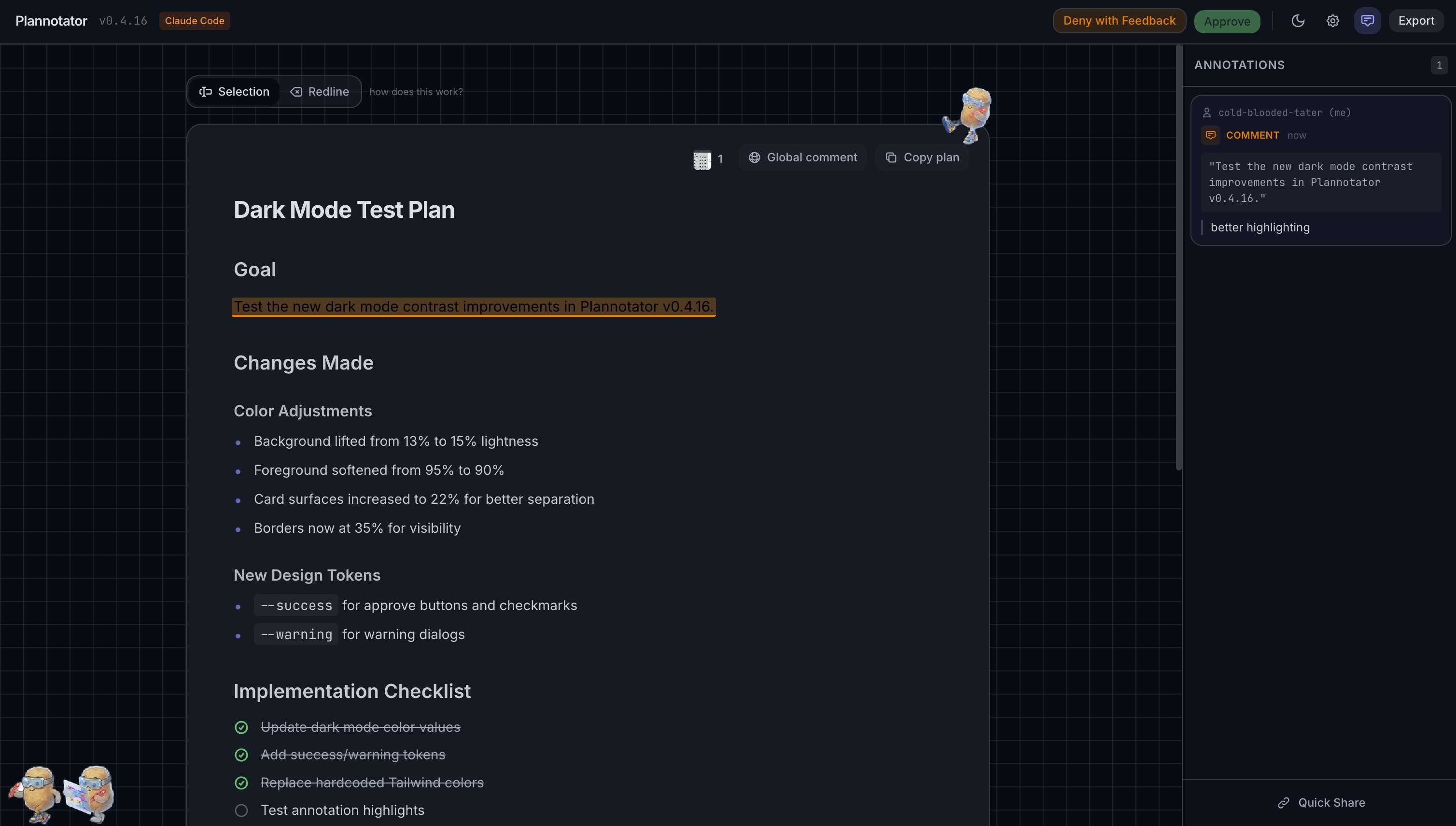
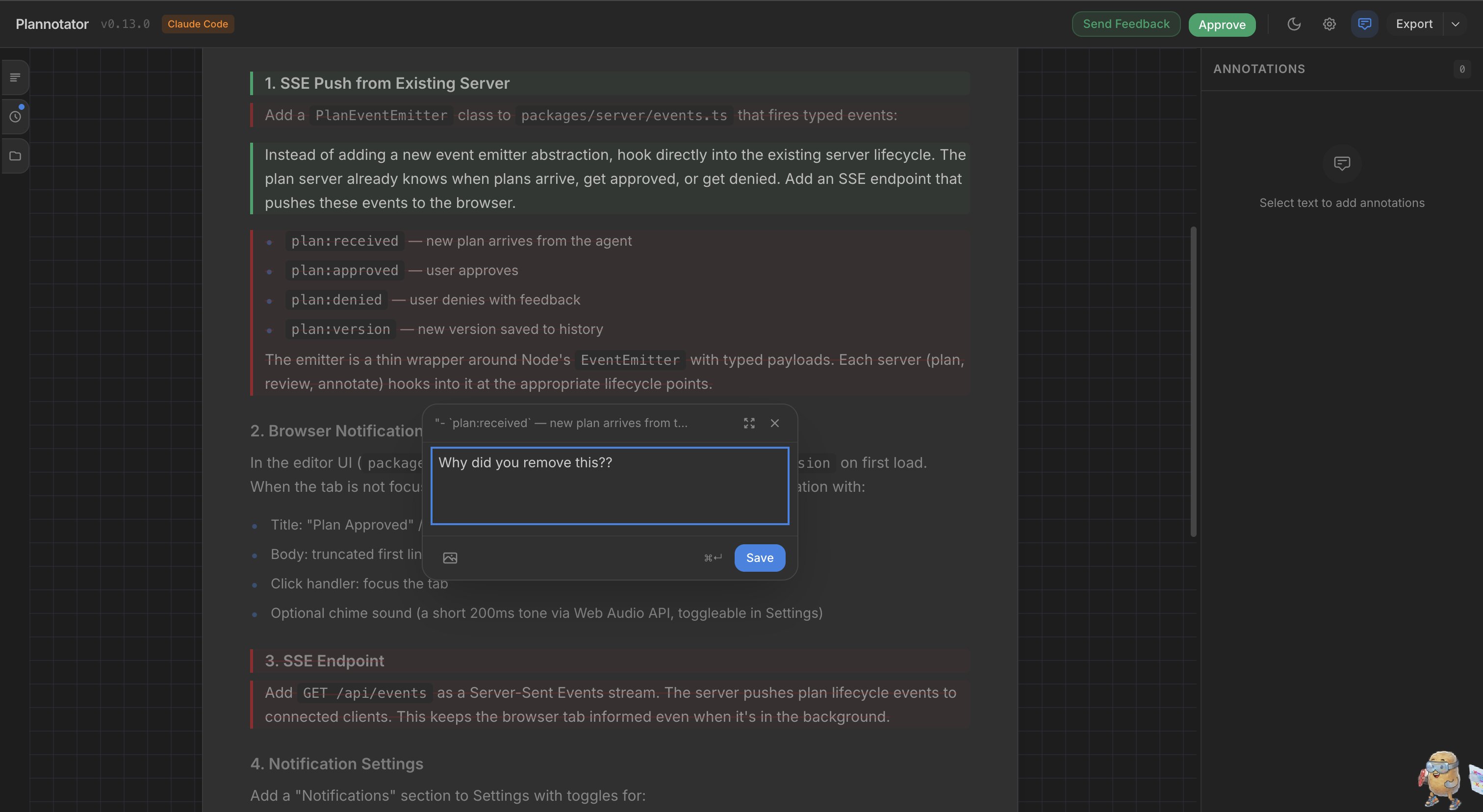
Review, annotate, and approve AI-generated plans without leaving your editor. Add comments, mark deletions, compare versions with plan diffs, and send structured feedback back to the agent.
Code Review
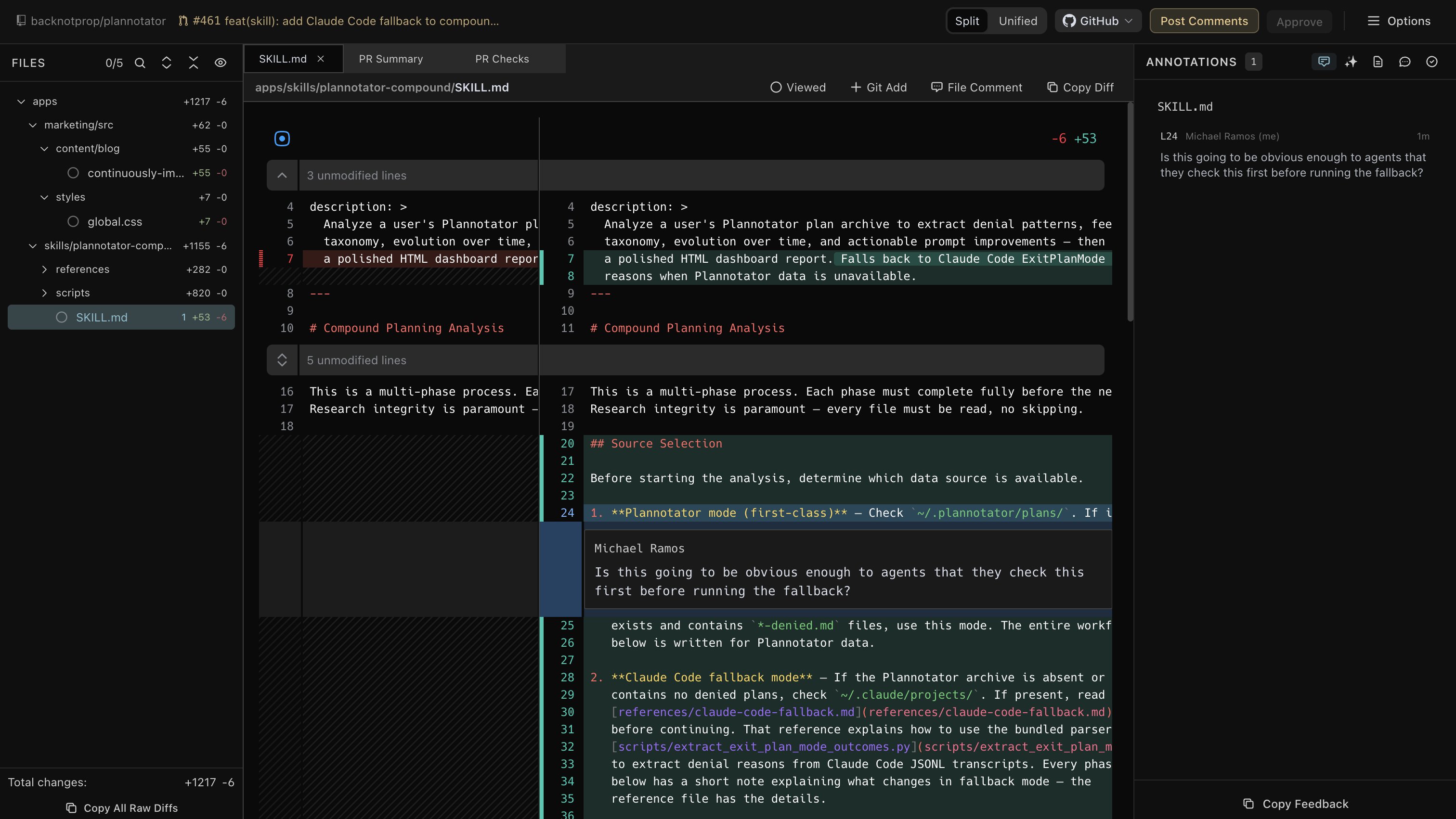
Review code changes with a full diff viewer, file tree, inline annotations, and AI-assisted review — all in a VS Code tab.
Features
In-editor plan review — approve or deny plans with annotated feedback, directly in a VS Code tab
In-editor code review — review git diffs and PR changes with inline comments and suggestions
Editor annotations — select code directly in your editor and annotate it with Cmd+Shift+. — annotations appear in the Plannotator review UI alongside inline comments
Theme sync — Plannotator adapts to your VS Code color theme automatically
Cookie persistence — your identity, settings, and preferences persist across sessions
Auto-close — panels close automatically when you approve or send feedback
How It Works
The extension injects a PLANNOTATOR_BROWSER env var into integrated terminals
When Plannotator opens a URL, a bundled router script sends it to the extension via a local IPC server
The extension opens the URL in a WebviewPanel with an embedded iframe
A reverse proxy handles cookie persistence transparently (VS Code webview iframes don't support cookies natively)
Getting Started
Install this extension from the VS Code Marketplace
Launch Claude Code from VS Code's integrated terminal — this is required so the extension can intercept browser opens. Plan reviews, code reviews, and annotations will automatically open in VS Code tabs instead of an external browser.
Note: Terminals opened before the extension activates won't have the required environment variables. If plans open in an external browser, open a new integrated terminal and try again.
Configuration
Setting
Default
Description
plannotatorWebview.injectBrowser
true
Redirect Plannotator to open in VS Code instead of an external browser
Commands
Command
Keybinding
Description
Plannotator: Open URL
—
Manually open a Plannotator URL in a panel
Plannotator: Add Annotation
Cmd+Shift+.
Annotate selected code in the editor
Troubleshooting
URL opens in external browser instead of VS Code
Ensure plannotatorWebview.injectBrowser is enabled
Open a new terminal after installing the extension (existing terminals won't have the env var)
Panel shows a blank page
Check if Plannotator's server is still running
Some network configurations may block localhost access from the webview