
 | NovaTypeNovaType/Typst document support with live preview Installation Launch VS Code Quick Open ( Ctrl+P), paste the following command, and press enter.Copied to clipboard |

NovaType for Visual Studio CodeThe ultimate Typst editing experience for VS Code
Features • Installation • Quick Start • Code Intelligence • Bibliography • Table Editor • Configuration OverviewNovaType for VS Code is the official extension for NovaType, a modern document composition system built on Typst. Write beautiful scientific documents, papers, and reports with real-time preview, intelligent autocompletion, and integrated bibliography management.
FeaturesLive PreviewReal-time PDF preview that updates on save. The preview compiles the project's main file (detected via Code Intelligence
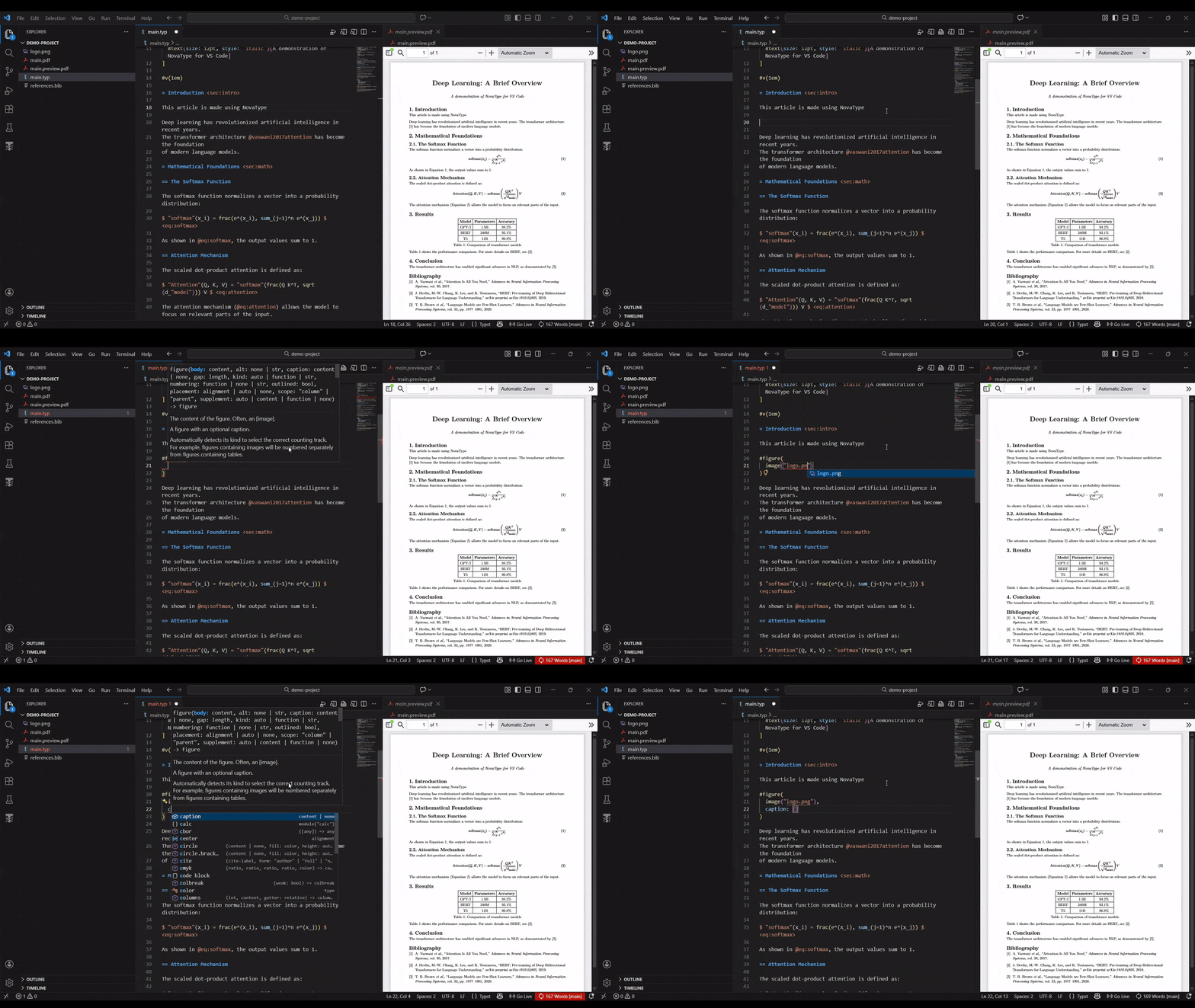
Smart IntelliSense
SnippetsQuickly insert common Typst structures:
Bibliography Management
Visual Table Editor
Editing Enhancements
Developer Experience
InstallationPrerequisitesInstall the NovaType CLI: Extension InstallationFrom VS Code Marketplace:
From VSIX: Quick Start1. Create a Document2. Open PreviewPress 3. Compile to PDFPress Code IntelligenceDocument OutlineThe Explorer sidebar shows a structured outline of your document:
Go to Definition (
|





| Type | Example | Description |
|---|---|---|
| Equation | @eq:einstein |
Mathematical equations |
| Figure | @fig:results |
Images and diagrams |
| Table | @tbl:data |
Data tables |
| Section | @sec:intro |
Document sections |
| Citation | @vaswani2017attention |
Bibliography entries |
Label Snippets (<)
Type < to insert a new label with the appropriate prefix:
| Prefix | Use Case | Example |
|---|---|---|
eq: |
Equations | <eq:maxwell> |
fig: |
Figures | <fig:architecture> |
tbl: |
Tables | <tbl:results> |
sec: |
Sections | <sec:methods> |
lst: |
Code listings | <lst:algorithm> |
def: |
Definitions | <def:entropy> |
thm: |
Theorems | <thm:main> |
lem: |
Lemmas | <lem:auxiliary> |
cor: |
Corollaries | <cor:consequence> |
prop: |
Propositions | <prop:existence> |
alg: |
Algorithms | <alg:dijkstra> |
Bibliography
Search Papers (Ctrl+Shift+R)
Search the CrossRef database containing over 130 million academic works:
- Press
Ctrl+Shift+R(orCmd+Shift+R) - Enter search terms (title, author, keywords)
- Select a paper from the results
- BibTeX is automatically added to your
.bibfile
Import from DOI (Ctrl+Shift+D)
Have a DOI? Import it directly:
- Press
Ctrl+Shift+D(orCmd+Shift+D) - Paste the DOI (any format accepted):
10.48550/arXiv.1706.03762https://doi.org/10.48550/arXiv.1706.03762doi:10.48550/arXiv.1706.03762
- BibTeX is fetched and inserted automatically
.bib File Management
- Auto-detection — Finds
.bibfiles referenced via#bibliography("file.bib") - Auto-creation — Offers to create a new
.bibfile if none exists - Duplicate prevention — Checks for existing DOIs before inserting
- Multi-file support — Works with multiple bibliography files
Visual Table Editor
Edit an Existing Table
A "Edit Table" CodeLens appears above every table() call in your document. Click it to open a spreadsheet-like editor where you can:
- Edit cell contents by clicking
- Navigate with
Tab,Shift+Tab, andEnter - Toggle bold on cells
- Change column alignment (left / center / right)
- Add or remove rows and columns
Click Apply to replace the table source code, or Cancel to discard changes.
Create a New Table
Open the Command Palette (Ctrl+Shift+P) and run "NovaType: Create Table" to start with an empty 3x3 grid. Edit it in the visual editor, then Apply to insert a #figure(table(...)) block at your cursor position.
Import from Excel or CSV
In the table editor:
- Paste from Excel — Copy cells in Excel or Google Sheets, then click "Paste from Excel" (or press
Ctrl+Vin the editor) - Import CSV — Click "Import CSV" to load a
.csvor.tsvfile from disk
Configuration
Interactive Settings
Run NovaType: Configure Extension from the Command Palette for an interactive configuration experience.
Available Settings
| Setting | Default | Description |
|---|---|---|
novatype.binaryPath |
"" |
Custom path to nova binary |
novatype.preview.backend |
"builtin" |
Preview backend (builtin or vscode-pdf) |
novatype.preview.autoRefresh |
true |
Auto-refresh preview on save |
novatype.preview.refreshDelay |
300 |
Refresh delay in milliseconds |
novatype.compile.outputFormat |
"pdf" |
Output format (pdf or svg) |
novatype.compile.openAfterCompile |
true |
Open file after compilation |
Preview Backends
| Backend | Description |
|---|---|
builtin |
Integrated PDF.js viewer with zoom controls |
vscode-pdf |
Uses vscode-pdf extension (better navigation, bookmarks, outline) |
Development Mode
For NovaType contributors, point to your local build:
{
  "novatype.binaryPath": "C:/path/to/novatype/target/release/nova.exe"
}
Keyboard Shortcuts
| Command | Windows / Linux | macOS |
|---|---|---|
| Open Preview | Ctrl+Shift+V |
Cmd+Shift+V |
| Compile to PDF | Ctrl+Shift+B |
Cmd+Shift+B |
| Search Bibliography | Ctrl+Shift+R |
Cmd+Shift+R |
| Insert from DOI | Ctrl+Shift+D |
Cmd+Shift+D |
| Indent list item | Tab |
Tab |
| Outdent list item | Shift+Tab |
Shift+Tab |
Commands
| Command | Description |
|---|---|
NovaType: Open Preview |
Open live PDF preview |
NovaType: Compile to PDF |
Compile document to PDF |
NovaType: Compile and Open PDF |
Compile and open in default viewer |
NovaType: Search Bibliography (CrossRef) |
Search for academic papers |
NovaType: Insert BibTeX from DOI |
Import citation from DOI |
NovaType: Edit Table |
Open visual editor for a table |
NovaType: Create Table |
Create a new table from scratch |
NovaType: Configure Extension |
Open settings menu |
Troubleshooting
"nova" command not found
Ensure NovaType CLI is installed and in your PATH:
cargo install novatype-cli
nova --version
Or set a custom binary path in settings.
Preview not updating
- Check that
novatype.preview.autoRefreshis enabled - Ensure the document compiles without errors (check Output panel)
- Try reloading VS Code
Preview compiles the wrong file
NovaType reads nova.toml to find the project's main file. Make sure your project has a nova.toml with:
[document]
main = "main.typ"
Bibliography not showing in autocomplete
Ensure your document includes a bibliography reference:
#bibliography("references.bib")
Contributing
Contributions are welcome! Please feel free to submit issues and pull requests.
- Fork the repository
- Create your feature branch (
git checkout -b feature/amazing-feature) - Commit your changes (
git commit -m 'Add amazing feature') - Push to the branch (
git push origin feature/amazing-feature) - Open a Pull Request
Related Projects
- NovaType — The core document composition system
- Typst — The underlying typesetting system
- novatype-wasm — WebAssembly bindings for browser usage
License
This project is licensed under the MIT License - see the LICENSE file for details.
Made with ❤ by AureClai