VS Code 用 SFTP 同期拡張機能
この README は日本語を主として案内します。必要なら詳細な日本語版として README.ja.md も参照できます。
このフォークは atezjp がメンテナンスしています。
元の著作物は @Natizyskunk および過去の貢献者によるものです。
SFTP Japanese は、長く使われてきた VS Code 向け SFTP 拡張をベースに、atezjp が保守している日本語対応フォークです。VS Code を離れずに、ローカルファイルとリモートサーバーを SFTP / FTP で同期できます。
- ローカルの変更を SFTP / FTP でリモートへ同期
- Remote Explorer でリモートファイルを参照
- 更新前にローカルとリモートを差分確認
- 保存時アップロード、watcher、複数プロファイルに対応
- UI とドキュメントを日本語で利用可能
- Use the same
.vscode/sftp.json file in VS Code, Cursor, and Antigravity
The current release improves SSH disconnect cleanup and makes the difference between omitted and empty password values clearer.
このフォークは、元の著作権表記とライセンスを維持しつつ、日本語化、配布整備、日本語ユーザー向けの導入しやすさを重視しています。
(メンテ終了した liximomo の SFTP プラグイン を起点とし、その後 @Natizyskunk により保守されてきた系譜のフォークです。)
Cursor や Antigravity で Marketplace から見つからない場合は、GitHub Releases の VSIX を直接インストールしてください。
このフォークの特徴
- 元の拡張系譜とは別 ID の拡張として公開しているため、フォーク版として明確に導入できます。
- コマンド、設定、ダイアログ、補助ドキュメントまで日本語化しています。
- 従来の SFTP ワークフローを保ちつつ、日本語ユーザーが導入しやすい形に整えています。
ℹ INFOS - 2025/03/13
I've tried to keep this extension up-to-date as much as I can and added a lot of new relevant features. Saddly, for the last year and a half I wasn't really able to work on the project because of personal reasons and I'm really not sure if and when I'll be able to get more time to work on it again. So for now consider the v1.16.3 as the latest official stable release available.
ℹ INFOS - 2023/06/23
This is the main repository for the SFTP extension since @liximomo has set his own to deprecated in favor of this one in the VSCode marketplace.
There are also other forks that are available. Feel free to try them.
A lot of work as been brought to fix bugs, add new features and more than 50 updates have been released with a lot of improvements and stability fixes for almost two years now. 😎
I've been working hard to fix a lot of things and I've updated more than 50 new releases with a lot of improvements and stability fixes and I've brought new features for almost three years now.
VSCode-SFTP enables you to add, edit or delete files within a local directory and have it sync to a remote server directory using different transfer protocols like FTP or SSH. The most basic setup requires only a few lines of configuration with a wide array of specific settings also available to meet the needs of any user. Both powerful and fast, it helps developers save time by allowing the use of a familiar editor and environment.
Installation
Method 1 (Recommended : Auto update)
- Select Extensions (Ctrl + Shift + X).
- Uninstall current sftp extension from @liximomo.
- Install the
atezjp published version from the VS Code Marketplace: https://marketplace.visualstudio.com/items?itemName=atezjp.sftp-ja.
- Voilà!
Method 2 (Manual update)
To install just follow these steps from within VSCode:
- Select Extensions (Ctrl + Shift + X).
- Uninstall current sftp extension from @liximomo.
- Open "More Action" menu(ellipsis on the top) and click "Install from VSIX…".
- Locate VSIX file and select.
- Reload VSCode.
- Voilà!
Documentation
Usage
If the latest files are already on a remote server, you can start with an empty local folder,
then download your project, and from that point sync.
- In
VS Code, open a local directory you wish to sync to the remote server (or create an empty directory
that you wish to first download the contents of a remote server folder in order to edit locally).
Ctrl+Shift+P on Windows/Linux or Cmd+Shift+P on Mac open command palette, run SFTP: config command.- A basic configuration file will appear named
sftp.json under the .vscode directory, open and edit the configuration parameters with your remote server information.
For instance:
{
    "name": "Profile Name",
    "host": "name_of_remote_host",
    "protocol": "ftp",
    "port": 21,
    "secure": true,
    "username": "username",
    "remotePath": "/public_html/project", // <--- This is the path which will be downloaded if you "Download Project"
    "password": "password",
    "uploadOnSave": false
}
The password parameter in sftp.json is optional, if left out you will be prompted for a password on sync.
Note: backslashes and other special characters must be escaped with a backslash.
- Save and close the
sftp.json file.
Ctrl+Shift+P on Windows/Linux or Cmd+Shift+P on Mac open command palette.- Type
sftp and you'll now see a number of other commands. You can also access many of the commands from the project's file explorer context menus.
- A good one to start with if you want to sync with a remote folder is
SFTP: Download Project. This will download the directory shown in the remotePath setting in sftp.json to your local open directory.
- Done - you can now edit locally and after each save it will upload to sync your remote file with the local copy.
- Enjoy!
For detailed explanations, see the Quick Start Guide, the local docs in this repository, or the original wiki.
Example configurations
You can see the full list of configuration options here.
Simple
{
  "host": "host",
  "username": "username",
  "remotePath": "/remote/workspace"
}
Profiles
{
  "username": "username",
  "password": "password",
  "remotePath": "/remote/workspace/a",
  "watcher": {
    "files": "dist/*.{js,css}",
    "autoUpload": false,
    "autoDelete": false
  },
  "profiles": {
    "dev": {
      "host": "dev-host",
      "remotePath": "/dev",
      "uploadOnSave": true
    },
    "prod": {
      "host": "prod-host",
      "remotePath": "/prod"
    }
  },
  "defaultProfile": "dev"
}
Note: context and watcher are only available at root level.
Use SFTP: Set Profile to switch profile.
Multiple Context
The context must not be same.
[
  {
    "name": "server1",
    "context": "project/build",
    "host": "host",
    "username": "username",
    "password": "password",
    "remotePath": "/remote/project/build"
  },
  {
    "name": "server2",
    "context": "project/src",
    "host": "host",
    "username": "username",
    "password": "password",
    "remotePath": "/remote/project/src"
  }
]
Note: name is required in this mode.
Connection Hopping
You can connect to a target server through a proxy with ssh protocol.
Note: Variable substitution is not working in a hop configuration.
Single Hop
local -> hop -> target
{
  "name": "target",
  "remotePath": "/path/in/target",

  // hop
  "host": "hopHost",
  "username": "hopUsername",
  "privateKeyPath": "/Users/localUser/.ssh/id_rsa", // <-- The key file is assumed on the local.

  "hop": {
    // target
    "host": "targetHost",
    "username": "targetUsername",
    "privateKeyPath": "/Users/hopUser/.ssh/id_rsa", // <-- The key file is assumed on the hop.
  }
}
Multiple Hop
local -> hopa -> hopb -> target
{
  "name": "target",
  "remotePath": "/path/in/target",

  // hopa
  "host": "hopAHost",
  "username": "hopAUsername",
  "privateKeyPath": "/Users/hopAUsername/.ssh/id_rsa" // <-- The key file is assumed on the local.

  "hop": [
    // hopb
    {
      "host": "hopBHost",
      "username": "hopBUsername",
      "privateKeyPath": "/Users/hopaUser/.ssh/id_rsa" // <-- The key file is assumed on the hopa.
    },

    // target
    {
      "host": "targetHost",
      "username": "targetUsername",
      "privateKeyPath": "/Users/hopbUser/.ssh/id_rsa", // <-- The key file is assumed on the hopb.
    }
  ]
}
Configuration in User Setting
You can use remote to tell sftp to get the configuration from remote-fs.
In User Setting:
"remotefs.remote": {
  "dev": {
    "scheme": "sftp",
    "host": "host",
    "username": "username",
    "rootPath": "/path/to/somewhere"
  },
  "projectX": {
    "scheme": "sftp",
    "host": "host",
    "username": "username",
    "privateKeyPath": "/Users/xx/.ssh/id_rsa",
    "rootPath": "/home/foo/some/projectx"
  }
}
In sftp.json:
{
  "remote": "dev",
  "remotePath": "/home/xx/",
  "uploadOnSave": false,
  "ignore": [".vscode", ".git", ".DS_Store"]
}
Remote Explorer
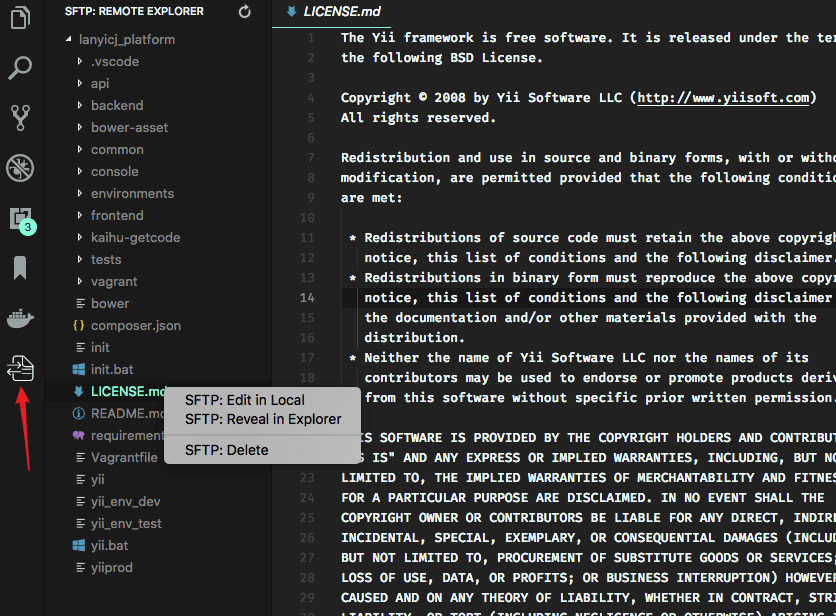
Remote Explorer lets you explore files in remote. You can open Remote Explorer by:
- Run Command
View: Show SFTP.
- Click SFTP view in Activity Bar.
You can only view a files content with Remote Explorer. Run command SFTP: Edit in Local to edit it in local.
Multiple Select
You are able to select multiple files/folders at once on the remote server to download and upload. You can do it simply by holding down Ctrl or Shift while selecting all desired files, just like on the regular explorer view.
Note: You need to manually refresh the parent folder after you delete a file if the explorer isn't correctly updated.
Order
You can order the remote Explorer by adding the remoteExplorer.order parameter inside your sftp.json config file.
In sftp.json:
{
  "remoteExplorer": {
    "order": 1 // <-- Default value is 0.
  }
}
Debug
- Open User Settings.
- On Windows/Linux -
File > Preferences > Settings
- On macOS -
Code > Preferences > Settings
- Set
sftp.debug to true and reload vscode.
- View the logs in
View > Output > sftp.
FAQ
You can see all the Frequently Asked Questions here.
Donation
If this project helped you reduce development time and you wish to contribute financially
Buy Me a Coffee

PayPal



