
Copy Path for Claude Code
VS Code extension that copies the active file path in Claude Code's @path format to the clipboard.
Install from VS Code Marketplace
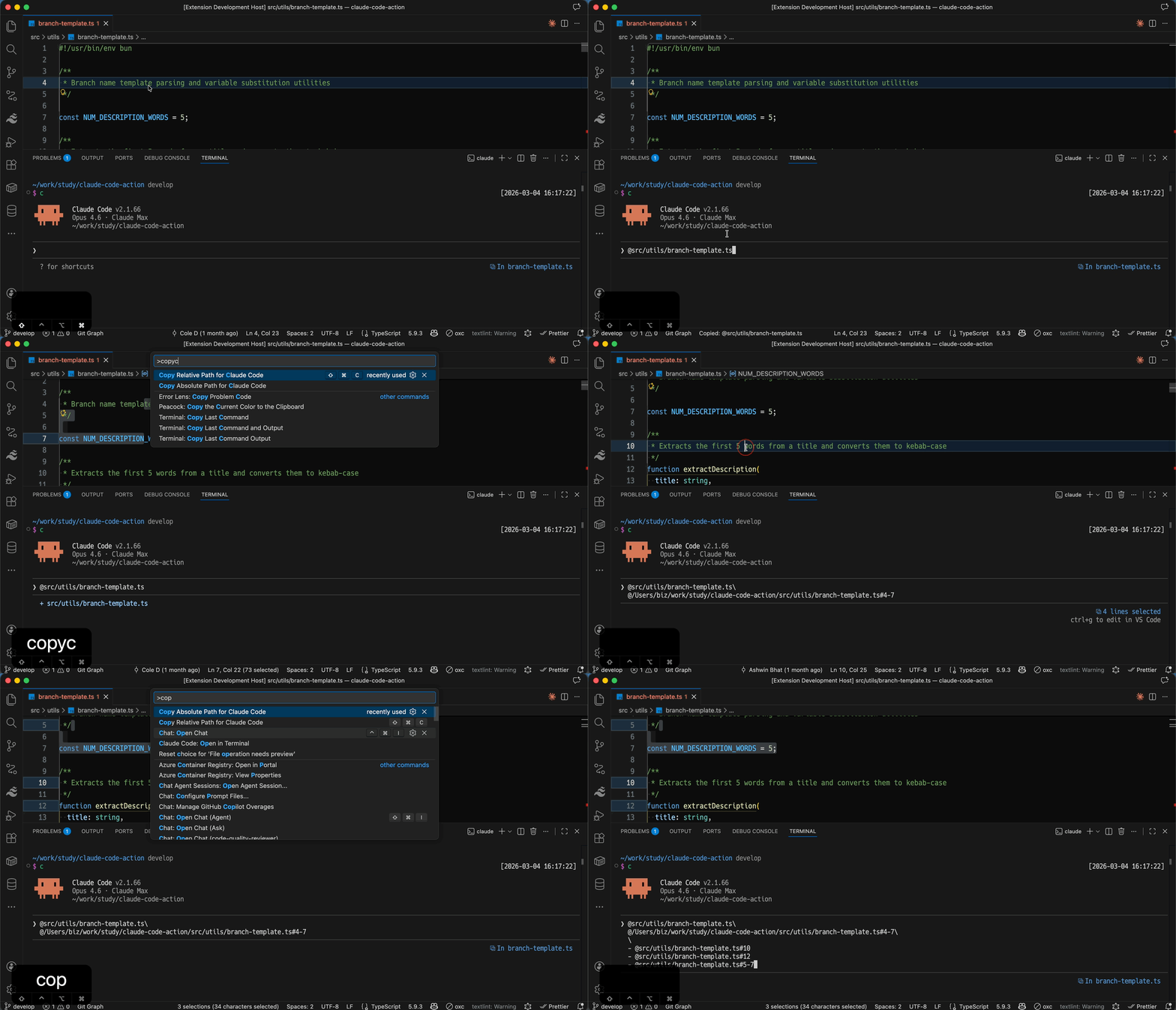
Demo
Why?
Claude Code for VS Code has a built-in command Claude Code: Insert @-Mention Reference — which would make this extension completely unnecessary. Unfortunately, it still doesn't work in some environments
The issues below are closed, but the command still doesn't work in my environment for months. e.g.
So here we are. 🫠
If you're in the same boat, this extension has your back until the official command is fixed. 🫰
Features
A trailing space (or newline for multi-line) is included, so you can start typing right after pasting. 📑
Usage
From the editor
- Open a file in the editor
- Open the Command Palette (
Cmd+Shift+P or Ctrl+Shift+P)
- Run one of:
Copy Relative Path for Claude CodeCopy Absolute Path for Claude Code
- Paste the result into Claude Code
Optionally, select text before copying to include line numbers.
From the file explorer
- Right-click a file or directory (or select multiple items) in the file explorer
- Select
Copy Relative Path for Claude Code or Copy Absolute Path for Claude Code
- Paste the result into Claude Code
Configuration
| Setting |
Type |
Default |
Description |
copy-path-for-claude-code.sortPaths |
boolean |
false |
When enabled, sort multi-item copy output alphabetically by path and numerically by line number. |
copy-path-for-claude-code.stripPrefix |
string |
"" |
A prefix to strip from the beginning of copied relative paths. Useful for monorepo setups (e.g., set to "root/" to turn @root/src/index.ts into @src/index.ts). |
Keyboard Shortcuts
Note: Keyboard shortcuts only work when an editor has focus (VS Code API limitation). When the Explorer is focused, use the right-click context menu instead.
This extension does not register default keybindings. To set your own:
- Open the Command Palette (
Cmd+Shift+P or Ctrl+Shift+P)
- Run
Preferences: Open Keyboard Shortcuts
- Search for
Copy Path for Claude Code
- Click the pencil icon next to the command and assign your preferred shortcut
| Command |
Command ID |
| Copy Relative Path for Claude Code |
copy-path-for-claude-code.copyRelativePath |
| Copy Absolute Path for Claude Code |
copy-path-for-claude-code.copyAbsolutePath |
You can also edit keybindings.json directly. For example:
[
  {
    "key": "ctrl+shift+c",
    "command": "copy-path-for-claude-code.copyRelativePath",
    "when": "editorTextFocus"
  }
]
Requirements
License
MIT

