Skip to content
| Marketplace
Sign in
Visual Studio Code>Other>Apixly MediaNew to Visual Studio Code? Get it now.
Apixly Media

Apixly Media

Apixly

|
3 installs
| (0) | Free
A creative studio for apixly.ai images, edits and video: preview, resume and save in VS Code. Free extension; pay-as-you-go API.
Installation
Launch VS Code Quick Open (Ctrl+P), paste the following command, and press enter.
Copied to clipboard
More Info

Apixly Media

Install from Marketplace · Download VSIX · Get an API key · Models & prices · apixly.ai

Apixly Media for VS Code: create images, edit with references, generate video, and save assets into your project

Create images, refine them with references, and generate video inside VS Code. Apixly Media Studio brings your prompt, models, previews, and project files into one creative workspace.

The extension is free and open source. Connect your Apixly account in your regular browser, or enter a standard API key. Generation uses your Apixly balance. A ChatGPT or Claude subscription is not an Apixly API key.

Image generation starts at US$0.02 per image for selected models/settings. Check current prices in the model catalog.

Your studio, inside your editor

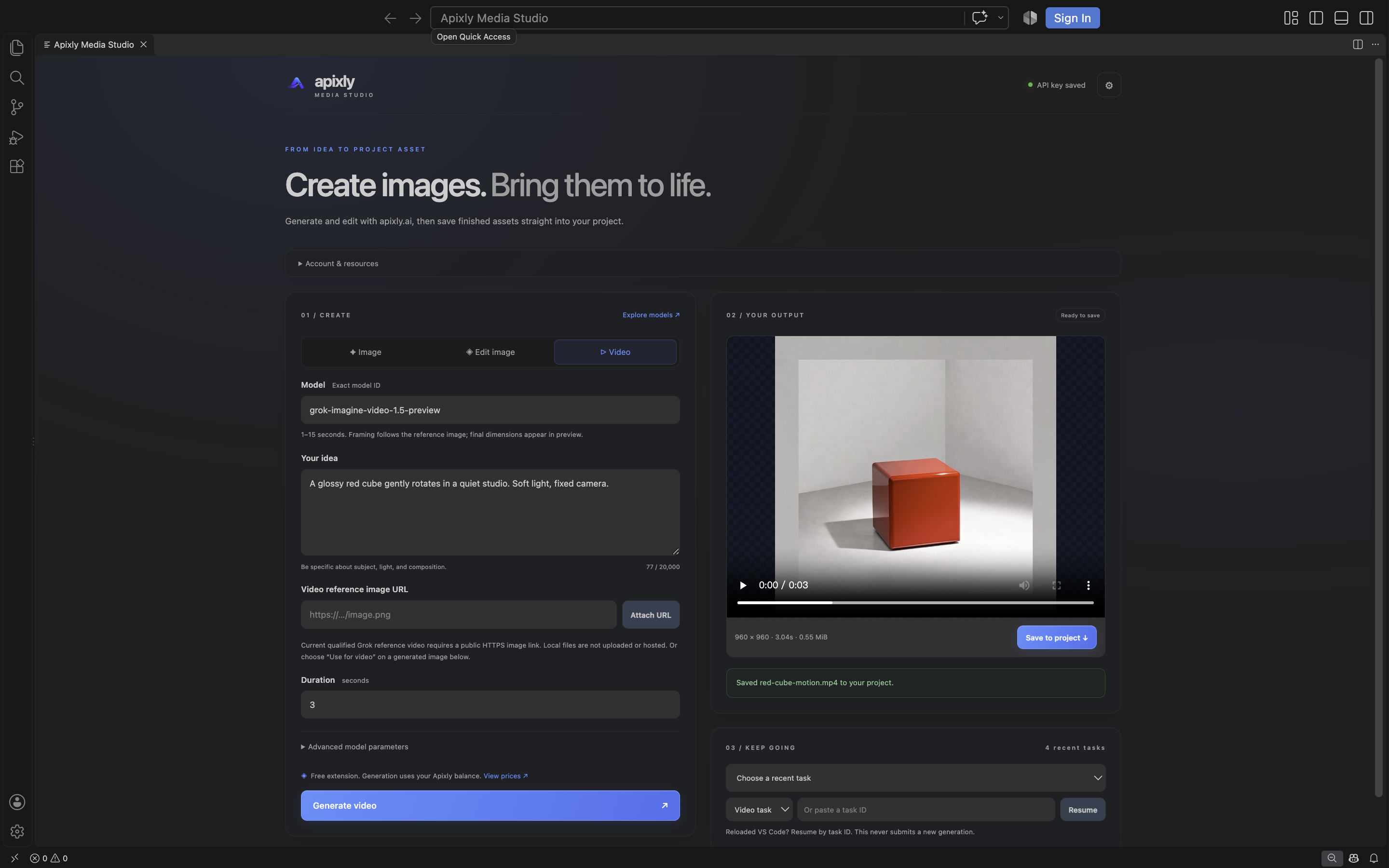
Apixly Media Studio in VS Code with a finished reference video and project save controls

The actual VS Code panel, showing a finished reference video and Save to project. Your key stays in SecretStorage; generated media goes where you choose.

From an idea to a finished asset

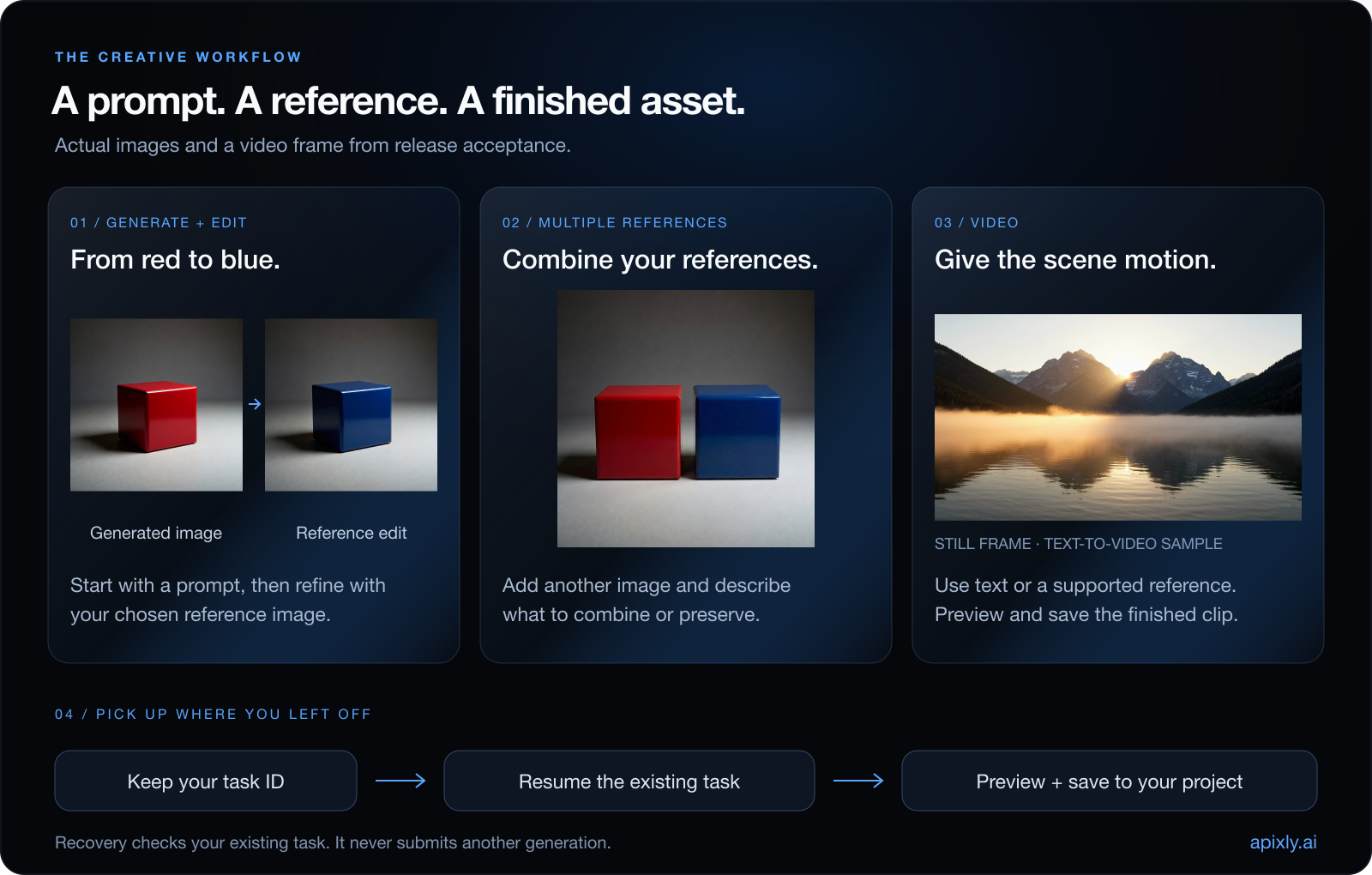
Actual release samples: a generated red cube edited blue, two references combined, a mountain-lake video frame, and the existing-task recovery flow

  • Generate an image. Choose an exact model, describe your idea, and preview the finished result.
  • Edit with references. Pick one or several local images and explain what to change, combine, or preserve. Start with gemini-3.1-flash-image for the qualified reference-edit workflow.
  • Add motion. Generate a text video or use a supported public image reference. A finished image's Use for video action prepares an explicit preset for you to review before submitting.
  • Keep your place. Stop waiting locally and resume with the same task ID. Recovery checks the existing task without submitting a new generation.

The gallery uses actual outputs from release acceptance on October 23, 2026. Its video image is a still frame, and the recovery strip is an explanatory diagram. The Studio screenshot is an unedited native capture. Model behavior varies; masked editing is unavailable, and qualified reference-video framing follows its input image.

Start

  1. Install from VS Code Marketplace, or download the VSIX and use Extensions: Install from VSIX. Open a trusted local workspace folder in VS Code 1.109 or later.
  2. Run Apixly Media: Open Media Studio from the Command Palette.
  3. Choose Connect Apixly account. Sign in and approve the displayed code on apixly.ai using your existing account. Your Studixly Key is the default; the account area's API Key dropdown lets you choose another active Key you already own. Alternatively, choose Use manual API key and enter it in VS Code's native secure input, never in the Webview.
  4. Choose Image, Edit image, or Video. Open Available models to load the complete catalog for your selected Key, then enter your prompt and any needed parameters. You can still enter an exact model ID manually. Changing Key or refreshing the catalog never silently changes that ID.
  5. Choose local references for an image edit, or attach a public HTTPS image URL for reference video. A generated image's Use for video button fills a reference-capable preset for you to review; it never submits automatically. Generate submits a paid API request; the extension itself is free.
  6. Preview the finished image or video and select Save to project. You choose the destination, and existing files are preserved.

Explore apixly.ai for the full creative studio. Compare models and public prices, manage API keys, review usage and billing, or read the API documentation. These links are also available in the panel's account area.

Account connection, Key selection and model browsing do not generate media. The extension stores a revocable connection token in SecretStorage; your website password, website login token and underlying account API Key never enter the extension. Disconnect account revokes this plugin connection. It does not change your website account or remove a separately saved manual Key. Switching credentials is blocked while a task is being submitted or checked; stop local waiting first. If a selected Key expires or is removed, choose another active owned Key explicitly. The extension never falls back to a different Key or model on its own.

Direct the look before you generate

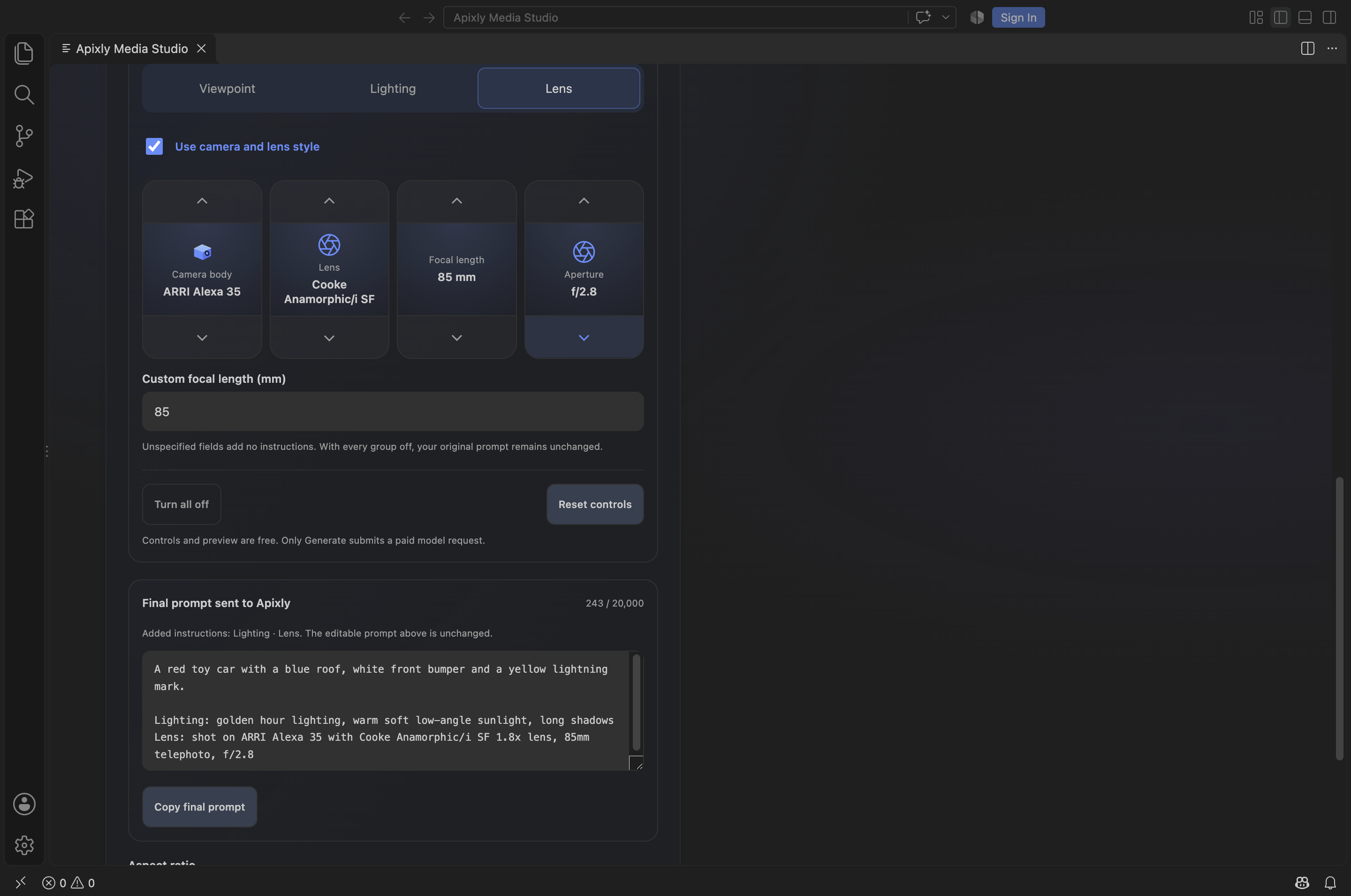
Actual native VS Code camera and lens controls with focal length and aperture steppers

An unedited native capture of the creative controls. These settings build the visible prompt locally, including before an account or API key is connected.

Open Creative direction beneath your prompt to use Apixly's existing creative tools:

  • Viewpoint: drag the direction diagram, use the arrow buttons or enter azimuth/elevation. Choose an angle preset and framing. Positive elevation places the viewpoint above the subject.
  • Lighting: choose a look, place the key light, adjust brightness, specify a light color, add rim light, or describe an additional lighting style.
  • Lens: choose camera/lens style cues, a focal length and aperture. Every field can remain unspecified.

All three groups start off. The Final prompt sent to Apixly preview shows the exact instructions that will be sent; your editable prompt stays intact. Copy final prompt also works without an API key. Turn all off preserves the settings while returning to your original prompt unchanged, including whitespace. Reset controls clears those settings. Reference edits use explicit instructions to preserve subject and scene details that you did not ask to change.

These are AI prompt instructions, not a physical light simulation, calibrated lens, precise 3D camera API or an EXIF editor. The diagram is a direction guide, not a generated preview. Results depend on your selected model. Controls and prompt previews run locally without a key or paid request; only the existing Generate action submits inference. Settings and additional lighting text stay in this panel's memory and are not added to workspace configuration or task history.

Commands

Command Action
Open Media Studio Open the visual workspace for generation, editing, previews, progress, and task recovery.
Set API Key Store a standard API key using VS Code SecretStorage and explicitly select manual Key mode.
Clear API Key Remove that key from SecretStorage.
Generate Image Submit one asynchronous image request, then wait for the result.
Edit Image with References Select one or more reference images, then submit one edit request.
Generate Video Submit a text video or supported reference video using public HTTPS image URLs and model parameters.
Resume Task Select a saved task or enter an existing image/video task ID and continue polling.
Check Task and Save Result Check once; save assets if the task has finished.

Model parameters and reference files

Available models loads the complete typed catalog for your selected key when you open the picker. Image models are selected by the catalog's image type, including Seedream and future model IDs, rather than guessed from their names. Video options respect both the key's catalog and advertised video capabilities. A listed video model without capability details remains selectable and is marked accordingly; use its documented advanced parameters.

The catalog uses a ten-minute cache with background refresh after expiry, concurrent requests are combined, and Refresh models fetches an update immediately. A failed refresh keeps same-key saved options and shows a stale/error notice. Switching keys cannot display a late response from the previous key. Your exact model selection is never silently replaced, and you can still enter an exact ID manually. Model metadata stays in host memory; raw keys are not cache keys or Webview data.

The panel provides aspect ratio and video duration/resolution fields. Video limits are read from the current capability API when available. Optional advanced JSON values take precedence over those fields. The original Command Palette workflows also accept a parameter object directly. Consult your model's current Apixly API documentation for supported values. Examples of parameter shapes:

{"size":"1024x1024","quality":"low","n":1}
{"seconds":5,"resolution":"720p","aspect_ratio":"16:9"}

Examples illustrate the request shape, not a promise that every model accepts those options. Unsupported combinations fail rather than switch models. Core fields such as model, prompt, and async cannot be replaced in the parameters object.

Image edits send the selected files as multipart image[]. Files are sent unchanged, including their original dimensions. You can add references in more than one selection, up to the extension and model limits. Masked edits and precise inpainting are not available in this release: no tested model passed visual qualification. Public commands and Studio reject mask parameters before submitting.

Reference video uses public HTTPS image URLs in the JSON images array. The extension does not upload or host local video-reference files. Use for video reuses an image result's original signed link in host memory, fills grok-imagine-video-1.5-preview, and leaves generation to your explicit confirmation. The Webview shows the link's origin rather than its signed query.

Reference support is checked against the live capability API before submission; unsupported or unverified combinations are rejected locally, with no generation POST. The default grok-imagine-video currently accepts text prompts only. The current grok-imagine-video-1.5-preview route requires public URLs and rejects inline/data-URL images before POST. For other models, explicitly supplied advanced parameters remain subject to their advertised capabilities and actual API contract. Your model is never replaced after submission and references are never silently dropped.

For grok-imagine-video-1.5-preview reference video, framing follows the reference image. The panel hides resolution/aspect controls; supplying resolution or aspect_ratio explicitly is rejected before POST rather than silently discarded. The finished preview shows decoded dimensions and duration. Text-to-video retains its separately qualified resolution and aspect controls. A provider may return different dimensions from the requested resolution: our one-second grok-imagine-video check requested 480p and received 1280 × 720. The preview reports the actual decoded output, and saving preserves the original bytes.

Video parameters can also include explicit images, videos, and audios string arrays when the model's live capabilities permit them. Local video/audio uploads are not offered. Whether reference media, first/last frames, image sizes, or audio are supported depends on the exact model and gateway contract.

Local selection is limited to eight reference images, 20 MiB each and 80 MiB combined. Model limits may be lower. Result downloads are limited to 32 MiB for an image and 256 MiB for a video, and supported image/video content types only. Large or expired results can be retrieved using your existing task in Apixly.

For Edit Image with References, start with gemini-3.1-flash-image. In release acceptance on October 23, 2026, it changed a supplied red cube to blue while retaining the subject and scene. Text-to-image was checked with grok-imagine-image, and a one-second 720p video was checked with grok-imagine-video. These are bounded acceptance samples; model availability and behavior can change. Grok reference-image editing is not qualified for this release.

Recovery and billing

Cancel stops local polling only. It does not cancel the upstream task and may not prevent charges. Polling stops after 30 minutes, but you can resume with the same task ID. Up to 100 task records are kept locally. No new generation is submitted when checking, resuming, or downloading.

The extension sends each paid POST once. If a request times out, the connection breaks, or the response has no usable task ID, its outcome can be unknown. The upstream may have accepted it. Check your Apixly activity before submitting again. Status GETs may retry after transient network or server errors.

Task IDs are not persisted until the API returns one. If submission succeeds but local state cannot be saved, the notification still shows the ID. Result links can expire; checking the same task may return a fresh link while the task remains available. Task retention is controlled by the service.

Privacy and compatibility

Your key lives in VS Code SecretStorage. Prompts and selected references go to Apixly and its upstream provider. Result URLs may use third-party storage; those downloads never receive your API key. Selected reference thumbnails and finished previews use a temporary, private folder under VS Code extension storage. Closing the panel removes that panel's preview cache; saved project files remain. No analytics or advertising is included. Read PRIVACY.md.

The API base is fixed at https://apixly.ai/v1 in manual Key mode and https://apixly.ai/api/integrations/v1 in account mode. The first-party account relay resolves your selected owned Key on the server. This release does not use signed MCP tokens. It supports desktop VS Code with local workspace folders. Remote/virtual workspaces and VS Code for the Web are not supported in this release. It does not provide a coding agent or register a chat model provider.

Develop and package

Runtime code has no npm dependencies. Node.js 22 or later is required for development. Tests use only mocked HTTP responses and temporary files; they do not submit billable requests.

npm ci
npm test
npm run check
npm run list-package
npm run package -- --out /absolute/path/apixly-media.vsix

Use Extensions: Install from VSIX to install a local development package. Source and issue reports: apixly-ai/vscode-apixly. Support: support@apixly.ai.

Developer API references: VS Code SecretStorage, extension manifest, and packaging and publication.

License

MIT. The packaged icon uses Apixly's existing brand asset. Product names and marks remain the property of their owners.

  • Contact us
  • Jobs
  • Privacy
  • Manage cookies
  • Terms of use
  • Trademarks
  • Your Privacy Choices
  • Consumer Health Privacy
© 2026 Microsoft