LiveWall
⬇︎ Install
· 🐛 Report an issue
· MIT
Animated video wallpapers behind your code.
Unlike CSS-background approaches, the wallpaper is a real <video> element promoted to its
own compositor layer. Decoding runs off the main thread and editor repaints never
rerasterize it, so typing latency is unaffected.
Features
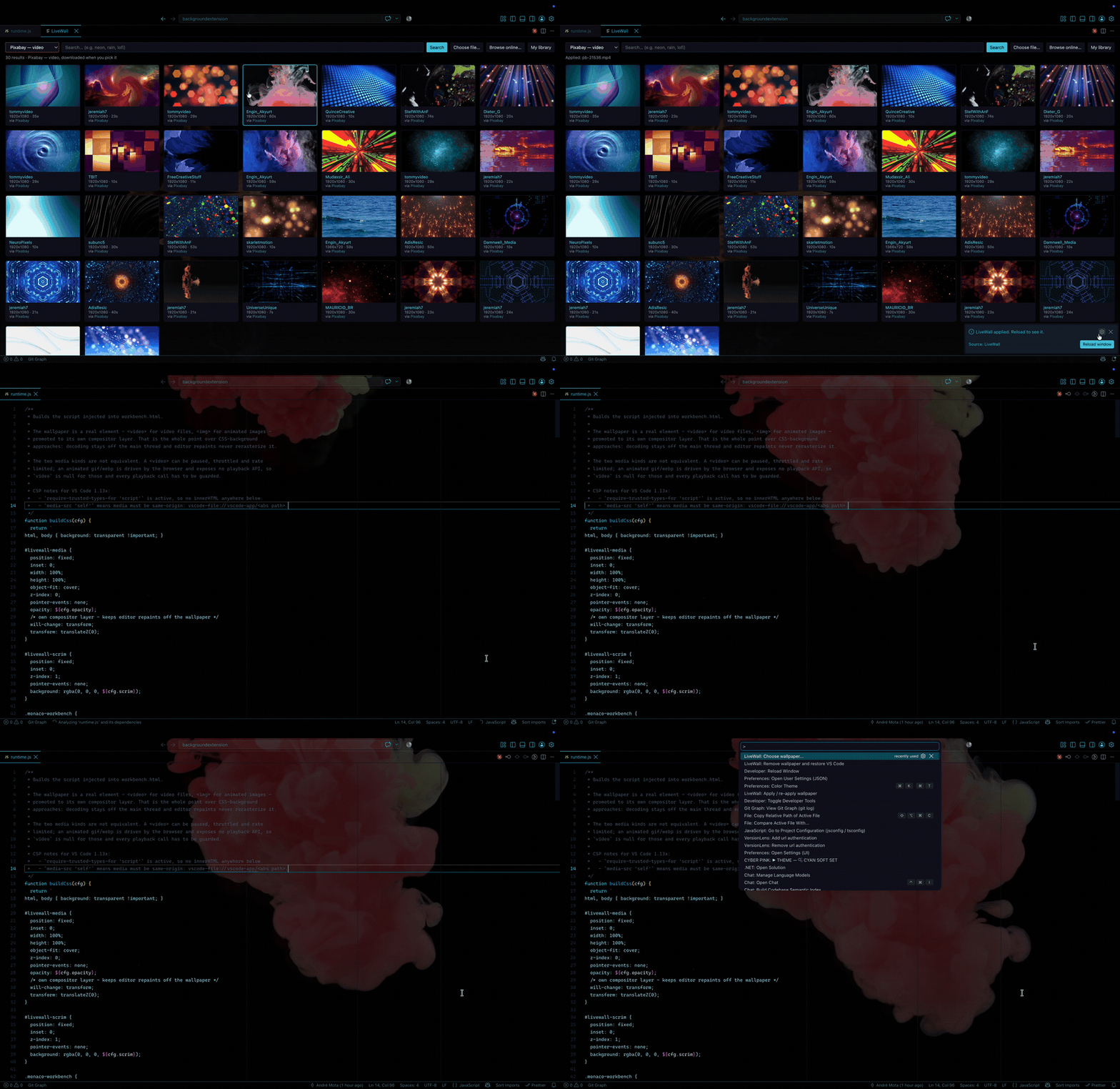
- Video and animated images —
.mp4, .webm, .mov, .m4v, .ogv, .gif, .webp, .apng. Still images (.png, .jpg, .avif) work too.
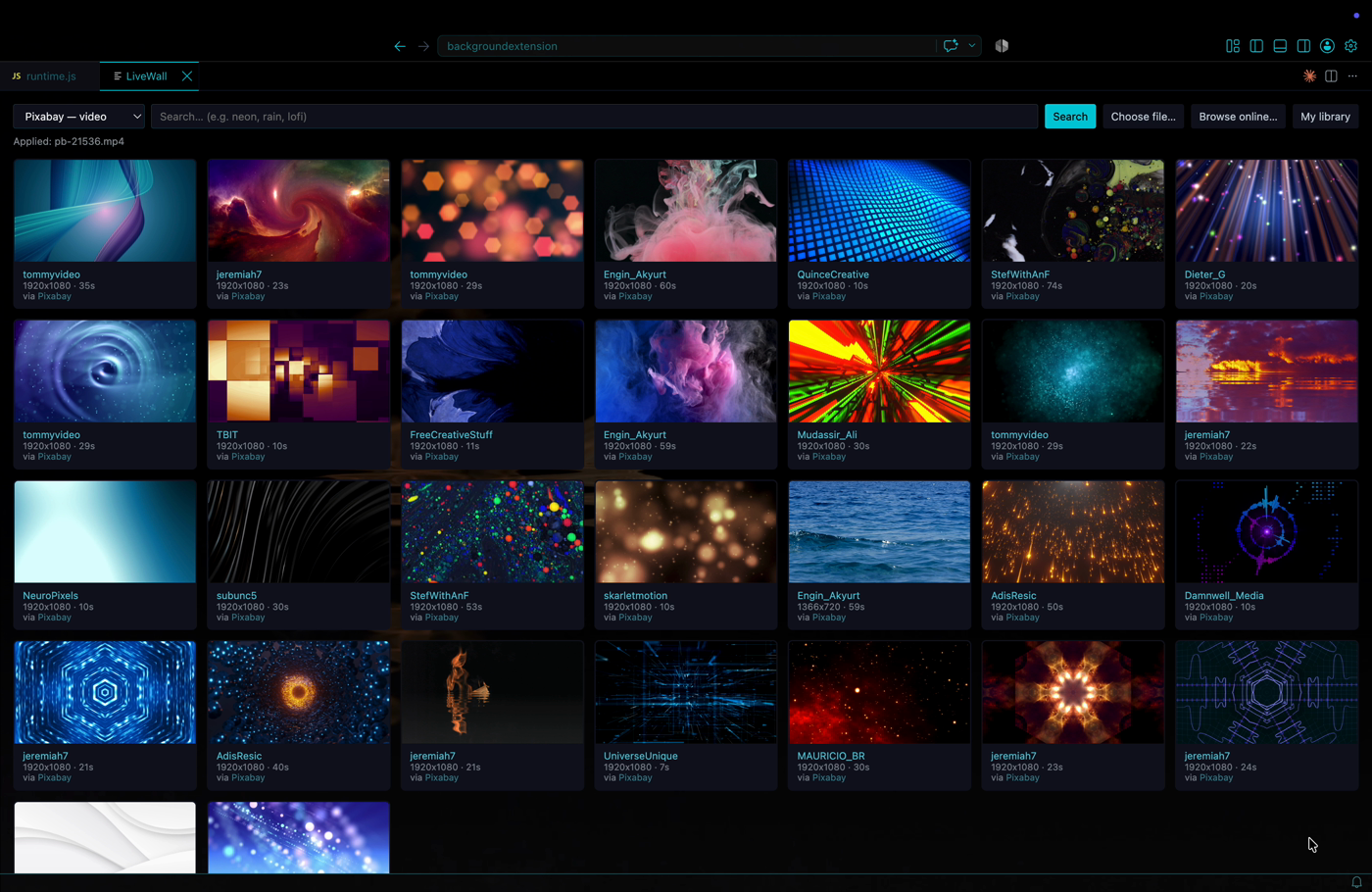
- Built-in search — browse Wallhaven, Pixabay and Pexels from inside the editor and apply with one click.
- Your own folder — point LiveWall at a directory, drop files in, they appear automatically.
- Shuffle and rotation — use the whole folder as a playlist and change wallpaper on a timer.
- Light and dark — a different wallpaper per theme, switched the moment you switch theme.
- Scheduled — change wallpaper by time of day.
- Readability first — scrim, blur and saturation, so a busy wallpaper stops competing with your text.
- Battery aware — stops when the window loses focus or is hidden, optionally while unplugged, and honours the OS reduced-motion setting. Animated images hold a frame; video pauses.
- Live settings — every setting takes effect as you change it. No reload.
- Status bar toggle — a ✨ next to the clock turns the wallpaper on or off in one click.
Getting started
Install from the
Visual Studio Marketplace,
or search for LiveWall in the Extensions view.
- Run LiveWall: Choose wallpaper… from the Command Palette (
Ctrl+Shift+P / Cmd+Shift+P).
- Search, or pick a local file.
- Reload the window when prompted.
That is the only reload you need until VS Code itself updates. From then on the ✨ in the
status bar toggles the wallpaper, and every setting takes effect as you change it.
Image search works immediately with no account. Video search needs a free API key — see below.
Status bar and commands
A ✨ sits at the right-hand end of the status bar. Click it to turn the wallpaper off, click
it again to bring it back — instantly, with no reload either way. While it is off the icon
becomes a crossed-out circle, and the tooltip always names the wallpaper currently in use.
If you would rather not see it, right-click the status bar and hide the item; everything
still works from the Command Palette.
The toggle is the livewall.enabled setting, and it is not the same as removing
LiveWall. Off hides the wallpaper and leaves your VS Code installation patched, so turning
it back on costs one click. Remove undoes the patch itself.
| Command |
What it does |
| LiveWall: Choose wallpaper… |
Opens the gallery — search Wallhaven, Pixabay and Pexels, browse your library, or pick a local file. |
| LiveWall: Turn wallpaper on or off |
The same toggle as the status bar item. |
| LiveWall: Apply / re-apply wallpaper |
Rewrites the configuration and re-patches if the patch is missing. Rarely needed — LiveWall does this on its own. |
| LiveWall: Remove wallpaper and restore VS Code |
Undoes the patch and turns LiveWall off. Run this before uninstalling. |
Settings
| Setting |
Default |
What it does |
livewall.enabled |
true |
Show the wallpaper. This is what the status bar toggles. |
livewall.media |
"" |
Path to the current wallpaper. ~ is supported. |
livewall.mediaLight |
"" |
Wallpaper for light themes. Overrides media. |
livewall.mediaDark |
"" |
Wallpaper for dark themes. Overrides media. |
livewall.schedule |
[] |
Wallpaper by time of day. See below. |
livewall.library |
"" |
Folder used by the gallery, watched for new files, and where downloads are saved. |
livewall.shuffle |
false |
Use the whole library as a playlist. |
livewall.rotateMinutes |
0 |
Minutes between wallpapers. 0 keeps one per session. |
livewall.opacity |
0.35 |
Opacity of the wallpaper layer. |
livewall.scrim |
0.55 |
Darkening between wallpaper and UI. Raise it if text is hard to read. |
livewall.blur |
0 |
Blur in pixels. Softens detail without darkening. |
livewall.saturate |
1 |
Colour saturation. 0 is greyscale. |
livewall.fit |
cover |
cover, contain or fill. |
livewall.playbackRate |
1 |
Video speed. Below 1 is calmer and cheaper. |
livewall.pauseOnBlur |
true |
Stop when the window loses focus. |
livewall.pauseOnBattery |
false |
Stop while running on battery. |
livewall.respectReducedMotion |
true |
Do not animate when the OS asks for reduced motion. |
livewall.downloadSites |
(4 sites) |
Sites opened by Browse online…. |
livewall.pixabayApiKey |
"" |
Your free Pixabay key, for video search. |
livewall.pexelsApiKey |
"" |
Your free Pexels key, for video search. |
Every one of these applies live. The injected script carries no configuration of its own —
it reads a small file the extension rewrites and re-polls it — so dragging the opacity
slider changes the opacity while you drag, and switching wallpaper in the gallery swaps it
where you stand. A reload is only ever needed when the injected script itself has to be
put back: the first time you apply, and after a VS Code or LiveWall update.
All settings are application-scoped, so a workspace cannot change what LiveWall shows.
livewall.scrim is the readability dial. Opacity fades the wallpaper toward whatever is
behind it, which shifts with your theme; the scrim is a fixed sheet, so bright frames can
never blow out your text. livewall.blur is the other half of the same job: it removes the
fine detail that competes with glyph edges without taking any brightness away, so a few
pixels of blur often reads better than more scrim.
Choosing by theme and time
livewall.mediaLight and livewall.mediaDark override livewall.media when a light or dark
theme is active, so a single wallpaper stays the default for both and you only fill in the
one that needs to differ. It switches as you switch theme.
livewall.schedule changes wallpaper by time of day. Each entry runs until the next one
starts, wrapping past midnight, so two entries cover the whole day:
"livewall.schedule": [
  { "from": "07:00", "media": "~/wallpapers/day.mp4" },
  { "from": "19:00", "media": "~/wallpapers/night.mp4" }
]
Precedence is schedule, then the light/dark pair, then livewall.media. All three are
ignored while livewall.shuffle is on — shuffle means the library is the wallpaper.
Stopping and starting
Video pauses. An animated .gif, .webp or .apng has no playback API at all, so LiveWall
captures the frame on screen and holds it — same effect, and it stops the decode loop, which
matters most for exactly these files because they repaint on the main thread.
That applies to pauseOnBlur, pauseOnBattery, a hidden window, and reduced motion alike.
Video search keys
Image search (Wallhaven) needs nothing. Video search uses your own free key, stored in your
settings and sent only to the provider:
Search results are cached on disk for 24 hours, so repeated searches cost no requests at all.
Keeping this cheap comes down to the source file:
- h264
.mp4, 1080p or less — hardware decoded on every platform
- Short loops — frame count drives memory more than resolution does
- Small files — on VS Code 1.139, which cannot stream local video, each video is held in
memory while it plays, so a 30 MB clip costs about 30 MB of RAM
- Pre-bake heavy blur into the file if you want a lot of it.
livewall.blur is a live
GPU filter, which is cheap at a few pixels and less so at thirty; baking it in costs
nothing at runtime and is worth doing once you have settled on a look.
A fullscreen animated .gif or .webp is the most expensive option, because the browser
repaints the whole layer on the main thread. Video on its own layer is far cheaper. LiveWall
freezes animated images whenever something would have paused a video, so the cost is at
least confined to the time you are actually looking at the editor.
.mp4, .gif, .webp, .png and .jpg load straight from wherever they live. VS Code's
internal file protocol refuses to serve any other extension from an arbitrary folder, so
.webm, .mov, .m4v, .ogv, .apng and .avif are linked into a directory it does
serve. That is automatic and costs nothing, but .mp4 avoids the indirection entirely.
Convert a clip with ffmpeg:
ffmpeg -i in.mp4 -t 6 -vf "fps=24,scale=1600:-2:flags=lanczos,format=yuv420p" \
  -c:v libx264 -crf 26 -an out.mp4
What it changes
VS Code has no API for putting anything behind the editor, so LiveWall modifies one file
inside your VS Code installation and injects a small script into the workbench.
Alongside it, a livewall/ folder next to workbench.html holds the configuration the
injected script reads. That folder is the reason settings apply without a reload, and it is
deleted when you remove the wallpaper. A .bak copy of the untouched workbench.html is
kept beside it while the patch is in place, in case you ever need to restore it by hand.
Run LiveWall: Remove wallpaper and restore VS Code before you uninstall
VS Code does not run extension code on uninstall, so removing LiveWall from the
Extensions view leaves the modified file in place and the wallpaper still showing, with
nothing left to undo it.
Run the command first and the file goes back exactly as it was. If you have already
uninstalled, reinstall LiveWall, run the command, then uninstall again.
Worth knowing before you install:
- A "Your Code installation appears to be corrupt" warning appears once after installing.
Modifying the application bundle changes its checksum. Dismiss it with Don't Show Again.
- VS Code updates wipe the patch. LiveWall detects the version change on next launch and
re-applies automatically.
- Do not run alongside other workbench-patching extensions such as
shalldie.background
or custom-ui-style. They edit the same file and will fight over it. If one of them left
a patch behind, LiveWall does not touch it — removing LiveWall reverts only its own
changes, so a wallpaper from another extension will still be there afterwards.
- Webview panel contents stay opaque. LiveWall clears the background of the containers
those panels sit in, but a panel like Copilot Chat is an iframe running in a separate
renderer process, and no stylesheet in the workbench document reaches inside it.
- Remote work is unaffected. LiveWall is a UI extension, so over Remote SSH, WSL or
Codespaces it keeps running on your own machine and patches your own installation. There is
nothing to patch on the remote, and it does not try.
Troubleshooting
Open the developer tools (Cmd+Option+I on macOS, Ctrl+Shift+I elsewhere, or
Developer: Toggle Developer Tools from the Command Palette) and check:
window.__livewall.state
| Value |
Meaning |
playing |
Working. |
paused: window blurred |
Expected while DevTools has focus. |
paused: window hidden |
The window is minimised or fully covered. |
paused: on battery |
livewall.pauseOnBattery is on and you are unplugged. |
blocked: prefers-reduced-motion |
Your OS asks for reduced motion. Set livewall.respectReducedMotion to false. |
image: animating |
Current wallpaper is an animated image and nothing is stopping it. |
… (frozen frame) |
An animated image, held on a captured frame for the reason named. |
off: disabled |
Turned off from the status bar. |
off: no wallpaper set |
Nothing chosen yet. |
waiting: no state file yet |
The configuration file is missing or unreadable. See .lastStateError. |
paused: unknown |
The video failed to load or play. See .lastError and .playRejected, and open an issue if they do not explain it. |
window.__livewall.lastError and .playRejected hold the last media failure;
.lastStateError holds the last failure to read the configuration file.
Privacy
LiveWall has no telemetry and no backend. API keys stay in your settings and are sent only
to the provider you searched. Downloads go directly from the source CDN to your machine.
Credits
Wallpapers come from Wallhaven, Pixabay and
Pexels. Each remains the property of its author, credited in the
gallery.
Support
If LiveWall makes your editor nicer to look at:

License
MIT

