Mega Find and Replace
Rename files, folders, and the text that refers to them in one pass. Suppose Bob is becoming Martin in a project. Enter those two names once and preview the whole change.
| Where |
Before |
After |
| Folder |
./src/bob/ |
./src/martin/ |
| File |
./src/bob/BobClient.ts |
./src/martin/MartinClient.ts |
Import in src/index.ts |
"./bob/BobClient" |
"./martin/MartinClient" |
| Code |
bobClient.connect(BOB_TIMEOUT_MS) |
martinClient.connect(MARTIN_TIMEOUT_MS) |
The same rule works for multiword names. Rename JobQueue to WorkerPool and job_queue_size becomes worker_pool_size, while job-queue becomes worker-pool.
The extension and CLI require Python 3.9+. On macOS and Linux, make python3 available on your PATH. Linux also requires GNU cp and renameat2.
Windows support is experimental. Use a local NTFS project folder. The extension looks for Python through py -3, python, or python3. Junctions and other reparse points are skipped. If another program has a file open and Windows refuses the rename, close that file and preview the sweep again.
In VS Code
1. Open Mega Replace. With your project open, press Cmd+Shift+P on macOS or Ctrl+Shift+P on Windows or Linux to open the Command Palette. Run Mega Replace: Find and Replace. Install from the Marketplace · Download a VSIX

2. Preview the rename. The panel starts in your workspace folder. To narrow the scope, right-click a folder in Explorer and choose Mega Replace in Folder…. To rename ./src/bob/ itself, select src or the project root. Enter Bob in Search and Martin in Replace. Click an edited file to see its diff. Here, src/index.ts shows the import and identifiers changing together.
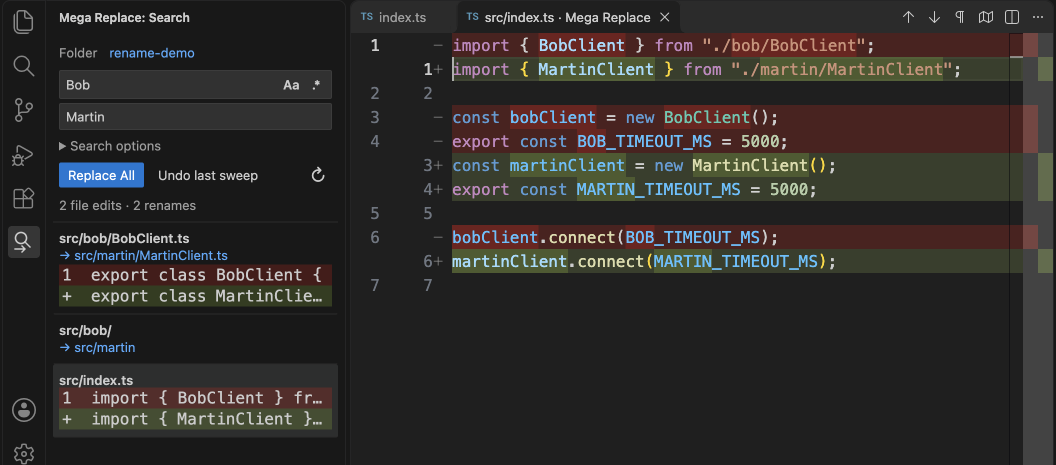
3. Apply or undo. Choose Replace All when the diff looks right. Undo last sweep restores the paths and text in that scope, even after you reopen VS Code.
From the terminal
Clone this repo and preview the same rename in a neighboring project.
./mega-rename preview ../my-project Bob Martin --diff
When the diff looks right, run ./mega-rename apply ../my-project Bob Martin. To roll it back, run ./mega-rename undo ../my-project.
In Windows PowerShell, run the script through Python. If your installation provides python, use that in place of py -3.
py -3 .\mega-rename preview '..\my-project' Bob Martin --diff
py -3 .\mega-rename apply '..\my-project' Bob Martin
py -3 .\mega-rename undo '..\my-project'
By default, Bob matches the capitalized word in getBob and skips bobcat. Add --substring if you want martincat too. Use --literal for exact text or --regex for Python patterns with captures such as $1. See ./mega-rename preview --help for matching and exclusion options.
What a sweep touches
- The scan respects Git ignore rules and skips symlinks and common dependency folders.
- Text matches include imports, strings, comments, and docs. By default, binary files and files over 16 MiB can still be renamed, but their contents are skipped.
- If two filenames would collide, the sweep stops before writing. Originals are saved in
.mega-rename/ inside the selected folder. Keep it for undo. If an edited file changes again, undo reports the conflict.
Local development
Run python3 -m unittest -v for the CLI tests. To try extension changes, open this checkout in VS Code and press F5. Open a disposable folder in the Extension Development Host and try a rename and undo. After editing the source, run Developer: Reload Window in that window.
Created by Alex Does IT LLC. MIT License

