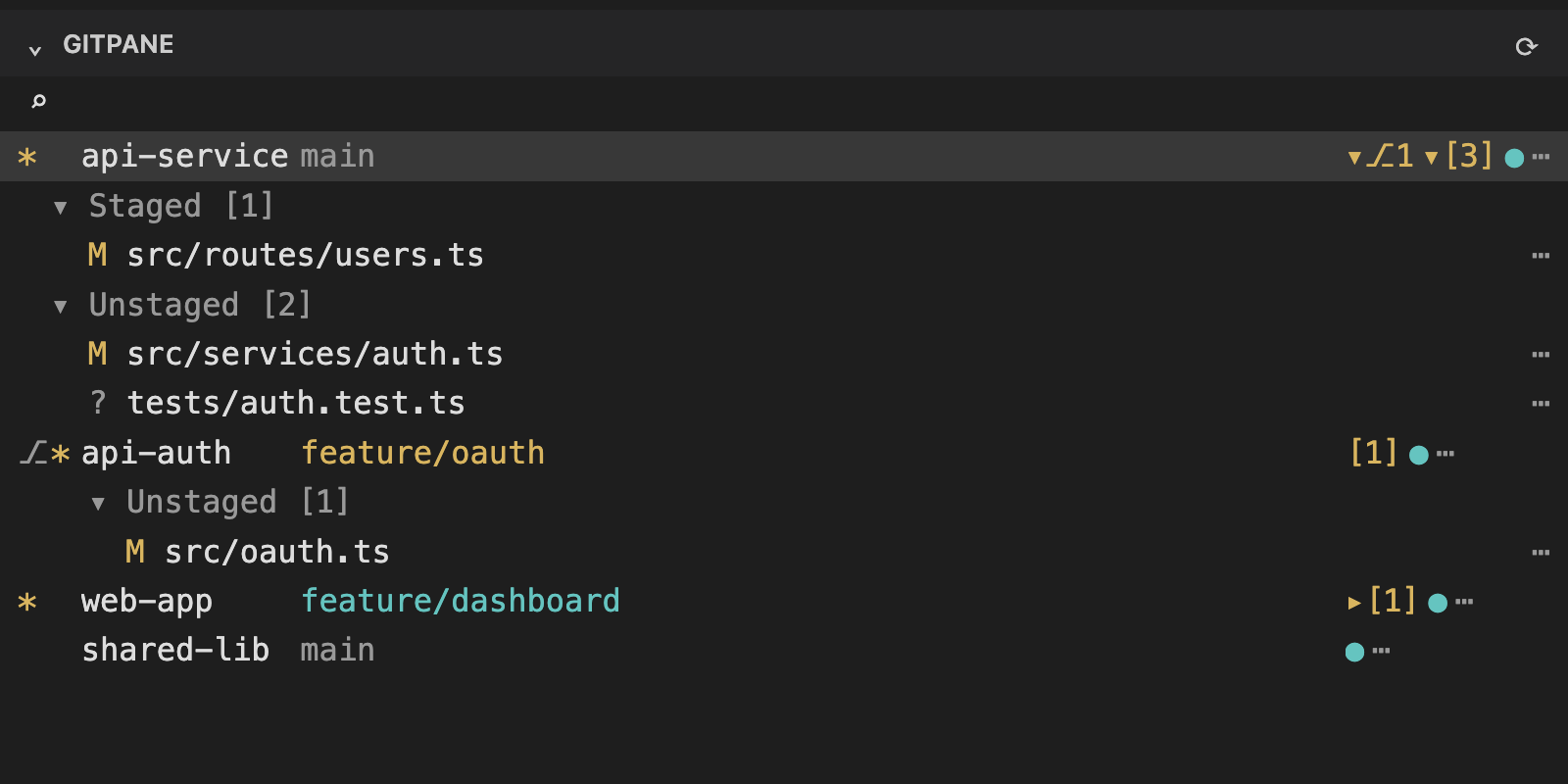
Gitpane for VS CodeSee changes across Gitpane repositories in the Explorer. Installation Launch VS Code Quick Open ( Ctrl+P), paste the following command, and press enter.Copied to clipboard |

Gitpane for VS Code
Gitpane for VS Code adds a repository overview to VS Code's Explorer. See branches and changed files across the repositories in your current workspace. Expand a repository to see staged, unstaged, untracked and conflicted files. Select a change to open it in the editor.
Rendered preview with example repositories and a simulated Explorer header. Install Gitpane for VS Code from the VS Code Marketplace, or run: Moving from Gitpane ExplorerUninstall Gitpane Explorer ( Your Gitpane reads changes from Git, including untracked files that VS Code's Git settings hide. Large change lists are shown one page at a time. When the list is not fully loaded, the repository's change count is a lower bound. Symlink diffs show the link target text stored by Git. A repository with more than 200,000 change records shows an error instead of an incomplete list. Expanded repositories and worktrees share a 64 MiB cache for retained snapshots and their metadata. Git status scans also use temporary memory. If the cache is full, collapse another repository or worktree and retry. A single snapshot larger than 64 MiB cannot be loaded. Git sides of diffs read from the selected repository, including when another repository overlaps the file path. They update as its Git state changes. Gitpane checks index entries before and after reading; a change reversed during the read may go undetected. Gitpane keeps up to 256 virtual diff documents open at once, shared with symlink and submodule comparisons. Close a diff to make room for another one. Repositories with a configured text converter or Git replacement objects may refresh open Git sides during periodic status polling, even when their original blob has not changed. The view includes detected repositories inside the open workspace folders, including multi-root workspaces. Linked worktrees inside the workspace appear under their repository, with their own changed files and actions. A worktree added as a workspace folder appears at the top level. Repositories outside the workspace are not included. Worktree rows are shown by default, following Gitpane's The view updates as workspace folders and detected repositories change. While
visible, it also refreshes local Git status periodically. The Gitpane relies on VS Code's Git extension to detect repositories. Its Git auto-detection, scan depth and ignored-repository settings affect which nested repositories appear. Gitpane opens detected linked worktrees inside the workspace through VS Code's Git API, which also adds them to Source Control and can reopen a worktree closed there. Select the The The repository menu also opens GitHub issues and pull requests for a
Select a changed submodule to inspect its commit graph, committed pointer changes and current file changes. The submodule must be initialized and inside the workspace. Staged submodule renames, type changes and conflicts open a pointer comparison; staged deletions also open a pointer comparison. Use Inspect Submodule from a change menu to open an available checkout. Branch review opens committed submodule pointer comparisons even when the child checkout is unavailable. If a deleted submodule leaves a corrupt checkout behind, Gitpane reports the repository status as unavailable until that checkout is repaired or removed. If a tracked submodule is replaced by a symlink, the parent repository's status and change navigation remain available, including for dangling links or targets outside the workspace. Gitpane reads the replacement entry and refuses to open an unavailable or outside checkout. Repository mutations retain stricter validation and require repairing or removing such a link first. Blob and symlink sides in staged and conflicted pointer comparisons must be UTF-8 text under 1 MiB. On Unix, an unstaged submodule deletion or replacement of a submodule with a regular text file opens an index-to-working comparison. The replacement side is a read-only snapshot; reopen the diff after changing the file. Other working submodule renames and type changes cannot be compared yet. Working changes in nested submodules can be inspected, and staged or conflicted nested gitlinks open pointer comparisons. Historical nested gitlink additions, deletions and pointer changes also open comparisons without requiring the nested checkout. Historical nested type changes involving files or symlinks open as read-only comparisons. Type changes involving directories cannot be compared yet. On Windows, a regular file replacing a submodule makes that repository's status unavailable until the path is restored or removed. The parent repository's file actions cannot stage, unstage, discard or delete a submodule entry. Gitpane's push and pull actions do not recurse into submodules. On Unix, the repository menu can sync direct submodules, update submodules recursively, or pull the latest changes in direct submodules. It reports skipped modules and partial failures. Each repository is checked against the workspace before Git acts on it. Pull with Submodules first pulls the parent, then updates the submodules that were already initialized; it reports partial completion if a later step fails. The repository menu can open an integrated terminal or find and open tmux or
herdr sessions belonging to the repository on the workspace host. tmux
navigation uses Gitpane's Use Gitpane: Fetch Workspace or the cloud download button to fetch the current workspace repositories. Each linked worktree is fetched separately so its own branch and remote configuration apply. Repositories sharing a Git common directory are fetched in sequence. Gitpane reports failures for each repository and refreshes the status and visible graph afterward. Fetch Workspace is unavailable on Windows. The extension does not use Gitpane's Use Pin Submodule… from a repository or worktree menu to pin a direct submodule, including one without changes. The list comes from VS Code and can be refreshed; you can also enter a registered relative path. To pin a clean nested submodule, first open its parent repository in VS Code. You can also use Pin Submodule on a submodule change, or choose Pin Submodule in Gitpane while inspecting nested submodules. Pinned submodules are restored when their root repository is open in the same workspace and their registered paths and repository identities still match. Use Unpin Submodule from its repository menu to remove the pin. Gitpane never closes or hides a repository discovered by VS Code when unpinning. The repository can remain visible after its pin marker is removed. Use Hide from Gitpane in a repository or worktree menu to remove its row from the overview. Gitpane: Restore Hidden Repositories restores it. This preference belongs to the current workspace and leaves VS Code's Git repositories and workspace folders unchanged. Newly detected repositories remain visible. Hiding a pinned submodule does not remove its pin. If VS Code has not discovered a repository inside an open workspace folder, use Gitpane: Add Workspace Repository… and choose its root folder. Gitpane restores explicitly added repositories while their paths and identities still match. Stop Restoring Repository or Gitpane: Manage Workspace Repositories removes that preference without closing the repository in VS Code. If an open request is still running, wait for it to finish before removing the saved addition. VS Code cannot cancel an open already in progress. Use Gitpane: Manage Submodule Pins to remove a saved pin that can no longer be restored. If VS Code is already opening a pinned repository, wait for that open to finish before removing its pin. VS Code does not provide a way to cancel an open in progress. If the workspace changes during that call, the repository may still open, but Gitpane rejects the stale pin and does not close the repository. The ◉ marker shows a live session for a repository or worktree. Set
Configured Launchers offers Gitpane's For With focus in Gitpane, use Discard and delete require confirmation and check the selected file for changes before running Git. Files larger than 64 MiB, directories and special files cannot be discarded or deleted through these actions. Another process can still change a file between the check and the Git operation. On Windows, an ancestor path can also change during the check; Windows behavior has not yet been verified locally. Package and installThe VSIX bundles the Gitpane backend. The Marketplace provides packages for
macOS, Linux and Windows. Published
GitHub release packages through
v0.18.2 install the old Choose Future tagged releases publish their packages to the VS Code Marketplace using GitHub Trusted Publishing. The extension version must match the Gitpane release version in both Cargo files. All checks and package verification must pass before publication starts. Platform packages publish in sequence. If publication fails, inspect the publisher before retrying because earlier targets may already be public. The release workflow does not skip existing versions. GitHub Release creation and crates.io publication wait for Marketplace publication to succeed. The initial publisher migration uses the manual Marketplace workflow on
To build from this checkout instead, run the packaging script on the matching OS and architecture. For Apple Silicon macOS: The extension requires VS Code 1.111 or newer. The packaging script requires
Node.js 22 or newer, npm, Rust and network access to run the pinned VS Code
packaging tool. It does not overwrite an existing output file. Supported
targets are The extension starts its bundled SettingsRun Gitpane: Open Settings or use the cog in the Gitpane view. You can
also search Settings for
All view preferences support User and Workspace settings and apply without
reloading the extension. The first-parent default affects the next graph
opened. In Theme selection remains under Gitpane: Choose Theme, including custom themes and previews. Native configuration supplies the inherited worktree and graph defaults. These controls do not change which repositories the workspace authorizes. Development hostBuild Gitpane from this checkout, then start a development host from
In the development host, set Run the JavaScript tests with |