TokenGuard Copilot
Use third-party OpenAI-compatible models with VS Code Copilot
Chat.
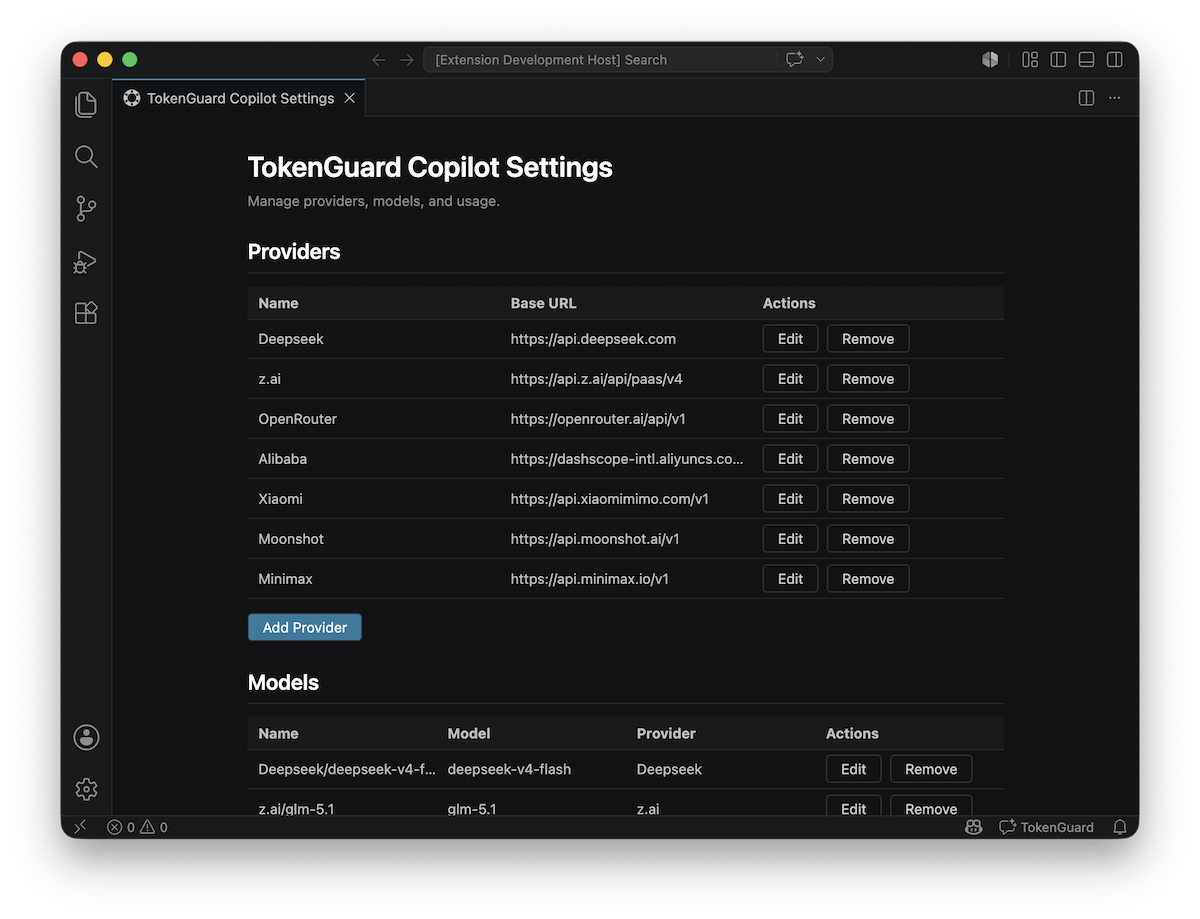
Description
TokenGuard Copilot is a VS Code extension for developers who want to use
third-party OpenAI-compatible language models inside VS Code Copilot Chat.
While VS Code Copilot supports BYOK (Bring Your Own Key), it is still not
ideal — different models require different tricks to work correctly. DeepSeek's
reasoning_content field needs to be preserved in the response stream.
Minimax requires tool call normalisation. Qwen models hosted by Alibaba and
Anthropic models accessed via OpenRouter need cache_control markers injected
into the message payload. TokenGuard Copilot takes care of all of this under
the hood — you just add a provider and start chatting.
[!NOTE]
Why TokenGuard Copilot?
We at AdGuard have an internal LLM gateway called
TokenGuard — a centralized proxy that provides access to various language
models with unified billing, usage tracking, and access control.
TokenGuard is not yet open source, but it likely will be in the future.
This extension started as TokenGuard's "sidekick" so that AdGuard teams could
use their gateway inside VS Code Copilot Chat.
Hence, the name. However, the extension is fully compatible with any
OpenAI-compatible provider — OpenRouter, DeepSeek, local Ollama, or any
other endpoint that implements the chat completions API. No TokenGuard
required.
Table of Contents
Installation
Install from VS Code Marketplace
Search for TokenGuard Copilot in the Extensions view
(Cmd+Shift+X) or open this link in your browser.
Install from Open VSX Registry
If you use a VS Code fork (VSCodium, Cursor, Windsurf, etc.) that does not
have access to the VS Code Marketplace, install from Open VSX.
Install from VSIX
- Download the latest
.vsix file from the GitHub releases page.
- In VS Code, open the Command Palette (
Cmd+Shift+P) and run Extensions:
Install from VSIX….
- Select the downloaded file.
Quick Start
- Install the extension.
- Open the Command Palette (
Cmd+Shift+P) and run TokenGuard Copilot: Open
Settings.
- Add a provider — enter a name, base URL (e.g.
https://openrouter.ai/api/v1), and API key.
- Add a model — the extension fetches available models from the provider’s
/models endpoint. Select a model and review its configuration (defaults
auto-populate for known models).
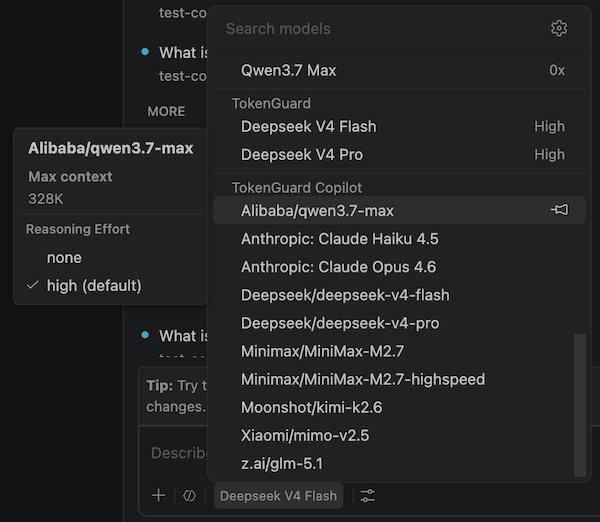
- Open Copilot Chat. The registered models appear in the model picker.
Select one and start chatting.
Features
Status Bar
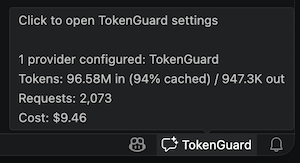
A status bar item (TokenGuard) appears on the right side.
Click it to open the settings panel.
The tooltip shows a summary of configured providers, total tokens in/out, cache
hit percentage, request count, and estimated cost.
Provider Management
Add, edit, and remove OpenAI-compatible API providers.
Each provider is defined by a name, base URL, and API key.
API keys are stored in VS Code SecretStorage, never in the database.
The extension verifies connectivity when adding or editing a provider.
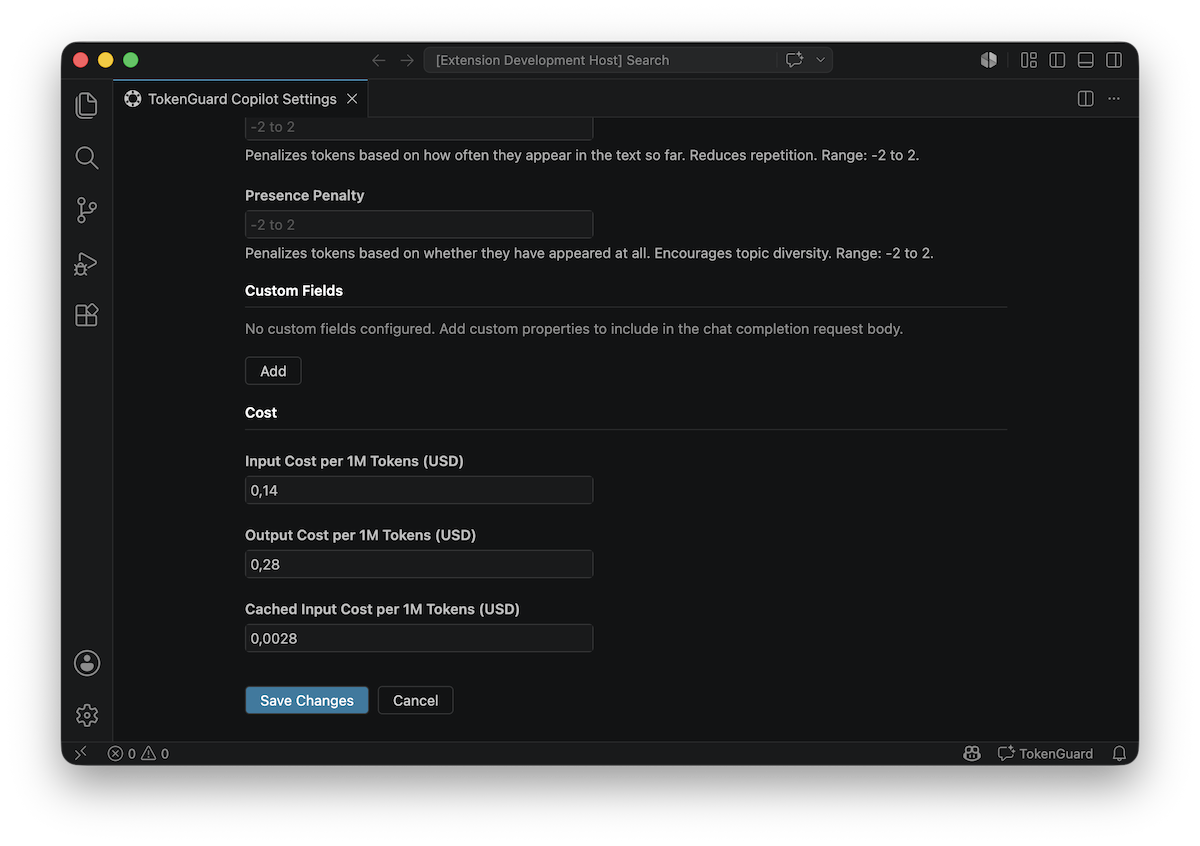
Model Configuration
Each provider has one or more models.
When adding a model, the extension fetches available models from the provider’s
/models endpoint.
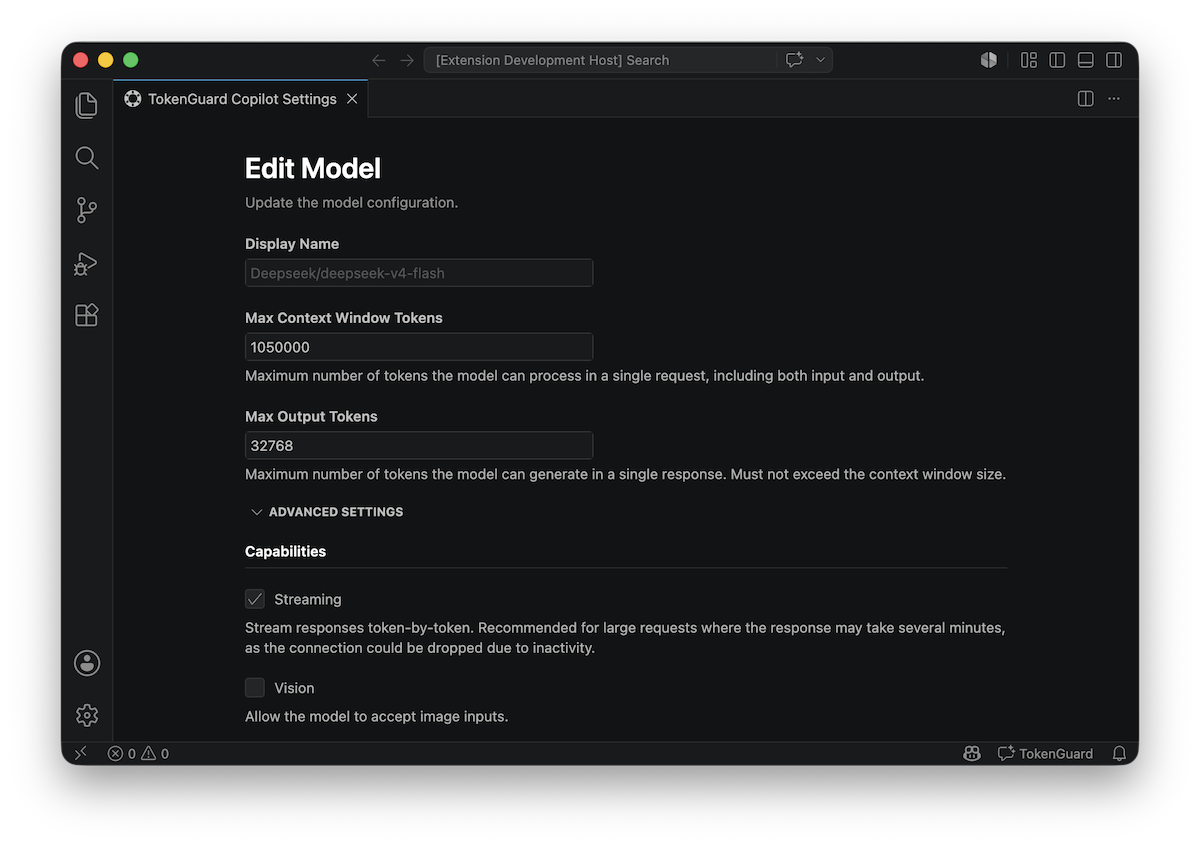
Per-model settings include:
| Setting |
Description |
| Display name |
Custom name in the model picker |
| Max context window |
Context window size in tokens |
| Max output tokens |
Maximum output token count |
| Streaming |
Enable or disable streaming |
| Vision |
Enable image/vision support |
| Temperature |
Sampling temperature |
| Top P |
Nucleus sampling parameter |
| Frequency / presence penalty |
Repetition control |
| Input / output / cached cost |
Per-1M token cost rates |
| Custom fields |
Arbitrary key-value pairs injected into requests |
Bundled Model Defaults
The extension ships a snapshot of the models.dev
database with default parameters for known models.
When you select a recognized model ID, the configuration form
auto-populates with correct values for context window size, token
costs, and capabilities. The snapshot can be refreshed manually
with pnpm run fetch:models-dev.
Reasoning Model Support
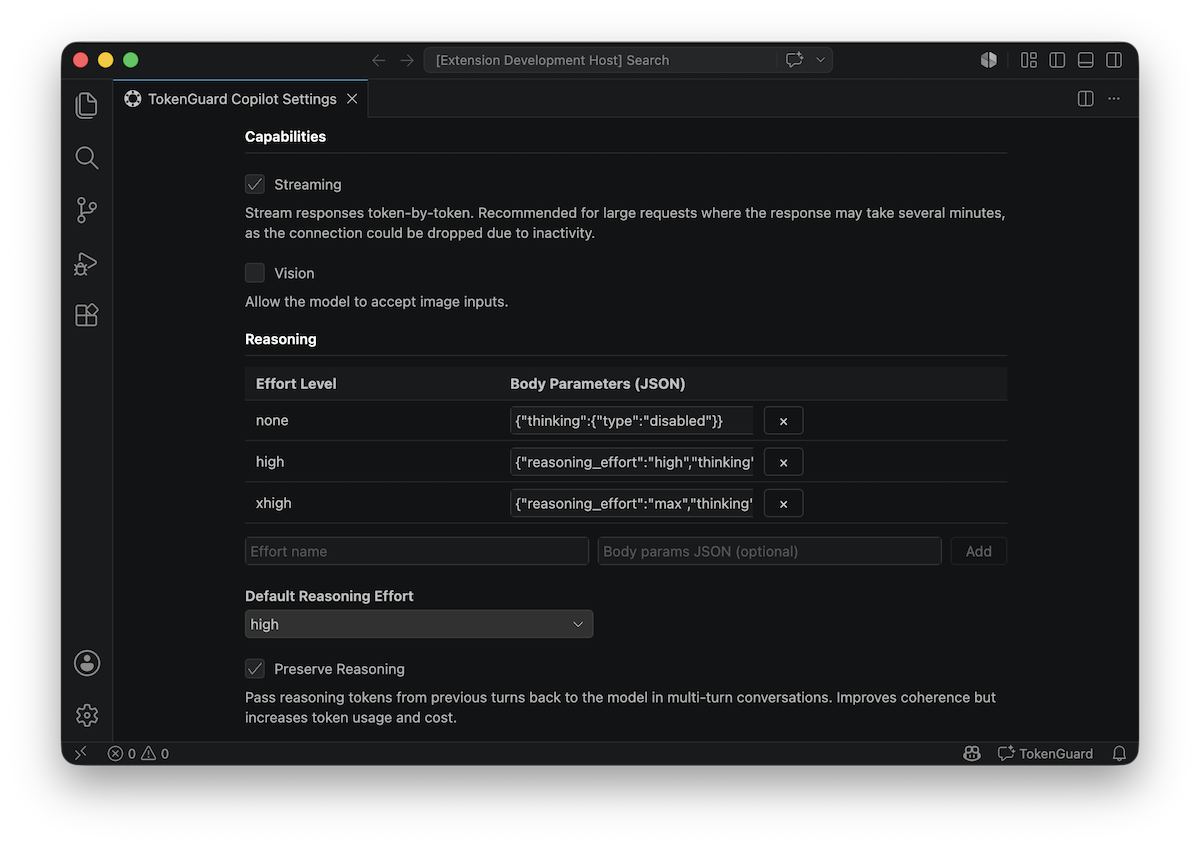
The extension supports reasoning/thinking models across providers (OpenRouter,
DeepSeek, Qwen, and others).
- Reasoning effort — configure per-model via a reasoning effort map, a JSON
mapping from effort level names (
low, medium, high) to provider-specific
API parameters.
- Reasoning preservation — when enabled, the extension caches reasoning
tokens from each assistant response and re-injects them into prior messages on
subsequent turns. This preserves the model’s chain of thought across a
multi-turn conversation.
Prompt Caching
For providers that support prompt caching (e.g. Alibaba), the extension
can inject cache_control markers into messages.
Configure per model:
- Enabled — toggle caching on or off.
- Max markers — maximum number of cache breakpoints.
- TTL — cache time-to-live (
5m or 1h).
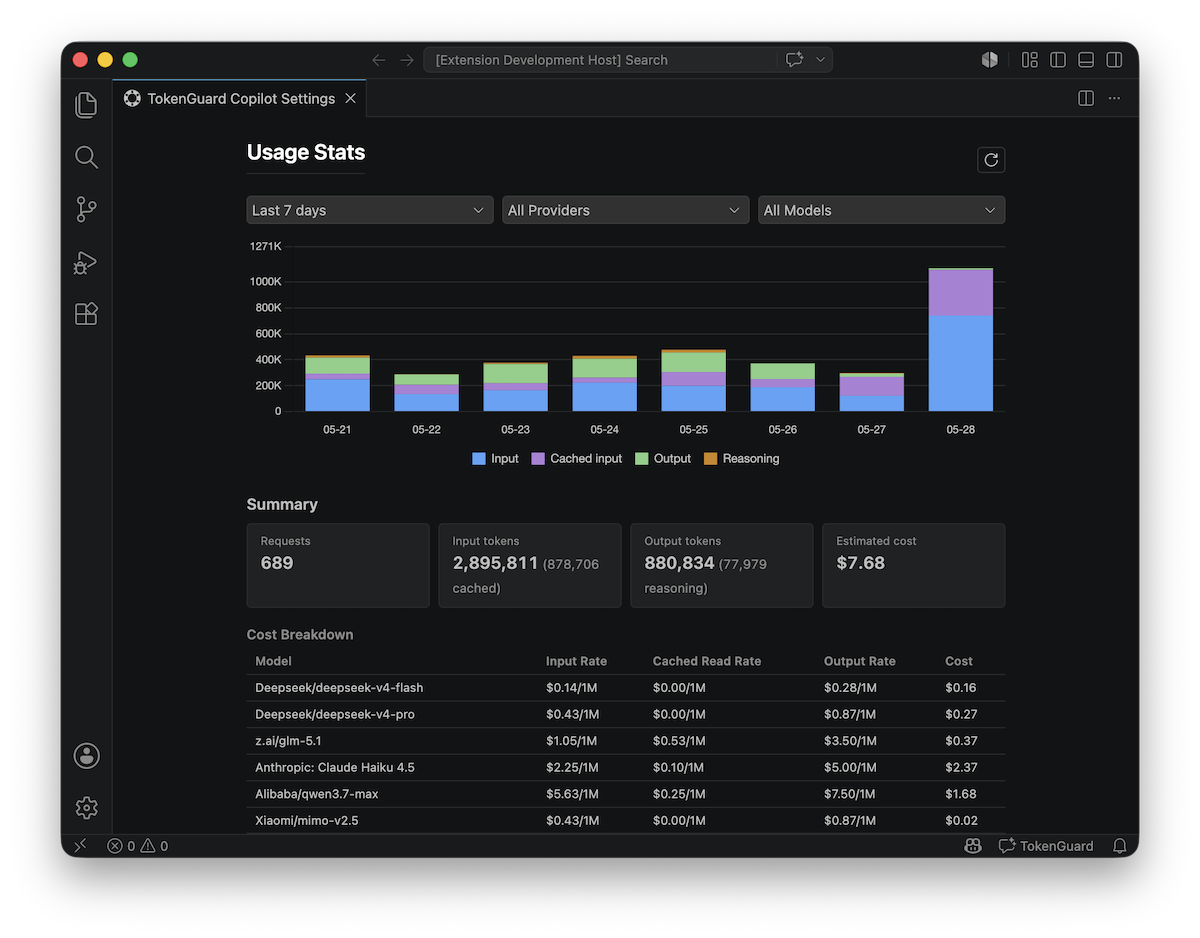
Token Counting and Usage Tracking
The extension tracks usage in two ways:
- Local token estimation — uses the
o200k_base tiktoken tokenizer (same
as GPT-4o) with an LRU cache to provide fast token counts for the VS Code
Chat UI (provideTokenCount).
- Actual usage tracking — records prompt, completion, cached, and reasoning
token counts from the provider's
usage response field. This is the
authoritative source for cost calculation and persisted statistics.
Usage is aggregated daily per model:
- Prompt tokens, completion tokens, cached tokens, reasoning tokens
- Request count and error count
- Estimated cost based on configured per-1M token rates
View usage stats in the settings panel, filtered by period, provider, or model.
Reset all collected usage statistics at any time.
Debug Logging
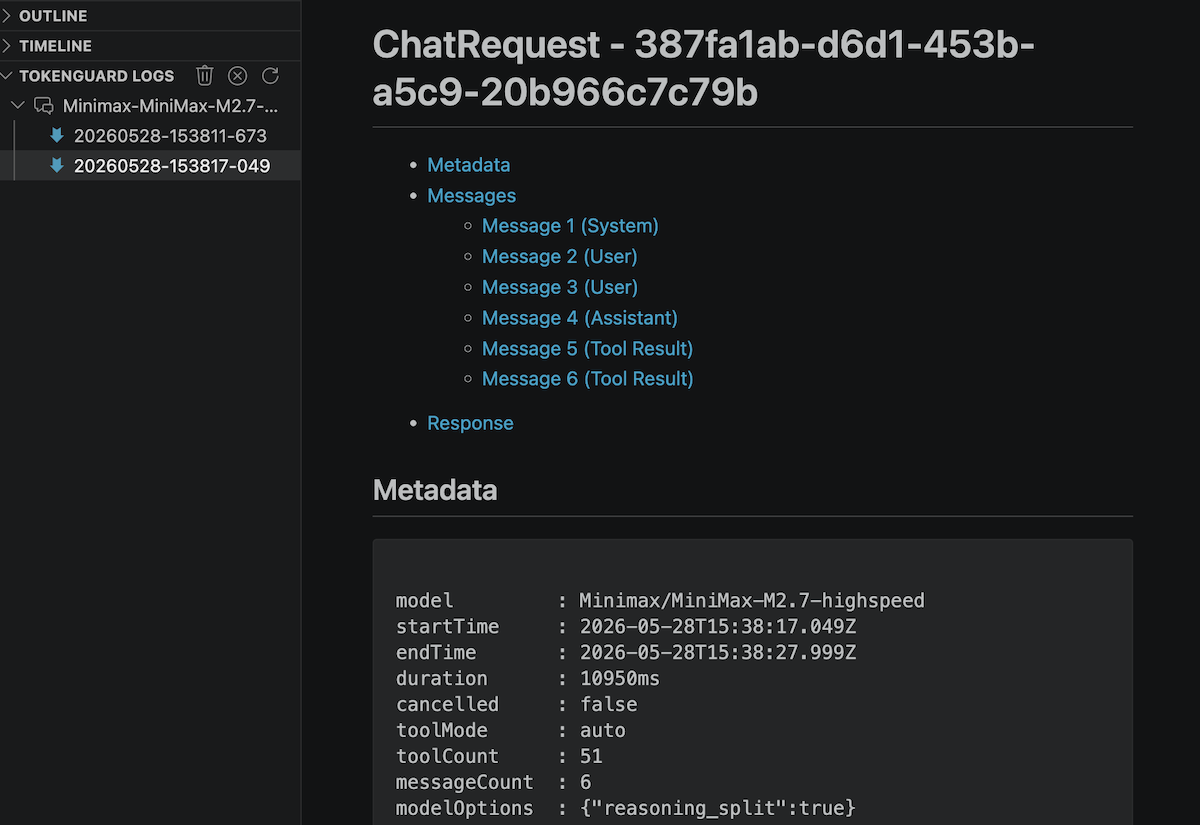
Enable debug logging to capture structured Markdown files for each
request-response pair.
Logs include the full message history, model options, tool definitions, response
content, reasoning, tool calls, token usage, and timing.
When debugging is enabled, a TokenGuard Logs tree view appears in the
Explorer sidebar. Sessions are sorted by recency with expandable log files that
open as Markdown.
Configure the log TTL (default 24 hours) — old logs are automatically cleaned
up.
Content Rules
Content Rules are ordered regex-based transformations applied to system and user
messages before the first assistant response. This lets you strip unwanted
prompt sections, inject prefixes, normalize roles, or reshape messages to fit
specific model requirements — all without modifying Copilot Chat itself.
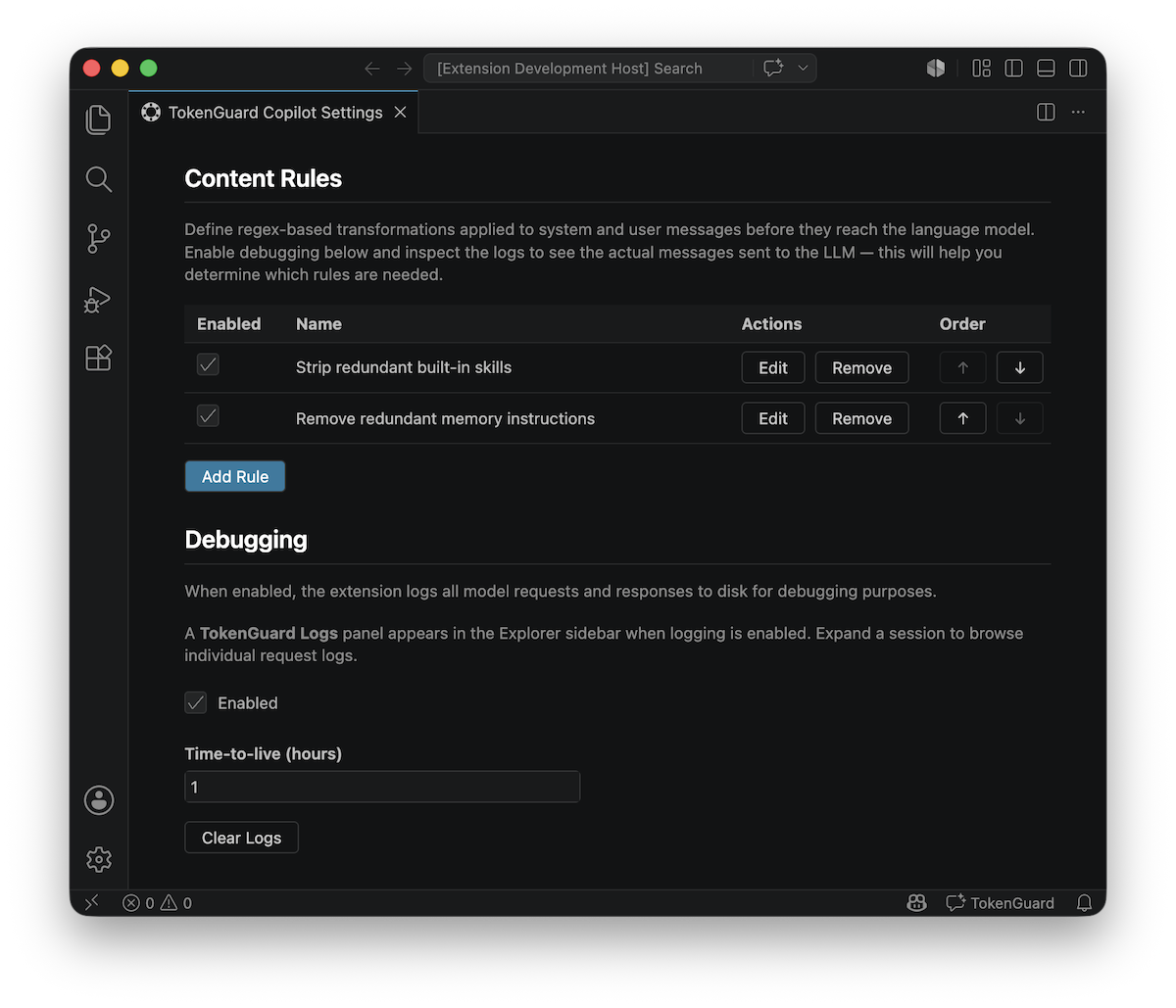
Each rule has a regex pattern and substitution string (with $1, $2
capture group support), plus optional matching criteria to control which
messages it targets:
- Role — only
system messages, only user messages, or both (all).
- Message number — the exact 0-based position in the message list
(e.g.,
0 for the system prompt).
- Model pattern — glob/wildcard pattern (e.g.,
gpt-4*) to target
specific models.
- Content pattern — regex that must match the message content for the
rule to fire.
- Tools present / tools absent — comma-separated tool names in the
form (matched as a set). All listed tools must be present (or absent) for
the rule to match.
Rules run sequentially in the order you define — each rule's output becomes
the next rule's input. Only messages before the first assistant response are
transformed; later messages in multi-turn conversations are untouched.
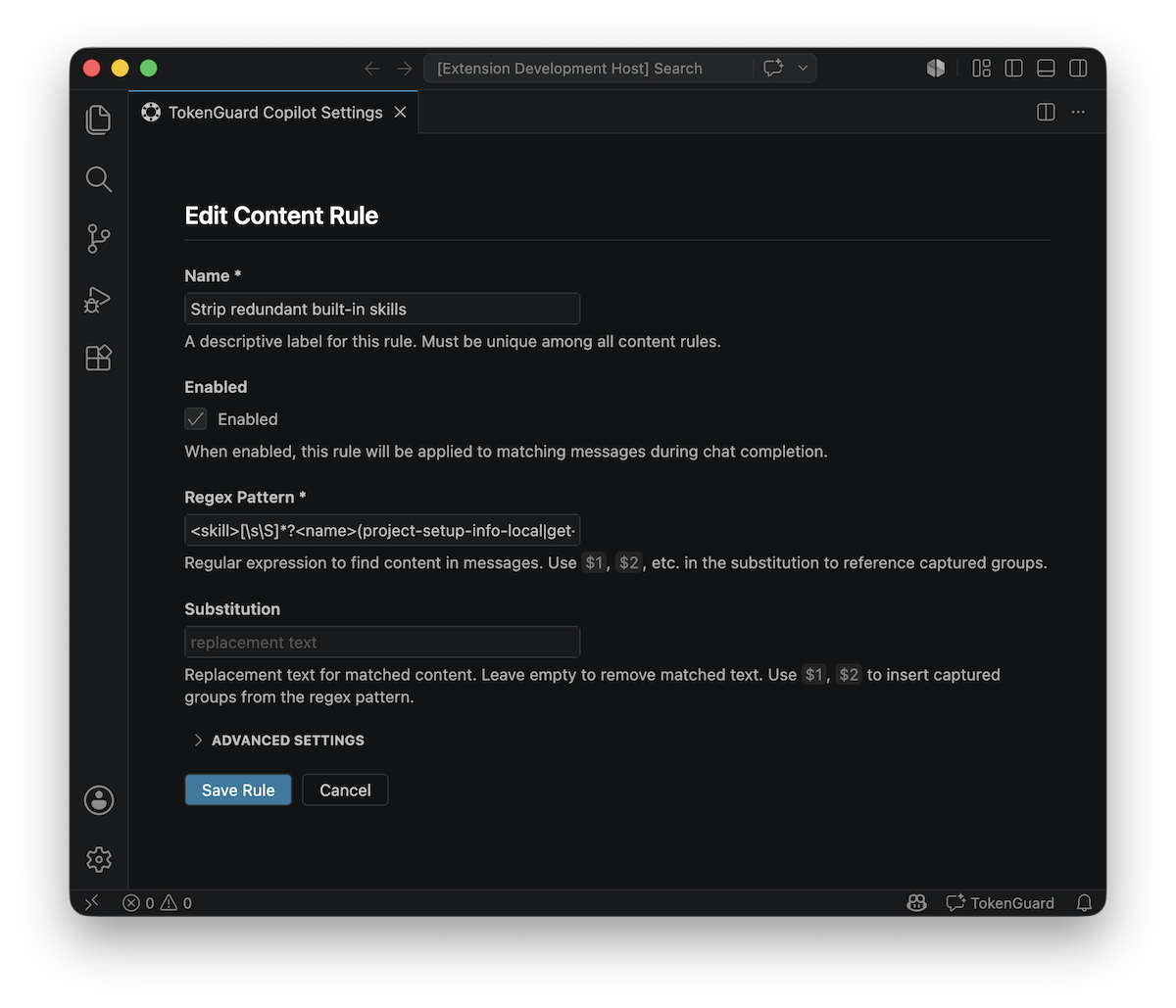
Example: Strip redundant built-in skills from the system prompt
Name:           Strip redundant built-in skills
Match role:     system
Regex pattern:  <skill>[\s]*?<name>(project-setup-info-local|get-search-view-results|agent-customization)<\/name>[\s\S]*?<\/skill>
Substitution:   (empty)
This removes only specific <skill> blocks from the system prompt by
matching their <name> elements, leaving other skills and surrounding
instructions intact.
Name:                Remove unused memory instructions
Match role:          system
Match tools absent:  memory
Regex pattern:       <memoryInstructions>[\s\S]*?<\/memoryInstructions>
Substitution:        (empty)
This strips <memoryInstructions>...</memoryInstructions> from the system
prompt, but only when the memory tool is not available — leaving memory
instructions in place when the model could use them.
See Content Rules Reference for the full field
reference, additional examples, and debugging tips.
Commands
Press Cmd+Shift+P on macOS or Ctrl+Shift+P on Windows to bring up the
Commands palette.
| Command ID |
Title |
tokenguard-copilot.openSettings |
Open Settings |
tokenguard-copilot.enableDebuggingLogging |
Enable Debugging Logging |
tokenguard-copilot.disableDebuggingLogging |
Disable Debugging Logging |
tokenguard-copilot.refreshDebuggingLogs |
Refresh Debugging Logs |
tokenguard-copilot.clearDebuggingLogs |
Clear Debugging Logs |
All commands are available in the Command Palette under the TokenGuard
Copilot category.
FAQ / Troubleshooting
The extension is installed but no models appear
Open TokenGuard Copilot: Open Settings and add at least one provider and one
model. Models only appear in the Copilot Chat model picker after they are
configured.
API key errors
API keys are stored in VS Code SecretStorage.
If you encounter authentication errors, edit the provider in settings and
re-enter the API key.
Token counts seem inaccurate
The extension uses the o200k_base tokenizer.
Token counts may differ slightly from provider-specific tokenizers, especially
for non-English text or specialized vocabularies.
Debug logs are not appearing
Run TokenGuard Copilot: Enable Debugging Logging from the Command Palette.
The TokenGuard Logs tree view appears in the Explorer sidebar after logging is
enabled and at least one chat request has been made.
Acknowledgments
Special thanks to these open-source projects that made this extension
possible:
This project would have been much harder to build without both of them.
License
MIT
Documentation

