Overview Version History Q & A Rating & Review
FTPManager
FTPManager is a VS Code / Cursor extension that brings FTP, FTPS, and SFTP file management directly into your editor. Connect to remote servers, browse directories, edit files, and transfer data — all without leaving your IDE.
Supported Protocols
Protocol
Port
Driver
Notes
FTP
21
basic-ftpStandard FTP
FTPS
21
basic-ftpFTP over TLS (implicit/explicit)
SFTP
22
ssh2-sftp-clientSSH File Transfer Protocol
Features
Connection Management
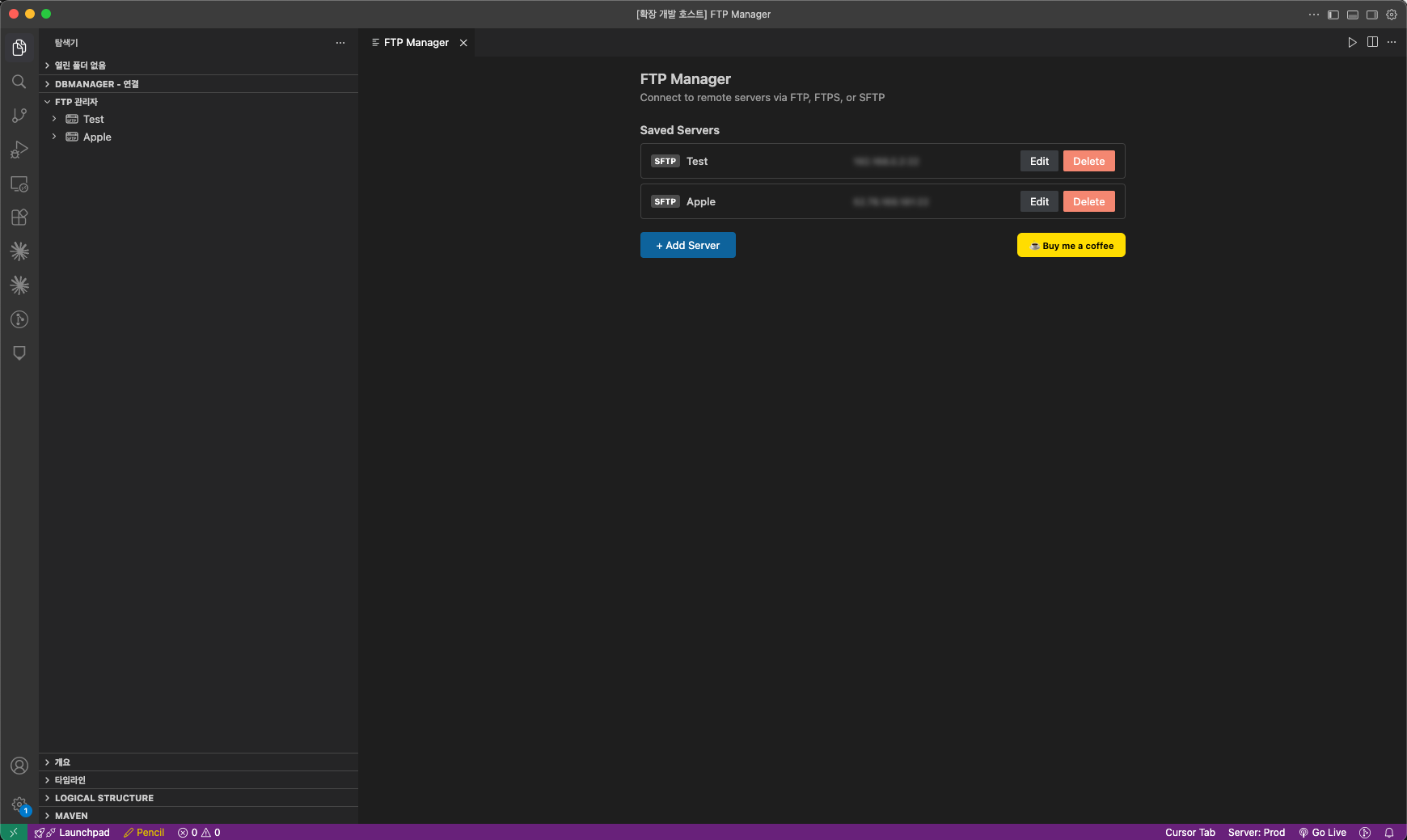
Save and manage multiple server connections
Add / Edit / Delete servers via the sidebar panelTest connection before saving to verify settingsPasswords stored securely in the OS keychain via VS Code SecretStorage
SSH key authentication — private key file + passphrase for SFTPConnection timeout — 15-second timeout with cancellation supportAutomatic fallback to root / when configured remote path is unavailable
Remote File Browser
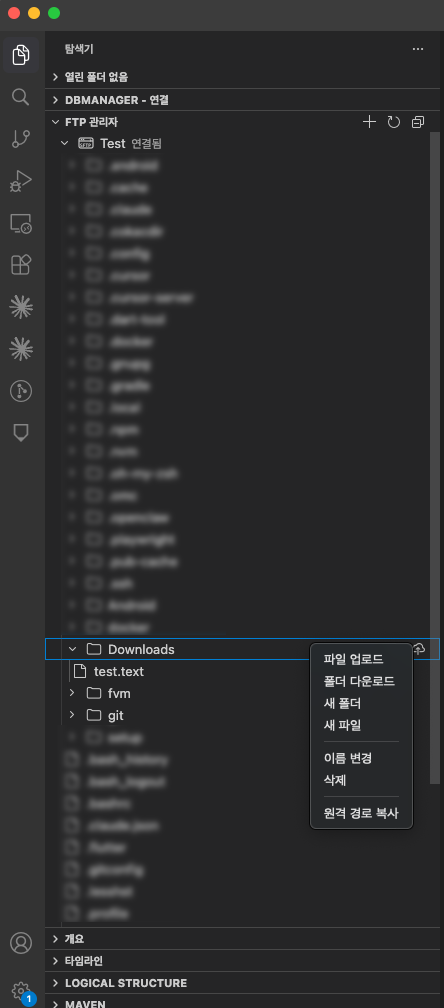
Browse your remote server from the Explorer sidebar with a lazy-loading tree view.
FTP Manager
  └─ Server (FTP / FTPS / SFTP)
       ├─ Folder
       │    ├─ Subfolder
       │    └─ file.txt
       └─ document.pdf
Separate icons for FTP and SFTP server types (light/dark theme aware)
Drag-and-drop server reordering
Context menus for every node level
Refresh individual directories or entire server trees
Remote File Editing
Click any remote file to open it directly in the VS Code editor
Auto-upload on save — edits are pushed back to the server when you press Cmd+S / Ctrl+SPowered by a custom ftpmanager:// FileSystemProvider
File Transfer
Upload single files to a remote directoryUpload from Explorer — right-click any local file and send it to a connected serverDownload individual files to a local folderDownload entire folders recursively
Remote File Operations
New Folder — create directories on the remote serverRename — rename remote files and foldersDuplicate — copy a file or folder in-place (report.txt → report_copy.txt); auto-increments on conflictDelete — remove remote files and folders with confirmationCopy Path — copy the full remote path to clipboard
Getting Started
Install FTPManager from the VS Code Marketplace .
Open the Explorer sidebar — you'll see the FTP Manager panel.
Click the + button to add a new server.
Fill in connection details (host, port, protocol, credentials), click Test Connection , then Save .
Click your saved server to connect and browse remote files.
Click any file to open and edit it — saving automatically uploads changes.
Right-click files or folders for upload, download, rename, delete, and more.
Requirements
Development
# Install dependencies
pnpm install

# Build (shared → webview-ui → extension)
pnpm build

# Watch mode
pnpm dev

# Run tests
pnpm test

# Type check
pnpm typecheck

# Package .vsix
pnpm --filter ftpmanager package
Press F5 in VS Code to launch the Extension Development Host.
Tech Stack
Layer
Technology
Extension host
TypeScript + VS Code Extension API
Webview UI
React 18 + Zustand
FTP/FTPS
basic-ftp
SFTP
ssh2-sftp-client
Build
esbuild (extension) + Vite (webview)
Test
Vitest
Package manager
pnpm workspaces (monorepo)
Support
If you find FTPManager useful, consider buying me a coffee!
License
MIT