DB Manager




DB Manager is a VS Code / Cursor extension that brings full-featured database management directly into your editor. Connect to MySQL, MariaDB, PostgreSQL, SQLite, and Redis — browse schemas, write queries, edit data, and export results without leaving your IDE.
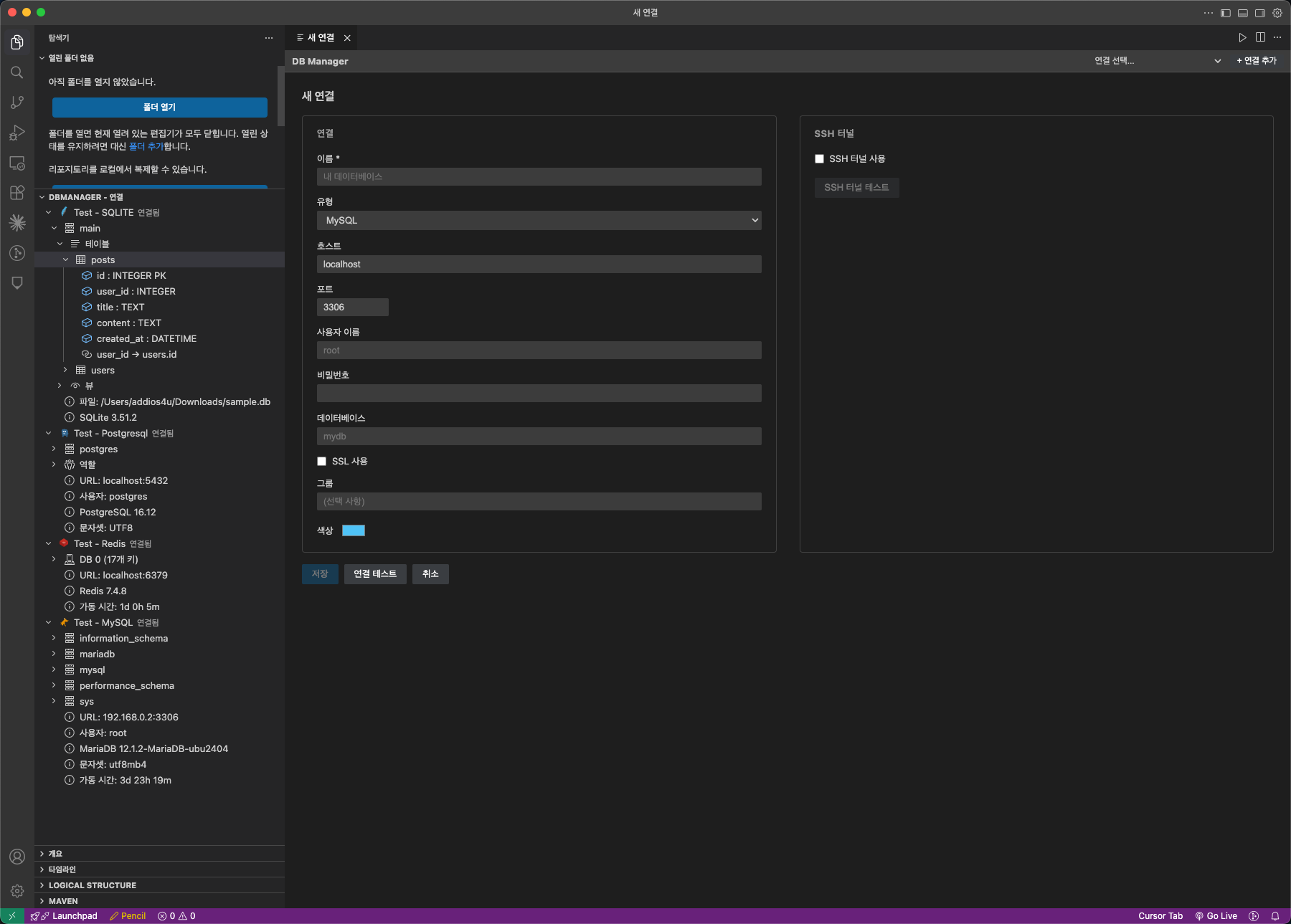
Supported Databases
| Database |
Driver |
Version |
| MySQL |
mysql2 |
5.7+ |
| MariaDB |
mysql2 |
10.3+ |
| PostgreSQL |
pg |
12+ |
| SQLite |
better-sqlite3 |
3.x |
| Redis |
ioredis |
6+ |
Features
Connection Management
- Save and manage multiple database connections
- Organize connections into custom groups (folders)
- Color-coded connections for visual identification
- SSH tunnel support with password or private key authentication (passphrase supported)
- SSL/TLS support for secure remote connections
- Passwords stored securely in the OS keychain via VS Code SecretStorage
- Test connection and SSH tunnel before saving
- Create / Drop database directly from the sidebar context menu
Schema Browser
Explore your database structure from the Explorer sidebar with a lazy-loading tree view.
Connection Groups (custom folders)
  └─ Connection (MySQL / MariaDB / PG / SQLite / Redis)
       └─ Database
            └─ Schema (PostgreSQL only)
                 ├─ Tables
                 │    └─ Table
                 │         ├─ Columns (type, nullable, default, PK, auto-increment)
                 │         ├─ Indexes (unique, primary, composite)
                 │         └─ Foreign Keys (with cascade rules)
                 ├─ Views
                 └─ Routines / Triggers (PostgreSQL)
- Click a connection to auto-connect and expand its children
- Right-click context menus for every node level
- View DDL for tables and views
- Drop tables with confirmation
- Server information display (version, charset, uptime, platform)
SQL Query Editor
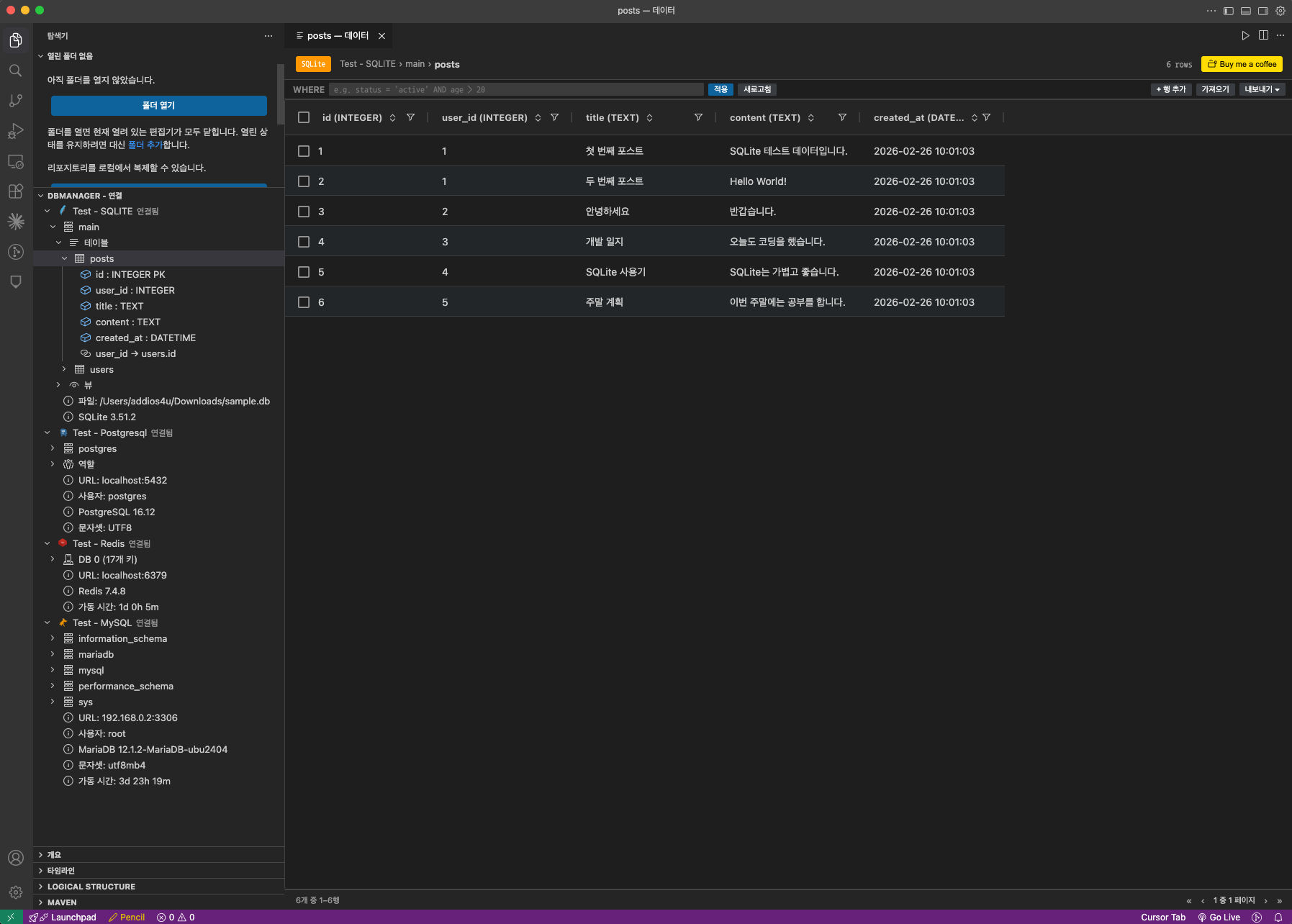
- Monaco Editor with SQL syntax highlighting
- Execute full query or selected text only (
Cmd+Enter / Ctrl+Enter)
- Query cancellation — stop long-running queries mid-execution
- Database/schema context selector — switch target database without reconnecting
- Query history — browse and re-run up to 1,000 recent queries
- SQL file integration — open
.sql files directly in the DB Manager query editor with connection context metadata
- Execution stats — elapsed time, affected rows, error details
- ✨ AI Query Generator — generate and refine SQL queries using natural language (see below)
AI Query Generator
Generate SQL from natural language or refine existing queries — powered by OpenAI or Google Gemini, with full awareness of your database schema.
Setup
- Click the ✨ AI button in the query editor toolbar.
- Click the ⚙ (gear) icon to open AI Settings.
- Select a provider (OpenAI or Google) and enter your API key.
- API keys are stored securely in the OS keychain via VS Code SecretStorage.
- The status dot next to ⚙ turns green when a key is configured.
Generate mode
Write a query from scratch using natural language.
- Open the AI panel with ✨ AI.
- Select the Generate tab.
- Type your request in natural language.
- Choose where to insert the result:
- Append to editor (default) — adds the generated SQL below the existing content
- Replace editor — replaces the editor content (connection info comments at the top are preserved)
- Click ✨ Generate (or
Cmd+Enter / Ctrl+Enter inside the prompt box).
Example: "Get all users who placed no orders in the last 7 days, ordered by email"
Refine mode
Fix or improve an existing query based on your schema.
- Select text in the Monaco editor — the AI panel switches to Refine mode automatically.
- Optionally add an instruction (e.g. "Use proper aliases", "Add pagination", "Fix column names").
- Click ✨ Refine.
- The selected text is replaced in-place with the refined SQL.
How schema context works
When you generate or refine a query, DB Manager automatically:
- Fetches the full table and column list for the current connection/database/schema.
- Serializes it as DDL-style text (table names, column types, nullability, primary keys, etc.).
- Sends it as context to the AI — the model can therefore generate correct column names, join conditions, and dialect-specific syntax without any manual schema description.
Schema context is cached for 5 minutes and invalidated automatically on disconnect.
Table Data Viewer & Editor
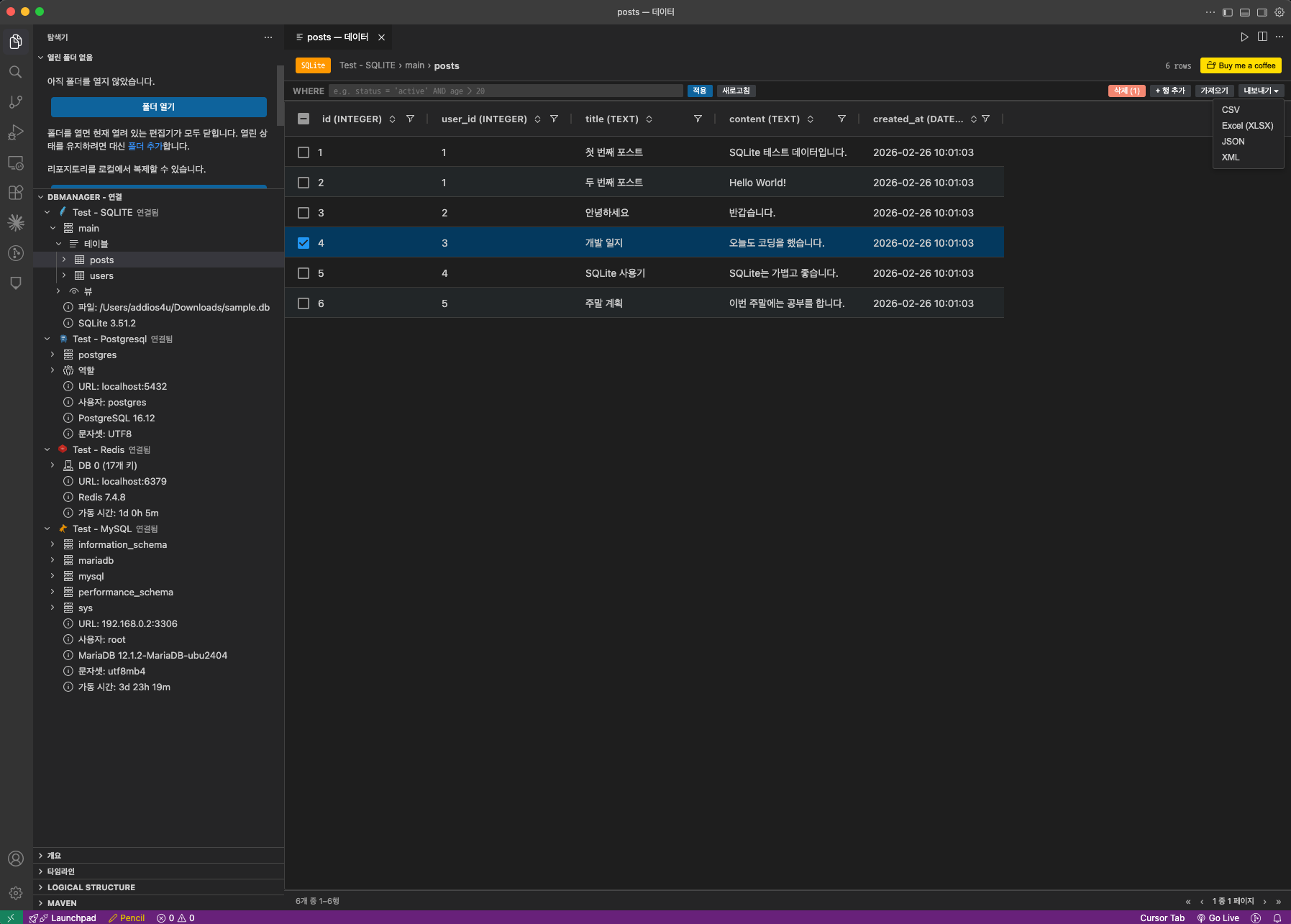
Powered by AG Grid for high-performance data browsing:
- Sort & filter columns by clicking headers
- Resize columns by dragging borders
- Pagination with First / Previous / Next / Last navigation (100 rows per page)
- WHERE clause filtering — apply custom filters without leaving the grid
- Inline editing — double-click cells to INSERT, UPDATE, or DELETE rows (requires primary key)
- Batch changes — stage multiple edits and apply them all at once
- Row insertion — add new rows via pinned top row
- Bulk delete — select multiple rows with checkboxes and delete at once
- Undo pending changes before saving
Data Export & Import
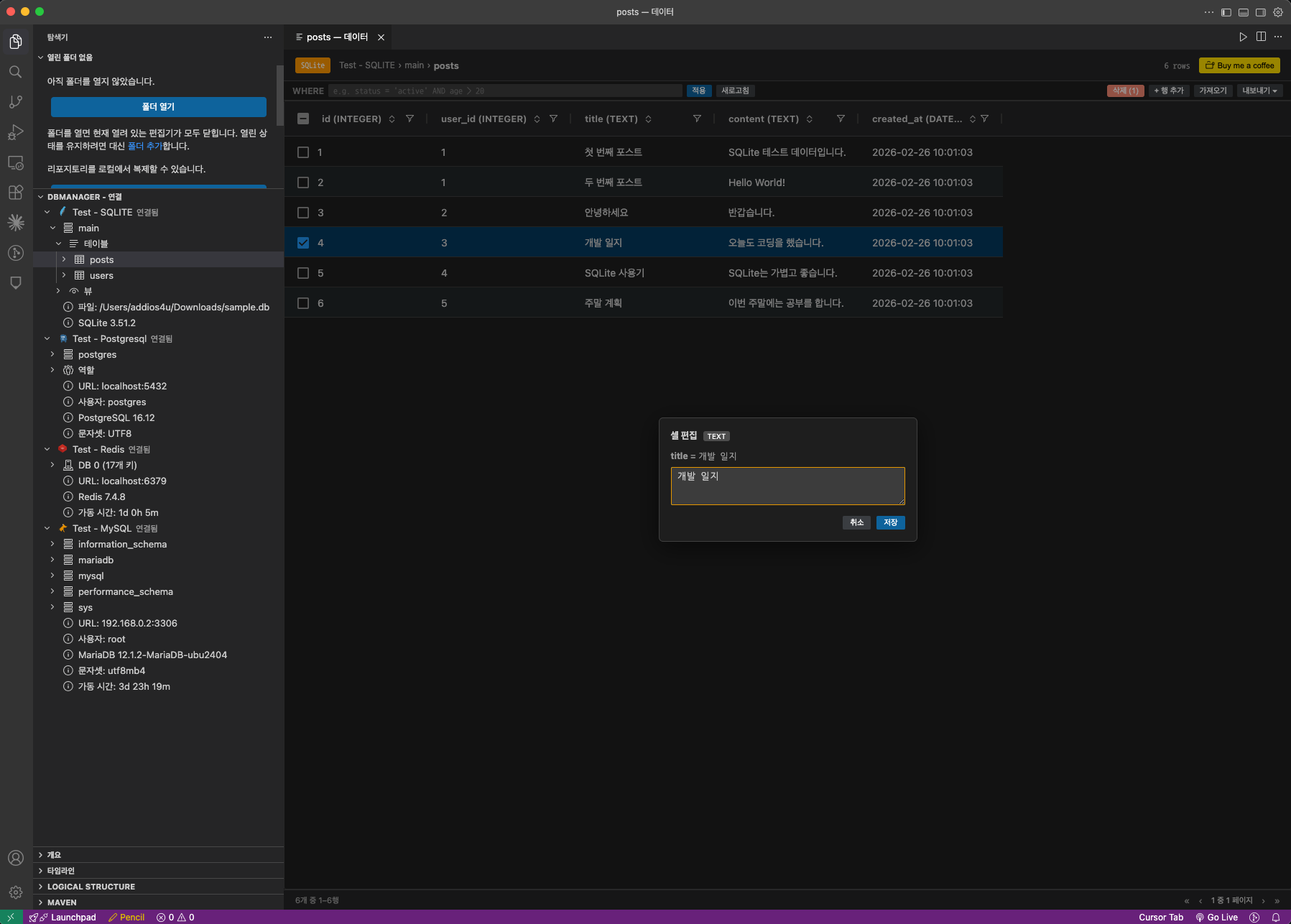
Export query results or entire tables in multiple formats:
| Format |
Options |
| CSV |
Configurable delimiter (comma, semicolon, tab, pipe) |
| JSON |
Optional pretty-print |
| SQL |
Optional DROP TABLE statement |
| XML |
Proper escaping |
| Excel |
.xlsx via ExcelJS |
Import data from files into tables:
| Format |
Support |
| CSV |
Header row detection |
| JSON |
Array of objects |
| XML |
Row-based structure |
| Excel |
.xlsx parsing |
- Auto-suggested filenames with timestamps
- Progress tracking for large exports/imports
- Row count confirmation before import
SQL File Integration
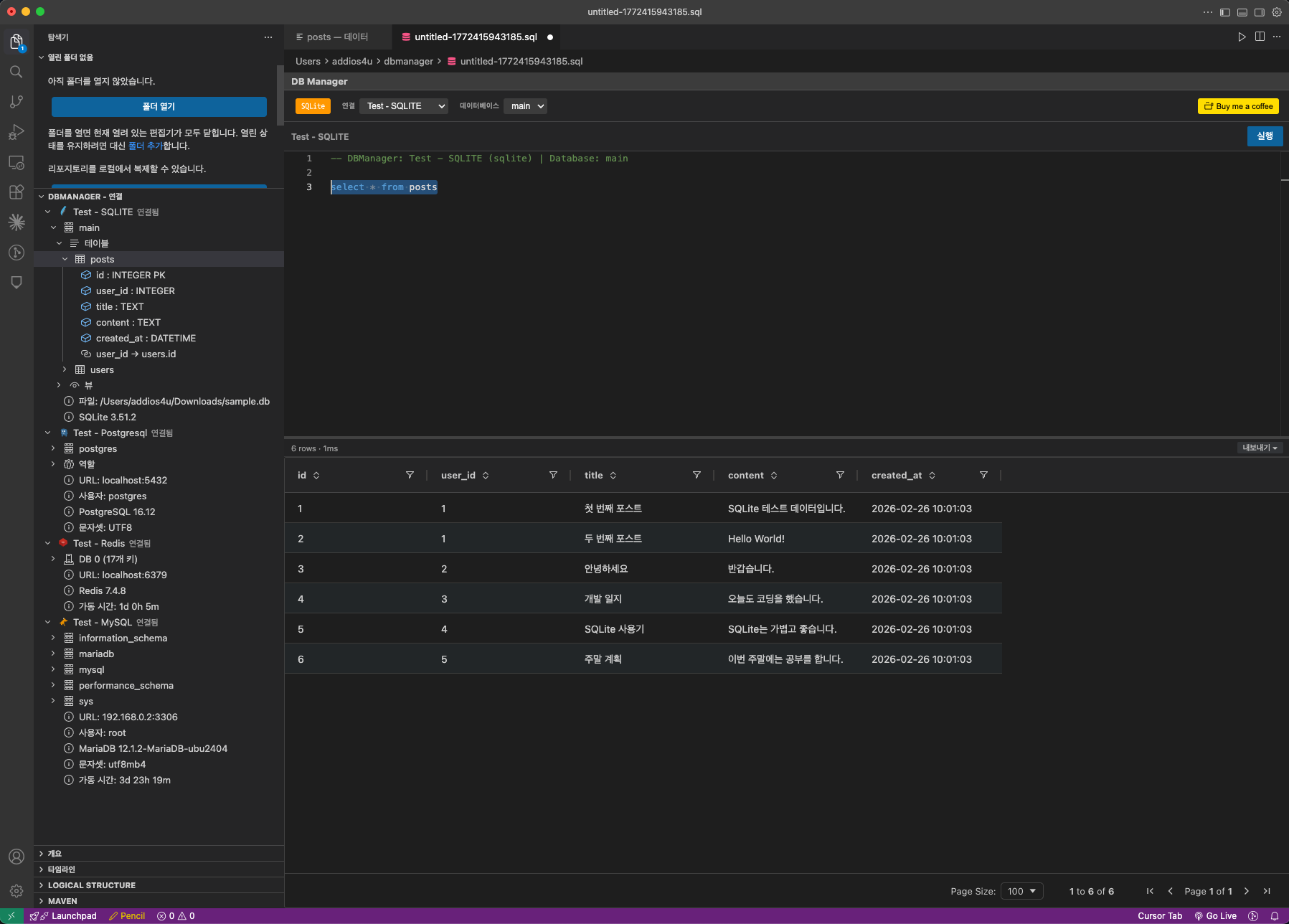
- Open
.sql files directly in the DB Manager custom editor
- Auto-generated metadata header with connection name, type, database, and schema
- Execute queries with
Cmd+Enter / Ctrl+Enter and view results inline
- Save queries to
.sql files with Cmd+S / Ctrl+S
Backup & Restore
Back up and restore databases directly from the sidebar context menu.
| Database |
Backup Method |
Restore Method |
| MySQL / MariaDB |
mysqldump (with fallback to SQL export) |
mysql CLI (with SQL fallback) |
| PostgreSQL |
pg_dump (with fallback to SQL export) |
psql CLI (with SQL fallback) |
| SQLite |
File copy (including WAL/SHM) |
File replacement |
- Auto-detection of CLI tools with manual override
- Progress tracking with cancellation support
- Timestamped backup filenames
- Works through SSH tunnels
Redis Browser
- Select database (0–15) with key count per database
- SCAN-based key browsing (safe for large databases — never uses
KEYS *)
- Tree view representation of keys with configurable delimiter
- View, edit, and delete key values
- TTL management (view and set expiration)
- Add new keys with type selection (string, list, set, hash)
Internationalization
DB Manager supports multiple languages via VS Code's built-in localization:
| Language |
Status |
| English |
Default |
| Korean (ko) |
Supported |
| Japanese (ja) |
Supported |
| Chinese Simplified (zh-cn) |
Supported |
Getting Started
- Install DB Manager from the VS Code Marketplace or Open VSX Registry.
- Open the Explorer sidebar — you'll see the DBManager - Connections panel.
- Click the + button to add a new connection.
- Fill in connection details, click Test Connection, then Save.
- Click your saved connection to connect and browse schemas.
- Right-click a table to View Data, Edit Data, Show DDL, or Export.
- Right-click a database to open a New Query editor, Backup, or Restore.
Keyboard Shortcuts
| Shortcut |
Action |
Cmd+Enter / Ctrl+Enter |
Execute query (or selected text) |
Cmd+S / Ctrl+S |
Save query to .sql file |
Cmd+Enter / Ctrl+Enter (in AI prompt) |
Generate / Refine query |
Requirements
- VS Code 1.95+ or Cursor
- For backup/restore CLI features:
mysqldump/mysql, pg_dump/psql installed locally (optional — SQL-based fallback is always available)
Development
# Install dependencies
pnpm install

# Build (shared → webview-ui → extension)
pnpm build

# Watch mode
pnpm dev

# Run tests
pnpm test

# Type check
pnpm typecheck

# Lint
pnpm lint
Press F5 in VS Code to launch the Extension Development Host.
Tech Stack
| Layer |
Technology |
| Extension host |
TypeScript + VS Code Extension API |
| Webview UI |
React 18 + Zustand |
| SQL editor |
Monaco Editor |
| Data grid |
AG Grid |
| Build |
esbuild (extension) + Vite (webview) |
| Test |
Vitest |
| Package manager |
pnpm workspaces (monorepo) |
Support
If you find DB Manager useful, consider buying me a coffee!

License
MIT

